
Læs dine arrangementsrapporter
See which buyers come back to your events
Every section of your brand's Customers screen: who has bought tickets from you, how many of your events they have been to, what they have spent, and what each figure counts.
- Til
- Anyone deciding who to sell the next event to
- Tager
- 6 minutter
Din Customers-skærm
Det skal du have, før du går i gang
- You're an owner or an admin on this brand, or you have a Stats login for it. Customers shows in the menu for the whole team, so if the list won't load for you, ask an owner or an admin to open it or to give you access.
- At least one person has bought a ticket to one of this brand's events. This screen builds the list from orders, so a brand that has only given tickets away reads empty.
-
Customers
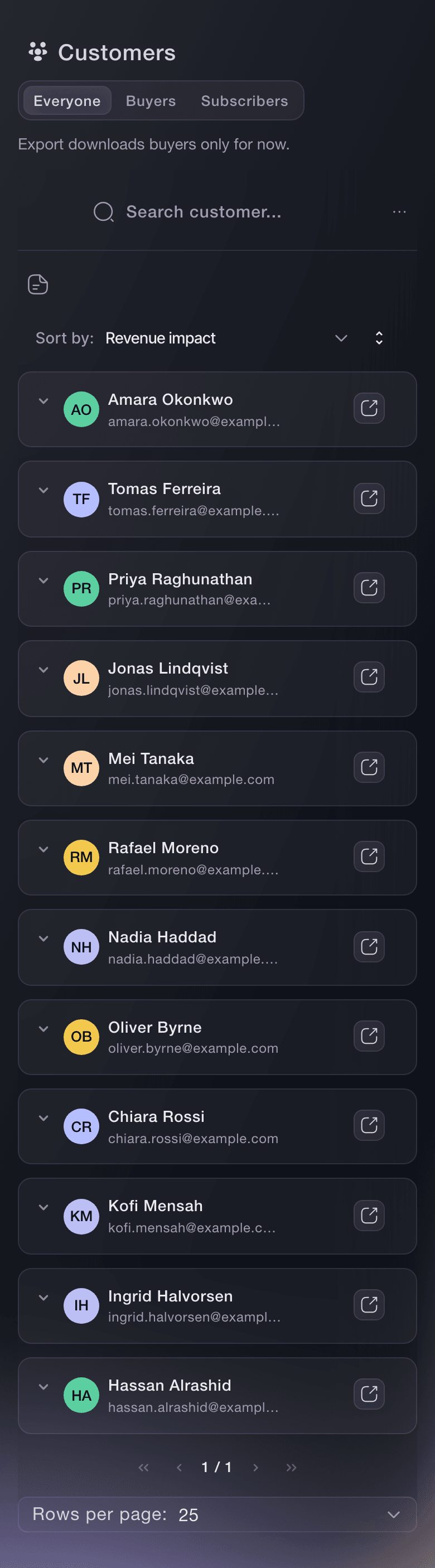
Open your brand and go to Customers. One row per person who has bought a live ticket to one of this brand's events, biggest Revenue Impact first. The line above the table counts them, and the box beside it searches every column.
Read the two halves of a row against each other. Revenue, Visits and Tickets are what they bought; Referred Revenue, Tickets Referred and Clicks Generated are what they brought you. Hundreds of clicks with no tickets referred is somebody sharing to an audience that is not buying.
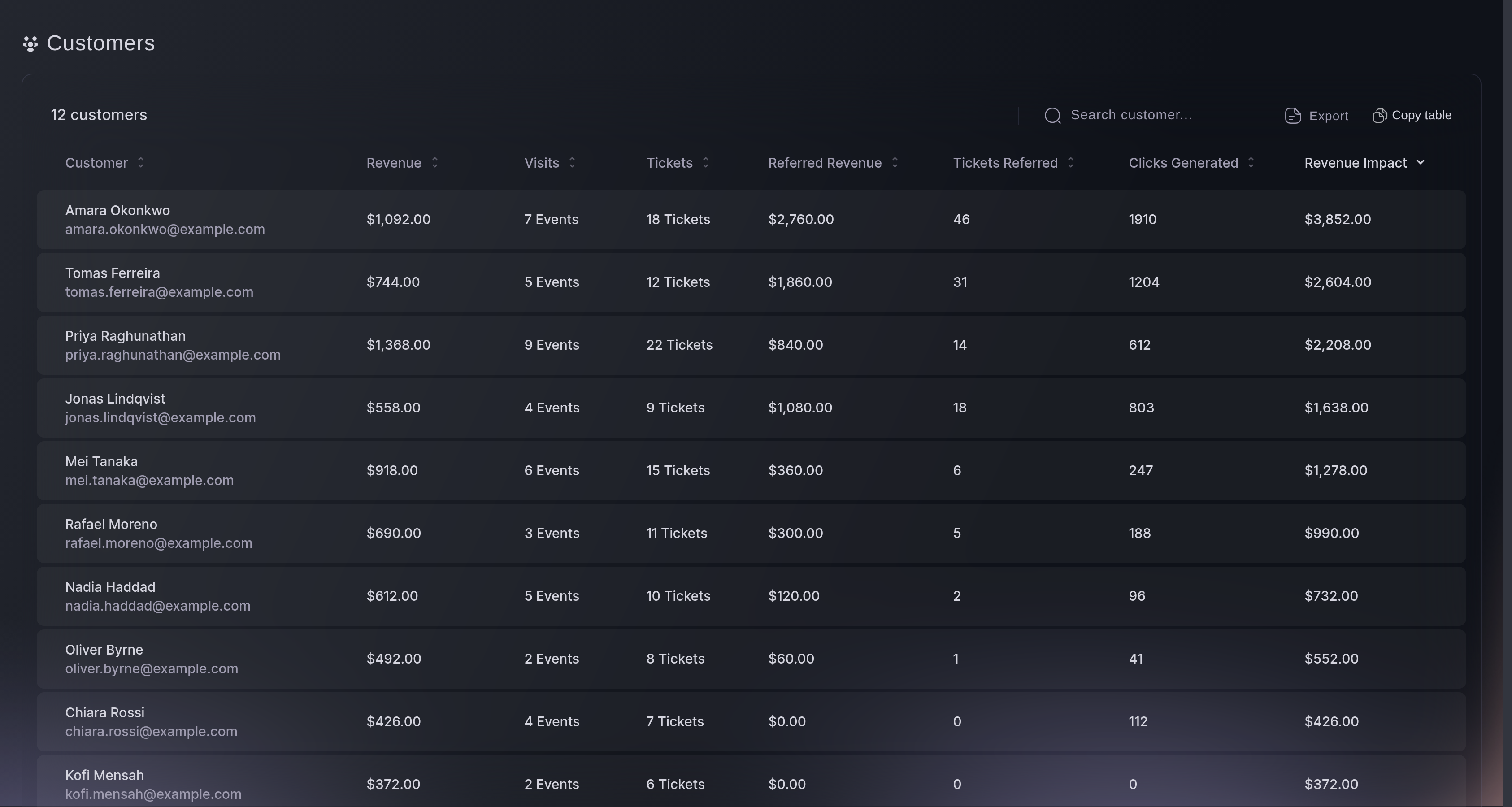
Customers, the list. -
Customer Details
Select any row to open Customer Details. On the left are their contact details, the social links you have added and your note; on the right, Orders lists every order they hold with you. Select an order to see the tickets in it.
The arrows beside the name step through the list in the order you sorted it, so you can work down your biggest spenders without closing the window. Net revenue is the order before fees, not what you charged their card. Your note sits against the person rather than the event, and a new one replaces the last.
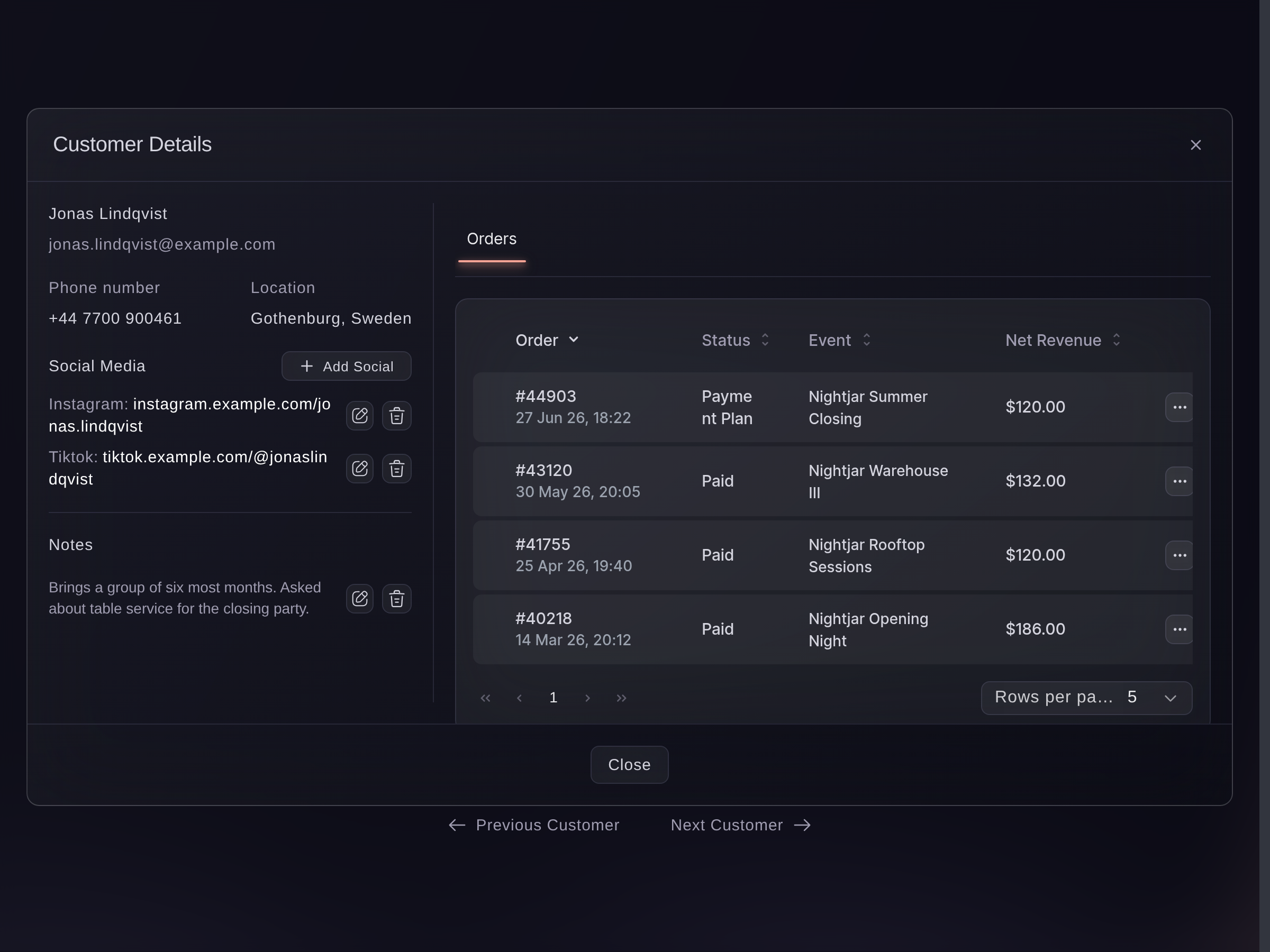
Customers, Customer Details.

Eller få det gjort for dig
Fai, the assistant inside your dashboard, reads this list too, and so does your own AI assistant through our MCP server. Ask either who spends the most and who keeps coming back. Neither writes the note on a customer, so add that on the screen.
I dit dashboard, med Fai
who are my repeat customers, and which of them bring other people with them?
Fra din egen assistent, via MCP
Forbind din assistent til vores MCP-server, og bed den om:
Den skrivebeskyttede opsætning på den side er alt, hvad der skal til. Her ændres ingenting, så lad --read-only stå.
Pick the brand I run events under, then tell me the customers who have bought at the most of my events and what each of them has spent.
Fra din terminal
Installér CLI fra vores CLI-side, log ind med ticketfairy auth login, og vælg det brand, du arbejder på, med ticketfairy brand use <BRAND_ID>. ticketfairy brand list og ticketfairy event list viser de id-er, kommandoerne nedenfor bruger.
You need to be an owner, an admin or a Stats login on the brand, and ticketfairy brand use has to point at it. The CLI reads the whole list and searches it, but does not write the note on a customer, so add that on the screen.
Your customers, fifty at a time
ticketfairy customer list
All of them, however many there are
ticketfairy customer list --all
One person, by name, email or phone
ticketfairy customer search "<NAME OR EMAIL>"
The whole list as a CSV file
ticketfairy customer export --output csv --file customers.csv
Spørgsmål du måske har
- Who counts as a customer here?
- Whoever placed the order, one row each. It is the buyer rather than the person on the ticket, so somebody who bought five and gave four away is one row with five tickets and the friends are not on this list at all. To find an attendee by name, use the event's own ticket list.
- Does an unpaid order show here?
- A held one does. Where the checkout authorised a card but has not charged it yet, the order sits frozen and the person is on this list with their money reserved rather than taken. Check the order itself before treating them as settled.
- Which orders are left out?
- Tickets you gave away on a complimentary order, and any order you deleted. A payment plan counts from its first payment rather than its last.
- Why is my list empty when I have sold tickets?
- This screen builds the list from orders on events under this brand and the brands beneath it. An event that sits under a different brand shows on that brand's list instead, so check which one you have open. Complimentary orders never appear, so a brand that has only given tickets away reads empty.
- What does the Visits column count?
- How many of this brand's events that person has bought a ticket to, written as 6 Events in the cell. It is not attendance: a ticket nobody scanned on the door counts the same as one that was, and a ticket they bought for somebody else counts here rather than against that person.
- What is the difference between Revenue, Referred Revenue and Revenue Impact?
- Revenue is what their own orders came to. Referred Revenue is the ticket money from sales other people made through that person's referral link. Revenue Impact adds the two together, and the list opens sorted by it.
- What does Clicks Generated count?
- Times one of your event pages recorded an arrival through that person's referral link, counted each time rather than once per person, and a page that reports twice counts twice. Read it against Tickets Referred rather than on its own.
- Do refunds come off these figures?
- A refunded order drops out of this screen completely, so the money and the ticket counts fall with it and nothing here names the refund. The one exception is an event you cancelled, where the refunded orders are the ones that count. Take refund figures from that event's own sales reports.
- Why don't these totals match my event reports?
- They count different things. This screen adds up every event under the brand, leaves complimentary orders out, and counts a payment plan from its first payment. So one event's sales report will not add up to what a row here shows.
- Why does somebody show 0.00 next to tickets they bought?
- The money columns show one currency at a time. If your events sell in more than one, a currency selector appears at the top right, and a buyer who paid in a different one reads 0.00 until you switch to theirs.
- What is in the file Export gives me?
- Names, email addresses, the money columns in the currency on screen, how many of your events they bought from, tickets bought, the referral figures, city, country and the two opt-in columns. The phone number arrives only for buyers who agreed to texts from you, and everybody else gets a dash. You get the rows your search has left on screen, whichever page you are looking at.
- Is the export file safe to email around?
- Treat it as the list of buyers' contact details that it is. Your browser builds the file from the rows on screen and saves it straight to your computer, so from that moment it is a file on your machine rather than something the dashboard can take back.
- Who else can see the note I write on a customer?
- Anybody on your team who can open this screen. Your note sits against the person rather than against your brand, so a promoter elsewhere who has also sold to that buyer sees the same words on their own list. Keep a note to facts about the booking.
- Who on my team can open Customers?
- Owners, admins and Stats logins. Customers shows in the menu for everyone, so anybody else gets a permission message where the table should be. Ask one of those three for the figures you need.
- Can I sort and search the whole list?
- Yes. Every column header sorts, and the search box matches anything in a row, both across the whole list rather than the ten rows on the page in front of you.
Hvor du går hen herfra
Gør det på dit eget arrangement
Opret din konto, byg dit arrangement, og følg disse trin i dit eget dashboard. Uden salgsmøde først.