
Opret et arrangement
Unlock hidden tickets with an access code
Keep your event page visible while every ticket stays hidden until a no-discount promotion code reveals it.
- Til
- Sharing a private ticket sale through one reusable access code
- Tager
- 12 minutter
- Hide each ticket until the access code reveals it
- Repeat the hidden setting for every public ticket type
- Create a promotion for the access code
- Attach every hidden ticket and choose No Discount
- Require buyers to enter the code
- Set when and how often the code can be used
- Save the promotion and share the code
- Test the event without the code and then with it
Det skal du have, før du går i gang
- You can edit every ticket type and manage Promotions for the event.
- You have chosen the code people will enter and the tickets it should reveal.
-
Hide each ticket until the access code reveals it
Open the ticket type, turn on Hidden, choose Always hidden, and save the ticket. Always hidden keeps scheduled releases and sold-out rules from exposing it before the code is used.
Keep the ticket active and on sale when you want the code to reveal it now. Hidden controls visibility; active and sale dates still control whether the revealed ticket can be bought.
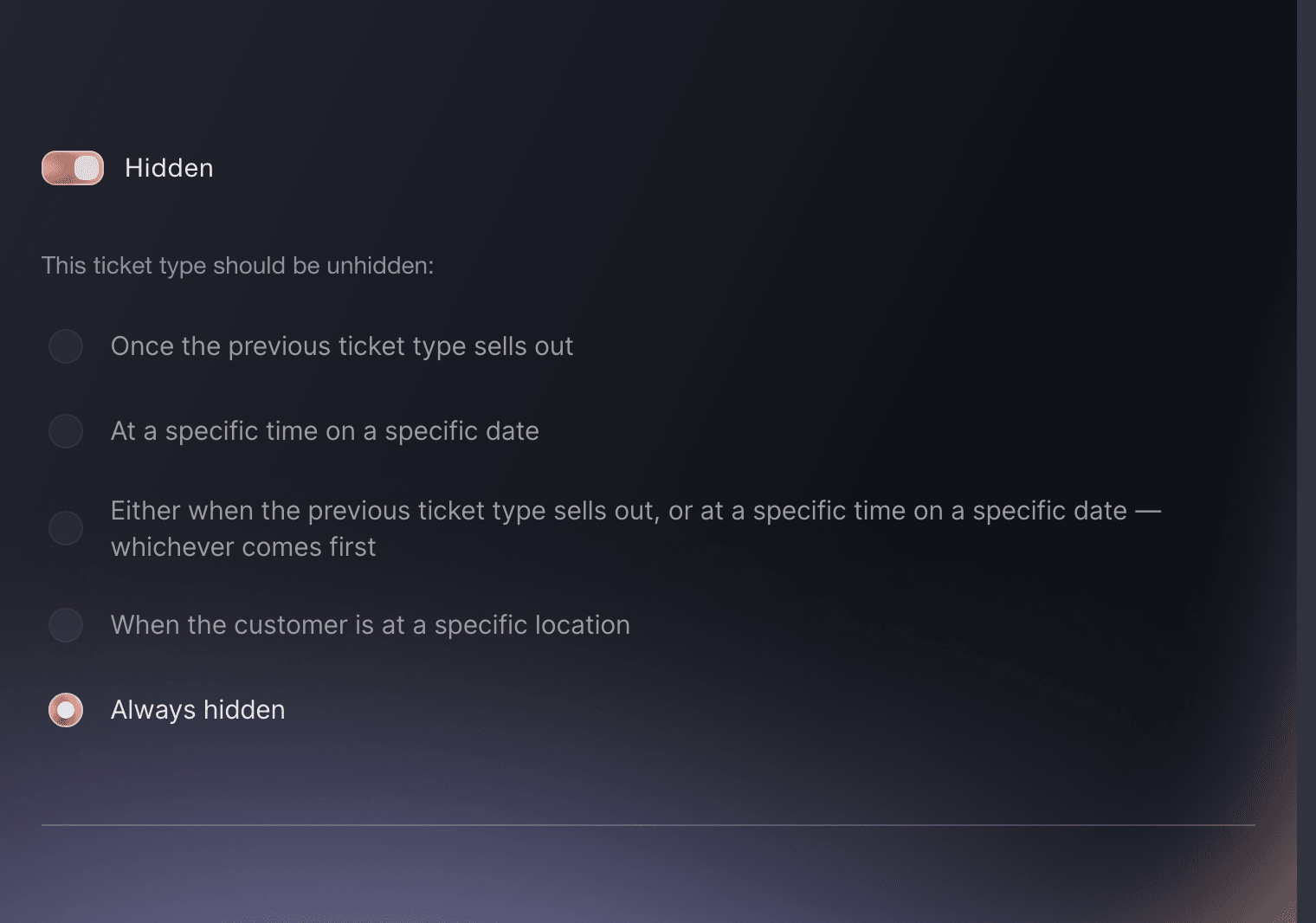
Tickets, Edit Ticket Type, Options. -
Repeat the hidden setting for every public ticket type
Open each ticket type that should be private and give it the same Hidden and Always hidden settings. Leave no public ticket visible when the code is meant to unlock the whole sale.
A ticket you leave visible remains available without the code. A ticket you hide but do not attach to the promotion remains hidden after the code.
-
Create a promotion for the access code
Open Marketing, select Promotions, and create a promotion. Give it a name that explains the audience, such as Guest list access, then add the code you plan to share.
The promotion name is for your team. The promo code is the value someone enters, so keep it short enough to type from a message.
-
Attach every hidden ticket and choose No Discount
Select Add tickets, choose every hidden ticket type the code should reveal, and choose No Discount for each one. Leave the discount value empty because the code is granting visibility, not changing the ticket price. If the selected ticket types need the same per-code cap, enter it before you finish adding them. Add ticket types separately when they need different caps.
A no-discount code preserves the ticket's normal price, fees, allocation and sale dates. It only reveals the attached hidden ticket types.
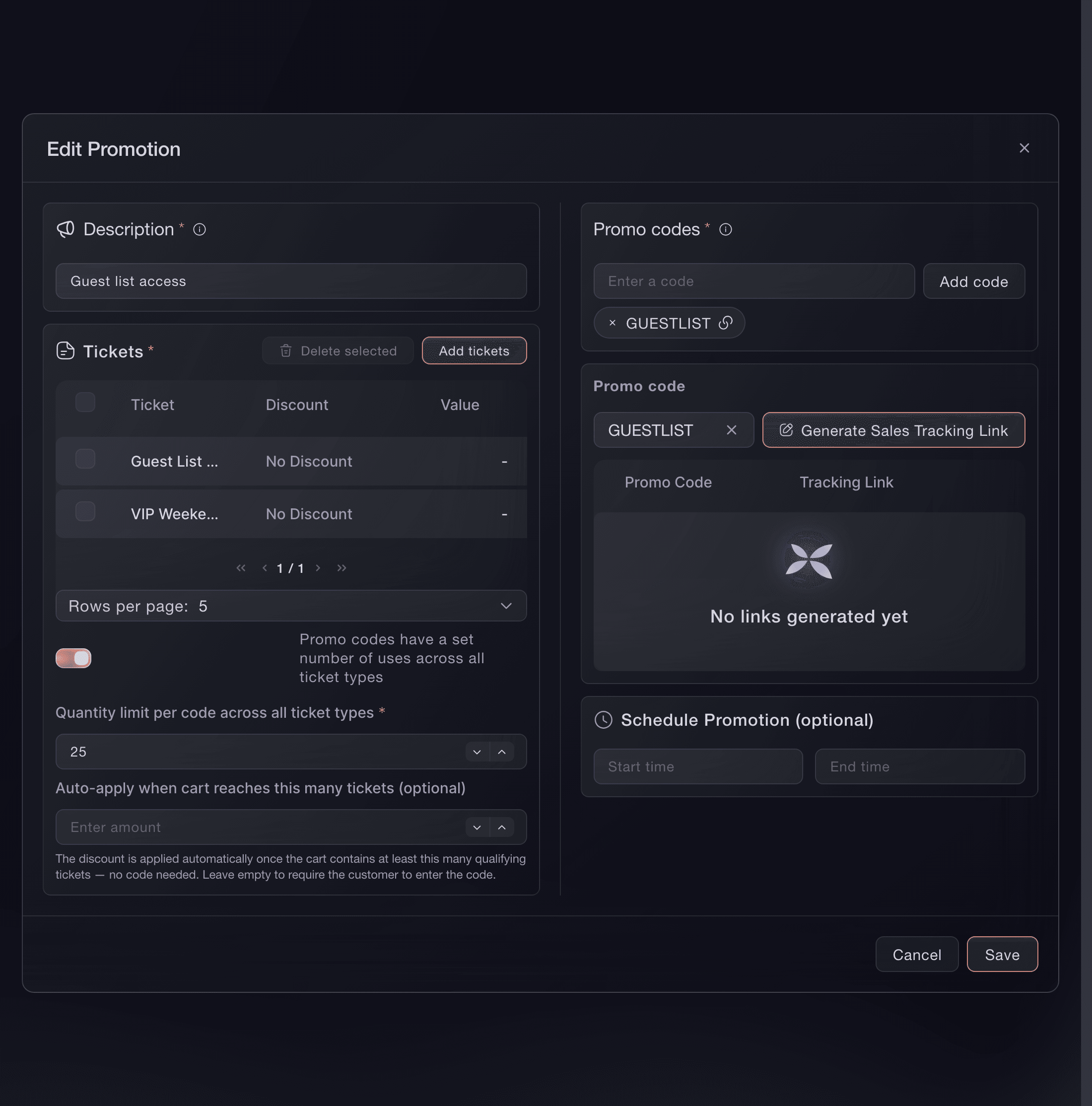
Marketing, Promotions, Edit Promotion. -
Require buyers to enter the code
Leave Auto-apply when cart reaches this many tickets (optional) empty. An automatic promotion needs no code, which would reveal these tickets during an ordinary visit.
-
Set when and how often the code can be used
Set the promotion start and end when the code should work only during a private on-sale window. A Quantity limit per code per ticket type (optional) entered while you add tickets applies separately to each attached ticket type. When all attached ticket types should share one total, turn on Promo codes have a set number of uses across all ticket types, then enter Quantity limit per code across all ticket types.
When the shared limit is on, it replaces the separate limit on each ticket type. Promotion limits do not add stock. The ticket allocation remains the final limit, even when a per-ticket or shared code limit is higher.
-
Save the promotion and share the code
Save the promotion, then send the normal event link and the access code to the intended group. Tell them to enter the code on the event page before choosing tickets.
Anyone with the code can use the remaining allocation while the promotion is enabled and within its date and quantity limits.
-
Test the event without the code and then with it
Open the event in a private browser window. Confirm that no private ticket appears before you enter the code, then enter it and check every attached ticket, price and purchase limit.
Add one revealed ticket to the basket. A ticket that appears but cannot be added is usually outside its sale dates, inactive or out of allocation.

Eller få det gjort for dig
Fai, the assistant inside your dashboard, can hide the tickets, create a no-discount access code and close the promotion later. She shows you each change and asks you to approve it before she makes it. You can also complete the whole workflow in the dashboard.
I dit dashboard, med Fai
Find my event by name. Keep <TICKET NAMES> active, hide them from the public with Always hidden, then create a promotion called <NAME> with access code <CODE>, No Discount, no automatic application, and only those tickets attached. Use <START AND END TIMES OR NO SCHEDULE> and <SHARED LIMIT OR NO LIMIT>. Show me the exact tickets, normal prices, schedule and limit, then ask me to approve the ticket changes and promotion separately
Replace an access code
Open the promotion, add the replacement under Promo codes, then save and test it in a new private browser window. Return to the promotion, remove the old code and save again.
Keep the old code until the replacement reveals every intended ticket. The promotion needs at least one code.
Fai can add the replacement code and remove the old one after you confirm the new code works. MCP and the CLI do not manage the hidden-ticket access-code workflow.
I dit dashboard, med Fai
For the access-code promotion <PROMOTION NAME> on <EVENT NAME>, add <NEW CODE>. Keep <OLD CODE> active until I confirm the replacement works, then ask before removing the old code
Close every access code on the promotion
Return to Promotions, select the promotion's trash button, check the promotion named in the confirmation, then select Delete.
Open the event in a new private browser window and confirm that none of the deleted promotion's codes reveal the hidden tickets.
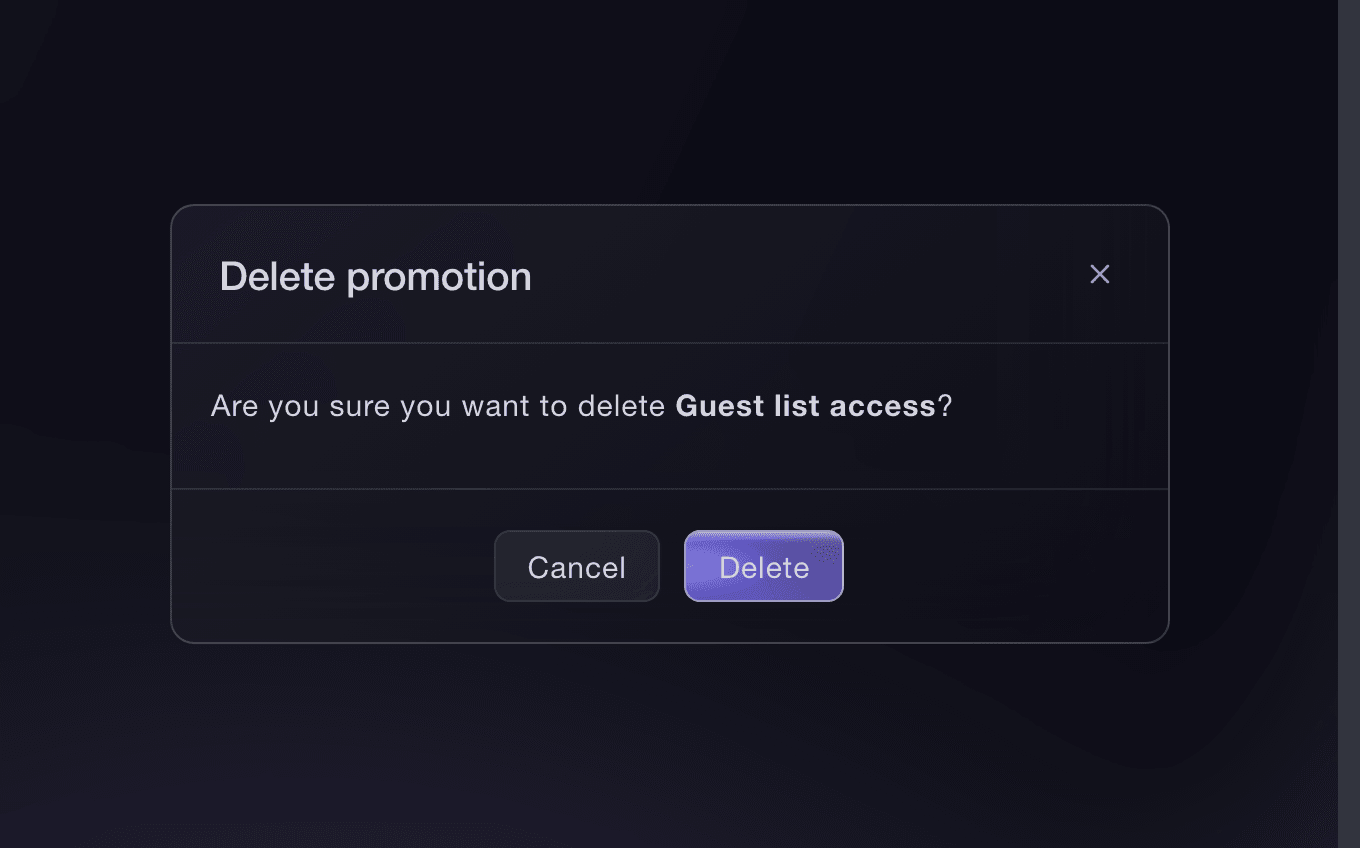
Fai can delete the promotion after showing you its codes and hidden tickets. MCP and the CLI do not close this access-code workflow.
I dit dashboard, med Fai
Show me the access-code promotion <PROMOTION NAME> on <EVENT NAME>, including its codes and hidden tickets, then ask before deleting the promotion
Spørgsmål du måske har
- Does an access code have to give a discount?
- No. Choose No Discount. The code can reveal hidden tickets at their normal price without reducing what you charge.
- Can people see the event before they have the code?
- Yes. This method keeps the event page visible and hides the attached ticket types. Use an event password when the page itself must stay private.
- Can one code unlock several hidden ticket types?
- Yes. Attach every ticket it should reveal to the same promotion and choose No Discount for each one.
- Can I create different access codes for different groups?
- Yes. Add several codes to one promotion when they should reveal the same tickets and follow the same limits, or create separate promotions when each group needs different tickets, dates or quantities.
- What happens if someone forwards the code?
- The recipient can use it while the promotion is active, within its dates and with uses remaining. Replace or remove the code and save the promotion when shared access reaches the wrong group.
- Why did my hidden ticket not appear after I entered the code?
- Check that the ticket is attached to the promotion, the promotion is enabled and inside its dates, and the ticket is active, on sale and still has allocation. Always hidden is correct; the code is what overrides it.
Hvor du går hen herfra
Gør det på dit eget arrangement
Opret din konto, byg dit arrangement, og følg trinnene i dit eget dashboard. Du behøver ikke booke et salgsmøde.