
Opret et arrangement
Duplicate an event
Start your next date with the ticket types, event settings and optional features you already use, then check the details that change before it goes on sale.
- Til
- Preparing another date from an existing event
- Tager
- 8 minutter
Det skal du have, før du går i gang
- You're a brand owner or admin.
- You know which existing event has the setup you want to reuse.
- You know the new event name, URL, start time and end time.
- You have decided whether the new event needs the same team, credentials, pre-registration, promotions, email templates, contacts, FAQs, ticket delegations and custom fields.
-
Open the event you want to use
Open Events, open the menu on the event you want to use, then choose Duplicate Event. The event picker at the top of the dialog shows which event will be copied, so change it there if you selected the wrong one.
Choose an event whose ticket releases, buyer questions and settings are close to what the new date needs. You can change them on the new draft without changing the original event.
Events, Duplicate Event. -
Enter the new event details
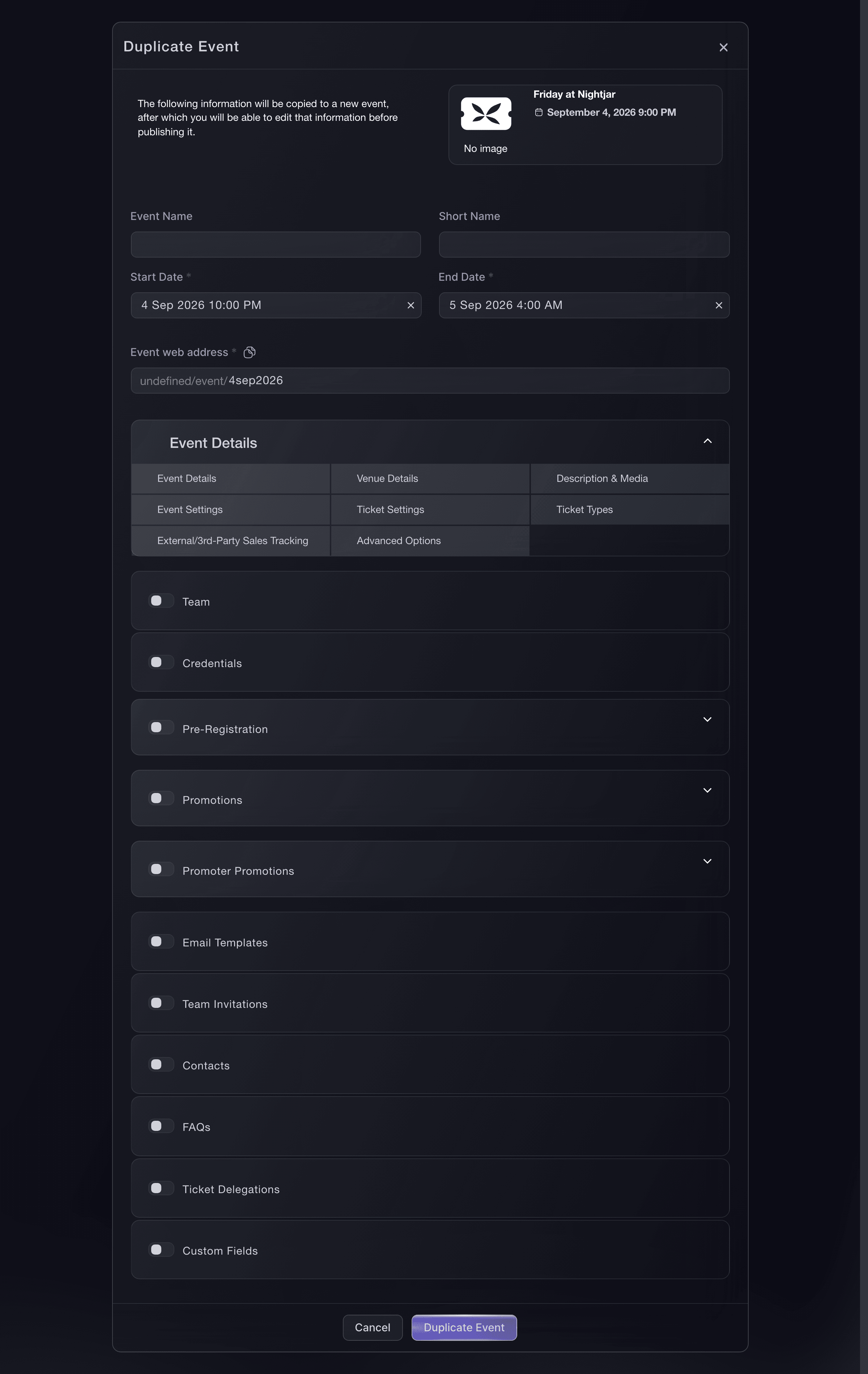
Enter the new Event Name, Short Name, start and end dates, and Event web address. Use the date and time when doors open and the event finishes, including the correct time zone for the venue.
The new web address must be unique. Give the event its final address now so the link you later share does not need to change.
-
Choose what to copy
Event details, venue details, descriptions and media, event settings, ticket settings, ticket types, sales tracking and advanced options are included. Select each additional part you want to carry over: team, credentials, pre-registration, promotions, promoter promotions, email templates, team invitations, contacts, FAQs, ticket delegations and custom fields.
Ticket types are included by default. When the source event uses time slots, you can clear Ticket Types to start without them. Select Team Invitations only when you want Ticket Fairy to invite those people to the new event.
-
Create the draft
Select Duplicate. Ticket Fairy creates a separate draft, leaves the original event unchanged and opens the new event so you can continue setting it up.
The new event is not public yet. This gives you time to check its tickets and event page before buyers can see it.

Eller få det gjort for dig
Fai can duplicate an event as a new draft, copy the parts you choose, and set its new name, URL and dates after you approve the change.
I dit dashboard, med Fai
Duplicate <EVENT_NAME> for <NEW_DATE>. Show me the new name, dates and everything you will copy before you create the draft
Prepare the copied event before it goes on sale
Review ticket names, prices, allocations, sale windows, entry times, last entry, venue, event description, refund policy and buyer questions. Check every promotion and message that mentions a date. Remove any team member, credential or code that should not carry into this event.
A copied ticket type starts with the allocation from the source setup, not the number of tickets left at the old event. Set the allocation for the new venue and date before publishing.
Fai can inspect the copied draft, compare its tickets and settings with the new date, and update the fields you approve. MCP and the CLI can inspect and update individual parts, but neither provides one complete copied-event review.
I dit dashboard, med Fai
Review the copied draft <EVENT NAME> before it goes on sale. Show me its dates, venue, tickets, allocations, sale windows, entry times, promotions, messages, team and buyer questions, and flag anything that still names the source event or its date
Fra din egen assistent, via MCP
Den kopierede MCP-konfiguration indeholder --read-only. Fjern kun --read-only, når din assistent skal kunne foretage ændringer. Almindelige ændringer kører, når du beder om dem; destruktive handlinger beder om din godkendelse i en kompatibel klient. Hvis klienten ikke kan spørge, skal du foretage ændringen i dit dashboard.
Open the copied draft <EVENT NAME> and show me its event details and ticket types so I can check the new date before publishing
Publish the new event
Open Publish after the draft is ready. Check the public event page, choose whether to send promoter links, then publish now or schedule when it goes live.
Publishing is separate from duplication, so creating the draft never puts the new date on sale.
Fai, MCP and the CLI can publish the copied draft after showing you the event you selected. Scheduling a future publish time is available in the dashboard and through Fai.
I dit dashboard, med Fai
Show me the copied draft <EVENT NAME>, its public event page and ticket sale windows. Ask whether to send promoter links and whether to publish now or at a scheduled time, then wait for my approval
Fra din egen assistent, via MCP
Den kopierede MCP-konfiguration indeholder --read-only. Fjern kun --read-only, når din assistent skal kunne foretage ændringer. Almindelige ændringer kører, når du beder om dem; destruktive handlinger beder om din godkendelse i en kompatibel klient. Hvis klienten ikke kan spørge, skal du foretage ændringen i dit dashboard.
Find the copied draft <EVENT NAME>, show me its current status and ask before publishing it
Fra din terminal
Check the event ID before publishing the copied draft.
Publish the copied event
ticketfairy event publish <EVENT_ID>
Delete a duplicate you made by mistake
Return to Events, open the menu on the new draft and choose Delete Event. Check the event name, then confirm the deletion.
Delete the draft before it receives any orders. If an order already exists, keep the event and contact Ticket Fairy support for help.
Fai, MCP and the CLI can delete the mistaken draft after confirming its identity. The action is refused when the event already has orders.
I dit dashboard, med Fai
Find the draft <EVENT NAME>, show me its dates, venue and whether it has any orders, then ask before deleting it
Fra din egen assistent, via MCP
Den kopierede MCP-konfiguration indeholder --read-only. Fjern kun --read-only, når din assistent skal kunne foretage ændringer. Almindelige ændringer kører, når du beder om dem; destruktive handlinger beder om din godkendelse i en kompatibel klient. Hvis klienten ikke kan spørge, skal du foretage ændringen i dit dashboard.
Find the draft <EVENT NAME>, show me its details and ask before deleting it
Fra din terminal
Delete only after checking the event ID. The command asks for confirmation.
Delete the mistaken draft
ticketfairy event delete <EVENT_ID>
Spørgsmål du måske har
- Does duplicating an event change the original?
- No. Ticket Fairy creates a separate draft. Changes you make to that draft do not change the source event.
- Does the new event go on sale immediately?
- No. The duplicate stays in draft until you publish it.
- Are old orders copied?
- No. Orders, attendees, check-ins and sales totals belong to the original event. The new event starts without orders.
- Can I duplicate an imported DET event?
- No. Create a new event instead and use the imported event as a reference for the details you need.
- Should I copy the event team?
- Copy the team when the same people will work on the new date. Leave it out when the lineup, promoter or venue team will change, then invite the people who need access.
Hvor du går hen herfra
Gør det på dit eget arrangement
Opret din konto, byg dit arrangement, og følg trinnene i dit eget dashboard. Du behøver ikke booke et salgsmøde.