
Sette opp et arrangement
Approve orders before buyers receive tickets
Review every order, or only orders containing selected ticket types. Choose when to take payment, then approve or decline each request before its payment hold expires.
- For
- Reviewing ticket requests before confirming admission
- Tar
- 12 minutter
Dette trenger du før du starter
- You can edit ticket settings and review orders for the event.
- You have decided whether every order needs approval or only orders containing particular ticket types.
- You know whether you want to take payment at checkout or after approval, where the payment method supports a hold.
-
Decide whether to review every order or only selected ticket types
Use event-wide approval when every order needs your decision. Use ticket-type approval when only a membership tier, guest request or other selected ticket needs review.
An event-wide setting applies to every ticket type. A ticket-type setting applies to the whole order whenever that order contains at least one ticket from the selected type.
-
Turn approval on for every order
Open Tickets, select Settings, and turn on Require order approval under Ticket Settings. Save the settings before the event starts taking requests.
Every new order then waits for your decision. When this is on, every ticket type requires approval.
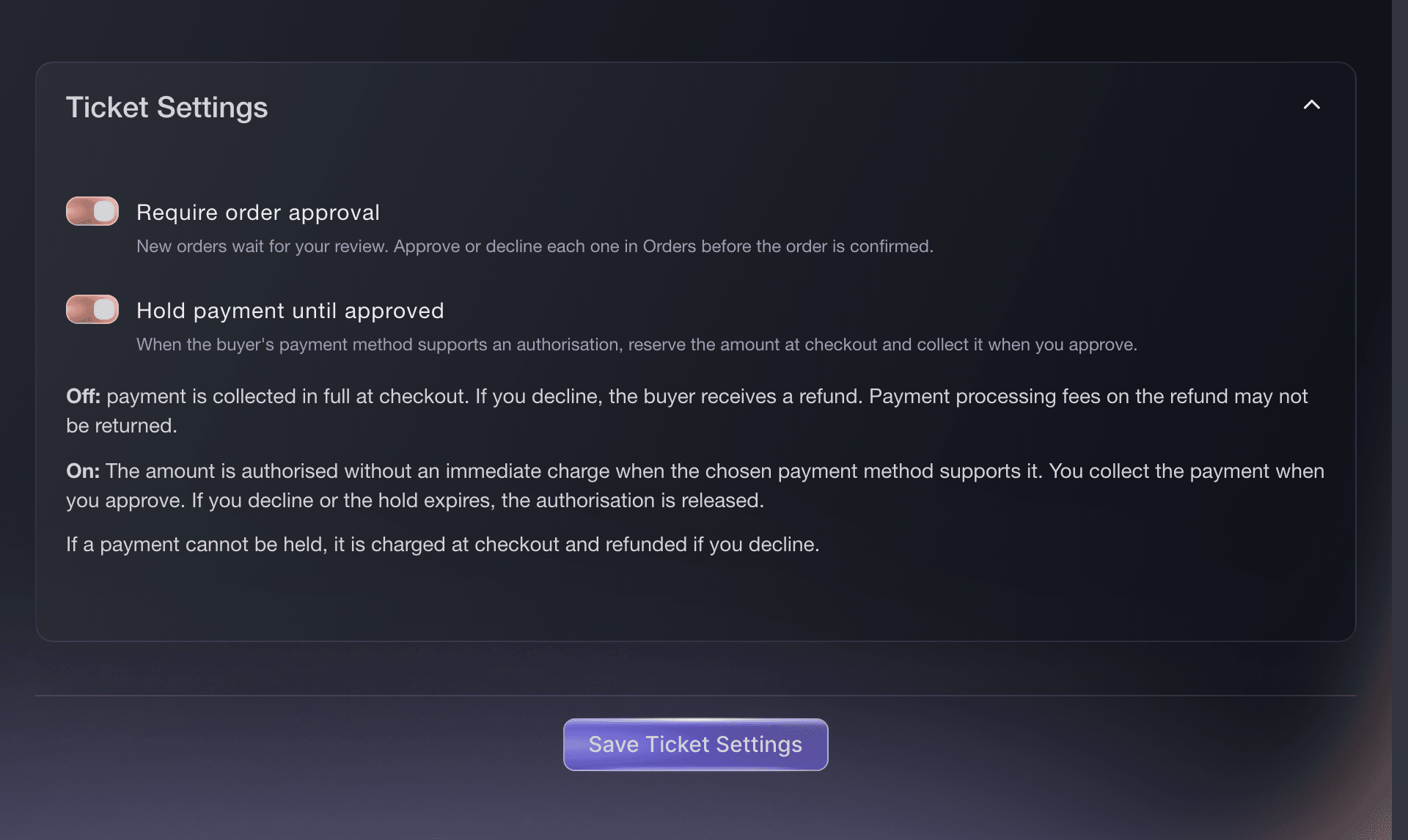
Tickets, Settings, Ticket Settings. -
Turn approval on for one ticket type
Leave event-wide approval off, open the ticket type, and turn on Require order approval for this type in its options. Save the ticket and repeat only for the other types that need review.
A ticket type inherits event-wide approval when the event setting is on. Turn the event setting off first when buyers should be able to buy some ticket types without review.
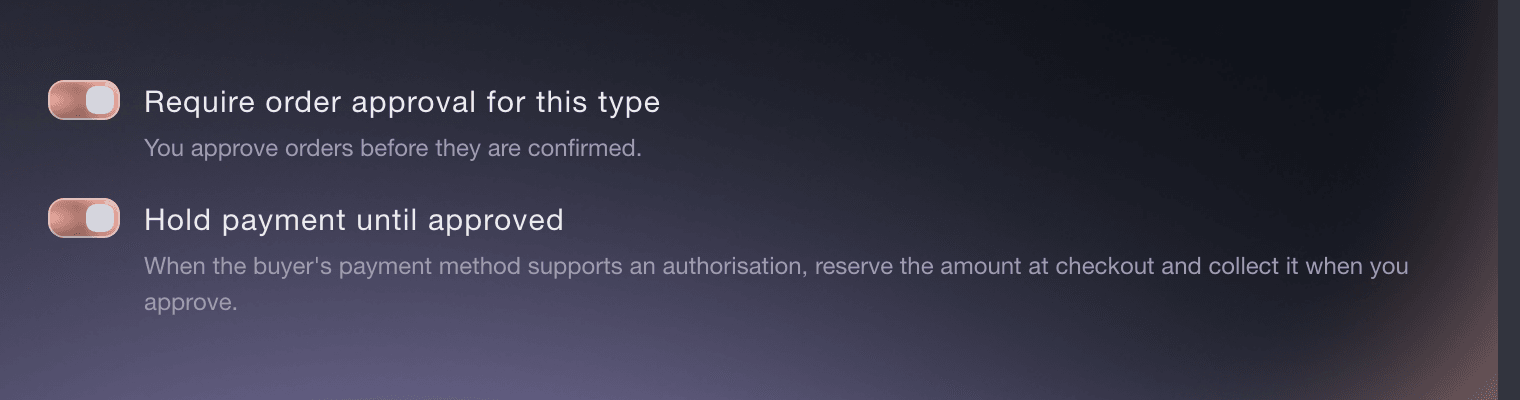
Tickets, Edit Ticket Type, Options. -
Choose when supported payments are collected
For event-wide approval, turn on Hold payment until approved. For ticket-type approval, turn on Hold payment until approved in that ticket type. Supported payment methods then reserve the order amount at checkout and collect it only after you approve. Leave the relevant switch off when payment should be collected at checkout.
A payment method that cannot hold the amount collects it at checkout. Declining that order sends a refund, and the payment processing fees on that refund may not be returned.
-
Place one test order through the chosen ticket
Open the event in a private browser window and place an order containing the ticket type you configured. Confirm that checkout says the order is waiting for approval and does not issue usable tickets yet.
For ticket-type approval, repeat with an ordinary ticket on its own. That order should complete normally when event-wide approval is off.
-
Approve a pending order
Open Orders, choose Needs Approval, and review the buyer, tickets, total and Hold expires time. On a desktop, select ... on the order, then Approve. If the order appears as a shorter row, open it and select Approve there. On a phone, select ... first, then Approve. Check the order number and confirm Approve.
Decide before the payment hold expires. An expired hold cannot be collected: the order is declined, the reserved amount is released and the buyer needs a new purchase link. A current held payment is collected and the tickets are issued. When checkout already collected payment, approval does not collect it again.
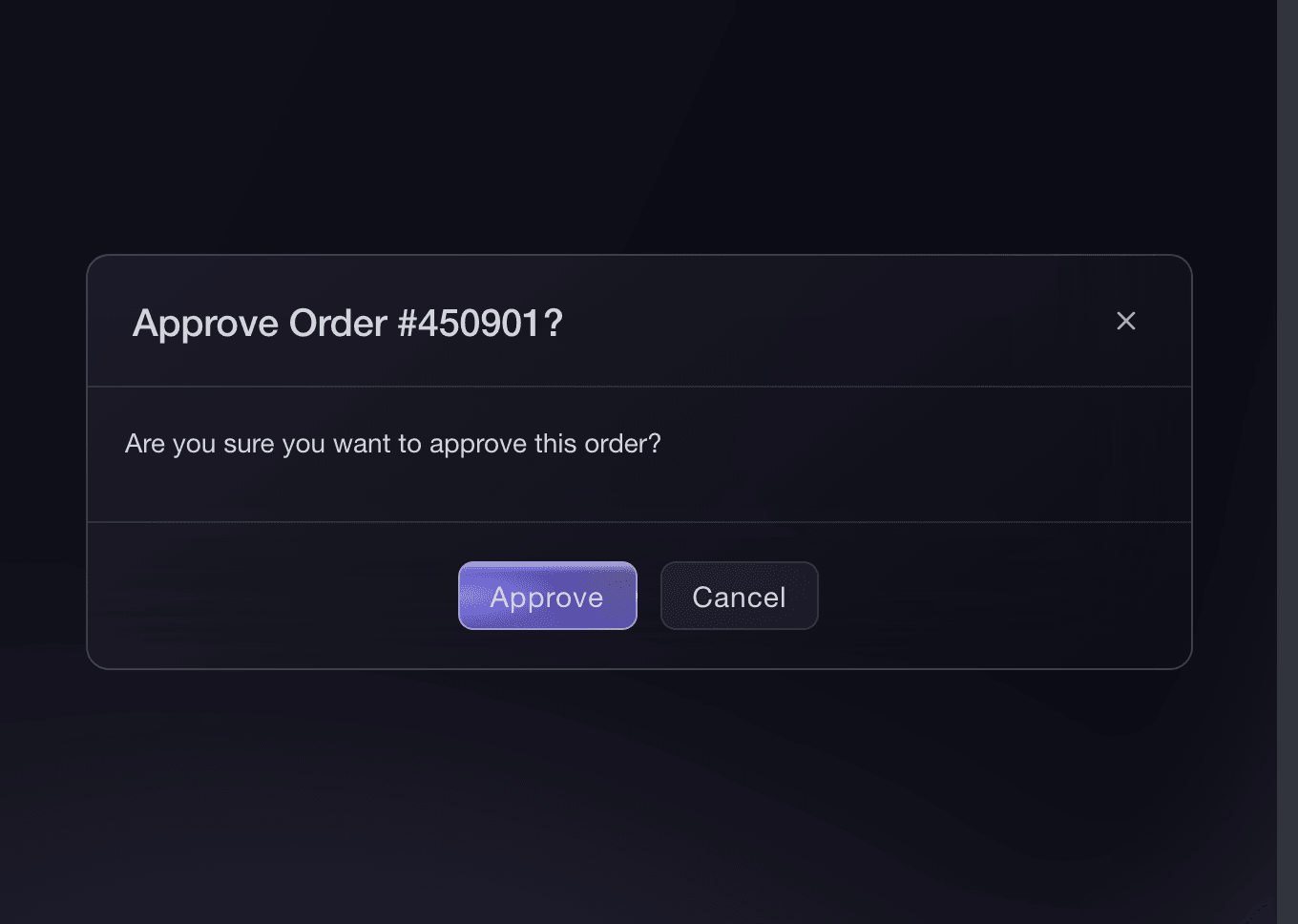
Orders, Needs Approval, Approve.
Eller få det gjort for deg
Fai, the assistant inside your dashboard, can turn order approval on for the event or selected ticket types, show you a pending order, and approve or decline it. She asks you to approve settings changes and asks again before the order decision. You can also complete the whole workflow in the dashboard. Your own AI assistant over the MCP server can show you a specified pending order and approve it only after you confirm.
I dashbordet ditt, med Fai
Find my event by name. Require approval for <EVERY ORDER OR TICKET TYPE NAMES> and <HOLD SUPPORTED PAYMENTS OR COLLECT AT CHECKOUT>. Show me the setting and ask me to approve it. Then open pending order <ORDER NUMBER>, show me the buyer, ticket types, total and payment state, and ask whether I want to approve or decline it. Do not make the order decision until I choose and approve it
Fra din egen assistent, via MCP
Koble assistenten til MCP-serveren vår, og be den om:
MCP-konfigurasjonen du kopierer, inneholder --read-only. Fjern --read-only bare når du vil at assistenten skal gjøre endringer. Vanlige endringer utføres når du ber om dem. Destruktive handlinger ber om godkjenning i en kompatibel klient. Hvis klienten ikke kan spørre, gjør du endringen i dashbordet.
Find my event by name, open pending order <ORDER NUMBER>, show me the buyer, tickets, total and payment state, and ask me to approve the order. Do not approve it until I confirm
Decline a pending order
Open Orders, choose Needs Approval, and review the buyer, tickets, total and Hold expires time. On a desktop, select ... on the order, then Decline. If the order appears as a shorter row, open it and select Decline. On a phone, select ... first, then Decline. Check the order number and confirm Decline.
A reserved amount is released. Payment already collected at checkout is refunded, and the buyer receives the rejection notification.
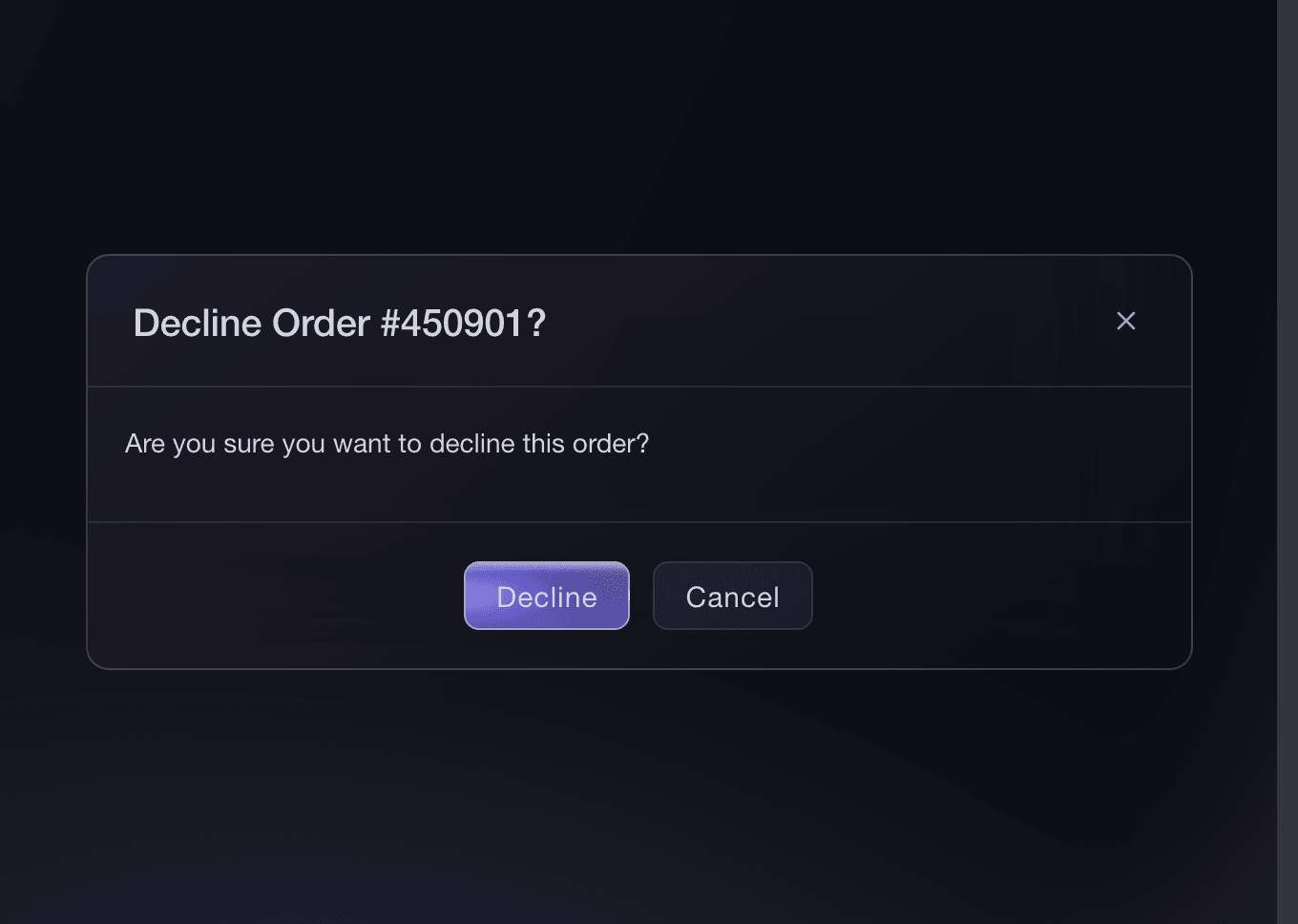
Fai can decline the pending order after showing you the buyer, tickets, total and payment-hold deadline. MCP can open the order but cannot decline it, and the CLI does not expose this decision.
I dashbordet ditt, med Fai
Open pending order <ORDER NUMBER> for <EVENT NAME>. Show me the buyer, tickets, total, payment status and hold deadline, then ask before declining it
Fra din egen assistent, via MCP
MCP-konfigurasjonen du kopierer, inneholder --read-only. Fjern --read-only bare når du vil at assistenten skal gjøre endringer. Vanlige endringer utføres når du ber om dem. Destruktive handlinger ber om godkjenning i en kompatibel klient. Hvis klienten ikke kan spørre, gjør du endringen i dashbordet.
Find <EVENT NAME> and open pending order <ORDER NUMBER>. Show me the buyer, tickets, total, payment status and hold deadline so I can decide in the dashboard
Spørsmål du kanskje har
- Can I require approval for only one ticket type?
- Yes. Leave event-wide approval off and turn on Require order approval for this type on each type that needs it.
- What happens when one order contains an approval ticket and an ordinary ticket?
- The whole order waits for your decision. Approving issues every ticket in the order; declining closes the whole order.
- Is the buyer charged before I approve?
- With the event-wide Hold payment until approved switch, or the ticket type's Hold payment until approved switch, on, a supported payment method reserves the amount and collects it after approval. Other payment methods charge the buyer at checkout and refund them if you decline the order. With the switch off, payment is collected at checkout.
- Where do ticket-type approval orders appear?
- Open Needs Approval and find the order. On a desktop, select ... on the order, then select Approve or Decline. If the order appears as a shorter row, open it and use Approve or Decline. On a phone, select ... first, then use Approve or Decline.
- What happens when a payment hold expires?
- The reserved amount is released and the pending order is declined because the payment can no longer be collected. Use the displayed Hold expires time to act before that point.
- Can I approve only part of an order?
- No. Approval applies to the order as a whole. Ask the buyer to place separate orders when different ticket requests need different decisions.
- Does order approval make the event invitation-only?
- No. It lets someone place a request and gives you the decision afterward. Use a password, personal invitation or hidden-ticket access code when access must be controlled before checkout.
Veien videre
Gjør dette på ditt eget arrangement
Opprett kontoen din, bygg arrangementet og følg trinnene i ditt eget dashbord. Du trenger ikke bestille en salgssamtale.