
Создание мероприятия
Password-protect your event
Put your event page behind one or more shared passwords, test them and change a password without locking out the groups that still need access.
- Для кого
- Sharing a private event through one or more trusted groups
- Займёт
- 7 минут
Что нужно перед началом
- You can edit Event Settings for the event.
-
Open Event Settings and turn password protection on
Open the event, select Event Settings, then turn on Password required to view event. Enter your first password under New Password and select Create.
Use a password you can say, paste and type without guessing. A separate password for each guest group makes later replacement and sales reporting clearer.
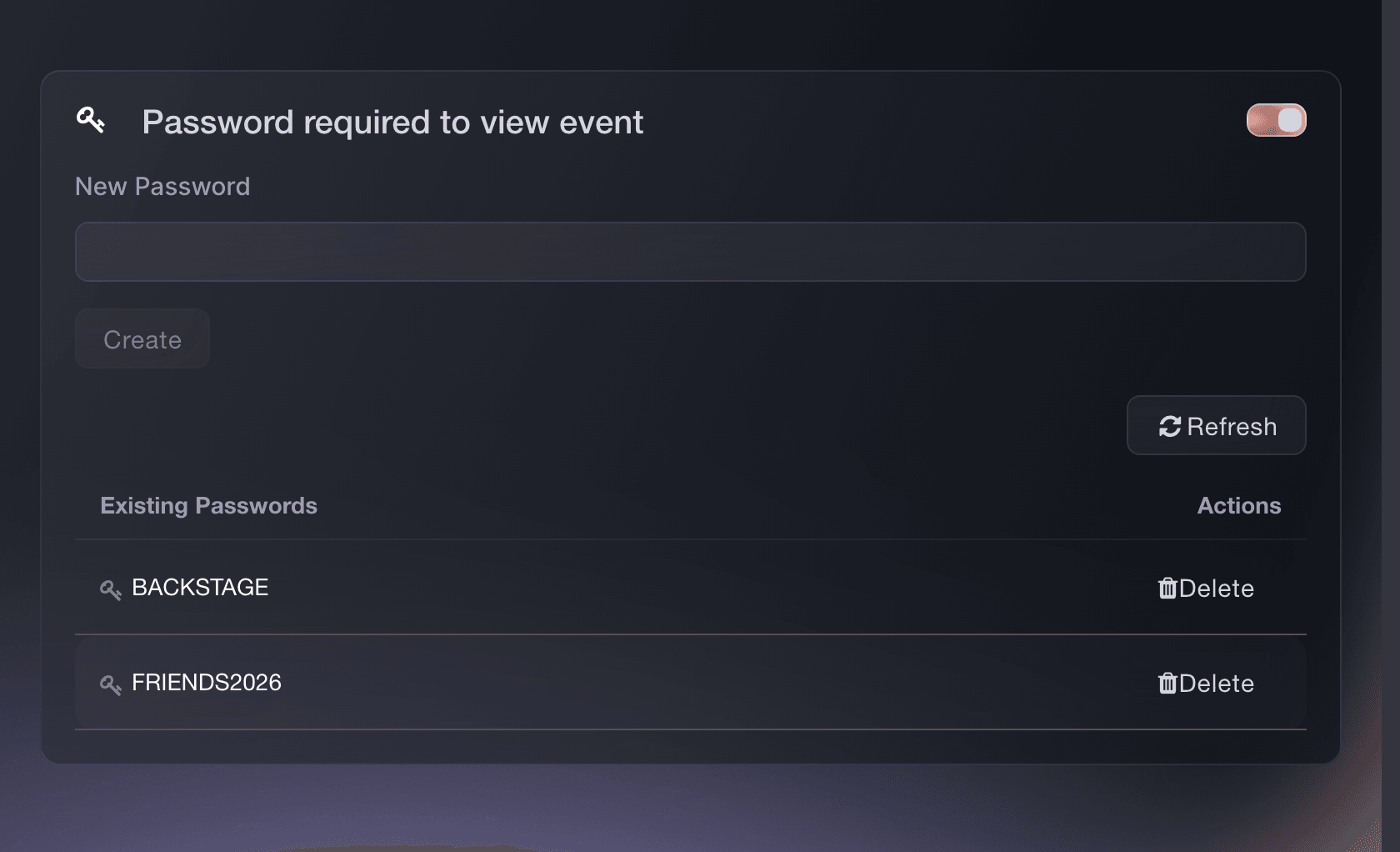
Event Settings, Password required to view event. -
Add a separate password for each group that needs one
Enter another value under New Password and select Create for each group. The Existing Passwords table shows every password that can open the event.
Separate passwords let you stop one group's access without changing the passwords used by other groups. They also separate completed sales in Sales by Password.
-
Save Event Settings
Select Save Event Settings after the switch is on and at least one password appears under Existing Passwords. Wait for the saved confirmation before you leave the page.
-
Send the event link and password in separate messages
Send the normal event link first, then send the password through the private channel you use for that group. Name the event beside the password so nobody has to guess where it works.
Anyone who knows a working password can open the page. Use personal invitations when you need a separate link and limits for each person.
-
Test password protection in a private browser window
Open the event link in a private browser window. Confirm that the event asks for a password, rejects a value you did not create and opens after you enter a current password. Add a ticket to the basket before you finish.
Test an embedded checkout too when you use one. The embedded checkout asks for the event password before showing protected ticket details.
Или поручите это помощнику
Fai, the assistant inside your dashboard, can add or remove event passwords and turn password protection on or off. She shows you the event and asks you to approve each change before she makes it. You can also complete the whole workflow in the dashboard.
В вашей панели, с Fai
Find my event by name, add these event passwords: <PASSWORDS>, and turn on Password required to view event only after at least one password is saved. Show me the event and every password that will remain, then ask me to approve each change
Replace a shared password
Create the replacement, send it to the people who still need access and test it. Then select Delete beside the old password and Refresh to confirm that only the passwords you still use remain.
The other passwords keep working while you replace one of them.
Fai can create the replacement and remove the old password after you have tested the new one. MCP and the CLI do not manage event passwords.
В вашей панели, с Fai
For <EVENT NAME>, create a replacement for the password <OLD PASSWORD>. Show me the new password before saving it, and do not remove the old one until I confirm that I have tested the replacement
Review sales made with each password
Open the event performance area and choose Sales by Password. Compare the ticket type, password, sales, revenue and gross revenue in each row.
The report shows which shared password was entered. It does not identify the person who shared it.

Fai can show Sales by Password and explain the rows. MCP and the CLI do not provide this password report.
В вашей панели, с Fai
Show me Sales by Password for <EVENT NAME>. Compare sales and revenue for each password and explain what the report can and cannot identify
Turn password protection off
Turn off Password required to view event, select Save Event Settings, then open the event in a private browser window and confirm that it opens without a password.
Remove passwords you no longer need after the event opens without one.
Fai can turn password protection off after showing you the event and the effect of the change. MCP and the CLI do not expose this setting.
В вашей панели, с Fai
Turn password protection off for <EVENT NAME>. Show me the event and confirm that its page will open without a password before changing it
Вопросы, которые могут возникнуть
- Can my event have more than one password?
- Yes. Add each one under New Password. Every value listed under Existing Passwords can open the event until you delete it.
- Can I see which password sold tickets?
- Yes. Open the event performance area and choose Sales by Password. Completed sales are grouped by the password used for the order, which is why separate values are useful for separate guest groups.
- Does a password identify the person buying?
- No. The password proves that someone knows the shared value. Use personal invitations when you need one link and purchase limits per recipient.
- What happens if someone shares the password?
- The other person can use it while it remains active. Create a replacement for the intended group, send that replacement, test it and delete the shared value.
- Does the password also protect my embedded checkout?
- Yes. The embedded checkout asks for a valid event password before it returns protected event and ticket details.
- What is the difference between an event password and a ticket access code?
- An event password protects the whole event page. A ticket access code leaves the page visible and reveals the hidden ticket types attached to its promotion.
Что дальше
Сделайте это на своём мероприятии
Создайте аккаунт, соберите мероприятие и выполните шаги в своей панели управления. Звонок в отдел продаж не нужен.