
Ratkaise tapahtumalipunmyynnin ongelmia
Can ticket buyers join your email list automatically?
Yes. Connect your email platform once and buyers who opt in join your audience after checkout, while anyone who opts out is removed.
- Kenelle
- Sending campaigns to the people who buy your tickets
- Kestää
- 5 minuuttia
Yes. Instead of exporting a spreadsheet after every on-sale, connect your email platform to your brand. Buyers who agree to hear from you join the audience you choose after checkout, and Ticket Fairy removes them from that audience if they later opt out.
The connection starts with new purchases. Export and import existing subscribers once when you want them in the same audience. Ticket Fairy updates the audience after checkout, so a slow response from the email platform does not delay payment.
Revenue reporting depends on the platform. Mailchimp reports orders that came from one of your campaigns, while Klaviyo can receive every paid order when ticket revenue sync is on.
Näin Ticket Fairy auttaa
-
One connection for the whole brand
Connect once and buyers from every event under the brand can join the same audience. An event that already has its own list keeps using it until you remove that choice.
-
Keep subscriptions up to date
Agreeing to hear from you adds a buyer. Opting out in Ticket Fairy removes them from the connected audience.
-
Revenue reporting in the platform you connect
Mailchimp reports orders that came from one of your campaigns. Klaviyo can receive a paid-order event even when the buyer arrived another way. In both cases the buyer sync is separate from the sale report.
-
Checkout stays fast
Your buyer finishes paying before the connected audience is updated, so another platform responding slowly never delays the sale.
Ota se käyttöön
Ennen aloitusta
- You're an owner, an admin, or on the marketing team for the brand.
- You have an account with the email platform you want to connect, and permission there to create an audience.
-
Connect the platform to your brand
Open your brand settings, choose your email platform, then use the sign-in button when the page offers one or paste the API key the page asks for. The same connection settings appear after either path.
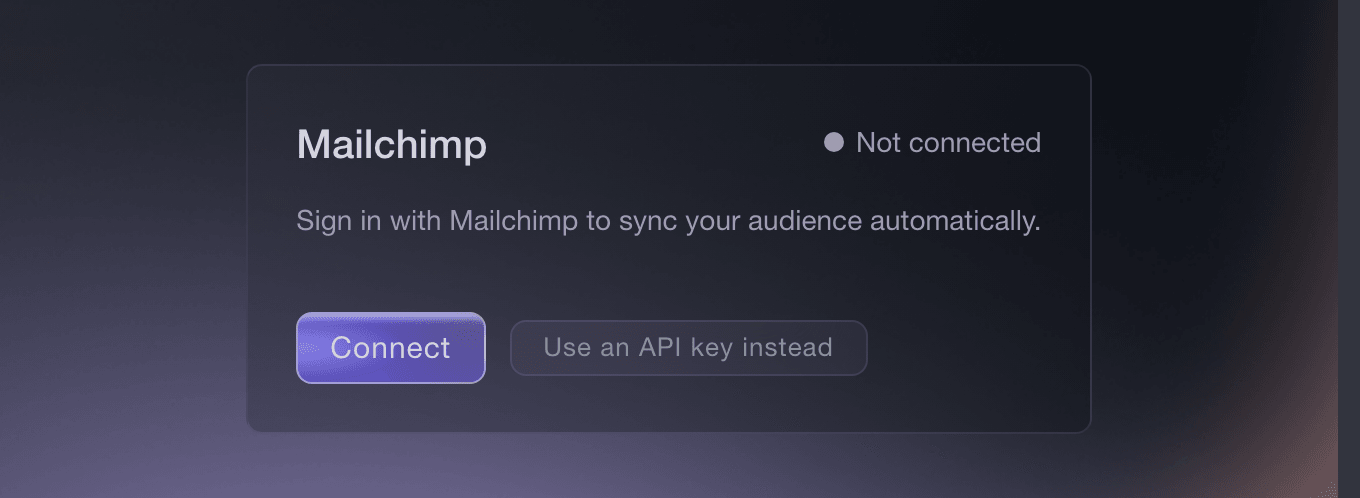
Marketing Integrations, where you connect the account your brand uses. -
Choose the audience for ticket buyers
Choose the audience ticket buyers join. Sending them to the same audience as your newsletter subscribers keeps their activity together.
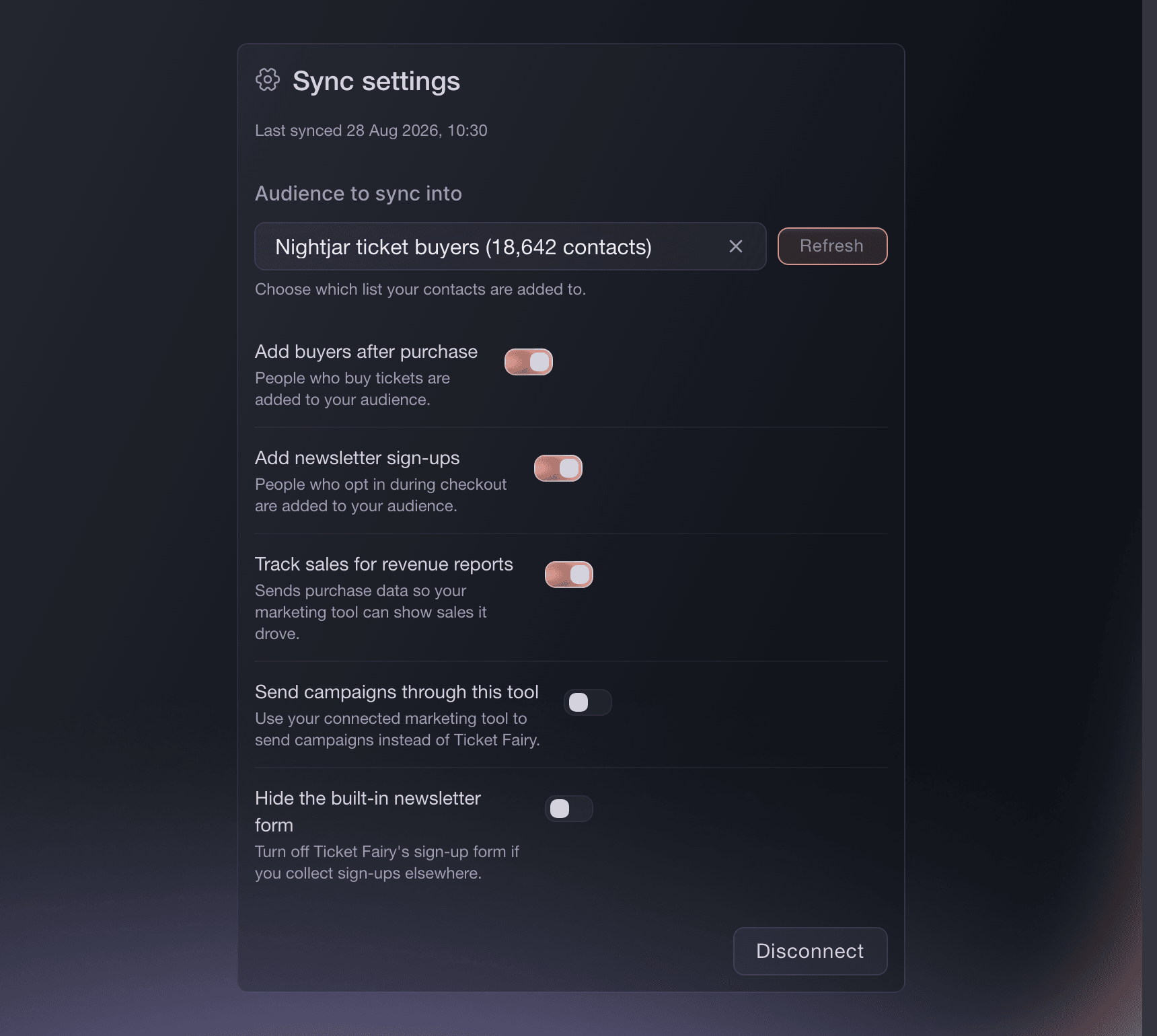
Manage Connection, with the destination audience and sync choices in one place. -
Check what your checkout asks buyers
State what you will send and how often in the checkout opt-in, so buyers know what they are joining. Only buyers who agree to it are added.
-
Move your existing customers over once
Connecting starts the list from today. Export the customers who already opted in and import them into the same audience, so your first campaign includes your existing subscribers as well as this week's buyers.
-
Send to a small group first
Send a test campaign to a small group and confirm that you chose the intended audience before you send to everybody.
Tai anna sen hoitua puolestasi
Fai, the assistant inside your dashboard, can show which email platforms your brand can connect, choose the audience once a connection exists, change the sync settings and disconnect it later. Connect the platform in the dashboard under brand settings, using its sign-in button or API key form. Keep an API key in that form rather than in a message to Fai. She asks before she changes a sync because buyer details can start going to the platform.
Hallintapaneelissasi, Fain kanssa
Show me which email platforms this brand can connect and which are connected already. For the connected one, show me the audiences I can pick and what the sync settings are now.
Kysymyksiä joita sinulla voi olla
- Which email marketing platforms can I connect?
- Mailchimp and Klaviyo. Your Integrations page shows the providers available for your brand and the connection choices each one supports.
- Does everybody who buys a ticket get added?
- No, only buyers who agreed to hear from you. A buyer who purchased without opting in is your customer rather than your subscriber.
- What happens when a subscriber opts out?
- An opt-out made in Ticket Fairy is sent to your email platform. If a subscriber unsubscribes there, keep them unsubscribed when you import or update your audience.
- Are my existing customers added when I connect?
- No. The connection starts from the day you make it, so export the customers who already opted in and import them once.
- Will my campaign reports show ticket revenue?
- Mailchimp reports orders that came through one of your campaigns, with the order total. Klaviyo can receive every paid order when ticket revenue sync is on, including direct and referral orders.
- Does the sync slow my checkout down?
- No. Your buyer finishes paying first, so a slow response from the connected platform can delay the audience update but not the purchase.
Aiheeseen liittyvät oppaat
Tee tämä omassa tapahtumassasi
Luo tili, rakenna tapahtumasi ja seuraa vaiheita omassa hallintapaneelissasi. Sinun ei tarvitse varata myyntipuhelua.