
Set up a brand kit for your events
Set your brand's tone, colours, fonts, logos and other assets once so Ticket Fairy can reuse them across your events and tools.
- Kenelle
- Keeping your brand consistent across events and tools
- Kestää
- 8 minuuttia
Ennen aloitusta
- You need an owner or admin role on the brand. A role on one of its events does not open the Brand Guidelines page. Ticket Fairy support can also access it when helping you.
- You have your brand copy, colour values, font names and the files you want to keep with the kit.
-
Open Brand Guidelines
Open the brand you want to update, then choose Brand Guidelines. The page opens with Identity, Colours, Typography, and Logos & assets cards, which together hold the brand kit.
Huomautus: If Brand Guidelines is not available, ask an owner or admin on the brand to give you access. Ticket Fairy support can also help with brand access.
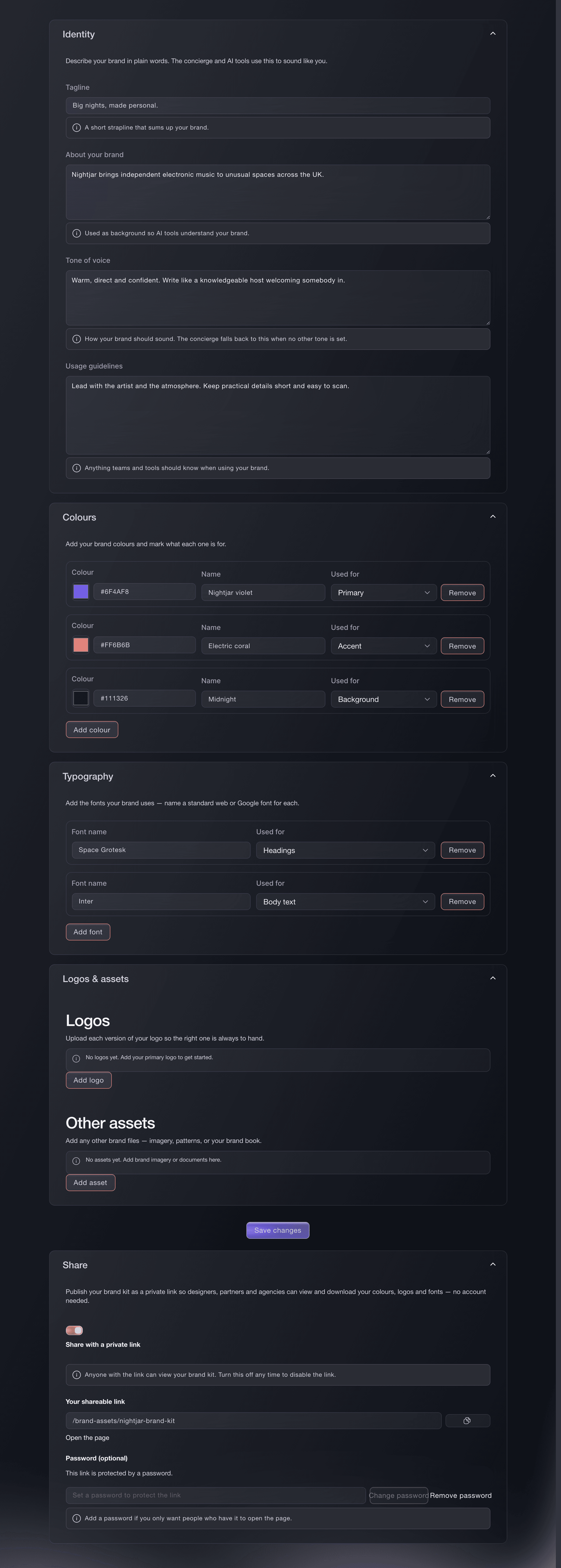
Brand, Brand Guidelines. -
Enter the tagline and brand description
Open Identity, then enter your short strapline in Tagline and describe your audience and what makes the brand special in About your brand.
Huomautus: About your brand gives AI tools background about your brand.
-
Describe the tone of voice
Describe the voice people should hear in Tone of voice, and add practical do's and don'ts in Usage guidelines.
Huomautus: Fai and other AI tools use Tone of voice when nothing more specific is set, so describe the words and attitude you want people to hear.
-
Add a colour
Open Colours and select Add colour, then choose a value in Colour and enter a name in Name.
Huomautus: If you select Add colour and leave Colour empty, the row is not kept when you select Save changes. Enter a colour before saving.
-
Choose what each colour is used for
Under Used for, choose Primary, Secondary, Accent, Background, Text, Neutral, or Other.
Vinkki: Select Remove to take a row out before saving.
-
Add a font
Open Typography and select Add font, then enter a font family in Font name and choose its purpose under Used for: Headings, Body text, Accent, Monospace, or Other.
Huomautus: For a row you add in the dashboard, Font name is required. The Typography card has no font-file uploader, so to keep a font file with the kit, add it under Other assets as Font.
-
Add a logo
Open Logos & assets, then under Logos select Add logo, choose a Version of Primary, Light background, Dark background, Icon or Single colour, enter a useful Label and upload the image through Logo image.
Huomautus: Each logo version has one slot, so when all five are in use, remove one before you select Add logo again.
-
Add other brand files
Under Other assets, select Add asset, choose a Type of Image, Document, Font or Other, enter a Name, and upload it through File.
Huomautus: An unfinished logo or asset row with no uploaded file is not kept when you save.
-
Select Save changes
Select Save changes. One save stores your Identity, Colours, Typography, and Logos & assets values, and a successful save shows
Brand guidelines saved.
.Huomautus: If saving fails, your entered values stay in the form with
We couldn't save your brand guidelines. Please try again.
; check the values and select Save changes again. If the error keeps returning, note any new text before refreshing, because a refresh loads the last saved values.
Tai anna sen hoitua puolestasi
Fai, the assistant inside your dashboard, can read the current kit and save its text fields or a complete colours, typography, logos or assets list. She reads the current list first, keeps entries you did not ask to remove, and asks you to confirm before saving. Upload files in the dashboard first because Fai cannot upload binary files. She can preserve or update a typography entry with a font-file URL even when its font name is blank.
Hallintapaneelissasi, Fain kanssa
Read the current Brand Guidelines for my current brand. Set the tagline to "[tagline]", the about text to "[about]", the tone of voice to "[tone]" and the usage guidelines to "[guidelines]". Keep the existing colours, fonts, logos and assets, show me the exact changes, then ask me to confirm before saving anything
Kysymyksiä joita sinulla voi olla
- Does saving the four cards finish the brand kit?
- Yes. Saving Identity, Colours, Typography, and Logos & assets completes the brand-kit setup. Sharing the kit with a designer or partner is a separate workflow.
- Can Fai add a font file to the kit?
- No. Fai can preserve or update a typography entry with a font-file URL even when its name is blank, but she cannot upload a new file; add the file yourself under Other assets as Font.
- What should I put in the Identity card?
- Use Tagline for a short strapline, About your brand for your audience and context, Tone of voice for how your brand should sound, and Usage guidelines for practical do's and don'ts. Fai and other AI tools use the tone and the other context to keep their output aligned with your brand.
- Why did a colour, font, logo or asset disappear after I saved?
- The editor drops unfinished rows when it saves. A colour needs a value in Colour, and a font row you add in the dashboard needs a name in Font name. Fai can preserve or update a typography entry with a font-file URL even when its name is blank. A logo or other asset needs an uploaded file in Logo image or File. Add the missing value or file, then select Save changes again.
- What happens if I remove an item by mistake?
- Before you select Save changes, refresh the page to discard all unsaved edits and reload the last saved kit. After a save, add the item again or upload the file again; the editor has no row-level undo.
- What should I do if Brand Guidelines will not load or save?
- For a load failure, refresh when the page shows
We couldn't load your brand guidelines. Please refresh and try again.
. For a save failure, your values stay in the form, so check them and select Save changes again. If Brand Guidelines is not available after refreshing, ask an owner or admin on the brand or contact Ticket Fairy support. - Can I upload a font file in Typography?
- The Typography card asks for a standard web or Google font name. If you need to keep a font file with the kit, add it under Other assets, choose Font, and upload it through File.
- Can Fai set up my brand kit?
- Yes. Ask Fai to read the current Brand Guidelines, show the changes, and wait for your confirmation before saving. Fai can update the text fields and complete lists, including a typography entry with a font-file URL even when its name is blank, but she cannot upload binary files. Use the dashboard uploader for logos and other files first, select Save changes, and wait for the save to finish. Then ask Fai to preserve or update the saved file entries.
- Does brand-kit setup include sharing the kit?
- No. Brand-kit setup covers the four Brand Guidelines editor cards and saving their contents. Sharing the kit with a designer or partner is a separate workflow.
- Can I turn on white-label branding here?
- The White-label this brand control is for Ticket Fairy staff and is separate from the core kit. It changes branding on public event and product pages, so ask Ticket Fairy support if you need that setup.
Aiheeseen liittyvät oppaat
Tee tämä omassa tapahtumassasi
Luo tili, rakenna tapahtumasi ja seuraa vaiheita omassa hallintapaneelissasi. Sinun ei tarvitse varata myyntipuhelua.