
Tapahtuman määrittäminen
Set up ticket types
Create clear ticket choices with the right price, allocation, purchase limits, availability and entry rules before your event goes on sale.
This is the ticket setup within creating an event. You can return to the complete event guide when the tickets are ready. Create an event
- Kenelle
- Preparing the tickets buyers will choose for an event
- Kestää
- 12 minuuttia
- Open Tickets
- Choose who pays the booking fee
- When to create another ticket type
- Select Create
- Enter the name, price and maximum sales
- Set how many must be bought together
- Open Advanced settings
- Set the purchase limits
- Enter the description
- Turn on the entry controls this ticket needs
- Leave Enabled on
- Add tags and choose a ticket category
- Set when the ticket is on sale
- Select Create Ticket Type
- Check the ticket on your event page
Ennen aloitusta
- You're an owner or admin for the event.
- You have created the event or saved it as a draft.
- You know what each ticket admits, its price, how many you can sell and when it should be available.
- You have decided whether buyers pay the booking fee or you absorb it. Choose this before creating the first ticket type because you cannot switch between Added and Absorbed once ticket types exist.
-
Open Tickets
Open the event and select Tickets, then stay on Inventory. The Ticket Types section lists the tickets buyers can choose and shows whether each one is enabled, hidden or on sale.
Huomautus: A cancelled event cannot accept new ticket types. Reinstate it before changing the inventory.
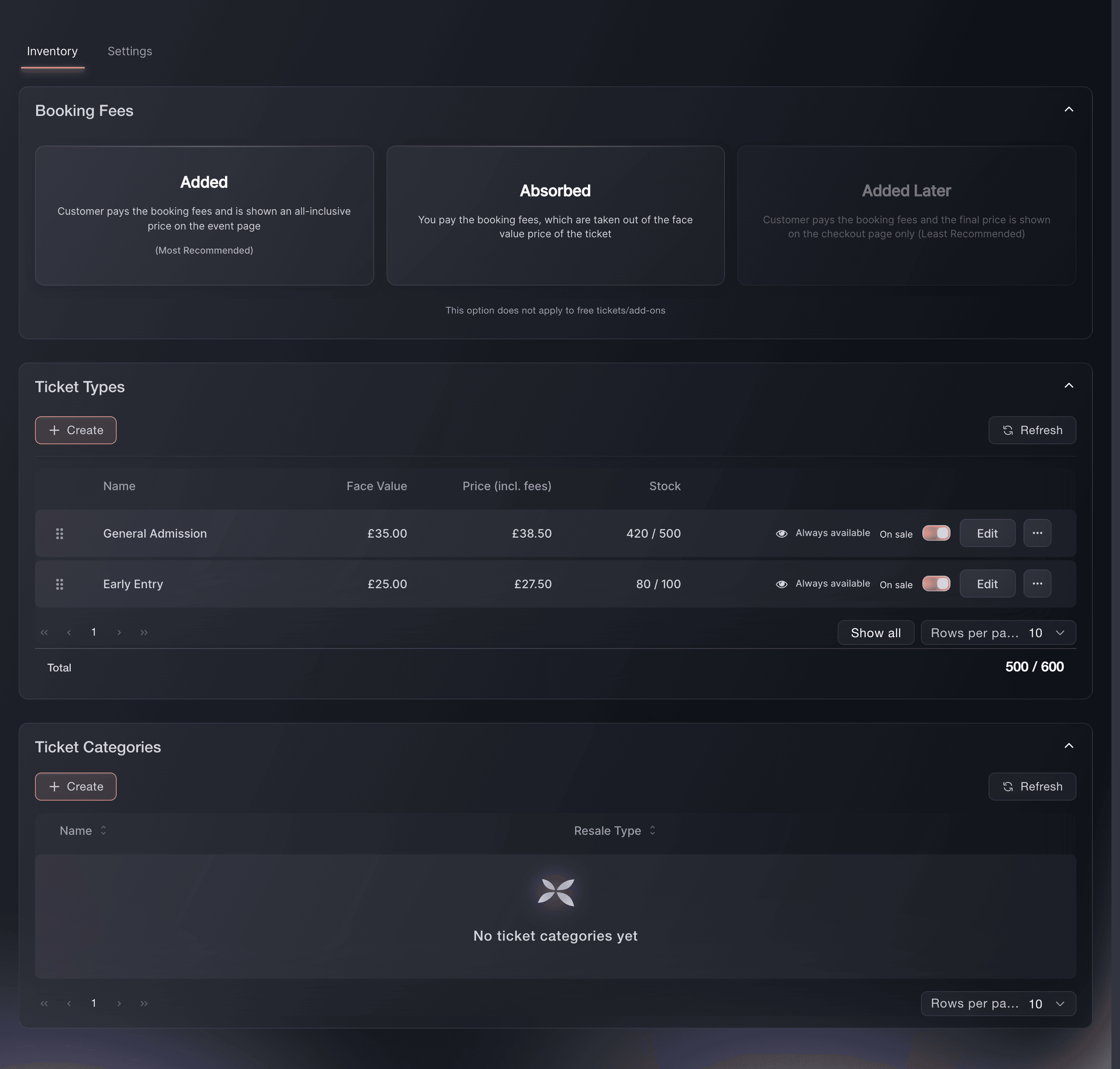
Event, Tickets, Inventory, Ticket Types. -
Choose who pays the booking fee
In Booking Fees, choose Added or Absorbed. With Added the buyer pays the fee and sees an inclusive price on the event page; with Absorbed the fee comes out of the ticket price.
Huomautus: Choose before creating the first ticket type, because Ticket Fairy prevents the switch once ticket prices exist. Added Later shows the fee at checkout and is unavailable for events in Australia, the United Kingdom and the United States.

When to create another ticket type
Create a separate ticket type when the buyer receives different admission, such as General Admission, VIP, Friday, Full Weekend or an accessible companion ticket. For Early Bird, First Release and Final Release prices that provide the same admission, create one ticket type for each release and group them under one ticket category.
Huomautus: A ticket category keeps releases for the same admission together. A sale window or a rule that reveals the next release controls when buyers can choose each one.
-
Select Create
In Ticket Types, select Create. The ticket form opens.
Event, Tickets, Create Ticket Type. -
Enter the name, price and maximum sales
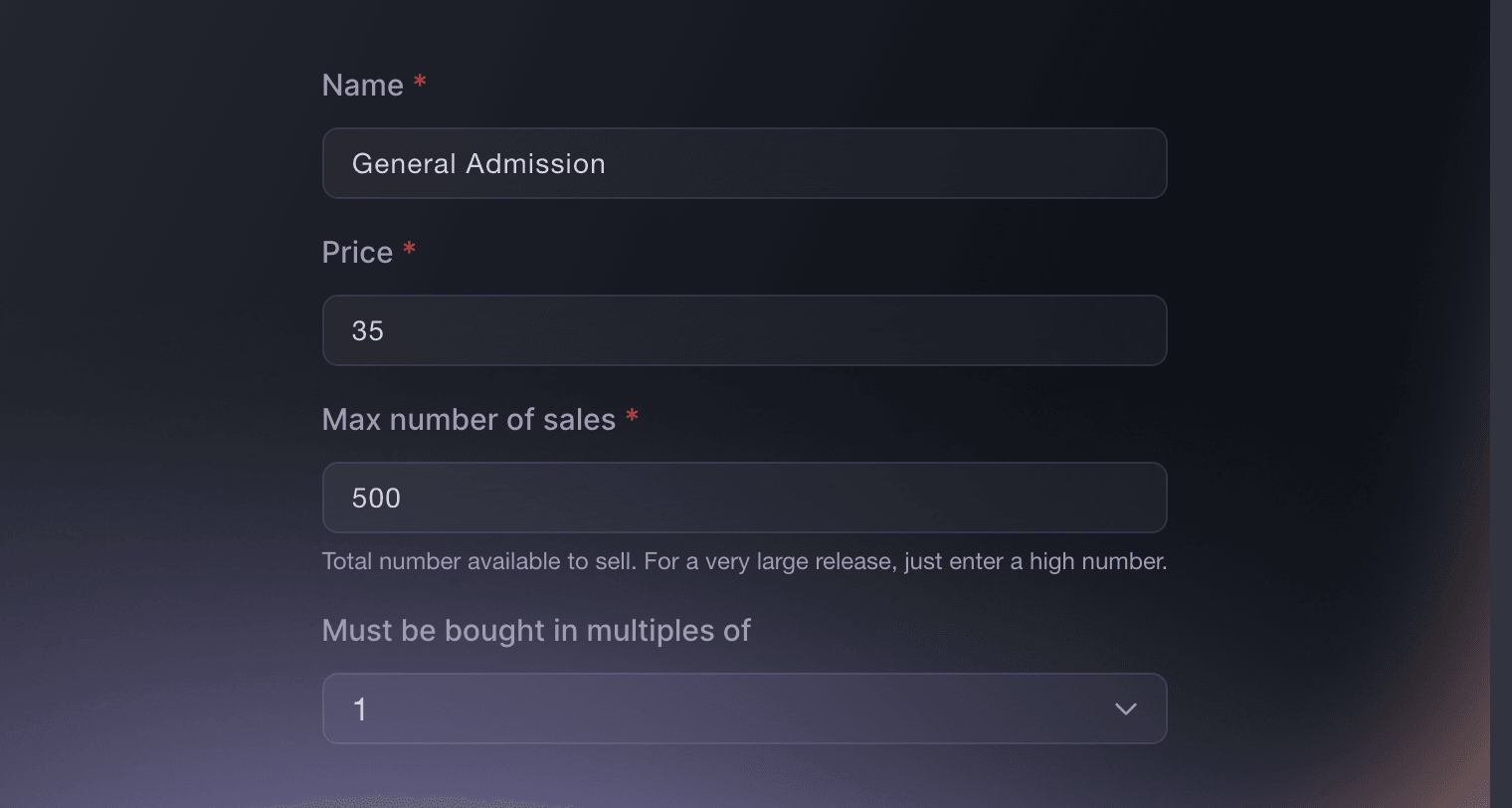
Enter a Name that describes what the buyer receives, its Price, and the Max number of sales.
Huomautus: Price can be 0 for a free ticket, and Max number of sales is the allocation for this ticket type, so 0 leaves it sold out. When several ticket types share the venue capacity, give each its own share rather than the whole capacity.
-
Set how many must be bought together
Leave Must be bought in multiples of at 1, or enter a higher number for a fixed bundle, such as two seats together.
-
Open Advanced settings
Open Advanced settings. The section expands below the essential fields.
-
Set the purchase limits
If this ticket needs a different limit from the event, set a custom maximum per order, and a per-account limit to stop one account buying the allocation through several orders.
Huomautus: A waiting-list maximum lets one person request fewer tickets. A badge on the ticket should describe availability accurately, because buyers read it as a promise.
-
Enter the description
Use Description for benefits, entry conditions and anything buyers should understand before choosing this ticket.
Huomautus: Hiding the date on the PDF suits a ticket that covers several dates.
Vinkki: Use Additional text on ticket PDF for information buyers need after purchase.
-
Turn on the entry controls this ticket needs
Turn on Scanned multiple times per event for a ticket that admits the holder more than once, then choose the hourly or daily limit.
Huomautus: Different door times gives this ticket its own entry window, and Hold tickets reserves part of its allocation. Each control you turn on adds fields that must be completed before saving.
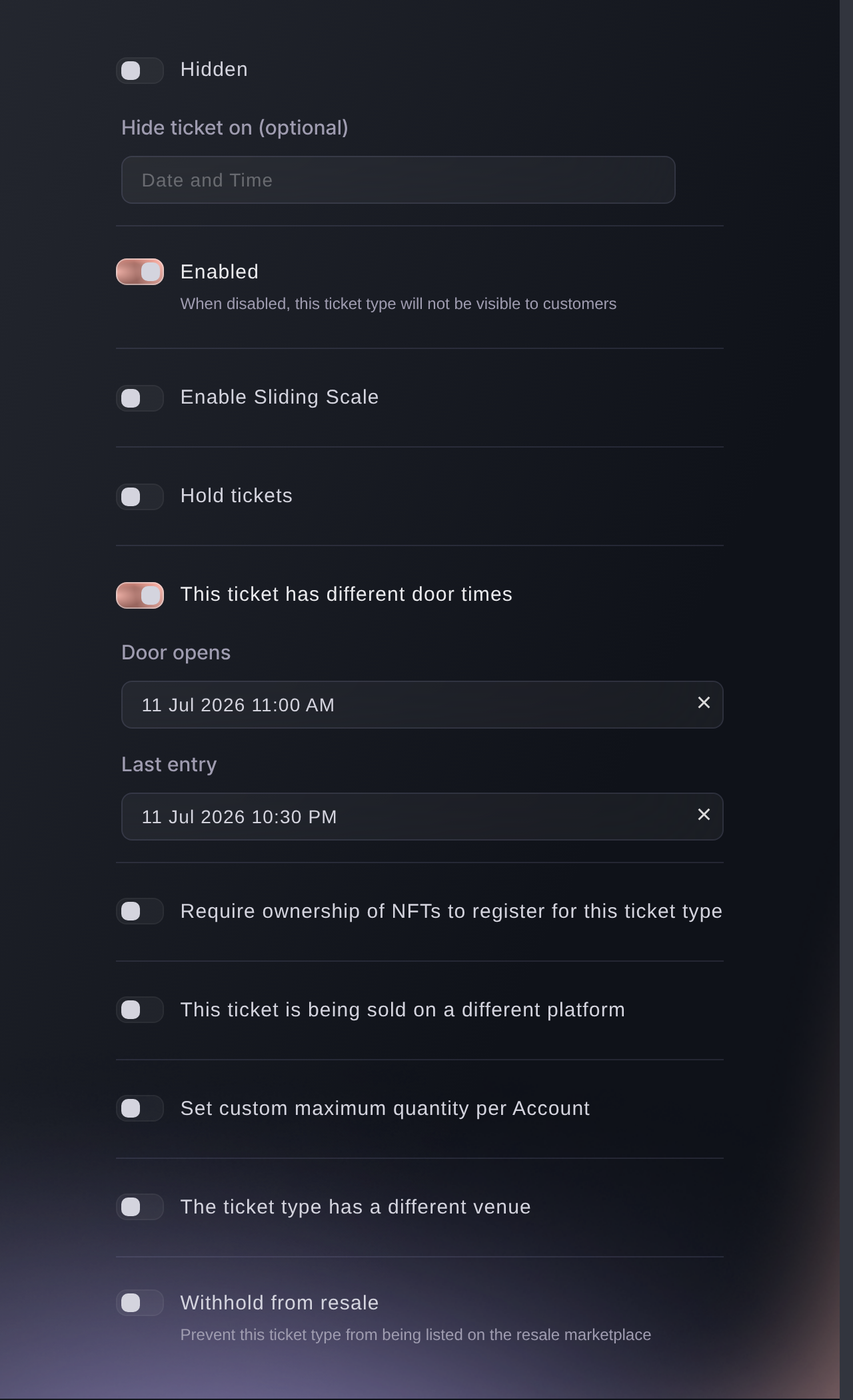
Event, Tickets, ticket type, Advanced settings. -
Leave Enabled on
Leave Enabled on, and turn on Hidden for a private or scheduled reveal.
Huomautus: The same section can withhold the ticket from resale, send buyers to another ticketing page, use another venue, require NFT ownership or enable sliding-scale pricing. Turn on only the controls that describe what this ticket offers.
-
Add tags and choose a ticket category
Add tags your team uses to find or organise attendees, then choose a Ticket Category or leave No category selected.
Huomautus: Tags are internal labels. The ticket name, description and category are the information buyers use to choose, and a category keeps releases for the same admission together.
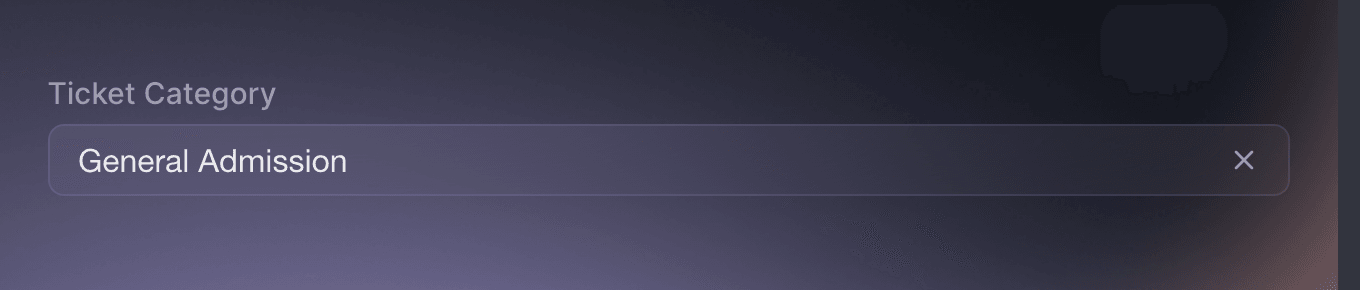
Event, Tickets, ticket type, Ticket Category. -
Set when the ticket is on sale
Under Ticket availability, keep the ticket always available, make it available after the previous ticket type sells out, or enter its sales start and end.
Huomautus: Exact dates suit a scheduled release, and the previous-ticket option suits a release that should go on sale once the ticket immediately above it sells out. Hidden and enabled are separate controls, so check all three when a ticket does not appear when expected.
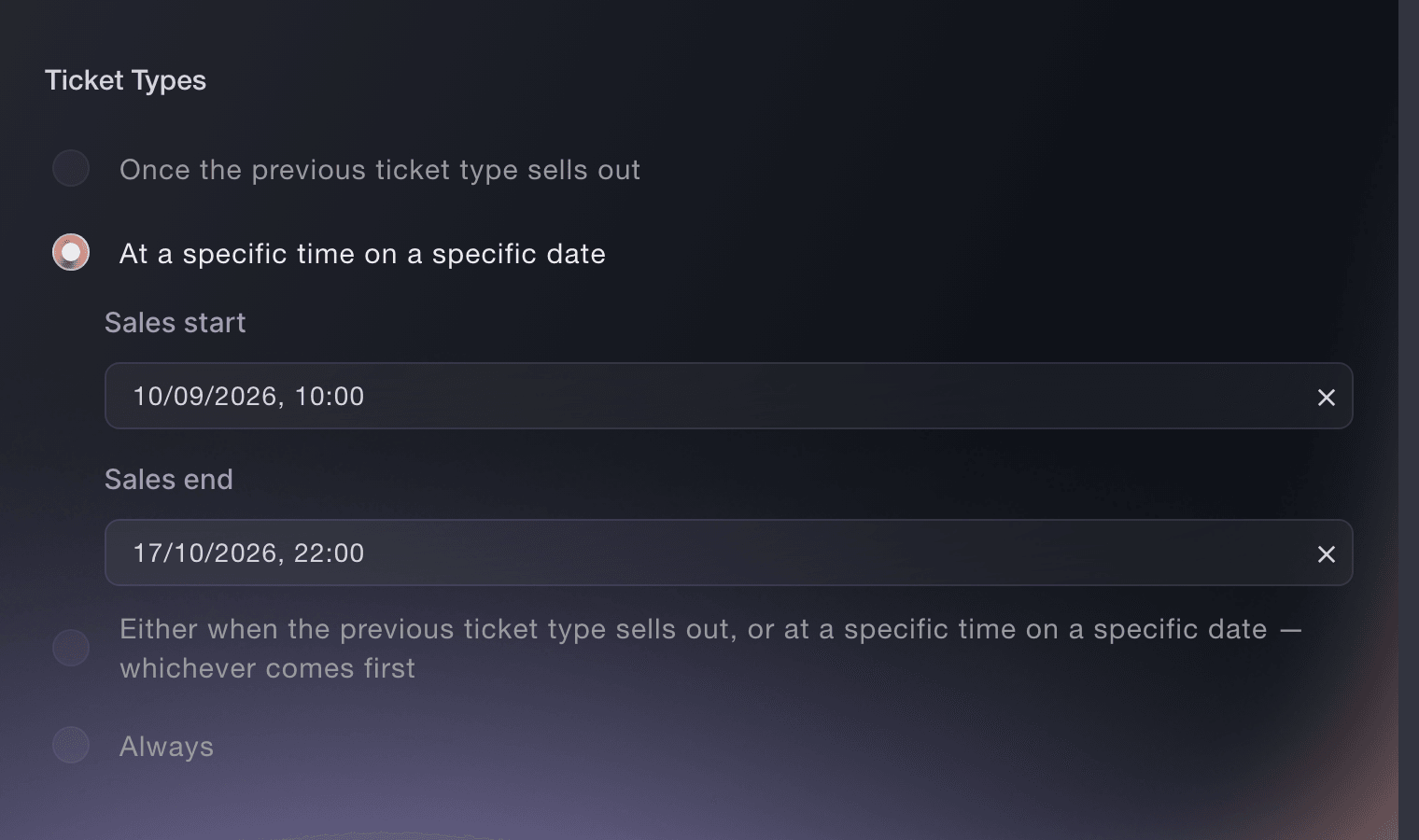
Event, Tickets, ticket type, Ticket availability. -
Select Create Ticket Type
Select Create Ticket Type. The ticket appears in Ticket Types.
Huomautus: Return to the event builder if this ticket completes a new draft. Otherwise continue creating the other ticket types and releases the event needs.
-
Check the ticket on your event page
Open the public event page and confirm the ticket name, description, price, fee treatment, category and availability.
Huomautus: A test ticket added to the basket while the event is public shows its purchase limits and any entry information.


Tai anna sen hoitua puolestasi
Fai can list your existing ticket types, ask for every setting that matters and show the proposed ticket before creating it. MCP and the CLI can also create a ticket type from the details you provide. Every surface asks for approval before making the change.
Hallintapaneelissasi, Fain kanssa
Set up a ticket type for <EVENT NAME>. Before creating it, ask whether booking fees should be added to the price, absorbed into it or, where available, added at checkout. Ask me what admission it includes, its name, price, allocation, purchase limits, sale window, visibility, entry rules and resale policy. Show me the booking-fee choice and every ticket setting before making either change
Omasta avustajastasi, MCP:n kautta
Yhdistä avustajasi MCP-palvelimeemme ja pyydä sitä:
Kopioitu MCP-määritys sisältää --read-only-valinnan. Poista --read-only vain, kun haluat avustajan tekevän muutoksia. Tavalliset muutokset suoritetaan pyynnöstä; tuhoavat toiminnot pyytävät hyväksyntäsi yhteensopivassa asiakkaassa. Jos asiakkaasi ei voi kysyä, tee muutos hallintapaneelissa.
Find the event <EVENT NAME>, list its ticket types, ask me for the name, price, allocation and any other settings needed for a new ticket type, then show me the complete ticket before creating it
Päätteeltä
Asenna CLI osoitteesta CLI-sivultamme, kirjaudu komennolla ticketfairy auth login ja valitse brändi, jonka parissa työskentelet, komennolla ticketfairy brand use <BRAND_ID>. ticketfairy brand list ja ticketfairy event list näyttävät muiden komentojen käyttämät tunnisteet.
Create a standard ticket type with command flags, or use a JSON or YAML file when you need the complete set of advanced fields. Prices use the event currency.
A standard General Admission ticket type
ticketfairy ticket create <EVENT_ID> --name "General Admission" --price 35 --max-inventory 500 --max-per-order 6
A ticket type using every field in a reviewed file
ticketfairy ticket create <EVENT_ID> --from-file ticket-type.yaml
Edit a ticket type
-
Open the ticket
In Tickets, select the ticket type you want to change or choose Edit from its row.
-
Save the change
Change the required fields, check any sale or visibility controls affected by the edit, then select Update Ticket Type.
Huomautus: Changing the allocation does not erase tickets already sold. Reducing it below commitments the event must honour leaves the event short of tickets it has already promised.
Fai, MCP and the CLI can show the current ticket and update the fields you name after approval.
Hallintapaneelissasi, Fain kanssa
Show me <TICKET TYPE> on <EVENT NAME>, including its price, allocation, limits, availability and entry rules. Ask what I want to change, then show the complete update before saving it
Omasta avustajastasi, MCP:n kautta
Kopioitu MCP-määritys sisältää --read-only-valinnan. Poista --read-only vain, kun haluat avustajan tekevän muutoksia. Tavalliset muutokset suoritetaan pyynnöstä; tuhoavat toiminnot pyytävät hyväksyntäsi yhteensopivassa asiakkaassa. Jos asiakkaasi ei voi kysyä, tee muutos hallintapaneelissa.
List the tickets for <EVENT NAME>, find <TICKET TYPE>, show its current settings and ask before applying this update: <CHANGE>
Päätteeltä
List tickets to confirm the ID, then update only the fields you intend to change.
Find every ticket type and its ID
ticketfairy ticket list <EVENT_ID> --all
Change a ticket price and allocation
ticketfairy ticket update <EVENT_ID> <TICKET_ID> --price 42 --max-inventory 650
Duplicate a ticket type
-
Choose the ticket to copy
Open the ticket row menu and select Duplicate Ticket Type.
-
Finish the copy
Open the new copy directly below the original, change its name, price, allocation, sale window and any settings that should differ, then save it.
Huomautus: The copy starts with the original capacity and no sales. Custom data-capture fields are not copied.
Fai can duplicate a standard ticket type, then rename or reprice the copy after you approve each change. MCP and the CLI do not duplicate ticket types; create a new ticket from reviewed values instead.
Hallintapaneelissasi, Fain kanssa
Duplicate <TICKET TYPE> on <EVENT NAME>. Show me the source ticket and what the copy will keep, then ask before creating it. Afterward ask for the new name, price, allocation and sale window
Change the order buyers see
-
Move the ticket rows
Drag ticket types into the order buyers should see. Keep sequential releases together and place the current release before any release that waits for it to sell out.
-
Save the order
Select Save Order after checking the complete list.
Huomautus: Reordering changes presentation only. It does not change prices, allocations or whether a ticket is on sale, except that a release configured to follow the previous ticket depends on which row is directly above it.
Fai can list the current order and save the complete new order after approval. MCP and the CLI do not reorder ticket types.
Hallintapaneelissasi, Fain kanssa
Show me the ticket order for <EVENT NAME>, then arrange it as <ORDER>. Show the complete final order and ask before saving it
Take a ticket type off sale without deleting it
-
Open the ticket settings
Edit the ticket type and turn Enabled off.
-
Save and check the event page
Select Update Ticket Type. The ticket is no longer available on the event page until you turn Enabled on again.
Huomautus: Disabling preserves the ticket type and its history. It is usually safer than deleting a ticket you may need again.
Fai, MCP and the CLI can change the ticket type between active and inactive after approval.
Hallintapaneelissasi, Fain kanssa
Show me <TICKET TYPE> on <EVENT NAME> and ask before turning it off. Keep all its other settings unchanged
Omasta avustajastasi, MCP:n kautta
Kopioitu MCP-määritys sisältää --read-only-valinnan. Poista --read-only vain, kun haluat avustajan tekevän muutoksia. Tavalliset muutokset suoritetaan pyynnöstä; tuhoavat toiminnot pyytävät hyväksyntäsi yhteensopivassa asiakkaassa. Jos asiakkaasi ei voi kysyä, tee muutos hallintapaneelissa.
Find <TICKET TYPE> on <EVENT NAME>, show its current status and ask before setting active to false
Päätteeltä
Confirm the ticket ID, then deactivate or reactivate it.
Take the ticket off sale
ticketfairy ticket update <EVENT_ID> <TICKET_ID> --deactivate
Restore the ticket
ticketfairy ticket update <EVENT_ID> <TICKET_ID> --activate
Mark a ticket type as sold out
-
Choose Mark as Sold Out
Open the ticket row menu and choose Mark as Sold Out.
-
Choose what happens to live baskets
Choose whether buyers who already hold this ticket in a live basket may finish checkout, then confirm.
Huomautus: There is no default for this decision. Allowing checkout honours the temporary basket reservation; clearing baskets makes the sold-out state immediate.
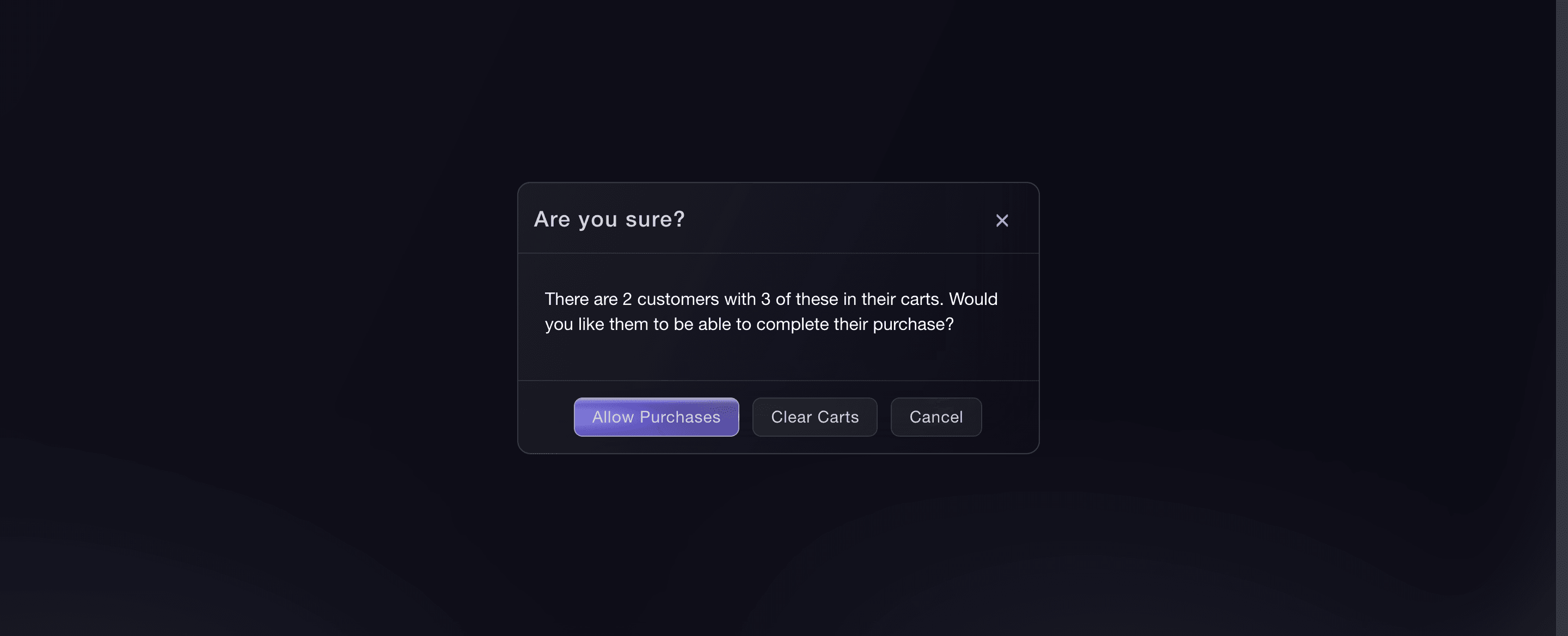
Event, Tickets, Inventory, Mark as Sold Out.

Fai can mark the ticket sold out after showing it and asking whether buyers with live baskets may finish. MCP and the CLI do not expose this action.
Hallintapaneelissasi, Fain kanssa
Mark <TICKET TYPE> on <EVENT NAME> as sold out. Show me the ticket, then ask whether buyers who already have it in a live basket may finish checkout before making the change
Delete an unused ticket type
-
Check that the ticket is unused
Confirm that the ticket type has no orders and is not reserved in a live basket.
Huomautus: Disabling it instead of deleting keeps it for later.
-
Delete the ticket type
Open its row menu, select Delete Ticket Type, check the name and confirm.
Huomautus: Ticket Fairy refuses deletion when the ticket has orders or is in a buyer's basket. Contact support if you need an accidentally deleted unused ticket restored.
Fai, MCP and the CLI can delete an unused ticket type after showing its identity and asking for approval. Ticket Fairy refuses the deletion when it has orders or live basket reservations.
Hallintapaneelissasi, Fain kanssa
Show me <TICKET TYPE> on <EVENT NAME>, including its current status and sales, then ask before deleting it
Omasta avustajastasi, MCP:n kautta
Kopioitu MCP-määritys sisältää --read-only-valinnan. Poista --read-only vain, kun haluat avustajan tekevän muutoksia. Tavalliset muutokset suoritetaan pyynnöstä; tuhoavat toiminnot pyytävät hyväksyntäsi yhteensopivassa asiakkaassa. Jos asiakkaasi ei voi kysyä, tee muutos hallintapaneelissa.
Find <TICKET TYPE> on <EVENT NAME>, show its ID and current status, then ask before deleting it
Päätteeltä
List tickets to verify the ID. The delete command asks for confirmation unless you deliberately pass --force.
Delete the unused ticket type after confirmation
ticketfairy ticket delete <EVENT_ID> <TICKET_ID>
Kysymyksiä joita sinulla voi olla
- What is the difference between a ticket type and a ticket release?
- A ticket type describes what the buyer receives, such as General Admission or VIP. A release changes when or at what price the same admission is offered, such as Early Bird and Final Release. In Ticket Fairy, each release is created as a ticket type and the releases can share one ticket category.
- What does Max number of sales mean?
- It is the allocation for this ticket type. Set it to the largest number you can honour after accounting for other ticket types, holds, venue areas and any stock sold elsewhere. A value of 0 leaves the ticket sold out.
- Can I create a free ticket?
- Yes. Enter 0 as the price and set an allocation. Purchase limits, approval, hidden access and entry rules can still apply to a free ticket.
- Why can't I change who pays the booking fee?
- Ticket Fairy prevents switching between Added and Absorbed after ticket types exist because their prices were prepared under the current fee choice. Choose the fee treatment before creating tickets. Added and Added Later can still be changed where Added Later is available.
- Why is my ticket not appearing on the event page?
- Check that the ticket is enabled, its allocation is above 0, its sales window is open and it is not hidden. A ticket waiting for the previous release also stays unavailable until the ticket directly above it sells out.
- Should I hide or disable a ticket?
- Hide it when a code, country, date or previous release should reveal it. Disable it when nobody should be able to buy it until you turn it on again. Both settings preserve the ticket type.
- Can I lower an allocation after tickets have sold?
- You can edit the allocation, but existing tickets remain valid. Keep it high enough to honour every ticket already sold and every place your event has committed elsewhere.
- Do tags appear to buyers?
- No. Tags help your team organise and find attendees. Use the ticket name, description and category for information buyers need.
Aiheeseen liittyvät oppaat
Tee tämä omassa tapahtumassasi
Luo tili, rakenna tapahtumasi ja seuraa vaiheita omassa hallintapaneelissasi. Sinun ei tarvitse varata myyntipuhelua.