
Ihre Veranstaltung bewerben
Track ticket sales with your Amazon DSP pixel
Add your Amazon DSP pixel once at brand level to see which campaigns led to ticket sales.
- Für
- Running campaigns in Amazon DSP
- Dauer
- 5 Minuten
Was Sie brauchen, bevor Sie anfangen
- You're an owner, an admin or on the marketing team for this brand. If you can't open Integrations, ask an owner or an admin to do this part or to give you access.
- You have the complete Amazon DSP tracking snippet.
-
Copy your Amazon DSP pixel code
In Amazon Ads, open the Amazon Ads tag for this advertiser and copy its complete code, including the setRegion and addTag calls. Add the purchase event code from Events Manager to the same snippet so Ticket Fairy keeps its exact event name.
The dashboard uses the surrounding code to recognise Amazon DSP and find the ID.
-
Import it in your brand settings
Open Network Conversion Tracking Pixels and select Import Tracking Pixel. Under Paste complete pixel code, paste the full Amazon DSP snippet, check that the dialog detects Amazon DSP and the right ID, then select Import Pixel.
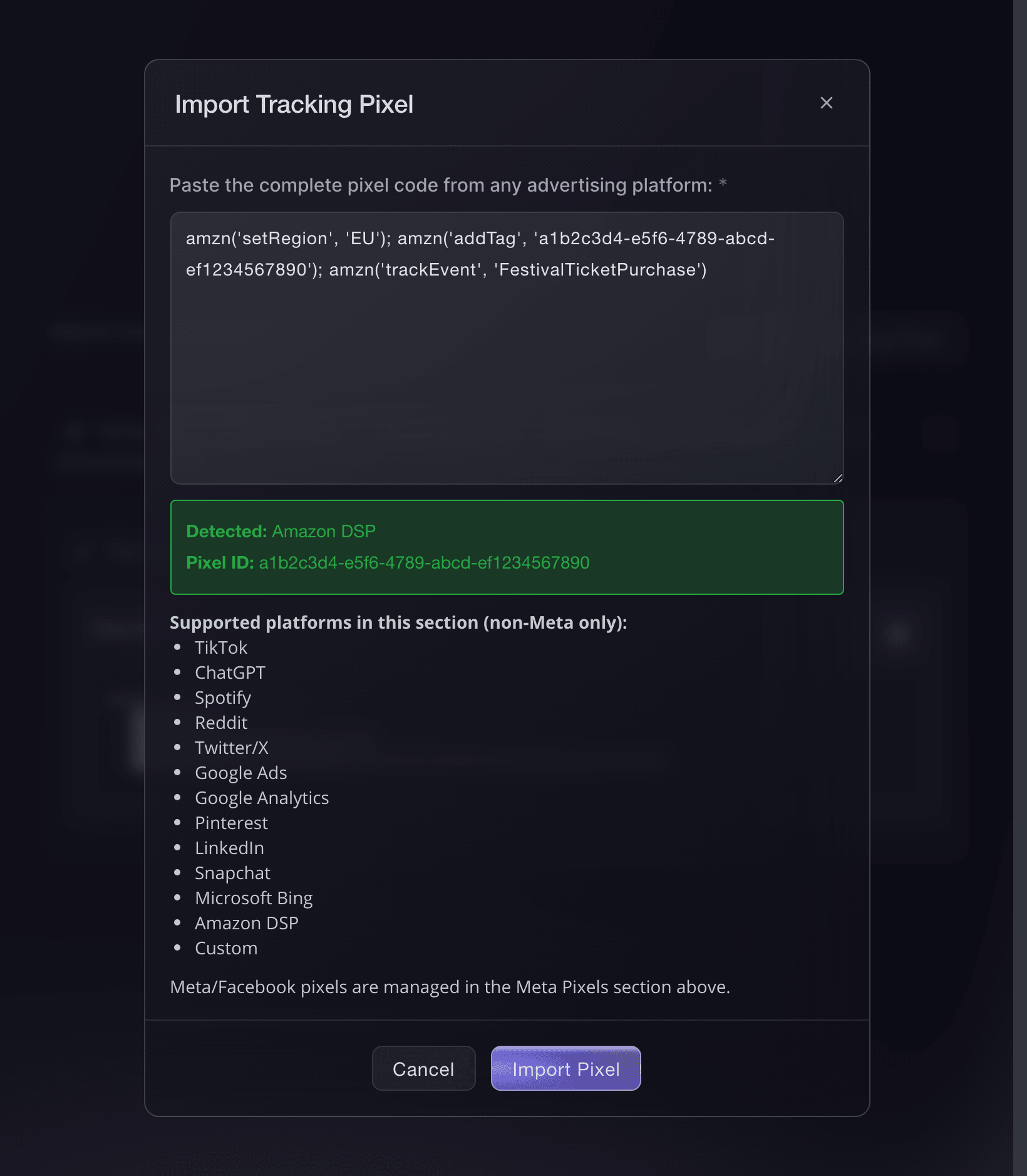
Brand settings, Integrations, Import Tracking Pixel. -
Check it appears under Amazon DSP
Open the Amazon DSP tab. It shows the imported ID and the tracking calls Ticket Fairy sends.
You can import more than one, so an agency running two Amazon DSP accounts against the same event can add both.
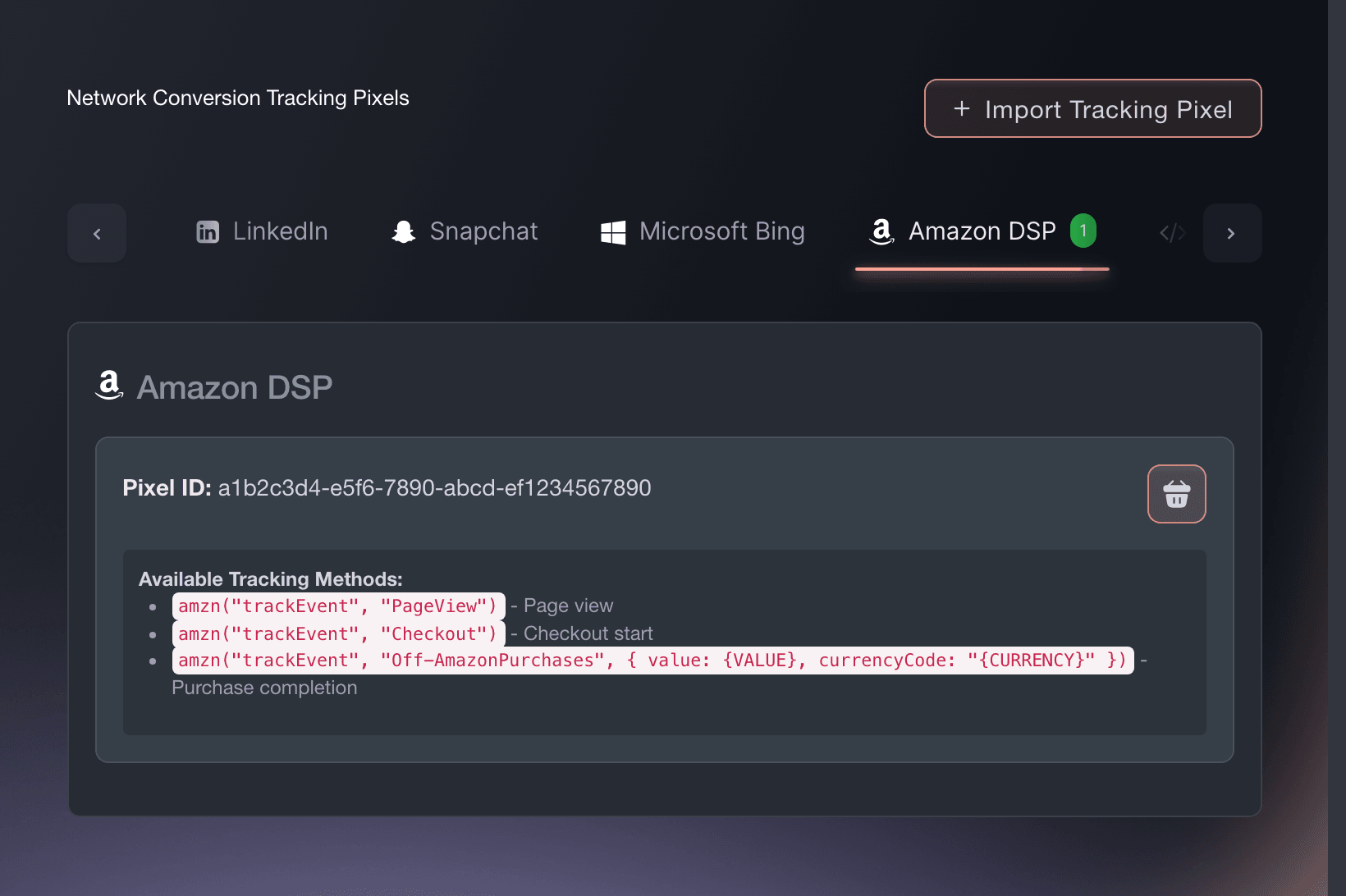
Brand settings, Integrations, Tracking pixels. -
Confirm Amazon DSP receives a sale
Buy a ticket on your own event, or use a test order. Look for the purchase event in Amazon DSP.
Tracking is working when Amazon DSP shows the purchase with the completed order value.
Oder lassen Sie es erledigen
Fai can add this pixel after asking you to approve the change when you give it the complete snippet from Amazon DSP. You can also add it in the dashboard.
In Ihrem Dashboard, mit Fai
Add an Amazon DSP tracking pixel to this brand using this complete snippet: <paste the snippet>
Fragen, die Sie haben könnten
- How do I add an Amazon DSP pixel to my event page?
- Open Network Conversion Tracking Pixels and select Import Tracking Pixel. Under Paste complete pixel code, paste the full Amazon DSP snippet, check that the dialog detects Amazon DSP and the right ID, then select Import Pixel. The Amazon DSP pixel then measures every event page and checkout under that brand, so you add it only once.
- Which Amazon DSP events does Ticket Fairy fire?
- Your Amazon Ads tag receives PageView when someone opens your event, Checkout when they begin buying and the purchase event saved in the snippet when the sale completes. If the snippet contains only the base tag, Ticket Fairy uses Off-AmazonPurchases. The completed-sale call includes order value, currency, quantity, the first product ID and a stable order ID for duplicate prevention.
- Can I enter only the pixel ID?
- Use the complete snippet. It keeps the provider settings the ID alone does not carry, such as the conversion action or region, so Ticket Fairy can send each sale to the right destination.
- Will my Amazon DSP pixel fire if buyers check out on my own website?
- Yes. The embedded checkout sends the same events at the same points as the hosted checkout, so Amazon DSP records a sale on your own site the same way.
Wie es weitergeht
Machen Sie das bei Ihrer eigenen Veranstaltung
Erstellen Sie Ihr Konto, legen Sie Ihr Event an und folgen Sie den Schritten in Ihrem eigenen Dashboard. Sie müssen kein Verkaufsgespräch buchen.