
Vault dan Capital
Track what your event team spends on Vault cards
Finance leads and production managers check card spend against the event budget and want to catch a problem before a supplier is left unpaid. Card activity lists what each Vault card did, and the Action centre lists the Vault work that needs a person, such as a card payment held for a fraud review.
See every payment your event team's Vault cards make, with holds, refunds and declined payments and the reason each was declined, and the Vault work in the Action centre that needs someone to act, with its priority and deadline.
- Untuk
- Keeping track of card spend and Vault reviews for your events
- Perlu waktu
- 6 menit
Halaman Vault Anda
Sebelum mulai
- You're an owner or an admin on the brand. Those are the two roles that reach Vault.
- Your brand has an active Vault account. Ask Ticket Fairy support to switch Vault on for your brand if it isn't, then open the account.
- You have your second factor to hand. Card activity may ask you to confirm it's you before it loads.
-
Activity ledger
Pick the brand, open Vault, then select Card activity. Activity ledger lists what your Vault cards did in the latest 30 days, newest first: each row gives the merchant and where it is, the card by its nickname and last four digits, the type of event, the amount and its status. Authorisation hold with Authorised is money held on the card for a payment that has not settled; Purchase with Settled is money spent; Refund with Credited is money back on the card; and Authorisation release with Released is a hold let go, once the purchase settles or when the payment is reversed. The amount is in the card's own currency, with the merchant's amount beneath it when they charged in another currency.
Catatan: One payment usually shows as more than one row: the hold, then the settled purchase and the hold's release. So never add up the Amount column; count the purchases and the credits, which are the rows that moved money.
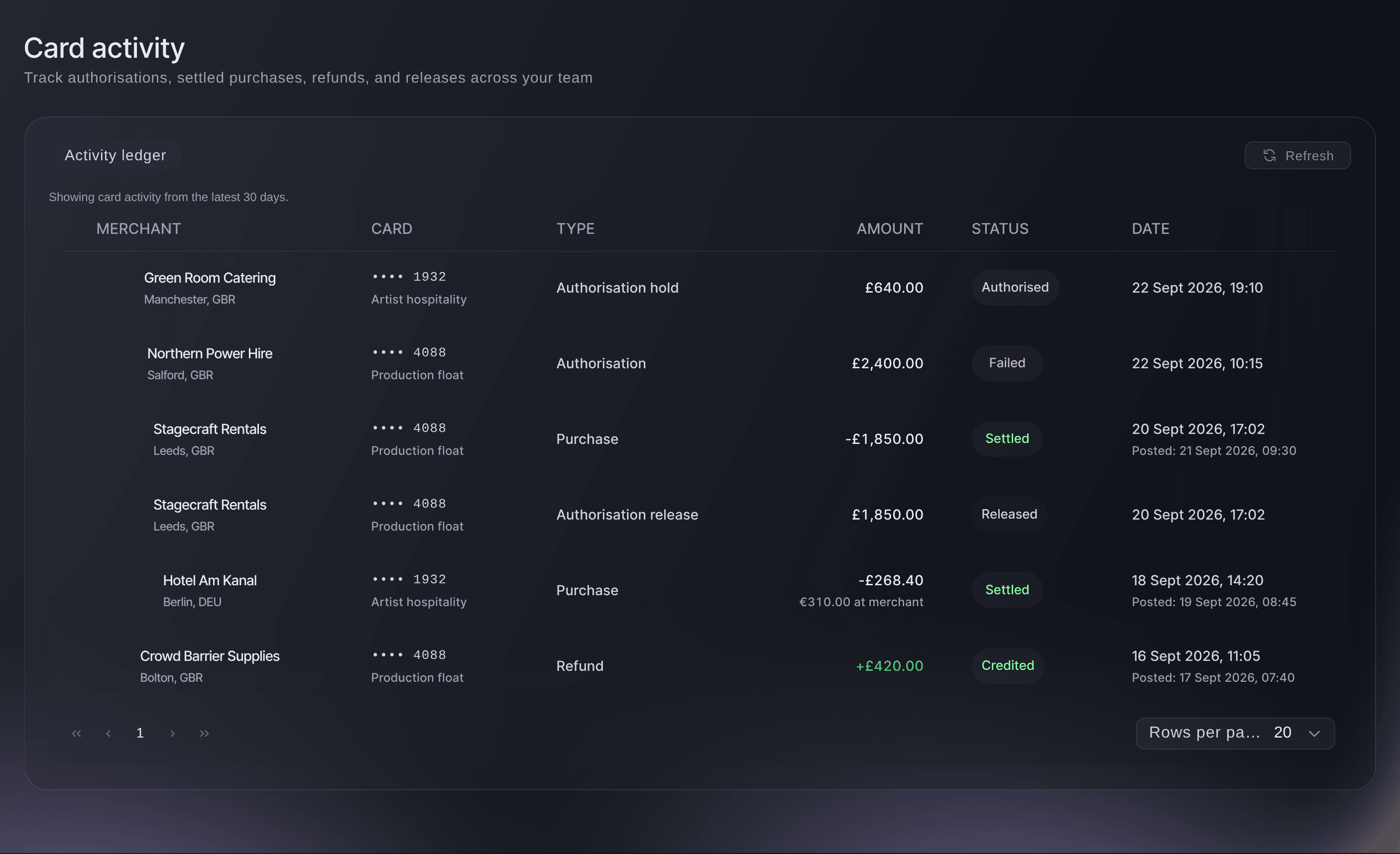
Brand, Vault, Card activity. -
Card activity details
Select a row's merchant to open Card activity details. It holds the type and status, the dates the payment was made and posted, the merchant's name, place and category, the card, any security check on the payment, the references your bank or the merchant may ask for, and any fee. A payment that did not go through, shown as Declined or Failed, says why at the top in a sentence, such as a card limit being reached, with what to do next.
Catatan: A decline on a card limit means the card needs different limits, which you set by issuing a new card. When a decline says to contact support, quote the Activity ID under References.
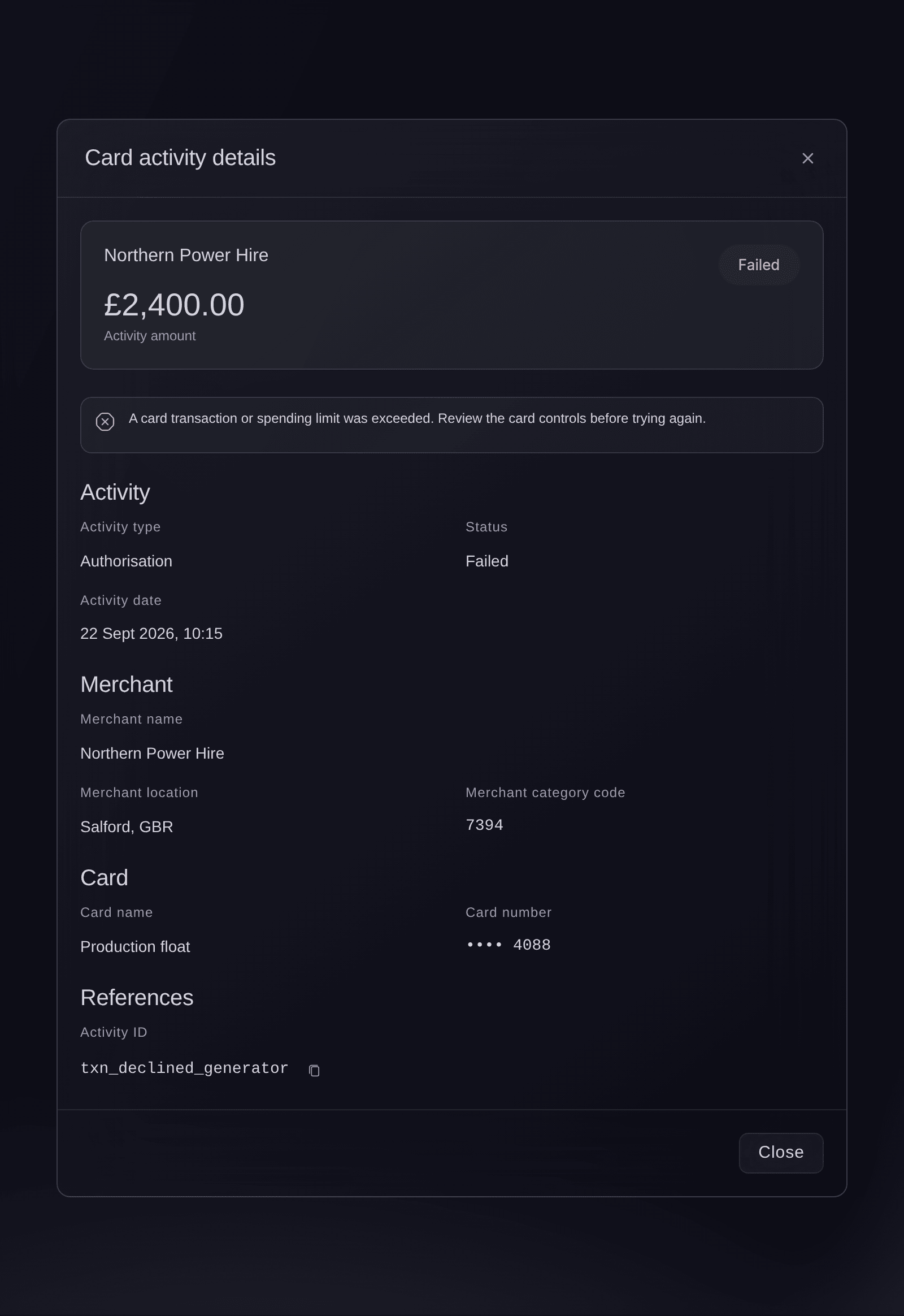
Card activity, a declined payment opened from the list. -
Action centre
Select Action Centre under Vault. Work to review lists the open Vault tasks for the brand, nearest deadline first, each with its priority, whether it is on time, the area of work it belongs to, when it is due and when it last changed. A task opens when Vault reports something that needs a person: an information request, an account or cardholder review, a card payment held for a fraud review, a card close to its limit or a delivery problem, a transfer or deposit that failed or needs approval. The filters above narrow the list by status, priority, responsible team, task type and deadline, and Refresh queue fetches the latest.
Catatan: Ordinary card payments and declines never open a task; they are in Card activity. A task closes by itself when Vault reports the matter sorted, so choose Resolved under Status to see what has been dealt with.
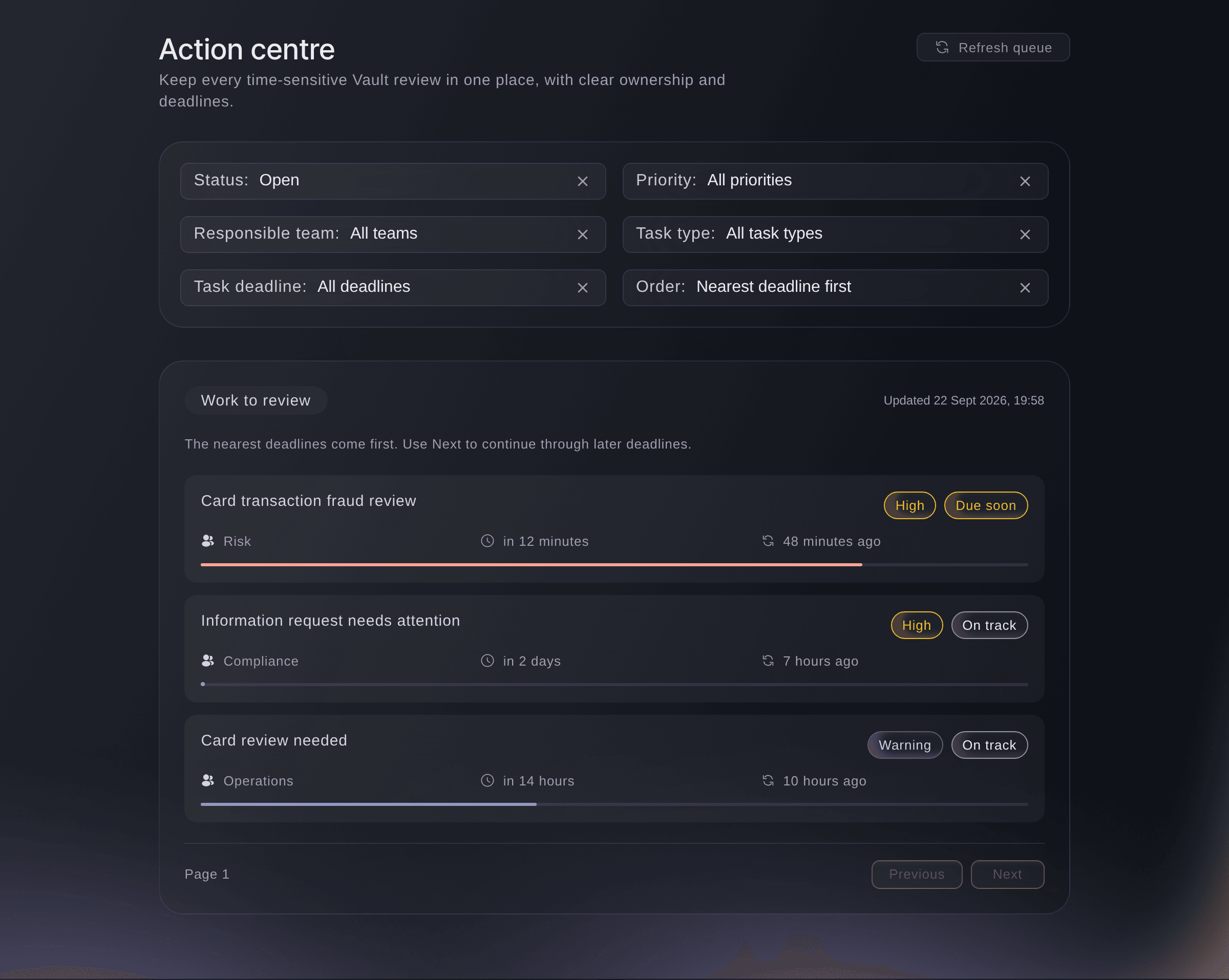
Brand, Vault, Action centre. -
Review details
Select a task to open its details. Time remaining shows how much of the response window has gone, with Due and Responsible team beneath it, and Review details gives the facts Vault reported, such as why it needs review, the deadline, the merchant, the card's last four digits, the amount and when the payment was made. The deadline is the one Vault gave, or else the task's response window counted from the moment the event happened, so a fraud review can be due within the hour.
Catatan: The bar under each task fills as its response window runs out, and turns peach once a quarter or less is left or the deadline has passed.
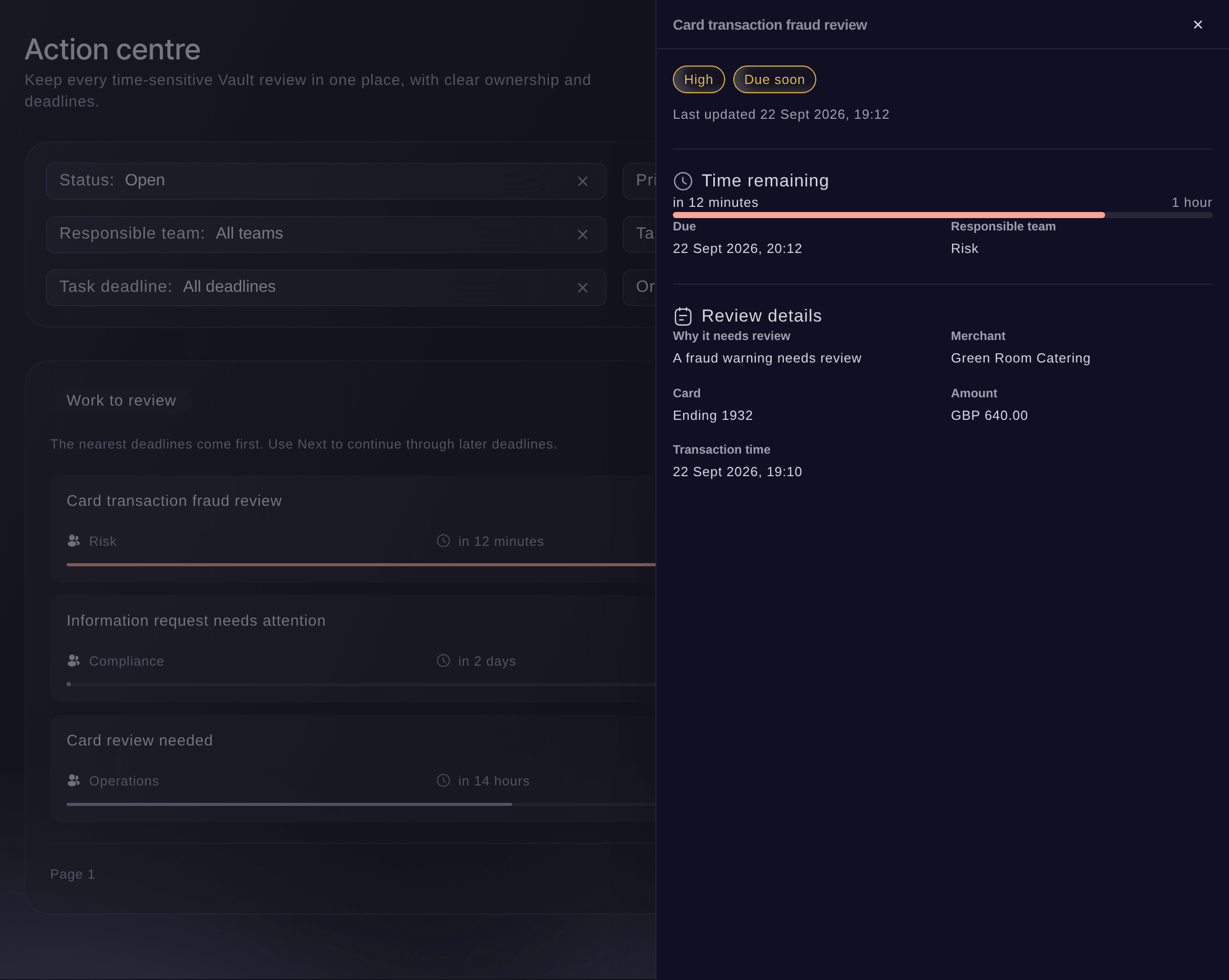
Action centre, a task opened from the queue.
Lihat angka-angka ini untuk acara Anda sendiri
Buat akun gratis dan laporan ini akan terisi seiring tiket Anda terjual. Anda melihat angka yang sama untuk acara Anda sendiri sejak penjualan pertama.
Tanpa biaya pemasangan. Tanpa biaya bulanan wajib. Tanpa kartu kredit.
Atau minta dikerjakan untuk Anda
Fai, the assistant inside your dashboard, reads the Action centre back to you, with each task's priority, team and deadline, and opens a task for its details. She cannot read card activity. From MCP or the command line you can list the card activity, and neither reads the Action centre.
Di dasbor Anda, dengan Fai
What is waiting for us in the Vault action centre for <BRAND NAME>, and what is due first?
Dari asisten Anda sendiri, lewat MCP
Hubungkan asisten Anda ke server MCP kami lalu minta:
Biarkan --read-only dalam konfigurasi MCP Anda. Tugas ini hanya membaca data, jadi asisten Anda tidak memerlukan alat yang membuat perubahan.
Pick the brand <BRAND NAME> and list the latest Vault card transactions
Dari terminal Anda
Pasang CLI dari halaman CLI kami, masuk dengan ticketfairy auth login, lalu pilih brand yang Anda kerjakan dengan ticketfairy brand use <BRAND_ID>. ticketfairy brand list dan ticketfairy event list menampilkan ID yang digunakan perintah lain.
The command line lists the card events on the brand's Vault cards and opens one of them. You need an owner or admin login for the brand. It has no command for the Action centre. If it says Vault needs you to confirm it is you, the command stops. Open the card activity in Vault in the dashboard, confirm it is you there, and read it there.
List the card events on the brand's Vault cards, newest first, with the id of each
ticketfairy vault transactions list --brand <BRAND_ID>
Open one card event with its merchant, amount and status, using an id from the list
ticketfairy vault transactions get <TRANSACTION_ID> --brand <BRAND_ID>
Biarkan Fai mengerjakannya untuk Anda
Fai bekerja di dalam dasbor Ticket Fairy Anda. Buat akun Anda, buka Fai dan tempel perintah di atas.
Tanpa biaya pemasangan. Tanpa biaya bulanan wajib. Tanpa kartu kredit.
Pertanyaan yang mungkin Anda punya
- Why does one payment appear twice in Card activity?
- The card holds the money first, as an authorisation hold, then the purchase settles and the hold is released. Each of those is its own row, and only the settled purchase is money spent.
- How far back does Card activity go?
- The latest 30 days, newest first. The page says so above the list.
- Why is Card activity empty?
No card activity in the latest 30 days
means none of the brand's Vault cards has been used in that time. New holds, purchases, refunds and releases appear as the cards are used.- Can I clear a task in the Action centre myself?
- No. A task closes when Vault reports that the matter is sorted, for example when a transfer is funded or a cardholder is ready, and it then moves from Open to Resolved.
- What do I do about a task?
- The Action centre has no button to act on a task. Deal with a card or cardholder task on Cards and a transfer task on Transfers, and for an account review check the Vault account card on Overview, which offers Continue Onboarding when Vault needs more from you. Contact Ticket Fairy support about an information request or anything else the dashboard doesn't let you settle.
- Where are my Vault balances?
- On the Vault Overview, which shows what you can spend in each currency. Card activity lists what the cards did, not what is left.
Masih ada pertanyaan?
Jadwalkan demo dan kami akan menjawabnya lewat panggilan, sesuai jenis acara Anda. Atau buat akun Anda dan lihat sendiri.
Tanpa biaya pemasangan. Tanpa biaya bulanan wajib. Tanpa kartu kredit.
Panduan terkait
Lakukan ini di acara Anda sendiri
Buat akun, susun acara, dan ikuti langkah-langkahnya di dasbor Anda. Anda tidak perlu memesan panggilan penjualan.