
Email, SMS и маркетинг
Email the people who bought tickets to your event
Every organiser has something to tell the people who bought tickets: the doors time, the set times, a change of venue, a thank-you the morning after. One message from the event reaches exactly the group you choose, goes out now or at the time you set, and shows you who opened it, without exporting a list to another tool.
Send doors, set times, a venue change or a thank-you to everyone attending, to one ticket type or to the waiting list, now or at a time you choose, and see who opened it.
- Для кого
- Telling ticket holders something before, during or after the event
- Займёт
- 6 минут
Перед началом
- You're an owner or admin of the event, and your brand is verified.
- Your own account has passed identity verification. Messaging refuses to send until it has, with a message asking you to verify your account, even after you have composed and reviewed the email.
- The event ended less than fifteen days ago, or has not happened yet.
-
Open Messaging and start a new email
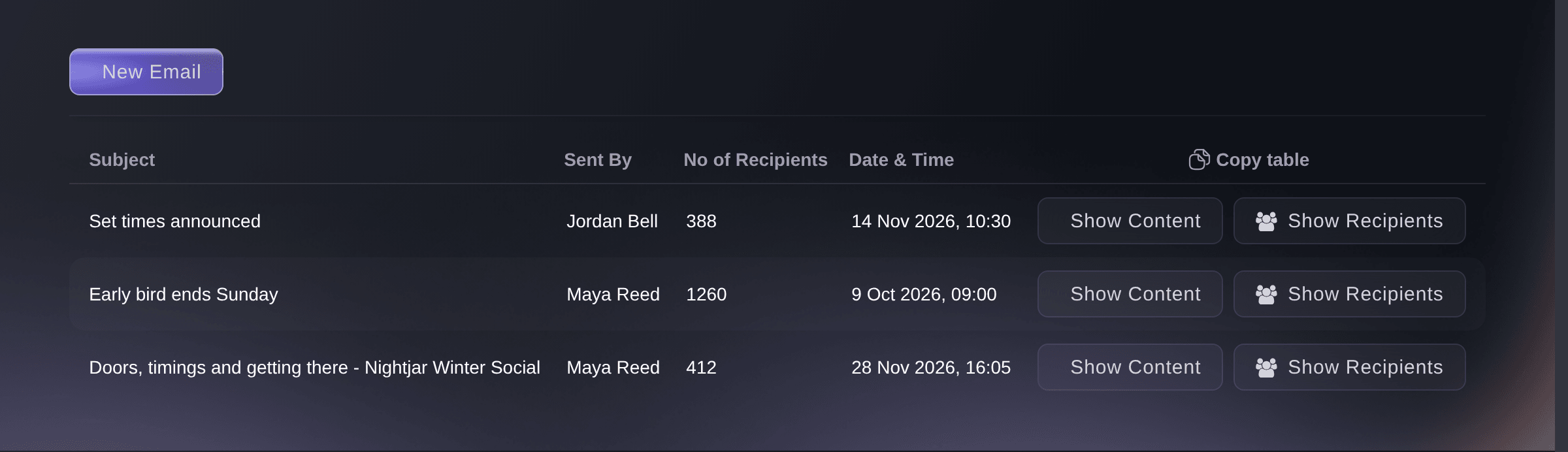
Open your event, select Messaging, then New Email. Everything already sent for the event is listed under Email Messaging, with who sent it and to how many people.
Примечание: On an event with nothing sent yet, the button reads Send Email.
Event, Messaging. -
Choose who gets it
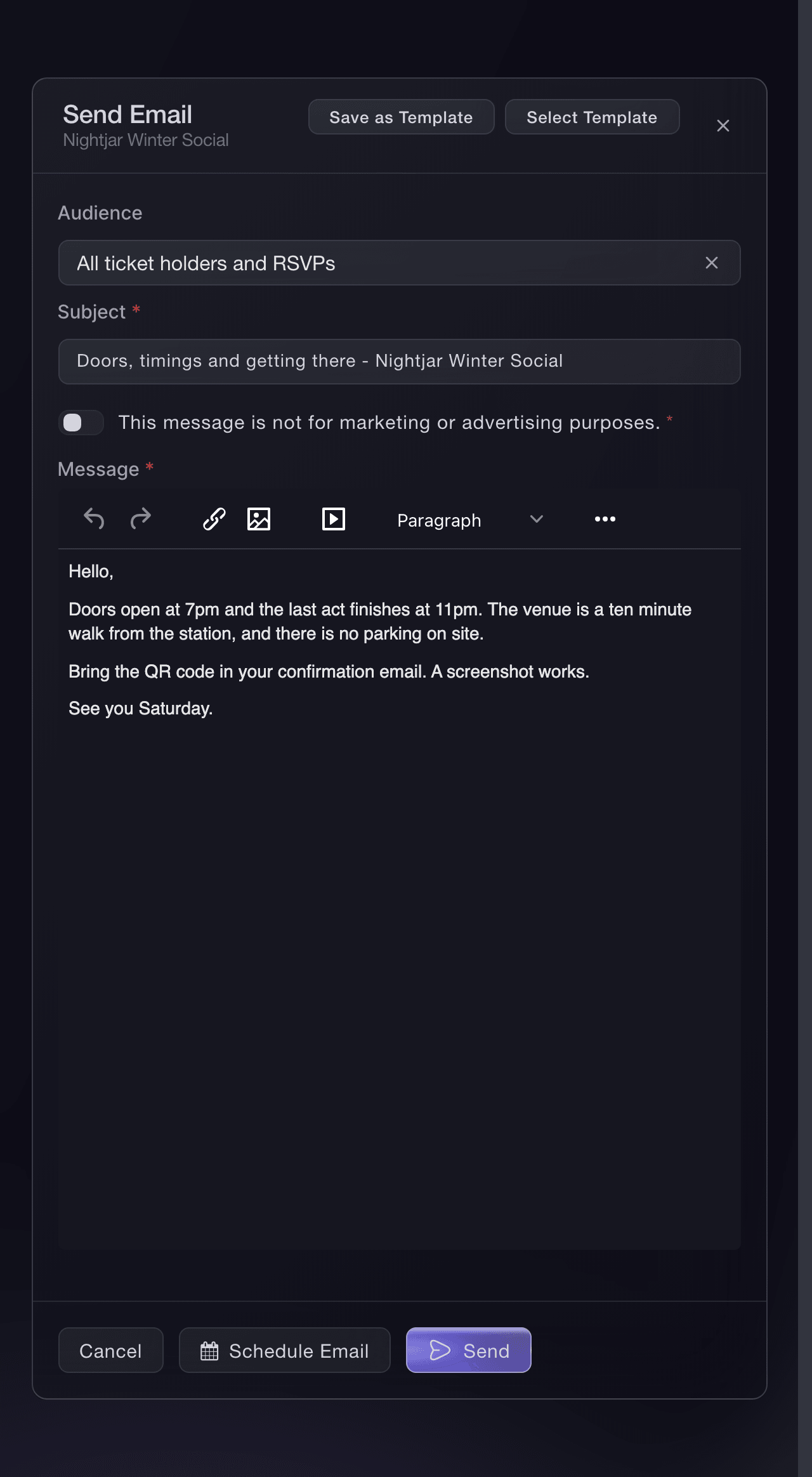
Under Audience, choose the group: All ticket holders and RSVPs for everyone attending, Specific ticket type holders for one or more ticket types, or the waiting list, pre-registered, checked-in or abandoned-cart groups. A ticket-type audience then asks you to tick the types under Select ticket types.
Примечание: One audience per message. A buyer who holds tickets for more than one date or time slot receives one email for each of them.
Event, Messaging, Send Email. -
Enter the subject and the message
Enter the Subject, which starts as a message to attendees of your event, and the Message. The email goes out under your brand's name, and replies come to your brand's email address.
Примечание: Select Template starts from a message you saved before, at event or brand level.
-
Confirm the message is not marketing
Turn on This message is not for marketing or advertising purposes.. Event messaging is for what your buyers need to know about the event they bought into, and the switch is what lets you send.
Примечание: A newsletter or a promotion for another event belongs in the email platform connected to your brand, where buyers chose to hear from you.
-
Send a test to yourself
Choose Send test as the audience, enter your address under Send test to and send. The test arrives as your buyers will see it, so you can check the subject, the message and how it reads on a phone.
Примечание: A test can go to you or to a member of the event team, up to ten times an hour. Choose the real audience again before the real send.
-
Review and send
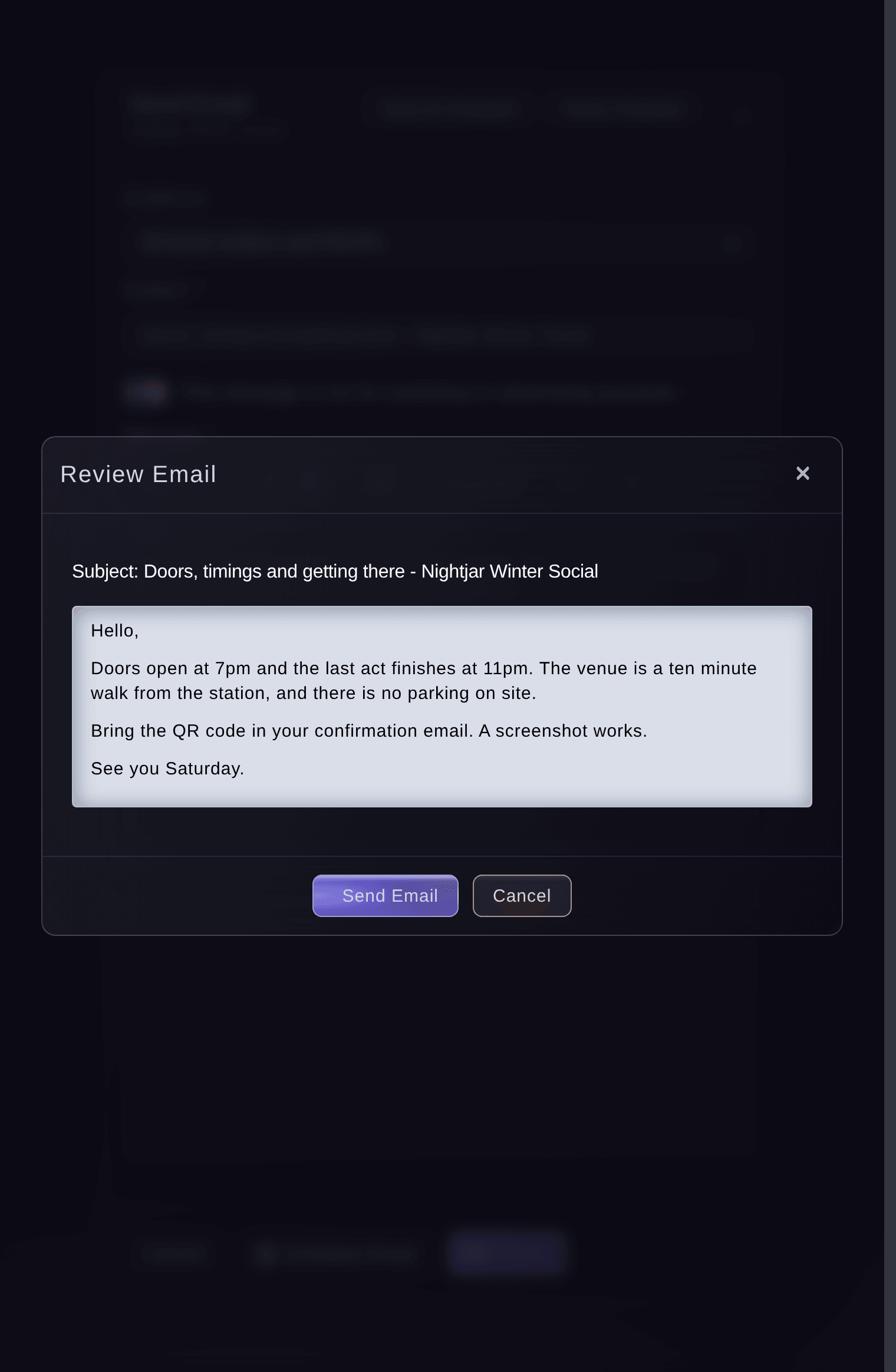
Select Send, read the subject and message once more in Review Email, and select Send Email. The message is on its way, and the dashboard confirms it was sent.
Примечание: A message to a ticket-type audience asks you to confirm the ticket types a second time. Large audiences go out in batches over a few minutes.
Event, Messaging, Send Email, Review Email. -
See who opened it
Back on Messaging, the email appears under Email Messaging with the number of people it went to. Select Show Recipients for the list, with Opened at beside everyone who has opened it.
Примечание: Show Content shows the message as it was sent, which is the record to check when a buyer asks what they were told.

Или поручите это помощнику
Fai, the assistant inside your dashboard, can draft the message with you, send it to the audience you name, now or at a time you set, and send a test copy to you first. She shows you the subject, the message and who will receive it, and asks you to approve before anything is sent.
В вашей панели, с Fai
Draft an email to <AUDIENCE, SUCH AS EVERYONE ATTENDING OR VIP TICKET HOLDERS> of <EVENT NAME> about <WHAT THEY NEED TO KNOW>, send a test to me first, then show me the final message and who will get it before sending
Из терминала
Установите CLI по ссылке нашей страницы CLI, войдите командой ticketfairy auth login и выберите бренд, с которым работаете, командой ticketfairy brand use <BRAND_ID>. ticketfairy brand list и ticketfairy event list выводят идентификаторы, которые используют другие команды.
Use the CLI to send a message from a file and to list the messages already sent for an event. The review step and the test send are in the dashboard.
Send a message described in a file: subject, message and audience.
ticketfairy messaging send --event-id <EVENT_ID> --from-file <FILE>
List the messages sent for the event.
ticketfairy messaging list --event-id <EVENT_ID>
Send it at a time you choose
Compose the message as above, then select Schedule Email instead of Send, choose the date and time in your event's timezone, and select Schedule. The message waits under Scheduled Emails until then.
Примечание: The time must be at least fifteen minutes ahead. A doors-time reminder scheduled for the morning of the show is the usual use.
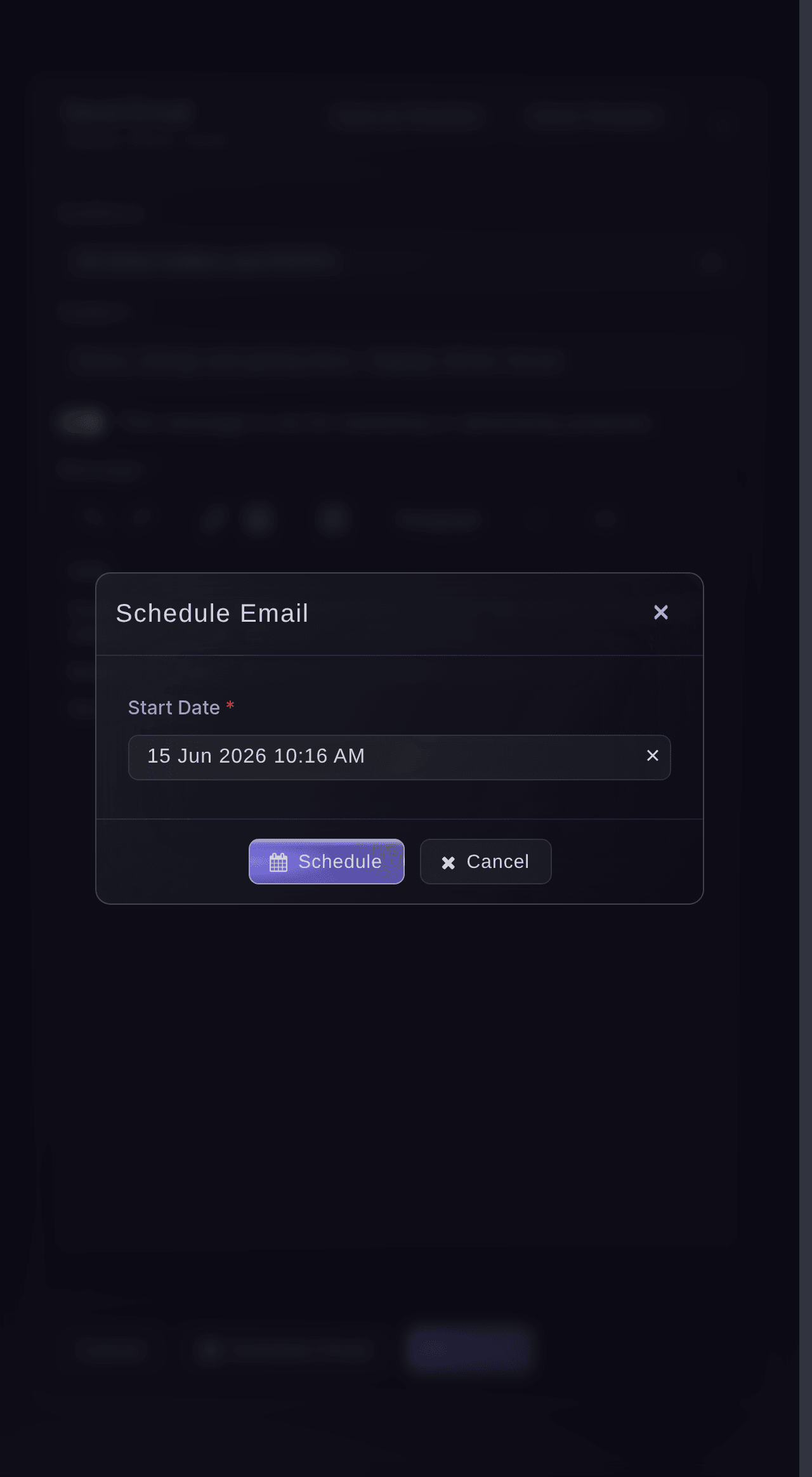
Fai can schedule the message for the time you name, after showing you the message and the audience. The CLI sends from a file that names the schedule time.
В вашей панели, с Fai
Schedule an email to <AUDIENCE> of <EVENT NAME> for <DATE AND TIME> about <WHAT THEY NEED TO KNOW>, and show me the message and who will get it before you schedule it
Cancel a scheduled email
Under Scheduled Emails, select Delete beside the message and confirm. Nothing is sent, and the message is gone from the list.
Примечание: A scheduled message cannot be edited: cancel it and schedule the corrected one.
Cancelling a scheduled message is done in the dashboard. Fai, MCP and the CLI do not cancel one.
Save a message to send again
With the subject and message in place, select Save as Template and name it. The next event's doors email starts from Select Template instead of a blank page.
Templates are saved and chosen in the dashboard. Fai writes each message fresh with you.
В вашей панели, с Fai
Draft a doors-and-timings email for <EVENT NAME> in the same style as the one I sent for <PREVIOUS EVENT NAME>
Вопросы, которые могут возникнуть
- Who can email an event's buyers?
- An owner or admin of the event, once the brand is verified. Messaging closes fifteen days after the event ends, so a thank-you goes out in the fortnight after the show.
- Can I use this to promote my next event?
- Event messaging is for the event the buyer bought into: doors, timings, changes and thanks. For a newsletter or a promotion, connect your email platform to your brand and buyers who opted in join your audience there.
- Why is Send greyed out?
- The audience has no ticket types ticked, the subject or message is empty, the marketing switch is off, or the event ended more than fifteen days ago. The composer names the reason beside the button.
- Who does the email come from?
- Your brand's name, and a reply goes to your brand's email address. Buyers see the event they know, not a system address.
- Can I email only the people who have not arrived yet?
- Choose the ticket types or the whole audience as usual; the checked-in audience is the other way round, for the people already inside. A message to everyone during the event reaches both.
- Can I see who opened the email?
- Yes. Under Email Messaging, Show Recipients lists everyone it went to, with Opened at beside each person who has opened it.
Похожие руководства
Сделайте это на своём мероприятии
Создайте аккаунт, соберите мероприятие и выполните шаги в своей панели управления. Звонок в отдел продаж не нужен.