
Интеграции
Sync your ticket buyers to Mailchimp
Promoters and venue marketers who already send campaigns from Mailchimp connect it once to their brand, so every buyer who agrees to hear from them lands in the right audience minutes after they pay. Ticket Fairy adds the name, email and ticket type, keeps the audience in step when someone opts out, and never slows the checkout while it does so.
Connect Mailchimp to your brand, choose the audience buyers join, decide what syncs, and know what Mailchimp receives about each buyer and what happens when someone opts out.
- Для кого
- Keeping a Mailchimp audience in step with ticket sales
- Займёт
- 6 минут
Перед началом
- You're an owner, admin or marketing team member of the brand.
- You have a Mailchimp account with an audience for buyers to join, or permission to create one.
- Your checkout asks buyers whether they want to hear from you. Only buyers who agree are added.
-
Open Integrations and connect Mailchimp
Open your brand, select Integrations and, on the Mailchimp card, select Connect. Mailchimp asks you to sign in and allow Ticket Fairy, then returns you to the page with the card marked Connected.
Примечание: One connection serves the whole brand and every event on it. An event that already uses its own Mailchimp list under Messaging keeps using it.
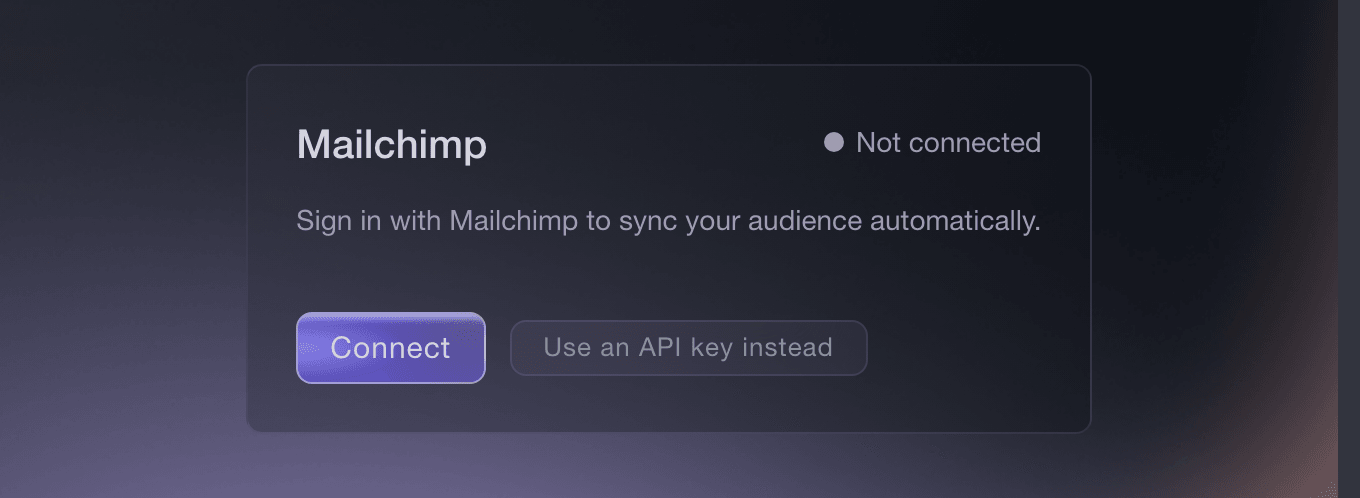
Brand, Integrations. -
Or connect with an API key
When your Mailchimp account cannot sign in from the dashboard, select Use an API key instead, paste the key Mailchimp gives you under Account, Extras, API keys into API key, and select Connect. Ticket Fairy checks the key with Mailchimp before saving it and never shows it again.
Примечание: Either way of connecting reaches the same settings in the next step.
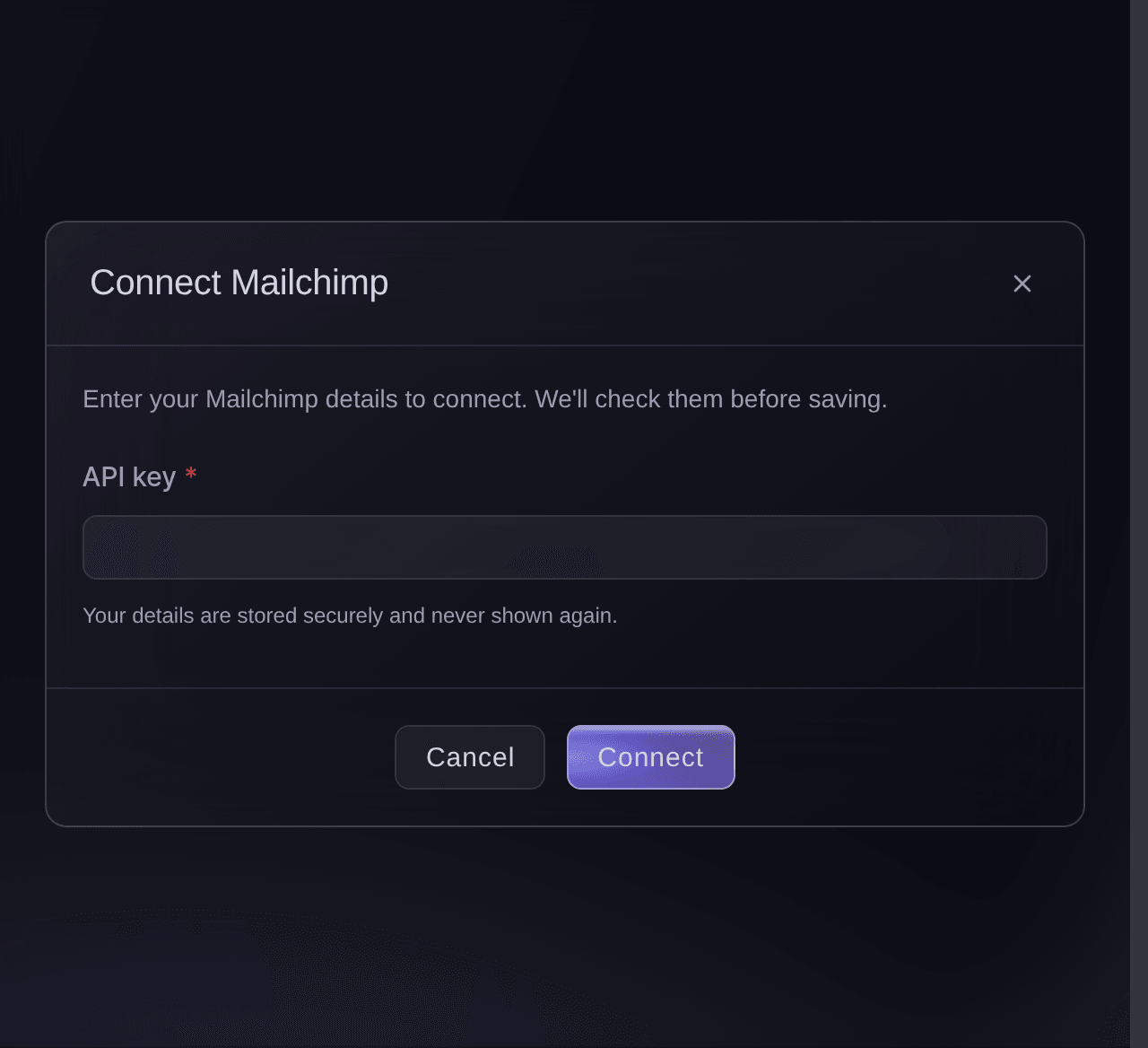
Brand, Integrations, Connect Mailchimp. -
Choose the audience buyers join
Under Sync settings, choose the list under Audience to sync into. Select Refresh when an audience you created a moment ago is not listed yet.
Примечание: Buyers and newsletter sign-ups go to the same audience, so one list holds everyone who hears from you. Ticket Fairy adds the merge fields and the Ticket Type group it needs to that audience the first time you choose it.
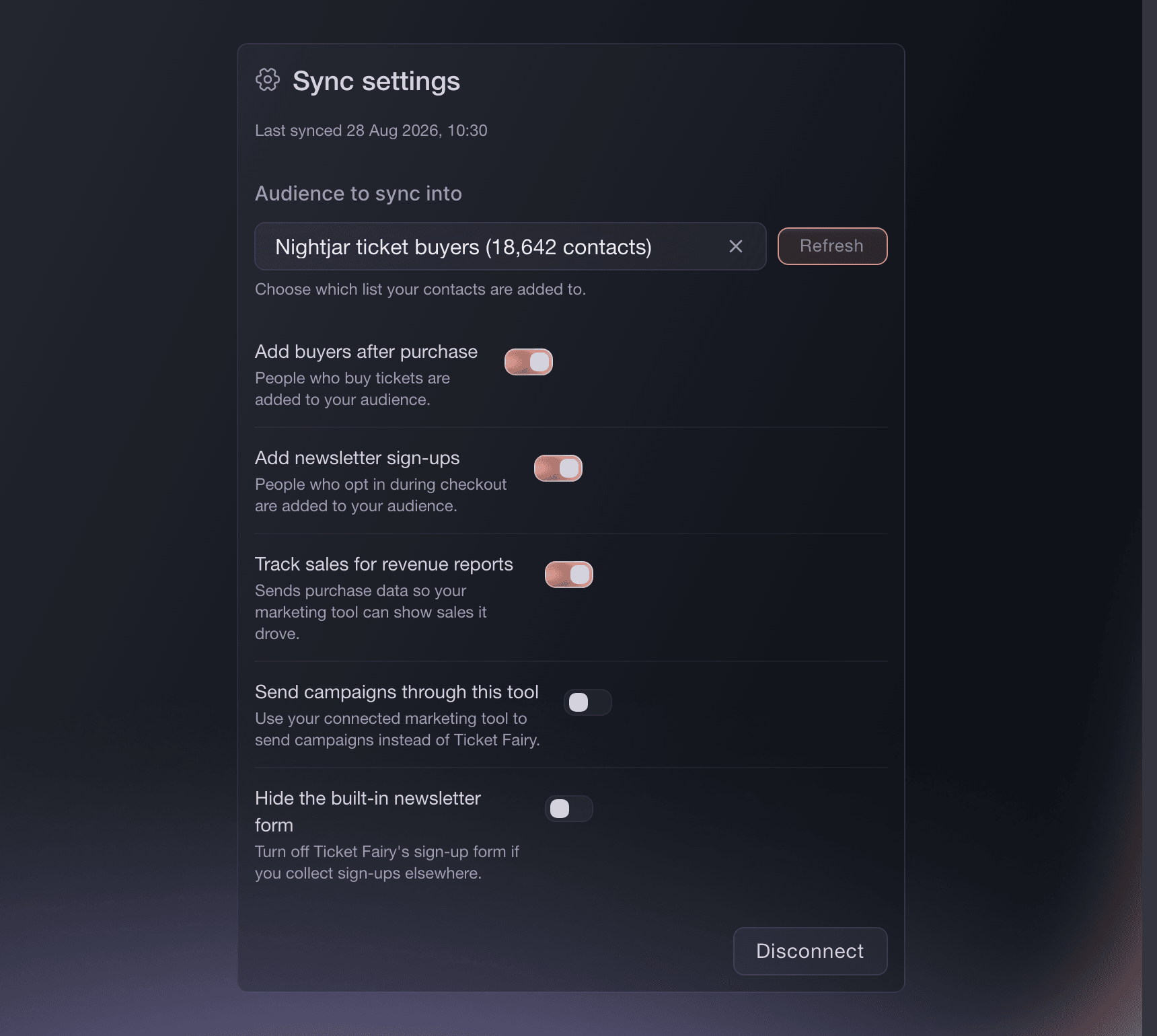
Brand, Integrations, Sync settings. -
Turn on the syncs you want
Leave Add buyers after purchase and Add newsletter sign-ups on, and turn on Track sales for revenue reports when you want Mailchimp's campaign reports to show the orders a campaign brought in. Each switch saves as you change it.
Примечание: Mailchimp reports revenue only for orders that arrived through a Mailchimp campaign link. Send campaigns through this tool hands your event emails to Mailchimp instead of Ticket Fairy, and Hide the built-in newsletter form removes the sign-up box from your event pages when you collect sign-ups elsewhere.
The details Mailchimp receives
A buyer who agreed at checkout arrives in the audience as a subscribed contact with their first name, last name and email, under a Ticket Type group so you can send a campaign to one type's holders alone. An order that mixes types carries the first type on it, so a buyer who took a standard ticket and a VIP is grouped by whichever came first. A buyer who later opts out on your brand is removed from the audience.
Примечание: The sync runs after checkout finishes, so a slow Mailchimp never delays a payment. Existing contacts from before the connection are not added; import them once from an export.
-
Check the first buyer arrived
Buy a test ticket with an address you control and agree to hear from the brand at checkout, then open the audience in Mailchimp. The contact appears within a few minutes, and the card shows when the connection last synced.
Примечание: A card marked Needs attention has lost its connection, most often because the Mailchimp login changed. Select Reconnect and the syncs resume.
Или поручите это помощнику
Fai, the assistant inside your dashboard, can list your connections and audiences, choose the audience, switch each sync on or off and disconnect, after showing you the change. The Mailchimp sign-in itself happens in your browser. Keep an API key in the dashboard form rather than in a message to Fai.
В вашей панели, с Fai
Show me the Mailchimp connection on <BRAND NAME>, list its audiences, then set the audience to <AUDIENCE NAME> with buyers and newsletter sign-ups syncing and campaign sending left to Ticket Fairy
Disconnect Mailchimp
Under Sync settings, select Disconnect and confirm. Ticket Fairy stops syncing, the contacts already in Mailchimp stay there, and you can reconnect at any time.
Fai can disconnect the account after confirming with you. There is no CLI command for integrations.
В вашей панели, с Fai
Disconnect Mailchimp from <BRAND NAME>, and confirm with me first
Send one event's buyers to a different list
Open the event, select Messaging and, on the MailChimp card, choose the list for that event. Buyers of that event join the list you chose there, and every other event keeps using the brand connection.
The per-event list is chosen in the dashboard. Fai can tell you which audience the brand connection uses.
В вашей панели, с Fai
Which Mailchimp audience does <BRAND NAME> sync buyers into?
Вопросы, которые могут возникнуть
- Does every buyer get added to Mailchimp?
- No. Only buyers who agree to hear from your brand at checkout are added, and only while Add buyers after purchase is on. Someone who later opts out is removed from the audience.
- Are my existing Mailchimp contacts affected?
- No. Connecting adds and removes contacts from the moment you choose an audience, and disconnecting leaves everything in Mailchimp as it is.
- Will Mailchimp show ticket revenue from my campaigns?
- Yes, with Track sales for revenue reports on. Mailchimp attributes an order to a campaign when the buyer came through that campaign's link, and orders from elsewhere are not reported to it.
- Can I send a campaign to one ticket type?
- Yes. Each contact carries their ticket type in the Ticket Type group Ticket Fairy adds to the audience, so a Mailchimp segment on that group reaches VIP holders, early birds or any other type alone.
- Does the sync slow my checkout?
- No. The contact is sent to Mailchimp after the order completes, off the checkout path, so a slow or unavailable Mailchimp never holds up a payment.
- Why is the Integrations page not showing for me?
- It opens for brand owners, admins and marketing team members. Ask one of them to connect the account, or to give you the marketing role on the brand.
Похожие руководства
Сделайте это на своём мероприятии
Создайте аккаунт, соберите мероприятие и выполните шаги в своей панели управления. Звонок в отдел продаж не нужен.