
Создание мероприятия
Sell timed-entry tickets for an attraction, exhibition or food event
Museums, galleries, immersive attractions and food festivals sell entry by the hour so the space never overfills and queues stay short. A time-slot ticket type generates a slot for every date and time you choose, each with its own capacity and price, and buyers pick their date and time from a calendar on your event page while your reports and check-in follow the same slots.
Give a ticket type its own entry times so buyers pick a date and a slot, cap each slot separately, see sales and arrivals by slot, and know what a sold-out slot looks like to a buyer.
- Для кого
- Selling entry by date and time slot for a venue that runs all day
- Займёт
- 10 минут
Перед началом
- You're an owner or admin of the event.
- You have asked Ticket Fairy to turn on time slots for the event. The time-slot controls on the ticket form appear only on an event set up for slots.
- You know your opening days and hours, how long each slot lasts, how many people each slot can take and what a slot costs.
-
Create the ticket type and give it time slots
Open your event, select Tickets, create a ticket type with its name, price and maximum sales, then turn on This ticket type has time slots. The ticket type becomes the group every slot belongs to, and its name heads the slots on your event page.
Примечание: The price and maximum sales you enter here become the default price and capacity of each slot. One ticket type per kind of entry, such as General entry and Members, keeps the calendar clear.
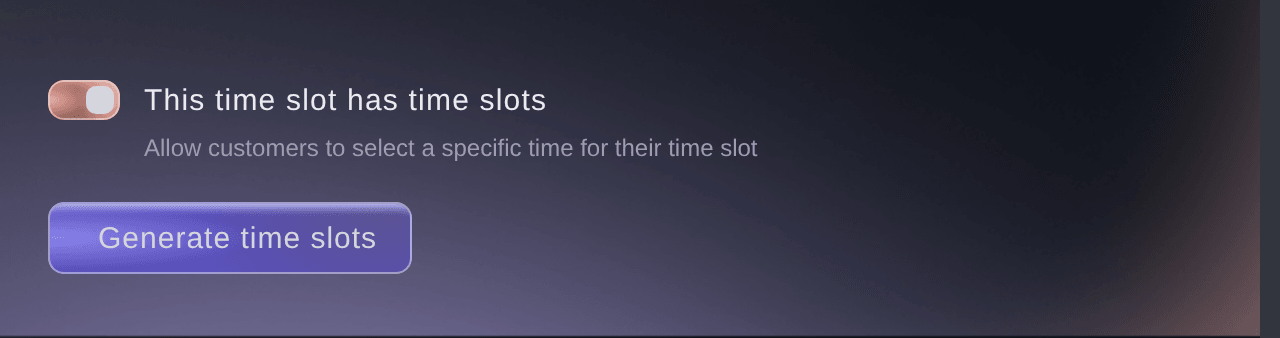
Tickets, Create Ticket Type. -
Generate the slots
Select Generate time slots and, in the Time Slots dialog, choose the date range under Dates, the Weekdays you open, the first and last entry time, the Slot Duration, the price and Max sales per slot, then select Generate Slots. The dialog lays out one slot per duration between the two times on every chosen day.
Примечание: Put closed days in Exclude Specific Dates before generating. A slot that runs past midnight needs the slot can end the next day switch.
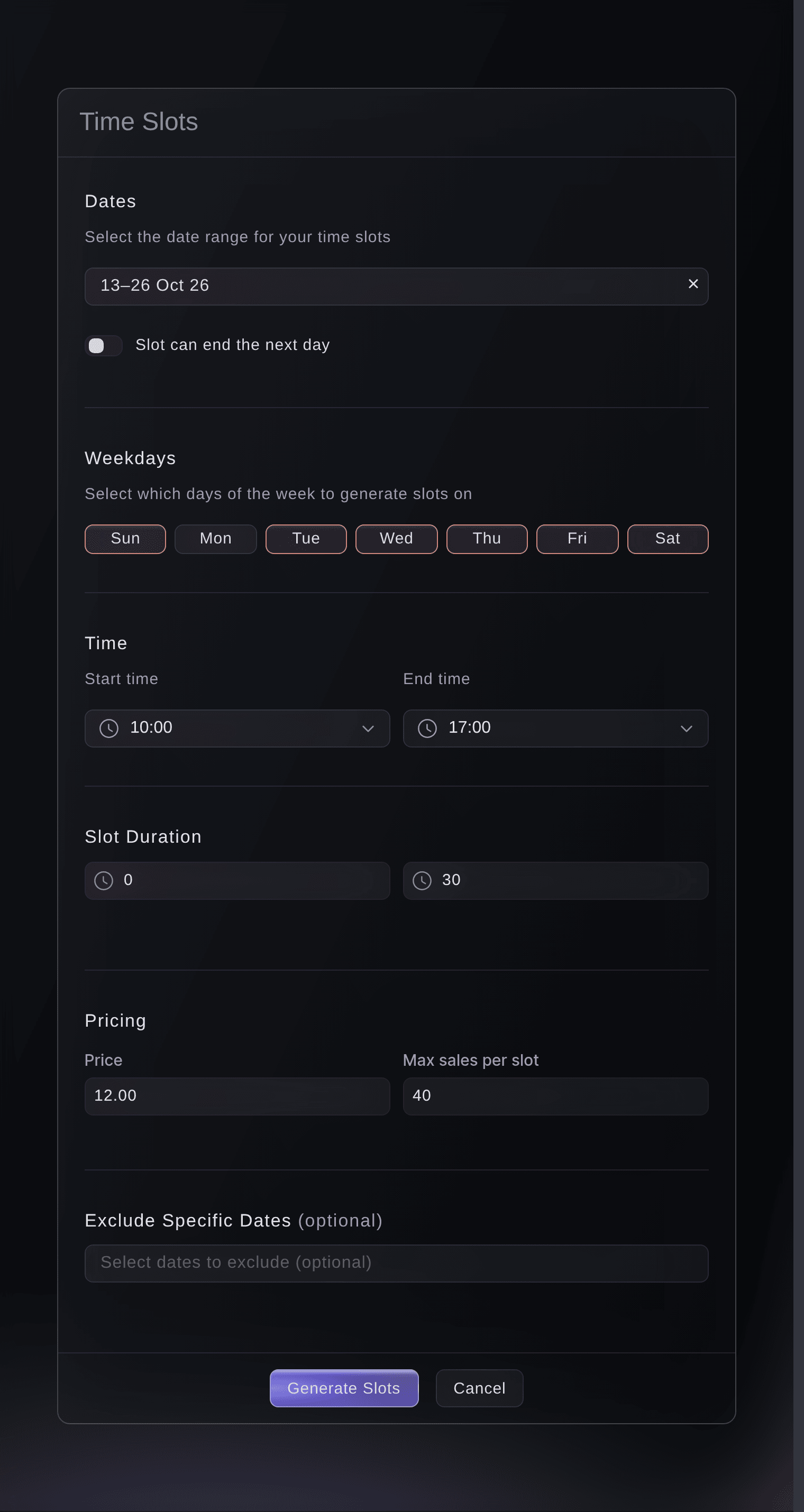
Tickets, Create Ticket Type, Generate time slots. -
Check the slots and save the ticket type
Review the generated list, correct a single slot with Edit Time Slot where one time needs a different price or capacity, then save the ticket type. Ticket Fairy creates the slots in the background and they appear on the Tickets page within a minute or two.
Примечание: Slots are created in batches, so a season with hundreds of slots takes a moment to finish. The slots do not appear on your event page until they exist.
-
Read the slots on the Tickets page
On the Tickets page, the Time Slots card lists each group, and choosing a date under Select a day shows that day's slots with their price, Max Number of Sales and Stock. Time-slot ticket types sit in this card rather than in the ordinary ticket type list.
Примечание: Deactivate takes one slot off sale without removing it. Deleting a slot, a date or a whole group is done by Ticket Fairy for you, and refused for any slot that has sold.
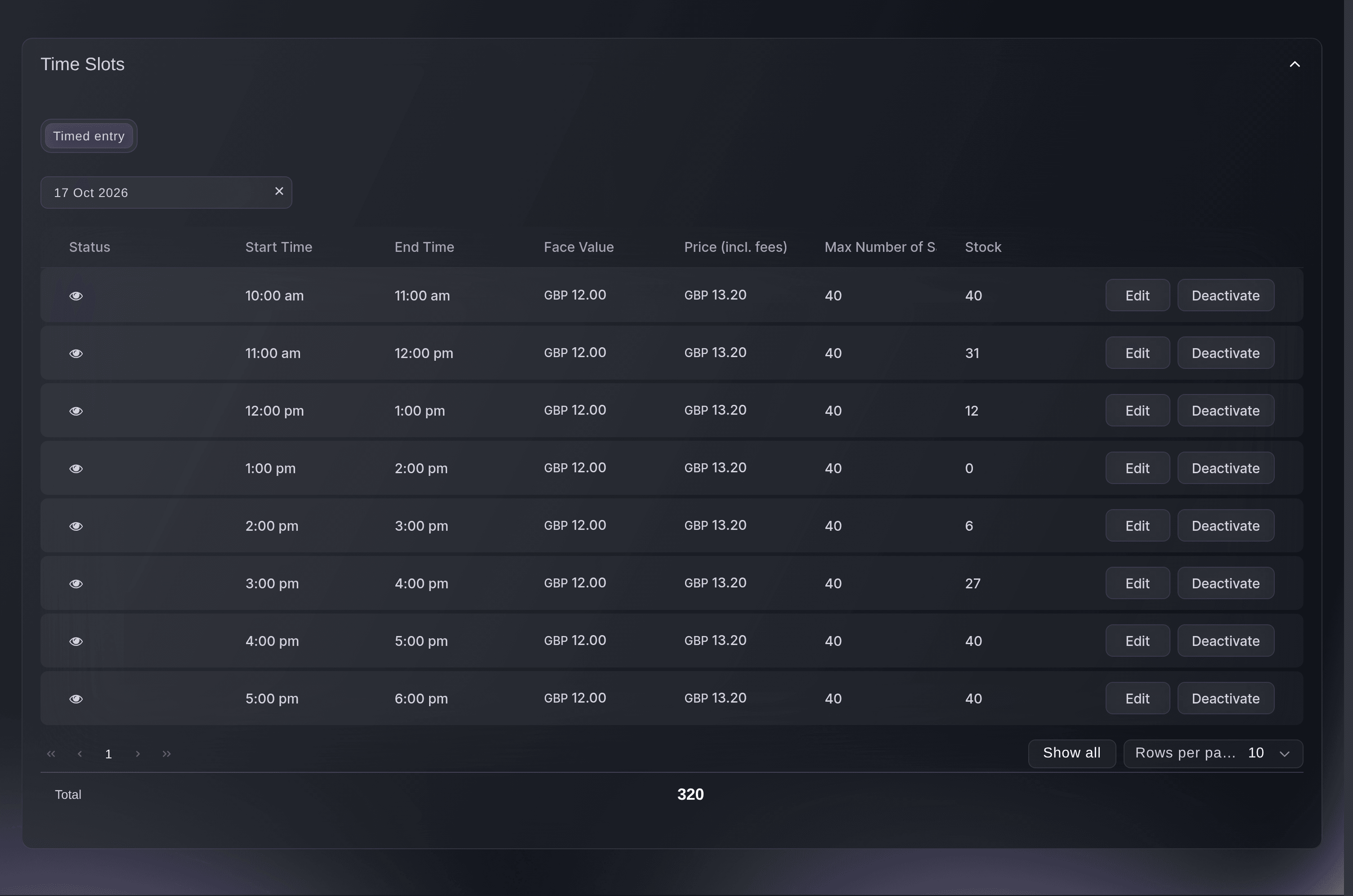
Tickets, Time Slots.
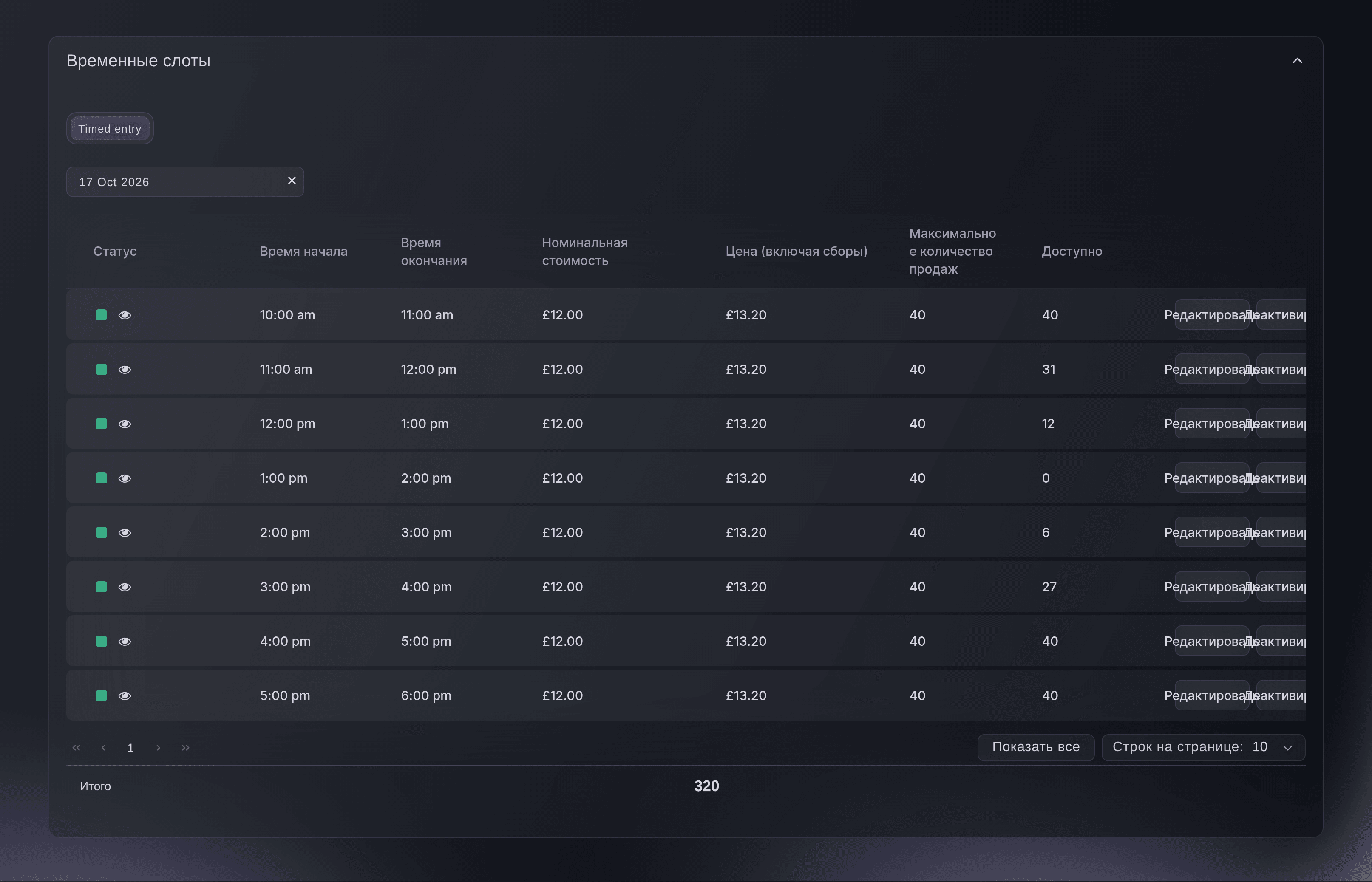
The buyer's calendar
Your event page shows a calendar of the dates that still have a slot on sale, and choosing a date lists its times as buttons, with a sold-out time shown greyed out rather than hidden. A date leaves the calendar when its slots are deactivated, not when they sell out: a date whose times have all gone stays, with every one of them greyed out.
Примечание: Each slot sells out on its own count. One full hour never blocks the next.
-
See sales and arrivals by slot
Open Performance, where Sales by Time Slot opens first on a time-slot event and lists sales and revenue for every slot start. On check-in day, the Ticket Type tab of the check-in page groups arrivals by date, then by time, then by ticket type.
Примечание: Sales by promoter also offers By Time Slot on these events.
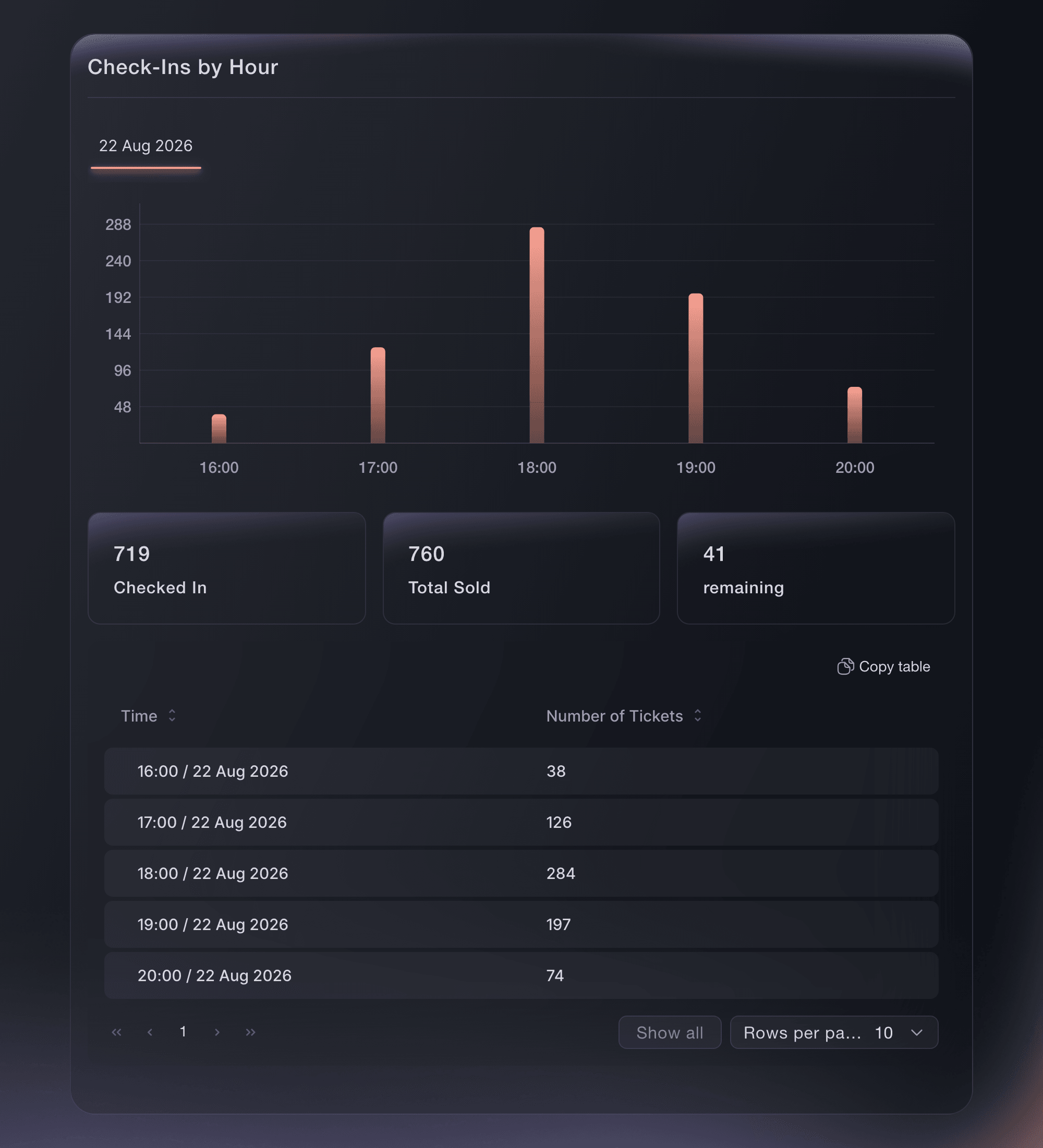
Event, Check-In.
Или поручите это помощнику
Fai, the assistant inside your dashboard, can read arrivals by time slot for a date and report on the event. Creating and changing time slots is done in the dashboard for now, and Fai tells you so when you ask.
В вашей панели, с Fai
Show me the check-ins by time slot for <EVENT NAME> on <DATE>, with how many people have arrived in each
Из терминала
Установите CLI по ссылке нашей страницы CLI, войдите командой ticketfairy auth login и выберите бренд, с которым работаете, командой ticketfairy brand use <BRAND_ID>. ticketfairy brand list и ticketfairy event list выводят идентификаторы, которые используют другие команды.
Use the CLI to read check-ins by slot. Time slots are created in the dashboard.
Read arrivals for the event broken down by time slot.
ticketfairy checkin status <EVENT_ID> --breakdown slots --output json
Move a buyer to another slot
Open the order in Orders and select Change Time Slot on the ticket. The buyer receives a replacement ticket for the slot you choose, with a new barcode, and the old one stops working.
Примечание: Buyers can move their own ticket from their order page when Ticket Fairy has turned on slot changes for the event.
Moving a ticket between slots is done in the dashboard. Fai can find the order and report how busy each slot is.
В вашей панели, с Fai
Find the order for <BUYER EMAIL> on <EVENT NAME> and tell me how many people have arrived in each time slot on <DATE>
Add a new date after the slots exist
Open the ticket type, select Generate time slots for the new date range and save. The new slots join the same group and appear on the calendar once created.
Generating slots is done in the dashboard. Fai reads the slots on a day you name, one day at a time.
В вашей панели, с Fai
Tell me which time slots <EVENT NAME> already has on <DATE>
Give staff and guests a slot
Guest tickets on a time-slot event are issued through Upload Time Slot Guest Tickets, which asks for the slot as well as the name. A crew pass is the better fit for staff who come and go all day.
A guest ticket for a slot is issued on this page: the form takes the ticket type, the date and the time, and Fai addresses a ticket type by its own number, which no reading of the event gives her for one slot. She can create a pass type and issue passes after showing you the list. The CLI does neither.
В вашей панели, с Fai
Create an all-day crew pass for <EVENT NAME> and issue it to <NAME> <EMAIL>, and show me the list before sending
Вопросы, которые могут возникнуть
- Can different slots have different prices?
- Yes. Generate them at one price, then open a slot with Edit Time Slot to change its price or capacity. Generate a second run for a weekend or evening rate when many slots share it.
- What does a buyer see when a slot is full?
- The time stays on the list, greyed out and marked sold out, so they pick another. When every slot on a date is gone, the date leaves the calendar.
- Can I leave a gap between slots for cleaning or a reset?
- Not with a single generation, which lays slots end to end. Generate the morning and the afternoon as two runs, or deactivate the slot you need clear.
- How do I close a date I no longer open on?
- Deactivate its slots from the Time Slots card, or ask Ticket Fairy to delete the date. Deleting is refused for any slot that has sold, so deactivating is the safe choice once sales have started.
- Do promo codes and add-ons work with time slots?
- Yes. A promotion picks the day and the slots it covers, and an add-on can be limited to a slot group. Resale is not offered on time-slot events.
- Why do my check-in cards show zero sold?
- The check-in overview skips the ticket-sales totals on a time-slot event. Use the Ticket Type tab of the check-in page, and Sales by Time Slot in Performance, for the numbers.
Похожие руководства
Сделайте это на своём мероприятии
Создайте аккаунт, соберите мероприятие и выполните шаги в своей панели управления. Звонок в отдел продаж не нужен.