
Questions organisers ask
How do you build custom reports on ticket sales and buyer behaviour?
The reports that answer the usual questions, the orders table for the ones they do not, and the export that gets your event's numbers into anything else.
- For
- Anyone who has been asked a question the standard reports do not answer
- Takes
- 6 minutes
Many "custom report" questions already have a screen. Your event's statistics cover what sold and when, where the buyers came from, who they are, which fans sold to their friends, and who has arrived. Start there, and build something by hand for what they do not cover.
For the questions that are genuinely yours, work from the orders table: filter it to the slice you mean and export that slice to CSV, or export every ticket rather than every order when the question is about attendees. That file is what goes into a spreadsheet, a BI tool or a finance system.
And you can ask in words. Fai in the dashboard, your own assistant over MCP and the command line all read the same numbers the screens draw, so "which age band bought the most, and how does that compare with last time" is a question rather than a spreadsheet.
How Ticket Fairy handles it
-
The statistics your event already has
Performance, Orders, Traffic, Demographics, Psychographics, Geographics, Influencers, Check-In and Devices, each answering one question about the event without anybody building anything.
-
The orders table, filtered
The filters are the report builder: narrow to a ticket type, a date, a status or an add-on, and the table becomes the answer to the question you were asked.
-
Export to CSV, orders or tickets
Export to CSV takes the rows as you have filtered them. Export all Tickets and Export Filtered Tickets give you one row per ticket instead, which is the shape most questions about attendees need.
-
The same numbers, asked in words
Fai reads these screens inside the dashboard, your own AI assistant reads them over our MCP server, and the command line prints them as JSON for a script that runs every morning.
How to set it up
What you need before you start
- You're an owner or an admin on the event. A Stats login opens the report screens but not the orders table, and you need the orders table to export.
- Your event has sold something. Every report below is built from real orders.
-
Check whether a screen already answers it
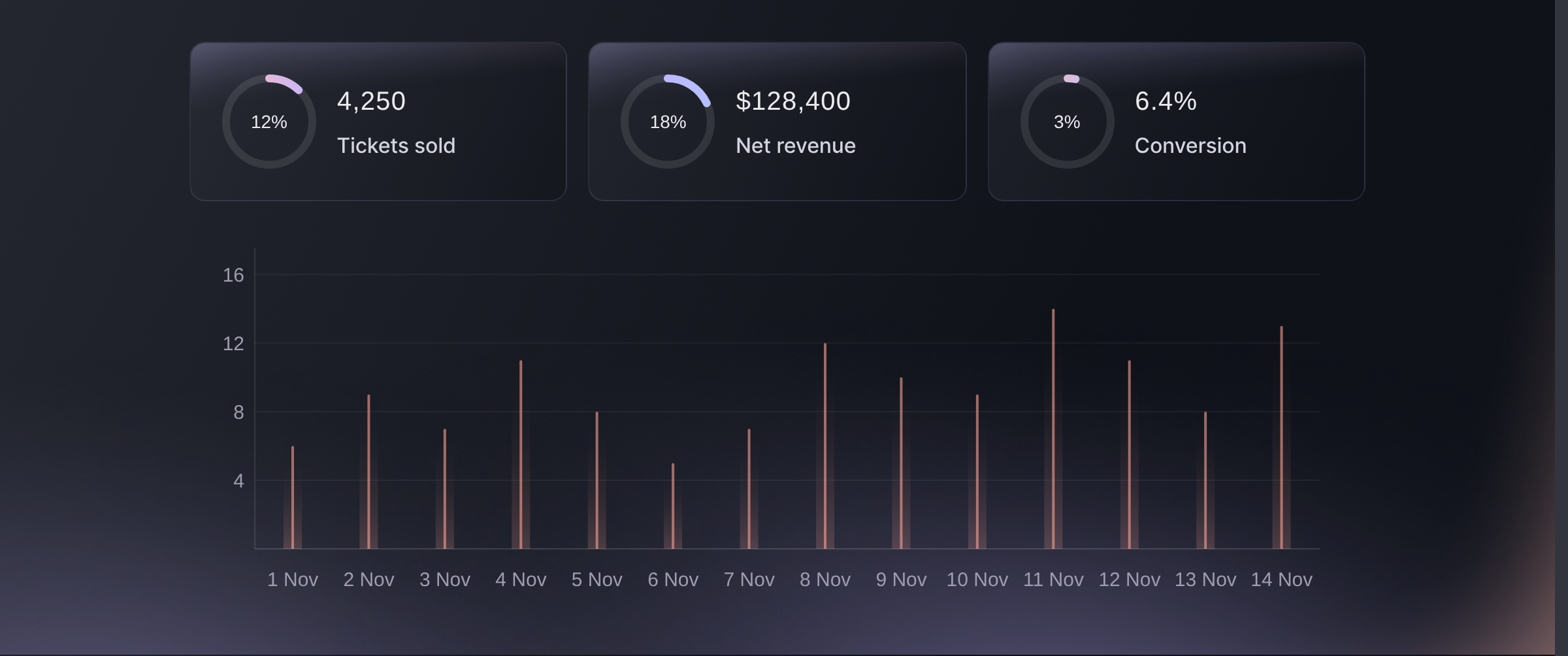
Open Statistics on your event and start with Analytics, which is what sold and when. Traffic sources, ages and locations, referrals and check-ins each have a screen of their own beside it.
Statistics, Analytics. -
Filter the orders table to the slice you mean
Open Orders and narrow it: one ticket type, one add-on, one order status, one discount code, or a search. What is left on screen is the population your question is about.
There is no date filter on this table. Where the question is about a window of time, sort by order date and take the rows you need, or read the sales-over-time screen, which is built for exactly that.
-
Export the slice, not the database
Use Export to CSV for the orders as filtered, or Export Filtered Tickets where the question is about attendees rather than transactions.
One order can hold several tickets, so an orders export and a tickets export answer different questions. Pick the one whose rows are the thing you are counting.
-
Put the recurring ones on a schedule
Where the same question comes back every week, ask it from the command line with JSON output and let a script run it. The numbers are the ones the screens show, so nobody has to reconcile two answers.
Or have it done for you
Fai and your own AI assistant over our MCP server both read the statistics screens. The command line reads them too, and writes the orders export straight to a file a script can pick up.
In your dashboard, with Fai
Compare this event with the last one I ran: what sold, where the buyers came from, and which age band bought the most.
From your own assistant, over MCP
Connect your assistant to our MCP server and ask it:
You only need the read-only setup from that page. Nothing here changes anything, so leave --read-only where it is.
Find my event by name. Pull its sales summary, its traffic and its age demographics, then tell me which referrers sent the most visitors and how sales moved over the same days.
From your terminal
Install the CLI from our CLI page, sign in with ticketfairy auth login, and choose the brand you are working on with ticketfairy brand use <BRAND_ID>. ticketfairy brand list and ticketfairy event list print the ids the commands below take.
Sign in with the same login you use for the screens. To export the orders you need an owner or admin login, the same as in the dashboard.
What has sold, as the summary at the top of the screen
ticketfairy event stats <EVENT_ID> --metric sales
The same numbers per ticket type
ticketfairy event stats <EVENT_ID> --metric performance --output json
Every order for the event, written to a file for a spreadsheet
ticketfairy order export <EVENT_ID> --output csv --file orders.csv
Questions you might have
- Is there a report builder?
- Not a drag-and-drop one. The reports cover the questions that come up most, and anything past them is a filtered orders table exported to CSV, or a question asked of Fai, MCP or the command line, which read the same numbers.
- What is the difference between an orders export and a tickets export?
- One row per transaction against one row per ticket. A single order can carry four tickets in three names, so counting attendees from an orders export undercounts them.
- Can I get ticket sales into our BI tool?
- Yes. Export the slice as CSV for a one-off, and for something that runs on a schedule use the command line with JSON output, which returns the same figures the screens draw.
- Who can see these reports?
- The report screens are open to owners, admins and the Stats and Limited Stats logins, which exist so somebody can read the numbers without being able to change the event. The orders table is owners and admins only, so the filtered export is theirs to run.
- Do the reports include refunded orders?
- The orders table can be filtered to include or exclude refunded and cancelled orders, so decide which of the two your question means before you export.
Where to go from here
Do this on your own event
Create your account, build your event, and follow these steps in your own dashboard. No sales call first.