
Menjalankan produksi
Hold dates for shows at your venue
Venue bookers and promoters with their own rooms juggle first, second and third holds on the same Saturday for months before a show is agreed. Event Operations keeps every hold on one calendar in queue order, so your team always knows who has the date and who is waiting.
Hold a date on your rooms and stages for an artist, promoter or client, see every hold in queue order on one calendar, challenge the first hold when you need the date, and confirm the date once the event is agreed.
- Untuk
- Keeping first, second and third holds on your rooms in order
- Perlu waktu
- 9 menit
- Open Event Operations
- Add the rooms and stages you book
- Select + on the day you want
- Enter who the date is held for
- Add the details you have
- Your place in the queue
- Open a hold that is behind another
- Challenge the first hold
- Give the date to the challenger if the deadline passes
- Confirm the date when the show is agreed
- Check the calendar
Sebelum mulai
- You need an owner, admin or producer role on the brand to place and change holds. Every other role on the brand can look at the calendar and the holds.
- Event Operations comes with Event Management. If Event Operations is not in your brand menu, ask your Ticket Fairy contact to switch it on.
-
Open Event Operations
In the sidebar, select your brand, then select Event Operations. The page opens on Calendar, with your events, every hold and each open offer on the day it covers.
Catatan: Each hold shows its place in the queue, such as 1st hold, and a booked date shows Confirmed. Select Week, or choose one space in the list beside the month, when a busy day does not fit.
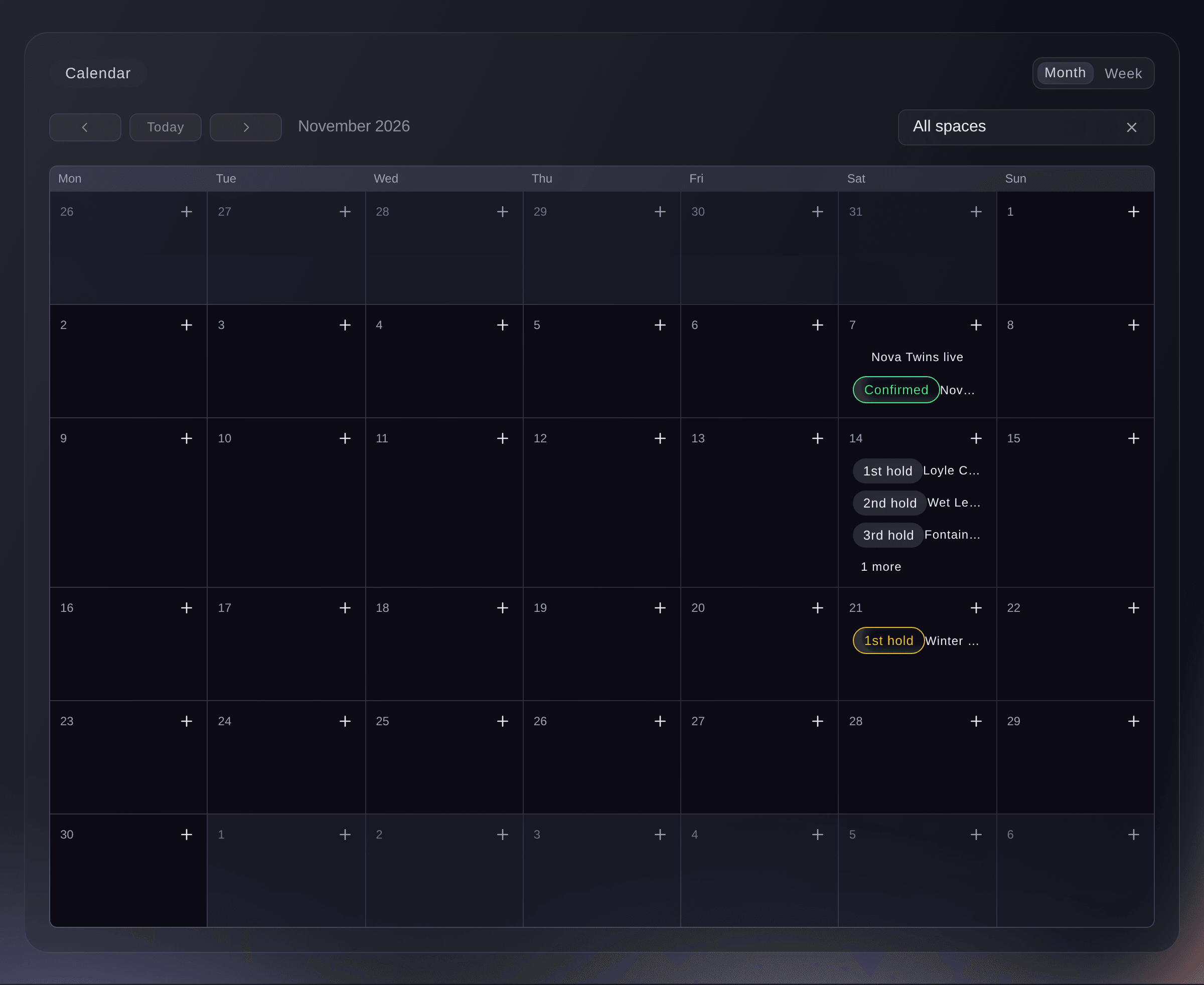
Event Operations, Calendar. -
Add the rooms and stages you book
Select Spaces, then select Add a space, enter the Name and Capacity, and select Save.
Catatan: A hold is always on one space, so add every room, stage or area you hold dates on, such as Main Room or Terrace. A new brand's calendar says Add your first space until you do.

Event Operations, Spaces. -
Select + on the day you want
On Calendar, select + in the corner of the day. Hold a date opens with that day already chosen.
Catatan: With more than one space and All spaces showing, the dialog also asks for the Space. Hold a date at the top of the page opens the same dialog with no day chosen.
-
Enter who the date is held for
Enter the artist, promoter or client in Held for, then select Hold this date. A message tells you your place, such as
Date held. This is the 2nd hold on these dates.
Catatan: If someone already holds any of those days on that space, your hold queues behind theirs. Nobody else is told about your hold.
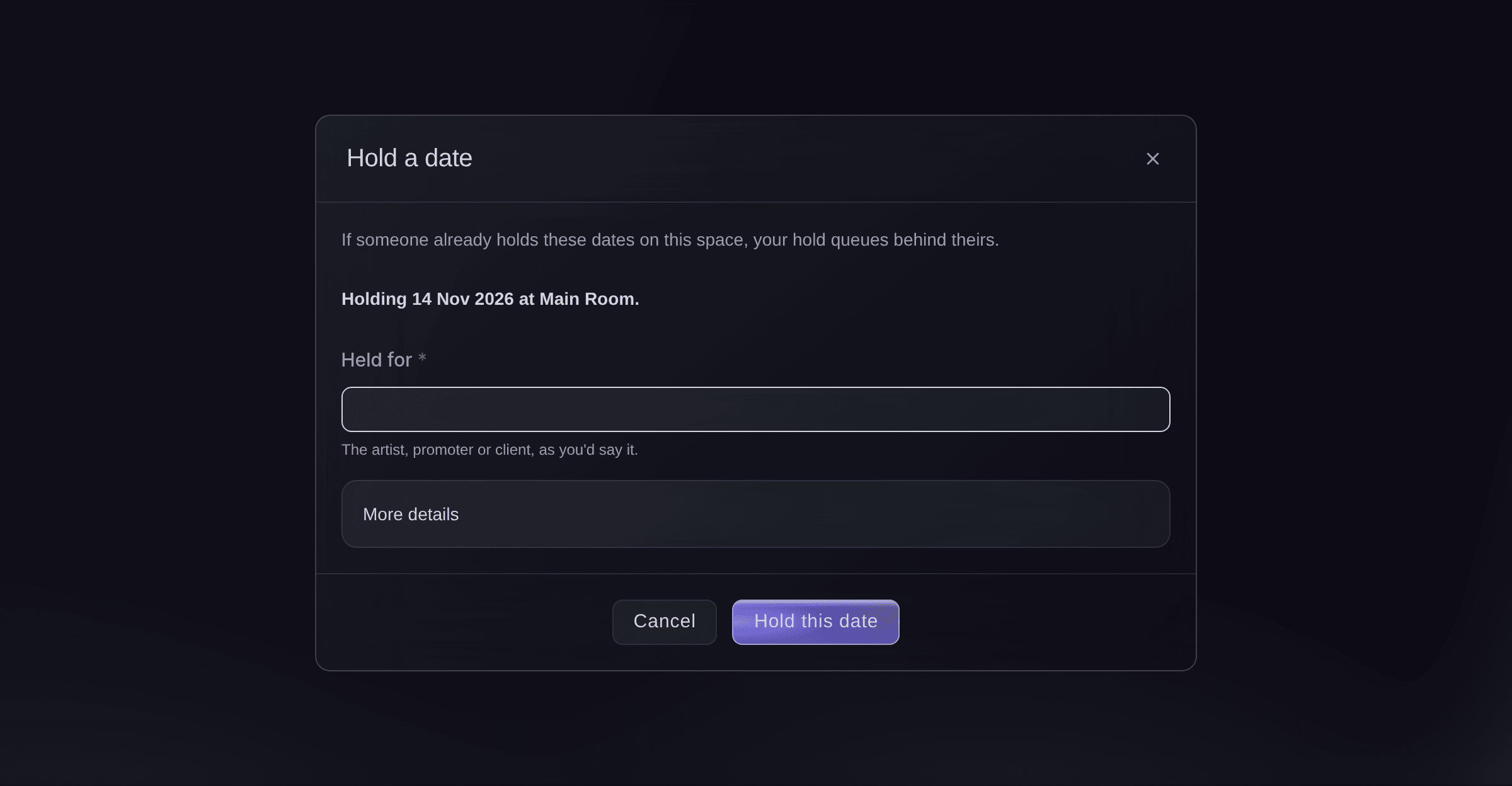
Hold a date. -
Add the details you have
Optional: Select More details to hold several days, set a start and end time, add a contact, choose when the hold lapses or link one of your events.
Catatan: At the end of the day in Hold lapses on, the hold lapses by itself and the holds behind it move up. Leave it empty to keep the hold until you release or confirm it.
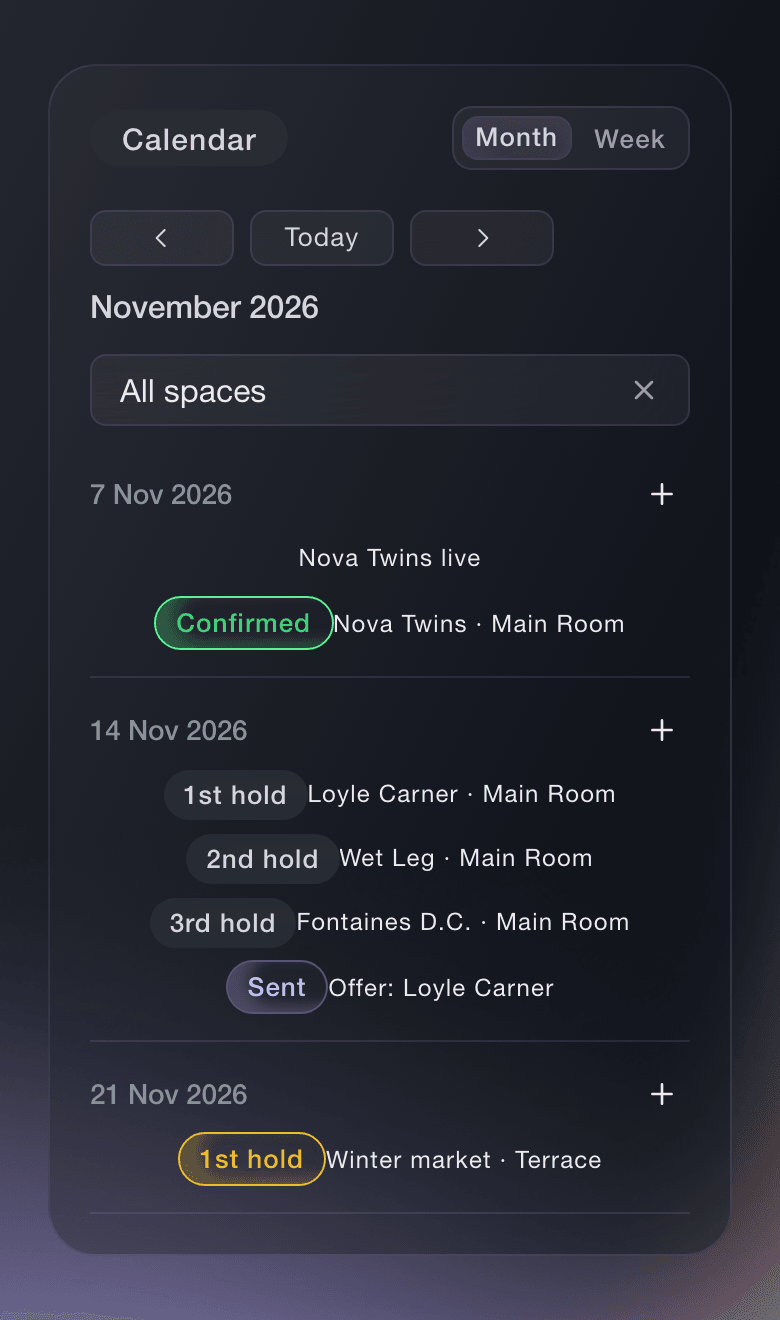


Your place in the queue
Only the 1st hold on a date can confirm it. When a hold ahead of yours is released or lapses, yours moves up a place, and the history of the hold says when and why.
-
Open a hold that is behind another
Select the hold on the calendar, or find it under Holds. Its panel shows the space and dates, when it lapses, the contact and every change so far.
Catatan: The buttons follow the hold's place: a 2nd or later hold offers Challenge the first hold, and a 1st hold offers Confirm.
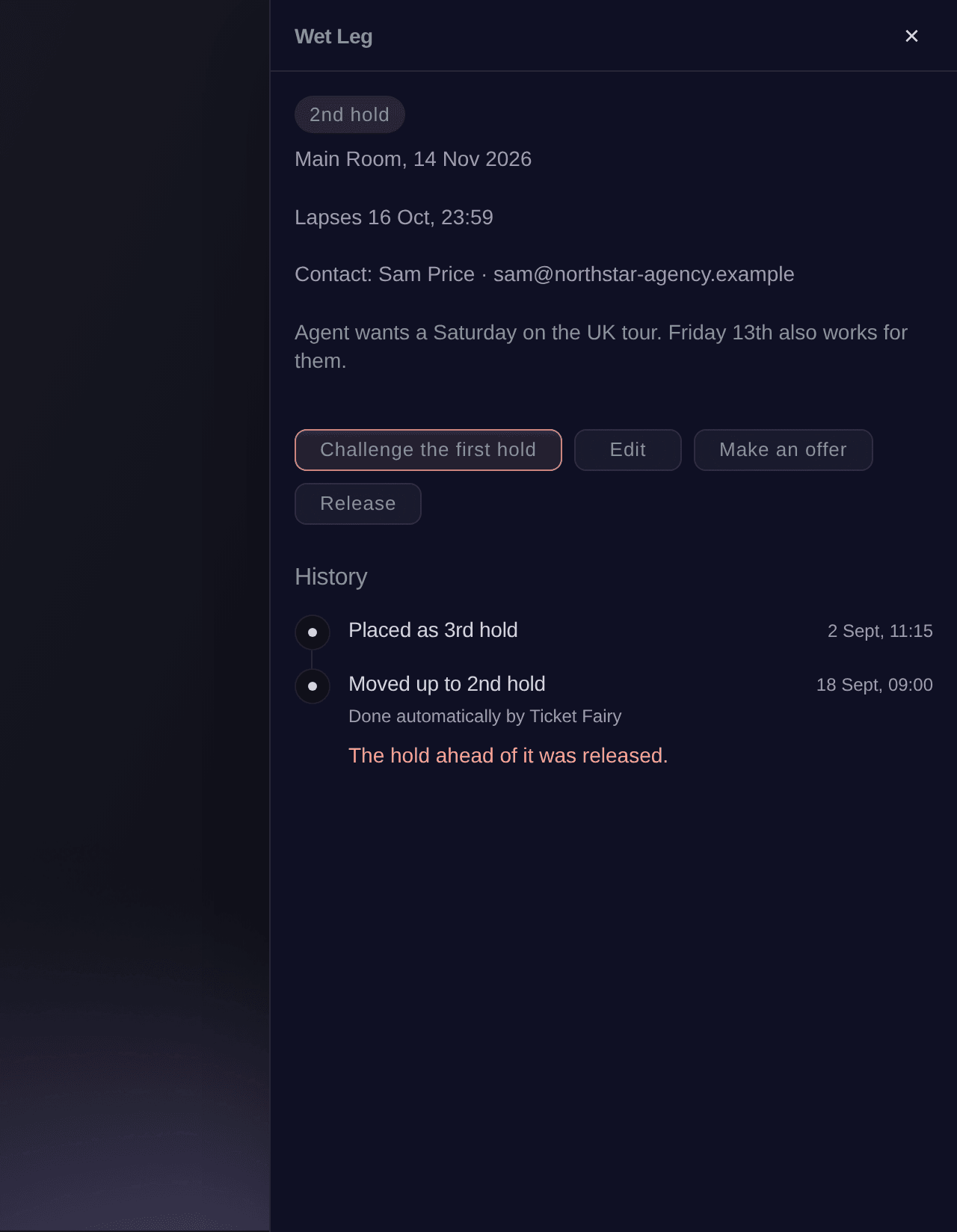
A 2nd hold, opened from the calendar. -
Challenge the first hold
Select Challenge the first hold, choose the time under They have, then select Send the challenge.
Catatan: The first hold shows Challenged with its deadline, and it confirms or releases before then. Nobody is emailed, so tell the first hold's contact yourself.
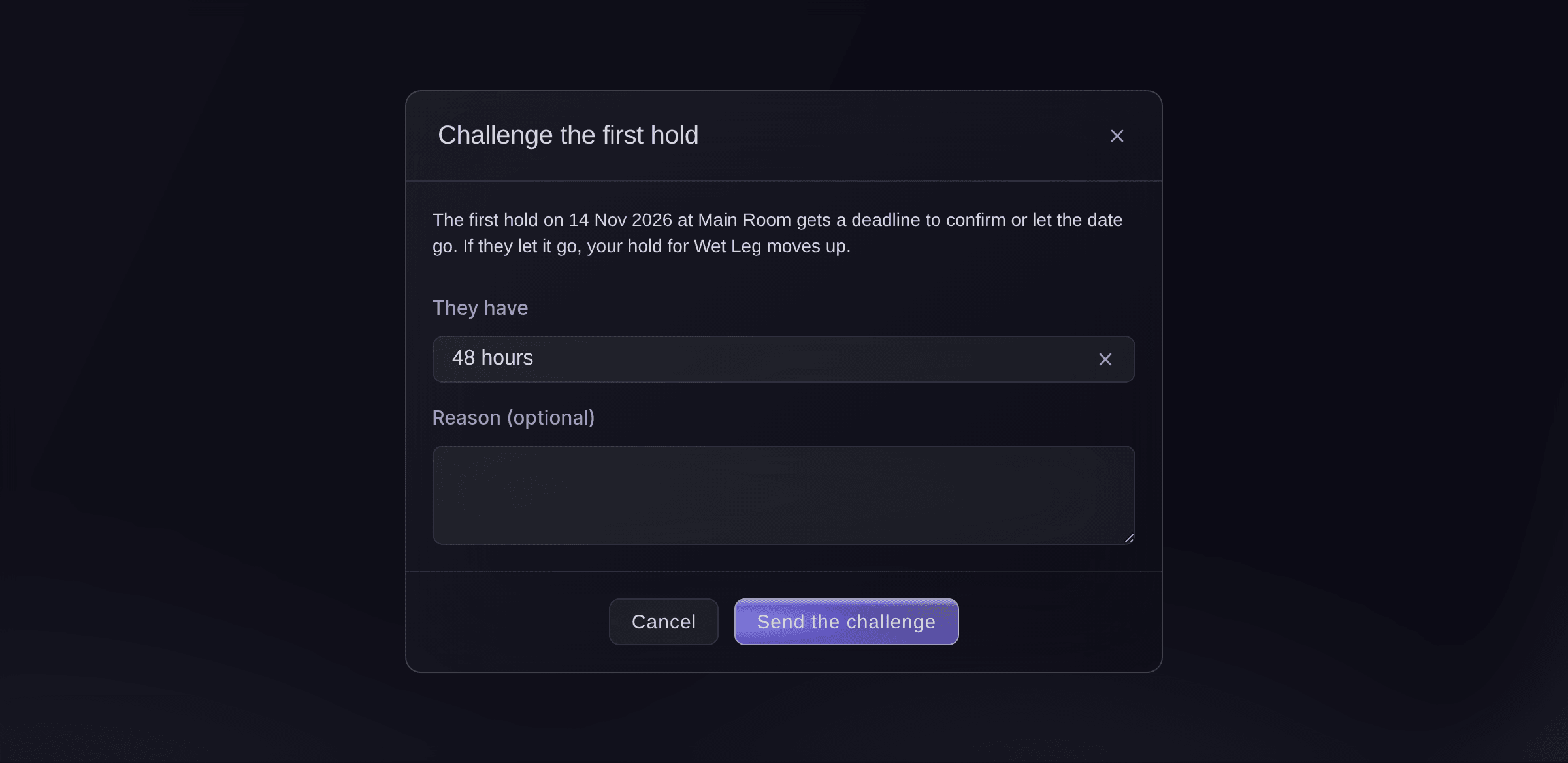
Challenge the first hold. -
Give the date to the challenger if the deadline passes
When the first hold does not answer in time, Needs attention at the top of Event Operations lists the missed challenge. Select the button that gives the date to the challenger, named after them, such as Give the date to Kneecap, then confirm.
Catatan: The lapsed first hold is released and the challenger becomes the 1st hold. The released side is not told automatically, so let them know.
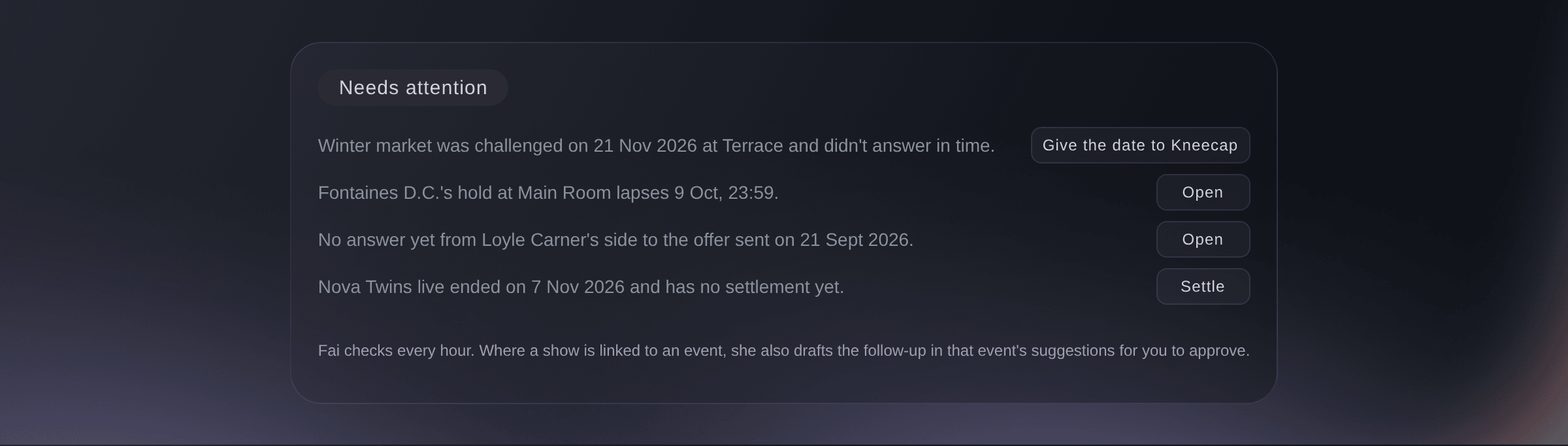
Needs attention, at the top of Event Operations. -
Confirm the date when the show is agreed
Open the 1st hold, select Confirm, choose what happens to the other holds on those dates, then select Confirm.
Catatan: Under Link to an event, choose the show's event if it has one, so Fai can draft its settlement when it ends.
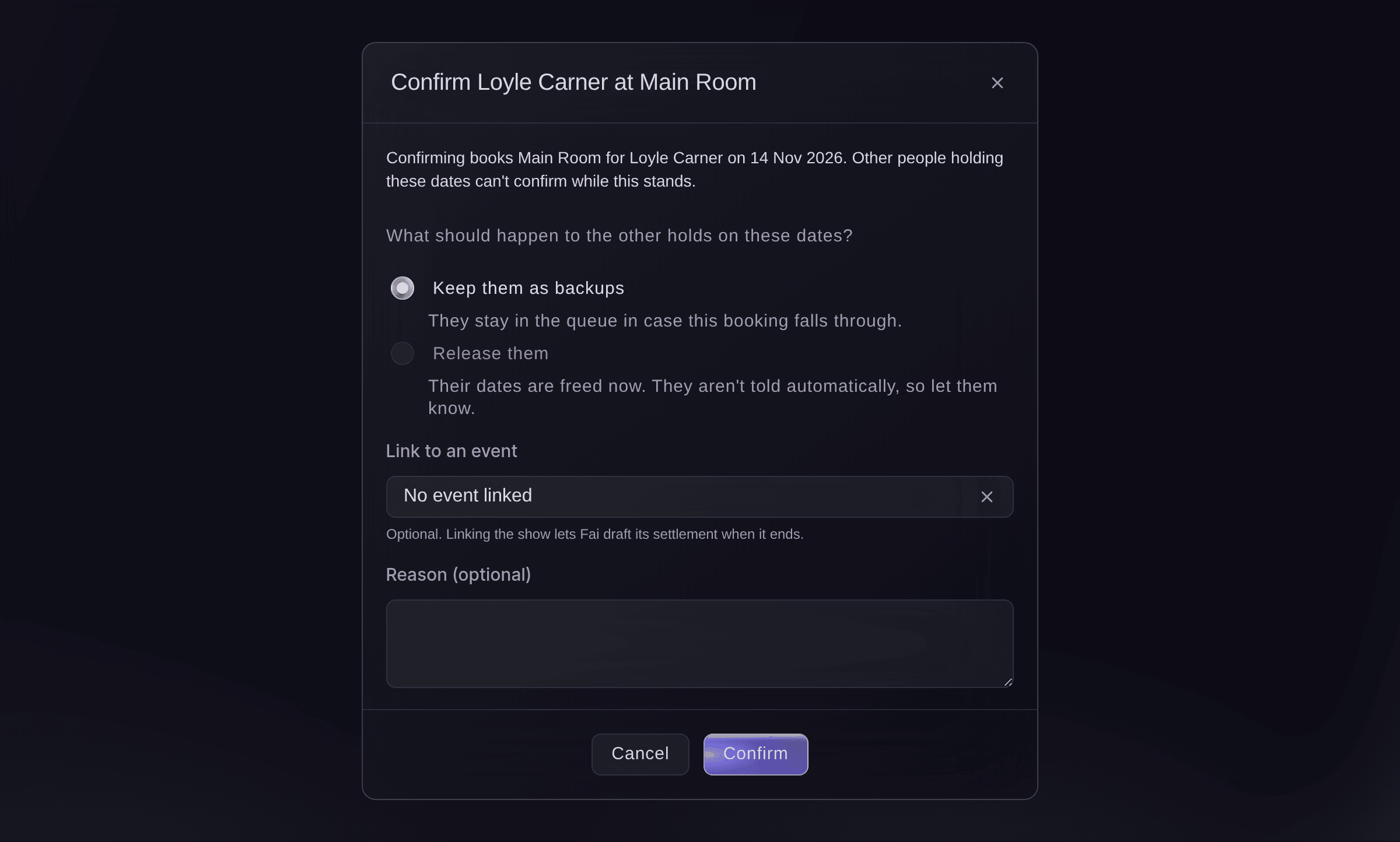
Confirm a 1st hold. -
Check the calendar
Go back to Calendar. The day shows Confirmed beside the name, and any holds you kept stay under it in their new order.


Coba langkah-langkah ini di acara Anda sendiri
Buat akun gratis, susun acara Anda dan ikuti langkah-langkah di atas di dasbor Anda sendiri. Hanya perlu beberapa menit dan Anda tidak perlu menjadwalkan panggilan penjualan.
Tanpa biaya pemasangan. Tanpa biaya bulanan wajib. Tanpa kartu kredit.
Atau minta dikerjakan untuk Anda
Fai reads your calendar and holds, places a hold, challenges or confirms the first hold and releases a hold when you ask. She shows you each change and waits for your yes before she makes it.
Di dasbor Anda, dengan Fai
Hold Saturday 14 November in the Main Room for <ARTIST NAME> and tell me which hold we are
Dari asisten Anda sendiri, lewat MCP
Hubungkan asisten Anda ke server MCP kami lalu minta:
Konfigurasi MCP yang Anda salin menyertakan --read-only. Hapus --read-only hanya jika Anda ingin asisten membuat perubahan. Perubahan biasa berjalan saat diminta; tindakan yang merusak akan meminta persetujuan Anda di klien yang kompatibel. Jika klien Anda tidak dapat meminta persetujuan, lakukan perubahan di dasbor.
Pick the brand, list the holds on Saturday 14 November in the Main Room, then place a hold for <ARTIST NAME> and ask me before you place it
Dari terminal Anda
Pasang CLI dari halaman CLI kami, masuk dengan ticketfairy auth login, lalu pilih brand yang Anda kerjakan dengan ticketfairy brand use <BRAND_ID>. ticketfairy brand list dan ticketfairy event list menampilkan ID yang digunakan perintah lain.
Use the CLI to read the calendar and your holds, place a hold, confirm the first hold and release a hold. Challenging a hold and giving a missed challenge to the challenger are done in the dashboard or through Fai. You need an owner, admin or producer login on the brand to change holds.
List the events, holds and offers in a date range, with each space id.
ticketfairy event-os venue calendar --brand <BRAND_ID> --from 2026-11-01 --to 2026-11-30
Place a hold on a space. The answer says which place in the queue it took.
ticketfairy event-os venue holds place --brand <BRAND_ID> --space <SPACE_ID> --starts-on 2026-11-14 --hold-for "<ARTIST NAME>"
List the holds that are still held.
ticketfairy event-os venue holds list --brand <BRAND_ID> --status hold
Confirm the first hold and keep the holds behind it as backups. This changes the booking and asks you first unless you add --force.
ticketfairy event-os venue holds confirm <HOLD_ID> --brand <BRAND_ID> --lower-holds keep
Release a hold, so the holds behind it move up. This asks you first unless you add --force.
ticketfairy event-os venue holds release <HOLD_ID> --brand <BRAND_ID> --reason "<REASON>"
Biarkan Fai mengerjakannya untuk Anda
Fai bekerja di dalam dasbor Ticket Fairy Anda. Buat akun Anda, buka Fai dan tempel perintah di atas.
Tanpa biaya pemasangan. Tanpa biaya bulanan wajib. Tanpa kartu kredit.
Release a hold you no longer need
-
Release the hold
Open the hold, select Release, add a reason if you want one, then select Release.
Peringatan: A released hold cannot be brought back. You can hold the date again, but the new hold joins the back of the queue.
Fai releases a hold when you ask, after she shows you which hold it is and you say yes.
Di dasbor Anda, dengan Fai
Release the hold for <NAME> on <DATE> in the <SPACE NAME>, the tour has moved
Dari asisten Anda sendiri, lewat MCP
Konfigurasi MCP yang Anda salin menyertakan --read-only. Hapus --read-only hanya jika Anda ingin asisten membuat perubahan. Perubahan biasa berjalan saat diminta; tindakan yang merusak akan meminta persetujuan Anda di klien yang kompatibel. Jika klien Anda tidak dapat meminta persetujuan, lakukan perubahan di dasbor.
Pick the brand, find the hold for <NAME> on <DATE>, show it to me and ask before you release it
Dari terminal Anda
The CLI releases a hold by its id. Find the id with holds list.
Release a hold. This asks you first unless you add --force.
ticketfairy event-os venue holds release <HOLD_ID> --brand <BRAND_ID> --reason "<REASON>"
Change a hold's details
-
Edit the hold
Open the hold, select Edit, change who it is for, the times, the contact, the lapse date, the event or the notes, then select Save.
Catatan: The dates and the space stay as they are. To move a hold, release it and place a new one.
Fai changes who a hold is for, its times, contact, lapse date, event or notes after you confirm.
Di dasbor Anda, dengan Fai
Change the hold for <NAME> on <DATE> to lapse on <NEW DATE>
Pertanyaan yang mungkin Anda punya
- Why can I not confirm my hold?
- Only the 1st hold on a date can confirm it. If someone is ahead of you, challenge the first hold or ask them to release it. A confirmed date can only be released.
- What happens when a hold lapses?
- At the end of the day in Hold lapses on, the hold shows Lapsed and the holds behind it move up. Needs attention lists a hold about to lapse beforehand, so you can change the date or confirm in time.
- What if the first hold confirms after I challenge them?
- The date is theirs and your hold stays in the queue behind them. If they release instead, the holds behind move up and yours becomes the 1st hold.
- Does Fai give the date away on her own?
- No. Fai checks every hour and lists what needs a decision. Where a hold is linked to an event, she also suggests giving the date to the challenger in that event's suggestions, and nothing changes until someone approves it.
- What happens if two of us change the same hold at once?
- The second change does not overwrite the first. The dashboard loads your teammate's version and asks you to check it and try again.
- Can I remove a space?
- Yes, once it has no current holds. Release or confirm its holds first, and the past holds and offers on it keep their details.
Masih ada pertanyaan?
Jadwalkan demo dan kami akan menjawabnya lewat panggilan, sesuai jenis acara Anda. Atau buat akun Anda dan lihat sendiri.
Tanpa biaya pemasangan. Tanpa biaya bulanan wajib. Tanpa kartu kredit.
Panduan terkait
Lakukan ini di acara Anda sendiri
Buat akun, susun acara, dan ikuti langkah-langkahnya di dasbor Anda. Anda tidak perlu memesan panggilan penjualan.