
Menjalankan produksi
Take notes on your event calls with Fai
Advance calls, production meetings and security briefings decide half of what happens on show day, and nobody on the call wants to be the one taking notes. Fai's notetaker joins the call for you and files what was agreed under the event.
Send Fai's notetaker to a Zoom, Google Meet or Microsoft Teams call about your event and get a summary, the follow-ups agreed and notes you can share, filed under the event.
- Untuk
- Keeping a record of the calls about one event
- Perlu waktu
- 5 menit
Sebelum mulai
- You are an owner or admin of the brand the event belongs to.
- You have the link to the call: a Zoom, Google Meet or Microsoft Teams meeting.
-
Open the event's Meetings
Open the event, select Management, then select Meetings in the list of sections.
Catatan: Every call the notetaker was sent to for this event is listed, with where it is up to. If a section is not in the list, select More sections and open it there.
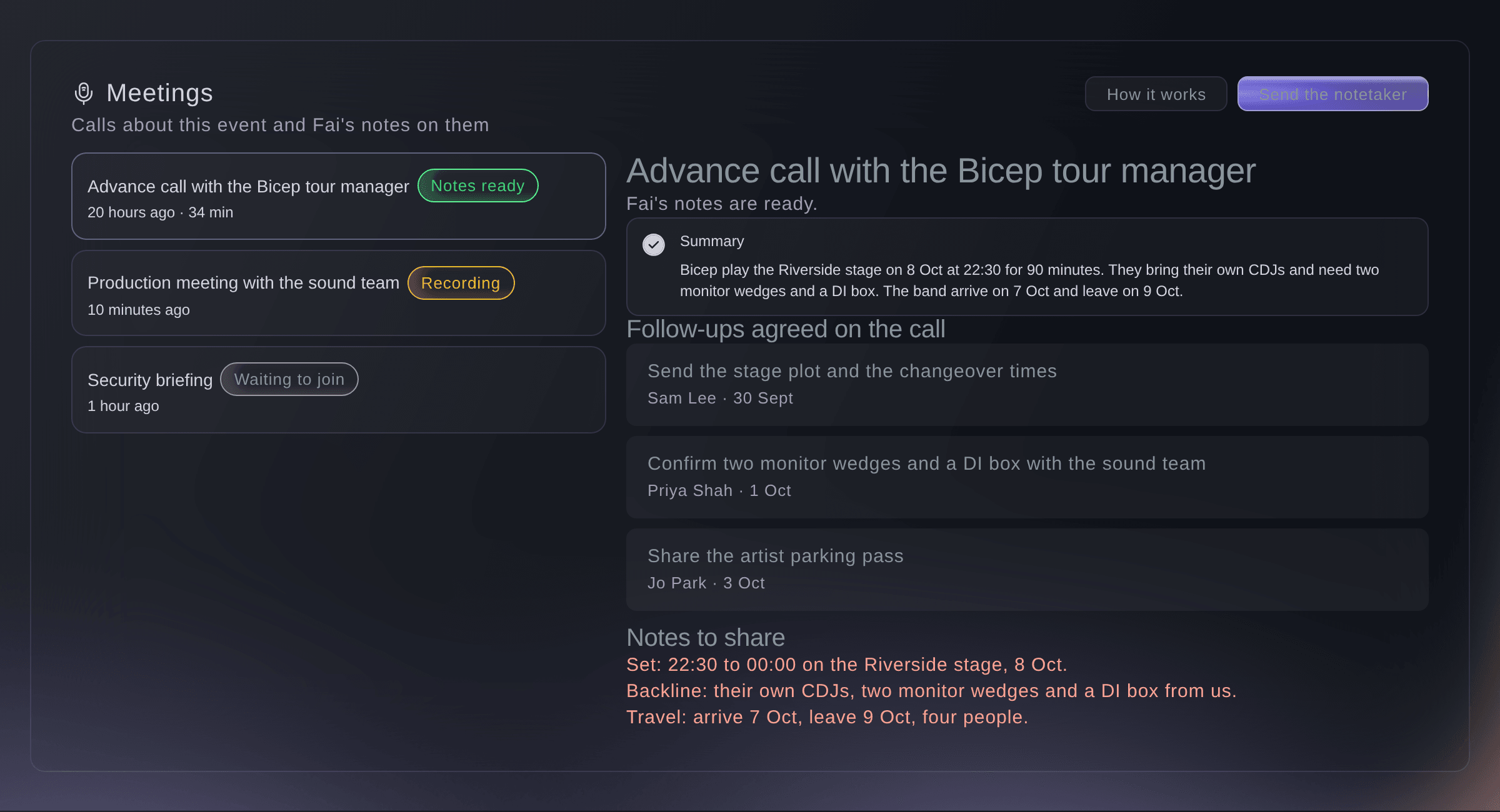
Meetings, with one call's notes open. -
Send the notetaker to a call
Select Send the notetaker, paste the link into Call link, enter a Name of the call and select Send the notetaker.
Catatan: The name is optional, but "Advance call with the tour manager" is easier to find later than a link. Send it before the call starts; the notetaker joins when the call does.
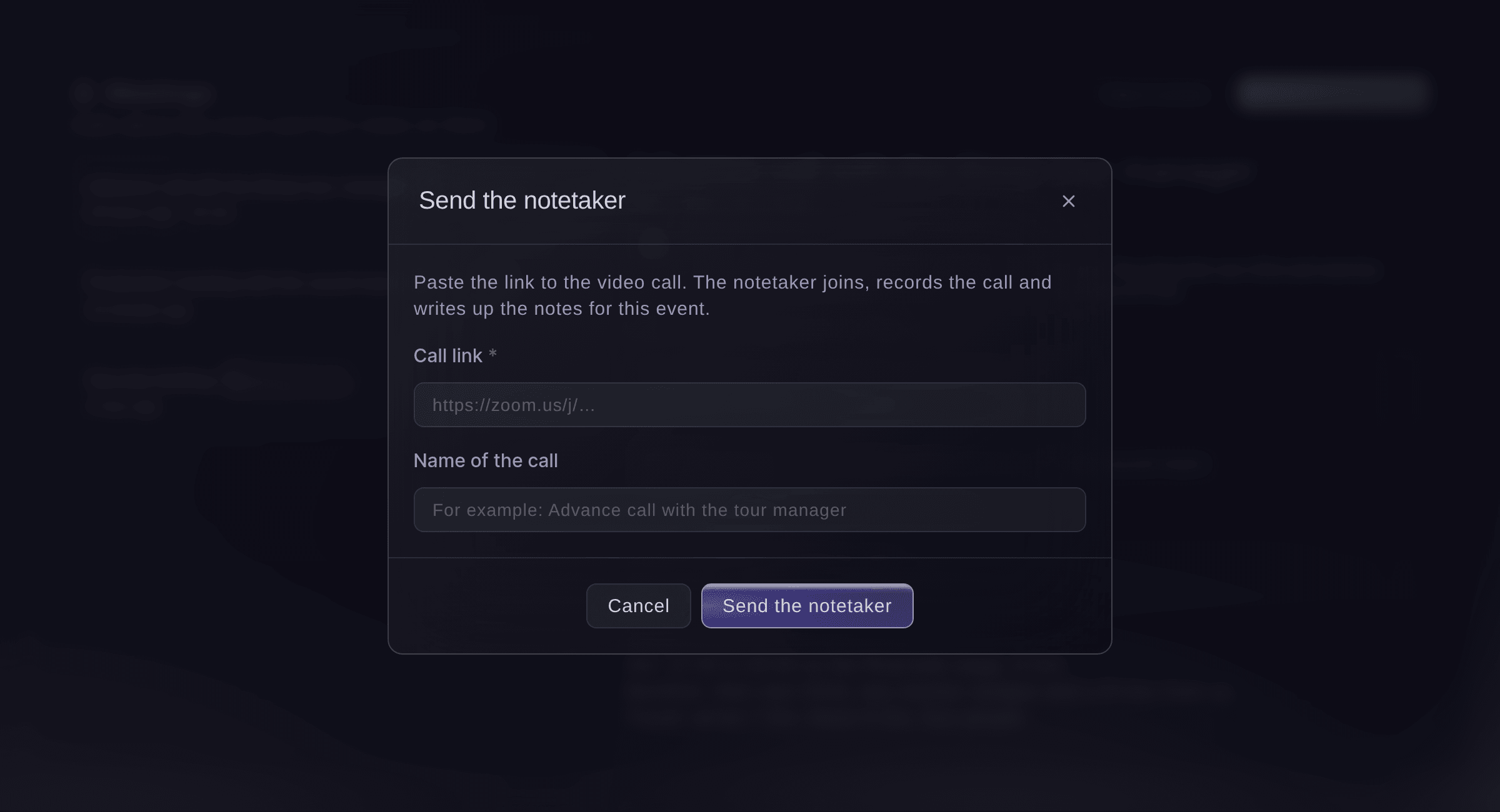
Send the notetaker.


The notetaker's progress on each call
Each call in the list shows where the notetaker is: Waiting to join before the call starts, Recording while it is on the call, then Notes ready once Fai has finished the notes after the call. Not recorded means the notetaker could not record the call, usually because the link was wrong; send it again with the right link. Called off means someone on your team stopped it.
-
Read the notes
Select a call marked Notes ready to read its Summary, the Follow-ups agreed on the call and the Notes to share.
Catatan: Each follow-up shows who took it on and by when, where the call made that clear. The notes to share are ready to send to everyone who was on it.
Coba langkah-langkah ini di acara Anda sendiri
Buat akun gratis, susun acara Anda dan ikuti langkah-langkah di atas di dasbor Anda sendiri. Hanya perlu beberapa menit dan Anda tidak perlu menjadwalkan panggilan penjualan.
Tanpa biaya pemasangan. Tanpa biaya bulanan wajib. Tanpa kartu kredit.
Atau minta dikerjakan untuk Anda
Fai sends the notetaker to a call link you give her, tells you where it is up to, and finds and reads the notes from earlier calls. She asks before the notetaker joins a call.
Di dasbor Anda, dengan Fai
Send the notetaker to this call for <EVENT NAME>: <CALL LINK>
Biarkan Fai mengerjakannya untuk Anda
Fai bekerja di dalam dasbor Ticket Fairy Anda. Buat akun Anda, buka Fai dan tempel perintah di atas.
Tanpa biaya pemasangan. Tanpa biaya bulanan wajib. Tanpa kartu kredit.
Call off the notetaker
-
Stop the notetaker joining or recording
Select the call, select Call off the notetaker, then Call it off.
Catatan: The notetaker does not join, or leaves if it is already on the call, and Fai makes no notes. Choose Keep it to change your mind.
Fai tells you where the notetaker is up to on a call. To call it off, use Meetings in the dashboard.
Di dasbor Anda, dengan Fai
Is the notetaker on the security briefing for <EVENT NAME> yet?
Pertanyaan yang mungkin Anda punya
- Can the notetaker join calls from my calendar without a link?
- Yes, once Ticket Fairy support connects your calendar. Select How it works in Meetings to see whether a calendar is connected.
- Which calls can the notetaker join?
- Zoom, Google Meet and Microsoft Teams calls. A link to anything else is refused when you send it.
- Who can see the notes?
- The owners and admins of your brand who open the event's Meetings.
Masih ada pertanyaan?
Jadwalkan demo dan kami akan menjawabnya lewat panggilan, sesuai jenis acara Anda. Atau buat akun Anda dan lihat sendiri.
Tanpa biaya pemasangan. Tanpa biaya bulanan wajib. Tanpa kartu kredit.
Panduan terkait
Lakukan ini di acara Anda sendiri
Buat akun, susun acara, dan ikuti langkah-langkahnya di dasbor Anda. Anda tidak perlu memesan panggilan penjualan.