
Menjalankan produksi
Message the crew, volunteers and traders working on your event
On show day, a gate change or a weather hold has to reach every steward, bar volunteer and trader in minutes, not after a round of phone calls. One message to the right groups, with a count of who gets it before you press send, keeps the whole site working from the same information.
Email or text the people working on your event: a department, one day's rota, your volunteers, performers' teams, traders, press or sponsors in one go, start from a show-day template or let Fai draft it, check exactly who gets it before it goes, and see who it reached.
- Untuk
- Telling the people working on your event what they need to know
- Perlu waktu
- 7 menit
Sebelum mulai
- You need an owner, admin or producer role on the event, and your brand and account need to be verified.
- Text messages need texting turned on for the event. Ask Ticket Fairy support to turn it on.
-
Open Messages
Open the event, select Management, then select Messages in the list of sections. Each message shows who it went to and how many it reached.
Catatan: If Messages is not in the list, select More sections and open it there. On show day, Message people is also at the top of the show-day view.
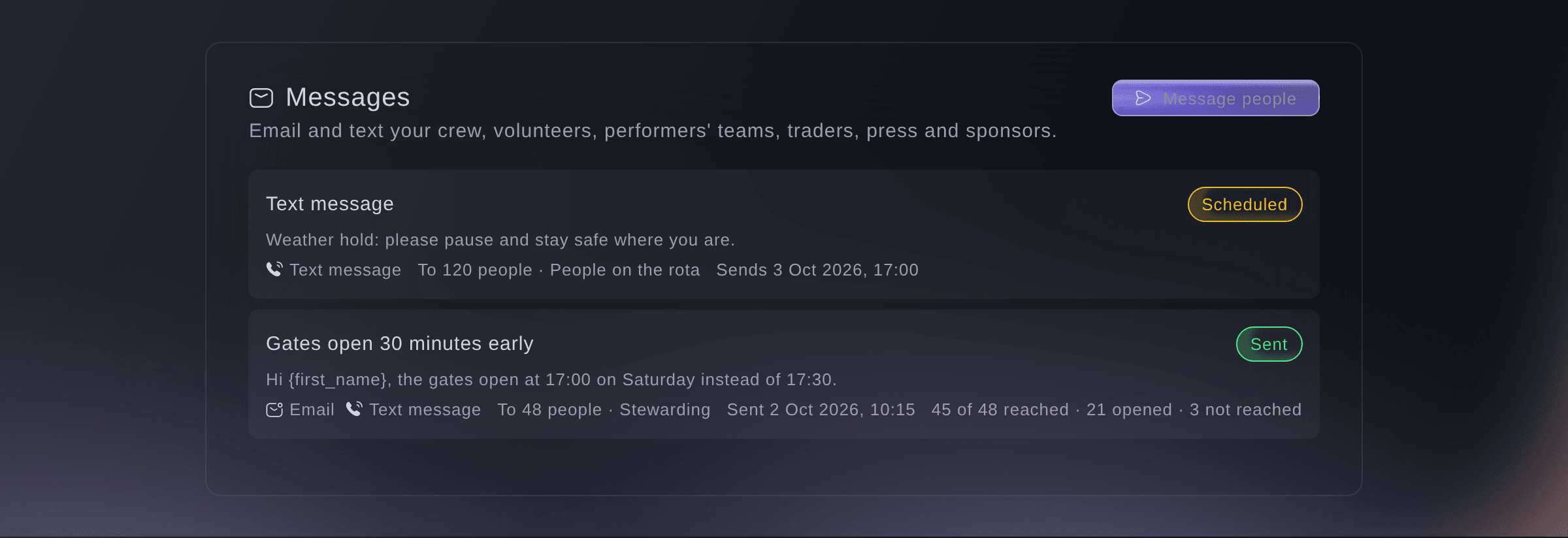
Management, Messages. -
Start a message
Select Message people.
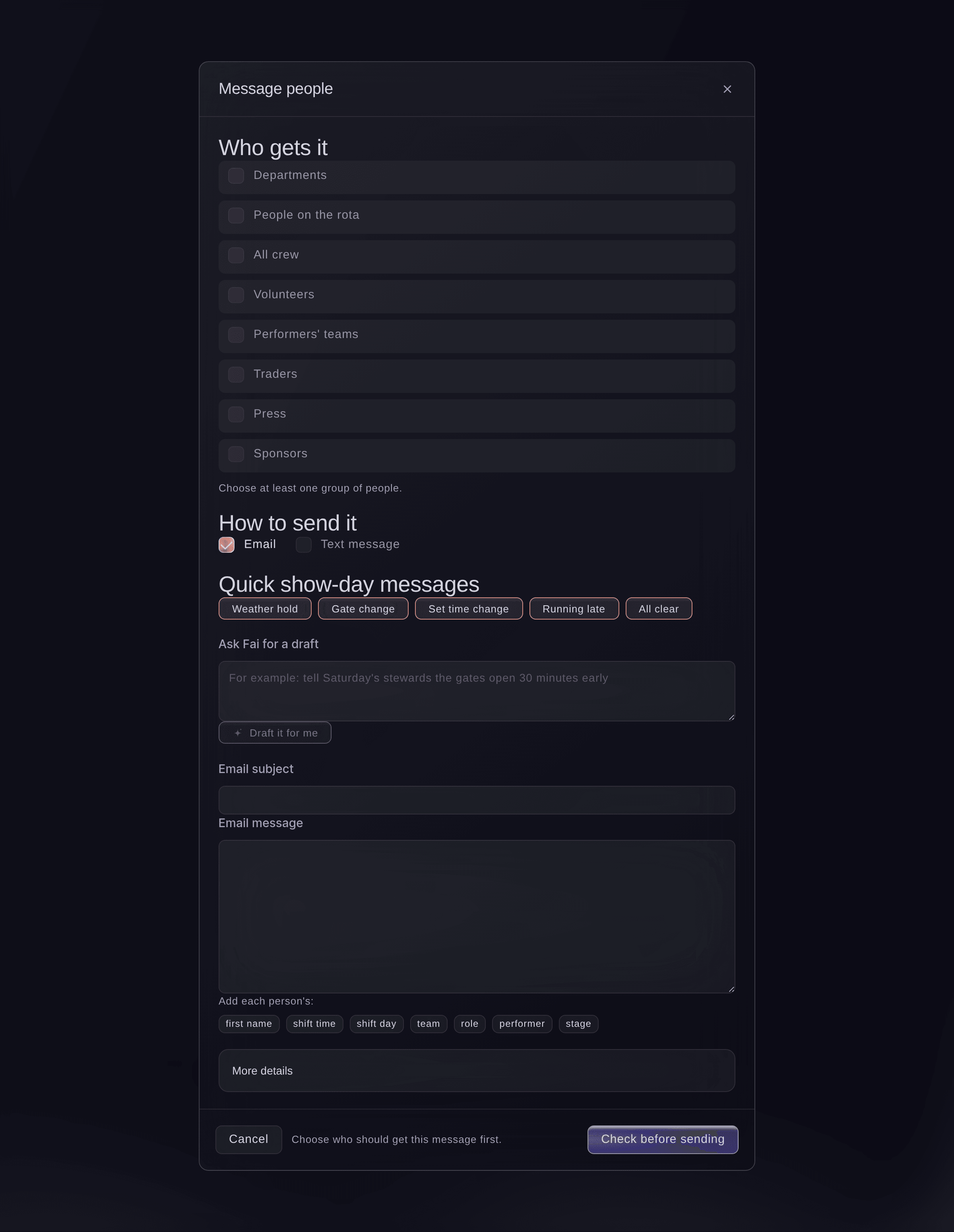
Message people. -
Choose who gets it
Under Who gets it, tick each group, then narrow a group by its status, role, day, team or shift where it offers one.
Catatan: The groups are departments, people on the rota, all crew, volunteers, performers' teams, traders, press and sponsors. Someone in two groups gets the message once.
-
Choose how to send it
Under How to send it, tick Email, Text message or both.
Catatan: If a channel isn't available for the event, a note under the channels says why. A text runs to 480 characters, and the counter under it shows how many parts each text takes.
-
Enter the message
Select a quick show-day message such as Weather hold, or enter what you want to say under Ask Fai for a draft and select Draft it for me, then check the subject and message.
Catatan: Replace the words in square brackets in a template. Select a word beside Add each person's:, such as first name or shift time, to fill it in for each person.
-
Choose when it goes
Optional: Select More details, turn on Send later and choose the time.
Catatan: The time is in the event's time zone, at least 5 minutes and at most 60 days from now. You can cancel a scheduled message until it goes.
-
Check who gets it, then send
Select Check before sending, read who gets it by email and by text, then select Send to with the number of people.
Catatan: The check lists anyone left out, such as someone with no mobile number or a number that replied STOP. If the group changed since you checked, you see the new count and check again.
Peringatan: A message can't be taken back once it's sent.
-
See who it reached
Select the message in the list. Each person shows Sent, Opened, On the way or Not sent.
Catatan: Sent means the email or text left us, and opened shows when the person's email app loads images. Select Not reached to see who it missed.
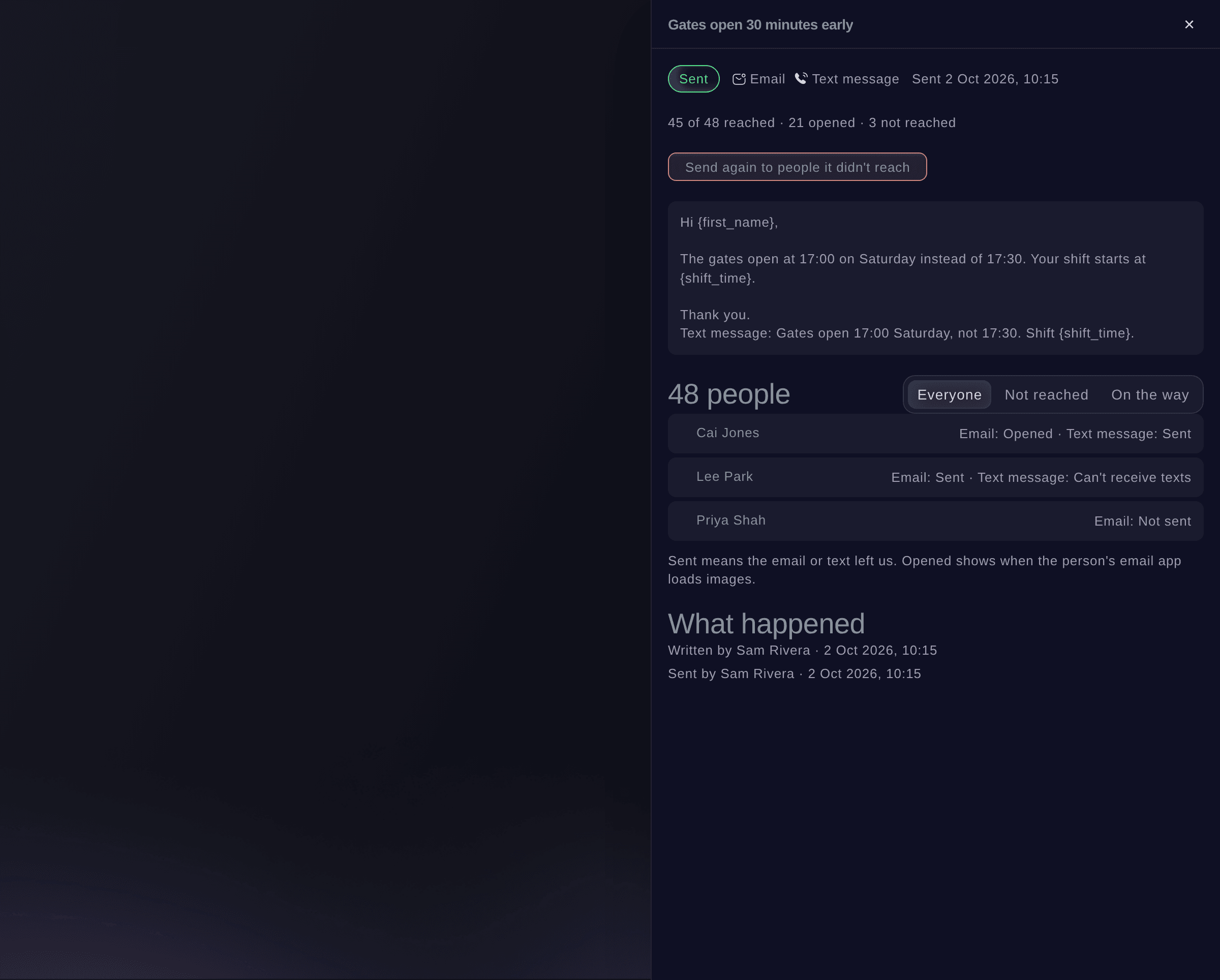
One message, who it reached.


Coba langkah-langkah ini di acara Anda sendiri
Buat akun gratis, susun acara Anda dan ikuti langkah-langkah di atas di dasbor Anda sendiri. Hanya perlu beberapa menit dan Anda tidak perlu menjadwalkan panggilan penjualan.
Tanpa biaya pemasangan. Tanpa biaya bulanan wajib. Tanpa kartu kredit.
Atau minta dikerjakan untuk Anda
Fai drafts a message in your brand's voice, counts who it will reach and sends it after you confirm the count and the channels. She never sends without your yes.
Di dasbor Anda, dengan Fai
Email Saturday's stewards and bar volunteers on <EVENT NAME> that the gates open 30 minutes early, and show me who gets it before you send
Dari asisten Anda sendiri, lewat MCP
Hubungkan asisten Anda ke server MCP kami lalu minta:
Konfigurasi MCP yang Anda salin menyertakan --read-only. Hapus --read-only hanya jika Anda ingin asisten membuat perubahan. Perubahan biasa berjalan saat diminta; tindakan yang merusak akan meminta persetujuan Anda di klien yang kompatibel. Jika klien Anda tidak dapat meminta persetujuan, lakukan perubahan di dasbor.
Find my event <EVENT NAME>, count how many volunteers a message would reach by email, draft a message saying the gates open 30 minutes early, and ask me before you send it
Dari terminal Anda
Pasang CLI dari halaman CLI kami, masuk dengan ticketfairy auth login, lalu pilih brand yang Anda kerjakan dengan ticketfairy brand use <BRAND_ID>. ticketfairy brand list dan ticketfairy event list menampilkan ID yang digunakan perintah lain.
Use the CLI to see which groups and channels an event can message, count an audience, have Fai draft the text, send it and list what was sent. Sending needs --expected-count, the count you checked, and asks you first unless you add --force. You need an owner, admin or producer login on the event.
List the groups, statuses and channels this event can message.
ticketfairy event-os messages options <EVENT_ID>
Count who a message to every volunteer would reach by email.
ticketfairy event-os messages audience <EVENT_ID> --audience '{"groups":[{"source":"volunteers"}]}'
Have Fai draft the message from your words. Nothing is sent.
ticketfairy event-os messages draft <EVENT_ID> --request "Gates open 30 minutes early on Saturday"
Email every volunteer. This sends and asks you first; the count must match the one you checked.
ticketfairy event-os messages send <EVENT_ID> --audience '{"groups":[{"source":"volunteers"}]}' --subject "<SUBJECT>" --message "<MESSAGE>" --expected-count <COUNT>
List the messages sent and scheduled on the event.
ticketfairy event-os messages list <EVENT_ID>
Biarkan Fai mengerjakannya untuk Anda
Fai bekerja di dalam dasbor Ticket Fairy Anda. Buat akun Anda, buka Fai dan tempel perintah di atas.
Tanpa biaya pemasangan. Tanpa biaya bulanan wajib. Tanpa kartu kredit.
Send a message again to the people it missed
-
Send it again
Open the message, select Send again to people it didn't reach, then Send again.
Catatan: Numbers that replied STOP or can't receive texts are left out. The button appears once the message has finished sending.
Send a message again from its panel in the dashboard.
Cancel a scheduled message
-
Cancel it
Open the scheduled message, select Cancel this message, then Cancel message.
Catatan: It is not sent to anyone, and it stays in the list as Cancelled.
Cancel a scheduled message from its panel in the dashboard.
See every message one person was sent
-
Open their messages
Select a person's name in a message, or Messages beside a contact on a performer's page, to see every message they were sent about the event.
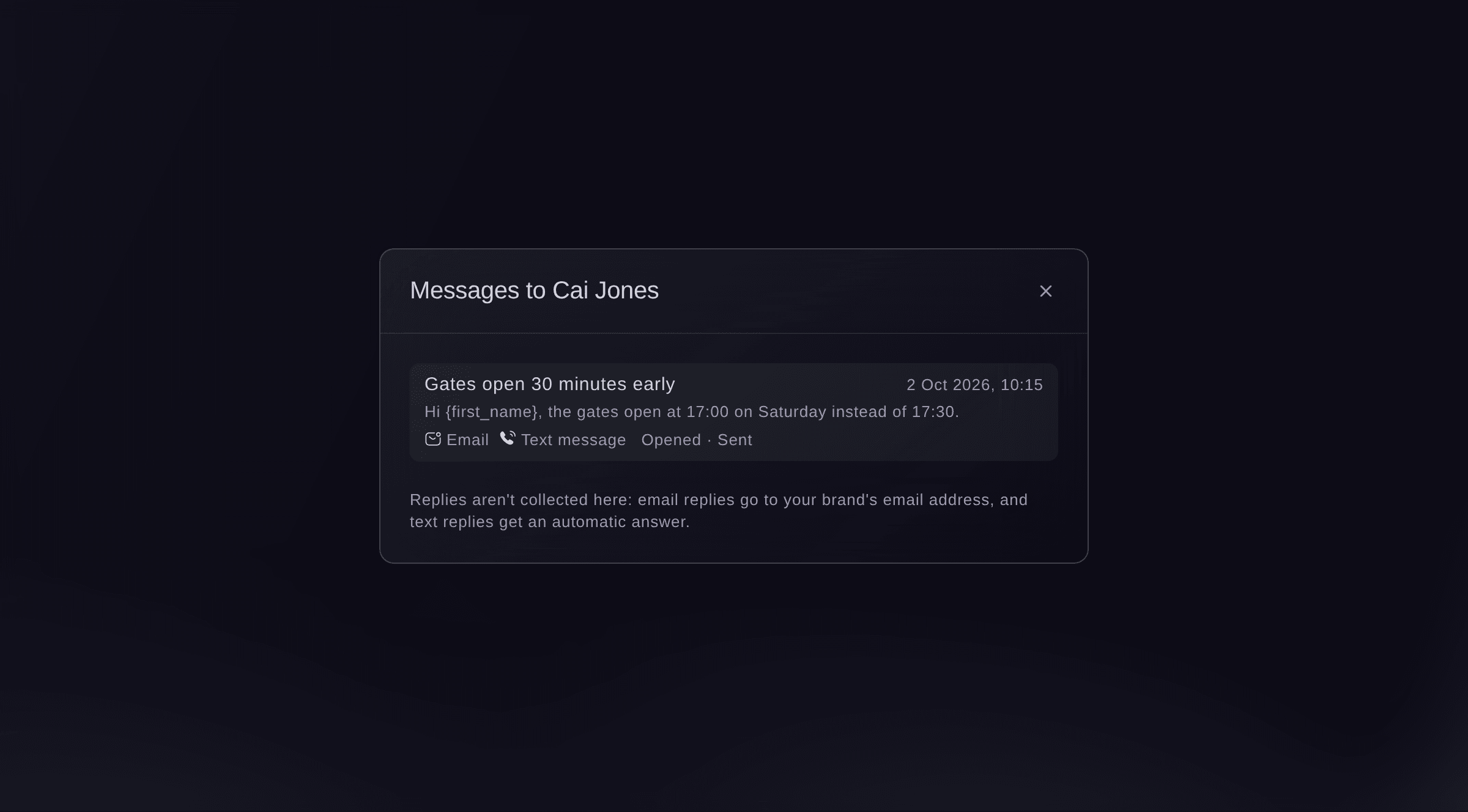
Messages to one person.

Fai lists the messages sent on the event and who each one reached.
Di dasbor Anda, dengan Fai
Which messages did we send about <EVENT NAME> today, and who did they not reach?
Pertanyaan yang mungkin Anda punya
- Where do replies go?
- Replies to the email go to your brand's email address. Replies to a text get an automatic answer and are not collected, so ask people to reply by email or phone.
- How many people can I message?
- One message can go to up to 2,000 people, and your team can message up to 10,000 people a day and send 20 messages an hour.
- Does Fai send messages on her own?
- No. When a set time on the run of show moves by 15 minutes or more, Fai suggests an email to the teams it affects on the event's Today page, and nothing goes until someone approves it.
- Can I message ticket holders here?
- No. This section is for the people working on the event. Email ticket buyers from the event's Messaging page.
Masih ada pertanyaan?
Jadwalkan demo dan kami akan menjawabnya lewat panggilan, sesuai jenis acara Anda. Atau buat akun Anda dan lihat sendiri.
Tanpa biaya pemasangan. Tanpa biaya bulanan wajib. Tanpa kartu kredit.
Panduan terkait
Lakukan ini di acara Anda sendiri
Buat akun, susun acara, dan ikuti langkah-langkahnya di dasbor Anda. Anda tidak perlu memesan panggilan penjualan.