
Menjalankan produksi
Publish your event line-up and set times
Festival and club promoters announce a line-up in waves and change set times right up to the weekend, and every change has to reach the event page, the website and the app at once. Publishing from the same acts and set times your team advances keeps every public page in step, and nothing goes out before you have seen it.
Choose which acts appear on your public line-up with a photo, bio and links, let Fai draft the bios, announce acts in waves, review every change before it goes public, and put the timetable on your event page, your website and any other site, where fans star sets for their own schedule.
- Untuk
- Announcing your line-up and keeping set times current everywhere fans look
- Perlu waktu
- 9 menit
Sebelum mulai
- You need an owner, admin or producer role on the event to change and publish the line-up.
- Your acts are on the event's Artists list, with set times where you have them.
-
Open Line-up
Open the event, select Management, then select Line-up in the list of sections. Every act on the event is listed with its set times and whether it is shown.
Catatan: Nothing here is public until you publish it, so you can prepare the line-up at your own pace. If Line-up is not in the list, select More sections.
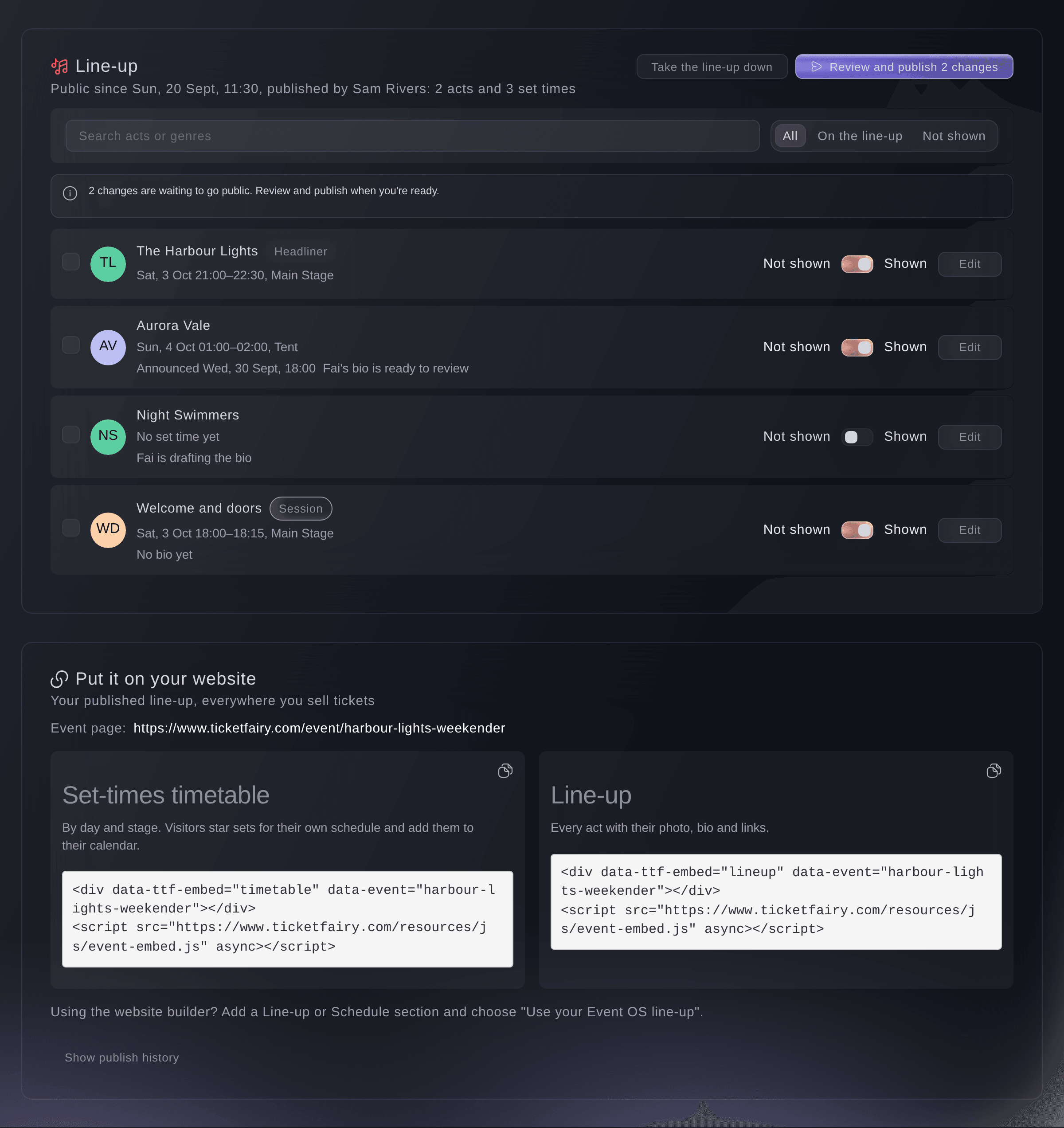
Management, Line-up. -
Switch on the acts you want to show
Turn on the switch beside each act you want on the public line-up.
Catatan: An act you hide stays public until your next publish, and you can choose to take it off at once.
-
Add each act's photo, bio and links
Select Edit on an act, then enter the Name on the line-up, a Photo link, the Bio, their Links and Genres, and select Save.
Catatan: Fai can draft the bio from the act's website and music links when you select Let Fai draft the bio. The draft appears under Fai's draft bio, and it is never public until you select Use this bio.
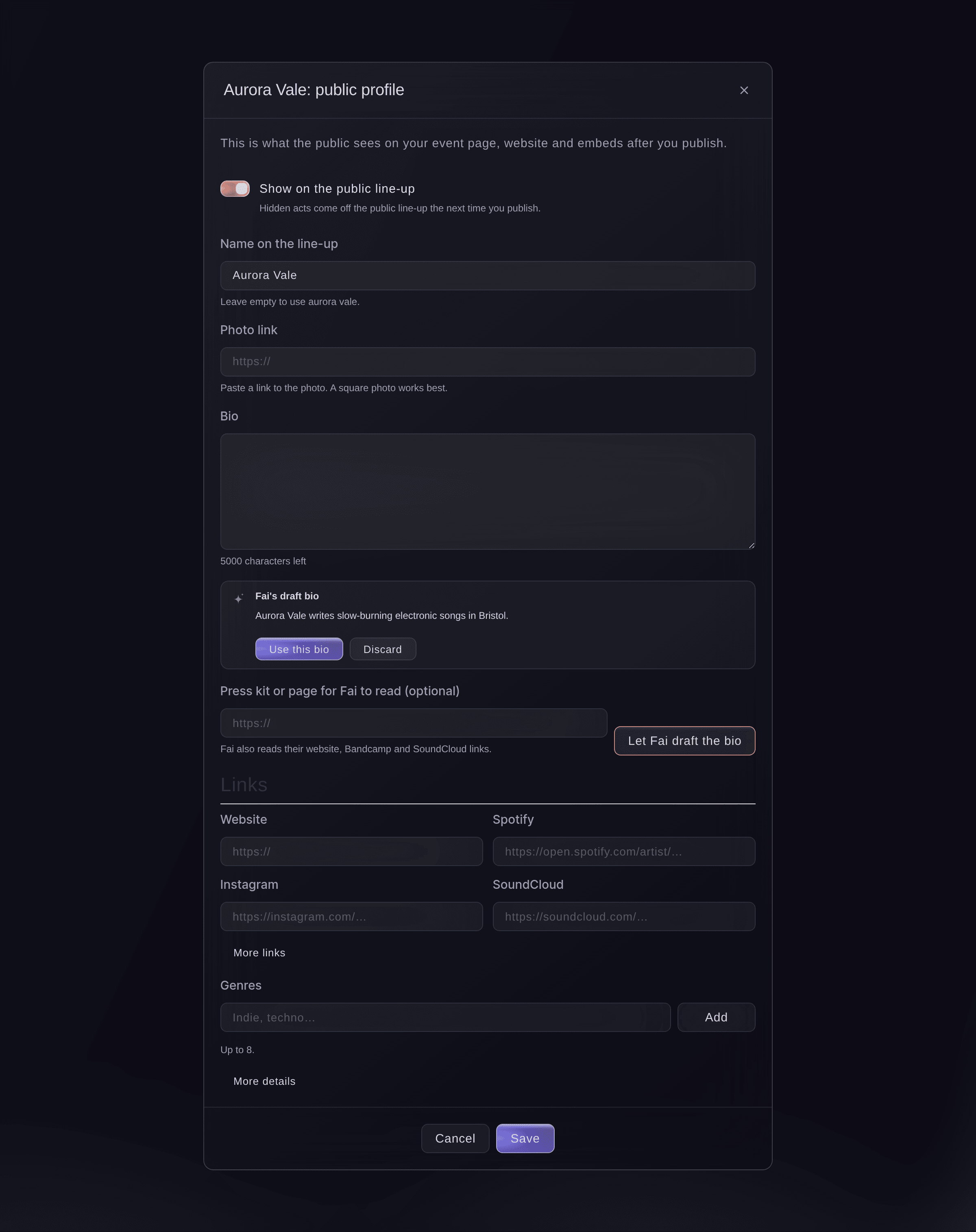
One act's public profile. -
Announce acts at a set time
Optional: Tick the acts for the next wave, select Announce at…, choose the date and time, then select Schedule.
Catatan: Those acts go public with your next publish but stay hidden until that time, so a wave appears on your pages on the minute you chose.
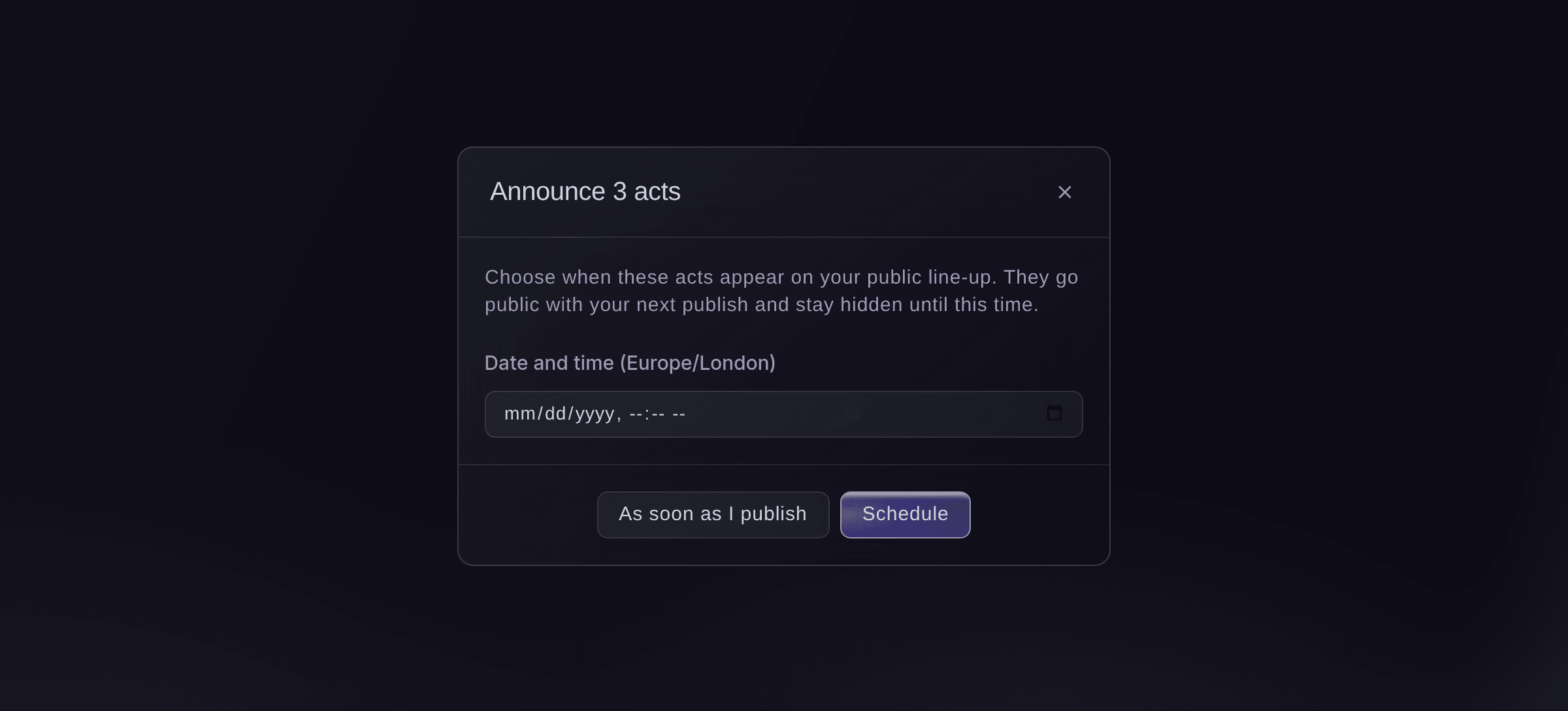
Announce acts at a set time. -
Review and publish
Select Review and publish, read what will change, then select Publish. You see Your line-up is public.
Catatan: The review lists acts added or taken off, profiles updated and set times that move, and warns about any act going public without a bio, photo or set time. If a teammate changed something while you read it, nothing is published and you see the latest review.
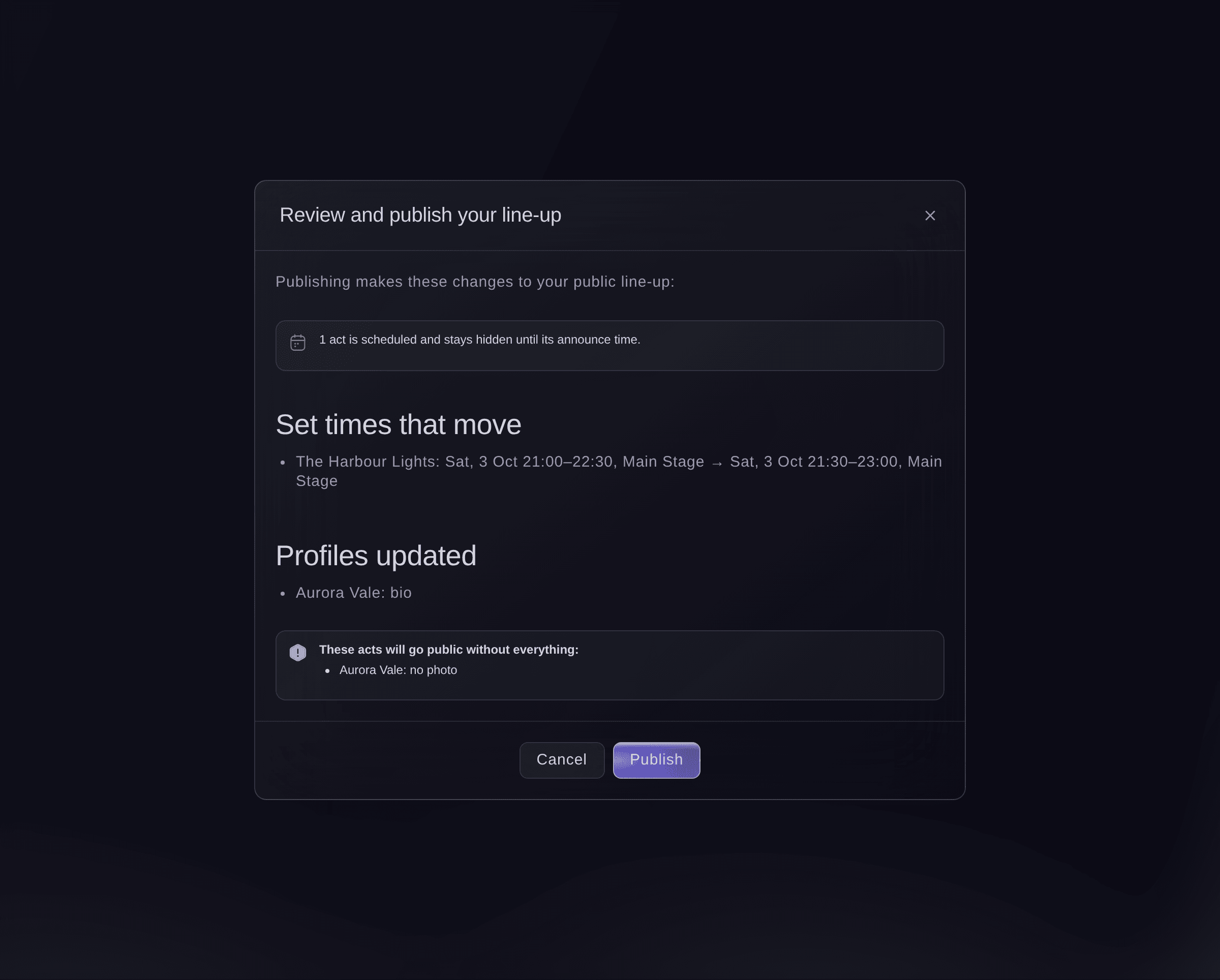
Review and publish. -
Tell ticket holders about moved set times
Optional: If set times moved, select Tell ticket holders after publishing. The ticket holder email opens with a draft listing the changes for you to check and send.
-
Put the timetable on your website
Under Put it on your website, select Copy code beside the Set-times timetable or the Line-up, and paste it into any page of your site.
Catatan: Your event page shows the published line-up by itself. On a site you build with Ticket Fairy, add a Line-up or Schedule section and choose Use your Event OS line-up.


My schedule for fans
On the timetable, fans filter by day and stage, star the sets they want to see and add them to their own calendar. Their stars are kept on their phone, and the timetable updates each time you publish.
-
Check your event page
Open your public event page. The line-up and set times you published are on it, and acts scheduled for a later announcement are not there yet.
Coba langkah-langkah ini di acara Anda sendiri
Buat akun gratis, susun acara Anda dan ikuti langkah-langkah di atas di dasbor Anda sendiri. Hanya perlu beberapa menit dan Anda tidak perlu menjadwalkan panggilan penjualan.
Tanpa biaya pemasangan. Tanpa biaya bulanan wajib. Tanpa kartu kredit.
Atau minta dikerjakan untuk Anda
Fai reads your public line-up, updates an act's public profile, drafts a bio from their links for you to accept, and publishes the line-up after you have seen what will change.
Di dasbor Anda, dengan Fai
Draft bios for the acts on <EVENT NAME> that have none, then show me what publishing the line-up would change
Dari asisten Anda sendiri, lewat MCP
Hubungkan asisten Anda ke server MCP kami lalu minta:
Konfigurasi MCP yang Anda salin menyertakan --read-only. Hapus --read-only hanya jika Anda ingin asisten membuat perubahan. Perubahan biasa berjalan saat diminta; tindakan yang merusak akan meminta persetujuan Anda di klien yang kompatibel. Jika klien Anda tidak dapat meminta persetujuan, lakukan perubahan di dasbor.
Find my event <EVENT NAME>, show me what publishing its line-up would change, and ask me before you publish it
Dari terminal Anda
Pasang CLI dari halaman CLI kami, masuk dengan ticketfairy auth login, lalu pilih brand yang Anda kerjakan dengan ticketfairy brand use <BRAND_ID>. ticketfairy brand list dan ticketfairy event list menampilkan ID yang digunakan perintah lain.
Use the CLI to read the line-up, see what publishing would change and publish it or take it down. Profiles, bios and announce times are in the dashboard or through Fai. You need an owner, admin or producer login on the event.
Show what publishing would change: acts and set times added, moved or taken off.
ticketfairy event-os lineup show <EVENT_ID> --review
Publish the line-up. This changes the public pages and asks you first unless you add --force.
ticketfairy event-os lineup publish <EVENT_ID>
Biarkan Fai mengerjakannya untuk Anda
Fai bekerja di dalam dasbor Ticket Fairy Anda. Buat akun Anda, buka Fai dan tempel perintah di atas.
Tanpa biaya pemasangan. Tanpa biaya bulanan wajib. Tanpa kartu kredit.
Take the line-up down
-
Take it down
Select Take the line-up down, then Take it down.
Catatan: Your event page, website line-up and embeds stop showing it. Your acts and history are kept, and publishing again puts it back.
Fai takes the public line-up down after you confirm.
Di dasbor Anda, dengan Fai
Take the public line-up for <EVENT NAME> down
Dari asisten Anda sendiri, lewat MCP
Konfigurasi MCP yang Anda salin menyertakan --read-only. Hapus --read-only hanya jika Anda ingin asisten membuat perubahan. Perubahan biasa berjalan saat diminta; tindakan yang merusak akan meminta persetujuan Anda di klien yang kompatibel. Jika klien Anda tidak dapat meminta persetujuan, lakukan perubahan di dasbor.
Find my event <EVENT NAME> and ask me before you take its public line-up down
Dari terminal Anda
The CLI takes the line-up down with the publish command.
Take the public line-up down. This asks you first unless you add --force.
ticketfairy event-os lineup publish <EVENT_ID> --withdraw
Pertanyaan yang mungkin Anda punya
- I changed a set time. Is it public?
- Not until you publish again. The Line-up section says how many changes are waiting, and Fai reminds you on the event's Today page when set times changed after your last publish.
- Do private sessions show on the public timetable?
- No. Only sets with public acts, and sessions open to the public that are not cancelled or postponed, go on the line-up. Fees, contacts and notes are never public.
- What if two of us publish at the same time?
- The second publish stops and shows the latest review, so nobody publishes changes they have not seen.
- Where can I see what was published and when?
- Select Show publish history to see each publish and take-down, who made it and how many changes it had.
Masih ada pertanyaan?
Jadwalkan demo dan kami akan menjawabnya lewat panggilan, sesuai jenis acara Anda. Atau buat akun Anda dan lihat sendiri.
Tanpa biaya pemasangan. Tanpa biaya bulanan wajib. Tanpa kartu kredit.
Panduan terkait
Lakukan ini di acara Anda sendiri
Buat akun, susun acara, dan ikuti langkah-langkahnya di dasbor Anda. Anda tidak perlu memesan panggilan penjualan.