
Vault und Capital
Open a Vault account to hold your ticket money
Promoters and venue teams open a Vault account to give their brand an account of its own for event money, with cards, transfers and currency accounts attached. You enter the business and the people who run it, then finish a verification check, and the account opens once the check passes.
Open a Vault account for your brand so the money your events take has an account of its own. Enter the business and the people behind it, then finish onboarding so Vault can verify them and switch the account on.
- Für
- Opening the account your brand holds its event money in
- Dauer
- 10 Minuten
- Open Vault for the brand
- Select Create New Account
- Check the business details
- Choose the business structure
- Choose the country
- Enter the authorised person
- Enter the legal representative
- Enter the controlling person
- Enter the beneficial owner
- Select Create Account
- Select Start Onboarding
- Answer the verification questions
- While Vault checks your account
- Check the account is active
Bevor Sie anfangen
- You're an owner or an admin on the brand. Those are the two roles that reach Vault.
- Vault is switched on for your brand. Ask Ticket Fairy support to switch Vault on for your brand if it isn't.
- You know how your business is registered, and the names of the people who act for it, represent it, control it and own it.
-
Open Vault for the brand
Pick the brand, then open Vault. A brand with no account yet shows Open a Vault account.
Hinweis: If the page says
Vault is not enabled for this brand
, ask Ticket Fairy support to switch Vault on for your brand.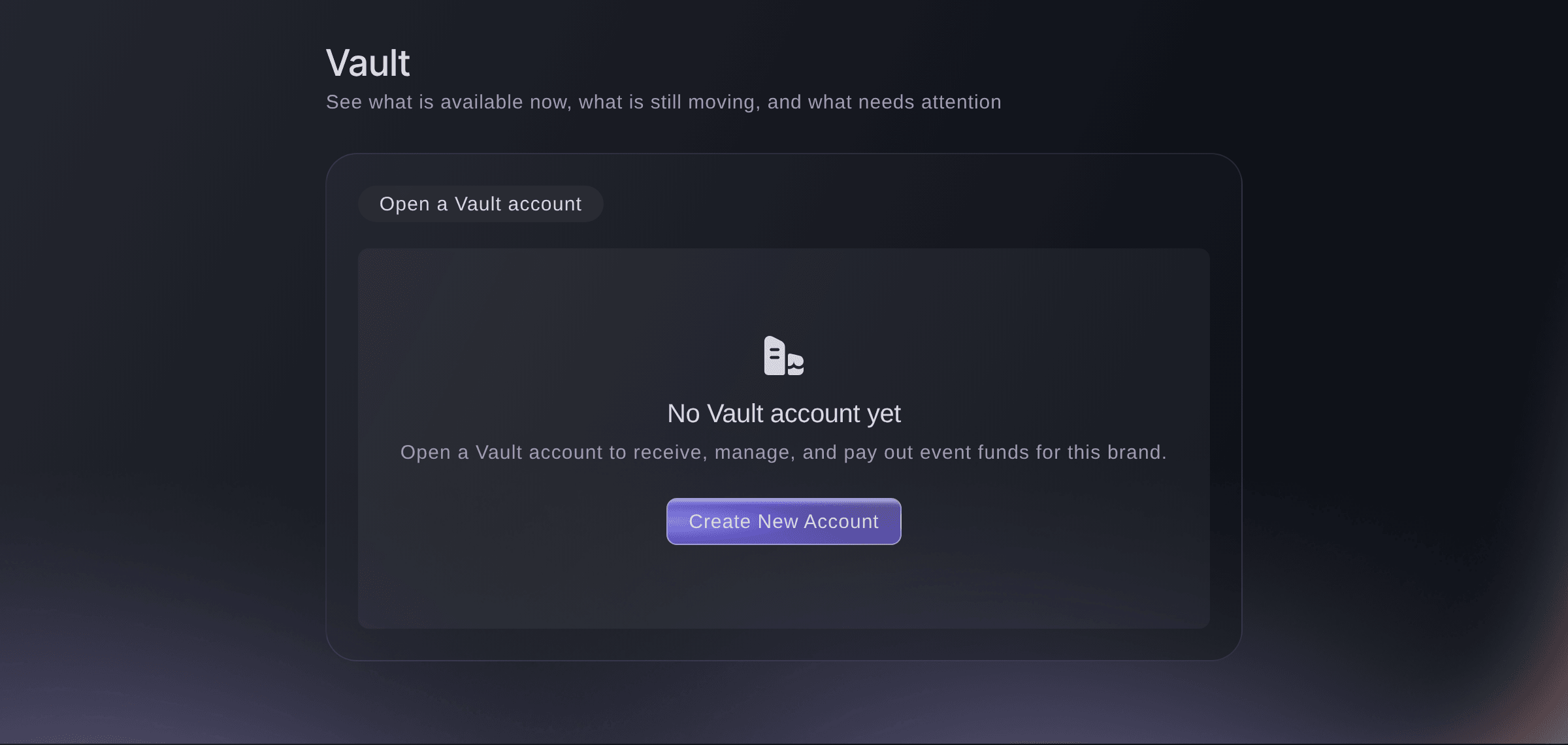
Brand, Vault, before the account exists. -
Select Create New Account
Select Create New Account. The form opens with your brand's email, name, city and country already filled in.
Tipp: Cancel closes the form without keeping what you entered, so finish it once you start.
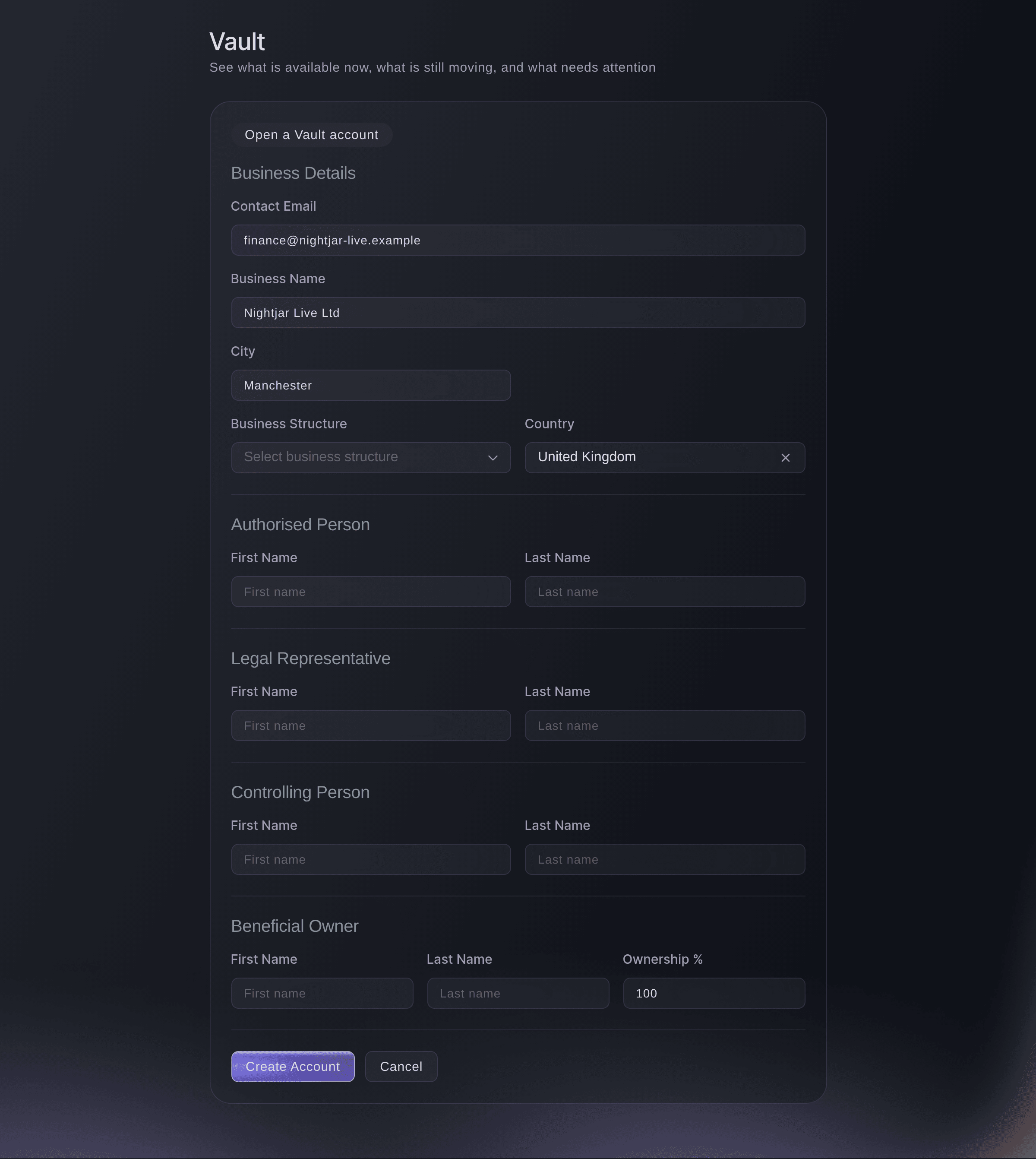
Brand, Vault, Create New Account. -
Check the business details
Under Business Details, check Contact Email, Business Name and City against your business's own records, and correct any that differ.
-
Choose the business structure
Choose how the business is set up from Business Structure.
-
Choose the country
Choose the country the business is based in from Country. The list starts on your brand's country and offers every other country too.
-
Enter the authorised person
Under Authorised Person, enter the first and last name of the person who acts for the business on this account.
-
Enter the legal representative
Under Legal Representative, enter the name of the person who represents the business legally, such as a director.
-
Enter the controlling person
Under Controlling Person, enter the name of the person who has control of the business, such as its managing director.
-
Enter the beneficial owner
Under Beneficial Owner, enter the name of the person who owns the business, then their share in Ownership %.
Hinweis: Ownership % starts at 100 and takes a whole number from 1 to 100. One person can appear in every section when they run and own the business.
-
Select Create Account
Select Create Account.
Account created successfully!
confirms it, and the Vault account card takes the form's place with the status Created.Hinweis: If you see
Failed to create account
, the form keeps what you entered. Check each section, then select Create Account again.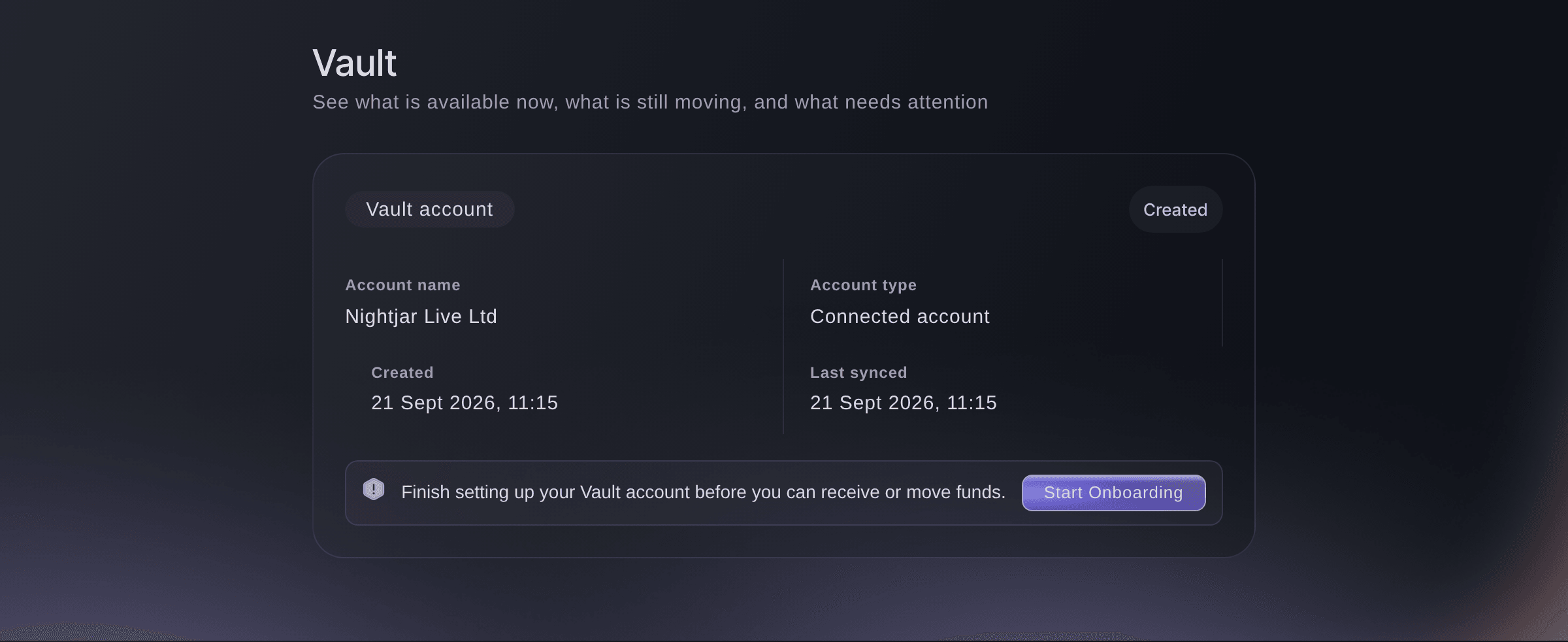
Brand, Vault, straight after the account is created. -
Select Start Onboarding
On the Vault account card, select Start Onboarding. The Complete Account Onboarding window opens Vault's secure verification.
Hinweis: If the window asks you to continue securely instead, select Continue account setup and finish in the tab it opens.
-
Answer the verification questions
Answer each question about the business and the people behind it, then submit the last page.
Onboarding submitted successfully!
confirms it and the window closes.
While Vault checks your account
The Vault account card says Submitted while the check runs, and Vault shows only Overview and Action Centre. If the card changes to Action required, Vault needs more from you: select Continue Onboarding and answer what it asks.
-
Check the account is active
Open Vault again. The Vault account card says Active, your balances show above it, and Cards, Transfers and Accounts appear under Vault.
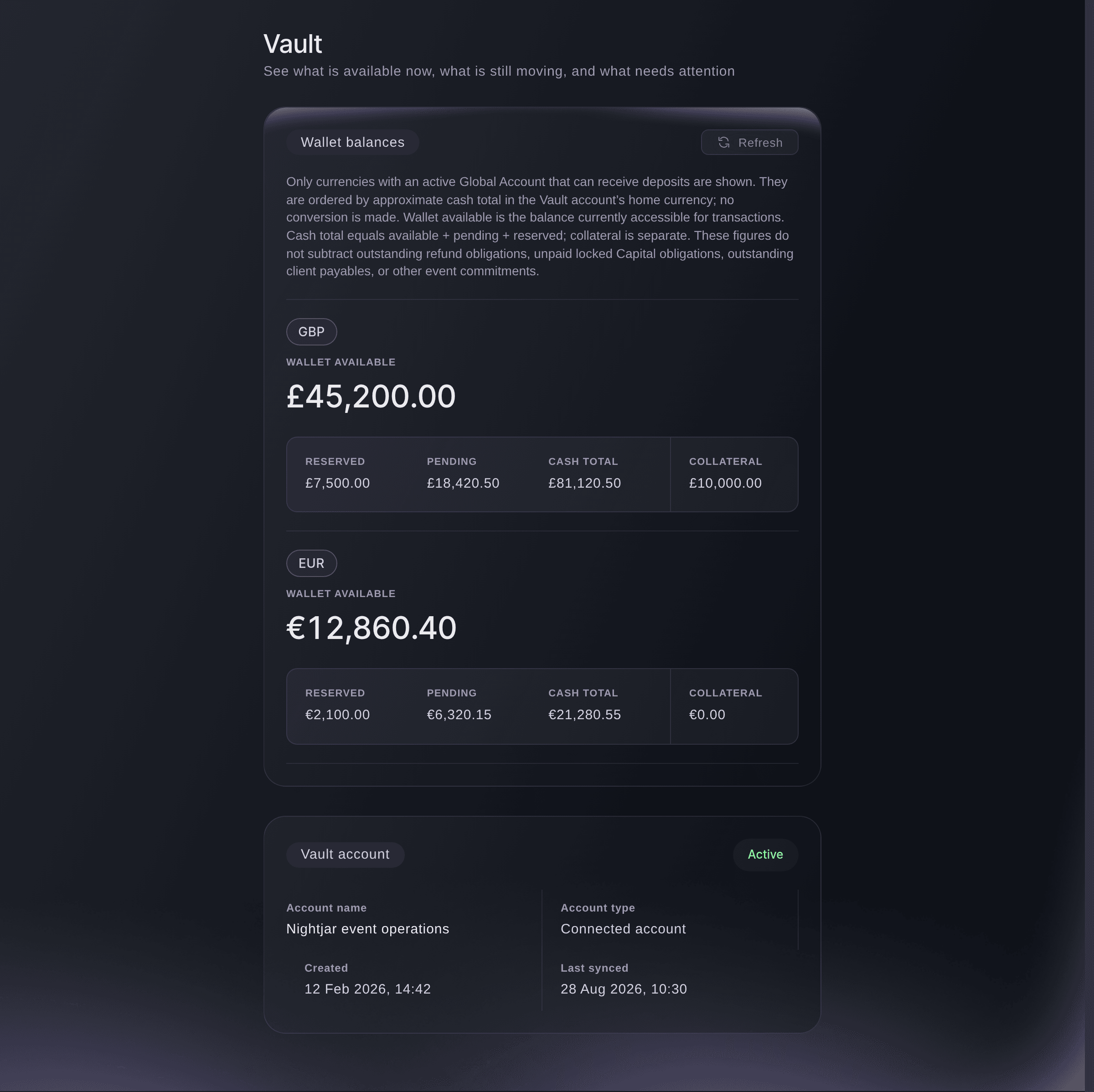
Brand, Vault, once the account is active.
Probiere diese Schritte bei deinem eigenen Event aus
Erstelle ein kostenloses Konto, lege dein Event an und folge den Schritten oben in deinem eigenen Dashboard. Das dauert ein paar Minuten, und du musst kein Verkaufsgespräch buchen.
Keine Einrichtungsgebühren. Keine verpflichtende monatliche Ticketing-Gebühr. Keine Kreditkarte nötig.
Oder lassen Sie es erledigen
Fai, the assistant inside your dashboard, opens Vault for you. Creating the account and answering the verification questions are yours to do on the page, because they are about you and your business. MCP and the command line read the account and its status while you wait for the check, and create nothing.
In Ihrem Dashboard, mit Fai
Open Vault for <BRAND NAME> so I can open an account
Über MCP, mit Ihrem eigenen Assistenten
Verbinden Sie Ihren Assistenten mit unserem MCP-Server und bitten Sie ihn:
Lassen Sie --read-only in Ihrer MCP-Konfiguration. Diese Aufgabe liest nur Daten, deshalb braucht Ihr Assistent keine Werkzeuge für Änderungen.
Pick the brand <BRAND NAME> and tell me the status of its Vault account
Über das Terminal
Installieren Sie die CLI über unserer CLI-Seite, melden Sie sich mit ticketfairy auth login an und wählen Sie mit ticketfairy brand use <BRAND_ID> die Marke, an der Sie arbeiten. ticketfairy brand list und ticketfairy event list zeigen die IDs, die die anderen Befehle verwenden.
The command line reads the brand's Vault account and its status. You need an owner or admin login for the brand. It cannot create the account or run onboarding, which happen in the dashboard.
List the brands you can act for, with the id each one uses
ticketfairy brand list
Print the brand's Vault account as JSON. Its metadata.status reads ACTIVE once the check has passed
ticketfairy vault account --brand <BRAND_ID> --output json
Lass Fai das für dich erledigen
Fai arbeitet in deinem Ticket Fairy Dashboard. Erstelle dein Konto, öffne Fai und füge die Anweisung von oben ein.
Keine Einrichtungsgebühren. Keine verpflichtende monatliche Ticketing-Gebühr. Keine Kreditkarte nötig.
Fragen, die Sie haben könnten
- Can I open a Vault account for one event?
- No. Vault belongs to the brand, and a brand has one Vault account, so money from every event the brand runs arrives in the same place.
- Why can't I see Vault in my brand menu?
- Vault shows to owners and admins of a brand that has it switched on. If you're an owner or admin and it isn't there, ask Ticket Fairy support to switch Vault on for your brand.
- What does Action required mean on my account?
- Vault needs more information before it can activate the account. Select Continue Onboarding on the Vault account card and answer what the window asks.
- Can a colleague finish onboarding for me?
- Yes, if they're an owner or admin on the brand: the Start Onboarding button is on the same card for them. The questions are about the business and its people, so whoever answers needs those details to hand.
- Can I change the details after I create the account?
- The dashboard has no form to change them once the account exists. Contact Ticket Fairy support if a detail you entered is wrong.
- My account says Suspended. What now?
- A suspended account can neither receive nor move money. Contact Ticket Fairy support, who can review the restriction and tell you what is needed to restore it.
Hast du noch eine Frage?
Buche eine Demo, und wir beantworten sie in einem Gespräch, passend zu deiner Art von Event. Oder erstelle dein Konto und sieh es dir selbst an.
Keine Einrichtungsgebühren. Keine verpflichtende monatliche Ticketing-Gebühr. Keine Kreditkarte nötig.
Verwandte Anleitungen
Machen Sie das bei Ihrer eigenen Veranstaltung
Erstellen Sie Ihr Konto, legen Sie Ihr Event an und folgen Sie den Schritten in Ihrem eigenen Dashboard. Sie müssen kein Verkaufsgespräch buchen.