
Menjalankan produksi
Handle the contract, invoice and riders an artist's agent sends for your event
Bookers and promoters get the agent's own contract, a deposit invoice and two riders for every act they book, spread across weeks of email. Keeping each act's paperwork in one place, checked against the offer you sent, means nothing is signed on the wrong terms and every invoice lands in the budget before it is due.
Once an agent answers your offer, Fai finds their contract, invoice and riders in your email or in files you add, and says what each one is. Compare their contract with your offer and upload the countersigned copy, put their invoice into payments due, and send their riders to the act's advance, with one next step shown for every act on your event.
- Untuk
- Getting every act's paperwork from their agent sorted
- Perlu waktu
- 10 menit
- Open agent paperwork
- Check your email for new files
- Add a file the agent sent another way
- Confirm what a new file is
- Compare their contract with your offer
- Upload the countersigned copy
- Add their invoice to payments due
- Send their riders to the advance
- Put the agreed terms on the booking
- Check the act is done
Sebelum mulai
- You are an owner, admin or producer on the event. The event's Operations page opens for those roles only.
- You sent the act's agent an offer, or the act is booked on the event with their agent as a contact. The contract, invoice and riders go onto the act's booking on the event, so book the act before you finish them.
- Optional: a mailbox is connected to your brand, so Fai can find the agent's emails. Without one, you add each file by hand.
-
Open agent paperwork
Open the event, select Operations, select Contracts in the list of sections, then select Agent paperwork.
Catatan: Each act shows its contract, invoice and riders as not received, to check, checked or done, and one next step, such as Next: countersign their contract. If Contracts is not in the list, select More sections and open it there.
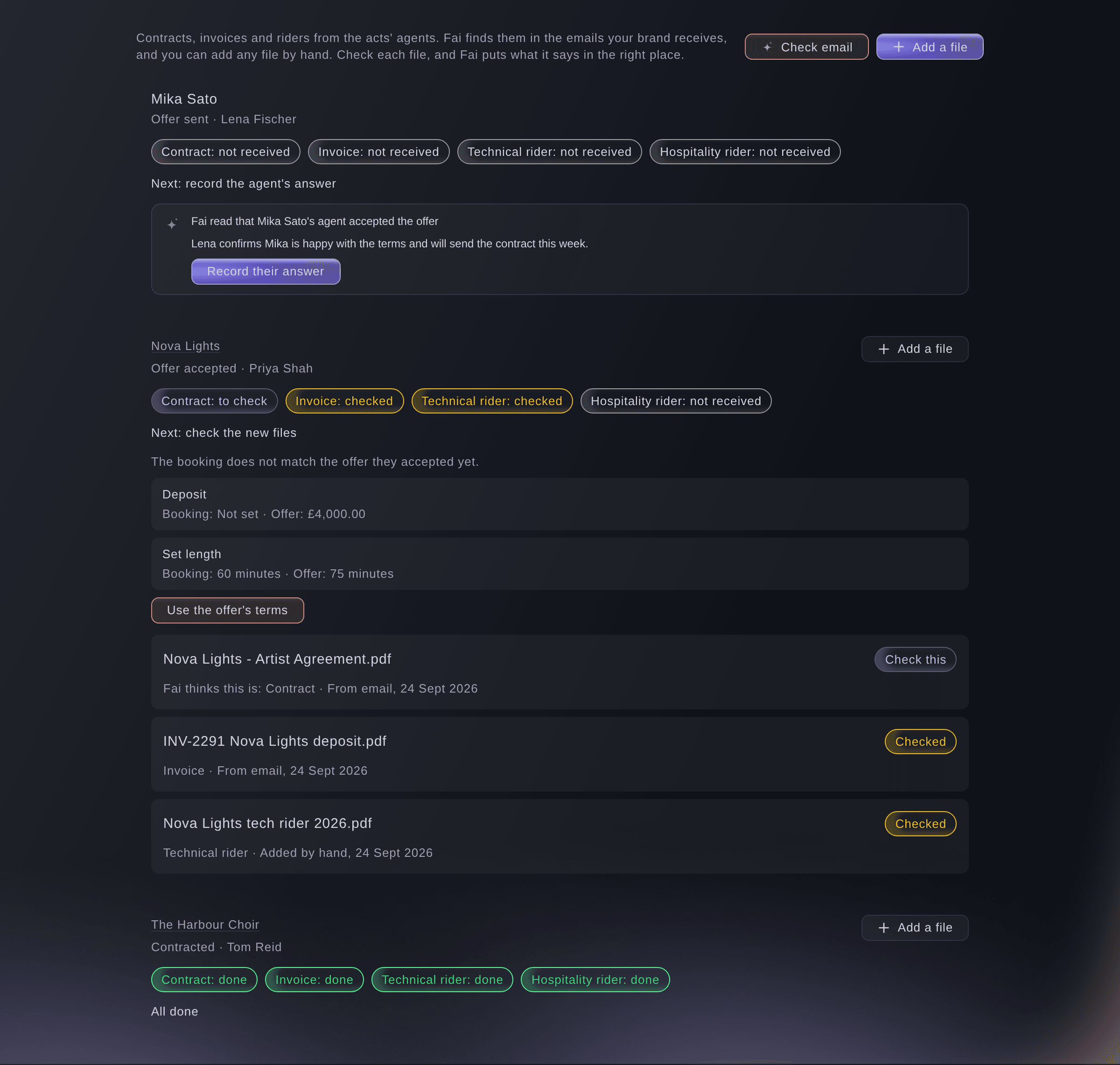
Each act's files from their agent. -
Check your email for new files
Optional: select Check email.
Catatan: Fai also looks every hour in the mailboxes connected to your brand, for emails from each act's agent and contacts. She reads the answer to your offer and adds the files they attach.
-
Add a file the agent sent another way
Optional: select Add a file, choose the Act, choose What is it? or Let Fai work it out, then choose the file.
Catatan: Add a PDF, Word, Excel or text file or a photo, up to 25 MB. Fai reads it within about a minute.
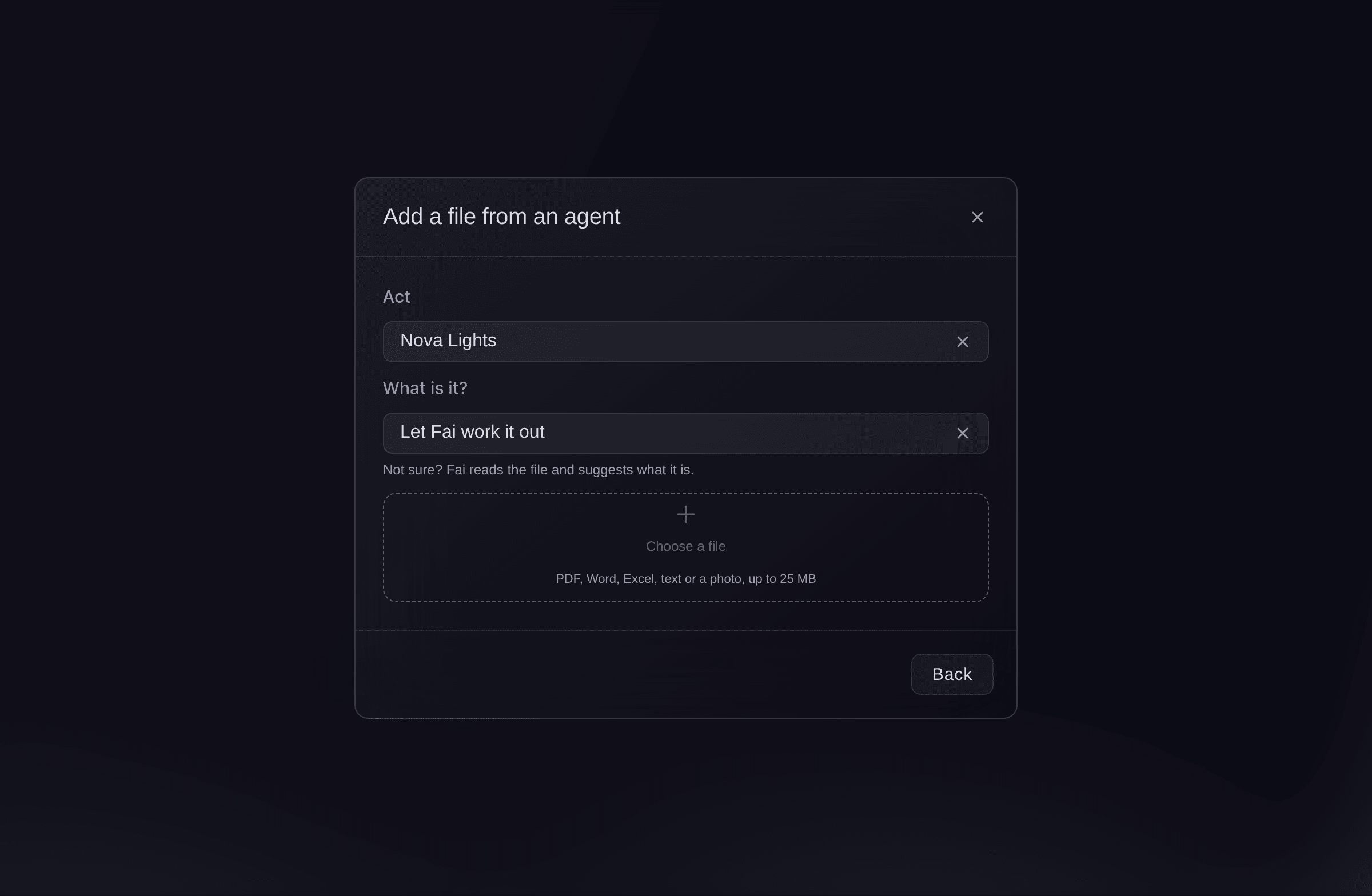
Add a file from an agent. -
Confirm what a new file is
Select a file marked Check this, then select Confirm if Fai has it right.
Catatan: If it is something else, choose it under What is this file? before you confirm. Select Set aside for a file you do not need; nothing in it is used.
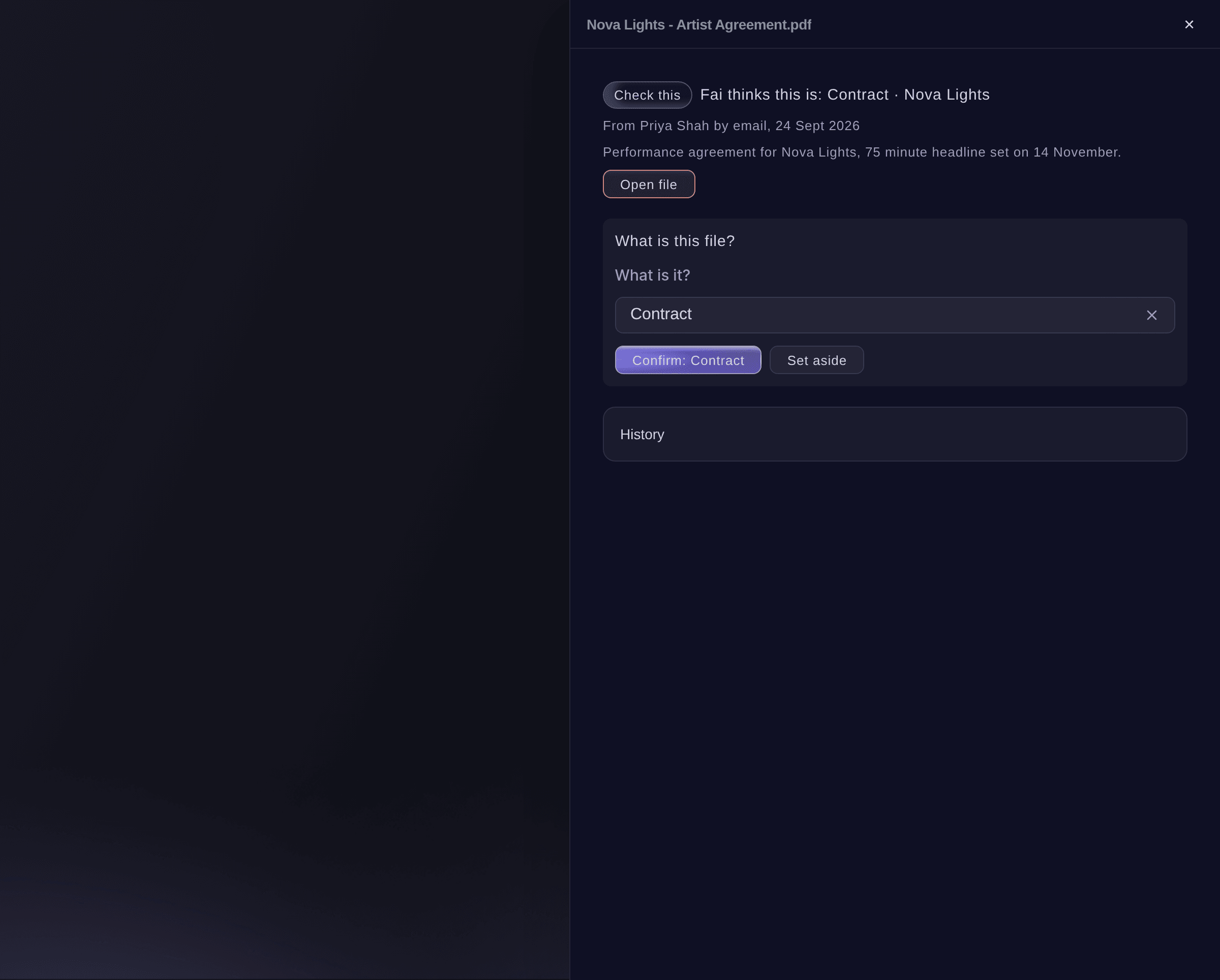
Confirm what a file is. -
Compare their contract with your offer
Open the confirmed contract and read Their contract compared with your offer.
Catatan: Each term, from the fee and deposit to the set length and cancellation, shows Matches or Different with both values. Ask the agent to fix a different term before you sign.
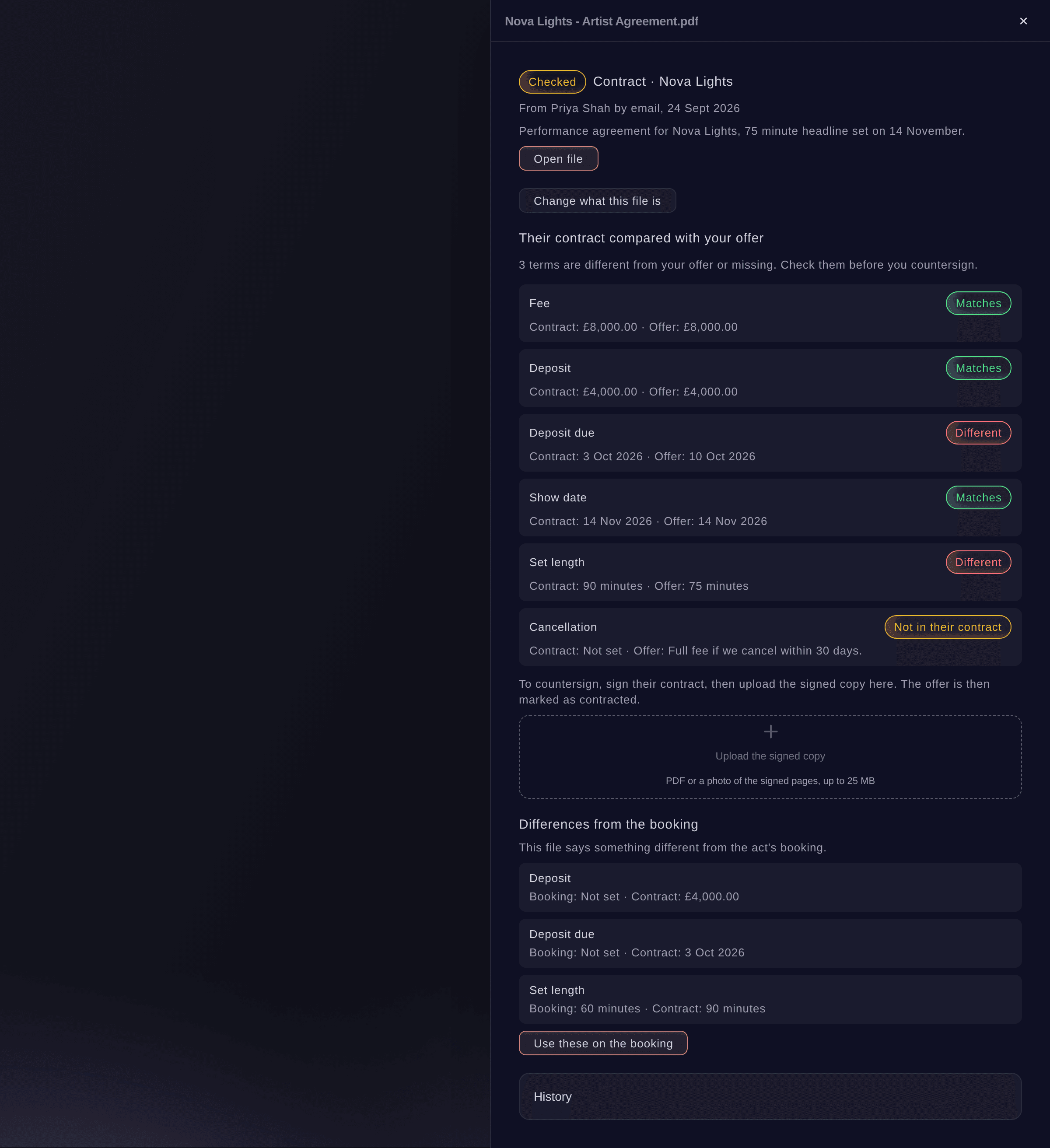
Their contract against your offer. -
Upload the countersigned copy
Sign their contract, then choose the signed copy in Upload the signed copy and confirm.
Catatan: The signed copy is saved with the event's contracts and the offer is marked as contracted. Upload a PDF or a photo of the signed pages, up to 25 MB.
-
Add their invoice to payments due
Open the confirmed invoice, check What it is for, the Amount and the Due date, then select Add to payments due.
Catatan: The act's deposit, balance or fee in payments due takes the invoice's amount, due date and who to pay, so the budget and the settlement read it too. A newer invoice for the same payment replaces the earlier one.
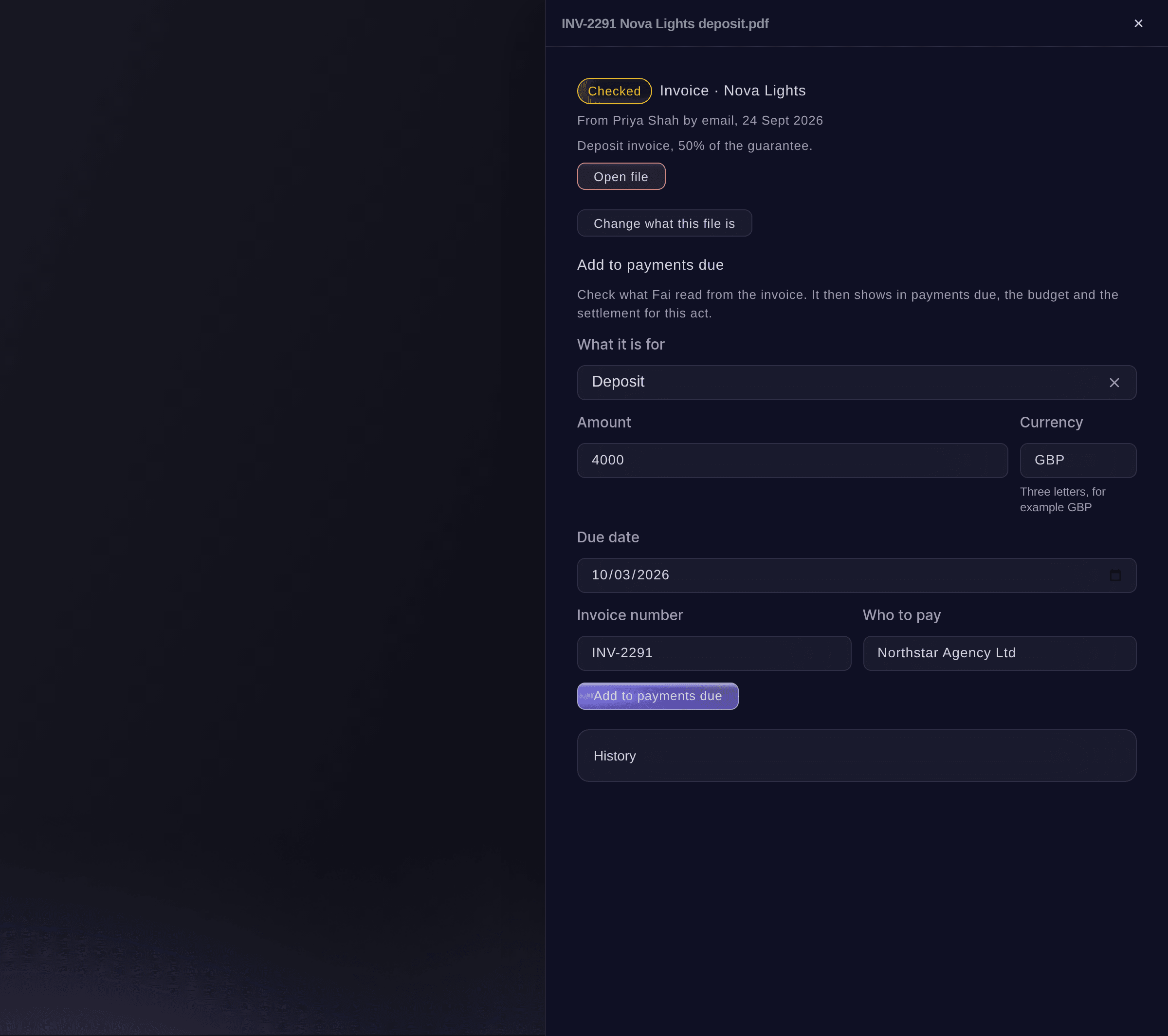
Their invoice, ready for payments due. -
Send their riders to the advance
Open a confirmed technical or hospitality rider and select Send to the advance.
Catatan: Each part of the rider waits in the act's advance as an answer for you to check, and nothing changes until you accept it there. A newer rider is sent again only after you confirm it.
Fill in each performer's advance for your event from tour books, riders and emails
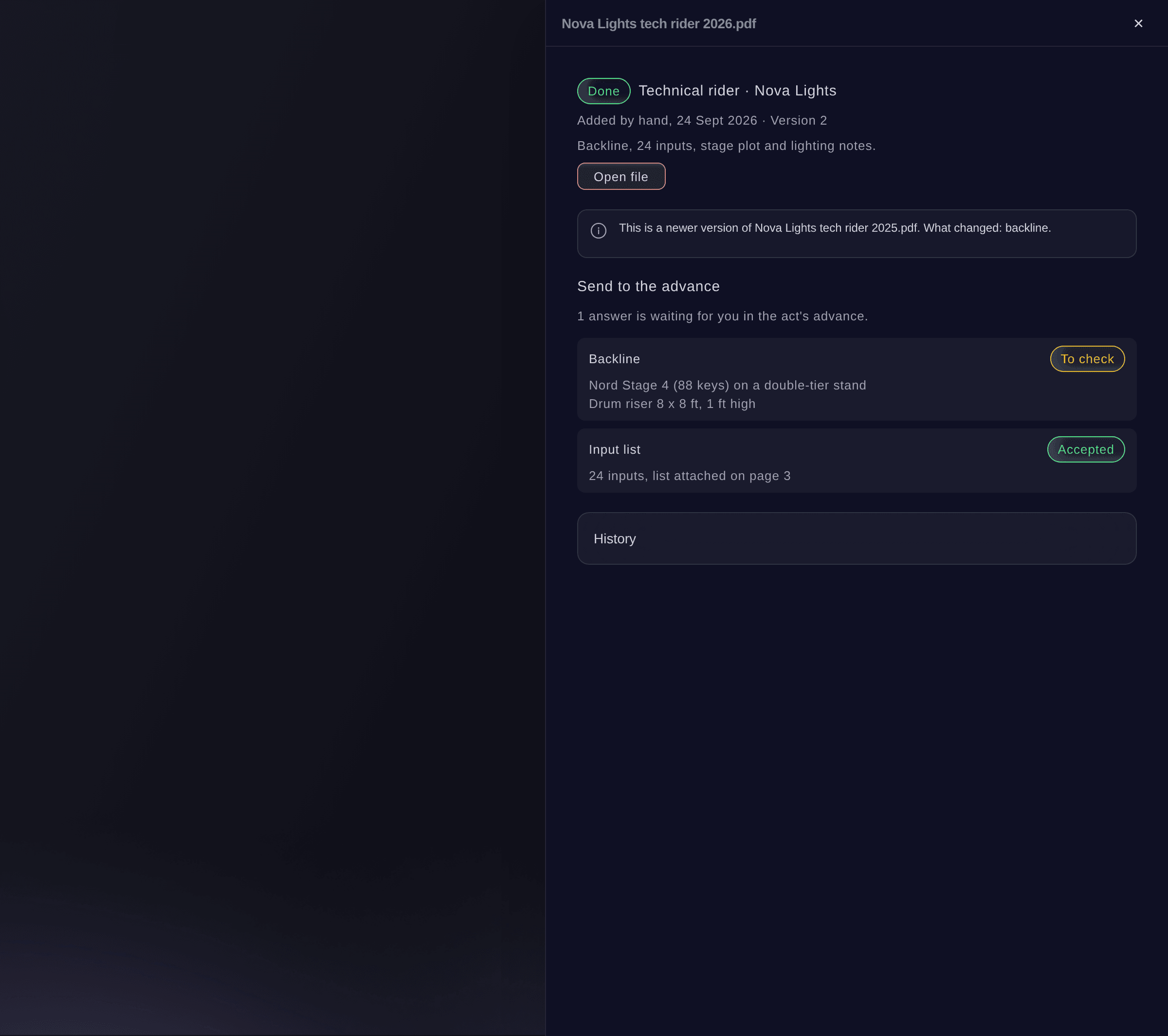
Their rider, sent to the advance. -
Put the agreed terms on the booking
If a file or the accepted offer says something different from the act's booking, select Use these on the booking or Use the offer's terms, then confirm.
Catatan: The booking's fee, deposit, balance, due dates and set length change, and the booking's history keeps the old values.
-
Check the act is done
Go back to Agent paperwork.
Catatan: The act shows All done once the contract, invoice and riders are each done.


Coba langkah-langkah ini di acara Anda sendiri
Buat akun gratis, susun acara Anda dan ikuti langkah-langkah di atas di dasbor Anda sendiri. Hanya perlu beberapa menit dan Anda tidak perlu menjadwalkan panggilan penjualan.
Tanpa biaya pemasangan. Tanpa biaya bulanan wajib. Tanpa kartu kredit.
Atau minta dikerjakan untuk Anda
Fai lists each act's files from their agent and the next step, checks your email for new ones, confirms what a file is or sets it aside, reads one again, puts an invoice into payments due, sends a rider to the advance and puts the offer's or a file's terms on the booking. She shows you each change first and waits for your yes. She cannot upload a file; select Add a file or Upload the signed copy in the dashboard for those.
Di dasbor Anda, dengan Fai
What is still missing from the agents for <EVENT NAME>, and add Nova Lights' deposit invoice to payments due
Biarkan Fai mengerjakannya untuk Anda
Fai bekerja di dalam dasbor Ticket Fairy Anda. Buat akun Anda, buka Fai dan tempel perintah di atas.
Tanpa biaya pemasangan. Tanpa biaya bulanan wajib. Tanpa kartu kredit.
Bring back a file you set aside
-
Bring it back
Open the file from the files set aside or replaced, then select Bring it back.
Catatan: It is then checked again like a new file.
Fai brings back a file you set aside when you ask, after you confirm.
Di dasbor Anda, dengan Fai
Bring back the Nova Lights invoice I set aside for <EVENT NAME>
Pertanyaan yang mungkin Anda punya
- Why can't I choose a file for an act?
- The act has an offer but no booking on your event yet. Files are kept on the act's booking. When you record that the agent accepted your offer, the act is added to your event and you can add their files.
- Can I sign the agent's contract online?
- Not their own PDF. Sign it the way you usually do, then upload the signed copy. To send your own contract to an act without an agent, use Send contracts and get them signed online.
- What if no mailbox is connected?
- The view says Fai cannot check email, and you add each file with Add a file. Everything else works the same.
- What happens when the agent sends a new version?
- The new file replaces the earlier one of the same kind for that act and says what changed. The earlier one stays under the files set aside or replaced.
- Will a deposit invoice make me pay the fee twice?
- No. A deposit or balance invoice for a booking with one fee shows on that fee, and the fee stays what you owe. The amount is never counted twice in payments due or the budget.
- Does Fai read emails I did not send the offer from?
- Fai reads only emails from the act's agent or contacts, in the mailboxes connected to your brand. The contents are read as information only, never as instructions to Fai.
Masih ada pertanyaan?
Jadwalkan demo dan kami akan menjawabnya lewat panggilan, sesuai jenis acara Anda. Atau buat akun Anda dan lihat sendiri.
Tanpa biaya pemasangan. Tanpa biaya bulanan wajib. Tanpa kartu kredit.
Panduan terkait
Lakukan ini di acara Anda sendiri
Buat akun, susun acara, dan ikuti langkah-langkahnya di dasbor Anda. Anda tidak perlu memesan panggilan penjualan.