
Создание мероприятия
Answer your buyers' questions on the event page
Door times, age limits, parking and bag rules are the same four messages every organiser answers a hundred times before a show. On the event page, a buyer reads them before they ask. Most promoters already keep those answers in a know-before-you-go sheet, and the page can lift them straight out of it.
Group the questions you keep being asked into sections on your event page, hold a question back until the answer is settled, and lift a whole set out of an information sheet you already have.
- Для кого
- Cutting the same buyer questions out of your inbox
- Займёт
- 5 минут
Перед началом
- You're an owner or admin of the event. Support logins can read the FAQs page but cannot change it.
- You know the answers you want to give. Anything still being decided goes in with Public switched off.
- For the document import, you have the sheet, PDF, photo or Word file you want the questions read out of, up to 15 MB.
-
Make a section for a group of questions
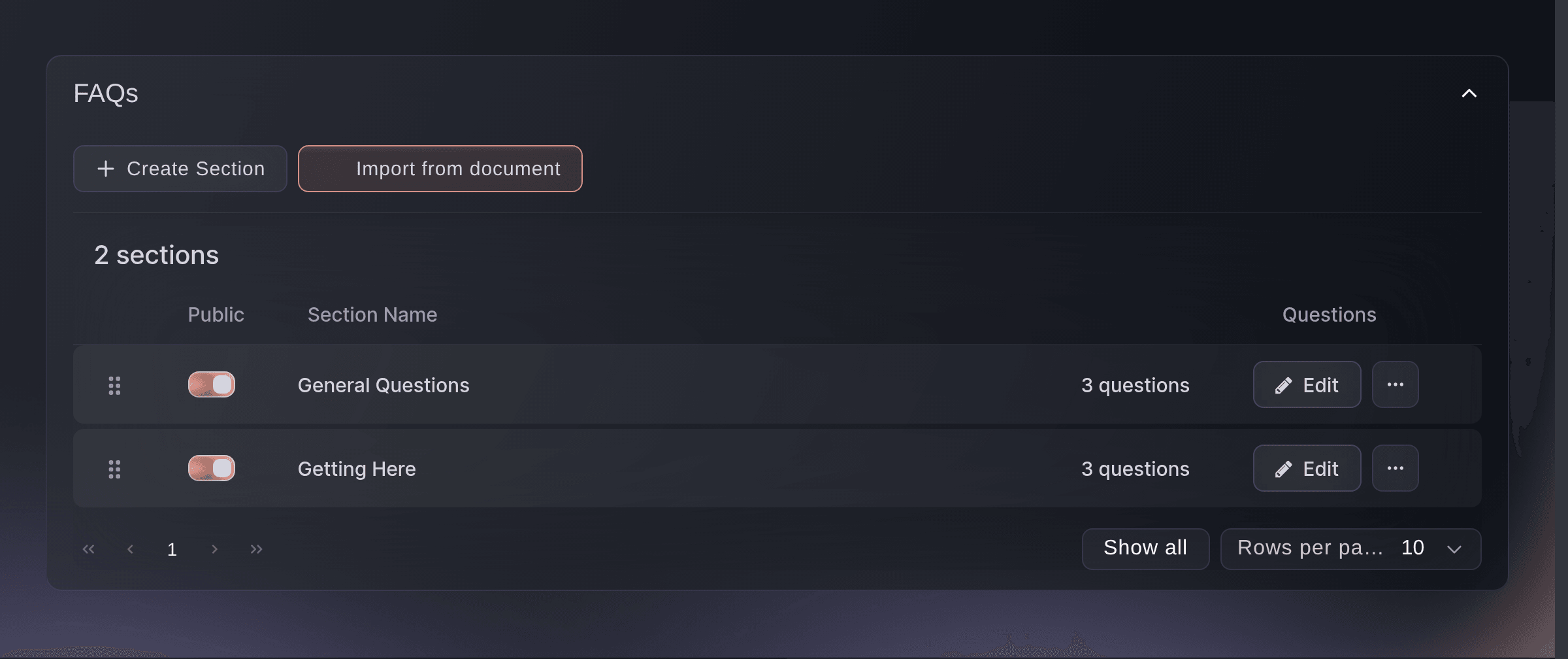
Open your event, select FAQs, select Create Section and give it a Name of Section.
Примечание: A section is a heading on your event page, so name it the way a buyer would think of it. General Questions and Getting Here carry most events.
FAQs. -
Add the questions to it
Select Edit on the section, then Add Question, and fill in Question and Answer.
Примечание: Use the buyer's words rather than yours. "What time do doors open?" gets read; "Ingress" does not.
-
Hold back a question that is not settled
Switch Public off on any question whose answer you are still waiting on.
Примечание: The question stays on your FAQs page and off the event page, so you can fill the answer in as soon as you have it rather than starting again.
-
Put the section in front of buyers
Switch Public on for the section itself, on the row in the sections table.
Примечание: A section that is off shows nothing on the event page, however many questions are public inside it.
-
Put the sections in the order a buyer reads them
Drag a section by the handle at the left of its row until the order matches the order buyers ask in.
Примечание: Doors, age and bags before travel and parking, because most buyers stop reading once their own question is answered.
Или поручите это помощнику
Fai, the assistant inside your dashboard, can read your FAQ sections, draft new ones, add and reword questions, reorder them and lift a set out of a document. She asks you to approve anything she drafts. The same workflow is on the FAQs page.
В вашей панели, с Fai
On <EVENT NAME>, add an FAQ section called Getting Here with questions about parking, the shuttle bus and which gate coaches use
Из вашего собственного ассистента, через MCP
Подключите ассистента к нашему серверу MCP и попросите его:
Оставьте --read-only в конфигурации MCP. Для этой задачи нужно только читать данные, поэтому ассистенту не нужны инструменты, которые вносят изменения.
Pick the brand, find the event <EVENT NAME> and show it
Lift the questions out of a document you already have
-
Import from your info sheet
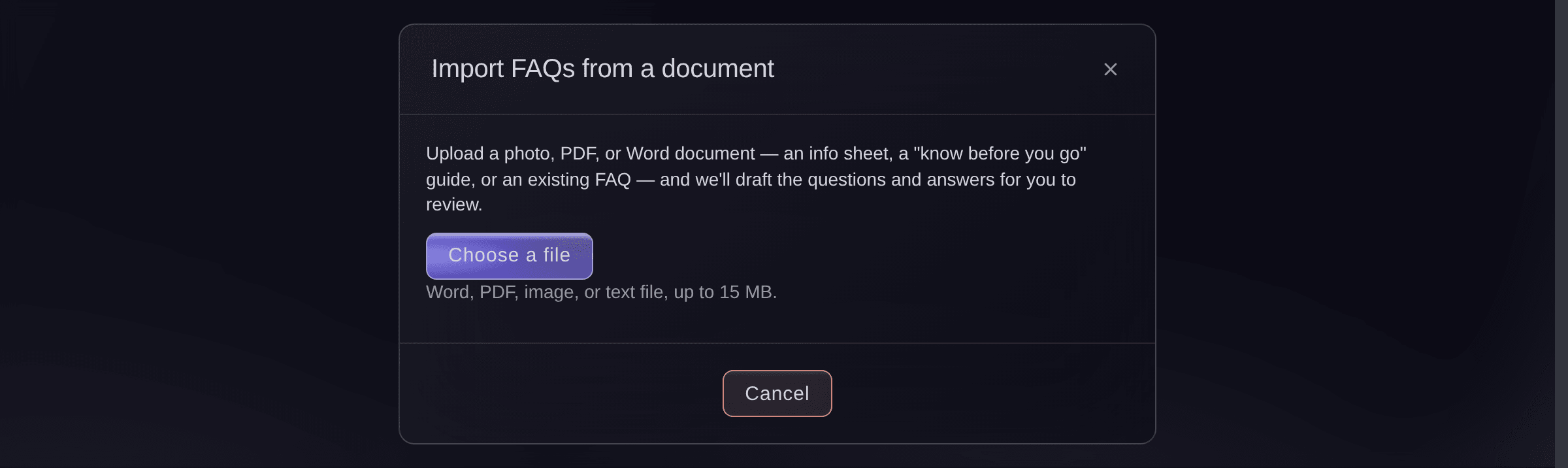
Select Import from document, then Choose a file and pick your sheet.
Примечание: It reads a Word file, a PDF, a photo or a text file up to 15 MB, so a picture of a printed sheet works.
FAQs, Import from document. -
Check what it found before buyers see it
Read the sections it lists, then select the button that adds them.
Примечание: Everything it adds arrives with Public switched off, so nothing reaches your event page until you have read it and switched it on.

Fai can read a photo of your sheet, or text you paste to her, and draft the sections and questions from it for you to approve. A Word file or a PDF goes through Import from document on the page instead, which reads them for you.
В вашей панели, с Fai
On <EVENT NAME>, turn this photo of our info sheet into FAQ sections
Из вашего собственного ассистента, через MCP
Оставьте --read-only в конфигурации MCP. Для этой задачи нужно только читать данные, поэтому ассистенту не нужны инструменты, которые вносят изменения.
Pick the brand, find the event <EVENT NAME> and show it
Tidy a section up
-
Rename a section
Select Edit Name on the section row, change Section Name and select Save.
Примечание: Two sections cannot share a name, and the dialog says so before it lets you save.
-
Delete a section you no longer need
Select Delete Section and confirm.
Примечание: The questions inside it go with it, and the confirmation says how many.
Fai can rename, reorder and delete sections and questions, and asks you to approve each change first.
В вашей панели, с Fai
On <EVENT NAME>, rename the Getting Here FAQ section to Travel and Parking
Из вашего собственного ассистента, через MCP
Оставьте --read-only в конфигурации MCP. Для этой задачи нужно только читать данные, поэтому ассистенту не нужны инструменты, которые вносят изменения.
Pick the brand, find the event <EVENT NAME> and show it
Вопросы, которые могут возникнуть
- Where do the FAQs appear?
- On your public event page, under the event details, grouped by section in the order you put the sections in.
- Do the FAQs carry over when I duplicate an event?
- They can. Tick the FAQs option while you duplicate and the sections and their questions are copied to the new event, ready for you to change the details that moved.
- What does the import do with a document it cannot read?
- It tells you it found no questions and asks for a clearer file. Nothing is added, so you can try another document or add them by hand.
Похожие руководства
Сделайте это на своём мероприятии
Создайте аккаунт, соберите мероприятие и выполните шаги в своей панели управления. Звонок в отдел продаж не нужен.