
Email, SMS и маркетинг
Add your own words to the ticket confirmation email
The confirmation email is the one message every buyer opens, and by default it carries the ticket and nothing else. Promoters who put the door time, the age limit and the way to get home into it answer the questions their inbox would otherwise get, on the day the buyer is still paying attention.
Put the door time, the travel advice and the rules into the email every buyer already opens, and send their replies somewhere your team reads.
- Для кого
- Telling buyers what they need to know when they buy
- Займёт
- 7 минут
Перед началом
- You are an owner or admin for the event, so you can save changes to it.
- You know the three or four things buyers ask you most. Take them from your inbox, because the real ones are duller and more specific than the ones you would invent.
- You have an address your team actually reads, if replies should reach a person rather than the default.
-
Open the confirmation email card
Open the event and find Confirmation Email.
Примечание: A card with a message in it offers Edit. An event with nothing added says so, and offers Add custom text instead.
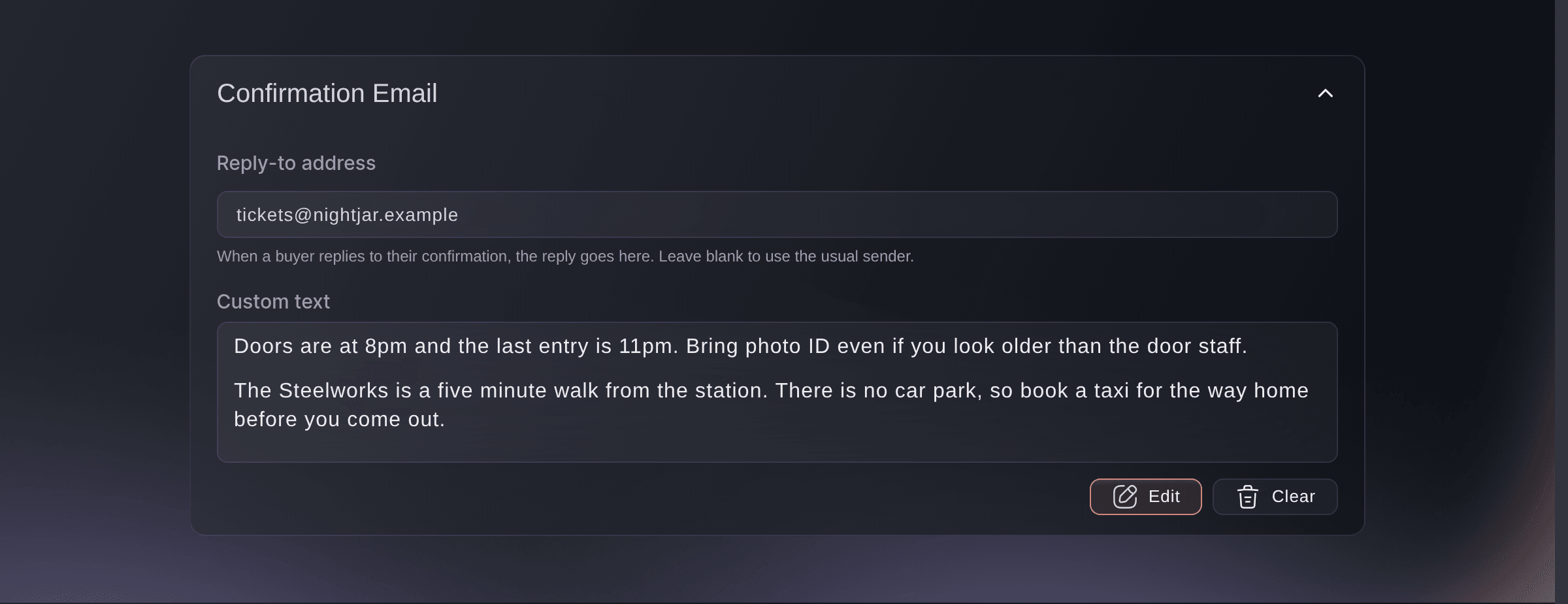
The Confirmation Email card, with a message saved. -
Add the text buyers need
Select Add custom text on an empty card, or Edit on one with a message, and enter what they need to know.
Примечание: Door time, last entry, age limit, what to bring, and how to get home. Four short paragraphs beat one long one, because this is read on a phone.
-
Read the preview before you save
Check the preview beside the editor, where your text sits inside the real email.
Примечание: The preview is close to the final email rather than identical to it, so treat the wording as exact and the spacing as approximate.
-
Send replies to a person
Enter your team address in Reply-to address.
Примечание: Buyers reply to the confirmation whether or not you invite them to. Left blank, those replies reach the default address rather than your team.
-
Buy a ticket and read what arrives
Buy one ticket yourself and read the email that lands.
Примечание: This is the only check that covers the real email rather than the preview. Refund your own order afterwards.

Или поручите это помощнику
Fai can draft the message from what she knows about the event and show it to you before it is saved. Reading it back afterwards is the check worth doing.
В вашей панели, с Fai
Draft the extra text for the confirmation email for <EVENT NAME>. Cover the door time, the age limit and how to get home, and show it to me before saving
Из вашего собственного ассистента, через MCP
Подключите ассистента к нашему серверу MCP и попросите его:
Оставьте --read-only в конфигурации MCP. Для этой задачи нужно только читать данные, поэтому ассистенту не нужны инструменты, которые вносят изменения.
Pick the brand, find the event <EVENT NAME> and show its confirmation email text
Из терминала
Установите CLI по ссылке нашей страницы CLI, войдите командой ticketfairy auth login и выберите бренд, с которым работаете, командой ticketfairy brand use <BRAND_ID>. ticketfairy brand list и ticketfairy event list выводят идентификаторы, которые используют другие команды.
Read the event back to check what the confirmation email currently says.
Show the event and its saved settings
ticketfairy event get <EVENT_ID>
Change the message as the event nears
-
Update the text when a detail moves
Select Edit the same day a door time or a lineup changes.
Примечание: Buyers who already have their confirmation keep the old wording, so a change close to the day needs an email to them as well.
Fai can read the current text back and draft the replacement.
В вашей панели, с Fai
What does the confirmation email for <EVENT NAME> currently say, and draft a version with the new door time in it
Из вашего собственного ассистента, через MCP
Оставьте --read-only в конфигурации MCP. Для этой задачи нужно только читать данные, поэтому ассистенту не нужны инструменты, которые вносят изменения.
Pick the brand, find the event <EVENT NAME> and show its confirmation email text
Из терминала
Read the event to see the saved text.
Show the event and its saved settings
ticketfairy event get <EVENT_ID>
Take the message off again
-
Remove the custom text
Open the card and select Clear.
Примечание: The confirmation goes back to carrying the ticket and nothing else. Emails already sent keep the words they were sent with.
Fai can open the card so you can remove the text yourself.
В вашей панели, с Fai
Open the confirmation email settings for <EVENT NAME>
Из вашего собственного ассистента, через MCP
Оставьте --read-only в конфигурации MCP. Для этой задачи нужно только читать данные, поэтому ассистенту не нужны инструменты, которые вносят изменения.
Pick the brand, find the event <EVENT NAME> and show its confirmation email text
Из терминала
Read the event to confirm the text is gone.
Show the event and its saved settings
ticketfairy event get <EVENT_ID>
Вопросы, которые могут возникнуть
- Does this change emails already sent?
- No. A confirmation carries the words it was sent with. Buyers who bought before the change keep the old version, so email them separately when it matters.
- Is this the same for every ticket type?
- Yes. The text goes on the confirmation for the whole event, so keep it to what is true for everybody who bought.
- Where do replies go if I leave the address blank?
- To the default address rather than to your team. Enter one whenever you want a person to see what buyers send back.
- Why does the preview look slightly different from the email?
- The preview renders your text inside the email rather than sending it, so the wording is exact and the spacing is close. Buy a ticket to see the real one.
Похожие руководства
Сделайте это на своём мероприятии
Создайте аккаунт, соберите мероприятие и выполните шаги в своей панели управления. Звонок в отдел продаж не нужен.