
Entender los informes de tu evento
Share a live ticket sales report with a partner
Co-promoters, venues and sponsors often want to follow the ticket sales of their part of an event for themselves. You make a sales report link covering only the ticket types and add-ons they have a stake in, and they open it with their own Ticket Fairy login to watch sales and revenue as tickets sell.
Give a venue, co-promoter or sponsor a sales report link that shows the live ticket sales and revenue of the ticket types and add-ons you choose, without giving them a role on your event.
- Para
- Showing a partner the live ticket sales of the part of your event they share in
- Dura
- 5 minutos
Antes de empezar
- You're an owner or an admin on this event. If Settings is missing from your event menu, ask an owner or an admin to do this for you.
- The ticket types or add-ons the report covers already exist on the event.
- The person you share the report with has a Ticket Fairy organiser login of their own. They do not need a role on your event.
-
Open External/3rd-Party Sales Reporting
Open your event, select Settings and scroll to the External/3rd-Party Sales Reporting section. The form makes a link, and the table under it lists the links you already have.
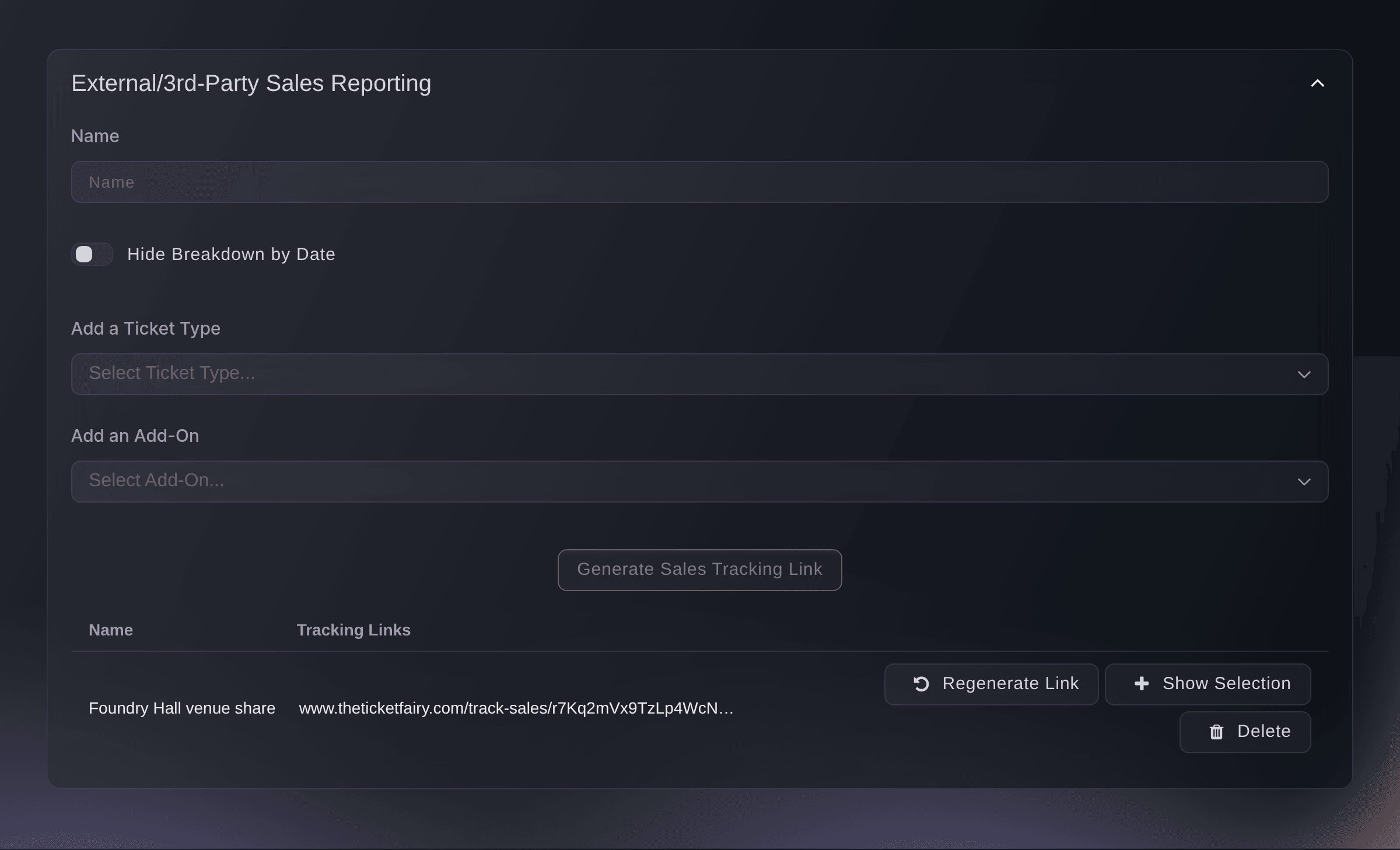
Event, Settings, External/3rd-Party Sales Reporting.
Sales report links and tracking links
A sales report link opens a page of figures and sells nothing, so nobody is credited with a sale through it. A tracking link from Tracking Links counts what one placement sold, and a referral or promoter link credits the buyer or team member who shared it.
-
Name the report
Enter a name your team will recognise in Name, such as the partner and the deal. The name is for you, and the person you share the link with does not see it.
Nota: The name needs at least three characters.
-
Choose the ticket types
In Add a Ticket Type, choose each ticket type the report covers. The report shows those ticket types and no others.
Nota: On an event with time slots, each group of slots is one entry ending in Slots.
-
Add the add-ons
Optional: in Add an Add-On, choose each add-on the report covers.
Nota: A report needs at least one ticket type or one add-on, and it can cover add-ons alone.
-
Hide the day-by-day sales
Optional: turn on Hide Breakdown by Date to share totals only. The report then has no Total Daily Sales tab.
-
Make the link
Select Generate Sales Tracking Link. The dashboard shows
Sales tracking link successfully created.
and the new link appears as a row in the table.Nota: The button stays greyed until the report has a name and at least one ticket type or add-on.
-
Copy the link and send it
Click the link in the new row to copy it, then send it to your partner. The link starts with the address of your dashboard.
Nota: Anyone signed in to Ticket Fairy who has the link can open the report, so send it only to the person it is for.
The report your partner opens
Your partner opens the link and signs in with their own Ticket Fairy organiser login. They see Sales by Ticket Type for the ticket types you chose, with the number sold, the stock left, the price excluding fees, revenue and gross revenue, and an Add-Ons section, which is empty when the link covers no add-ons. The page refreshes every ten seconds.
Nota: The number sold counts tickets on paid orders, less refunded tickets, and tickets that the buyer's card is holding to be charged later, such as a sliding-scale ticket waiting for its funding goal. An order waiting for your approval counts once you approve it.

Prueba estos pasos en tu propio evento
Crea una cuenta gratis, monta tu evento y sigue los pasos de arriba en tu propio panel. Tarda unos minutos y no necesitas reservar una llamada comercial.
Sin cuotas de alta. Sin cuota mensual obligatoria. Sin tarjeta de crédito.
O deja que lo hagan por ti
Fai, the assistant inside your dashboard, can make a sales report link for the ticket types and add-ons you name, and she shows it to you and asks you to approve it first. Copy the finished link from the External/3rd-Party Sales Reporting section on the event's Settings page. Sales report links are made in the dashboard or through Fai.
En tu panel, con Fai
On <EVENT NAME>, make a sales report link called <NAME> for the <TICKET TYPES> ticket types and the <ADD-ONS> add-ons, <WITH OR WITHOUT> the day-by-day breakdown, and show it to me before you create it
Deja que Fai lo haga por ti
Fai trabaja dentro de tu panel de Ticket Fairy. Crea tu cuenta, abre Fai y pega la instrucción de arriba.
Sin cuotas de alta. Sin cuota mensual obligatoria. Sin tarjeta de crédito.
Replace a link that has been passed on
In the table, select Regenerate Link on the row. The old link stops working at once, and the row shows a new link to send to the people who should keep access.
Advertencia: The dashboard does not ask you to confirm, and the old link cannot be brought back.
Fai cannot list the sales report links you already have, so replace a link in the dashboard.
Stop sharing a report
In the table, check the name on the row, then select Delete. The link stops working at once and the row leaves the table.
Advertencia: The dashboard does not ask you to confirm, and a deleted link cannot be restored. Make a new link if you want to share the report again.
Fai cannot list the sales report links you already have, so delete a link in the dashboard.
Preguntas que puedes tener
- Does the person I share with need a Ticket Fairy account?
- Yes. Your partner signs in when they open the link, so share it with a partner who has a Ticket Fairy organiser login of their own. They do not need a role on your event, and the link shows them only the report, not your dashboard.
- Can other people open the link?
- Anyone who is signed in to Ticket Fairy and has the link can open the report. If a link reaches the wrong person, select Regenerate Link and send the new link to the people who should keep access.
- How do I see what a link covers?
- Select Show Selection on the row. The dialog lists the ticket types and add-ons the link covers and whether the day-by-day sales are hidden.
- Can I change the ticket types on a link I already sent?
- No. A link keeps the ticket types, add-ons and date setting it was made with. Make a new link with the new choice, send it, then delete the old one.
- Is this the same as a tracking link?
- No. A tracking link from Tracking Links is one you put in a post, a newsletter or on a poster, and it counts the clicks, orders and revenue that placement brings in. A sales report link shows a partner the sales of the ticket types you chose, wherever those tickets were sold.
- How is this different from the link I can share for a promo code?
- A promo code's sales link shows the sales made with that code, and it opens without a login. A sales report link covers the ticket types and add-ons you choose, whichever code or link sold them, and your partner signs in to open it.
- Why do the figures not match my Performance page?
- The report covers only the ticket types and add-ons you chose, so its totals leave out every other ticket on the event. It also counts guest tickets on those ticket types, at no price, which the ticket count on your Performance page leaves out.
¿Todavía tienes una pregunta?
Reserva una demo y te la respondemos en una llamada, sobre tu tipo de evento. O crea tu cuenta y compruébalo por ti mismo.
Sin cuotas de alta. Sin cuota mensual obligatoria. Sin tarjeta de crédito.
Guías relacionadas
Hazlo en tu propio evento
Crea tu cuenta, monta tu evento y sigue los pasos en tu propio panel. No necesitas reservar una llamada comercial.