
Kassa ja tilaukset
Add custom terms to your event checkout
Some events need more than Ticket Fairy's standard checkout wording. Ticket Fairy staff can add separate sections such as a refund policy or code of conduct, then show buyers one agreement with a required checkbox and a link to each section.
Add labelled terms and conditions to your event checkout agreement, so buyers can open each section and accept the complete agreement before they pay.
- Kenelle
- Ticket Fairy staff adding approved terms to an event checkout
- Kestää
- 8 minuuttia
Ennen aloitusta
- You're a Ticket Fairy support admin, client admin, developer or superadmin with access to this staff-only card.
- You have the approved wording for each section, including the refund, conduct or participation rules buyers must accept.
- You have decided whether the terms should apply to this event before buyers reach checkout.
-
Open the event settings
Open Settings for the event. The buyer-copy area contains Checkout Agreement (Custom).
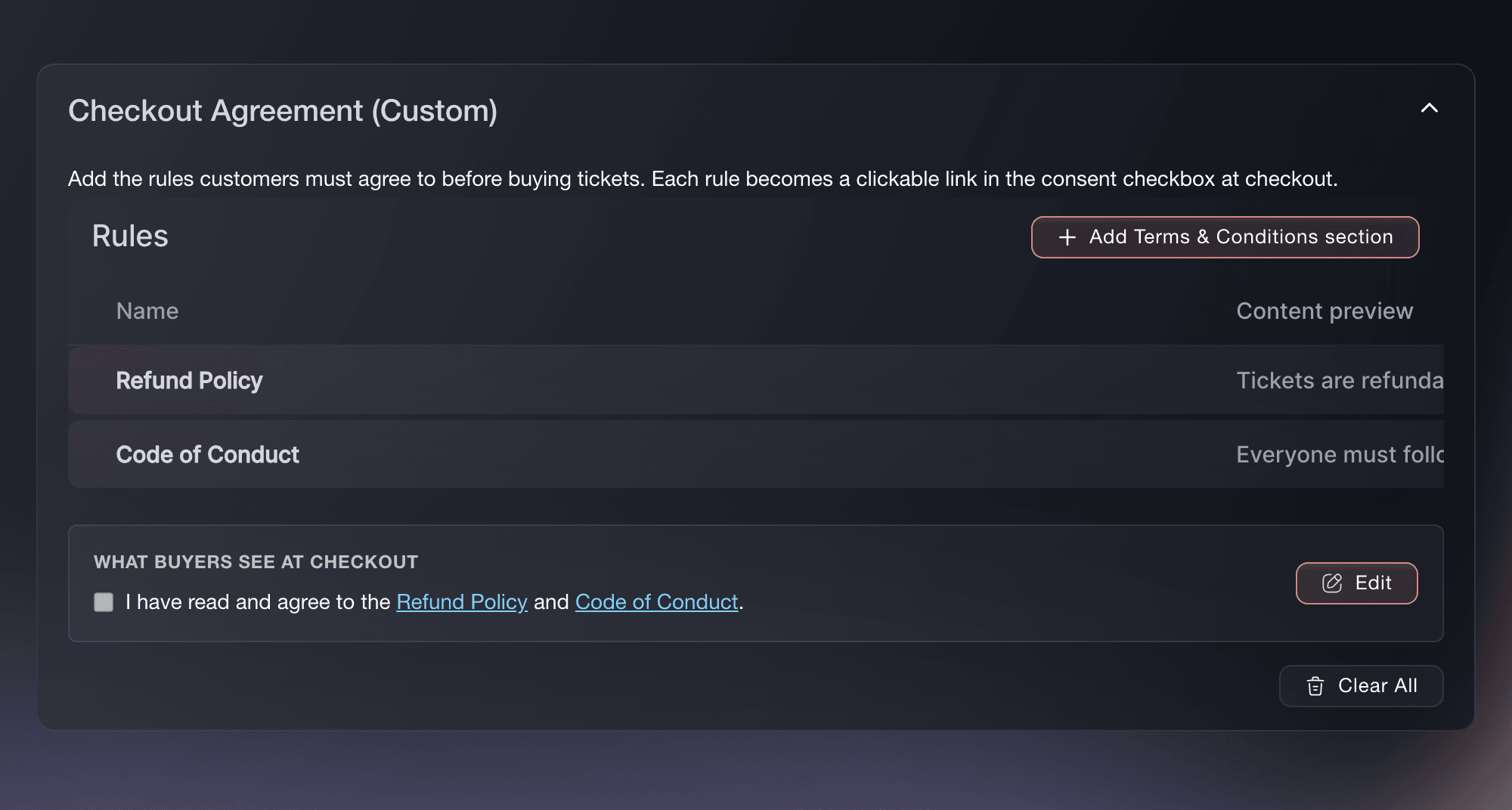
Event, Settings, Checkout Agreement (Custom). -
Add a terms section
Select Add a Custom Term, or Add Terms & Conditions section when another section already exists.
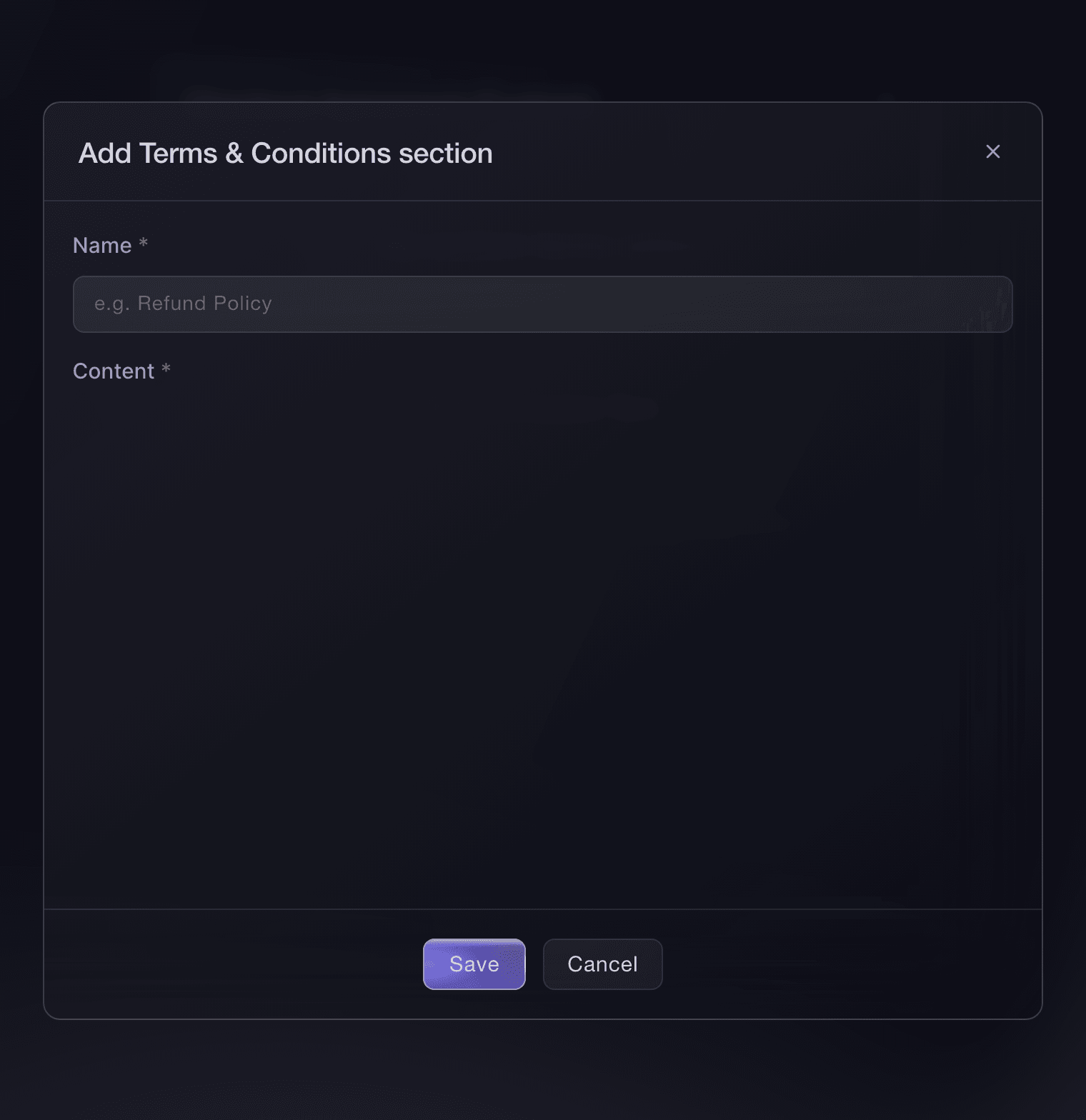
Checkout Agreement (Custom), Add Terms & Conditions section. -
Name the section
Enter a unique section name in Name, such as Refund Policy or Code of Conduct.
Huomautus: Ticket Fairy removes unsupported embedded content such as videos or iframes. Use visible text and the supported links, headings and lists in the editor.
-
Enter the section content
Enter the approved wording in Content.
-
Save the section
Select Save.
-
Add each section separately
Repeat the same action for every section the buyer must be able to read. Each section appears as a separate clickable link in the agreement, and the section name must be unique.
-
Review the buyer agreement sentence
Check What buyers see at checkout. Ticket Fairy builds a sentence that links to every section.
Huomautus: A missing section reference is shown with a warning and will not open the section you intended. Select Reset to default to rebuild the sentence from the current section names.
-
Edit the agreement sentence when needed
Select Edit.
Huomautus: Keep each
{SECTION: Section name}
reference matched exactly to a section name. Select Reset to default to rebuild the sentence from the current section names. -
Test the hosted checkout
Check the agreement in a test checkout.
Huomautus: Custom terms send an Event Embed to the hosted checkout so the buyer sees the complete agreement. Test the event page your buyers use, not only a reduced embed preview.


Kokeile näitä vaiheita omassa tapahtumassasi
Luo ilmainen tili, rakenna tapahtumasi ja seuraa yllä olevia vaiheita omassa hallintapaneelissasi. Se vie muutaman minuutin, eikä sinun tarvitse varata myyntipuhelua.
Ei käyttöönottomaksuja. Ei pakollista kuukausimaksua. Luottokorttia ei tarvita.
Tai anna sen hoitua puolestasi
Custom event terms are a Ticket Fairy staff-only dashboard action. Fai can take you to the event Settings page, but she cannot create or edit the agreement and no MCP or CLI tool changes it.
Hallintapaneelissasi, Fain kanssa
Open the Settings page for <EVENT NAME> so a Ticket Fairy staff member can add the approved custom checkout terms
Anna Fain hoitaa se puolestasi
Fai toimii Ticket Fairy -hallintapaneelissasi. Luo tili, avaa Fai ja liitä yllä oleva kehote.
Ei käyttöönottomaksuja. Ei pakollista kuukausimaksua. Luottokorttia ei tarvita.
Change or remove a section
Select the edit or remove action beside a section.
Varoitus: Use the edit action to change a section name or content, or use Clear All only when the complete custom agreement should be removed. A section name change also changes its agreement link, so review the sentence and test checkout again.
Fai can take you to the event Settings page for a staff member to review, change or remove custom terms.
Hallintapaneelissasi, Fain kanssa
Open the custom checkout terms for <EVENT NAME> in Event Settings so a Ticket Fairy staff member can review them
Collect answers instead of agreement
When the buyer should provide information rather than accept rules, use the related Add custom questions to your checkout guide. That guide owns order, ticket and add-on fields and does not repeat this agreement workflow.
Fai can list or add basic custom order, ticket or add-on fields. Use the custom questions guide for that workflow.
Hallintapaneelissasi, Fain kanssa
Show me the custom checkout fields on <EVENT NAME>, then add a required ticket question after I approve the details
Kysymyksiä joita sinulla voi olla
- Who can add custom terms to an event checkout?
- This card is for Ticket Fairy support admins, client admins, developers and superadmins. Standard event owners and admins do not see it. Ask Ticket Fairy Support to add or change the agreement for your event.
- Can buyers open each term before they accept it?
- Yes. Each section name becomes a link in the agreement sentence. The buyer opens the section, reads it, then ticks the required agreement checkbox before continuing.
- Can I add custom terms and still use the embedded checkout?
- The event can keep its Event Embed, but Ticket Fairy sends buyers to the hosted checkout when custom terms are present so the complete agreement is shown. Test the buyer journey on the hosted event page.
- What happens if I rename a terms section?
- The agreement link uses the new name. Review the agreement sentence after renaming and keep each
{SECTION: Section name}
reference matched exactly to the new name.
Jäikö vielä kysyttävää?
Varaa esittely, niin vastaamme siihen puhelussa sinun tapahtumatyyppisi mukaan. Tai luo tili ja katso itse.
Ei käyttöönottomaksuja. Ei pakollista kuukausimaksua. Luottokorttia ei tarvita.
Aiheeseen liittyvät oppaat
Tee tämä omassa tapahtumassasi
Luo tili, rakenna tapahtumasi ja seuraa vaiheita omassa hallintapaneelissasi. Sinun ei tarvitse varata myyntipuhelua.