
Sisäänkäynnillä
Set ticket entry and repeat-scan rules
A weekend pass can admit its holder once each day, while a backstage pass can allow two short returns within an hour. The ticket type stores that rule before the doors open, so the scanning app can admit the right person and refuse a repeat scan when the limit is full.
Control how often each ticket can admit its holder, from one visit per event to a set number of scans each hour or day.
- Kenelle
- Setting re-entry limits for multi-day events, passes and tickets with repeat access
- Kestää
- 5 minuuttia
Ennen aloitusta
- You're an owner or admin for the event, and the event is not cancelled.
- The ticket type already exists. Each rule belongs to one ticket type, so set the rule on every ticket type that needs it.
- You know whether the ticket needs one entry per day, a short rolling re-entry window, or the default one entry per event.
- Check that the ticket does not already use another re-entry setting. An event-level multiple-check-in setting, a rescan interval, or a scannable add-on takes precedence over these ticket rules, so these ticket rules do not change those paths.
-
Open the ticket type
Open your event, select Tickets, then open the ticket type that needs a repeat-entry rule.
Huomautus: The rule is per ticket type. A weekend pass can have a different rule from a one-night ticket at the same event.
-
Open Advanced settings
Select Advanced settings to open the extra ticket controls, then find Ticket Rules.
Huomautus: The form keeps these controls out of the essential ticket details so you can set them when a ticket needs special entry behaviour.
-
Turn on repeat scanning
Turn on Tickets can be scanned multiple times per event. The form adds one rule with Time Period and Max Scans.
Huomautus: Leave the toggle off when the ticket should admit its holder once per event, unless another ticket setting gives it a different entry path.
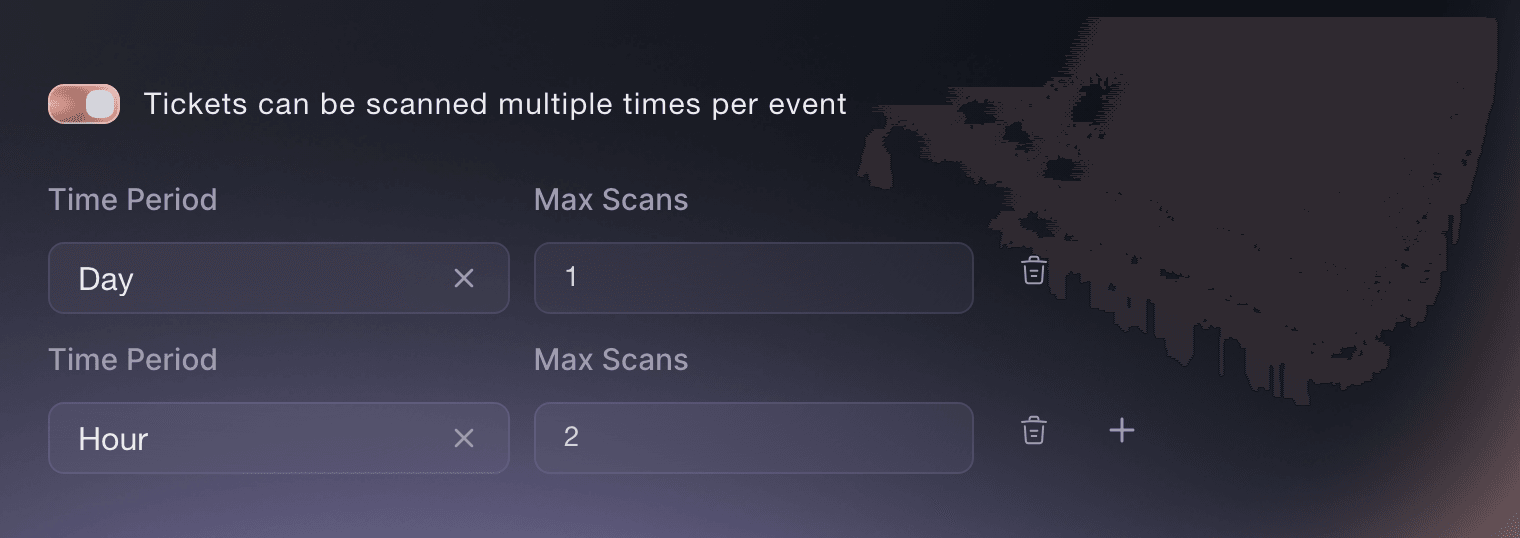
Event, Tickets, ticket type, Advanced settings, Ticket Rules. -
Set the first limit
Choose Day or Hour in Time Period, then enter a whole number of scans in Max Scans. For a multi-day pass, choose Day and enter 1 to allow one entry in each rolling 24-hour period.
Huomautus: The time window rolls from the current scan time. A daily rule is not tied to midnight, and an hourly rule is not tied to the clock hour.
-
Add another limit when the ticket needs both
Select Add rule to add another period.
Huomautus: The scanning app checks every rule. It admits the holder only when every configured window still has room.
-
Set the second limit
Use the new row for the other period and its maximum scan count, such as one Day rule and one Hour rule.
Huomautus: Use both rows when the ticket must allow one entry per day and no more than two entries in a rolling hour.
-
Save and test the entry rule
Save the ticket type, then test one ticket in the scanning app before the event. Scan it once, try it again inside the configured window, and try it after the window has passed so your door team knows the result it should expect.
Huomautus: The scan that brings the stored count to the limit is admitted. A subsequent scan is refused while the relevant rolling window remains full, and the app records each qualifying scan so the rule is based on actual entry history.
-
Clear the rule when the ticket becomes single-entry
Turn off Tickets can be scanned multiple times per event and save when the ticket should return to one entry per event. Fai can clear the rules only after you approve the proposed change.
Huomautus: Changing the saved rule applies to later scans of tickets using that ticket type. It does not erase the scan history already recorded.

Kokeile näitä vaiheita omassa tapahtumassasi
Luo ilmainen tili, rakenna tapahtumasi ja seuraa yllä olevia vaiheita omassa hallintapaneelissasi. Se vie muutaman minuutin, eikä sinun tarvitse varata myyntipuhelua.
Ei käyttöönottomaksuja. Ei pakollista kuukausimaksua. Luottokorttia ei tarvita.
Tai anna sen hoitua puolestasi
Fai can set or clear a ticket type's repeat-scan rules, explain the hourly or daily limit and show the proposed change before asking you to approve it.
Hallintapaneelissasi, Fain kanssa
For <EVENT NAME>, set the repeat-scan rules for <TICKET TYPE NAME>. Allow one scan per day and two scans per hour, show me the change, and wait for my approval
Anna Fain hoitaa se puolestasi
Fai toimii Ticket Fairy -hallintapaneelissasi. Luo tili, avaa Fai ja liitä yllä oleva kehote.
Ei käyttöönottomaksuja. Ei pakollista kuukausimaksua. Luottokorttia ei tarvita.
Kysymyksiä joita sinulla voi olla
- Does a daily rule reset at midnight?
- No. Ticket Fairy checks the scans in the previous 24 hours from the new scan, so the window moves with the ticket rather than resetting at midnight.
- Can one ticket have both a daily and an hourly limit?
- Yes. Add one Day rule and one Hour rule. The scanning app admits the holder only when the ticket is below both limits.
- What happens when I leave the repeat-scan toggle off?
- For a ticket with no other re-entry setting, the first scan admits the holder and another scan for the same event is refused. Turn the toggle on when the ticket needs a daily or hourly repeat-entry rule.
- Can Fai set a ticket's repeat-scan rules?
- Yes. Ask Fai to set or clear the rules for a named event and ticket type. She shows the proposed change and waits for your approval before saving it.
Jäikö vielä kysyttävää?
Varaa esittely, niin vastaamme siihen puhelussa sinun tapahtumatyyppisi mukaan. Tai luo tili ja katso itse.
Ei käyttöönottomaksuja. Ei pakollista kuukausimaksua. Luottokorttia ei tarvita.
Aiheeseen liittyvät oppaat
Tee tämä omassa tapahtumassasi
Luo tili, rakenna tapahtumasi ja seuraa vaiheita omassa hallintapaneelissasi. Sinun ei tarvitse varata myyntipuhelua.