
Sosiaalinen media
Schedule the social posts that sell your tickets
The posts that sell the most tickets go out at the on-sale minute, as a Friday teaser and as a last chance the night before. Draft them all in one sitting and choose the time each one goes out. A small team can then keep a full posting calendar without anyone being at a keyboard when each post is due.
Plan the posts for an on-sale in one sitting, send them for approval where your team needs it, and each one goes out at the time you set.
- Kenelle
- Running the social accounts that sell your tickets
- Kestää
- 8 minuuttia
Ennen aloitusta
- Your Instagram or Facebook account is connected to the brand. Connecting one is its own job, done once.
- You know which moments are worth a post: the announcement, the release, the last chance.
- You have the artwork or video ready. Instagram takes photos, videos, carousels, reels and stories, and a Facebook page also takes a post with no picture at all.
-
Open the queue and see what is already planned
Open Publish for the brand and read the queue.
Huomautus: Each row shows the account, when it goes out and where it has got to. The filters above the table narrow it to drafts, posts waiting for approval or the ones that did not go.
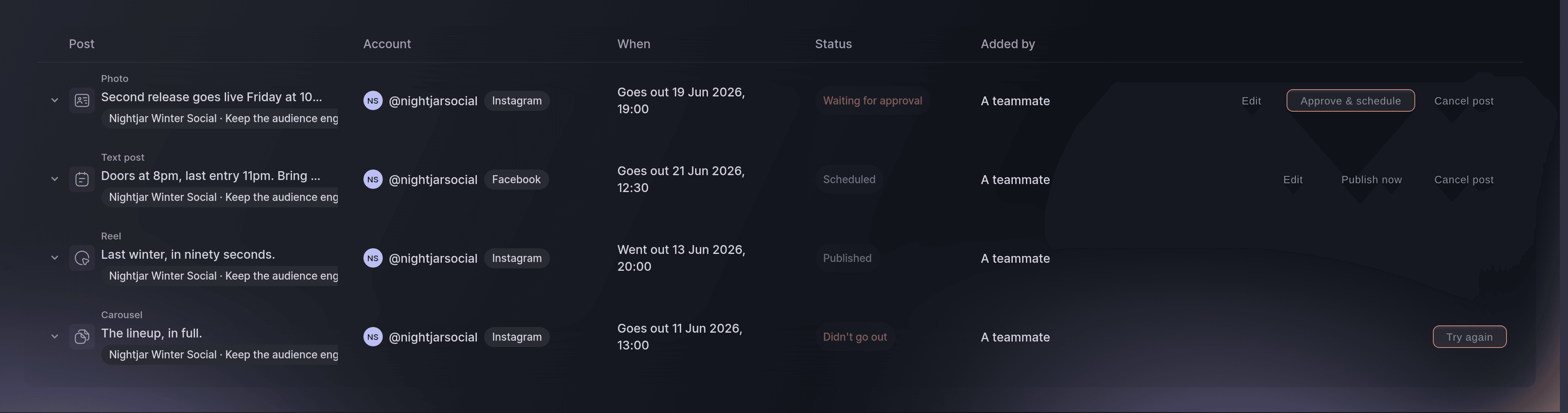
The queue, with a post in each state that needs a decision. -
Start a post
Select New post and choose the accounts it should go to.
Huomautus: One post can go to several accounts at once, and the same words go out to each. An account that cannot take the kind of post you picked says so as you pick.
-
Say what kind of post it is
Choose the kind under What kind of post? and add the photo or video.
Huomautus: A carousel takes two to ten items and the order you set is the order people swipe. A story carries no caption on Instagram.
-
Enter the caption
Enter the caption in Caption, with the one thing you want people to do in the first line.
Huomautus: Captions run to 2,200 characters and the composer counts them for you. The first line is the part most people read.
-
Tie the post to the event it sells
Choose the event under What is this post for?.
Huomautus: The timing suggestions then use your event dates, and the event name appears on the row in the queue.
-
Set when it goes out
Choose Schedule and set the date and time.
Huomautus: A time in the past is refused. An account that has hit the day's posting limit says so, and the fix is a time tomorrow.
-
Send it on its way
Select Schedule post, or Send for approval where the account asks for it.
Huomautus: An owner or admin approves posts on an account set up that way, and the composer says so before you finish. A draft still needs the post itself to be complete, so add the picture or the words first and leave the timing for later.
Kokeile näitä vaiheita omassa tapahtumassasi
Luo ilmainen tili, rakenna tapahtumasi ja seuraa yllä olevia vaiheita omassa hallintapaneelissasi. Se vie muutaman minuutin, eikä sinun tarvitse varata myyntipuhelua.
Ei käyttöönottomaksuja. Ei pakollista kuukausimaksua. Luottokorttia ei tarvita.
Tai anna sen hoitua puolestasi
Fai can draft a post and put it in the queue for you to approve. Nothing reaches an audience until a person says so.
Hallintapaneelissasi, Fain kanssa
Draft a post for <EVENT NAME> announcing that the second release opens on Friday, and schedule it for Thursday evening
Omasta avustajastasi, MCP:n kautta
Yhdistä avustajasi MCP-palvelimeemme ja pyydä sitä:
Pidä --read-only MCP-määrityksessäsi. Tämä tehtävä vain lukee tietoja, joten avustajasi ei tarvitse muutoksia tekeviä työkaluja.
Pick the brand, find the event <EVENT NAME> and show it
Päätteeltä
Asenna CLI osoitteesta CLI-sivultamme, kirjaudu komennolla ticketfairy auth login ja valitse brändi, jonka parissa työskentelet, komennolla ticketfairy brand use <BRAND_ID>. ticketfairy brand list ja ticketfairy event list näyttävät muiden komentojen käyttämät tunnisteet.
Read the event the posts are about.
Show the event and its dates
ticketfairy event get <EVENT_ID>
Anna Fain hoitaa se puolestasi
Fai toimii Ticket Fairy -hallintapaneelissasi. Luo tili, avaa Fai ja liitä yllä oleva kehote.
Ei käyttöönottomaksuja. Ei pakollista kuukausimaksua. Luottokorttia ei tarvita.
Clear the posts waiting on you
-
Approve what your team drafted
Select Approve & schedule on a row that is waiting.
Huomautus: Approving both accepts the post and books it in for the time it already carries. Use Edit first when the words need changing.
Fai can approve a post you have read and agreed to. She asks first, because approving sends it to a public audience.
Hallintapaneelissasi, Fain kanssa
Show me the posts waiting for approval for <BRAND NAME>
Omasta avustajastasi, MCP:n kautta
Pidä --read-only MCP-määrityksessäsi. Tämä tehtävä vain lukee tietoja, joten avustajasi ei tarvitse muutoksia tekeviä työkaluja.
Pick the brand <BRAND NAME> and show its events
Päätteeltä
Approving is done in the dashboard.
Show the brands you can act for
ticketfairy brand list
Deal with a post that did not go out
-
Read what went wrong, then try again
Open the row marked as not sent and read the reason beside it.
Huomautus: A photo the network could not fetch and an account that lost its connection need different fixes, and the row says which one it is.
-
Send it again once the cause is fixed
Select Try again on the row.
Huomautus: A post whose moment has passed is worth cancelling rather than sending late, and Cancel post does that.
Fai can list the posts that did not go out and tell you what each one said. Sending again is done from the queue.
Hallintapaneelissasi, Fain kanssa
Which posts for <BRAND NAME> did not go out, and why
Omasta avustajastasi, MCP:n kautta
Pidä --read-only MCP-määrityksessäsi. Tämä tehtävä vain lukee tietoja, joten avustajasi ei tarvitse muutoksia tekeviä työkaluja.
Pick the brand <BRAND NAME> and show its events
Päätteeltä
The queue is read in the dashboard.
Show the brands you can act for
ticketfairy brand list
Kysymyksiä joita sinulla voi olla
- Can one post go to Instagram and Facebook together?
- Yes, and the same words go to each. Pick both accounts in the composer; if one of them cannot take the kind of post you picked, it says so as you pick.
- Who has to approve a post?
- An owner or admin, and only on an account set up to ask for it. The composer tells you before you finish, so a post never waits without you knowing.
- What happens if a post fails at the moment it should go out?
- A network that was briefly unavailable is tried again a few times, and the row turns to failed with the reason once those tries run out. Anything else, such as a connection that has expired, fails at once and waits for you.
- Can I save something without sending it?
- Yes. Save it as a draft and it waits in the queue with no time on it until you give it one.
Jäikö vielä kysyttävää?
Varaa esittely, niin vastaamme siihen puhelussa sinun tapahtumatyyppisi mukaan. Tai luo tili ja katso itse.
Ei käyttöönottomaksuja. Ei pakollista kuukausimaksua. Luottokorttia ei tarvita.
Aiheeseen liittyvät oppaat
Tee tämä omassa tapahtumassasi
Luo tili, rakenna tapahtumasi ja seuraa vaiheita omassa hallintapaneelissasi. Sinun ei tarvitse varata myyntipuhelua.