
Kampanjat ja alennukset
Offer group discounts on your event tickets
Festival, club and conference teams use group discounts to turn one buyer into a group booking: four friends, a work team or a coach party pay less per ticket when they buy together. Checkout applies the discount on its own once the basket holds enough tickets, so nobody has to find or type a code.
Give buyers a lower ticket price automatically once their basket reaches a group size you choose, with a bigger discount for bigger groups if you want one, and no code for a buyer to type.
A group discount is a promotion with a group size set, made on the same Promotions page as your promo codes. The promo code guide covers the limits, links and reports every promotion shares. Luo tapahtumallesi kampanjakoodeja
- Kenelle
- Rewarding buyers who book tickets as a group
- Kestää
- 6 minuuttia
Ennen aloitusta
- You're an owner or admin of the event, which is what you need to open Promotions.
- The ticket types the group price applies to are already set up on the event.
-
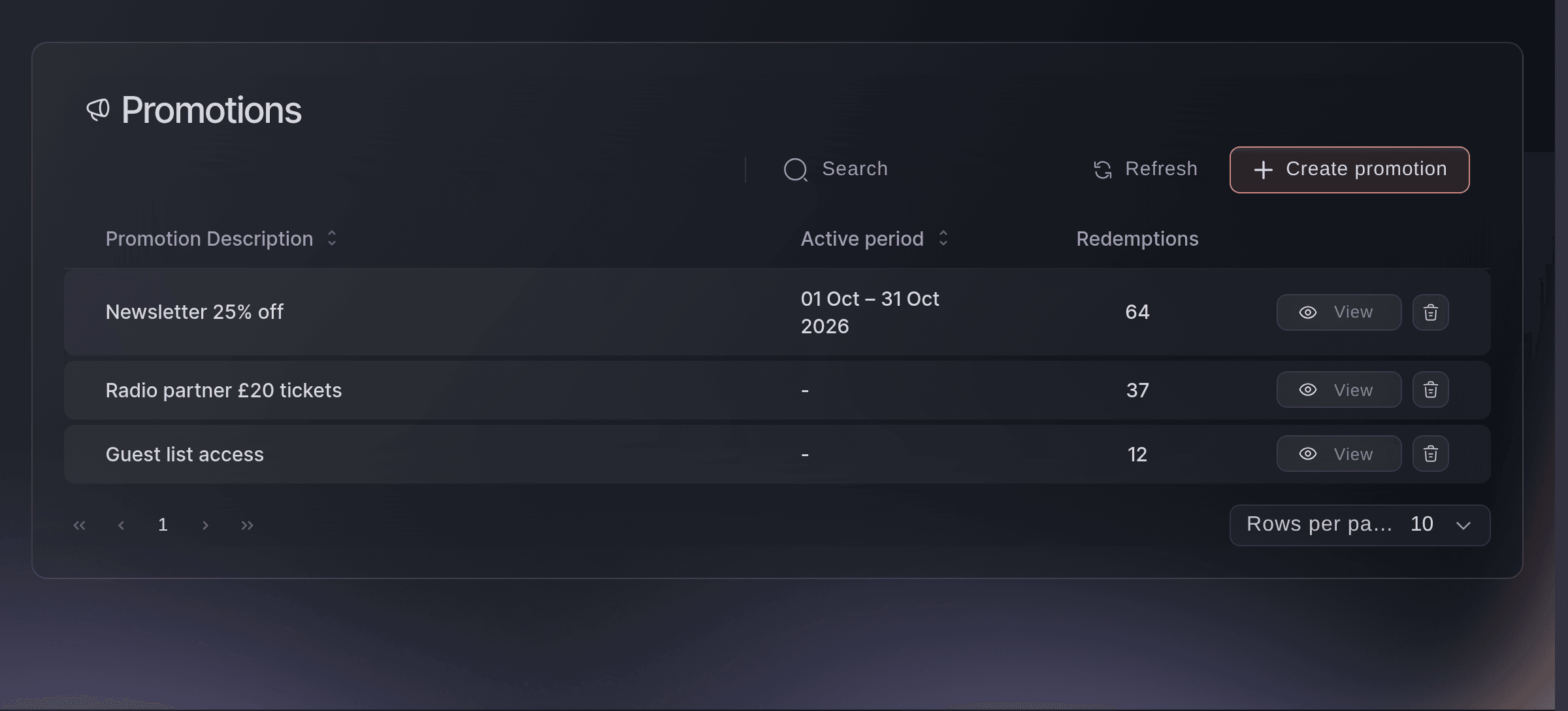
Open Promotions and select Create promotion
Open your event, select Marketing, then Promotions, and select Create promotion.
Marketing, Promotions. -
Name the group discount
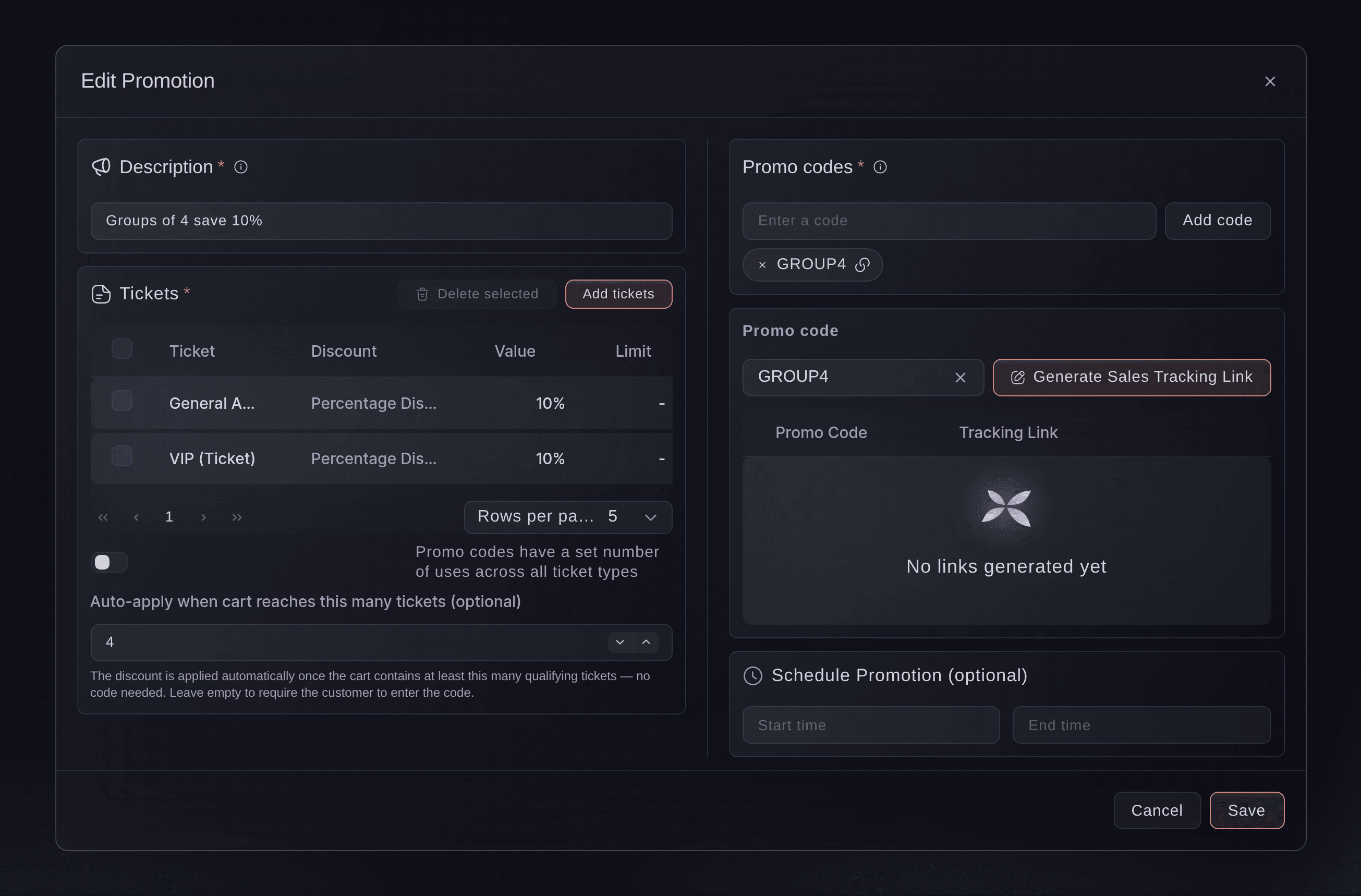
Under Description, enter a name your team will recognise, such as Groups of 4 save 10%. The name is for you and never reaches a buyer.
Marketing, Promotions, Edit Promotion. -
Add a code
Under Promo codes, enter a code such as GROUP4 and select Add code. Every promotion needs one, and your sales figures list the group discount under it.
Huomautus: You never share this code. Buyers get the discount by reaching the group size, not by entering it.
-
Add the tickets and choose the discount
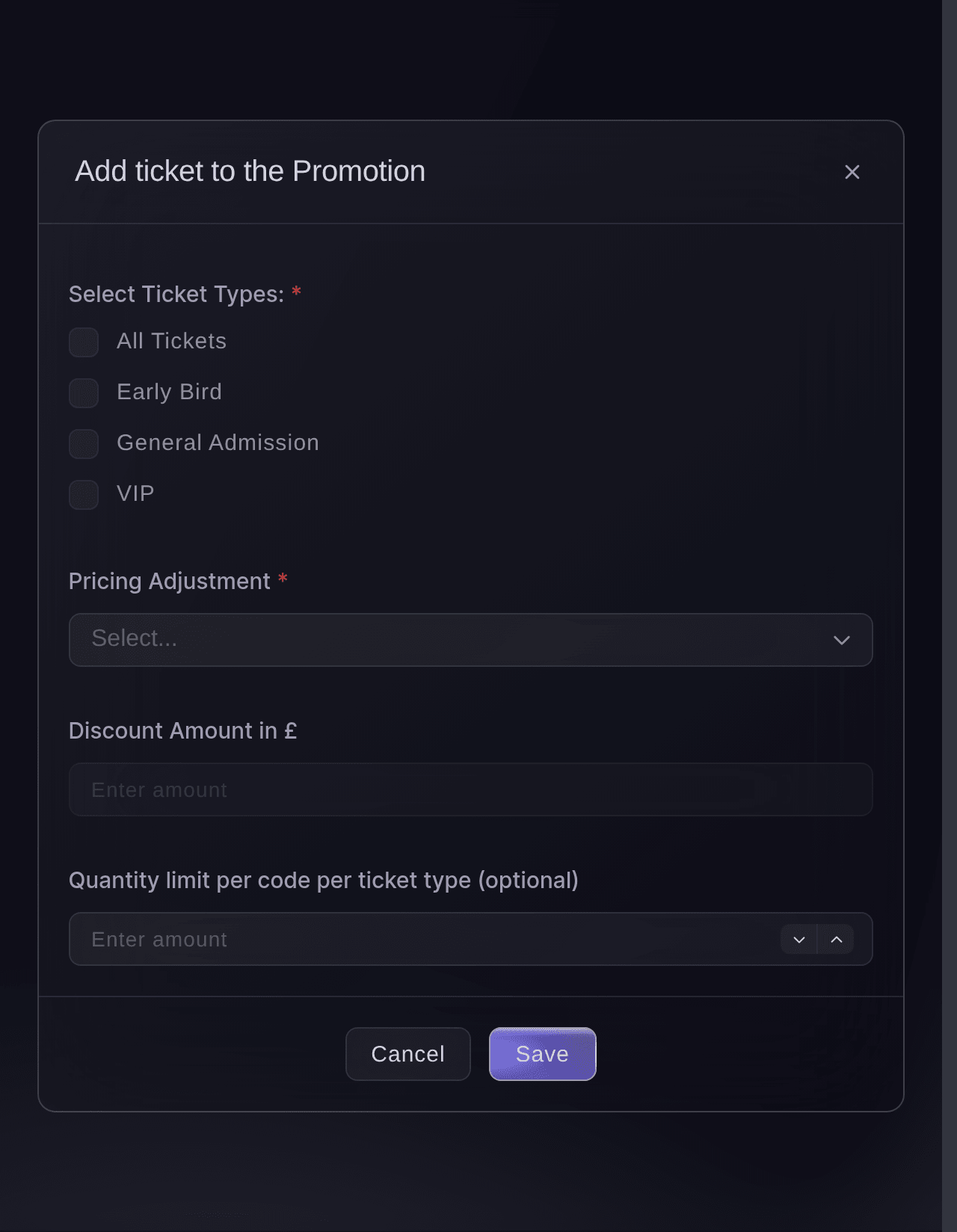
Select Add tickets, tick the ticket types the group price applies to, choose Percentage Discount under Pricing Adjustment and enter the amount, then select Save.
Huomautus: Fixed Discount takes the same amount off each ticket instead. Fixed Price sets the face value of each ticket to the amount you enter, so enter the price of one ticket, not the total for the group.
Marketing, Promotions, Add tickets. -
Enter the group size
In Auto-apply when cart reaches this many tickets (optional), enter how many tickets a group has to buy, such as 4. Checkout then applies the discount with no code once a basket holds that many tickets.
Huomautus: Every ticket in the basket counts towards the number, whatever its type, and the discount goes on the ticket types you added. Table types can't carry a group discount, so the field is unavailable on a promotion that covers only tables.
-
Select Create
Select Create. The group discount appears in the list, switched on and ready for the next basket that reaches the number.
-
Add a bigger discount for bigger groups
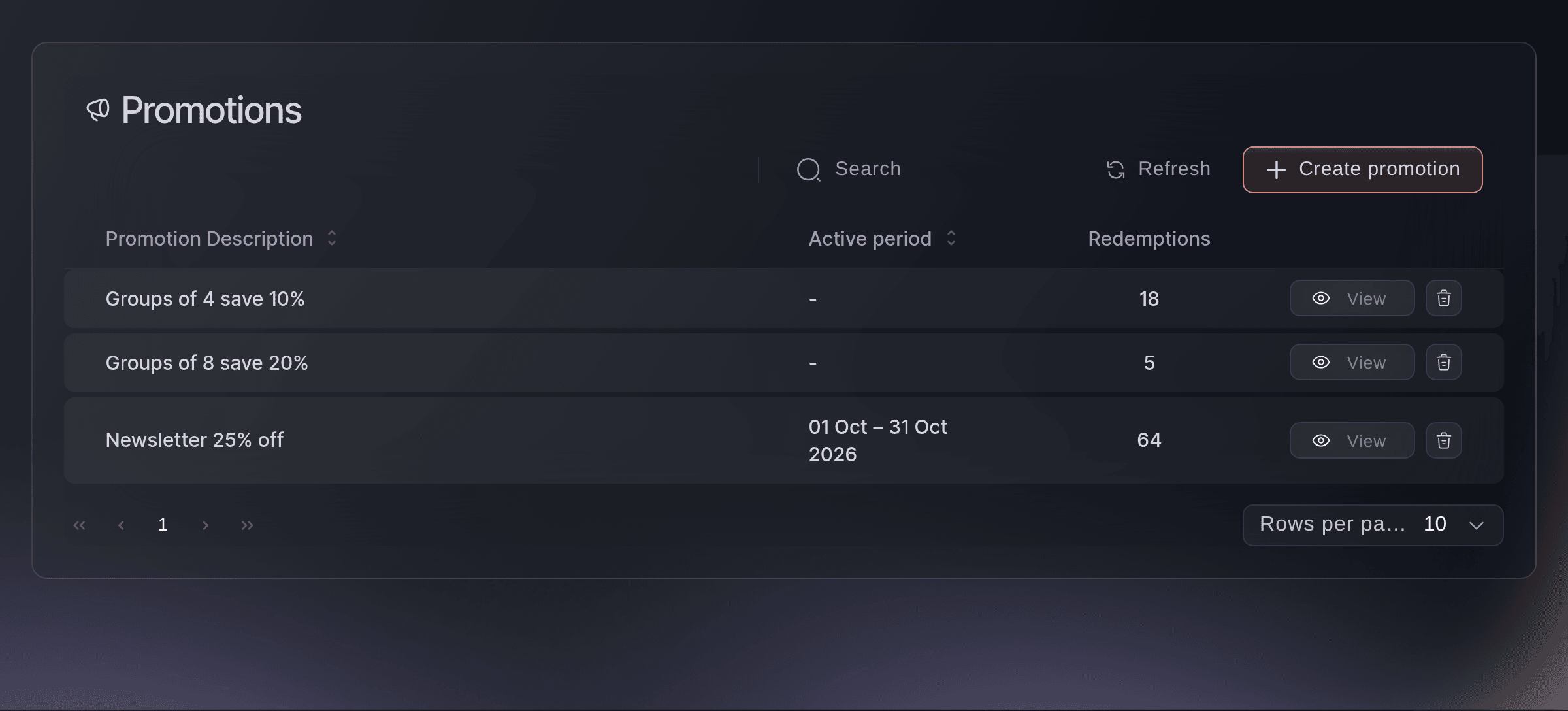
Optional: Create a second promotion the same way with a larger group size and a larger discount, such as 20% off for 8 tickets. The list then shows both, and a basket that reaches both gets the discount with the larger group size.
Huomautus: Group discounts never add together. Each basket gets one of them.
Marketing, Promotions, with two group sizes. -
Check the discount as a buyer
Open your event page in a private browser window, put the group size in tickets into the basket and go to checkout. The discounted price shows in the total with no code entered.
Huomautus: Remove tickets until the basket is below the group size and the discount comes off again.

Kokeile näitä vaiheita omassa tapahtumassasi
Luo ilmainen tili, rakenna tapahtumasi ja seuraa yllä olevia vaiheita omassa hallintapaneelissasi. Se vie muutaman minuutin, eikä sinun tarvitse varata myyntipuhelua.
Ei käyttöönottomaksuja. Ei pakollista kuukausimaksua. Luottokorttia ei tarvita.
Tai anna sen hoitua puolestasi
Fai, the assistant inside your dashboard, can create a group discount with its code, discount, ticket types and group size, and a second one for bigger groups. She shows you the promotion before she creates it and asks you to approve it. Use the CLI to list the promotions on an event; create and change group discounts in the dashboard or through Fai.
Hallintapaneelissasi, Fain kanssa
Find my event by name and create a group discount called <NAME> with the code <CODE>: <PERCENTAGE OR AMOUNT> off <TICKET TYPES> once a basket holds <NUMBER> tickets. Show me the tickets, the discounted prices and the group size, then ask me to approve it before you create it
Päätteeltä
Asenna CLI osoitteesta CLI-sivultamme, kirjaudu komennolla ticketfairy auth login ja valitse brändi, jonka parissa työskentelet, komennolla ticketfairy brand use <BRAND_ID>. ticketfairy brand list ja ticketfairy event list näyttävät muiden komentojen käyttämät tunnisteet.
Use the CLI to list the promotions on an event, with their codes. Create and change group discounts in the dashboard or through Fai.
List the promotions on the event, with their codes.
ticketfairy promotion list <EVENT_ID>
Anna Fain hoitaa se puolestasi
Fai toimii Ticket Fairy -hallintapaneelissasi. Luo tili, avaa Fai ja liitä yllä oleva kehote.
Ei käyttöönottomaksuja. Ei pakollista kuukausimaksua. Luottokorttia ei tarvita.
Change the group size or the discount
Select the group discount in the list, change the number in Auto-apply when cart reaches this many tickets (optional) or the discount on its tickets, and select Save. Orders already placed keep the price they paid.
Fai can change the group size, the discount or the ticket types on a group discount, after showing you the change. Make the change in the dashboard or through Fai.
Hallintapaneelissasi, Fain kanssa
On <EVENT NAME>, open the group discount <NAME>, show me its group size, tickets and discount, then change <THE CHANGE> and ask me to approve it before saving
Stop offering a group discount
In the list, select the group discount's trash button, check the promotion named in the confirmation, then select Delete. Baskets stop getting the discount, and the orders it earned keep their price and stay in your reports.
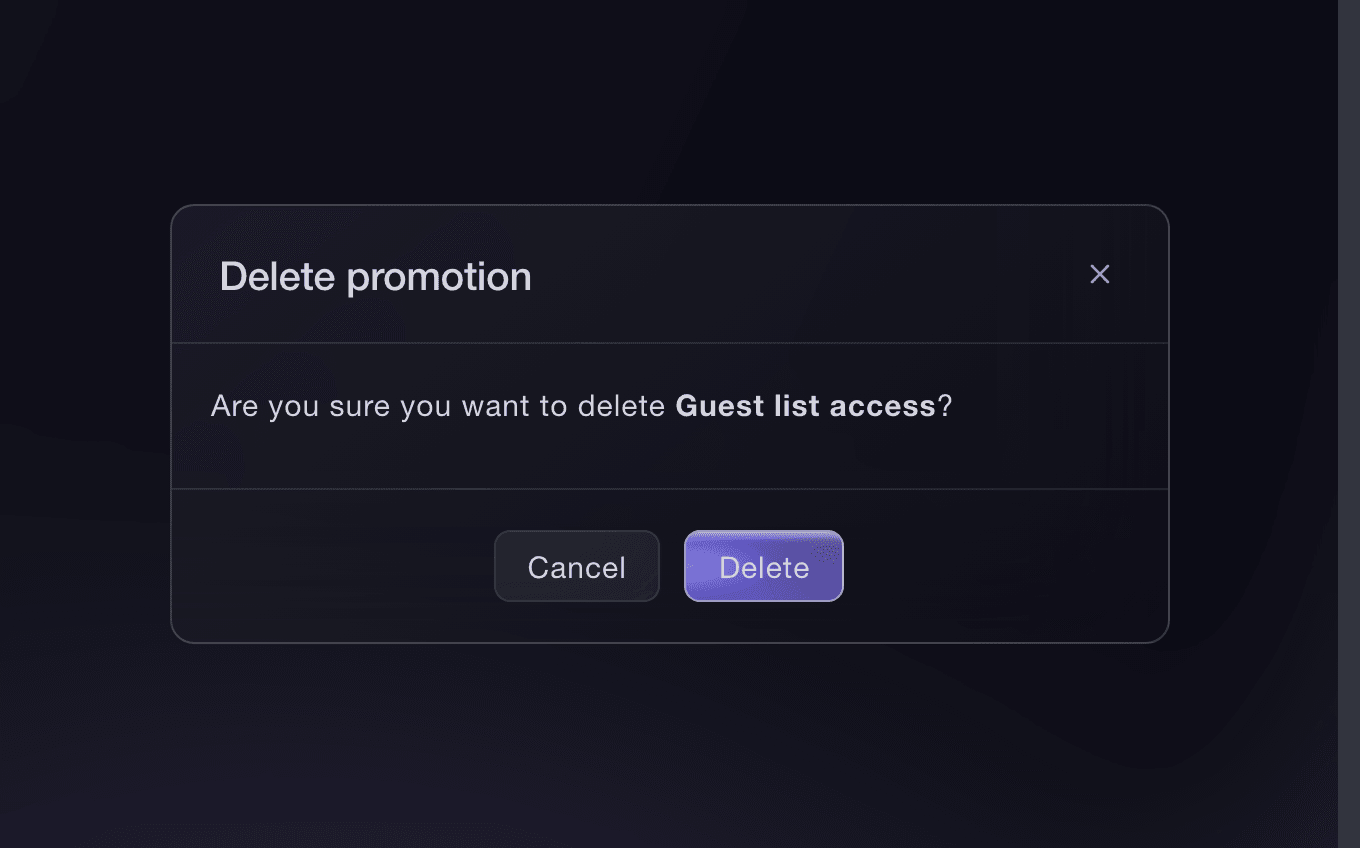
Fai can switch a group discount off, or back on, after showing you what it covers. The CLI switches a promotion off by its id; switch it back on in the dashboard or through Fai.
Hallintapaneelissasi, Fain kanssa
Show me the group discount <NAME> on <EVENT NAME> with its group size and tickets, then ask before switching it off
Päätteeltä
Take the promotion id from the list the promotion list command prints. The command switches the promotion off; it does not switch one back on.
Switch a group discount off.
ticketfairy promotion delete <EVENT_ID> <PROMOTION_ID> --force
Kysymyksiä joita sinulla voi olla
- What happens if a buyer enters the group code?
- Checkout refuses it with
This promo code is applied automatically when your ticket quantity qualifies.
The discount arrives by itself once their basket reaches the group size. - Can a buyer use a promo code and the group discount together?
- No. A basket carries one code at a time. A buyer who enters a promo code of their own gets that code's discount instead, and the group discount stays off while their code is applied.
- Does a group discount work on an event with a seating chart?
- Yes. Checkout counts the seats in the basket and applies the discount once they reach the group size.
- Can I run a group discount for a limited time?
- Yes. Choose a Start time and an End time under Schedule Promotion (optional) on the promotion. If you offer more than one group size, give each the same dates.
- Where do I see how many groups got the discount?
- The Redemptions column on the Promotions list counts the paid orders each group discount earned. For the tickets and revenue behind it, open Performance and select Sales by Promo Code, where it is listed under its code.
- What happens if I clear the group size later?
- The promotion becomes an ordinary promo code. Checkout stops applying it by itself, and any buyer who enters its code gets the discount.
Jäikö vielä kysyttävää?
Varaa esittely, niin vastaamme siihen puhelussa sinun tapahtumatyyppisi mukaan. Tai luo tili ja katso itse.
Ei käyttöönottomaksuja. Ei pakollista kuukausimaksua. Luottokorttia ei tarvita.
Aiheeseen liittyvät oppaat
Tee tämä omassa tapahtumassasi
Luo tili, rakenna tapahtumasi ja seuraa vaiheita omassa hallintapaneelissasi. Sinun ei tarvitse varata myyntipuhelua.