
Die Produktion steuern
Balance your event team's workload
Event producers and operations leads hand out hundreds of tasks in the weeks before an event, and the same two people end up with most of them. The workload view adds up each person's tasks and shifts day by day, so you can spread the work before anyone burns out.
See how many hours each person on your event team has day by day, from their tasks and their rota shifts, spot anyone over the limit before the week of the event, and move a task to the teammate with the most room in one step when Fai suggests it.
- Für
- Spreading the work across your event team
- Dauer
- 6 Minuten
Bevor Sie anfangen
- You are an owner, admin or producer on the event. The event's Operations page opens for those roles only.
- Your tasks have someone assigned and a due date, and your crew and volunteers are on the rota if you want their shifts counted.
-
Open the workload
Open the event, select Operations, then select Tasks. Workload is on the Tasks section.
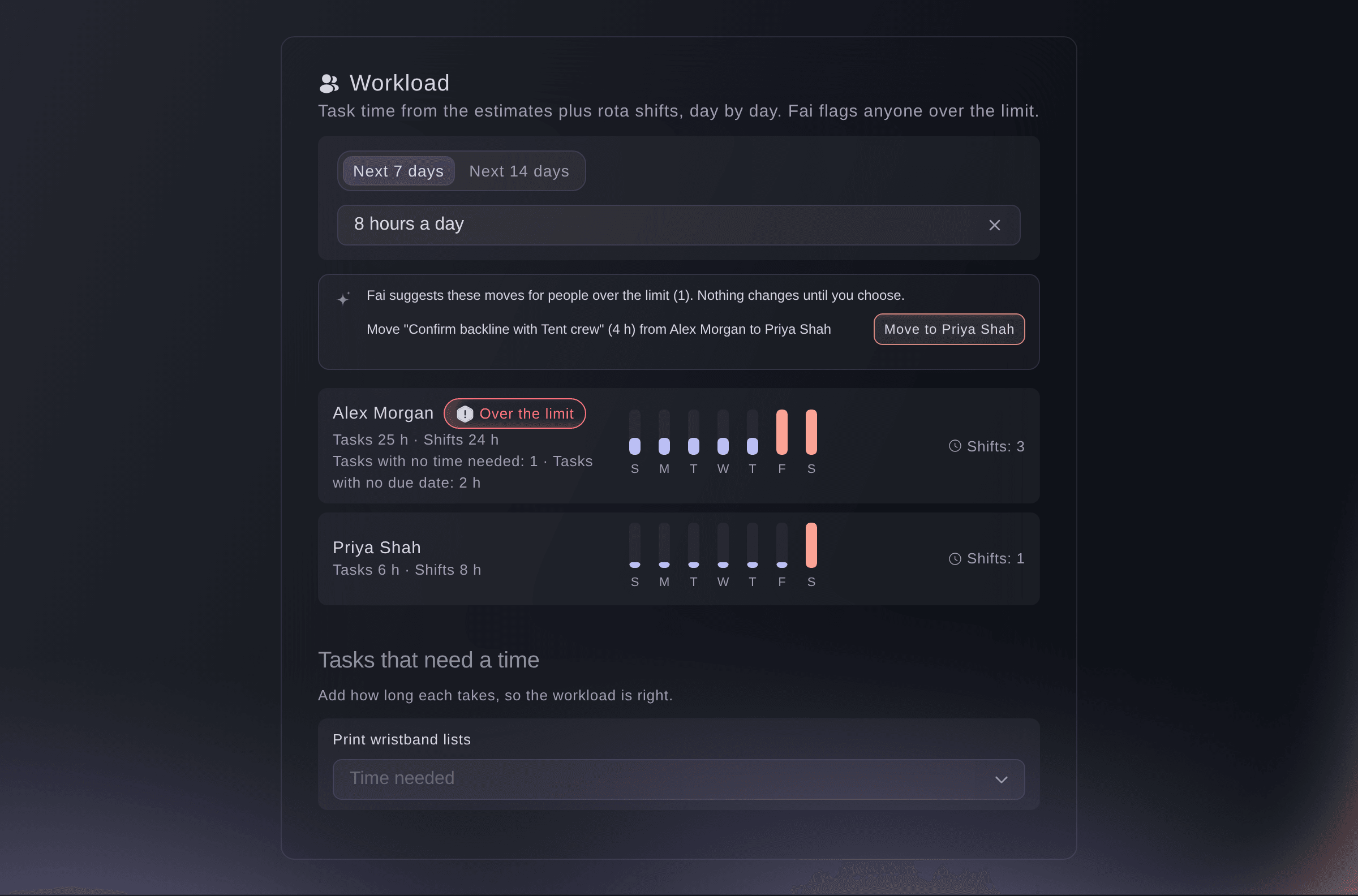
Workload for the next 7 days. -
Choose the days and the limit
Choose how far ahead to look, the next 7 or 14 days, then choose the hours a person can work in a day.
Hinweis: Task time is spread over the days from a task's start to its due date and shared between the people assigned to it. Rota shifts are added for anyone whose email matches.
-
Add the time each task needs
Under Tasks that need a time, choose the Time needed for each task.
Hinweis: You can also set Time needed when you open a task. A task with no time needed or no due date is listed separately, so the totals stay right.
-
Move work from someone over the limit
Find the person marked Over the limit, select the move button on Fai's suggestion, then confirm.
Hinweis: Fai suggests the teammate with the least work on those days. The new person is added to the task first, then the first person is taken off it.

Probiere diese Schritte bei deinem eigenen Event aus
Erstelle ein kostenloses Konto, lege dein Event an und folge den Schritten oben in deinem eigenen Dashboard. Das dauert ein paar Minuten, und du musst kein Verkaufsgespräch buchen.
Keine Einrichtungsgebühren. Keine verpflichtende monatliche Ticketing-Gebühr. Keine Kreditkarte nötig.
Oder lassen Sie es erledigen
Fai reads each person's task time and rota hours for the next 7 or 14 days, says who is over the daily limit and suggests which tasks to move. Move the task in the dashboard when you agree with her.
In Ihrem Dashboard, mit Fai
Who on the <EVENT NAME> team is over 8 hours a day in the next two weeks, and which tasks should move?
Lass Fai das für dich erledigen
Fai arbeitet in deinem Ticket Fairy Dashboard. Erstelle dein Konto, öffne Fai und füge die Anweisung von oben ein.
Keine Einrichtungsgebühren. Keine verpflichtende monatliche Ticketing-Gebühr. Keine Kreditkarte nötig.
Fragen, die Sie haben könnten
- Why are someone's rota shifts not counted?
- Shifts are matched to a team member by email address. Check that their crew or volunteer record has the same email as their Ticket Fairy login.
- Is this the same as the hours limit in Rota rules?
- No. Workload adds up your event team's tasks and shifts for the days you choose. Most hours in 7 days in Rota rules limits shifts across all your brand's events, and Fai leaves out anyone it would take over the limit when offering a shift.
- Does Fai move tasks by herself?
- No. Fai only suggests moves. A task moves when you confirm it.
Hast du noch eine Frage?
Buche eine Demo, und wir beantworten sie in einem Gespräch, passend zu deiner Art von Event. Oder erstelle dein Konto und sieh es dir selbst an.
Keine Einrichtungsgebühren. Keine verpflichtende monatliche Ticketing-Gebühr. Keine Kreditkarte nötig.
Verwandte Anleitungen
Machen Sie das bei Ihrer eigenen Veranstaltung
Erstellen Sie Ihr Konto, legen Sie Ihr Event an und folgen Sie den Schritten in Ihrem eigenen Dashboard. Sie müssen kein Verkaufsgespräch buchen.