
Die Produktion steuern
Get hire suppliers to confirm orders and count deliveries for your event
Production managers hire staging, lighting and backline from several suppliers for every festival and spend the build chasing confirmations and checking deliveries against paperwork. A page for each supplier keeps their answers next to your list, and a count at the dock tells you what to query before the invoice is paid.
Give each hire supplier for your event its own page, with no sign-in, where it confirms what you ordered, asks for a change and sends its quote. Fai reads the quote against your list, your crew counts what arrives and goes back, and the purchase order shows any shortfall or damage before you pay the invoice.
- Für
- Working with the suppliers who hire kit to your event
- Dauer
- 10 Minuten
Bevor Sie anfangen
- You are an owner, admin or producer on the event. The event's Operations page opens for those roles only.
- Your hire list in Hire and shopping has lines with the supplier chosen, marked Ordered once you have placed the order.
- Each supplier has a contact email, so it can be sent the link to its page.
-
Open your hire list
Open the event, select Operations, select Hire and shopping in the list of sections, then select Production hire, Backline hire or Shopping list.
Hinweis: Goods in and out and Suppliers on their own page sit under the list and its suppliers. If Hire and shopping is not in the list, select More sections and open it there.
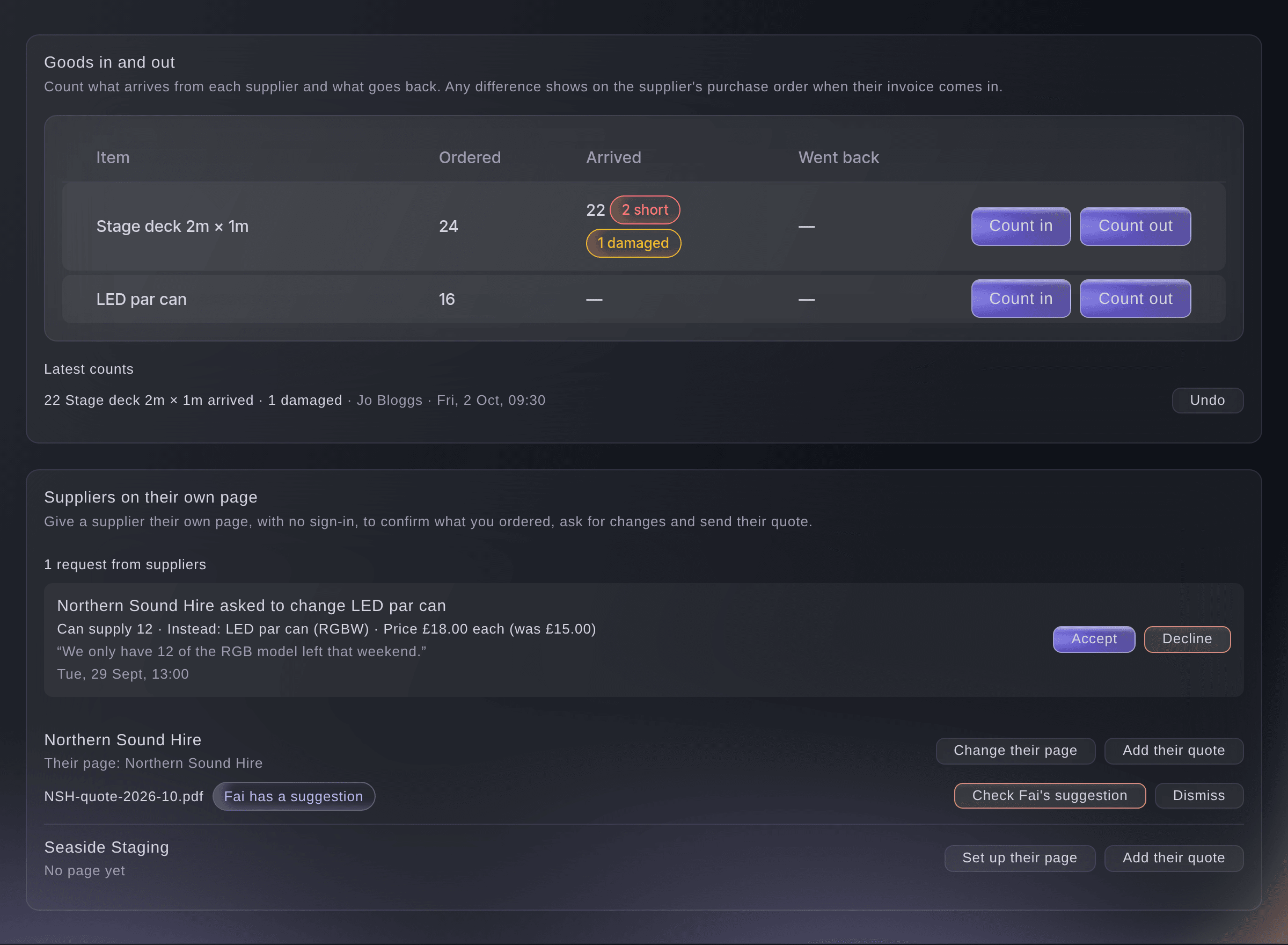
Goods in and out, and suppliers on their own page. -
Give the supplier a page
Under Suppliers on their own page, select Set up their page beside the supplier, choose the Outside team, then select Save.
Hinweis: Choose Make a new outside team for this supplier if the supplier is not an outside team yet; the team takes the supplier's name, contact and email. The supplier's lines then show on that team's page.
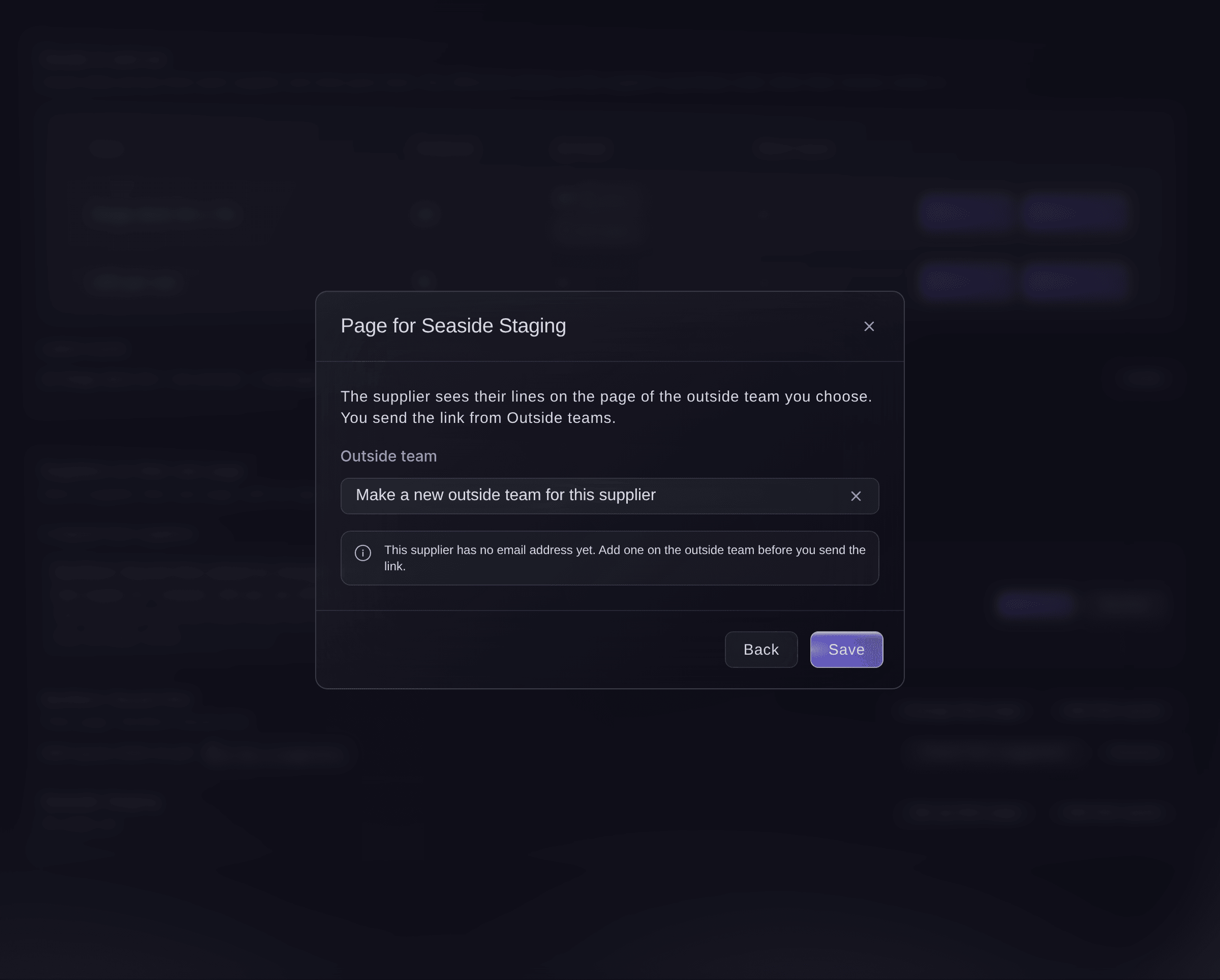
Choose the supplier's page. -
Email the supplier its link
Select Outside teams in the list of sections, select the supplier's team, then select Email the link and confirm.
Hinweis: The email goes to the team's contact, and any earlier link stops working. Select Copy a new link to send it yourself.
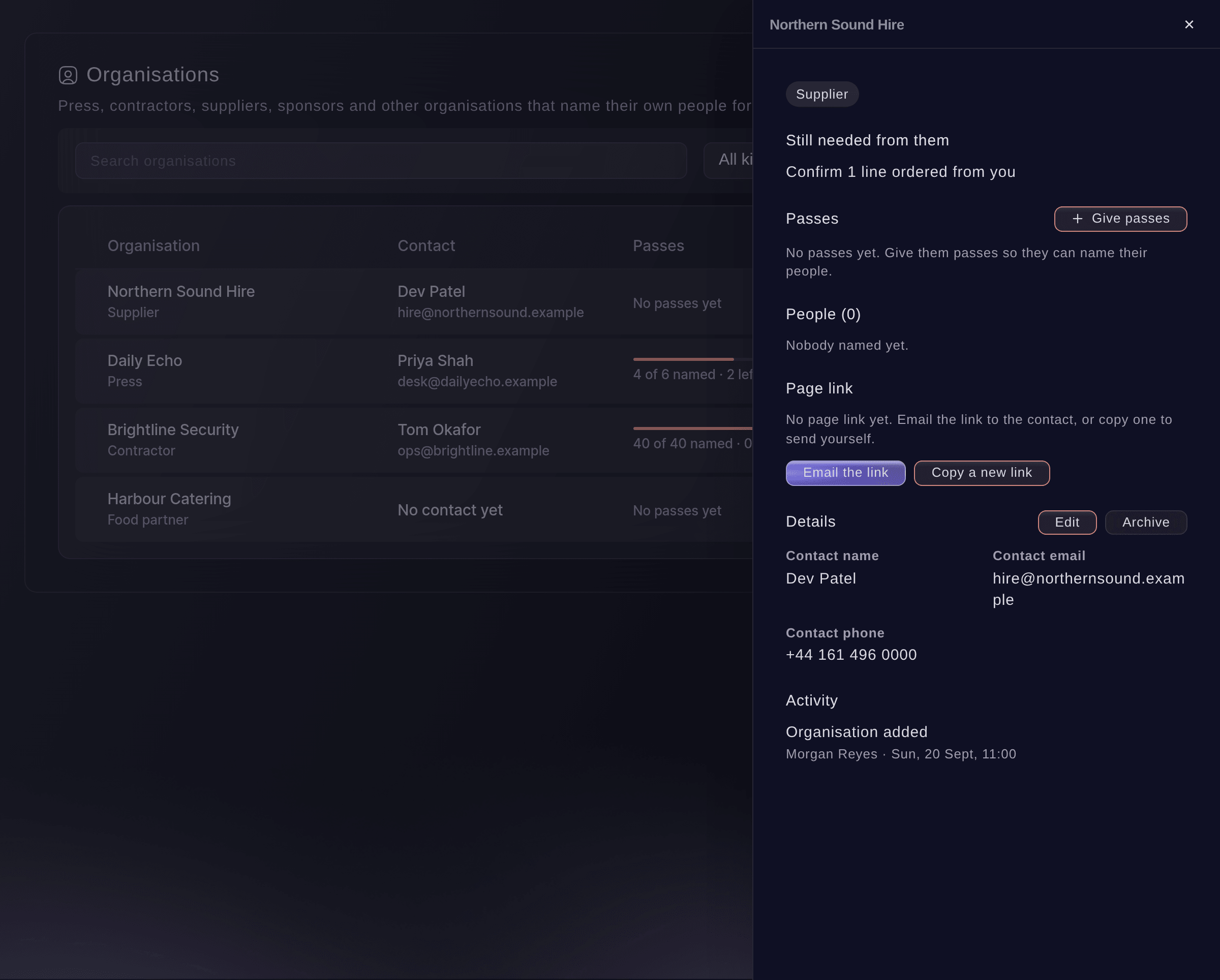
Email the supplier the link to its page.


The supplier's page
The supplier opens the link with no sign-in and sees What we ordered from you: each line with its dates, stages and price, and Please confirm beside the lines you have ordered. They confirm the lines in one go, select Ask for a change to offer fewer, something else or another price, or Ask to change times for delivery and collection. They upload their quote as a PDF or a photo of up to 15 MB, and see your answer to each request under Your requests.
Hinweis: The page shows lines marked Quoted, Ordered, Confirmed, Delivered or Returned. A line still to order, or cancelled, stays off it.

-
Answer a supplier's request
Under the requests from suppliers, choose what to do with each one.
-
Check Fai's reading of the quote
When a quote shows Fai has a suggestion, select Check Fai's suggestion, read it on Today and select Approve.
Hinweis: Approving sets the quoted prices on the lines and notes any substitutes. Fai lists lines the quote leaves out or has fewer of, for you to take up with the supplier.
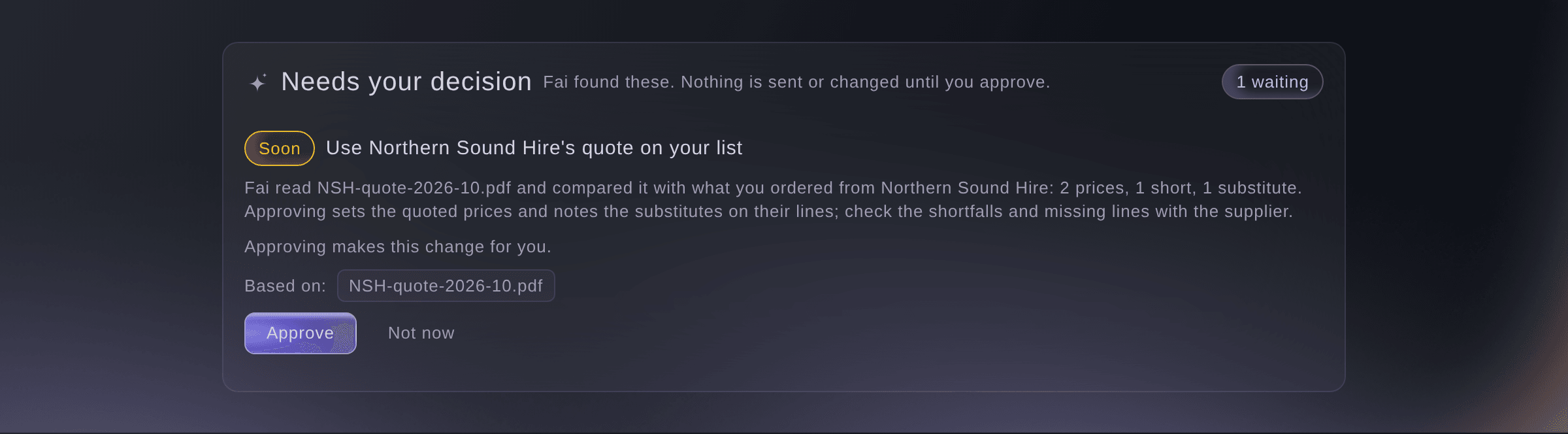
Fai's suggestion from the quote. -
Count what arrives
When a delivery arrives, select Count in beside the line, enter How many and How many are damaged, then select Save count.
Hinweis: Leave the damaged field empty when none are. The line then shows how many are short, extra or damaged.
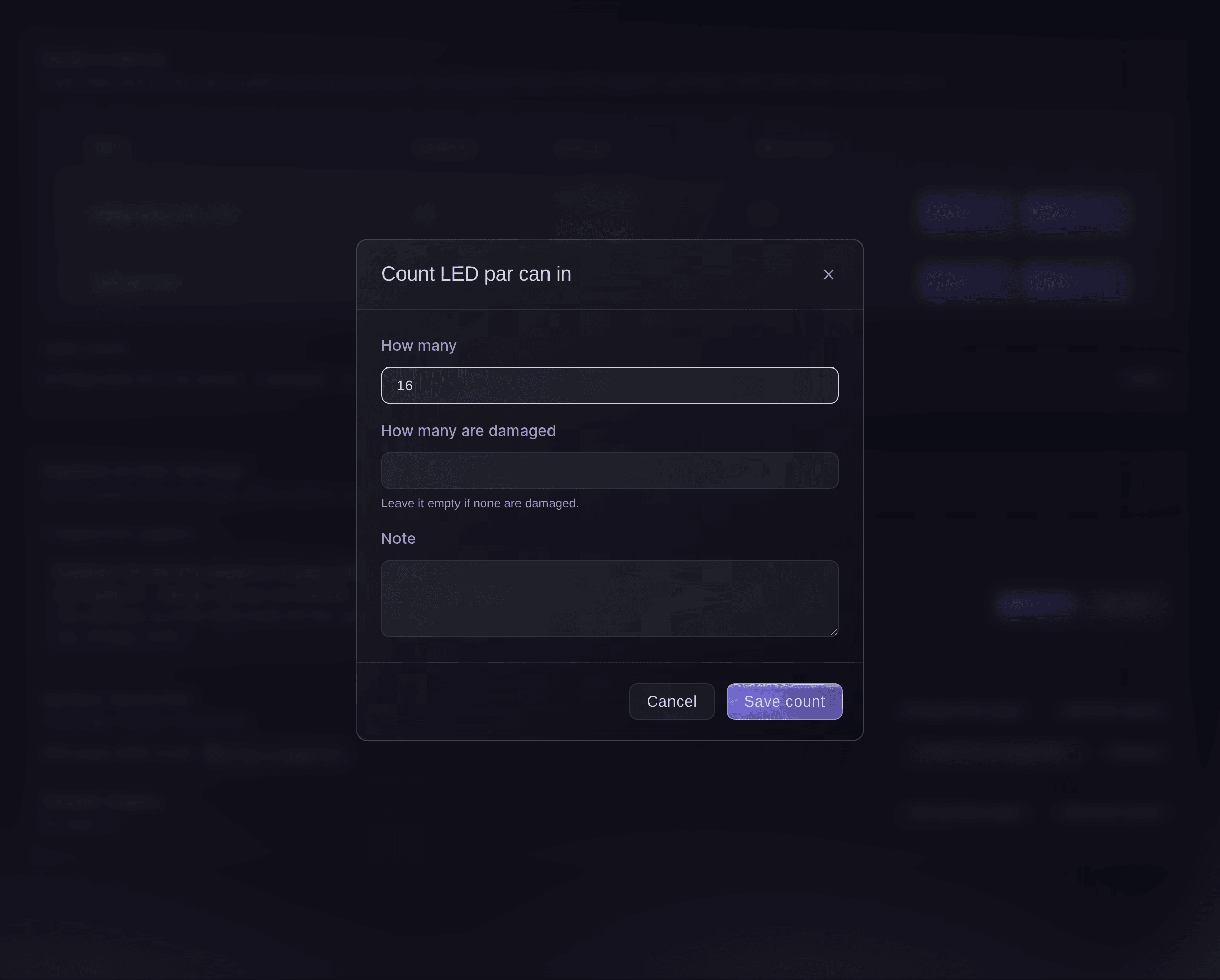
Count a delivery in. -
Count what goes back
When the supplier collects, select Count out beside the line, enter how many went back and any damage, then select Save count.
Hinweis: The shopping list only counts what arrives, because shopping is bought rather than hired.
-
Check the purchase order before you pay
Select Contracts, select Purchase orders, open the supplier's order and read What arrived.
Hinweis: It compares each line ordered with what was counted in and back. A shortfall or damage says so, so you can check the invoice before you pay it.
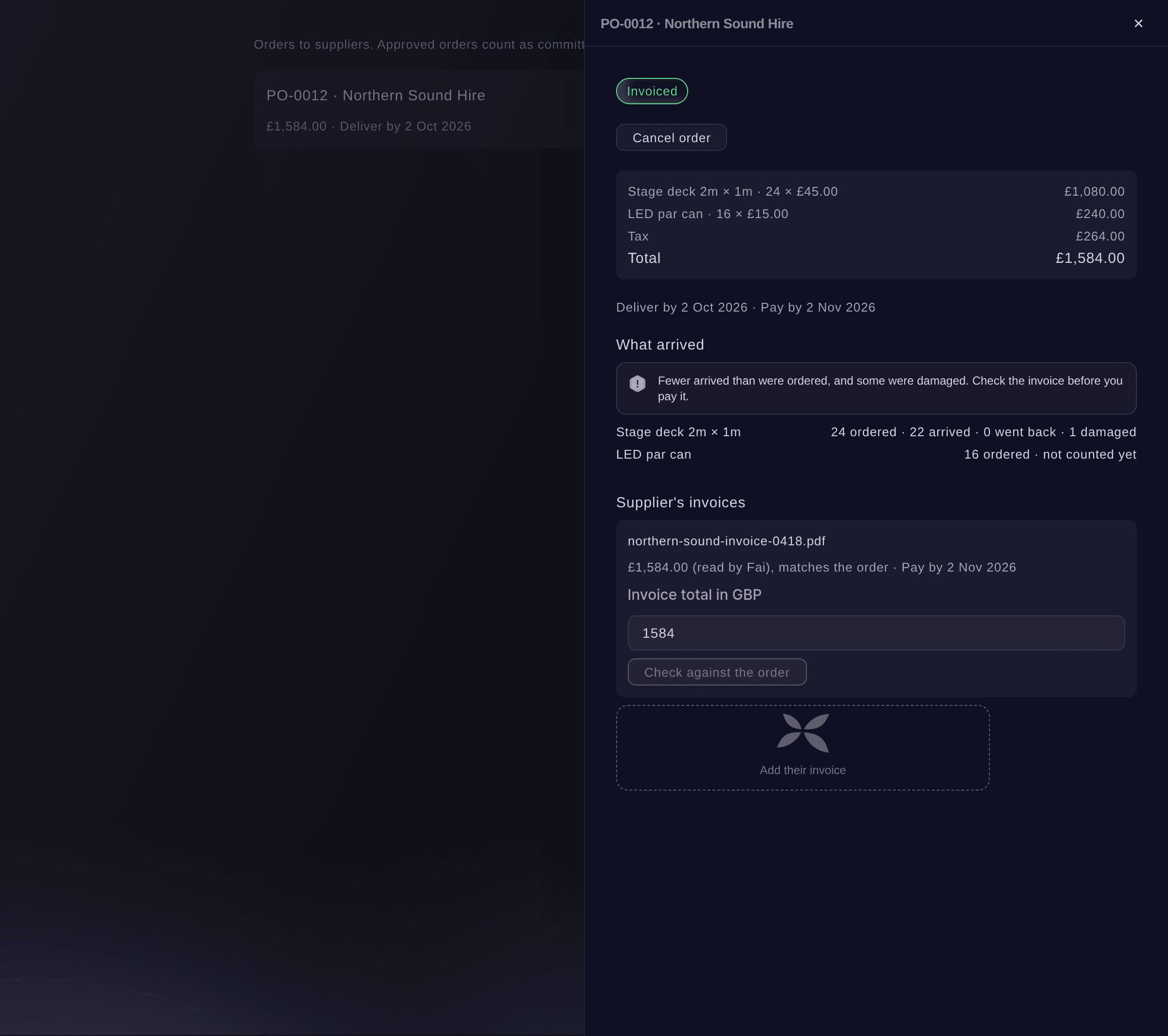
What arrived, on the purchase order.


Probiere diese Schritte bei deinem eigenen Event aus
Erstelle ein kostenloses Konto, lege dein Event an und folge den Schritten oben in deinem eigenen Dashboard. Das dauert ein paar Minuten, und du musst kein Verkaufsgespräch buchen.
Keine Einrichtungsgebühren. Keine verpflichtende monatliche Ticketing-Gebühr. Keine Kreditkarte nötig.
Oder lassen Sie es erledigen
Fai reads goods in and out, what your suppliers asked on their page and where each quote stands. She counts goods in or out, undoes a count, accepts or declines a supplier's request, sets which outside team's page shows a supplier, and reads or puts aside a quote, showing you each change first and waiting for your yes. She cannot upload a quote for you; select Add their quote in the dashboard for that.
In Ihrem Dashboard, mit Fai
What have my hire suppliers asked for on their page at <EVENT NAME>, and what came up short when the staging arrived
Lass Fai das für dich erledigen
Fai arbeitet in deinem Ticket Fairy Dashboard. Erstelle dein Konto, öffne Fai und füge die Anweisung von oben ein.
Keine Einrichtungsgebühren. Keine verpflichtende monatliche Ticketing-Gebühr. Keine Kreditkarte nötig.
Add a quote the supplier emailed you
-
Upload the quote
Under Suppliers on their own page, select Add their quote beside the supplier, then upload the file under Upload the quote.
Hinweis: Fai reads it and suggests the prices for you to check, the same as a quote the supplier uploads. It takes a PDF or a photo of up to 15 MB.
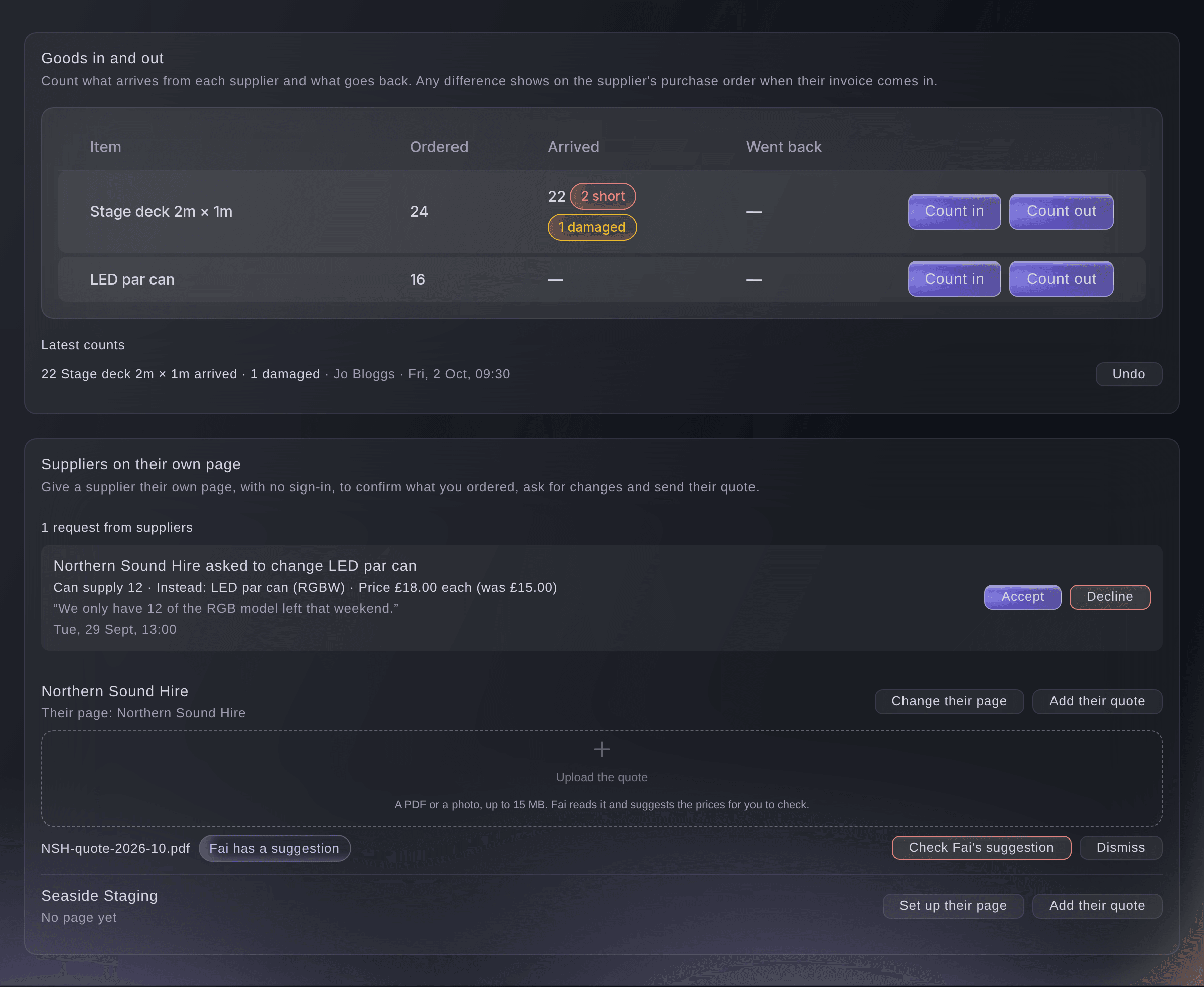
Add a quote the supplier emailed.

Fai cannot upload a file. Upload the quote with Add their quote, then ask Fai what she read in it.
In Ihrem Dashboard, mit Fai
What did you read in Northern Sound Hire's quote for <EVENT NAME>, and which lines are short
Undo a count
-
Undo it
Under Latest counts, select Undo beside the count.
Hinweis: The count stays in the history with its reversal, and the line goes back to what it showed before. Count again with the right number.
Fai undoes a count when you ask, after you confirm.
In Ihrem Dashboard, mit Fai
Undo the last count of stage decks at <EVENT NAME>, it should have been 24
Put a quote aside
-
Dismiss it
Select Dismiss beside the quote, then confirm.
Hinweis: Fai stops suggesting changes from it, and the file stays with the supplier's documents.
Fai puts a quote aside when you ask, after you confirm.
In Ihrem Dashboard, mit Fai
Ignore the old Northern Sound Hire quote for <EVENT NAME>, they sent a new one
Fragen, die Sie haben könnten
- Does the supplier need a Ticket Fairy account?
- No. The supplier opens the link to its page on any phone or computer with no sign-in.
- Does Fai change my prices from a quote on her own?
- No. Fai reads the quote and puts a suggestion on Today, and the prices change only when you approve it. If she could not read the file, the quote says Fai could not read it, and you check it yourself.
- What if the supplier can only supply fewer than I ordered?
- Accepting their request puts the agreed number in the line's notes and keeps the list's own figure, which comes from what the acts and the production need. Order the rest from another supplier.
- What happens if I change a line after the supplier opened their page?
- Their page shows the line as it is now. If they try to confirm a line you changed a moment before, their page asks them to reload and see it.
- How many quotes can a supplier send?
- A supplier's page takes up to 20 quotes a day. After that the page says
You have added the most quotes allowed for today. Try again tomorrow.
Hast du noch eine Frage?
Buche eine Demo, und wir beantworten sie in einem Gespräch, passend zu deiner Art von Event. Oder erstelle dein Konto und sieh es dir selbst an.
Keine Einrichtungsgebühren. Keine verpflichtende monatliche Ticketing-Gebühr. Keine Kreditkarte nötig.
Verwandte Anleitungen
Machen Sie das bei Ihrer eigenen Veranstaltung
Erstellen Sie Ihr Konto, legen Sie Ihr Event an und folgen Sie den Schritten in Ihrem eigenen Dashboard. Sie müssen kein Verkaufsgespräch buchen.