
Die Produktion steuern
Make an offer to an artist's agent for your show
Promoters and venue bookers send dozens of offers a season, each with its own guarantee, percentage and radius clause. Keeping every offer, counter and past fee together lets your team price the next show from what the last one earned, and move an accepted deal straight into advancing.
Build an offer for a performer from a template or your last deal, see what you paid them before and the fee Fai suggests, email it to their agent, record their counter-offers and book the artist on your event once they accept.
- Für
- Sending offers to agents and turning the accepted ones into bookings
- Dauer
- 10 Minuten
- Open Offers
- Start the offer
- Enter the performer and choose a template
- The suggested fee
- Set the guarantee
- Choose the show date and event
- Choose how the fee is worked out
- Add costs, wording and the agent
- Set the deposit and set length
- Add the agency fee
- Save the draft
- Prepare and send the email
- Send the offer
- Record the agent's answer
- Answer a counter-offer
- Check the artist is booked on your event
- Mark the offer as contracted
Bevor Sie anfangen
- You need an owner, admin or producer role on the brand. Other roles do not see offers or fees.
- Add the rooms and stages you book in Event Operations first, as the hold guide shows, if you want the offer tied to a space.
-
Open Offers
In the sidebar, select your brand, then Event Operations, then Offers. The list shows each offer's performer, show date, deal and status, with your Offer templates under it.
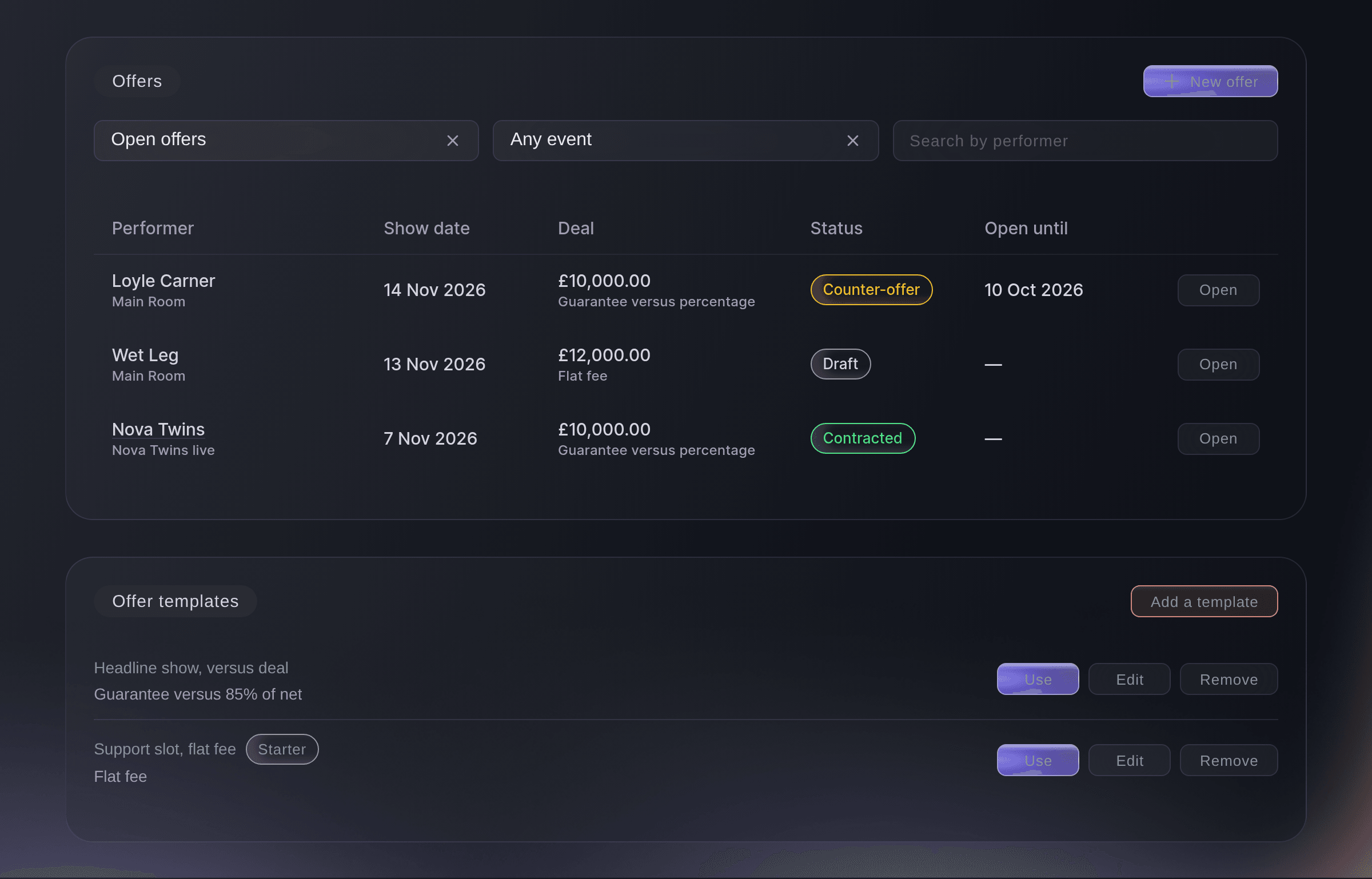
Event Operations, Offers. -
Start the offer
Select New offer at the top of the page. To make an offer for a date you already hold, open the hold and select Make an offer instead.
Hinweis: An offer started from a hold is filled in with the performer, the space and the dates. Use on a template starts a new offer from that template.
-
Enter the performer and choose a template
Enter the name in Performer, then optional: choose a template in Start from a template to fill in the deal and the wording.
Hinweis: Once the name is entered, What you paid them before appears beside the form with each past show, the fee and how many tickets it sold.
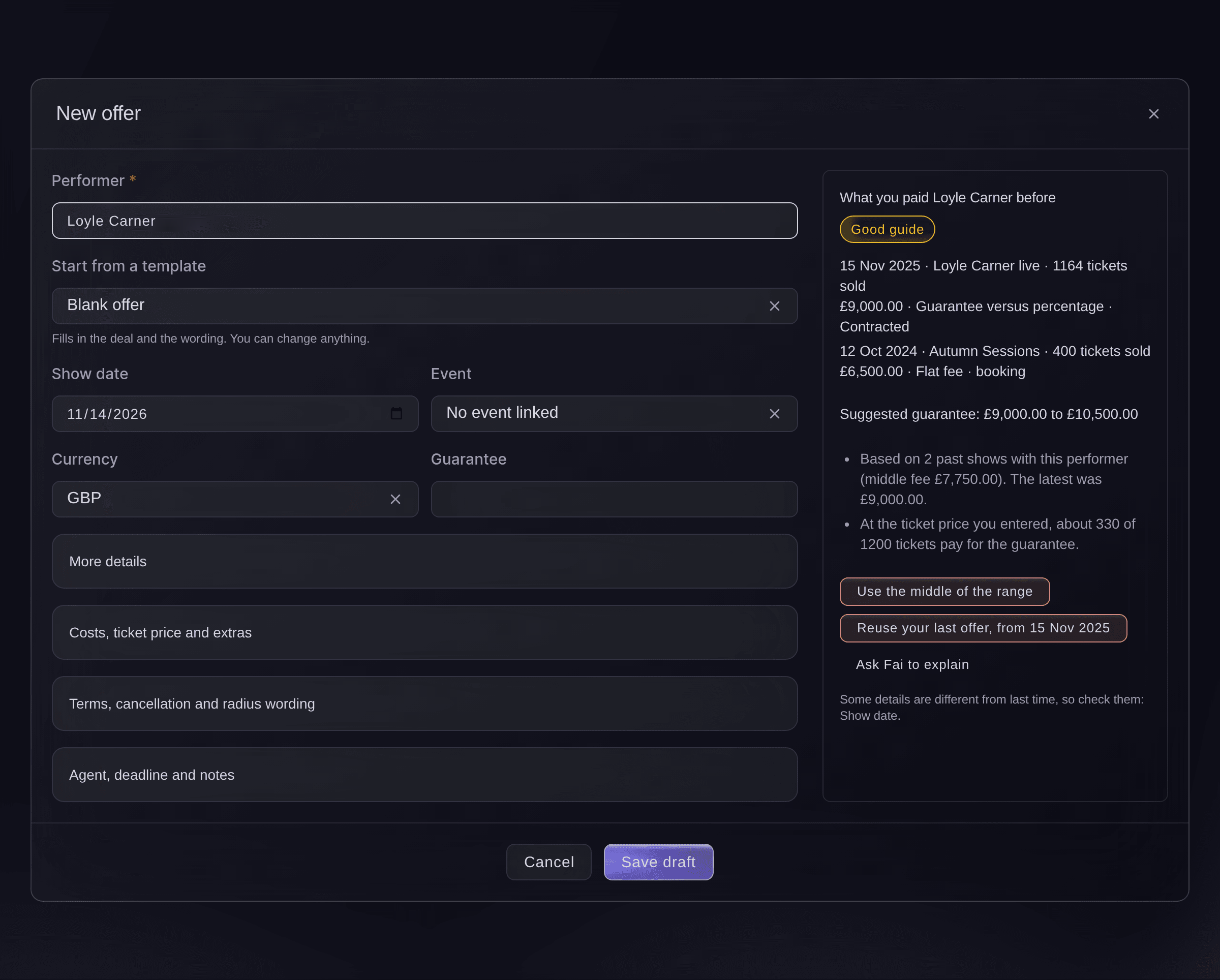
New offer, with what you paid before.


The suggested fee
Fai works out the suggested guarantee range from your own past shows with the performer, adjusted for the capacity, or from shows of a similar size when you have none. The badge says how much history it rests on, from Not enough history to Strong guide, and Ask Fai to explain puts the reasons into words.
-
Set the guarantee
Enter the Guarantee, or select Use the middle of the range or Reuse your last offer.
Hinweis: Reusing your last offer copies its deal and wording but not its date, space or event. The line under the buttons names anything that differs from last time.
-
Choose the show date and event
Choose the Show date, and choose the Event if the show already has one.
Hinweis: Linking the event lets the offer book the artist on it when they accept. You can link it later by editing the offer.
-
Choose how the fee is worked out
Select More details, then choose How the fee is worked out.
Hinweis: For a percentage, enter the Percentage and choose what it is Percentage of. Deal in words is what the agent reads, such as £9,000 versus 85% of net.
-
Add costs, wording and the agent
Optional: Open Costs, ticket price and extras, Terms, cancellation and radius wording and Agent, deadline and notes, and fill in what the deal needs.
Hinweis: Set Open until for a deadline: Fai reminds you before it, and the offer closes if there is no answer by then. Notes for your team are never sent to the agent.
-
Set the deposit and set length
Optional: open Deposit and set length, choose No deposit, Percentage or Amount, then fill in Deposit due, Balance due and Set length in minutes.
Hinweis: A percentage is of the guarantee, above 0 and up to 100. When the agent accepts, the deposit, balance, due dates and set length go onto the act's booking.
-
Add the agency fee
Optional: open Agency fee, choose Percentage of the fee or Fixed amount, then enter the Percentage or the amount.
Hinweis: This is what you pay the performer's agency on top of their fee, so the email to the agent sets it out and it counts in the act's all-in cost and the settlement. A percentage is above 0 and up to 100.

The agency fee on an offer. -
Save the draft
Select Save draft. The offer joins the list as Draft.
-
Prepare and send the email
Open the offer and select Prepare and send. Fai drafts the email to the agent with the offer set out in full.
Hinweis: Fai finds the agent on the offer, on the performer's booking or on your last offer to them, and the line above To says which. Change anything you like in Subject and Message.
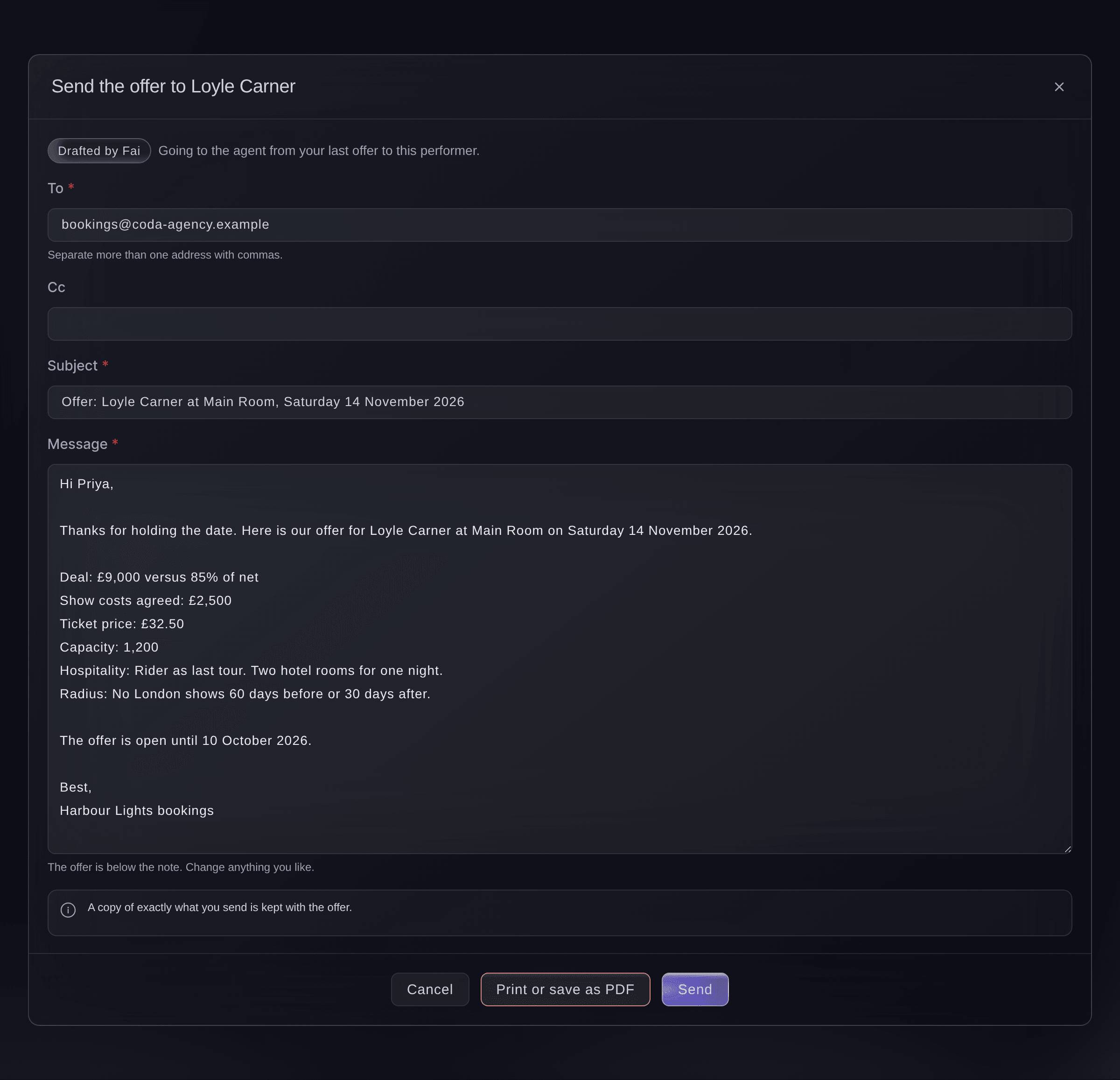
Send the offer. -
Send the offer
Select Send, check the addresses in the confirmation, then select Send again. The offer shows Sent.
Hinweis: The email goes from your connected mailbox when you have one, or from Ticket Fairy with your address to reply to. A copy of exactly what you sent is kept with the offer.
Warnung: You cannot unsend an email. If you change your mind, withdraw the offer and tell the agent.
-
Record the agent's answer
When the agent replies, open the offer, select Record their answer, choose what they said, then select Record answer.
Tipp: Select Check for their answer first to have Fai look for the reply in your brand's email. When she finds it, the dialog is filled in from it for you to check.
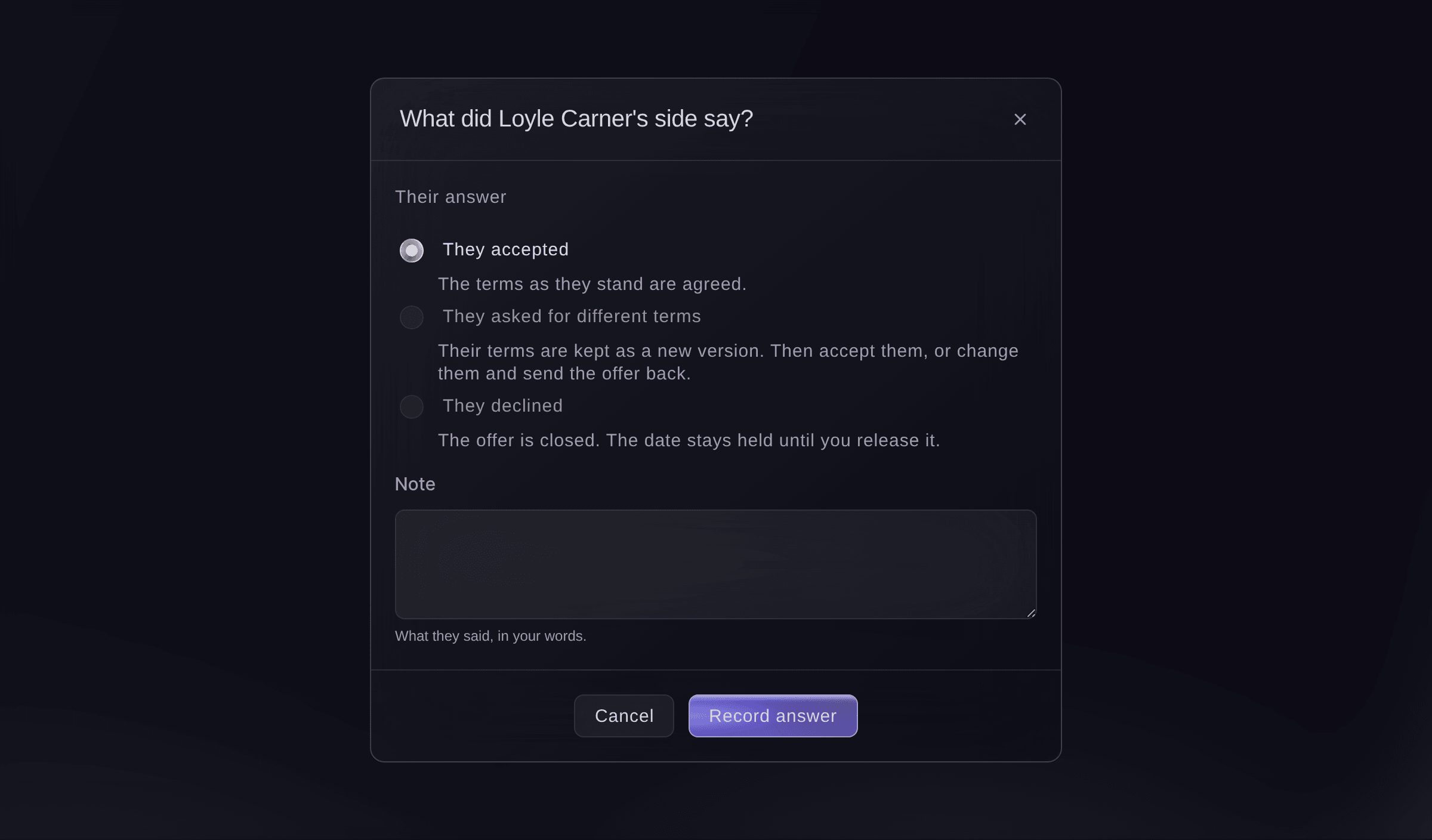
Record their answer. -
Answer a counter-offer
Open the offer to see each version under Versions. To take their terms, record their answer again as They accepted; to reply with your own, select Edit, change the terms and Prepare and send again.
Hinweis: If you change the terms after their counter, you send them before you can record an acceptance, so the agent always agrees to what they saw.
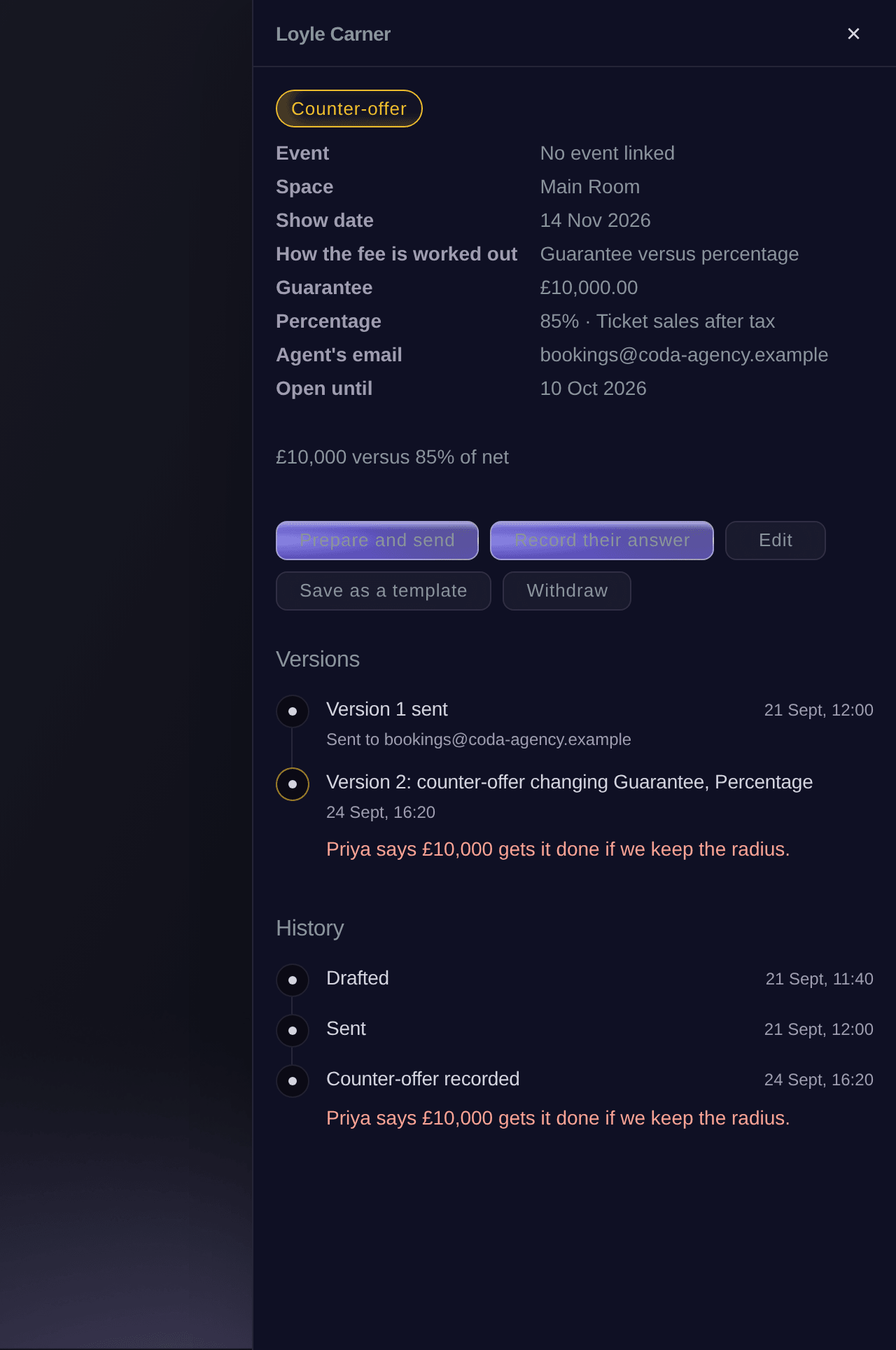
An offer after a counter-offer. -
Check the artist is booked on your event
When you record an acceptance on an offer linked to an event, you see
Booking added
with an Undo button, and the artist is on the event's Artists list with the agreed fee.Hinweis: For an accepted offer with no event yet, choose the event with Edit, then select Book on the event. Advancing then starts from the event's Management page.
-
Mark the offer as contracted
Once the contract is signed, open the offer, select Mark as contracted, then confirm.
Hinweis: When you upload the countersigned copy of the agent's own contract in Agent paperwork, the offer is marked as contracted for you.
Warnung: A contracted offer cannot change after this.


Probiere diese Schritte bei deinem eigenen Event aus
Erstelle ein kostenloses Konto, lege dein Event an und folge den Schritten oben in deinem eigenen Dashboard. Das dauert ein paar Minuten, und du musst kein Verkaufsgespräch buchen.
Keine Einrichtungsgebühren. Keine verpflichtende monatliche Ticketing-Gebühr. Keine Kreditkarte nötig.
Oder lassen Sie es erledigen
Fai creates an offer from a template, a hold or your last deal, drafts the email to the agent, sends it once you have read it, and records their answer, counter-offer included. She asks you before each change and before anything is sent.
In Ihrem Dashboard, mit Fai
Make an offer to <ARTIST NAME> for Saturday 14 November in the Main Room, start from what we paid them last time, and show me the email to their agent before you send it
Über MCP, mit Ihrem eigenen Assistenten
Verbinden Sie Ihren Assistenten mit unserem MCP-Server und bitten Sie ihn:
Die kopierte MCP-Konfiguration enthält --read-only. Entfernen Sie --read-only nur, wenn Ihr Assistent Änderungen vornehmen soll. Routinemäßige Änderungen laufen auf Anfrage; vor destruktiven Aktionen fragt Sie ein kompatibler Client. Wenn Ihr Client nicht fragen kann, nehmen Sie die Änderung im Dashboard vor.
Pick the brand, create a draft offer to <ARTIST NAME> for 2026-11-14 with a guarantee of <AMOUNT>, draft the email to their agent and show it to me. Ask me before you send it
Über das Terminal
Installieren Sie die CLI über unserer CLI-Seite, melden Sie sich mit ticketfairy auth login an und wählen Sie mit ticketfairy brand use <BRAND_ID> die Marke, an der Sie arbeiten. ticketfairy brand list und ticketfairy event list zeigen die IDs, die die anderen Befehle verwenden.
Use the CLI to create a draft offer, get the email Fai drafts for it, send it and record the agent's answer. Amounts are in the smallest unit of the currency, so £2,500 is 250000. Offer templates and the fee history are in the dashboard and through Fai. You need an owner, admin or producer login on the brand.
Create a draft offer. Nothing is sent.
ticketfairy event-os venue offers create --brand <BRAND_ID> --performer "<ARTIST NAME>" --show-date 2026-11-14 --space <SPACE_ID> --terms '{"currency":"GBP","guarantee_cents":900000}'
Get the email Fai drafts for the offer: recipient, subject and message. Nothing is sent.
ticketfairy event-os venue offers draft-email <OFFER_ID> --brand <BRAND_ID>
Email the offer to the agent. This sends an email and asks you first unless you add --force.
ticketfairy event-os venue offers send <OFFER_ID> --brand <BRAND_ID> --to <AGENT_EMAIL> --subject "<SUBJECT>" --message "<MESSAGE>"
Record that the agent asked for different terms, as a new version.
ticketfairy event-os venue offers record-reply <OFFER_ID> --brand <BRAND_ID> --reply countered --terms '{"guarantee_cents":1000000}'
Record that the agent accepted. On an offer linked to an event, this also books the artist on it.
ticketfairy event-os venue offers record-reply <OFFER_ID> --brand <BRAND_ID> --reply accepted
Lass Fai das für dich erledigen
Fai arbeitet in deinem Ticket Fairy Dashboard. Erstelle dein Konto, öffne Fai und füge die Anweisung von oben ein.
Keine Einrichtungsgebühren. Keine verpflichtende monatliche Ticketing-Gebühr. Keine Kreditkarte nötig.
Save an offer as a template
-
Save the offer's deal for next time
Open the offer, select Save as a template, enter the Template name, then select Save.
Hinweis: The template keeps the deal and the wording. Dates and the event are not kept.
Fai saves an offer as a template, and adds, changes or removes templates, after you confirm.
In Ihrem Dashboard, mit Fai
Save the offer to <ARTIST NAME> as a template called <TEMPLATE NAME>
Withdraw an offer
-
Withdraw it
Open the offer, select Withdraw, add a reason if you want one, then select Withdraw in the dialog.
Hinweis: The offer is closed on your side and the agent is not told, so let them know. A withdrawn offer cannot be sent again; start a new one instead.
Fai withdraws an offer after she shows you which one and you say yes.
In Ihrem Dashboard, mit Fai
Withdraw our offer to <ARTIST NAME> for <DATE>
Fragen, die Sie haben könnten
- What does "Closed, no answer" mean?
- The offer passed its Open until date with no answer. You can still send it again: choose a new date, or leave it empty so it stays open.
- Can I undo the booking an acceptance made?
- Yes. Select Undo on the message. The link is removed, and so is the booking when the offer made it and nobody has changed it since; a booking that was already there stays.
- Where does the fee history come from?
- From your brand's own offers and artist bookings for that performer, with the tickets each show sold. An offer that was never agreed is shown for context and marked not agreed, for context only.
- How does the agency fee show in the offer email?
- The email adds a line such as Agency fee: 10% of the performer's fee (£500.00), paid by the promoter on top of the fee. The agency fee is one of the offer's terms, so a change to it is kept in the offer's versions and history like any other term.
- Who can see offers and fees?
- Owners, admins and producers of the brand. Other roles see the calendar and holds only.
- What if the email did not go?
- The offer stays a draft and its history says the email could not be sent, so you can send it again. If we could not confirm it went, check your sent mail before you send it again.
Hast du noch eine Frage?
Buche eine Demo, und wir beantworten sie in einem Gespräch, passend zu deiner Art von Event. Oder erstelle dein Konto und sieh es dir selbst an.
Keine Einrichtungsgebühren. Keine verpflichtende monatliche Ticketing-Gebühr. Keine Kreditkarte nötig.
Verwandte Anleitungen
Machen Sie das bei Ihrer eigenen Veranstaltung
Erstellen Sie Ihr Konto, legen Sie Ihr Event an und folgen Sie den Schritten in Ihrem eigenen Dashboard. Sie müssen kein Verkaufsgespräch buchen.