
Vault og Capital
Let your event team spend with Vault cards
Production managers, tour managers and venue teams spend on the brand's behalf in the weeks before an event. A Vault card in their name spends from the same balance your events pay into, within the limits you set, so nobody waits to be paid back.
Issue a virtual or physical Vault card in a team member's name for an event, a supplier or online subscriptions, with the limits, dates and places it works set for you, so the people running your events pay straight from the ticket money in Vault.
- Til
- Giving the people who spend for your events a card of their own
- Tager
- 8 minutter
- Open Cards
- Select Create card
- Add the cardholder if they are new
- Enter their contact details
- Enter their name and date of birth
- Enter their home address
- Save the cardholder
- Choose the cardholder
- Name the card
- When to choose a physical card
- Choose the card type
- Link the event
- Choose what the card is for
- Enter the limit
- Adjust the controls
- Check the other options
- Select Create card
- Check the card
Før du går i gang
- You're an owner or an admin on the brand. Those are the two roles that reach Vault, and only they can add a cardholder.
- Your brand has an active Vault account. Ask Ticket Fairy support to switch Vault on for your brand if it isn't, then open the account.
- You have the team member's email, mobile number, date of birth and home address, and their agreement to hold a card in their name.
- You have your second factor to hand. Vault may ask you to confirm it's you before it issues the card.
-
Open Cards
Pick the brand, open Vault, then select Cards. Issued cards lists every card on the brand with its status.
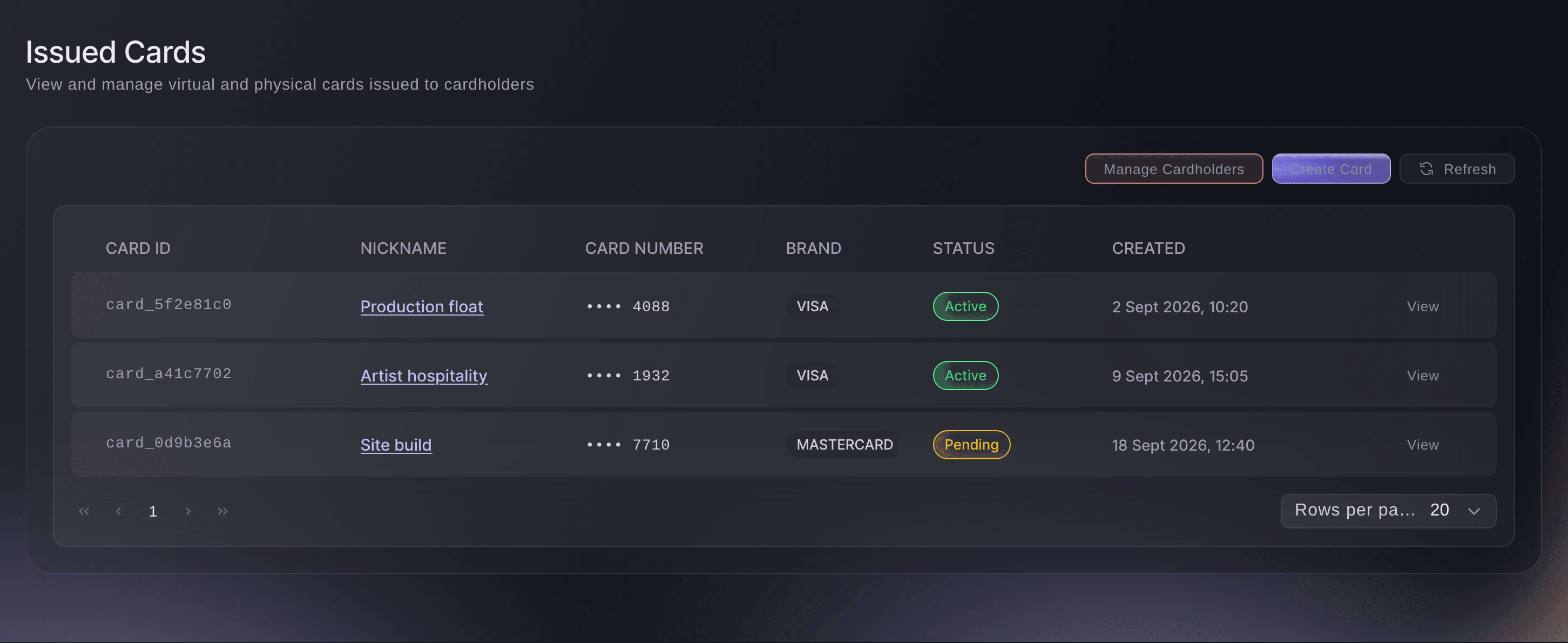
Brand, Vault, Cards. -
Select Create card
Select Create card. The Create card window opens.
Bemærk: To give several people a card each with the same controls, select Issue several cards instead, as Issue Vault cards to your whole event crew at once shows.
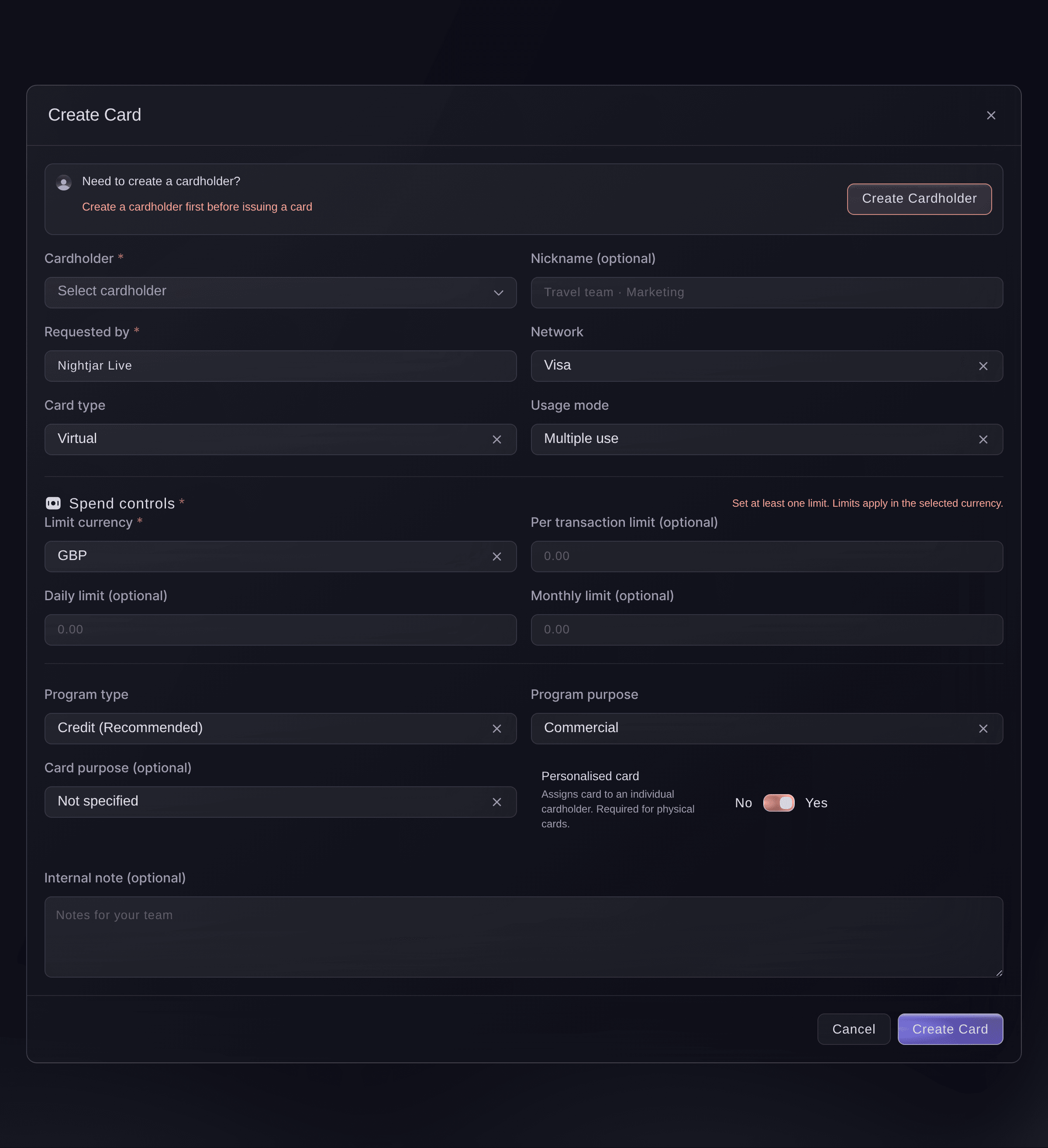
Brand, Vault, Cards, Create card. -
Add the cardholder if they are new
Optional: If the person isn't in Cardholder yet, select Create cardholder beside
Need to create a cardholder?
at the top. The Create new cardholder window opens over the card.Bemærk: A cardholder is the person a card is made out to. Add each person once and you can issue them as many cards as you need.
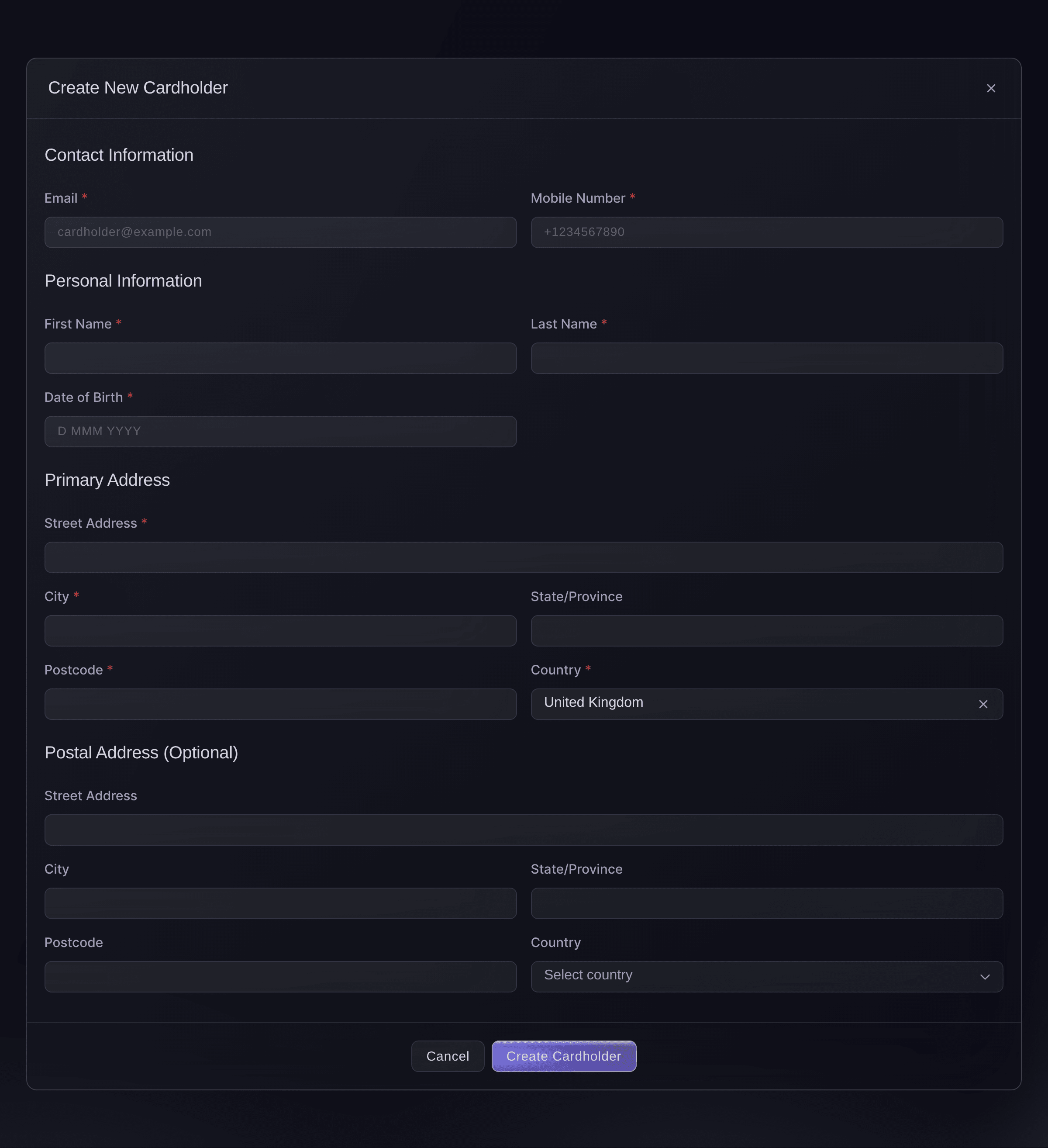
Brand, Vault, Cards, Create Cardholder. -
Enter their contact details
Enter the person's Email and Mobile number, with the country code in front of the number.
Bemærk: The email can't be changed once the cardholder exists, so use the address they will keep.
-
Enter their name and date of birth
Enter their First name, Last name and Date of birth.
Bemærk: A cardholder must be at least 18, so the date picker stops at the date 18 years ago.
-
Enter their home address
Under Primary address, enter their Street address, City and Postcode, then choose Country.
Bemærk: Postal address (optional) takes a second address. Once you start it, its street, city, postcode and country are all needed.
-
Save the cardholder
Select Create cardholder. The window closes and the person is ready to choose in the Create card window.
-
Choose the cardholder
Choose the person from Cardholder. The card is made out to them, and Vault records you as the person who asked for it.
-
Name the card
Optional: Enter a name in Nickname (optional), such as Production float or Artist hospitality, so the card is easy to find in lists and in card activity.
When to choose a physical card
Choose a virtual card when the person pays online, over the phone or in an app: its number is ready as soon as the card is issued. Choose a physical card when they pay in person at a till, such as buying supplies on site. A physical card is always made out in the cardholder's name.
-
Choose the card type
Choose the kind of card from Card type.
-
Link the event
Optional: Choose the event the card is for in Event (optional). Card activity then shows the event beside each payment, and a crew card takes its dates from it.
-
Choose what the card is for
Under What is this card for?, choose the closest match. Each one sets sensible controls, and you can change any of them afterwards.
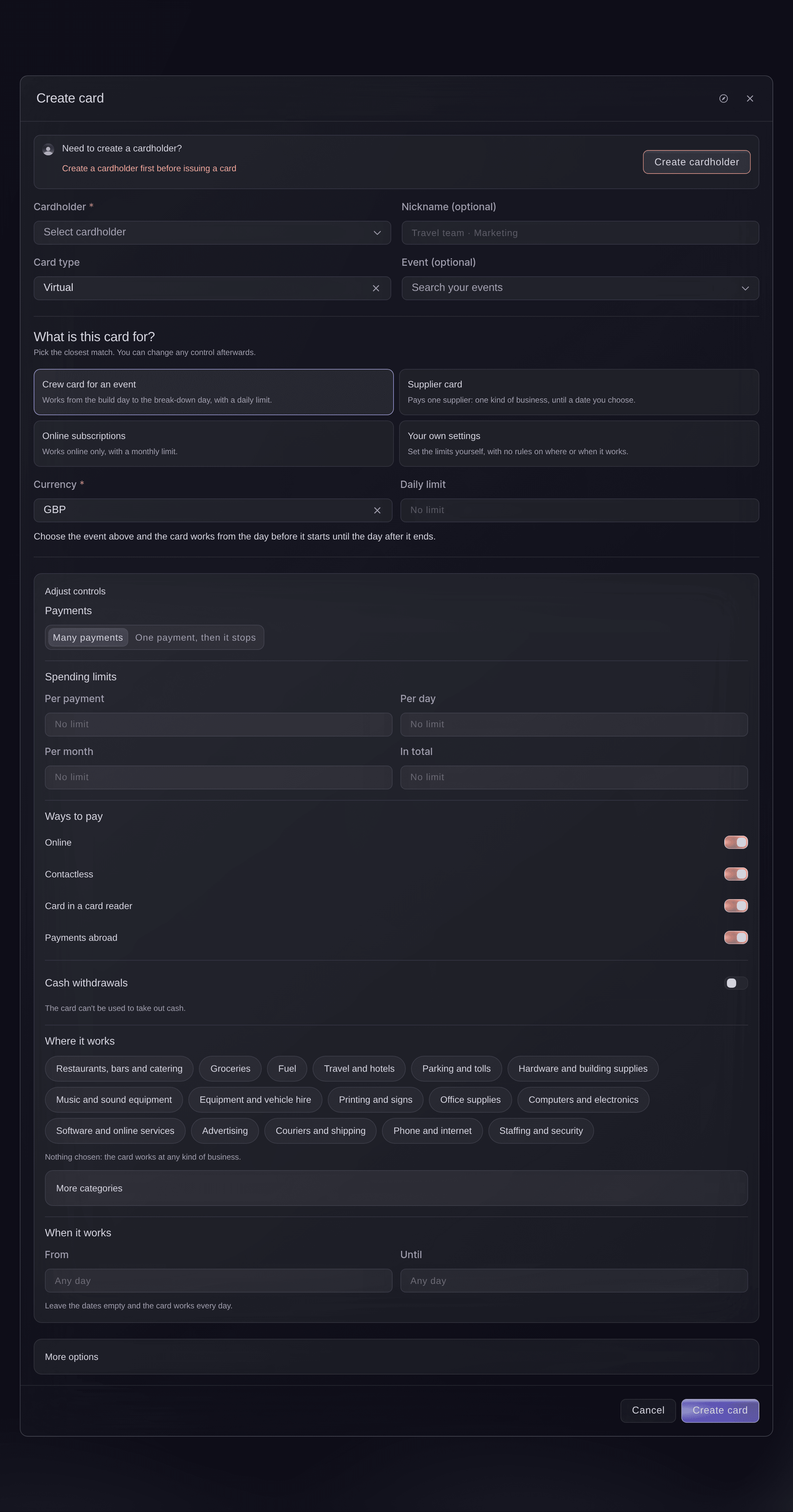
Create card, a crew card for an event. -
Enter the limit
Enter the amount the choice asks for, such as the Daily limit of a crew card, the Monthly limit of a subscriptions card, or the Amount to pay the supplier of a supplier card.
Bemærk: A supplier card also asks What are you paying for? and when it Works until.
-
Adjust the controls
Optional: Open Adjust controls to change Payments, Spending limits, Ways to pay, Cash withdrawals, Where it works and When it works.
Bemærk: Choose One payment, then it stops for a card that pays one deposit. A card needs at least one spending limit and at least one way to pay.
-
Check the other options
Optional: Open More options to choose the Network, the Card purpose (optional) and an Internal note (optional). Most cards don't need these.
-
Select Create card
Select Create card at the foot of the window.
Card created successfully
confirms it, and the new card joins Issued cards.Bemærk: If Authenticate to continue opens first, confirm with your second factor and Vault carries on issuing the card.
-
Check the card
In Issued cards, select the card's nickname. Card information shows its status, the last four digits and the cardholder's name.
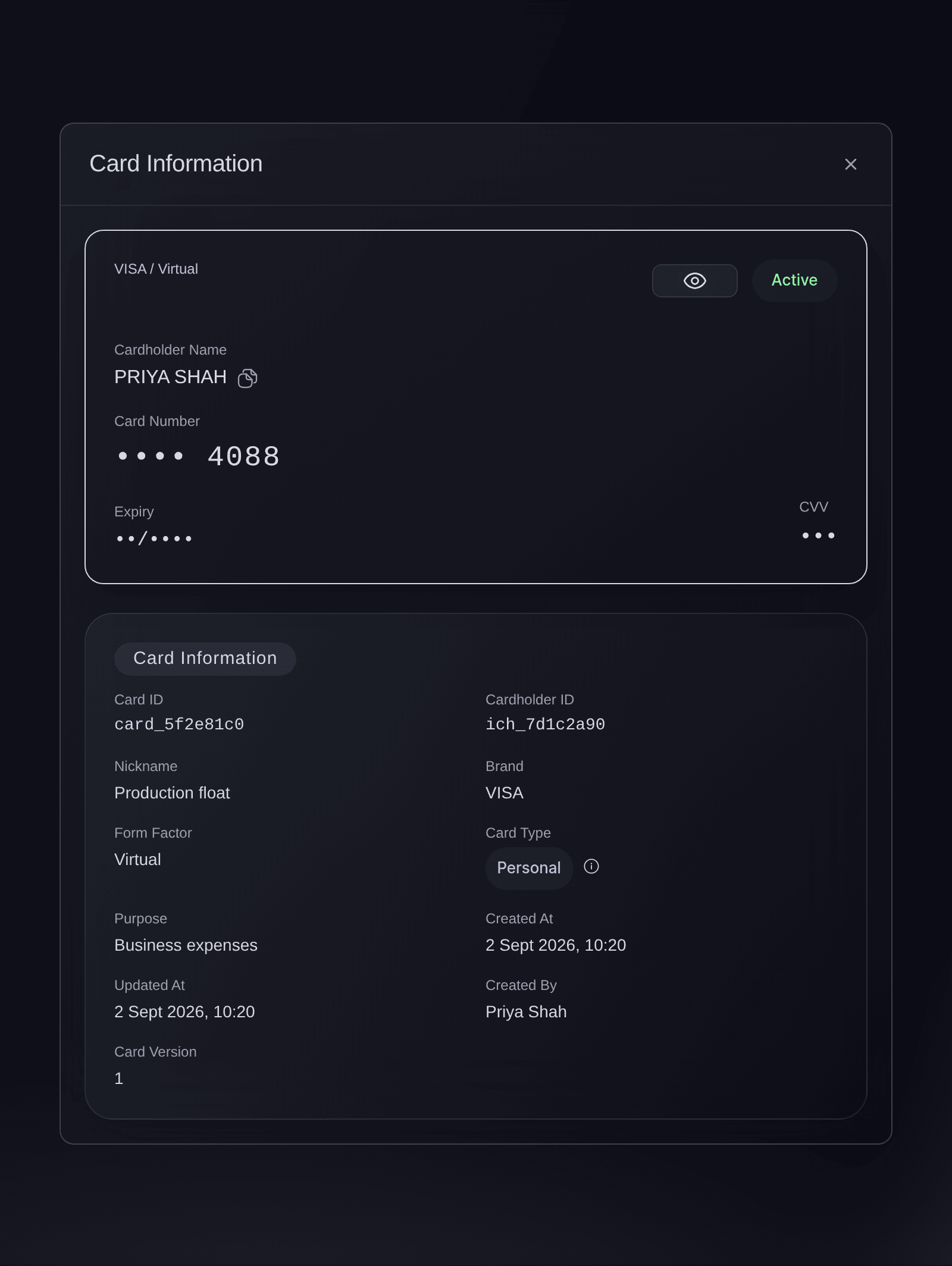
Brand, Vault, Cards, a card opened from the list.
Prøv disse trin på dit eget event
Opret en gratis konto, byg dit event og følg trinnene ovenfor i dit eget dashboard. Det tager få minutter, og du behøver ikke at booke et salgsopkald.
Ingen oprettelsesgebyrer. Intet obligatorisk månedligt gebyr. Intet kreditkort påkrævet.
Eller få det gjort for dig
Fai, the assistant inside your dashboard, can issue virtual cards to cardholders you have already added, with a crew, supplier or subscriptions preset and the limits and event you give her. She shows you each card and its controls and asks before she issues anything. Adding a cardholder and issuing a physical card are done on the Cards page. The command line lists the cards you have issued, and MCP has no card tools.
I dit dashboard, med Fai
Issue <CARDHOLDER NAME> a virtual crew card for <EVENT NAME> with a daily limit of <AMOUNT> from our Vault for <BRAND NAME>
Fra din terminal
Installér CLI fra vores CLI-side, log ind med ticketfairy auth login, og vælg det brand, du arbejder på, med ticketfairy brand use <BRAND_ID>. ticketfairy brand list og ticketfairy event list viser de ID'er, som de andre kommandoer bruger.
The command line reads the brand's cards: their name, brand, status and last four digits, and each card's limits. You need an owner or admin login for the brand. It cannot add a cardholder or issue a card, and it does not show a card's full number. If it says Vault needs you to confirm it is you, the command stops. Open the card in Vault in the dashboard, confirm it is you there, and read it there.
List the cards issued on the brand's Vault account, with the id of each
ticketfairy vault cards list --brand <BRAND_ID>
Show one card's spending limits, using an id from the list
ticketfairy vault cards get <CARD_ID> --brand <BRAND_ID> --limits
Lad Fai gøre det for dig
Fai arbejder inde i dit Ticket Fairy-dashboard. Opret din konto, åbn Fai og indsæt instruktionen ovenfor.
Ingen oprettelsesgebyrer. Intet obligatorisk månedligt gebyr. Intet kreditkort påkrævet.
Show a card's full number
-
Open the card
In Issued cards, select the card's nickname to open Card information.
-
Select Show Sensitive Data
Select the eye beside the status, labelled Show sensitive data, and confirm it's you if Vault asks. The number, expiry and security code appear on the card in a secure view.
Bemærk: Only owners and admins on the brand can show a card's details, and each time is recorded.
Only you can show a card's full details, on the page. Fai, MCP and the command line never show a card number.
Change a cardholder's details
-
Open Manage Cardholders
On Issued cards, select Manage cardholders. Cardholders lists each person with their status.
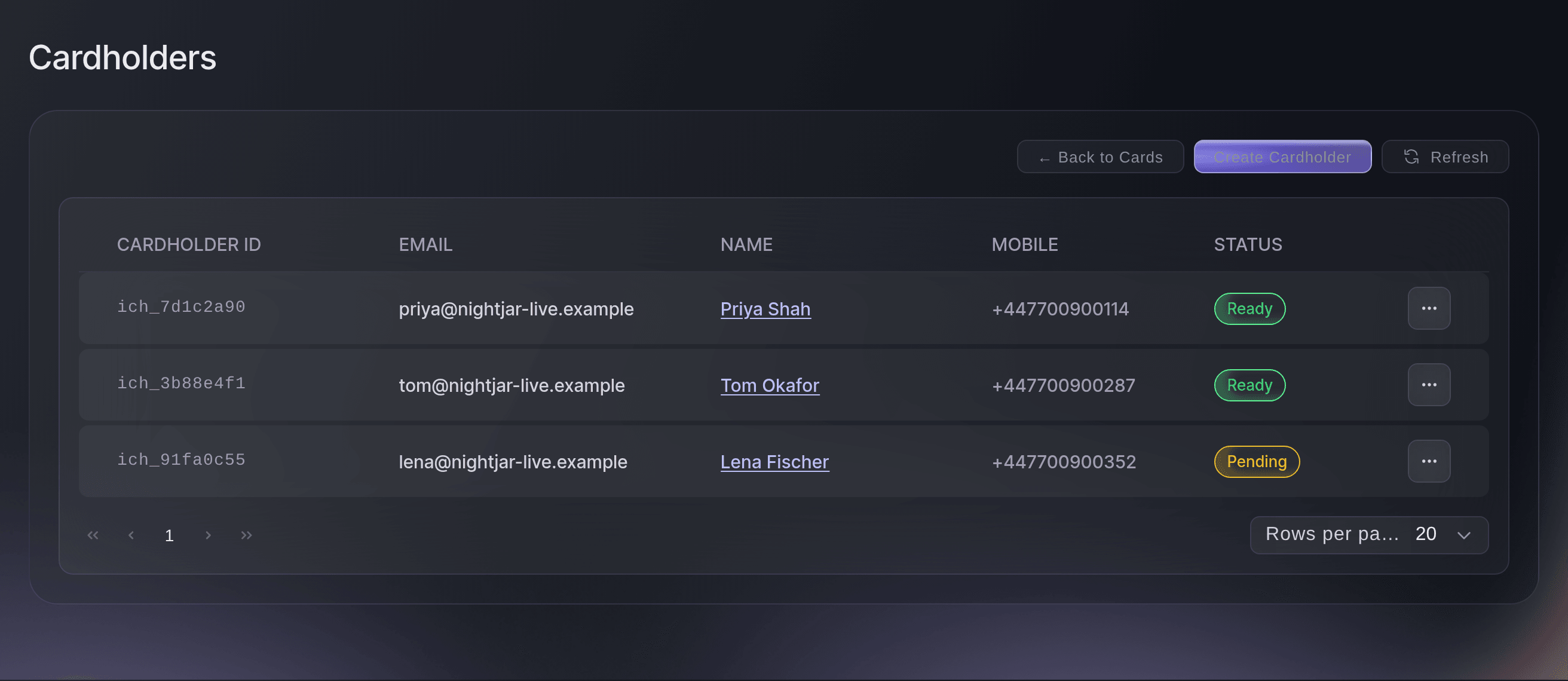
Brand, Vault, Cards, Manage Cardholders. -
Update and save
Open the menu on the person's row, select Update, change their details, then select Save changes.
Cardholder updated successfully
confirms it.Bemærk: The email stays as it is; the window shows it as
(cannot be changed)
.
Fai opens the Cardholders page for you. Changing a person's details is yours to do there.
I dit dashboard, med Fai
Open the Vault cardholders page for <BRAND NAME>
Stop a team member's cards
-
Delete the cardholder
On Cardholders, open the menu on the person's row and select Delete, then Delete in
Delete cardholder?
.Advarsel: This closes every card the person holds, and a closed card can't be opened again. Issue a new card if they need one later.
Fai opens the Cardholders page for you. Deleting a cardholder is yours to do there, behind the confirmation.
I dit dashboard, med Fai
Open the Vault cardholders page for <BRAND NAME>
Spørgsmål du måske har
- Can I freeze a card or change its limits after I issue it?
- Yes. Open the card from Issued cards, then use Manage this card to freeze it, cancel it or change its limits and controls, as Freeze, cancel or change the limits on an event team's Vault card shows.
- Why does a cardholder say Pending?
- Vault is still checking the person's details. They show Ready once the check passes, and a cardholder who is not ready also appears as
Cardholder review needed
in the Action centre. - Which money does a Vault card spend?
- Cards spend from the brand's Vault account, and Card activity lists every payment each card makes. A payment the account can't cover is declined, and its details in Card activity say so.
- Can a promoter or door team member issue cards?
- No. Vault is open to the brand's owners and admins only, so ask one of them to issue the card.
- Why was a card payment declined?
- Open the payment in Card activity. Its details give the reason at the top, such as a card limit being reached, with what to do next.
- What do I check when Vault asks me to confirm it's me?
- You are approving at the top of the check names what you are doing, such as Create a card, with the card's nickname. Continue only if they match what you want to do.
Har du stadig et spørgsmål?
Book en demo, så besvarer vi det i en samtale ud fra din type event. Eller opret din konto og se det selv.
Ingen oprettelsesgebyrer. Intet obligatorisk månedligt gebyr. Intet kreditkort påkrævet.
Relaterede guides
Gør det på dit eget arrangement
Opret din konto, byg dit arrangement, og følg trinnene i dit eget dashboard. Du behøver ikke booke et salgsmøde.