
Styr produktionen
Approve or decline accreditation requests for your event
Festival press officers, heads of security and production managers are asked to approve passes while they are busy with everything else. Each request comes with the facts that settle it, one email lists everything waiting for you, and you can decide from your phone in a few taps.
Decide the pass requests your event's approval rules send you, with facts beside each one such as how many passes the group has left, from Approvals in the dashboard or from the link in your email with no sign-in. A declined request carries your reason back to the person who asked, and an approved one goes to the next person or can be issued.
- Til
- Deciding the pass requests that wait for you
- Tager
- 4 minutter
Før du går i gang
- You are named on an approval rule for the event. If you run the event as an owner, admin or producer, you decide in the dashboard; anyone else decides from the link in their email.
-
Open Approvals
Open the event, select Operations, then select Approvals.
Bemærk: The Waiting for you list shows what only you can decide now. A request marked urgent has waited over 2 days, or its group's names close within 3 days.
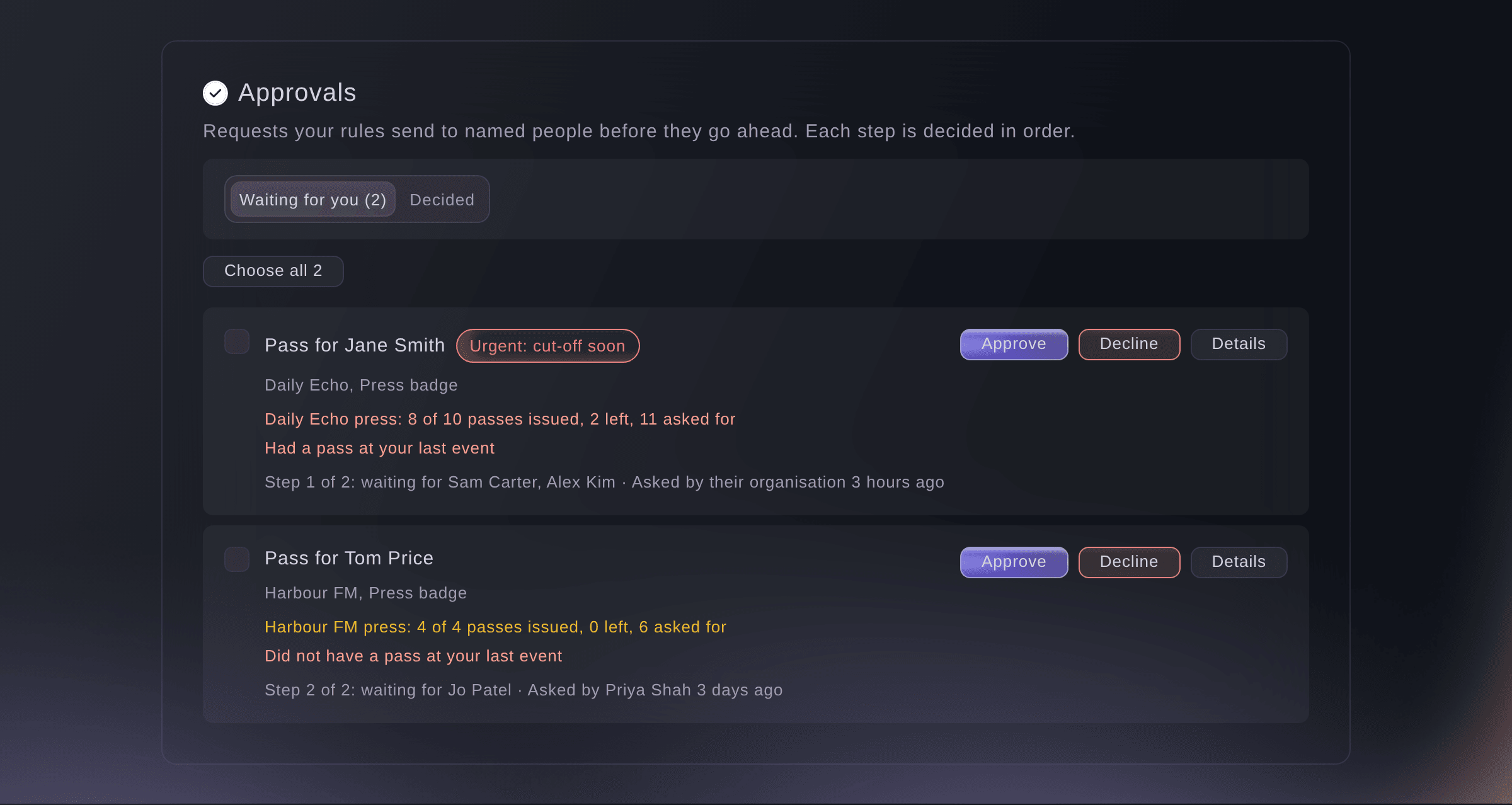
Requests waiting for you. -
Read the facts on a request
Read the lines under the person's name, such as how many passes their group has left and whether they had a pass at your last event.
Bemærk: Select Details to see every step, who decided each one, and what happened so far.
-
Approve the request
Select Approve on the request.
Bemærk: When there is a next step, the request goes on to those people and they are emailed. After the last step, the pass is ready to issue in Accreditation.
-
Decline with a reason
Select Decline, enter why in Why are you declining?, then select Decline.
Bemærk: The pass is declined and the person who asked sees your reason, on the outside team's page when a team asked for it. A decided step cannot be changed.
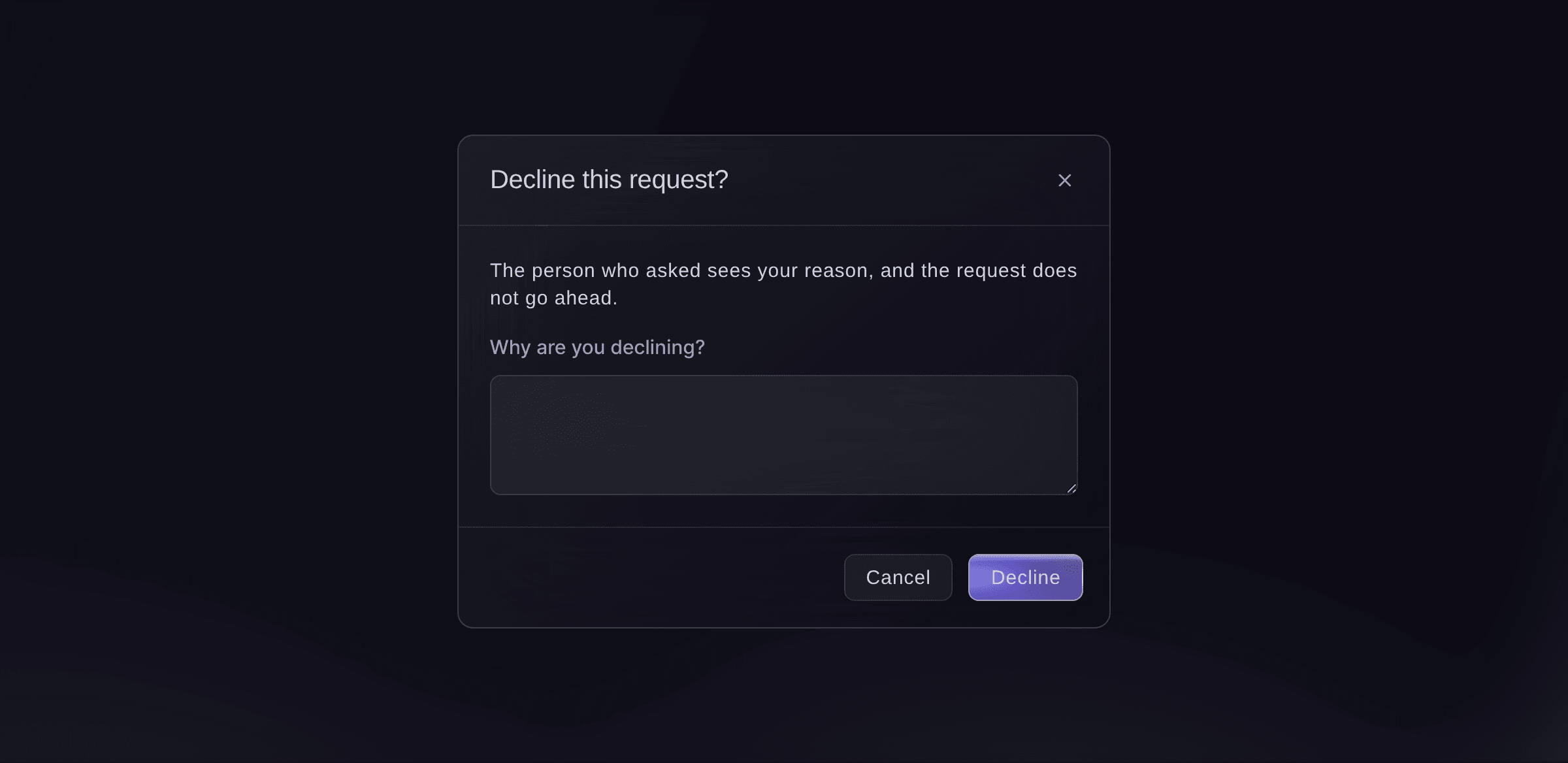
Decline with a reason.


Deciding from the email link
Someone named on a rule who does not run the event gets an email listing what waits for them, with a button to a page that needs no sign-in. The page shows only their requests, with the same facts and the same Approve and Decline buttons, and the link works for 14 days. Each email brings a new link, at most once an hour.

Prøv disse trin på dit eget event
Opret en gratis konto, byg dit event og følg trinnene ovenfor i dit eget dashboard. Det tager få minutter, og du behøver ikke at booke et salgsopkald.
Ingen oprettelsesgebyrer. Intet obligatorisk månedligt gebyr. Intet kreditkort påkrævet.
Eller få det gjort for dig
Fai lists what is waiting for you with the facts beside each request, approves or declines one or up to 100 at once, and emails an approver a fresh decision link. She reads you each request and waits for your yes before she decides. Declining needs a reason, which the person who asked sees.
I dit dashboard, med Fai
What is waiting for my approval at <EVENT NAME>? Approve Jane Smith's press pass and decline Tom Price, the Harbour FM allowance is used up
Lad Fai gøre det for dig
Fai arbejder inde i dit Ticket Fairy-dashboard. Opret din konto, åbn Fai og indsæt instruktionen ovenfor.
Ingen oprettelsesgebyrer. Intet obligatorisk månedligt gebyr. Intet kreditkort påkrævet.
Decide many requests at once
-
Choose the requests
Tick the requests in Waiting for you, then select the approve or decline button above the list, which counts the requests you ticked.
Bemærk: Up to 100 requests go at once, and one reason covers every decline. The message after it says which ones could not be decided and why.
Fai approves or declines up to 100 requests at once when you ask, after you confirm.
I dit dashboard, med Fai
Approve every press pass waiting for me at <EVENT NAME>
Decide in someone's place
-
Approve or decline for them
In the All waiting list, select Decide for them on the request, enter why, then select Approve for them or Decline for them.
Bemærk: Owners and admins of the event can decide a step for the people it names. Your name and reason are kept with the decision.
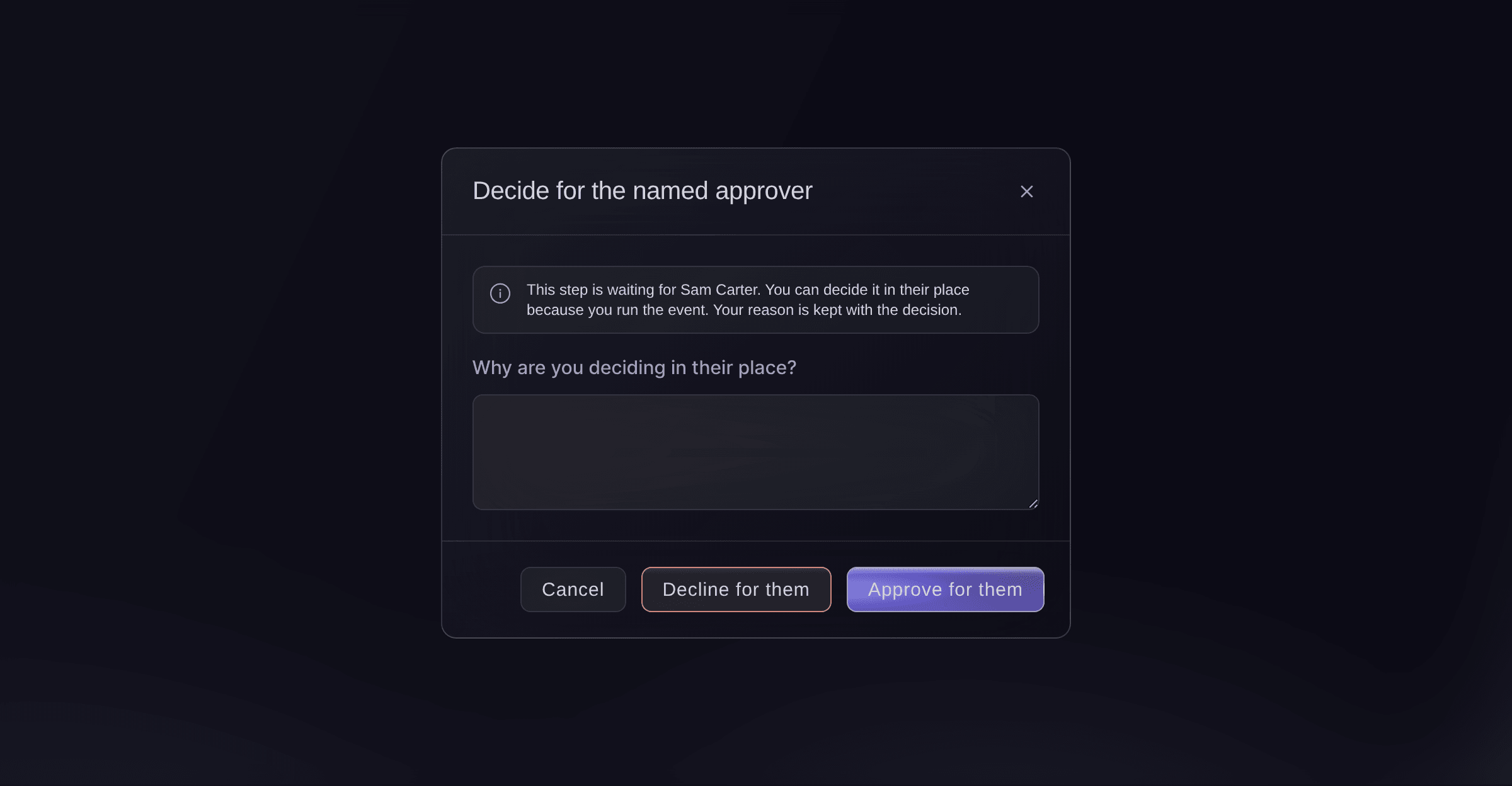
Decide in the named approver's place.

Fai decides a step in the named approver's place when an owner or admin asks, with the reason you give, after you confirm.
I dit dashboard, med Fai
Sam is away, approve Jane Smith's press pass at <EVENT NAME> for him
Send an approver a new decision link
-
Email them a link
Open the request with Details, then select Email them a link beside the approver.
Bemærk: Select Stop their links to stop every link that person has for the event, for example when they leave the team.

One request, with the approver's decision link.

Fai emails an approver a fresh decision link when you ask, after you confirm. She never shows the link itself.
I dit dashboard, med Fai
Send Sam Carter a new link to decide the passes waiting for him at <EVENT NAME>
Spørgsmål du måske har
- Why can I not approve a request I can see?
- It is waiting for someone else first, on an earlier step, or for a step that names other people. Only the people on the current step decide it, and an owner or admin can decide for them with a reason.
- What if two of us decide the same step at once?
- The first decision counts. The second person is told someone has already decided the step, and the list shows where the request is now.
- How often am I emailed?
- When something starts waiting for you, and at most once an hour, with everything waiting for you in one email. A request that waits more than 2 days, or whose names close within 3 days, also gets a reminder that Fai drafts for the event's team to send.
- Can I change my mind after I approve or decline?
- No, a decided step is final. Ask an owner or admin of the event: they can cancel the pass or issue it again in Accreditation, and a declined pass brought back is matched against the rules again.
- What if I forward the email to a colleague?
- Anyone with the link can decide your requests until it expires, so keep it to yourself. Ask an owner or admin of the event to add your colleague to the rule, and to stop your links if the email went to the wrong person.
Har du stadig et spørgsmål?
Book en demo, så besvarer vi det i en samtale ud fra din type event. Eller opret din konto og se det selv.
Ingen oprettelsesgebyrer. Intet obligatorisk månedligt gebyr. Intet kreditkort påkrævet.
Relaterede guides
Gør det på dit eget arrangement
Opret din konto, byg dit arrangement, og følg trinnene i dit eget dashboard. Du behøver ikke booke et salgsmøde.