
Styr produktionen
Let outside teams name their own people for event passes
Festival production managers and accreditation teams chase dozens of outside companies for crew names every season, then type them in from emails and spreadsheets. Outside teams give each company a page to name its own people against the passes you allow them, so the names arrive in your accreditation list ready to check and issue.
Give each security firm, caterer, supplier, press outlet or sponsor working on your event an allowance of passes and a page of their own, with no sign-in, where their contact enters the names, badge photos and email addresses of their people. You see who still owes names, and each person's pass goes through your usual accreditation.
- Til
- Collecting names for passes from the companies working on your event
- Tager
- 8 minutter
Før du går i gang
- You are an owner, admin or producer on the event. The event's Operations page opens for those roles only.
- Your pass types are set up in Accreditation, so each team's passes can carry the right zones, days and meals.
-
Open Outside teams
Open the event, select Operations, then select Outside teams in the list of sections.
Bemærk: Each row shows the team's contact, how many of its passes have names, what is still needed and whether its page link works. If Outside teams is not in the list, select More sections and open it there.
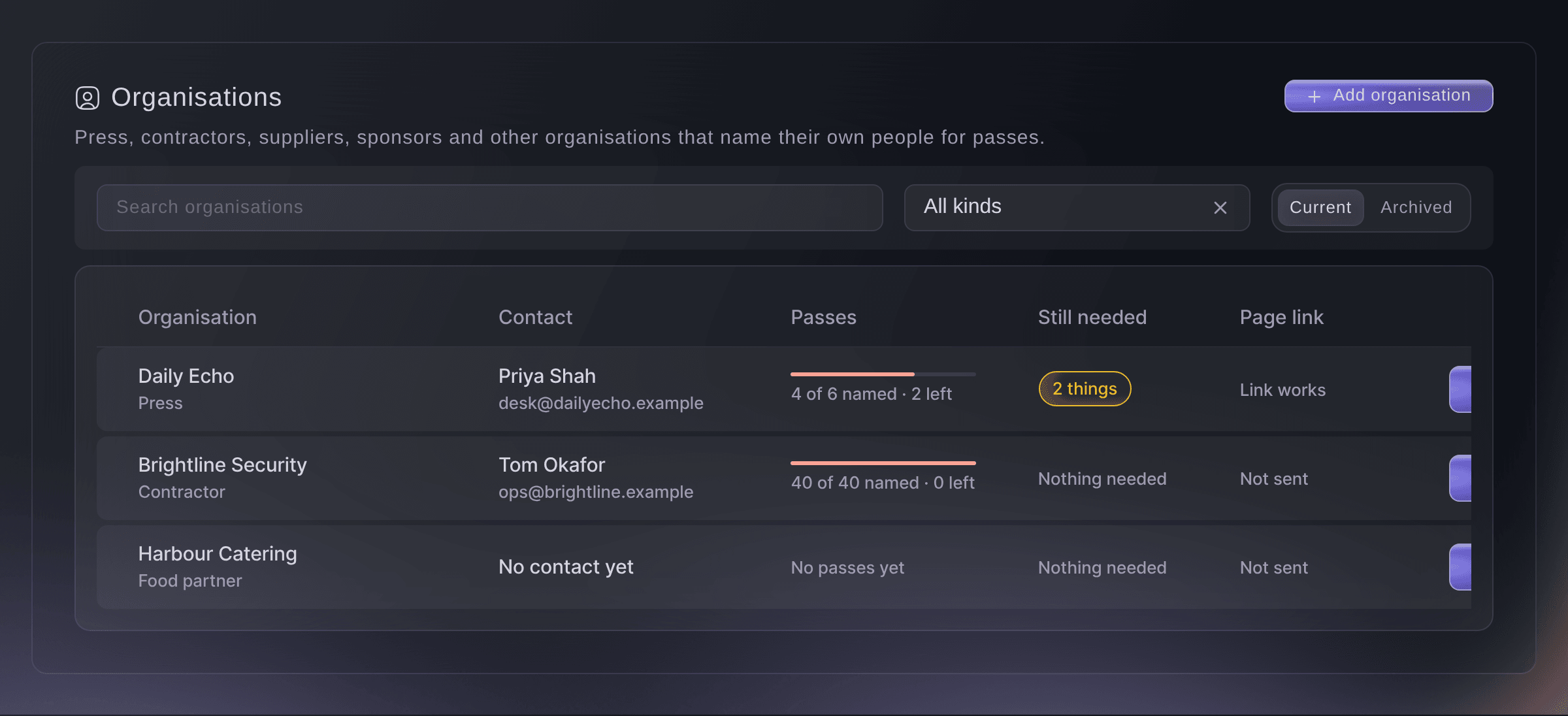
Every outside team on the event. -
Add the organisation
Select Add organisation, enter the Organisation name, choose its Kind, enter the Contact name and Contact email, then select Add organisation.
Bemærk: Choose Something else to enter your own kind, such as Photo agency. The organisation opens as soon as you add it, and nothing is sent yet.
Tip: Under More details, set Page closes for the moment their page turns read only.
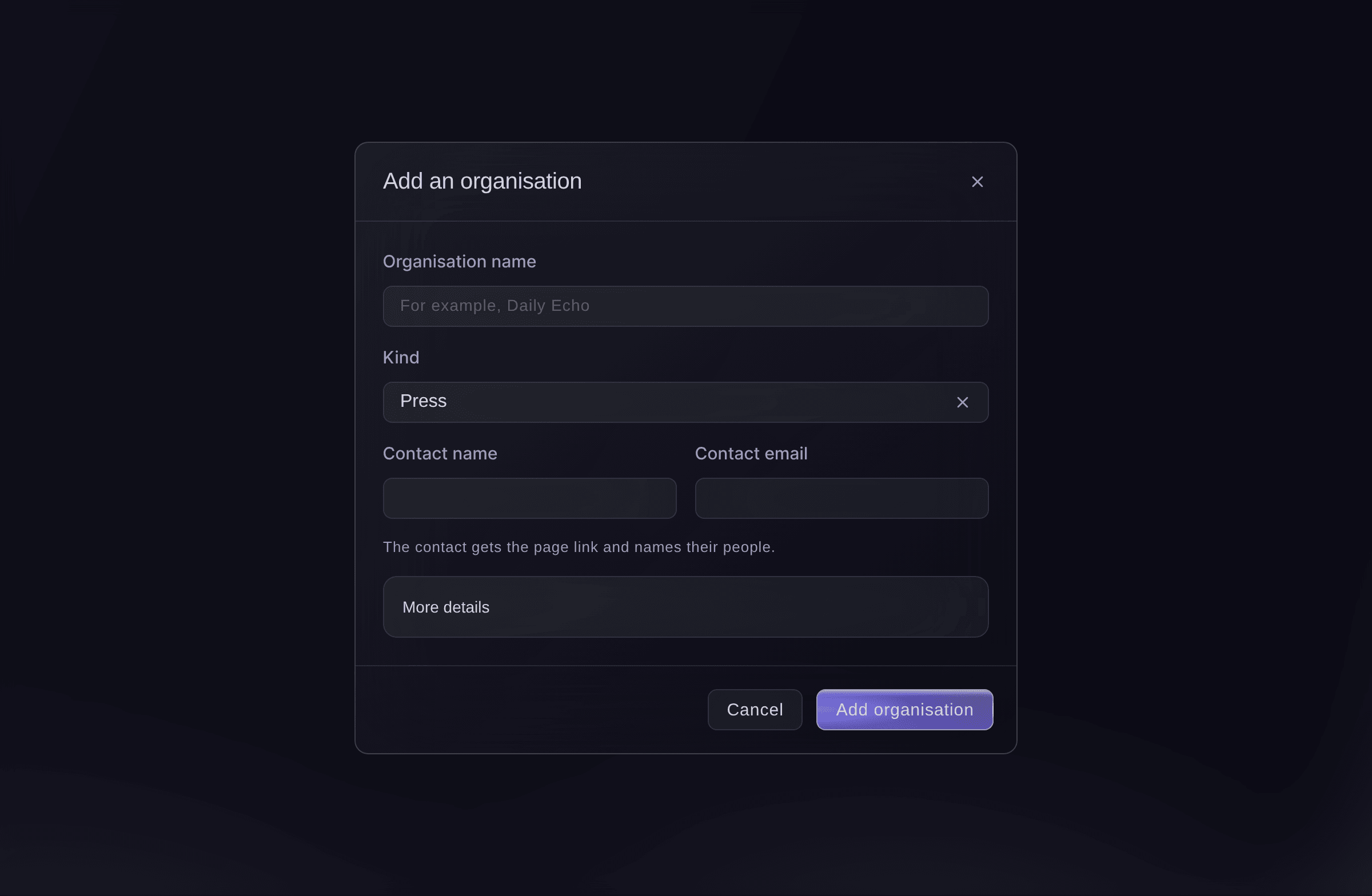
Add an organisation. -
Give them passes
In the organisation, select Give passes, enter the Number of passes, choose the Pass type and when Names by closes, then select Give passes.
Bemærk: Choose A group you already have to hand them a pass group from Accreditation instead. The allowance is that pass group, so a change to it in either section shows in both.
Tip: Under More details, choose Guests for guest passes, or rename the allowance for their page in Name on their page.
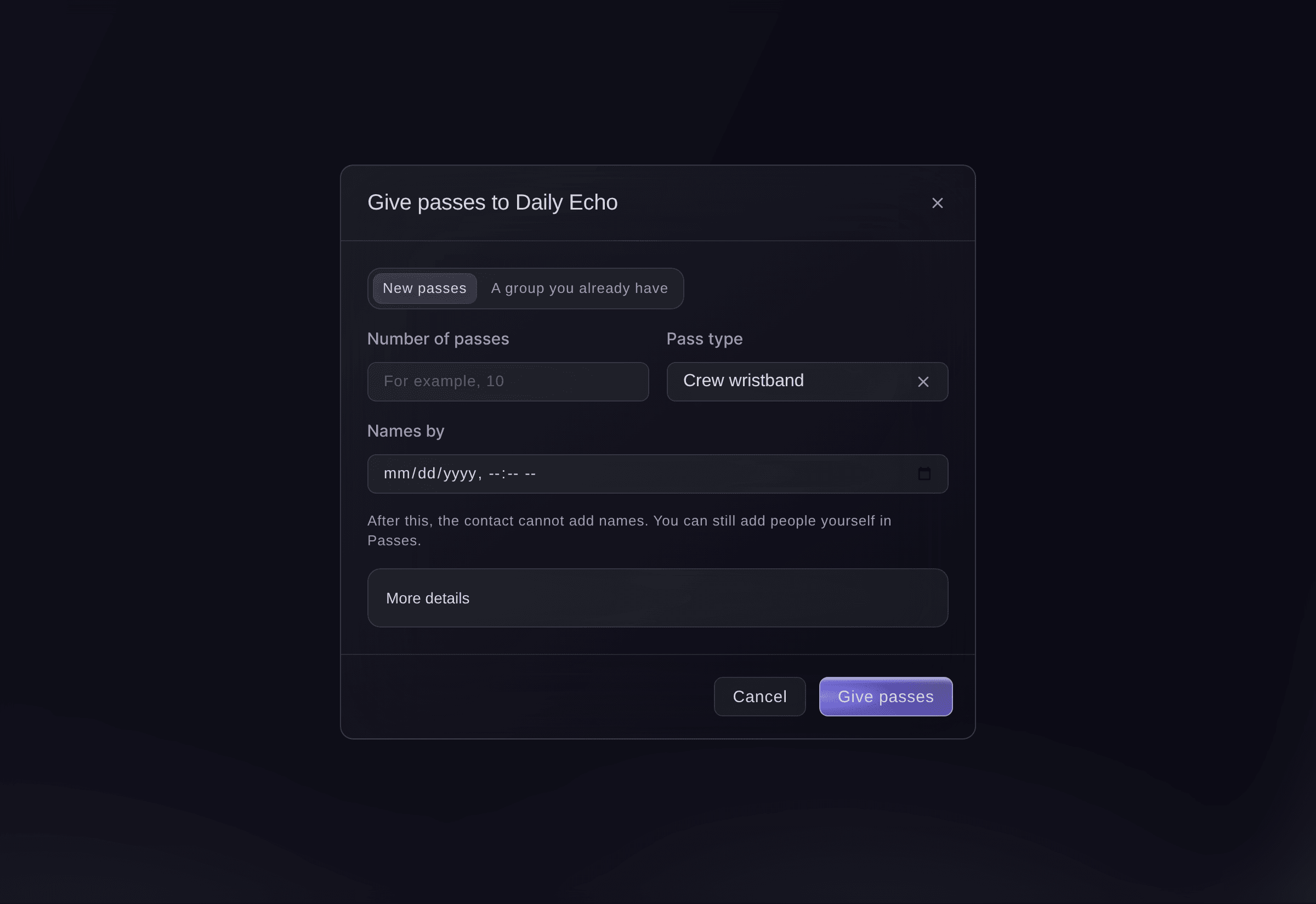
Give an organisation passes to name. -
Email them their page link
Under Page link, select Email the link, then confirm.
Bemærk: The link works for 120 days, and a new link stops the one before. Select Copy a new link to send it yourself instead.
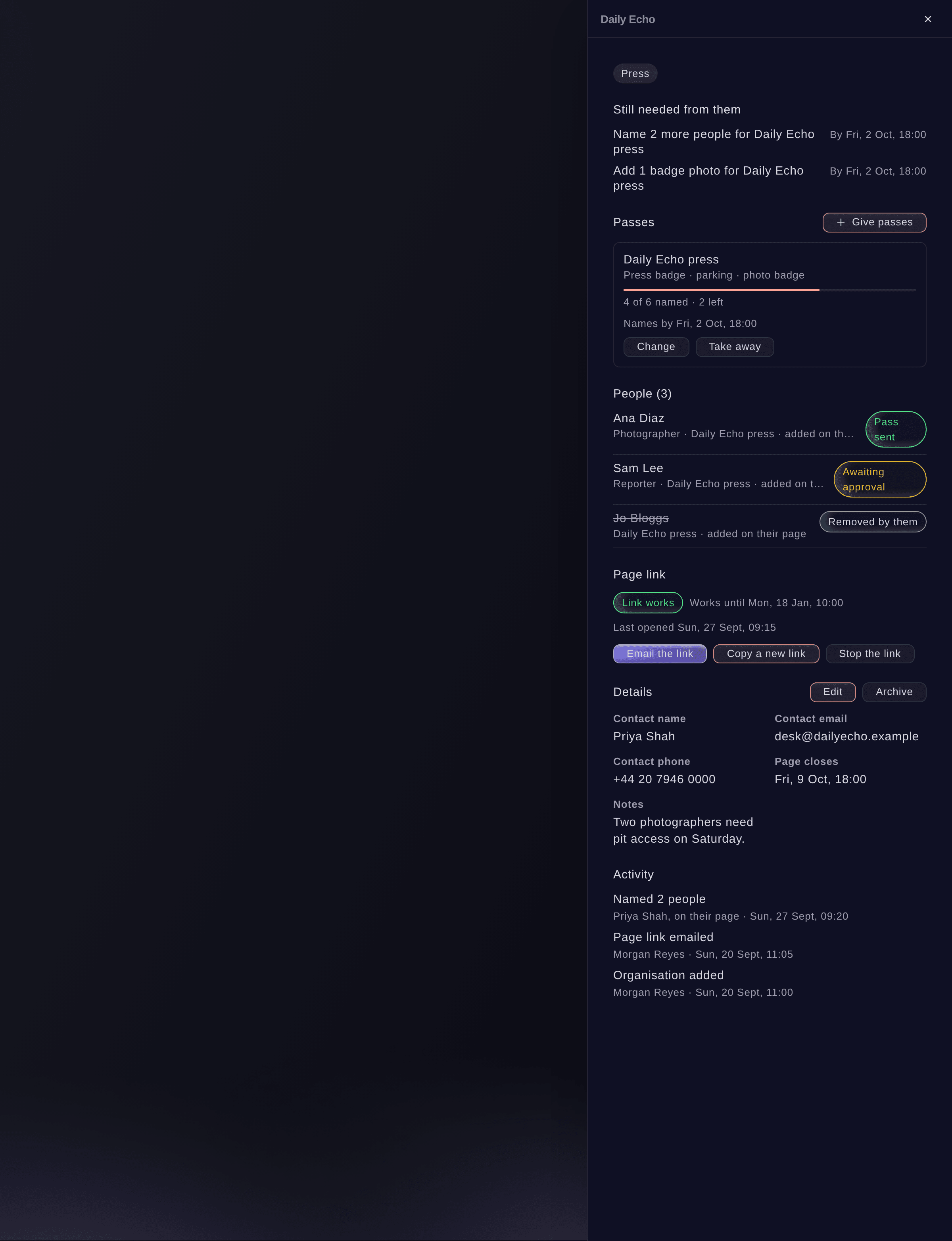
One organisation, its people and its page link.


Their page
The contact opens the link on any phone or computer with no sign-in, in their own language. They add each person with Add a person, or paste a list or choose a CSV or Excel file with Add a list, up to 200 people at a time and with no template. They see each person's pass move from waiting to sent, and the badge photos still needed.

-
Check who still owes names
Back in Outside teams, read Still needed on each row, then select a row to see its people.
Bemærk: Each person a team names waits in Accreditation like any other pass, so you check it and issue it there. When their passes go out, the contact gets one email listing everyone whose pass was sent.
Prøv disse trin på dit eget event
Opret en gratis konto, byg dit event og følg trinnene ovenfor i dit eget dashboard. Det tager få minutter, og du behøver ikke at booke et salgsopkald.
Ingen oprettelsesgebyrer. Intet obligatorisk månedligt gebyr. Intet kreditkort påkrævet.
Eller få det gjort for dig
Fai lists your outside teams and who still owes names, adds or changes a team, gives, changes or takes away its passes, and emails its contact the page link. She shows you each change or email and waits for your yes first, and she never shows the link itself in the conversation. A week before names close, Fai also drafts a reminder to each team that still has places left, for you to approve on Today.
I dit dashboard, med Fai
Add Brightline Security as a contractor at <EVENT NAME>, contact Tom Okafor at [email protected], give them 40 crew passes with names by Friday 6pm, then email Tom the link
Lad Fai gøre det for dig
Fai arbejder inde i dit Ticket Fairy-dashboard. Opret din konto, åbn Fai og indsæt instruktionen ovenfor.
Ingen oprettelsesgebyrer. Intet obligatorisk månedligt gebyr. Intet kreditkort påkrævet.
Stop a team's page link
-
Stop the link
Open the organisation, select Stop the link under Page link, then confirm.
Bemærk: The contact can no longer open their page, and the people they named stay. Select Email the link at any time to send a new one.
Fai stops a team's page link when you ask, after you confirm.
I dit dashboard, med Fai
Stop the page link for Brightline Security at <EVENT NAME>
Take away a team's passes
-
Take the passes away
Open the organisation, select Take away beside the passes, then confirm.
Bemærk: The team no longer sees those passes on its page. The pass group and the people in it stay in Accreditation.
Fai takes an allowance away from a team when you ask, after you confirm. The pass group and its people stay.
I dit dashboard, med Fai
Take the guest passes away from Harbour Catering at <EVENT NAME>
Archive an organisation
-
Archive it
Open the organisation, select Archive, then confirm.
Bemærk: Its page link stops working and its passes stay as they are. Select Restore on it under the archived organisations to bring it back.
Fai archives an organisation or restores one when you ask, after you confirm.
I dit dashboard, med Fai
Archive the Daily Echo at <EVENT NAME>, they are not covering it this year
Spørgsmål du måske har
- What does an exhibitor or sponsor see on their team page?
- An exhibitor's page also shows its booth: its leads, the follow-up emails Fai drafts for it to approve, its booth staff and their scanner links, and its results. A sponsor's page shows what you are delivering for them and the clicks and sales through their tracking link.
- Does the contact need a Ticket Fairy account?
- No. They open the link from the email on any phone or computer, with no sign-in, and see only their own organisation's passes and people.
- What happens after the date names close?
- The page stops taking new names and tells the contact to ask you. You can still add the person yourself in Accreditation, where a name added after the cut-off waits for your decision.
- Can a team change a name after the pass is sent?
- No. Their page shows the pass as sent and asks them to contact you. To change the name, cancel the pass in Accreditation and issue it again. Before the pass is sent, they can change or remove the person themselves.
- What if a team names more people than its allowance?
- The page adds people only while places are left, and says how many it could not add. Raise their Number of passes in the organisation, or in the pass group in Accreditation, to give them more.
- Do the names go through my approval rules?
- Yes. A person that matches an approval rule shows as awaiting approval on the team's page until the people you named decide, and a declined person shows the reason the approver gave.
- Can they add the people they brought last year?
- Yes. When the same contact email named people at your brand's earlier event, their page offers those people to add again in one tap.
- What if two of us change the same organisation at once?
- The second save does not overwrite the first. The organisation reloads with your teammate's change, and you make yours again on it.
Har du stadig et spørgsmål?
Book en demo, så besvarer vi det i en samtale ud fra din type event. Eller opret din konto og se det selv.
Ingen oprettelsesgebyrer. Intet obligatorisk månedligt gebyr. Intet kreditkort påkrævet.
Relaterede guides
Gør det på dit eget arrangement
Opret din konto, byg dit arrangement, og følg trinnene i dit eget dashboard. Du behøver ikke booke et salgsmøde.