
Vault og Capital
Pay your event suppliers from Vault
Festival and concert promoters pay venues, production companies and crew long before the show. Vault lets you pay them straight from the ticket money your events have taken, and keeps each payment's reference, reason and status on record for your team.
Send a bank transfer from your Vault balance to the venue, crew or supplier behind your event, with the reference they'll see on their statement, and follow it until it's paid.
- Til
- Paying the venues, suppliers and crew behind your events
- Tager
- 8 minutter
- Open Transfers
- Select New transfer
- Choose the recipient
- Enter the amount
- Pay from another balance
- Choose when to pay
- Choose the transfer method
- Enter the reference your supplier will see
- Enter what the payment is for
- Choose who pays the transfer fee
- Add a category and a note for your team
- Review the transfer
- Send the payment
- Payments that need two people
- Check the payment in Transfer activity
- Open the payment's details
Før du går i gang
- You're an owner or admin on the brand, and Vault is switched on for it. Ask Ticket Fairy support to switch it on if Vault isn't in your brand's menu.
- Your Vault account has finished setup. Transfers appears in the Vault menu once the account is active.
- You have enough available in Vault in the balance you pay from.
- You have your second factor to hand. Vault may ask you to confirm it's you before a payment goes.
-
Open Transfers
Pick the brand, open Vault, then select Transfers.
Bemærk: Transfer activity lists the payments the brand has sent, with the reference each supplier sees and its status.
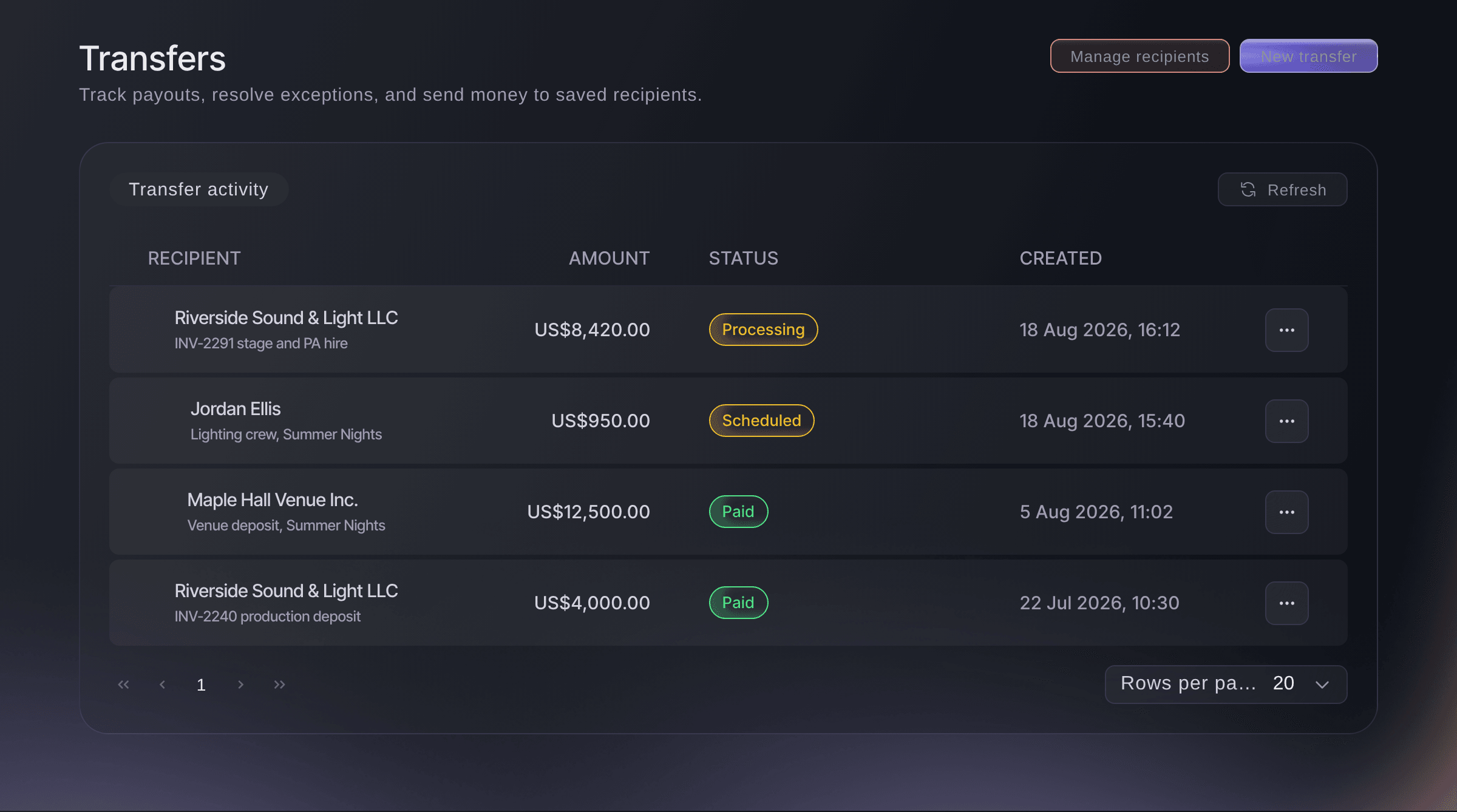
Vault, Transfers. -
Select New transfer
Select New transfer. The New transfer dialog opens.
Bemærk: New transfer stays unavailable while an earlier payment is awaiting confirmation. The card at the top of Transfers shows which one and what to do.
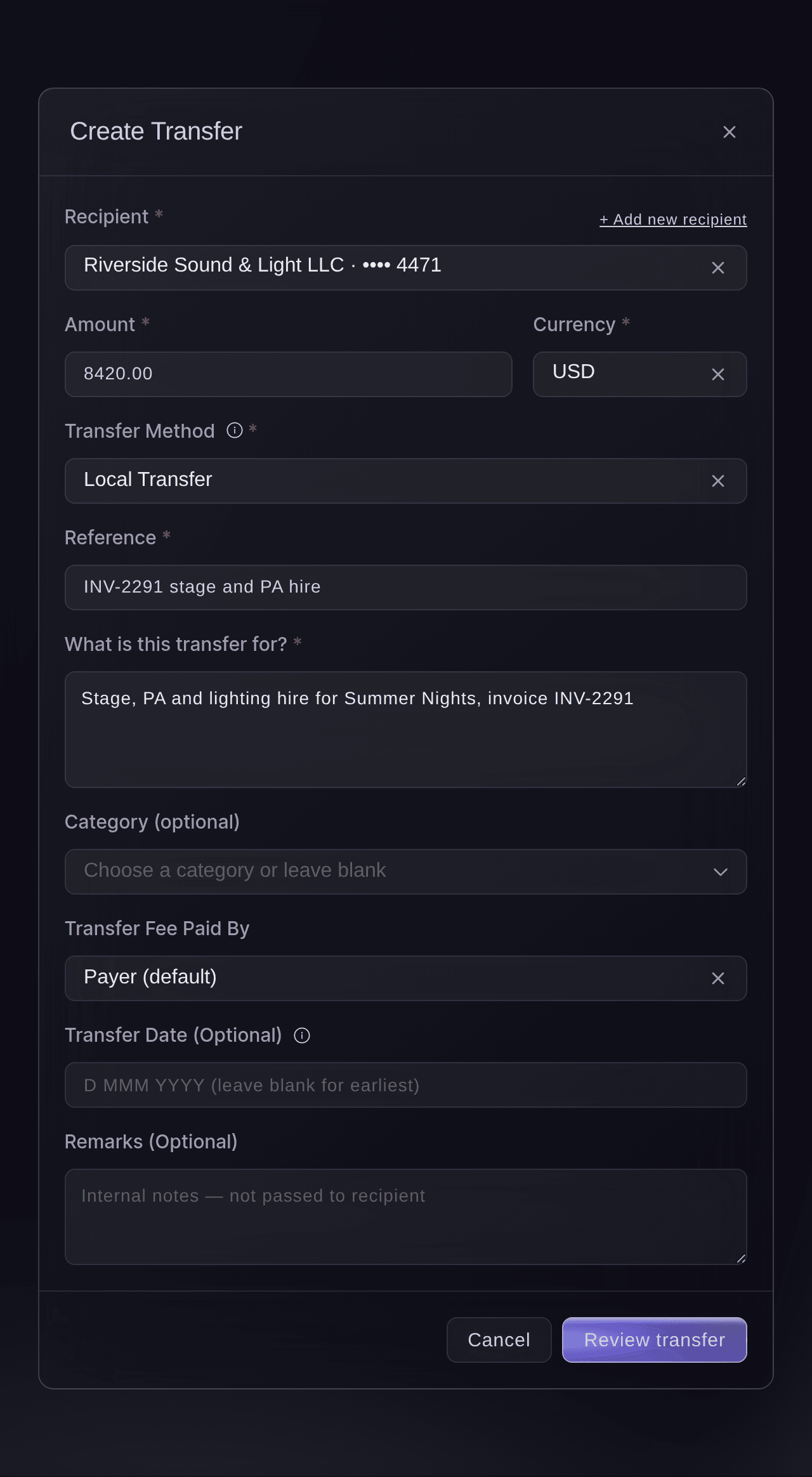
Vault, Transfers, New transfer. -
Choose the recipient
In Recipient, choose the supplier. Each one shows the last four digits of the account, so you can check it's the right one.
Bemærk: A supplier you haven't paid from Vault before isn't listed yet. Select + Add new recipient and follow Add a supplier you haven't paid before.
-
Enter the amount
Enter the amount in Amount, then choose the Currency of the supplier's bank account.
Bemærk: The currency has to match the supplier's bank account. By default the payment comes out of your balance in that currency.
-
Pay from another balance
Optional: To pay from a balance in another currency, choose it in Pay from. The dialog shows about how much comes out of that balance and at what rate.
Bemærk: We convert the money when the payment is sent, and the bank sets the final rate then. Pay from appears when you hold more than one currency.
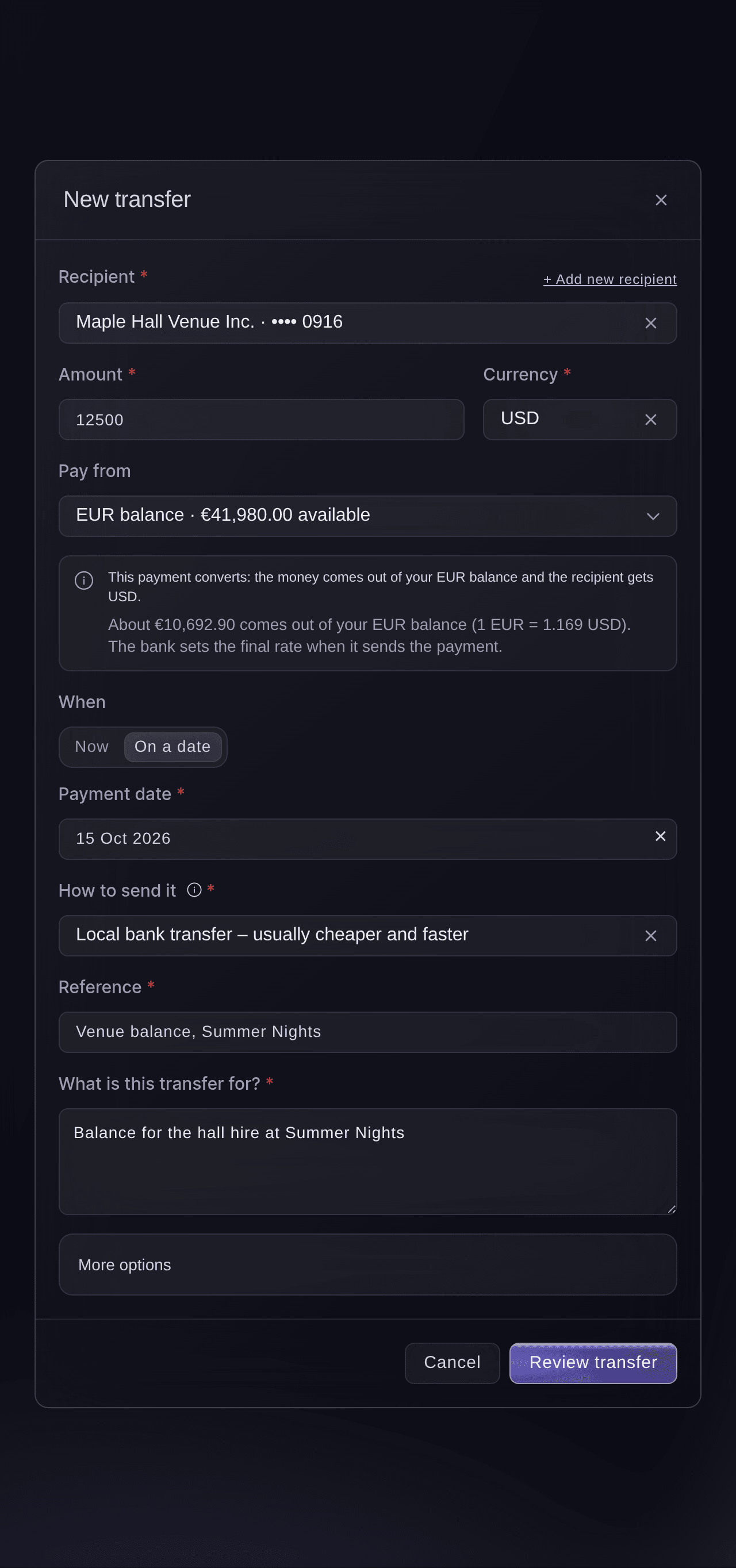
New transfer, paying from another balance on a date. -
Choose when to pay
Under When, choose Now, or choose On a date and pick the Payment date, up to a year ahead.
Bemærk: A payment outside business hours or on a public holiday may not go until the next business day.
-
Choose the transfer method
In How to send it, choose how the payment travels.
Bemærk: The recipient needs the matching bank details saved: a routing number and account type for a local transfer, or a SWIFT code and an account number or IBAN for SWIFT.
-
Enter the reference your supplier will see
Enter their invoice number or a short description in Reference. It appears on their bank statement, so keep it to 140 characters.
-
Enter what the payment is for
In What is this transfer for?, enter the reason in your own words, up to 255 characters.
Bemærk: Vault keeps this reason with the transfer for your team and doesn't send it to your supplier.
-
Choose who pays the transfer fee
Optional: Open More options, then choose who pays the fee in Who pays the transfer fee.
-
Add a category and a note for your team
Optional: Under More options, choose a Category (optional), such as Professional services, and enter a Private note (optional), such as the show or the budget line it belongs to.
Bemærk: The category and the note stay with the transfer in Vault and aren't passed to your supplier.
-
Review the transfer
Select Review transfer. Vault checks the details and shows the payment exactly as it will be sent.
Tip: Select Back to edit to change anything before you send.
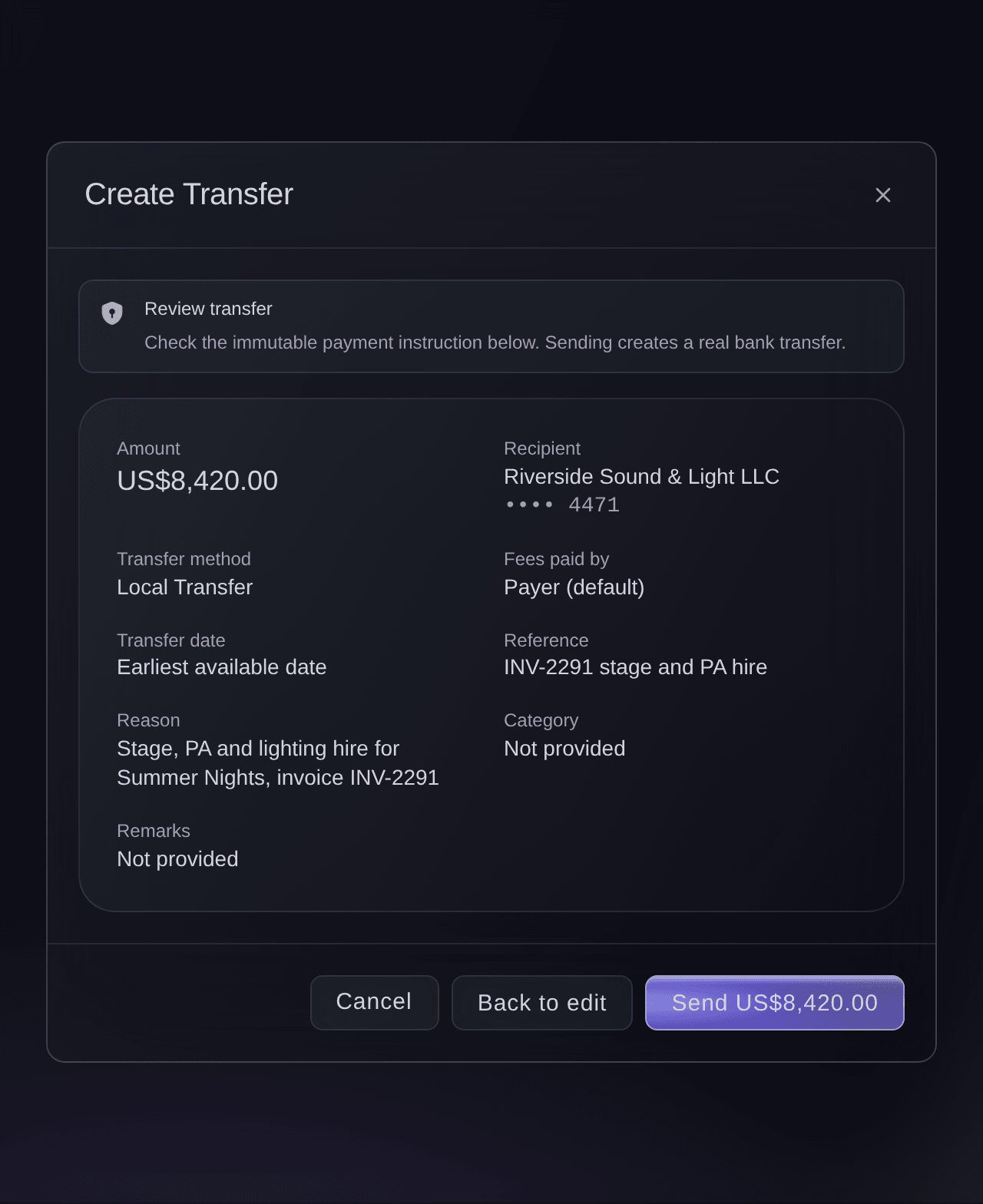
New transfer, the review before sending. -
Send the payment
Select the send button, which carries the amount, such as Send US$8,420.00.
Bemærk: If Vault asks you to confirm it's you, the Authenticate to continue window opens, and the payment goes once you're verified.
Advarsel: Sending creates a real bank transfer, and a sent transfer can't be edited.
Payments that need two people
With payment approvals on, the review says Someone else on your team sends this payment
and the button reads Prepare for approval. Selecting it prepares the payment as a batch of one payment, and Payment prepared
confirms it. Another owner or admin opens it under Pay several people and sends it, keeping or changing the date you chose.

-
Check the payment in Transfer activity
Back on Transfers, find the payment in Transfer activity and read its status.
-
Open the payment's details
Select the supplier's name in the row to open Transfer details.
Bemærk: It shows what your supplier receives, the fee and who paid it, when the payment was sent and when it's expected to arrive.
Tip: Select Download payment confirmation for a PDF letter your supplier can keep as proof that you paid, as Get a Vault statement of your event money for your accountant shows.
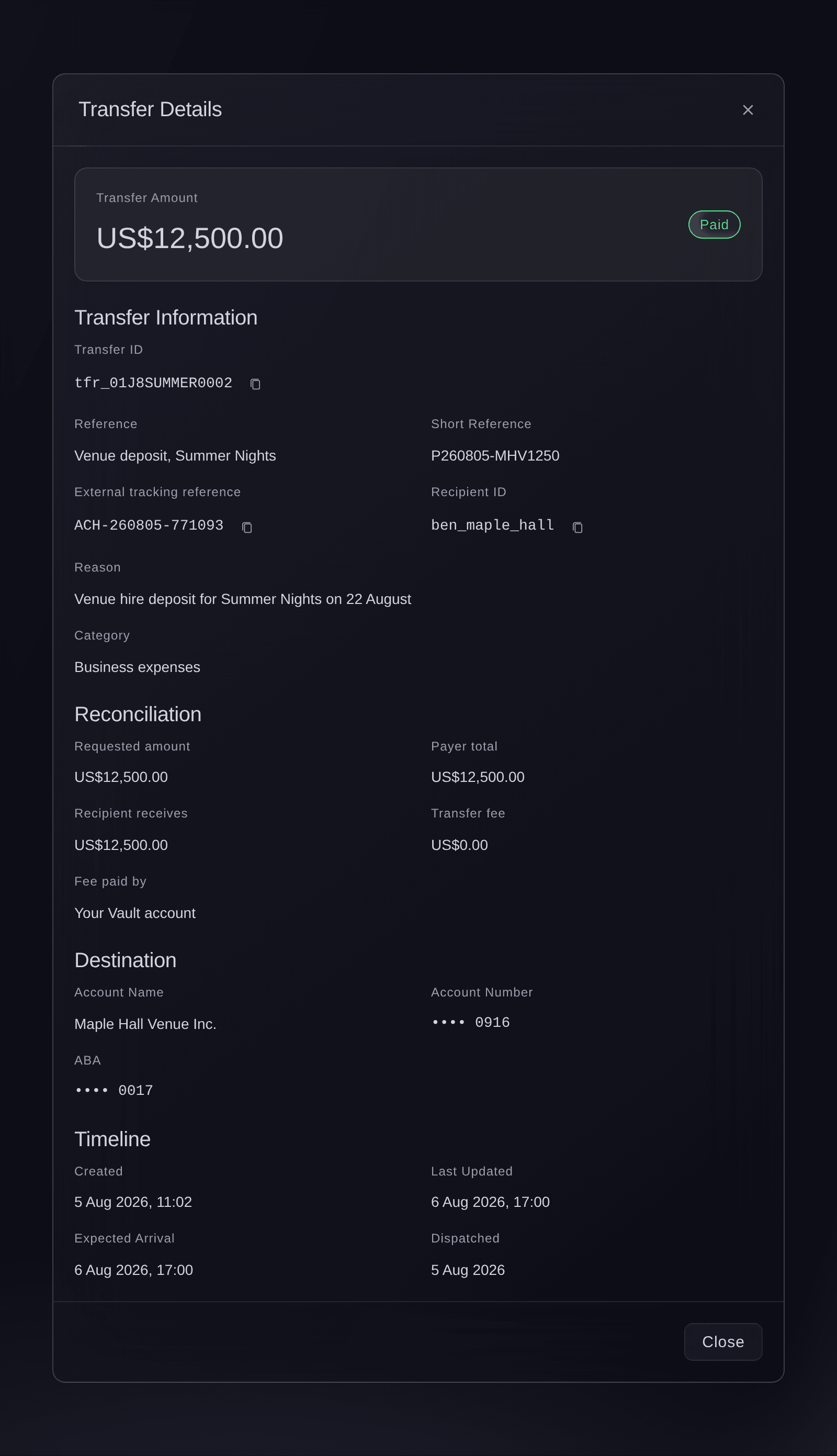
Transfers, Transfer details.
Prøv disse trin på dit eget event
Opret en gratis konto, byg dit event og følg trinnene ovenfor i dit eget dashboard. Det tager få minutter, og du behøver ikke at booke et salgsopkald.
Ingen oprettelsesgebyrer. Intet obligatorisk månedligt gebyr. Intet kreditkort påkrævet.
Eller få det gjort for dig
Fai, the assistant inside your dashboard, can find a saved recipient and send them a transfer, now or on a date and from any balance you hold. She shows you the whole payment and asks before she sends it, and you may still need to finish the security check in Vault. When your team needs a second person, she offers to prepare the payment for approval instead. Adding a supplier you haven't paid before is done in the dashboard.
I dit dashboard, med Fai
Pay <SUPPLIER NAME> <AMOUNT> from our Vault for <BRAND NAME>, reference <INVOICE NUMBER>, it's for <WHAT THE PAYMENT IS FOR>
Lad Fai gøre det for dig
Fai arbejder inde i dit Ticket Fairy-dashboard. Opret din konto, åbn Fai og indsæt instruktionen ovenfor.
Ingen oprettelsesgebyrer. Intet obligatorisk månedligt gebyr. Intet kreditkort påkrævet.
Add a supplier you haven't paid before
-
Select Add new recipient
In New transfer, select + Add new recipient. The Create new recipient dialog opens over your transfer, which keeps what you've entered so far.
Bemærk: You can also add a recipient without starting a transfer: select Manage recipients on Transfers, then Create recipient.
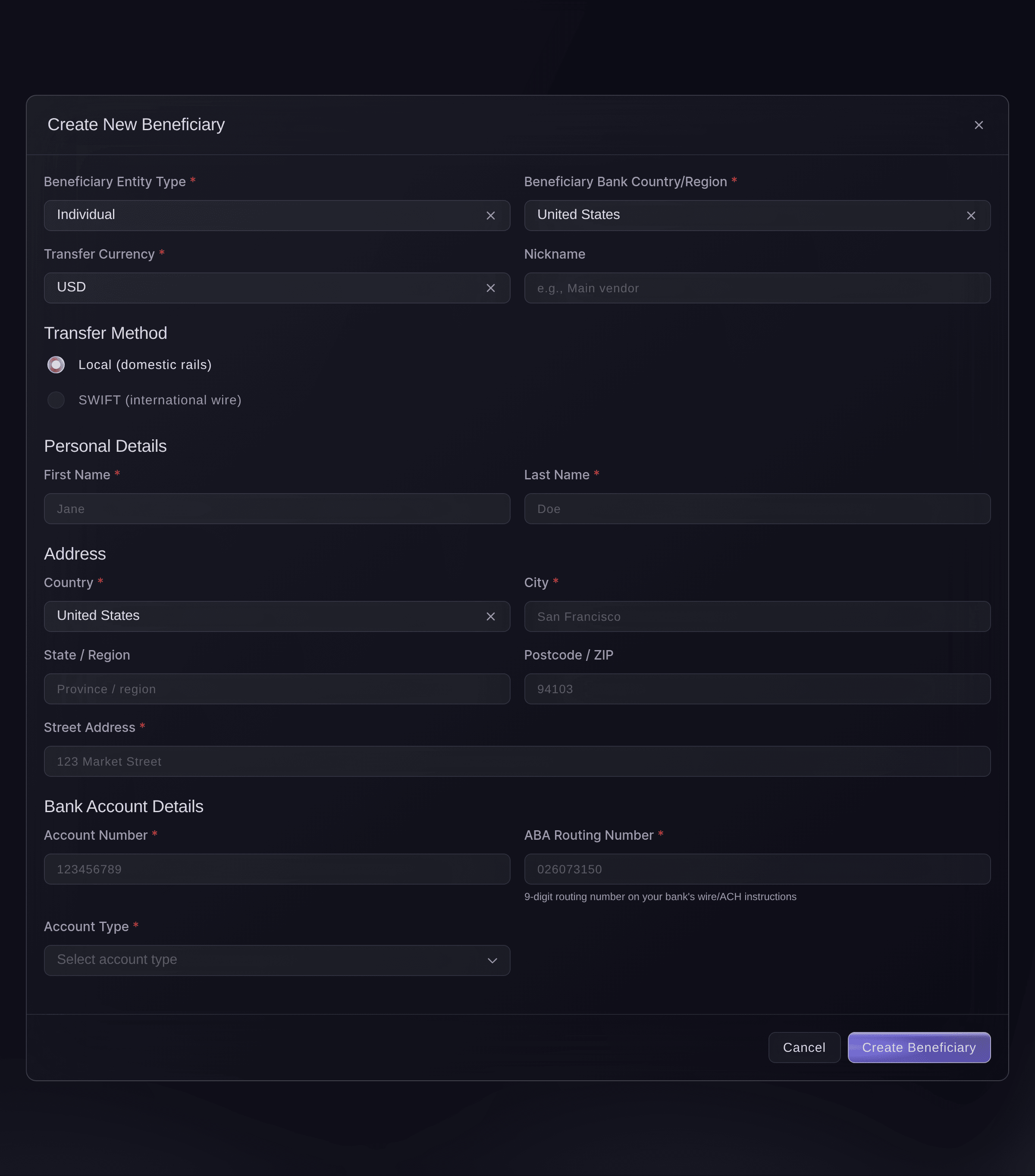
New transfer, Create new recipient. -
Choose a company or a person
In Recipient type, choose the kind of account you're paying.
-
Choose the bank country and currency
Choose Recipient bank country/region and Transfer currency for the account you're paying into. The bank fields further down change to match.
Advarsel: The entity type, bank country, currency and name can't be changed after you save the recipient, so check them against the supplier's invoice.
-
Choose how the supplier's bank takes payments
Under Transfer method, choose the route their bank account takes payments on.
-
Enter the supplier's details and bank account
Enter the name, address and bank account details the form asks for, such as Account number and ABA routing number for a US account.
Tip: Add a Nickname, such as the name your team uses for the supplier, to find them quickly next time.
-
Save the recipient
Select Create recipient. The dialog closes and the supplier joins the list in Recipient.
Bemærk: The button stays unavailable until the form has loaded the bank fields for the country and currency you chose.
Adding a recipient takes the supplier's bank details, which you enter yourself in the dashboard. Fai can open Recipients in Vault for you.
I dit dashboard, med Fai
Open the Vault recipients for <BRAND NAME>
Resolve a transfer awaiting confirmation
-
Check the transfer's status
On Transfers, select Check status in Transfer awaiting confirmation. If Vault confirms the payment went, the card closes and the payment appears in Transfer activity.
Bemærk: Vault holds new transfers while one is awaiting confirmation, so a supplier can't be paid twice by mistake.
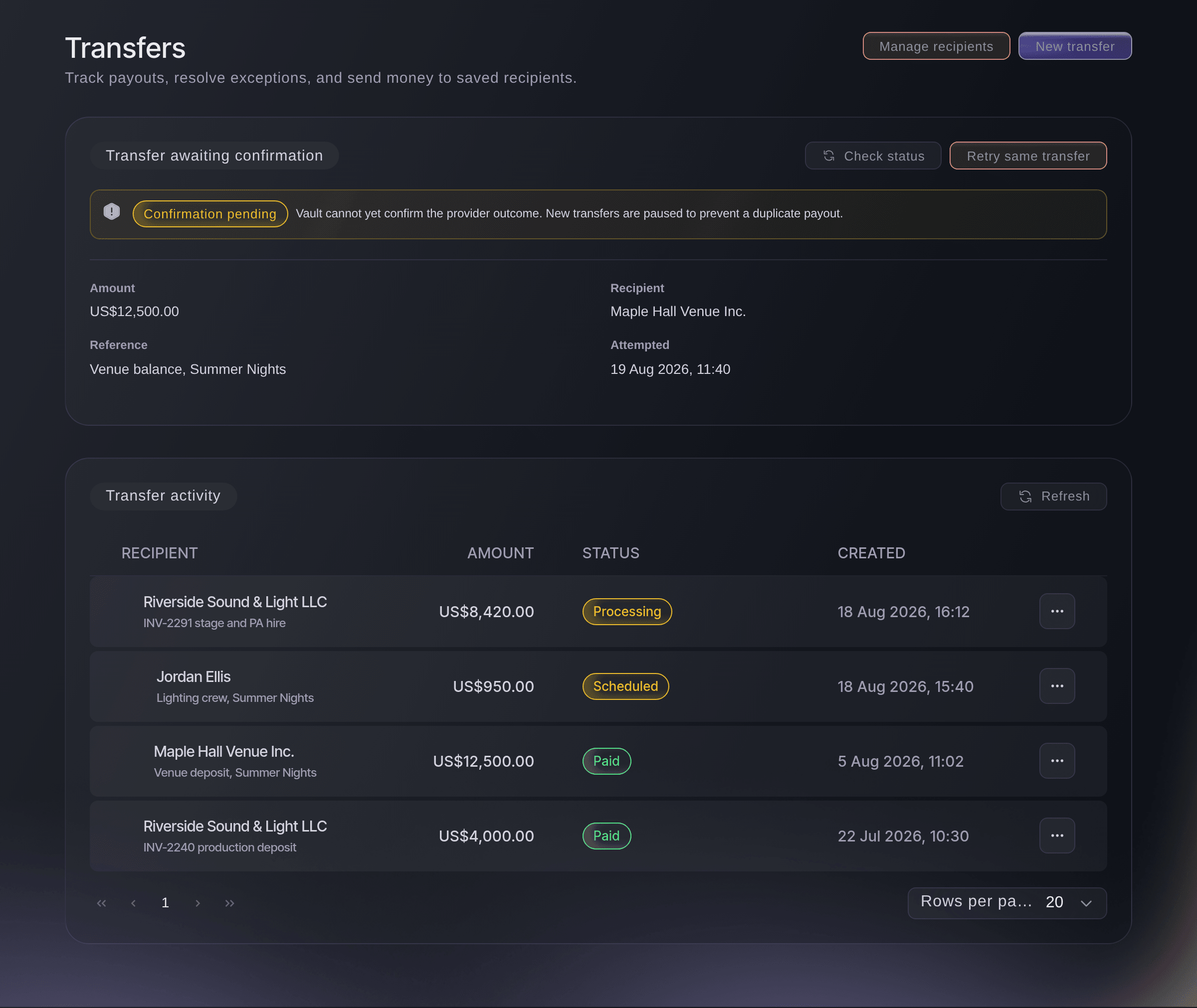
Transfers, a payment awaiting confirmation. -
Retry the same transfer
If the card is still there, select Retry same transfer, then Retry exact transfer in the confirmation.
Bemærk: Vault first checks whether the earlier payment went, then sends the exact same instruction, with the same amount, recipient and reference.
-
Contact support if it needs manual review
If the card shows Manual review required, contact Ticket Fairy support with the action number the card gives.

Fai can check whether a transfer is awaiting confirmation and retry the same payment for you. She shows you the amount, the recipient and the reference and asks before she retries, and you may need to finish the security check in Vault.
I dit dashboard, med Fai
Is a Vault transfer waiting for confirmation on <BRAND NAME>? Check it, and retry the same payment if it's still stuck
Cancel a transfer
-
Open the payment's menu
In Transfer activity, open the menu at the end of the payment's row and select Cancel.
Bemærk: Cancel appears only while the payment is still scheduled, processing, waiting for funding or has failed.
-
Confirm the cancellation
Check the amount, recipient and reference in Cancel transfer?, then select Cancel transfer.
Advarsel: Cancelling can't be undone, and transfer, bank or currency fees already charged may not be refunded.
Fai can cancel a transfer that hasn't been sent yet. She shows you the payment, tells you that cancelling may cost a fee that isn't refunded and can't be undone, and asks before she cancels it.
I dit dashboard, med Fai
Cancel the Vault transfer to <SUPPLIER NAME> for <AMOUNT> on <BRAND NAME>
Spørgsmål du måske har
- Why can't I select New transfer?
- Either an earlier payment is awaiting confirmation, which the card at the top of Transfers shows, or new transfers are paused for your account. A pause says
Your account team is completing a reconciliation. You can still review activity and cancel eligible transfers.
, and your Ticket Fairy account team lifts it when they finish. - Can I pay a supplier in a different currency from my balance?
- Yes. The currency you choose has to match the supplier's bank account, and Pay from lets you take the money from a balance in another currency. We convert it when the payment is sent, and the dialog shows about how much comes out of your balance before you send it.
- Why does the dialog say my recipient is missing required fields?
This recipient is missing required fields for LOCAL transfers
means the saved recipient doesn't have the bank details a local transfer needs, such as a routing number and account type. Choose International (SWIFT) transfer if the recipient has a SWIFT code, or edit the recipient on the Recipients page and add the missing details.- Does my supplier see the reason I entered?
- No. Your supplier sees the reference on their bank statement. The reason and any remarks stay with the transfer in Vault, where your team can read them in Transfer details.
- What happens if a transfer fails?
- Open the payment's Transfer details. A failed transfer says why it failed and what to do next, such as adding funds or correcting the recipient's bank details. Cancel the failed transfer, then send a new one.
- I closed the dialog while a transfer was sending. Did it go?
- Check Transfers before you try again. If Vault couldn't confirm the result, the payment waits in the card at the top of the page, and Check status tells you whether it went.
- Who on my team can send transfers?
- You can send transfers with an owner or admin login on the brand. Event-level logins such as promoter, door staff and stats don't see Vault at all.
- Can I skip the security check for a supplier I pay every event?
- Yes. Mark them as a trusted recipient: one owner or admin asks for it, a 24-hour cooling period runs, and a second owner or admin approves it. Payments to them then ask for fewer security checks.
- What do I check when Vault asks me to confirm it's me?
- You are approving at the top of the check names what you are doing, such as Send a payment, with the exact amount and who the money goes to. Continue only if they match what you want to do.
Har du stadig et spørgsmål?
Book en demo, så besvarer vi det i en samtale ud fra din type event. Eller opret din konto og se det selv.
Ingen oprettelsesgebyrer. Intet obligatorisk månedligt gebyr. Intet kreditkort påkrævet.
Relaterede guides
Gør det på dit eget arrangement
Opret din konto, byg dit arrangement, og følg trinnene i dit eget dashboard. Du behøver ikke booke et salgsmøde.