
Votre marque et votre équipe
Find your way around the home page of your event dashboard
New promoters and venue teams land on Home first, and it is built to get a first event on sale fast. It suggests first steps for the kind of events you run, puts the jobs you do most often one click away, and replays its tour whenever you want it again.
Use Home in your event dashboard to follow first steps chosen for the events you run, start common jobs such as issuing guest tickets from Quick Actions, and replay the tour.
- Pour
- Getting started in the dashboard before your first event goes on sale
- Durée
- 5 minutes
Avant de commencer
- You can do this with any Ticket Fairy dashboard login. The Quick Actions you see follow the role you hold on each of your events and brands.
-
Open Home
Select Home at the top of the sidebar. On a new account, Your first steps sits above Manage Events, Manage Brands and the Quick Actions list.
Remarque: The welcome takes a minute to prepare after you sign up, and
We're getting your dashboard ready. This usually takes less than a minute.
shows in its place until then.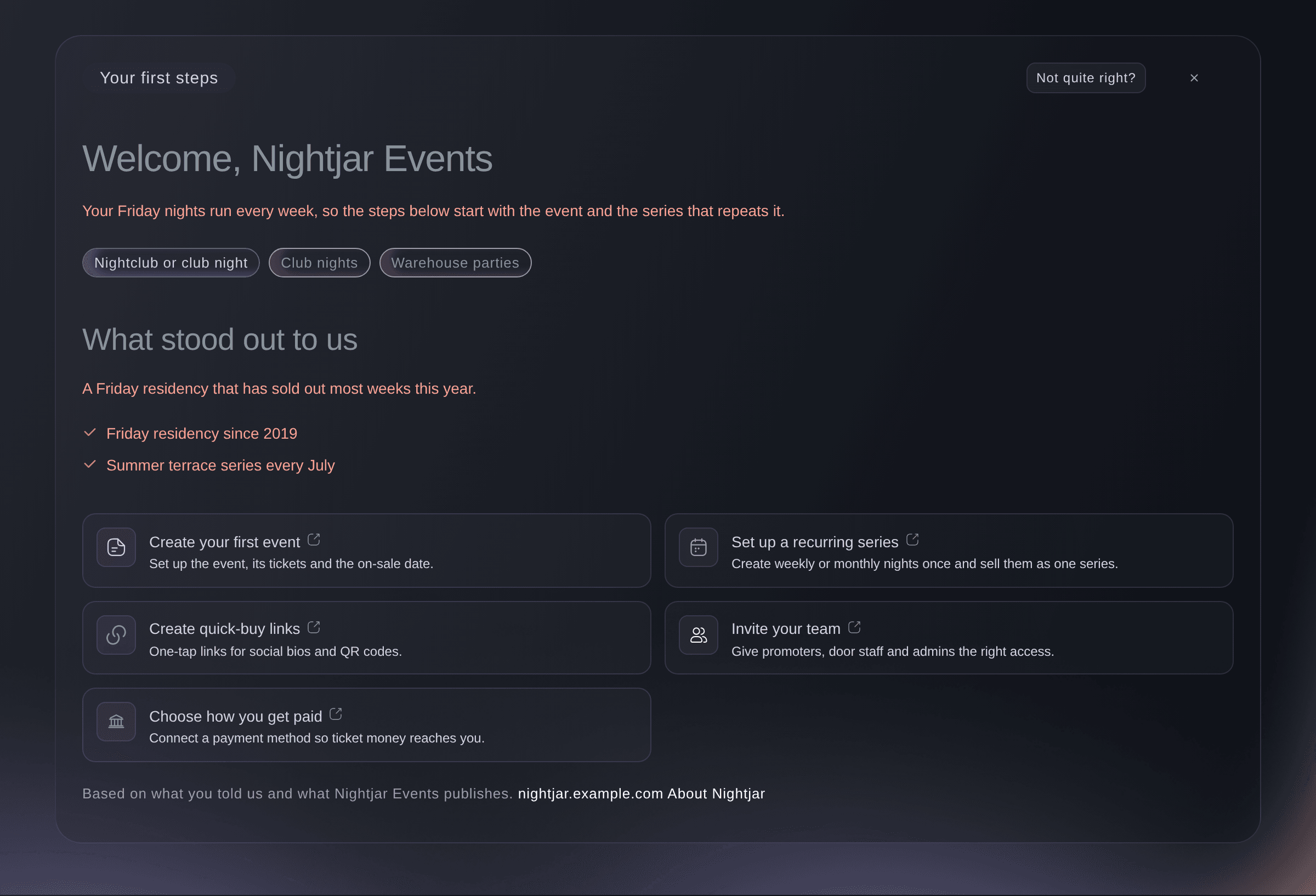
Home, Your first steps.
Your first steps
The welcome is built from what you told us when you signed up and from what your organisation publishes online, and the links at its foot name the pages it read. The badges show the kind of organisation we think you are and the events you run, and three to five cards below suggest where to start. Some kinds of organisation also get Ask Fai to set it up with you, which opens Fai with your question already typed, or Book an onboarding call.
-
Select a first step
Select a card under Your first steps, such as Create your first event. A card with the arrow icon opens that page of the dashboard, and one that needs a brand sends you to create one first if you have none.
-
Correct the kind of organisation you run
If the badge is wrong, select Not quite right? and choose the closest match in What best describes you?. The cards change to the first steps for that kind of organisation.
Remarque: Choosing a type swaps the suggestions made for your organisation for the standard steps for that type.
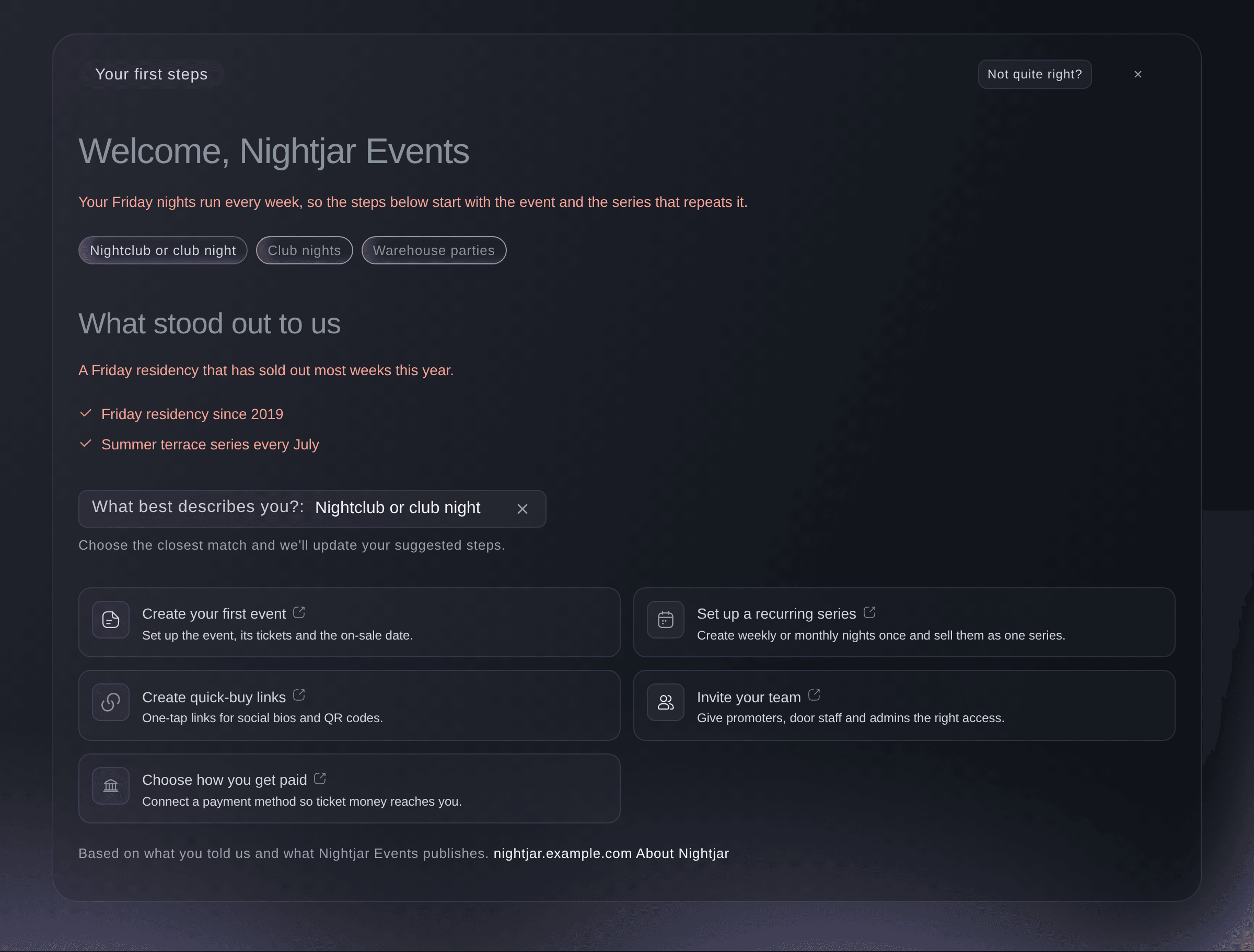
Your first steps, Not quite right? -
Start a common job from Quick Actions
Select a card in the Quick Actions list beside Manage Events and Manage Brands, such as Issue Guest Ticket. A card with the arrow icon opens another page, and the others open a dialog on Home.
Remarque: The list only offers a job when your role allows it on at least one of your events or brands, so a promoter sees Copy Promoter Link and View My Sales instead of the owner's jobs.
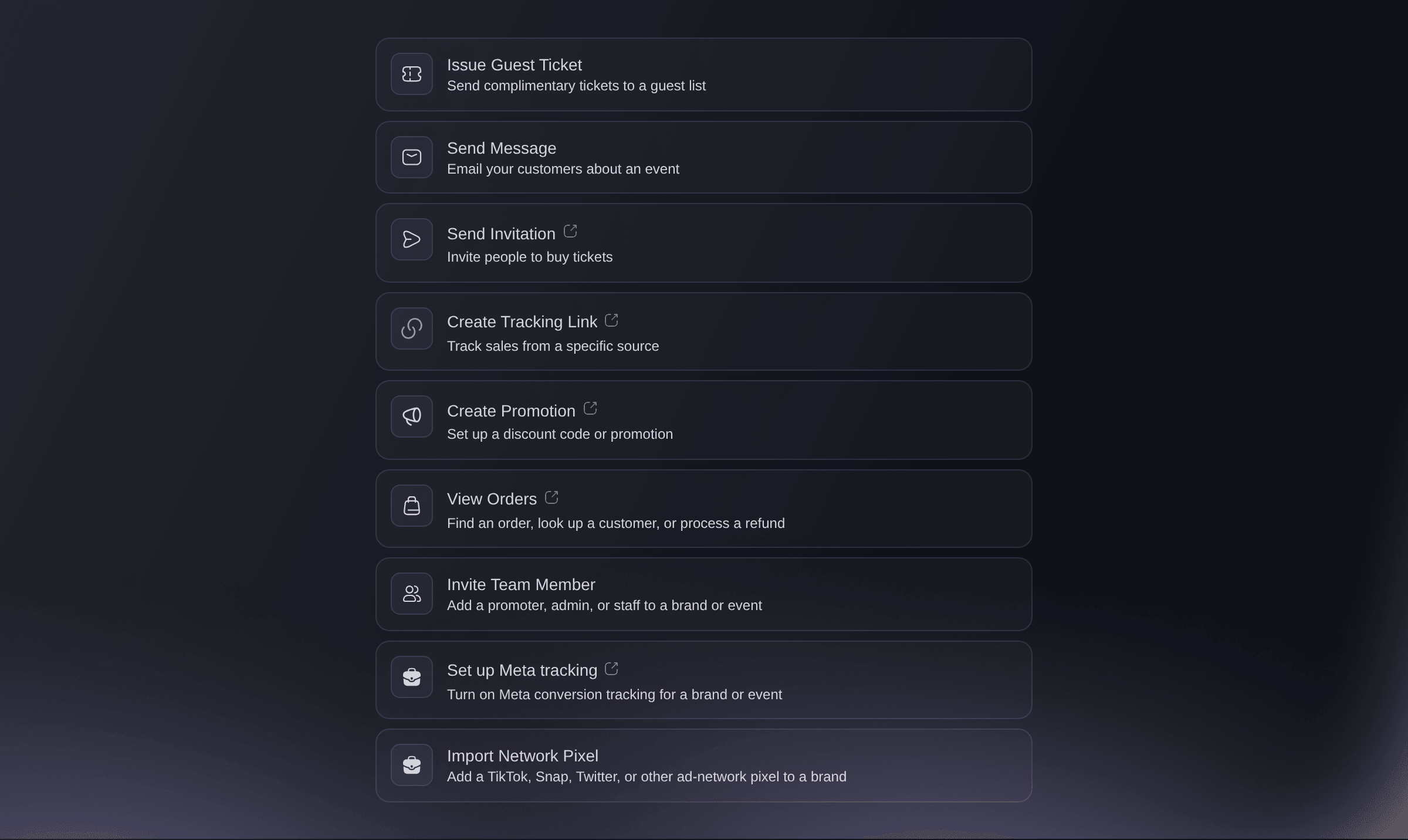
Home, Quick Actions. -
Choose the event the job is for
In the list that opens, choose the event or brand the job is for. The dialog or page for that job opens next, already set to what you chose.
Remarque: On an account with no events yet, the list says
You don't have any events yet.
Select Create Event to make your first one.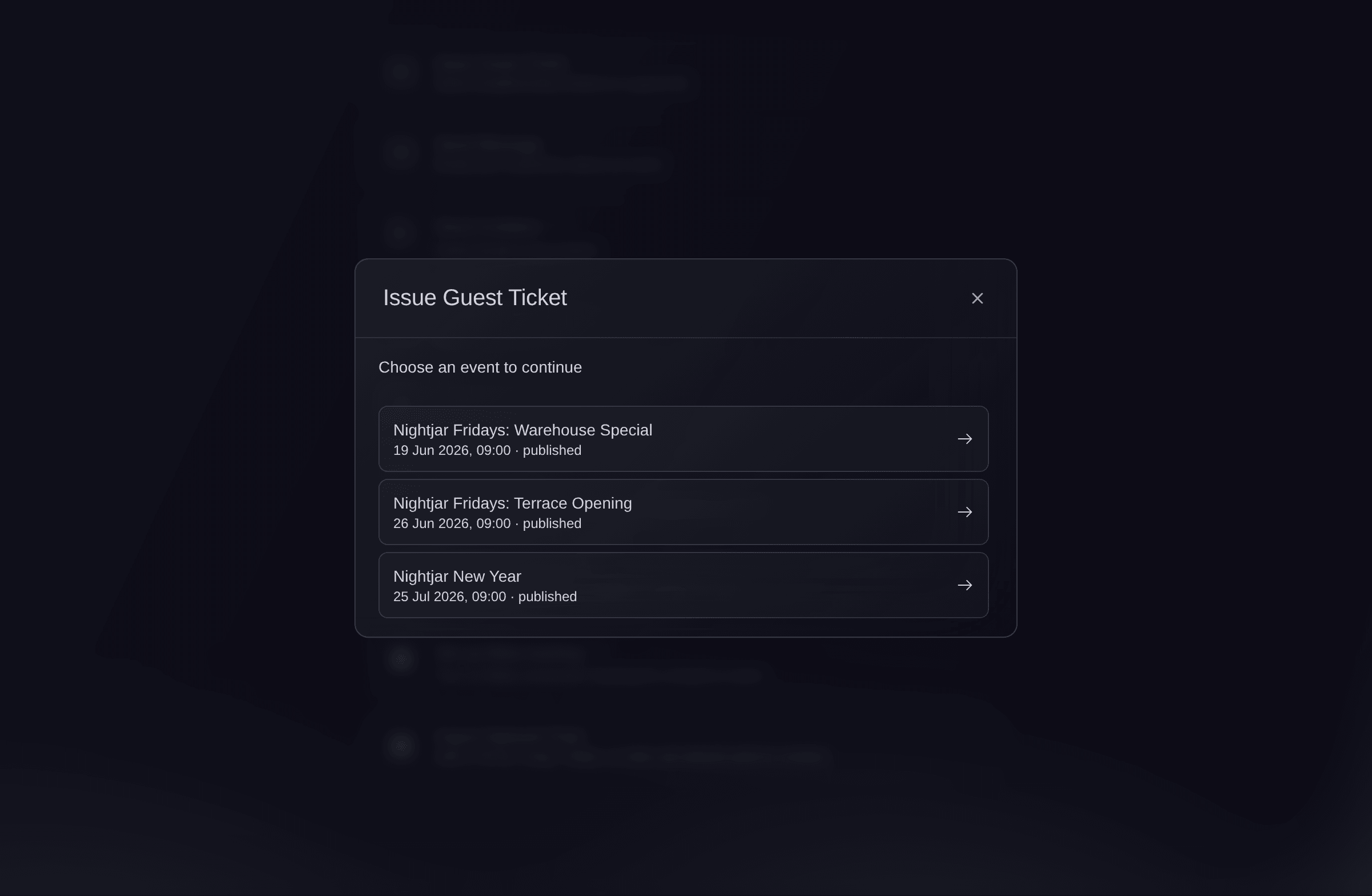
Quick Actions, Issue Guest Ticket, Choose an event to continue. -
Replay the Home tour
Select Tour the Dashboard in the sidebar to walk through Home again. The tour highlights each part of the page in turn, and you can skip it at any point.
Remarque: Other pages with a tour show their own tour button in the same place, named after that page.
Essayez ces étapes sur votre propre événement
Créez un compte gratuit, montez votre événement et suivez les étapes ci-dessus dans votre propre tableau de bord. Cela prend quelques minutes et vous n'avez pas besoin de réserver un appel commercial.
Pas de frais d'installation. Pas d'abonnement mensuel obligatoire. Pas de carte bancaire requise.
Ou faites-le faire pour vous
Fai, the assistant inside your dashboard, can take you to the page behind any first step or Quick Action when you say what you want to do. Hiding the welcome and correcting your organisation type are done on Home in the dashboard.
Dans votre tableau de bord, avec Fai
Take me to the page where I set up a weekly series of club nights
Laissez Fai le faire pour vous
Fai travaille dans votre tableau de bord Ticket Fairy. Créez votre compte, ouvrez Fai et collez la consigne ci-dessus.
Pas de frais d'installation. Pas d'abonnement mensuel obligatoire. Pas de carte bancaire requise.
Hide the welcome
Select the cross at the top right of Your first steps, then Hide it in the confirmation. The welcome stays hidden on every device, and the tour and Fai are still there when you want help.
Hide the welcome on Home in the dashboard.
Questions que vous pourriez avoir
- Why don't I see Your first steps on Home?
- The welcome appears on accounts created through sign-up, once we have finished preparing it, and it does not come back after you hide it. Everything it suggests is still in the sidebar, and Tour the Dashboard walks you through Home.
- Where do the suggestions come from?
- From what you told us when you signed up and from what your organisation publishes online, such as your website. The links at the foot of the welcome name the pages it was based on, and Not quite right? corrects the kind of organisation if we got it wrong.
- Why are some Quick Actions missing?
- A card only appears when your role lets you do that job on at least one of your events or brands, or when you have no events yet and the job can start your first one. Guest tickets, messages, invitations, tracking links and promotions are also left out for events that are cancelled, while View Orders stays for them.
- Can I get the welcome back after hiding it?
- No. Once hidden it stays hidden on every device. The tour in the sidebar and Fai are there whenever you want help getting started.
- Can I use the dashboard in another language?
- Yes. Select your name at the foot of the sidebar, select the language shown in the menu and choose one from the list. Your first steps switches to that language once its translation is ready.
- Can someone from Ticket Fairy walk me through the dashboard?
- Yes. Select Book now beside Need help? at the top of Home to book an onboarding call with the Ticket Fairy team.
Vous avez encore une question ?
Réservez une démo et nous y répondrons lors d'un appel, pour votre type d'événement. Ou créez votre compte et voyez par vous-même.
Pas de frais d'installation. Pas d'abonnement mensuel obligatoire. Pas de carte bancaire requise.
Guides associés
Faites-le sur votre propre événement
Créez votre compte, montez votre événement et suivez les étapes dans votre propre tableau de bord. Vous n’avez pas besoin de réserver un appel commercial.