
Créer un événement
Limit who can buy a ticket type
A high-demand ticket needs a clear limit so one buyer cannot take the allocation in one order or spread a large purchase across several orders. You may also list one ticket type on another ticketing page. The ticket type keeps its own quantity rules, while order approval and anti-scalping settings remain separate choices.
Limit how many tickets one order or customer account can buy, or send one ticket type to another ticketing page instead of selling it through Ticket Fairy.
- Pour
- Controlling ticket quantities and where buyers complete a purchase
- Durée
- 6 minutes
- Open the ticket type
- Choosing the right limit
- Set the maximum per order
- Set the maximum per account
- Send one ticket type to another ticketing page
- Use approval or anti-scalping settings separately
- Save the change
- Check the order limit
- Check the account limit across orders
- Try one more ticket
- Release the test capacity
- Check the external sales link
Avant de commencer
- You're an owner or admin for the event.
- The ticket type already exists. These limits apply to one ticket type, so repeat the change for each ticket type that needs a different rule.
- You know the maximum number one order and one customer account should be able to buy.
- You have an existing customer account for the account-limit test; a first purchase may not be stopped by the account limit.
- If you are sending buyers to another ticketing page, you have its complete web address and understand that Ticket Fairy will not complete that ticket type's sale.
-
Open the ticket type
Open your event, select Tickets, then select Edit on the ticket type you want to change.
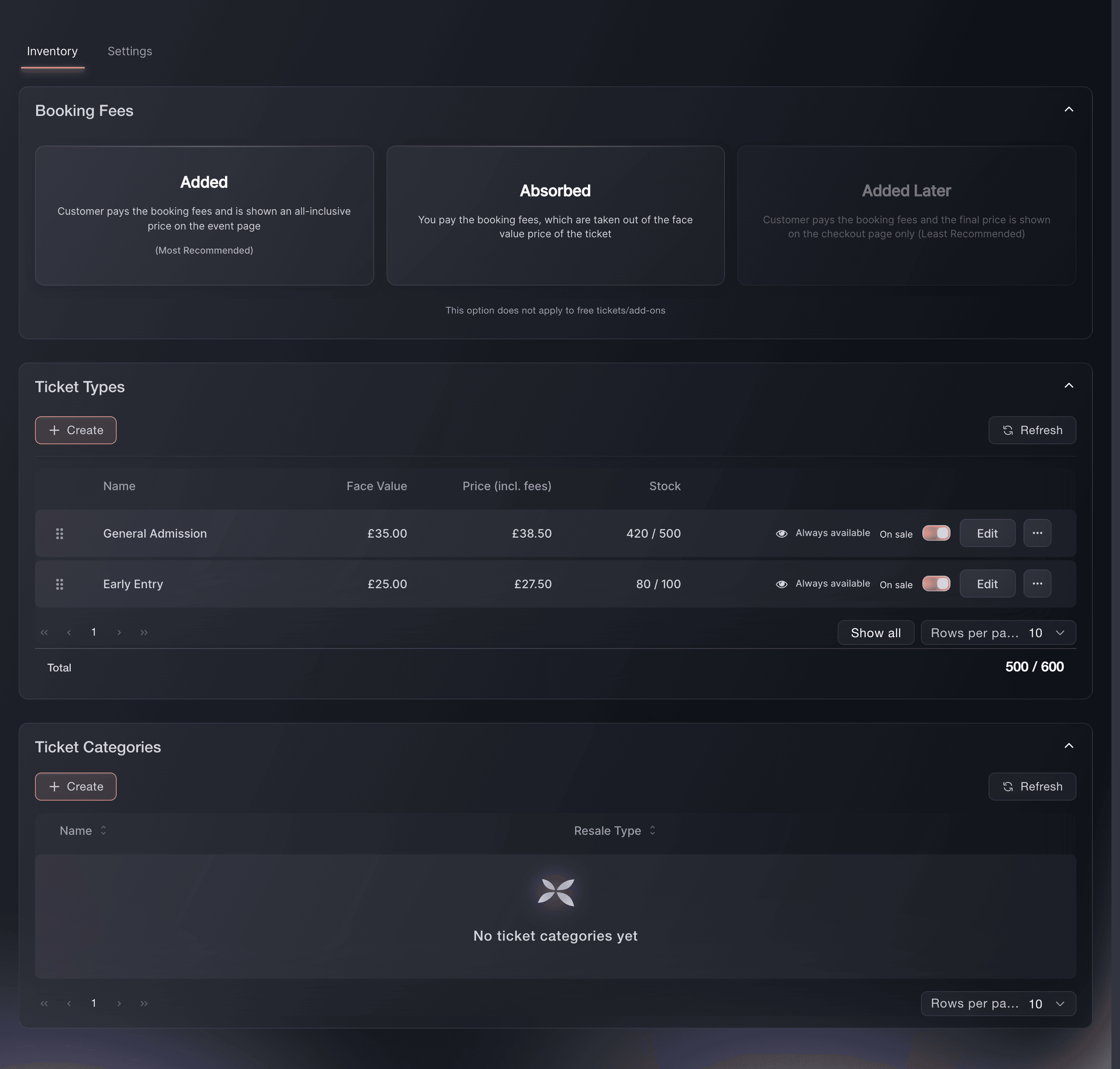
Event, Tickets, Inventory, Ticket Types.
Choosing the right limit
The per-order limit caps one basket. The per-account limit caps the total one customer account can buy across all its orders. Use both when a buyer should take only a small number in one order and across the whole release.
Remarque: The account limit is for this ticket type, not every ticket type in the event. A buyer can still buy another ticket type unless you set a limit on that type too.
-
Set the maximum per order
Turn on Set custom maximum quantity per order, then enter the number in Maximum ticket quantity per order.
Remarque: Your event page never offers more than the event's own per-order limit, so use this to set a lower limit for one ticket type. Leave the switch off when the event's limit is enough.
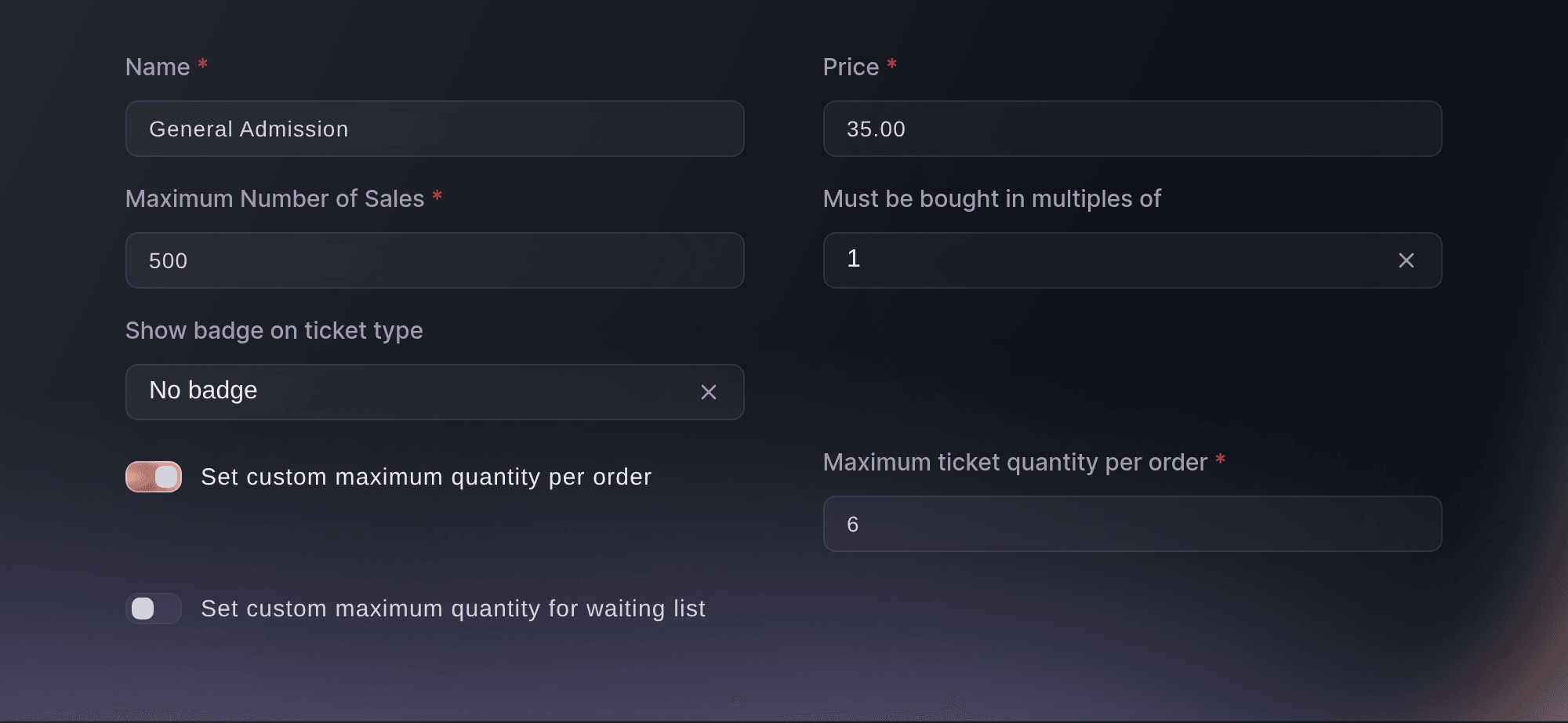
Event, Tickets, Inventory, Edit, ticket type window. -
Set the maximum per account
Turn on Set maximum number per customer account, then use the arrows or enter a number from 1 to 20 in Maximum ticket type quantity per account.
Remarque: Ticket Fairy counts the active tickets of this type across the customer account's orders when a signed-in buyer adds tickets, and again at checkout when the buyer is signed in or enters an email that already has a customer account. Cancelled and refunded tickets do not count, and a buyer whose email has no customer account yet is not held to this limit on a first purchase, so use the per-order limit when first-order protection matters.
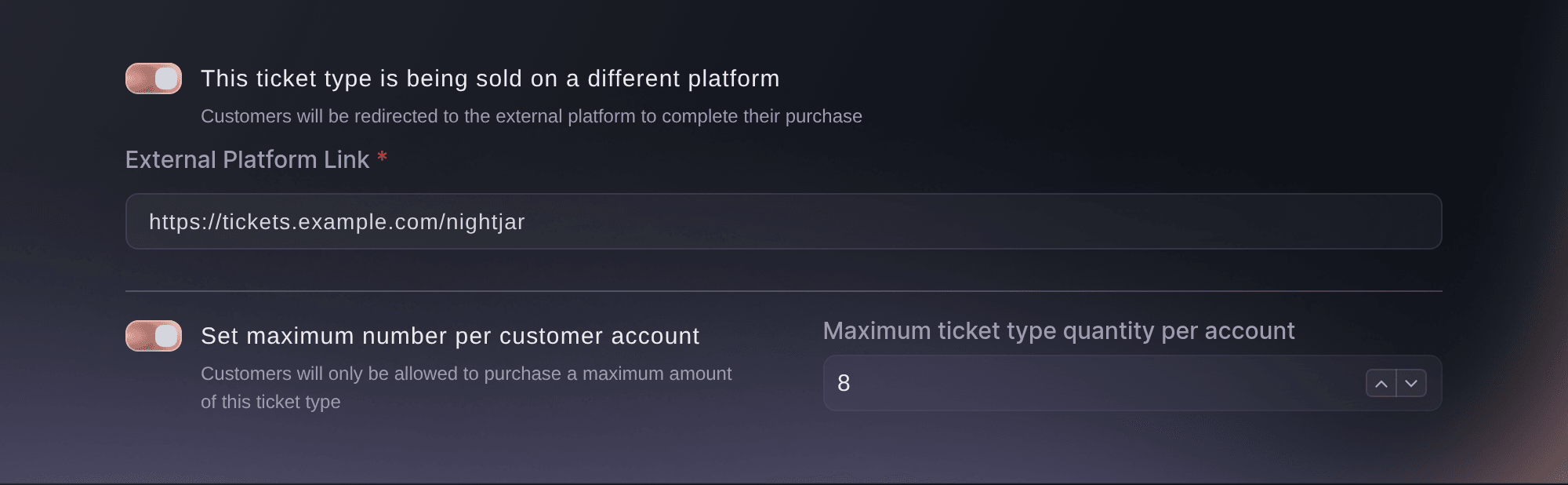
Event, Tickets, Inventory, Edit, ticket type options. -
Send one ticket type to another ticketing page
If another service sells this ticket type, turn on This ticket type is being sold on a different platform, then enter the complete address in External Platform Link.
Remarque: Your event page then shows a button for this ticket type that opens that address, so buyers complete the purchase there and Ticket Fairy does not sell this ticket type. Enter the whole address, including https://, and check that the page opens before you save.
Use approval or anti-scalping settings separately
Use Require order approval when a buyer may request a ticket but you decide after checkout. Use Names required, Name checks, ID required or Ticket resale when you need identity and resale controls for the event. Those settings have different effects and are explained in the guides beside this one.
Remarque: Hold payment until approved is part of order approval. It does not replace a quantity limit and should be chosen in the order approval guide.
-
Save the change
Select Save.
Remarque: The new rules apply to later purchases. Orders already placed keep the ticket details they had when the buyer placed them.
-
Check the order limit
Open the public event page in a private browser window and check that you cannot choose more than the limit for this ticket type in one order.
-
Check the account limit across orders
Using an existing customer account, place smaller test orders on the public event page in a private browser window until the account reaches the limit.
Remarque: Sign in as the test customer so Ticket Fairy checks the limit when you add tickets as well as at checkout. A cancelled or refunded ticket is not part of the active count.
-
Try one more ticket
Try to add one more ticket after the account reaches the limit.
-
Release the test capacity
Cancel the test orders afterwards so the capacity returns.
-
Check the external sales link
Follow the ticket type's sales link from the public event page.
Essayez ces étapes sur votre propre événement
Créez un compte gratuit, montez votre événement et suivez les étapes ci-dessus dans votre propre tableau de bord. Cela prend quelques minutes et vous n'avez pas besoin de réserver un appel commercial.
Pas de frais d'installation. Pas d'abonnement mensuel obligatoire. Pas de carte bancaire requise.
Ou faites-le faire pour vous
Fai can set the per-order limit, the per-account limit and the external sales address on a ticket type. She shows you the ticket type and the change and asks for your approval before saving it. MCP and the CLI can set the two limits after approval.
Dans votre tableau de bord, avec Fai
On <EVENT NAME>, limit <TICKET TYPE> to <NUMBER> per order and <NUMBER> per customer account. Show me the ticket type and the change, and ask before saving it
Depuis votre propre assistant, via MCP
Connectez votre assistant à notre serveur MCP et demandez-lui :
La configuration MCP copiée contient --read-only. Retirez --read-only uniquement lorsque vous voulez que votre assistant effectue des changements. Les changements courants s’exécutent à votre demande ; les actions destructives sollicitent votre accord dans un client compatible. Si votre client ne peut pas vous le demander, effectuez le changement dans le tableau de bord.
Find the event <EVENT NAME>, list its ticket types, find <TICKET TYPE>, then ask before setting maxQuantity to <NUMBER> and maxQuantityPerAccount to <NUMBER>
Depuis votre terminal
Installez la CLI depuis notre page CLI, connectez-vous avec ticketfairy auth login, puis choisissez la marque sur laquelle vous travaillez avec ticketfairy brand use <BRAND_ID>. ticketfairy brand list et ticketfairy event list affichent les identifiants utilisés par les autres commandes.
You need an owner or admin login for the event. List the ticket types to find the ID, then set the limits. Set the external sales address on the dashboard or ask Fai.
Find every ticket type and its ID
ticketfairy ticket list <EVENT_ID> --all
Limit one order to 6 tickets and one customer account to 8
ticketfairy ticket update <EVENT_ID> <TICKET_ID> --max-per-order 6 --max-per-account 8
Laissez Fai le faire pour vous
Fai travaille dans votre tableau de bord Ticket Fairy. Créez votre compte, ouvrez Fai et collez la consigne ci-dessus.
Pas de frais d'installation. Pas d'abonnement mensuel obligatoire. Pas de carte bancaire requise.
Questions que vous pourriez avoir
- What is the difference between the per-order and per-account limits?
- The per-order limit caps one basket. The per-account limit caps the total one customer account can buy of this ticket type across all its orders. Use both when you need both limits.
- Can I set one limit for every ticket type?
- No. The limits here belong to one ticket type. Repeat the change for each type that needs the same rule. Event-wide approval and anti-scalping settings are separate controls.
- Does the account limit protect a buyer's first purchase?
- Not for a buyer who is new to Ticket Fairy. The limit counts purchases on an existing customer account, so a buyer whose email has no customer account yet can buy up to the per-order limit in a first order. Use the per-order limit when first-order protection matters, and use the account limit to control later purchases across that customer account.
- What happens when I enter an External Platform Link?
- Your event page shows a button for that ticket type that opens the address you entered, so buyers complete their purchase there and Ticket Fairy does not sell that ticket type. Turn off This ticket type is being sold on a different platform and save when you want Ticket Fairy to sell it again.
- Can I require approval for this ticket type?
- Yes. Require order approval lets a buyer place a request while you decide after checkout. Use Approve orders before buyers receive tickets for the approval setting and pending-order steps.
- How do I add name, ID and resale checks?
- Open Anti-Scalping/Fraud Settings and choose Settings. The Names required, Name checks, ID required and Ticket resale choices are event settings. Use How do you keep touts and bots off your tickets? for the full anti-scalping path.
Vous avez encore une question ?
Réservez une démo et nous y répondrons lors d'un appel, pour votre type d'événement. Ou créez votre compte et voyez par vous-même.
Pas de frais d'installation. Pas d'abonnement mensuel obligatoire. Pas de carte bancaire requise.
Guides associés
Faites-le sur votre propre événement
Créez votre compte, montez votre événement et suivez les étapes dans votre propre tableau de bord. Vous n’avez pas besoin de réserver un appel commercial.