
Tuotannon hallinta
Build your event rota and check staff in
Festival and venue operations managers staff bars, gates, stewarding and first aid across long days with hundreds of crew and volunteers. The rota shows where every hour is covered, catches double bookings and short rest before they happen, and turns into a check-in list on the day.
Plan the shifts each team needs across your event, let Fai suggest shifts and the people to fill them, send everyone their own shift times, and check your crew and volunteers in and out at the door on the day.
- Kenelle
- Staffing every team and hour of your event
- Kestää
- 12 minuuttia
Ennen aloitusta
- You are an owner, admin or producer on the event. The event's Management page opens for those roles only.
- Your crew and volunteers are in the event's Crew and Volunteers sections, with an email address for anyone you want to send their shifts.
-
Open the rota
Open the event, select Management, then select Rota in the list of sections.
Huomautus: With no shifts yet, choose Let Fai suggest shifts or Add a shift. If Rota is not in the list, select More sections and open it there.
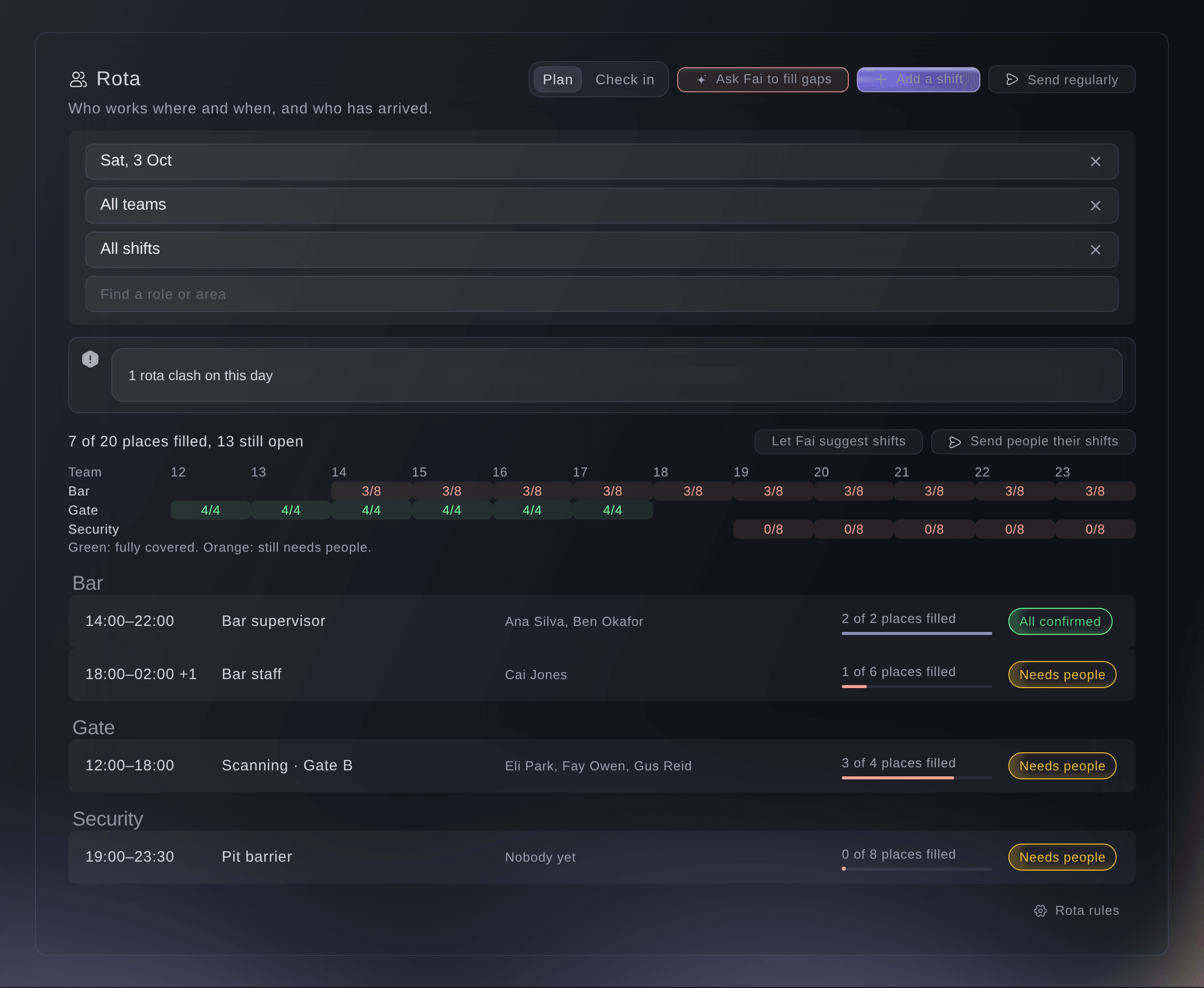
The rota for one festival day. -
Let Fai suggest shifts
Optional: select Let Fai suggest shifts, enter People at the busiest time, Doors open and Last people leave, then select Update.
Huomautus: Fai suggests how many people each team needs hour by hour, and the add button puts those shifts on the rota for you to adjust.
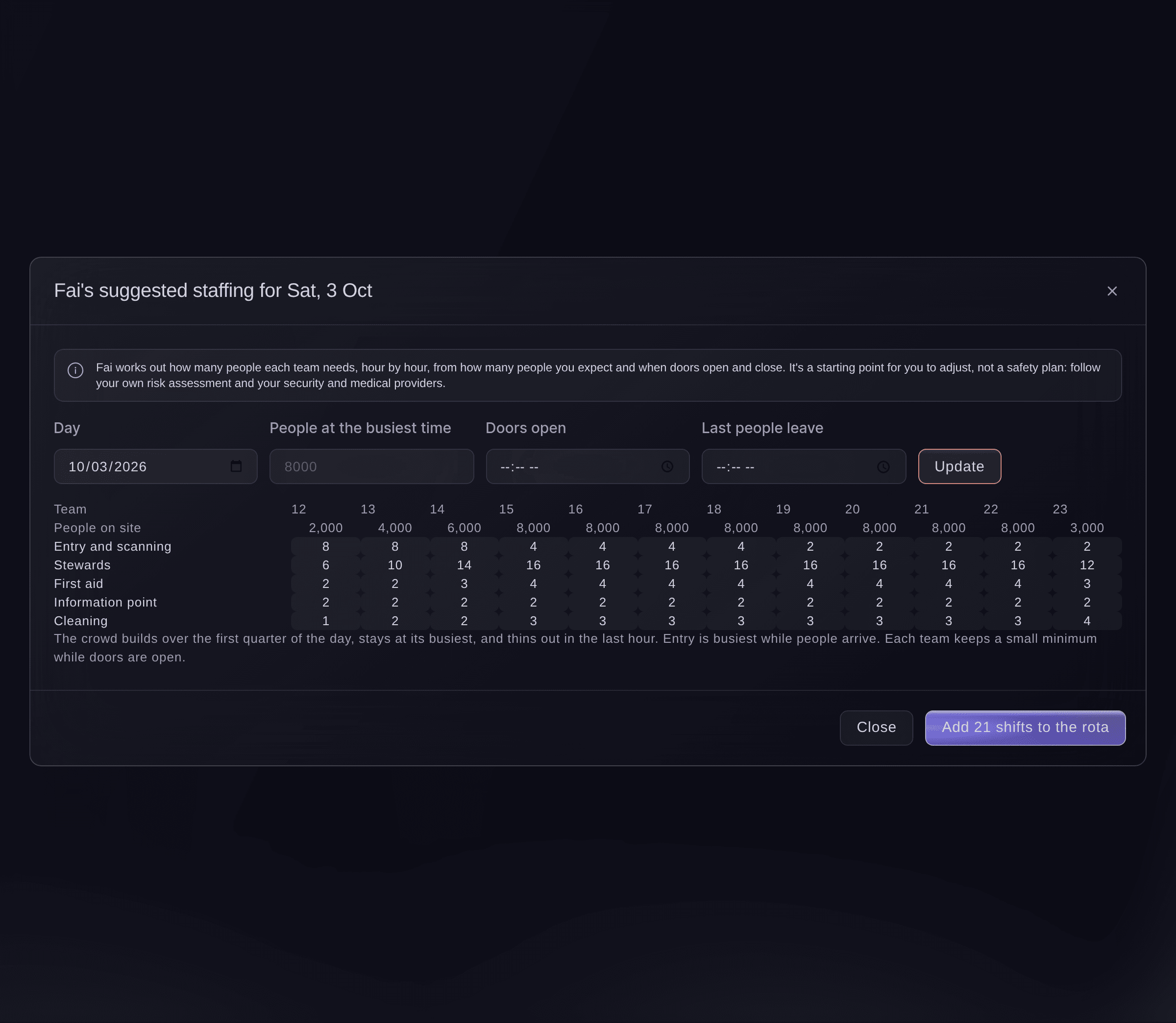
Fai's suggested staffing. -
Add a shift
Select Add a shift, enter the Team or Role, Starts, Ends and People needed, then select Add shift.
Huomautus: Choose Repeat over several days to add the same shift every day from a first to a last day. A shift that ends before it starts runs into the next morning.
Vinkki: Set the stage under More details (optional), so the shift shows on that stage's page.
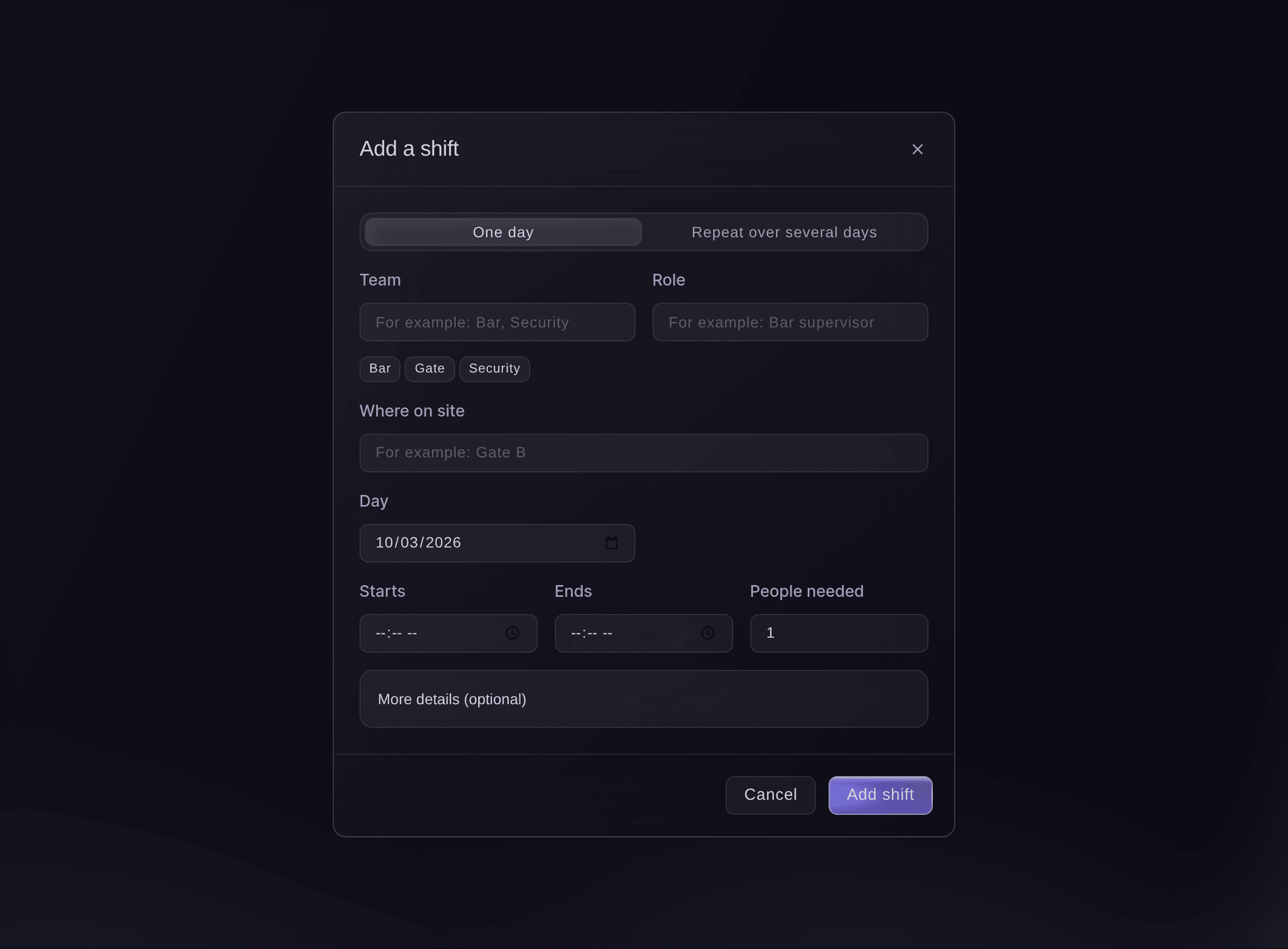
Add a shift. -
Find the hours that need people
Choose the day, then read the coverage table under the places filled.
Huomautus: Each cell counts people placed against people needed for a team and hour: green is covered, orange still needs people. Use the team, Show and search filters to narrow the shifts below it.
-
Add people to a shift
Select a shift, select Add people, find crew or volunteers by name or role, then select the add button.
Huomautus: For someone not on your lists, select Add someone not on your lists. Everyone starts as Invited; select Mark confirmed when they say yes.
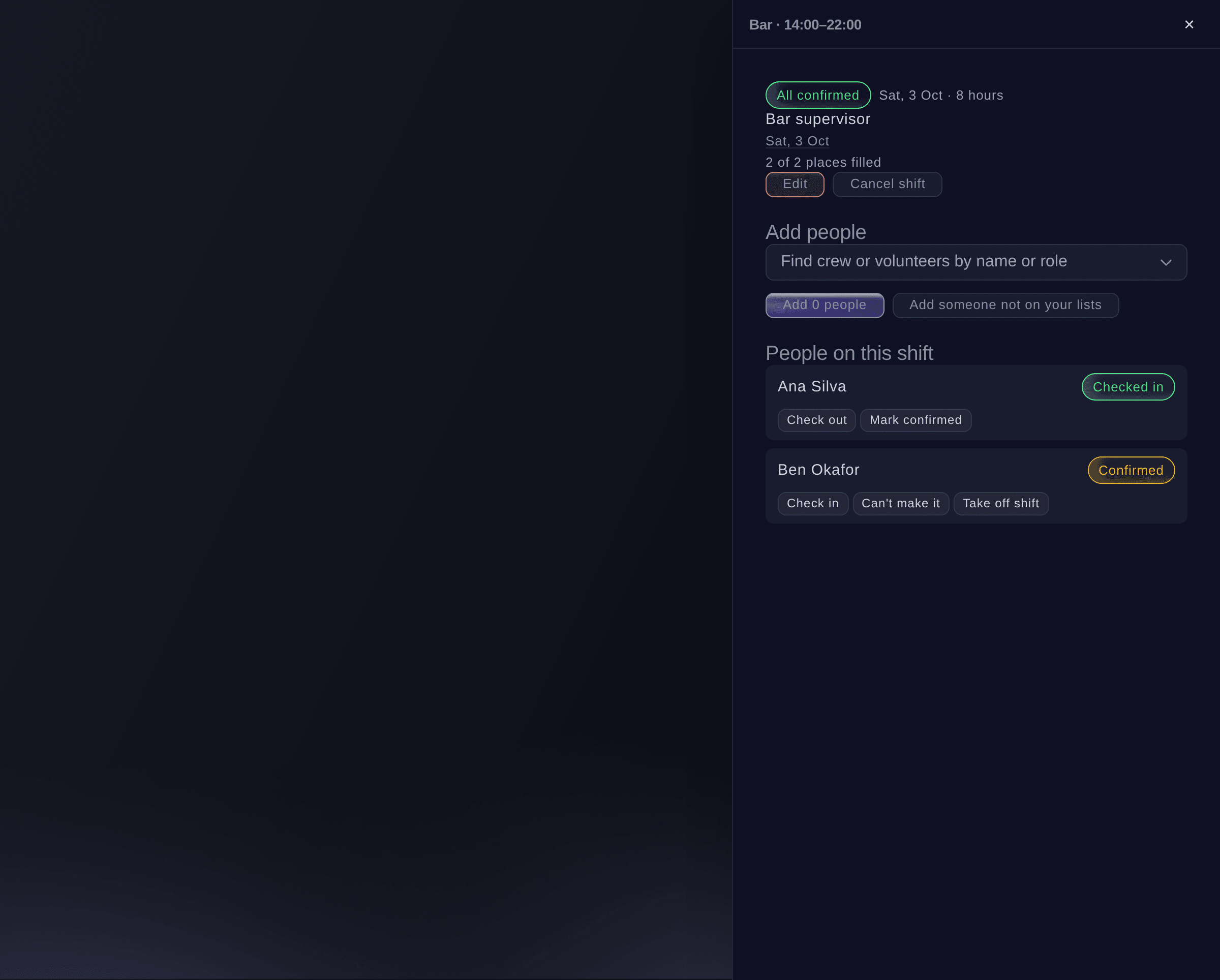
One shift and the people on it. -
Ask Fai to fill the gaps
Select Ask Fai to fill gaps, untick anyone you do not want, then select the add button.
Huomautus: Fai picks people who are free then, starting with those in the same team or with a matching role, and says why for each. They are added as invited and nobody is emailed.
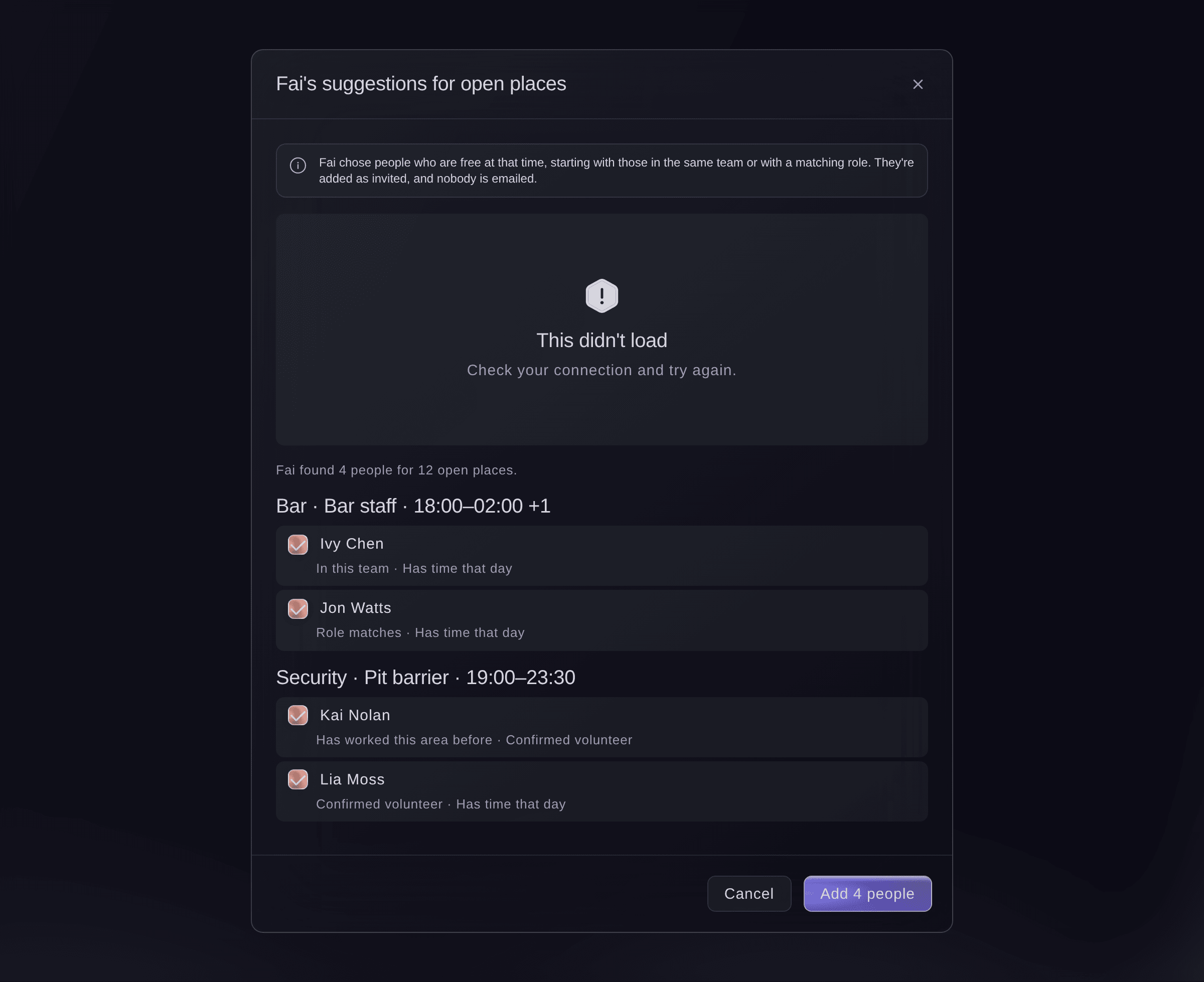
Fai's suggestions for open places.


Clashes and rota rules
A warning above the rota counts its clashes and names each person: on two shifts at once, working more hours in a day than your rules allow, or with too little rest between shifts. Fai never suggests someone for a shift that would break the rules, and a gap of 3 hours or more counts as rest even on the same day.
-
Set your rota rules
Select Rota rules, set Shortest rest between shifts (hours) and Most hours in one day, then select Save.
Huomautus: The same dialog holds your Safety lead and Safety lead's email, who is emailed straight away about a high or critical incident.
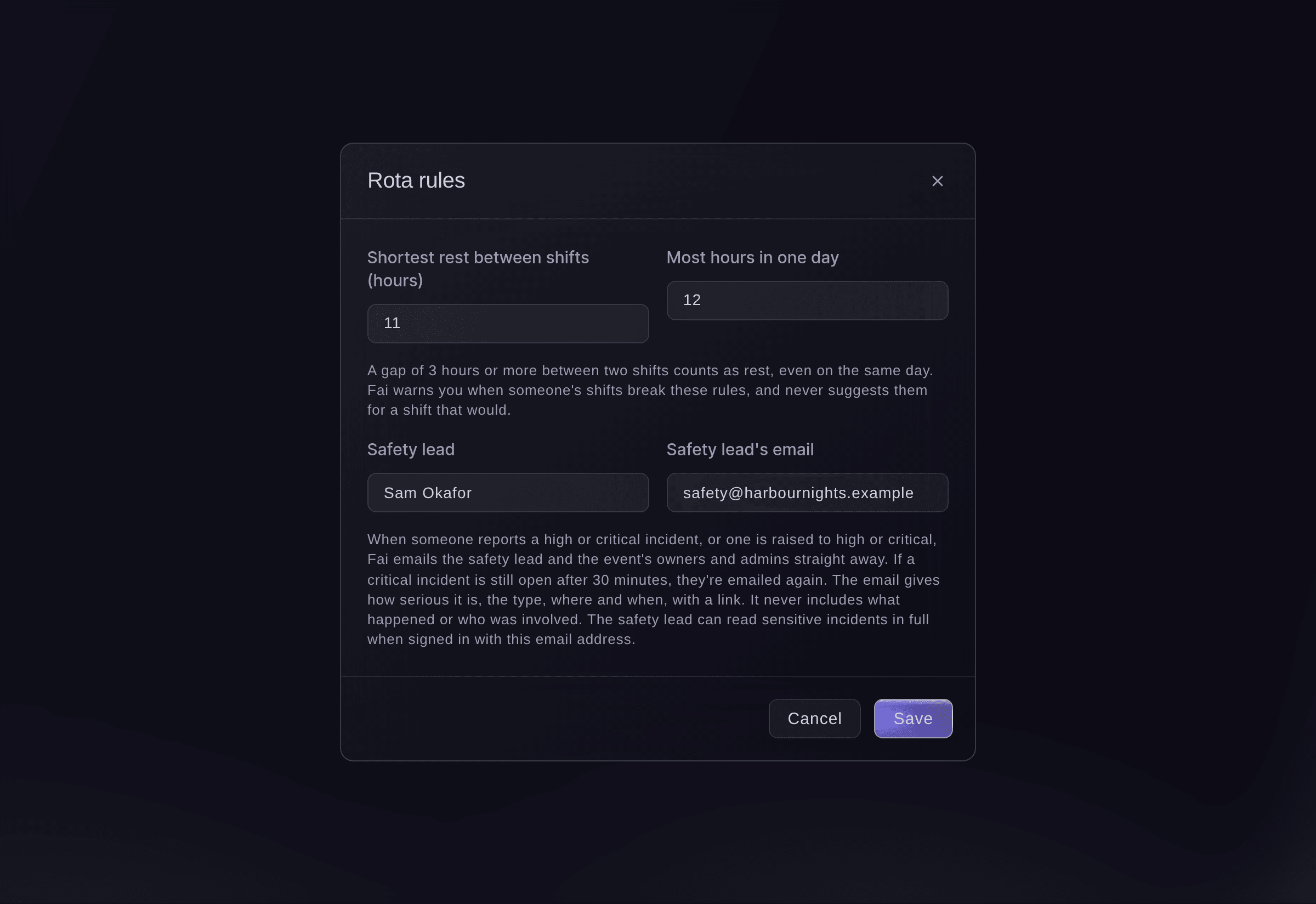
Rota rules and the safety lead. -
Send people their shifts
Select Send people their shifts, check the example email, then select the send button.
Huomautus: Each person gets one email with only their own shift times, place and role for the day, and replies come to you. Anyone without an email address is left out, and the dialog says how many.
Varoitus: The emails go as soon as you select the send button.
Send people their shifts. -
Check people in on the day
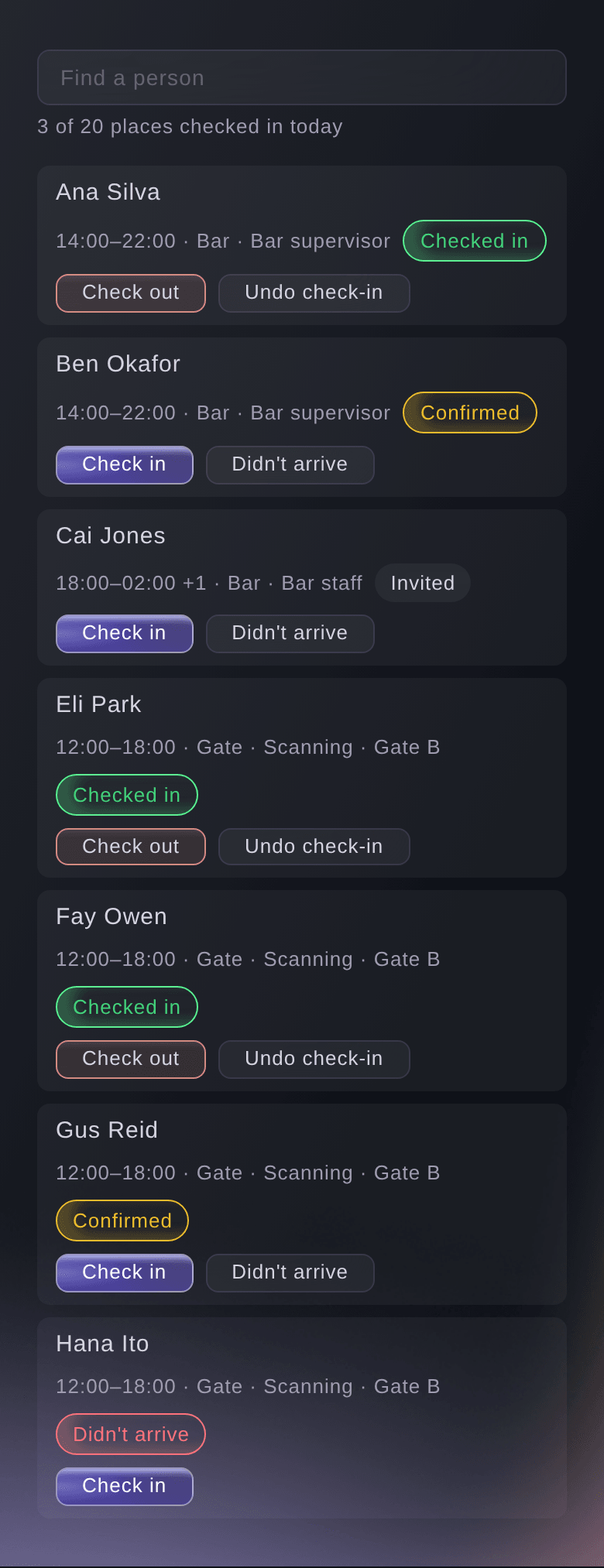
Select Check in at the top of the rota, find the person in Find a person, then select Check in.
Huomautus: Select Didn't arrive for someone who has not come, and Check out when they leave. Every step can be undone, and the list refreshes every 20 seconds.
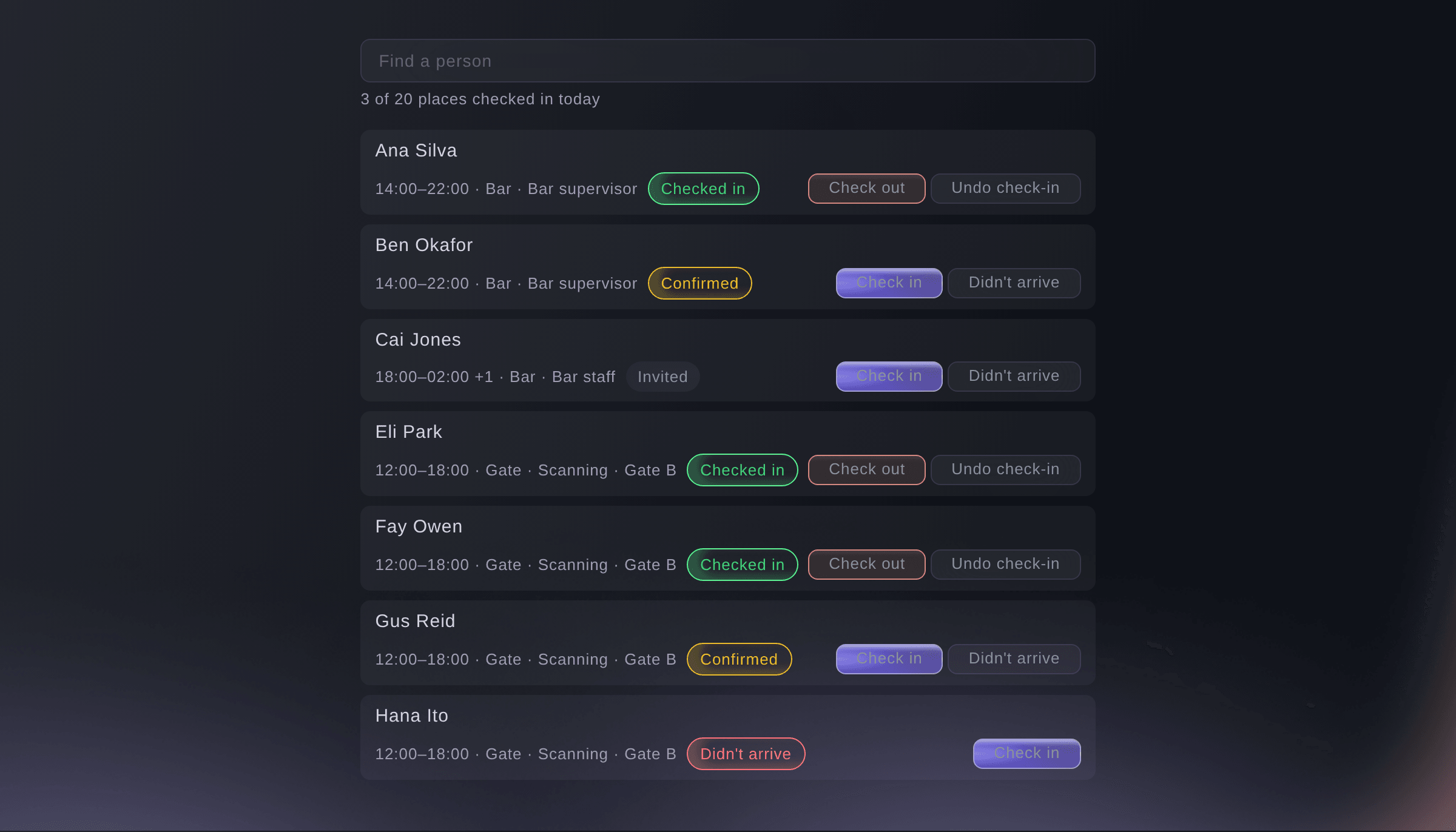
The check-in list on the day.


Kokeile näitä vaiheita omassa tapahtumassasi
Luo ilmainen tili, rakenna tapahtumasi ja seuraa yllä olevia vaiheita omassa hallintapaneelissasi. Se vie muutaman minuutin, eikä sinun tarvitse varata myyntipuhelua.
Ei käyttöönottomaksuja. Ei pakollista kuukausimaksua. Luottokorttia ei tarvita.
Tai anna sen hoitua puolestasi
Fai reads the rota, its coverage and clashes, suggests shifts from your expected crowd and people for open places, adds and changes shifts, adds people, sets the rota rules, emails people their own shifts and checks people in or out. She shows you each change and waits for your yes first; only sending shifts emails anyone.
Hallintapaneelissasi, Fain kanssa
Which shifts on Saturday at <EVENT NAME> still need people? Suggest volunteers to fill them
Anna Fain hoitaa se puolestasi
Fai toimii Ticket Fairy -hallintapaneelissasi. Luo tili, avaa Fai ja liitä yllä oleva kehote.
Ei käyttöönottomaksuja. Ei pakollista kuukausimaksua. Luottokorttia ei tarvita.
Cancel a shift
-
Cancel it
Open the shift, then select Cancel shift.
Huomautus: The shift shows as Cancelled and stays in the rota's history. Select Bring back to put it back.
Fai cancels a shift or brings one back when you ask, after you confirm.
Hallintapaneelissasi, Fain kanssa
Cancel the Sunday pit barrier shift at <EVENT NAME>
Take someone off a shift
-
Take them off
Open the shift, select Take off shift beside the person, then confirm.
Huomautus: They stay in the shift's history, and you can add them again. Select Can't make it instead when they said no.
Fai takes someone off a shift when you ask, after you confirm.
Hallintapaneelissasi, Fain kanssa
Take Cai Jones off the Saturday bar shift at <EVENT NAME>
Kysymyksiä joita sinulla voi olla
- Are Fai's suggested shifts a safety plan?
- No. They are a starting point. Follow your own risk assessment and your security and medical providers.
- Can I add someone to a shift that is already full?
- Yes. The rota asks whether to add them anyway, then adds them as invited.
- Does Fai email the people she suggests?
- No. Fai's suggestions are added as invited and nobody is emailed. Only Send people their shifts emails anyone.
- Can someone at the gate check people in without the Management page?
- Any member of your event's team can ask Fai to check someone in or out, as at the door. Fai waits for their yes first.
- What do the shift statuses mean?
- Needs people means fewer are placed than needed, Filled means enough are placed, and All confirmed means enough have confirmed. Cancelled stays until you bring the shift back.
Jäikö vielä kysyttävää?
Varaa esittely, niin vastaamme siihen puhelussa sinun tapahtumatyyppisi mukaan. Tai luo tili ja katso itse.
Ei käyttöönottomaksuja. Ei pakollista kuukausimaksua. Luottokorttia ei tarvita.
Aiheeseen liittyvät oppaat
Tee tämä omassa tapahtumassasi
Luo tili, rakenna tapahtumasi ja seuraa vaiheita omassa hallintapaneelissasi. Sinun ei tarvitse varata myyntipuhelua.