
Tuotannon hallinta
Report and handle incidents at your event
Event safety leads, duty managers and stewards need one record of what happened on site, who is dealing with it and what was done, from a fainting at the bar to a crowd surge at the barrier. The incident log takes three answers to start, tells the right people at once when it is serious, and keeps every step for the licensing officer afterwards.
Log anything that goes wrong on site at your event in seconds, alert your safety lead about serious incidents at once, keep medical and safeguarding details to your safety team, and follow each incident through to closed with a complete record.
- Kenelle
- Logging and following up what happens on site
- Kestää
- 8 minuuttia
Ennen aloitusta
- You are an owner, admin or producer on the event. The event's Management page opens for those roles only.
- Your safety lead's email is set in Rota rules if you want them emailed about serious incidents.
-
Open the incident log
Open the event, select Management, then select Incidents in the list of sections.
Huomautus: Needs handling lists new incidents first, then the ones being handled, each with the most serious at the top. The list updates by itself every 20 seconds.
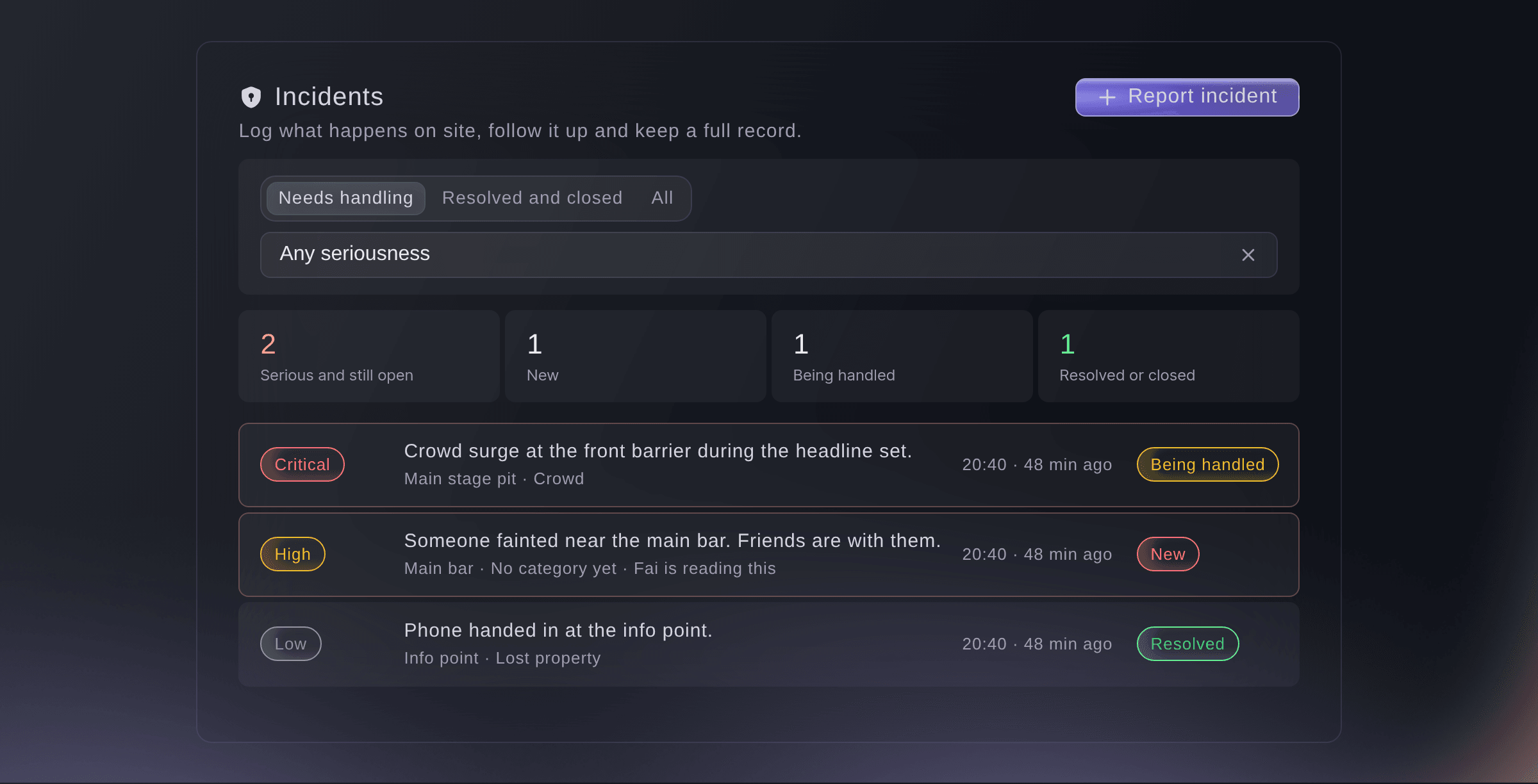
The incident log. -
Report what happened
Select Report incident, enter What happened? and Where?, then choose How serious is it?.
Huomautus: Keep names out of what happened; put them under People involved in More details, where only your safety team can read them. The time is now and the reporter is you unless you change them under More details (optional).
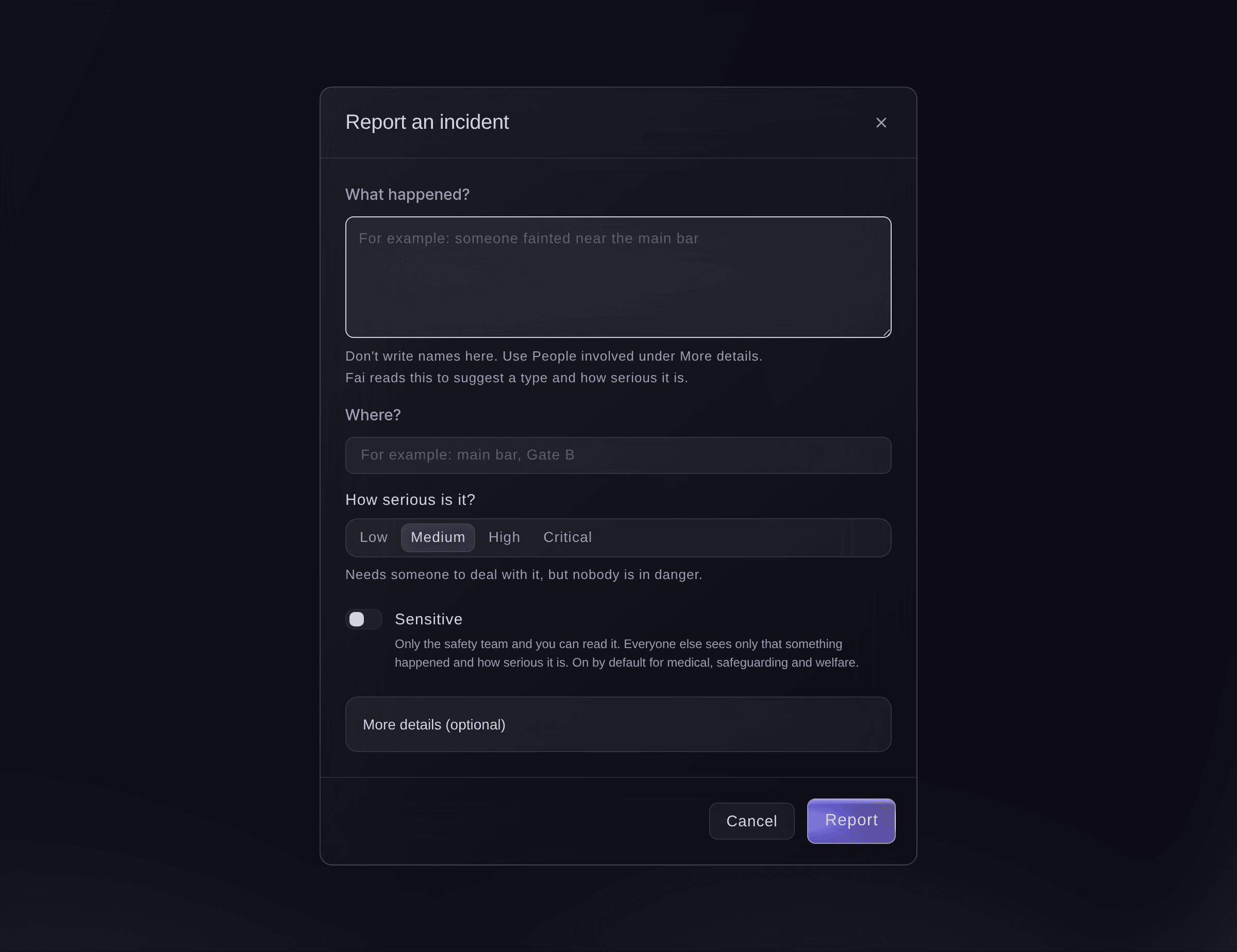
Report an incident. -
Mark it sensitive when it needs to be
Turn on Sensitive for anything personal, then select Report.
Huomautus: It is on by default for medical, safeguarding and welfare incidents. Only your safety team and the person who reported it can then read it; everyone else sees only that something happened, when and how serious it is.


The automatic safety alert
When an incident is reported as High or Critical, or raised to either later, Fai emails your safety lead and the event's owners and admins straight away, up to 20 people. The email gives how serious it is, the type, where and when, with a link, and never what happened or who was involved. If a critical incident is still open 30 minutes after it was reported, Fai emails them again the next time she checks the event, which she does every hour.
-
Check Fai's suggestion
Open the incident, read Fai suggests, then select Use Fai's suggestion if it is right.
Huomautus: Fai reads the report and suggests its type and how serious it is; the person handling it decides. Select Ask Fai again after you add more detail.
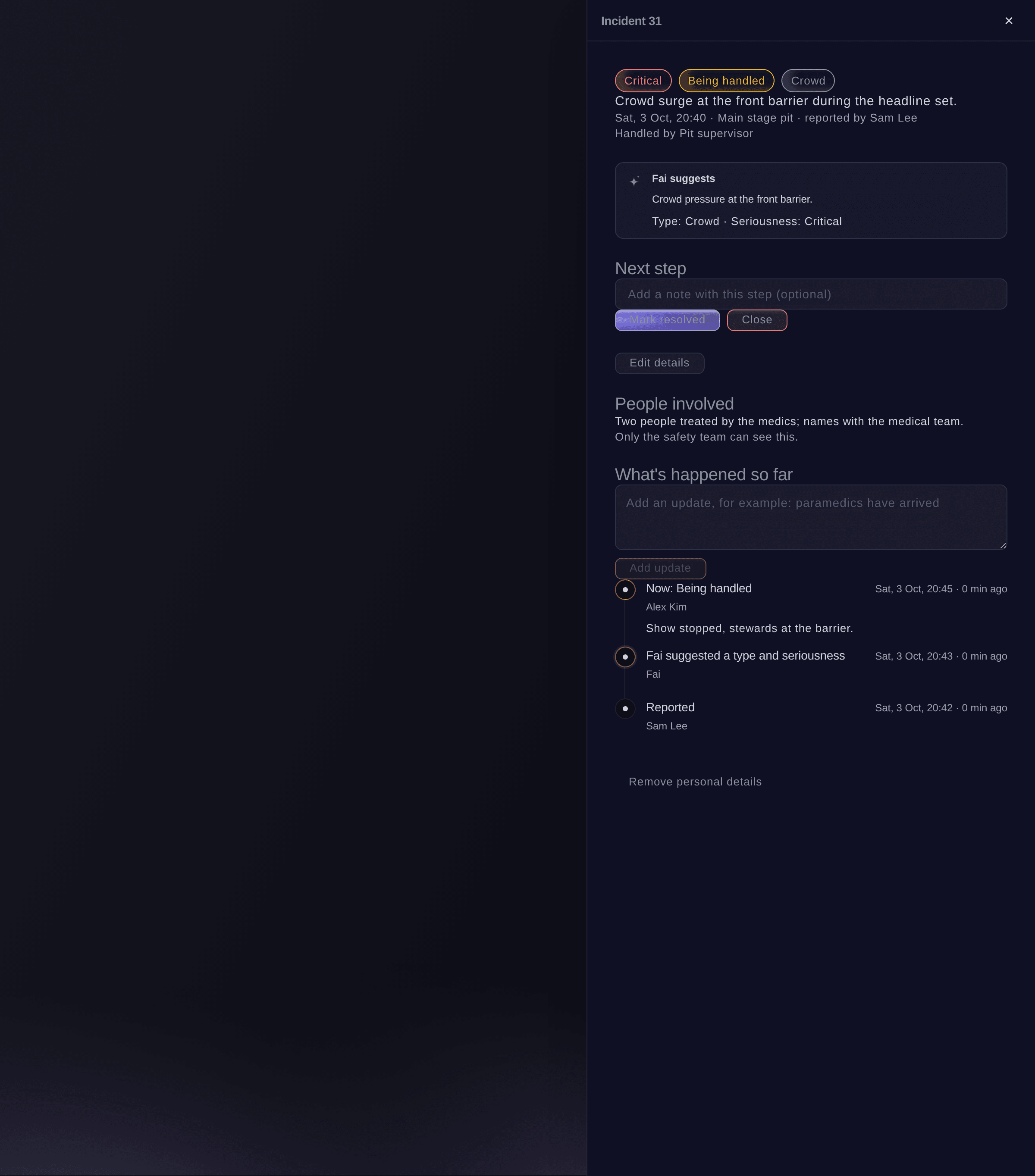
One incident and its timeline. -
Move the incident on
Under Next step, optionally enter a note, then select Start handling, Mark resolved or Close.
Huomautus: Every step is added to What's happened so far with who took it and when. A resolved or closed incident can be reopened with Reopen.
-
Add updates as things happen
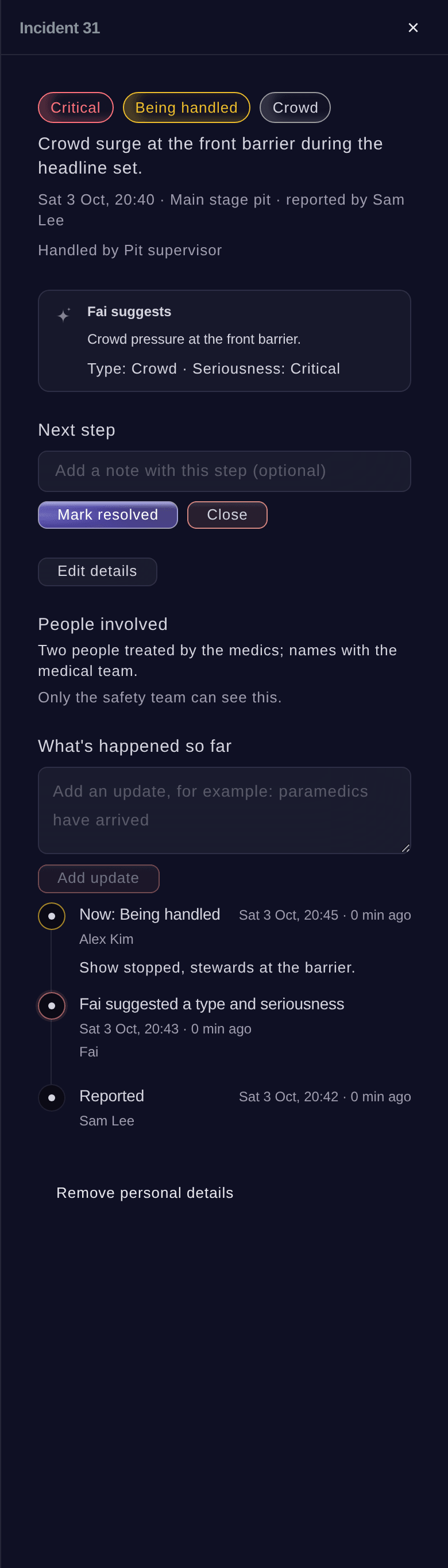
Enter the update, for example "paramedics have arrived", then select Add update.
Huomautus: Updates are added to the timeline and never overwritten. Select Edit details to correct where, when, the type or how serious it is.
Kokeile näitä vaiheita omassa tapahtumassasi
Luo ilmainen tili, rakenna tapahtumasi ja seuraa yllä olevia vaiheita omassa hallintapaneelissasi. Se vie muutaman minuutin, eikä sinun tarvitse varata myyntipuhelua.
Ei käyttöönottomaksuja. Ei pakollista kuukausimaksua. Luottokorttia ei tarvita.
Tai anna sen hoitua puolestasi
Fai reads the incident log, logs an incident or adds an update to one, suggests its type and seriousness, changes its details, moves it on, reopens it or removes its personal details. She shows you each change and waits for your yes first. Any member of your event's team can report an incident or add an update through Fai.
Hallintapaneelissasi, Fain kanssa
Log an incident at <EVENT NAME>: someone fainted near the main bar, medium, first aid is with them
Anna Fain hoitaa se puolestasi
Fai toimii Ticket Fairy -hallintapaneelissasi. Luo tili, avaa Fai ja liitä yllä oleva kehote.
Ei käyttöönottomaksuja. Ei pakollista kuukausimaksua. Luottokorttia ei tarvita.
Remove personal details from an incident
-
Remove them
Open the incident, select Remove personal details, then confirm.
Huomautus: This clears the people involved and the text of every update. The incident, its type, how serious it was and the record of who did what and when stay.
Varoitus: You cannot undo this.
Fai removes an incident's personal details when you ask, after you confirm. It cannot be undone.
Hallintapaneelissasi, Fain kanssa
Remove the personal details from incident 31 at <EVENT NAME>
Kysymyksiä joita sinulla voi olla
- Who is on the safety team?
- The event's owners, admins and producers, and your safety lead when they sign in with the email address in Rota rules. They read sensitive incidents in full, and every time someone opens one it is recorded.
- Can I delete an incident logged by mistake?
- No. Incidents are never deleted, so the record stays complete. Close it with a note saying it was logged by mistake.
- Can stewards report an incident without the Management page?
- Yes. Any member of your event's team can ask Fai to log an incident or add an update, and Fai waits for their yes first. A high or critical report emails the safety team the same way.
- Why did my safety lead not get the email?
- Check their email address in Rota rules. The email goes when an incident is reported or raised to High or Critical, once for each rise.
Jäikö vielä kysyttävää?
Varaa esittely, niin vastaamme siihen puhelussa sinun tapahtumatyyppisi mukaan. Tai luo tili ja katso itse.
Ei käyttöönottomaksuja. Ei pakollista kuukausimaksua. Luottokorttia ei tarvita.
Aiheeseen liittyvät oppaat
Tee tämä omassa tapahtumassasi
Luo tili, rakenna tapahtumasi ja seuraa vaiheita omassa hallintapaneelissasi. Sinun ei tarvitse varata myyntipuhelua.