
Tuotannon hallinta
Raise purchase orders and track what your event owes
Production managers and promoters commit money to staging, sound, security and performers long before the event, and lose track of who is owed what by when. Purchase orders and payments due keep every order, invoice and payment beside the event, so you can answer what is still to pay in one look.
Send suppliers a purchase order for your event, check their invoice against it, and see every deposit, balance, per diem and supplier payment that is overdue, due this week or coming up. Approved orders count as committed costs in your event budget, and you record each payment as you make it.
- Kenelle
- Ordering from suppliers and paying performers and suppliers on time
- Kestää
- 9 minuuttia
Ennen aloitusta
- You are an owner, admin or producer on the event. The event's Management page opens for those roles only.
-
Open purchase orders
Open the event, select Management, select Contracts, then select Purchase orders.
Huomautus: When a supplier's quote is confirmed, Fai drafts an order for it and marks it Drafted by Fai.
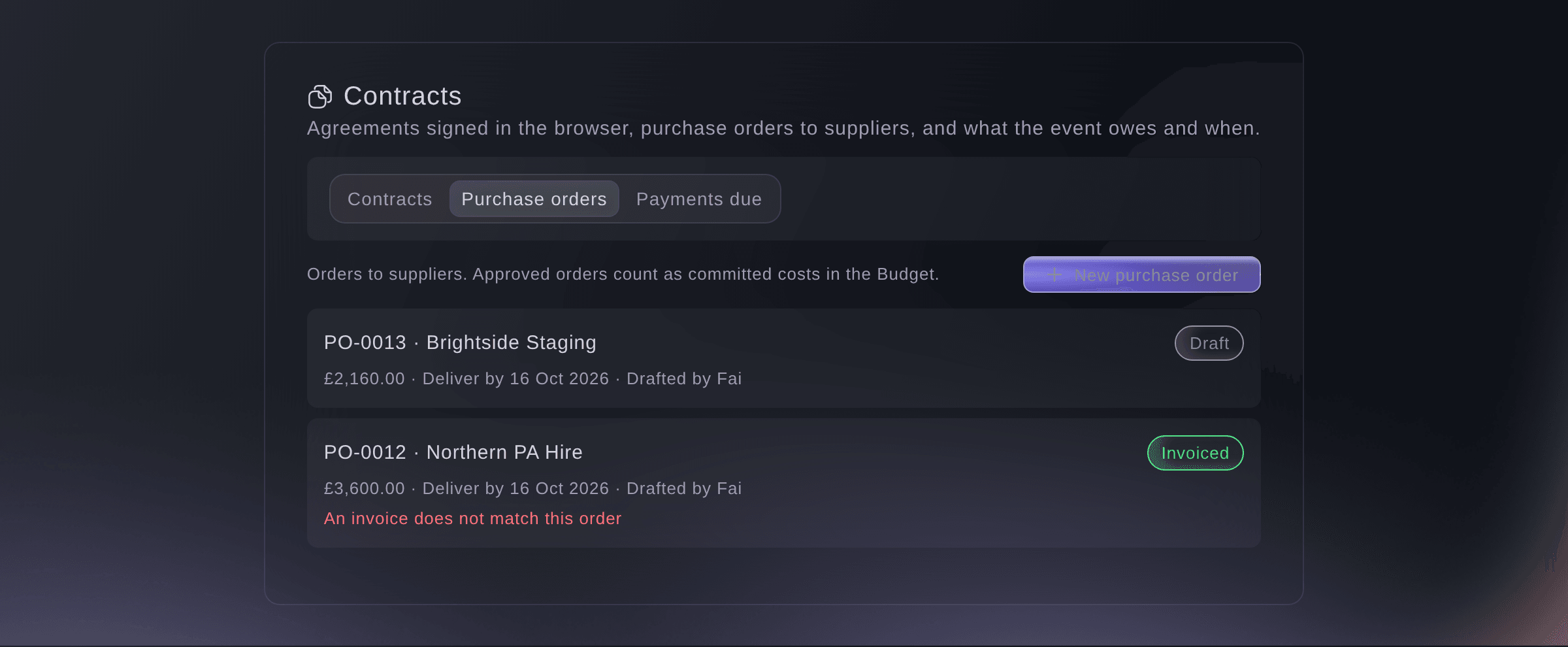
Purchase orders. -
Make a purchase order
Select New purchase order, enter the Supplier and each line of What you are ordering, then select Save as draft.
Huomautus: Enter the Supplier's email to send the order from here. Under More details, set the Tax, Deliver by, Pay by and notes for the supplier.
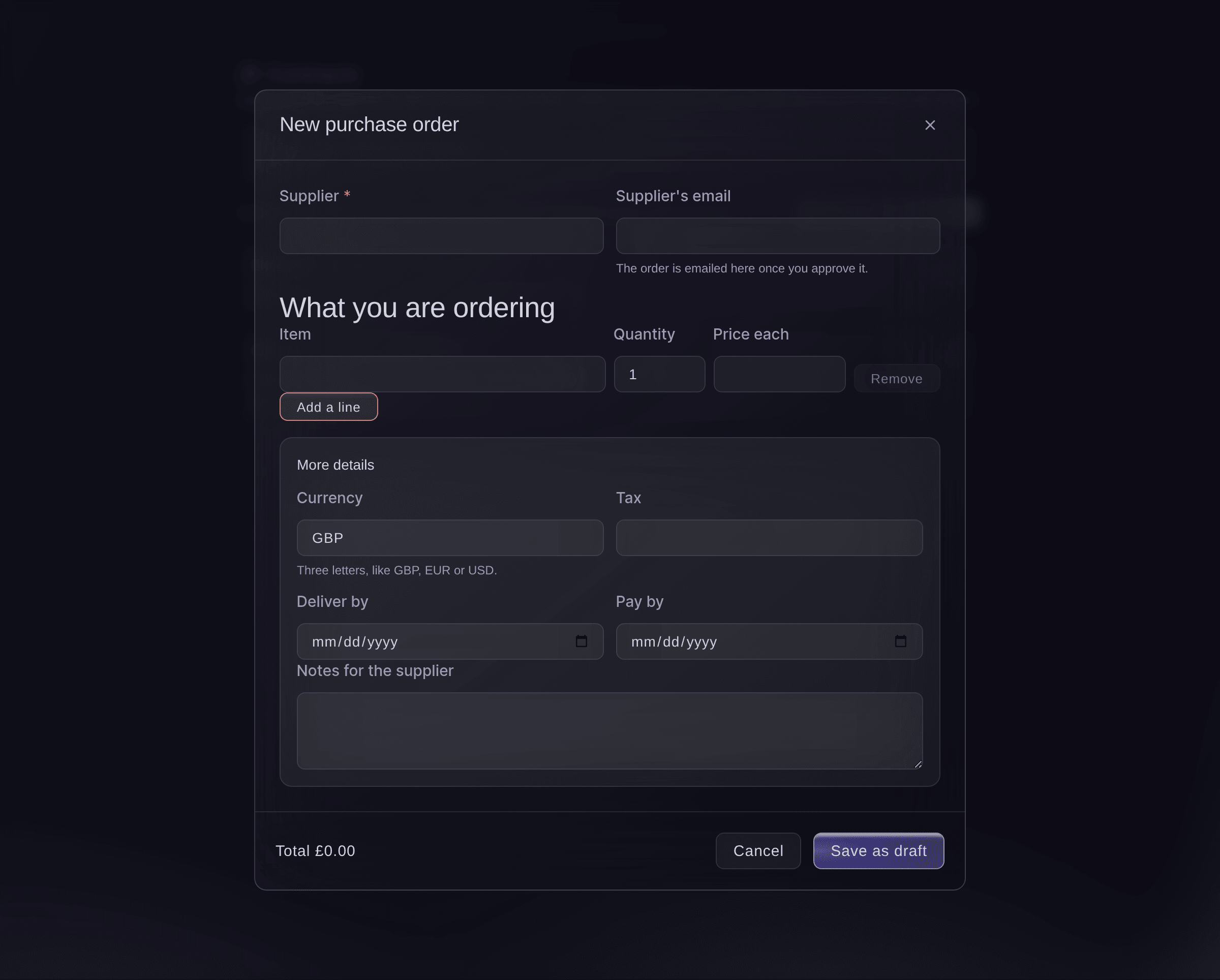
New purchase order. -
Approve the order
Open the order, check the lines and total, then select Approve.
Huomautus: An approved order counts as a committed cost in the event's Budget and can no longer be changed. Select Change before you approve it if anything is wrong.
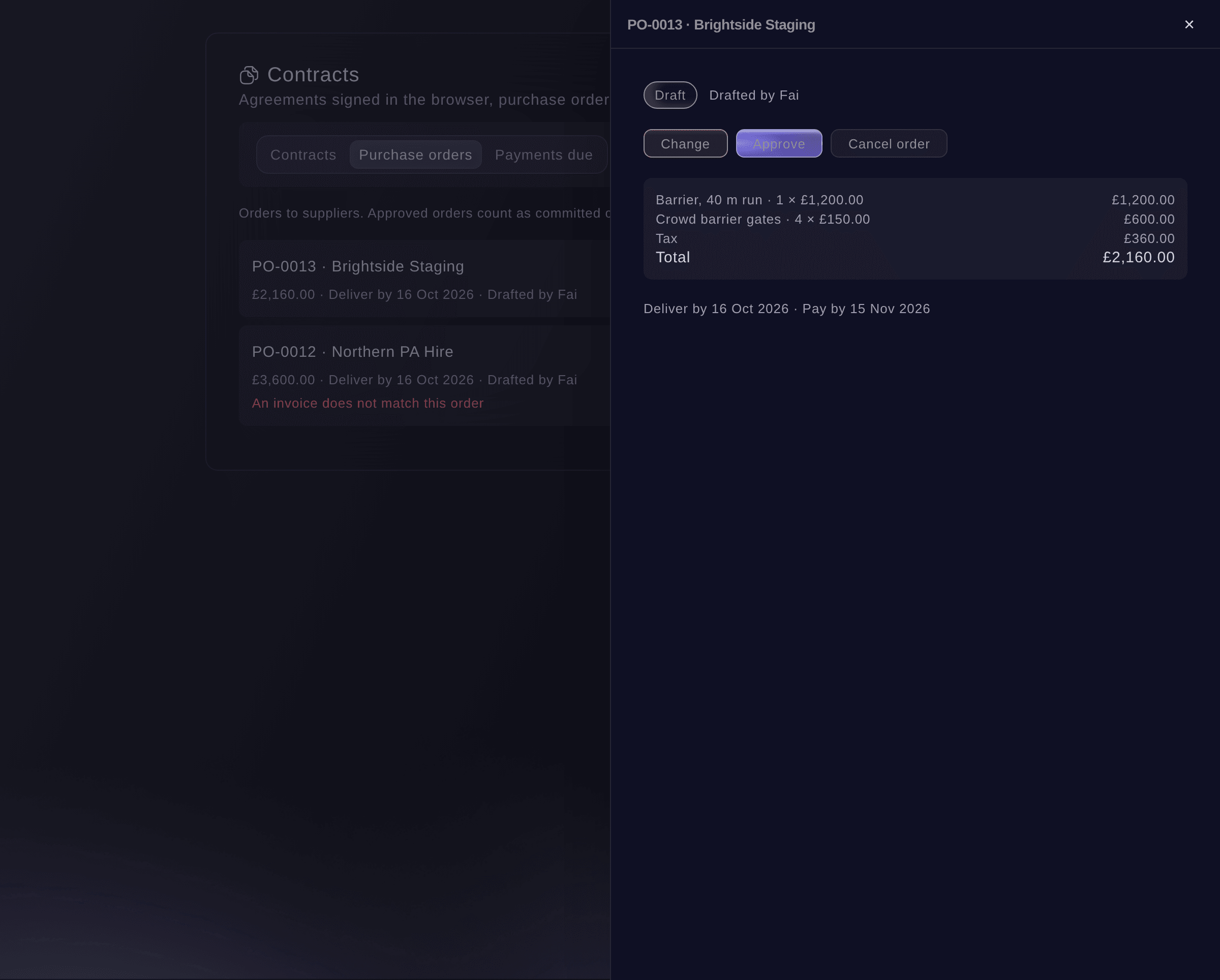
A draft order to approve. -
Send it to the supplier
Select Send to supplier, then select Send it.
Varoitus: The email goes as soon as you select Send it.
-
Check their invoice
When the invoice arrives, open the order, select Add their invoice and choose the file.
Huomautus: Upload a PDF or a photo up to 15 MB. Fai reads the total and says whether it matches the order to within 1.00 in the order's currency; enter the invoice total yourself and select Check against the order if it cannot.
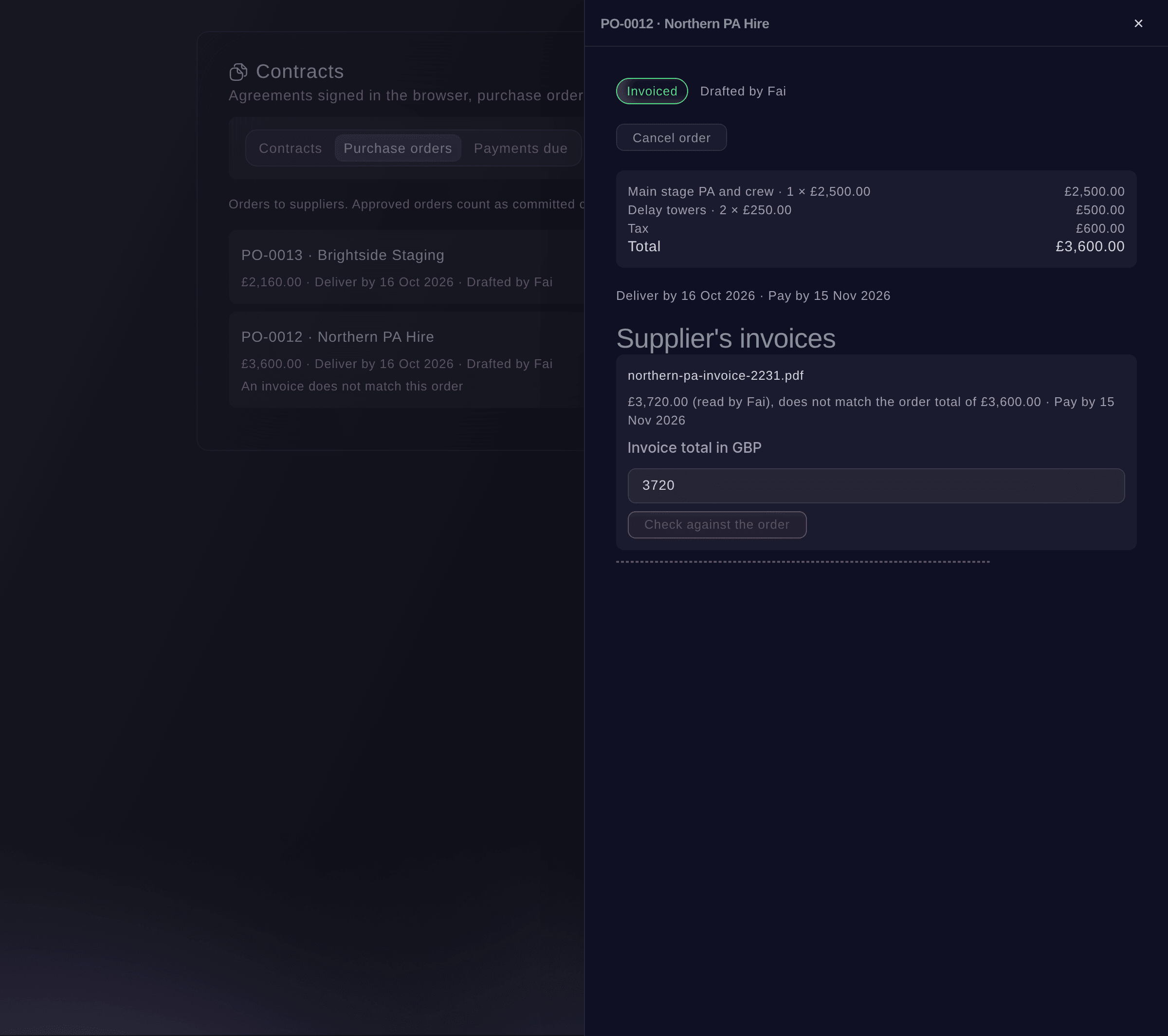
An invoice checked against its order. -
Open payments due
Select Payments due.
Huomautus: Deposits and balances come from the performers' deals, per diems and backline from here, and supplier orders once approved. Each one is Overdue, Due this week, Coming up or has No due date.
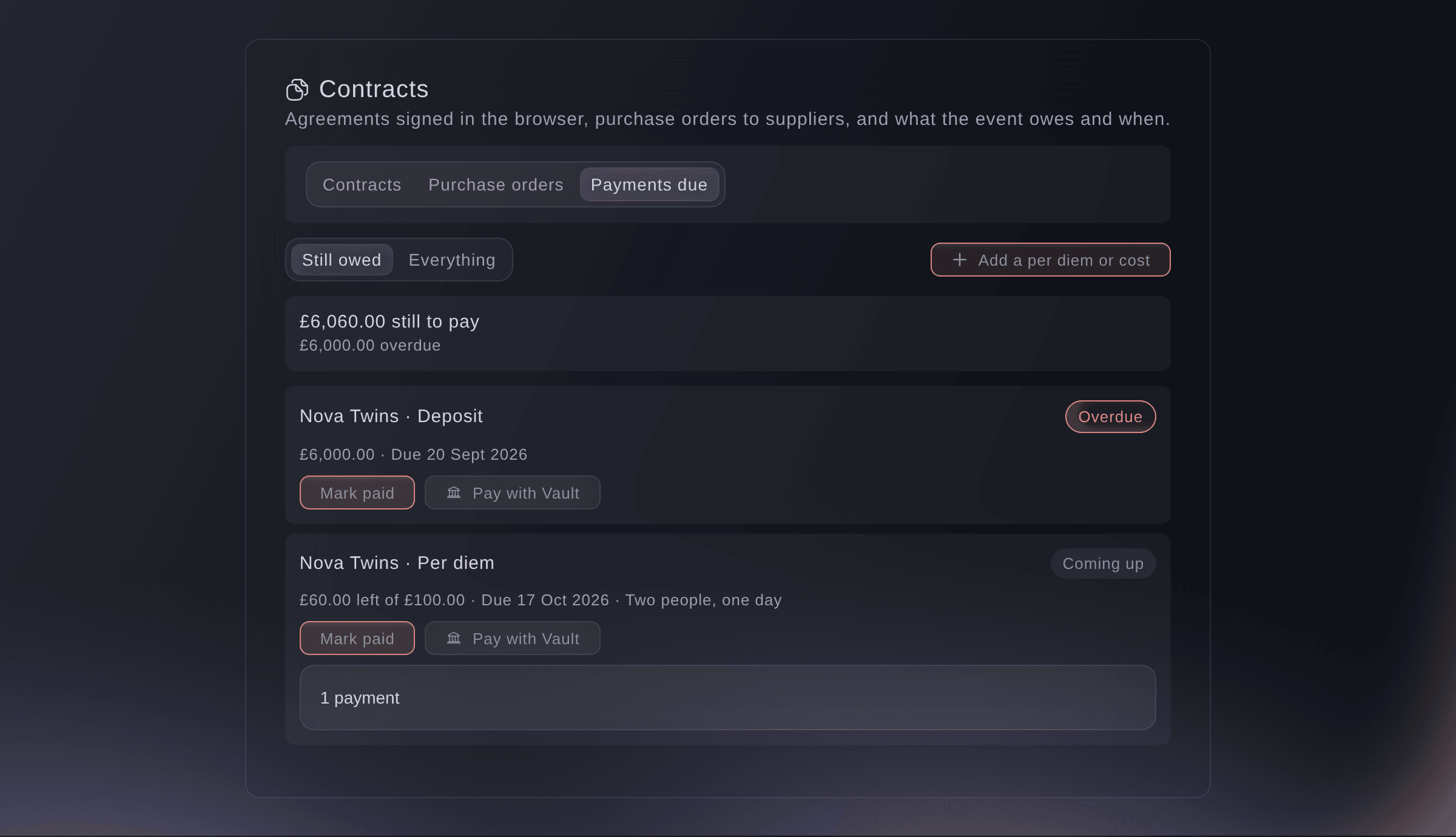
Payments due. -
Record a payment
Select Mark paid on the payment, enter the amount, Paid on and Paid by, then select Record payment.
Huomautus: This records a payment you have already made and does not send money. Enter less than the full amount to record part of it.
Vinkki: Owners and admins of a brand with Vault see Pay with Vault, which opens a Vault transfer.
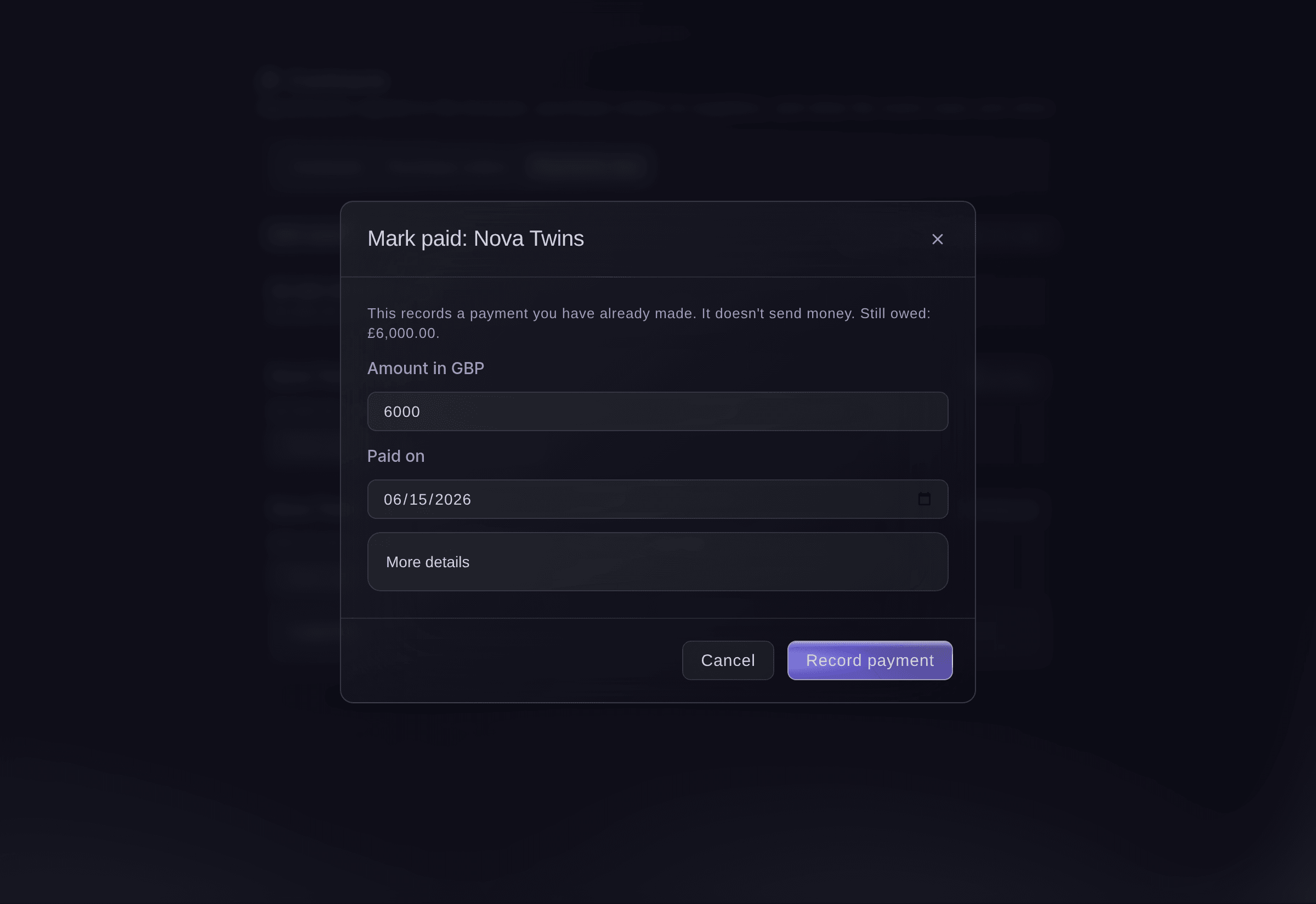
Record a payment.


Kokeile näitä vaiheita omassa tapahtumassasi
Luo ilmainen tili, rakenna tapahtumasi ja seuraa yllä olevia vaiheita omassa hallintapaneelissasi. Se vie muutaman minuutin, eikä sinun tarvitse varata myyntipuhelua.
Ei käyttöönottomaksuja. Ei pakollista kuukausimaksua. Luottokorttia ei tarvita.
Tai anna sen hoitua puolestasi
Fai reads your purchase orders, committed costs and payments due, drafts an order by hand or from a confirmed supplier quote, changes, approves, sends or cancels it, enters an invoice total to check it against the order, marks a payment as paid, reverses a payment and adds or removes a per diem or cost. She shows you each change and waits for your yes first. Fai records payments and never moves money; to pay from Vault she uses a Vault transfer you approve, then records it.
Hallintapaneelissasi, Fain kanssa
What does <EVENT NAME> still owe, and what is overdue?
Anna Fain hoitaa se puolestasi
Fai toimii Ticket Fairy -hallintapaneelissasi. Luo tili, avaa Fai ja liitä yllä oleva kehote.
Ei käyttöönottomaksuja. Ei pakollista kuukausimaksua. Luottokorttia ei tarvita.
Add a per diem or cost
-
Add it
On Payments due, select Add a per diem or cost, choose For and What for, enter the amount, then select Add cost.
Huomautus: Select Remove with a reason to take a cost off; it stays on record, marked removed.
Fai adds or removes a per diem, backline or other cost on a booking when you ask, after you confirm.
Hallintapaneelissasi, Fain kanssa
Add a 40 pound per diem for Nova Twins on Saturday at <EVENT NAME>
Reverse a payment recorded by mistake
-
Reverse it
Open the payment's history, select Reverse, enter what was wrong with it, then select Reverse payment.
Huomautus: This adds a correcting entry, and the original payment stays on record.
Fai reverses a payment with your reason when you ask, after you confirm.
Hallintapaneelissasi, Fain kanssa
Reverse the cash payment I recorded for Nova Twins' per diem at <EVENT NAME>, it was a mistake
Cancel a purchase order
-
Cancel it
Open the order, select Cancel order, enter why, then select Cancel order.
Huomautus: It stays on record, marked cancelled, with your reason, and no longer counts as a committed cost.
Fai cancels a purchase order with your reason when you ask, after you confirm.
Hallintapaneelissasi, Fain kanssa
Cancel PO-0013 at <EVENT NAME>, we are using a different barrier supplier
Kysymyksiä joita sinulla voi olla
- Where do committed costs show in my budget?
- Open the event's Budget. Committed with suppliers shows the approved purchase orders and the performers' per diems and backline, with a link to Contracts.
- Can I see payments due across all my events?
- Yes. Open Event Operations, then Contracts, for payments due across your events and contracts across your events.
- Does Fai remind me about payments?
- When payments are overdue or due within a week, Fai suggests one task for each on Today. Paying stays your job, in Vault or your bank.
- Can I delete a payment I recorded?
- No. Reverse it instead, so the record shows both the payment and the correction.
Jäikö vielä kysyttävää?
Varaa esittely, niin vastaamme siihen puhelussa sinun tapahtumatyyppisi mukaan. Tai luo tili ja katso itse.
Ei käyttöönottomaksuja. Ei pakollista kuukausimaksua. Luottokorttia ei tarvita.
Aiheeseen liittyvät oppaat
Tee tämä omassa tapahtumassasi
Luo tili, rakenna tapahtumasi ja seuraa vaiheita omassa hallintapaneelissasi. Sinun ei tarvitse varata myyntipuhelua.