
Tuotannon hallinta
Choose who approves accreditation requests for your event
Festival accreditation managers, press officers and heads of security each need a say on some passes before they are issued. Approval rules send each of those requests to the right people in turn, email them when something is waiting, and stop the pass going out until they agree.
Send the passes your event's rules pick out, such as press passes or a contractor's crew, to named people who approve them in order before the pass can go out. Each rule reads as a sentence, the first rule that matches decides who is asked, and a pass that matches no rule goes ahead as it always did.
- Kenelle
- Getting the right people to approve passes before they go out
- Kestää
- 6 minuuttia
Ennen aloitusta
- You are an owner, admin or producer on the event. The event's Operations page opens for those roles only.
- The people who will approve are on the event's team, with any role.
-
Open Approvals
Open the event, select Operations, then select Approvals at the top of the list of sections.
Huomautus: The rules are under Approval rules, below the requests waiting for approval. If Approvals is not in the list, select More sections and open it there.
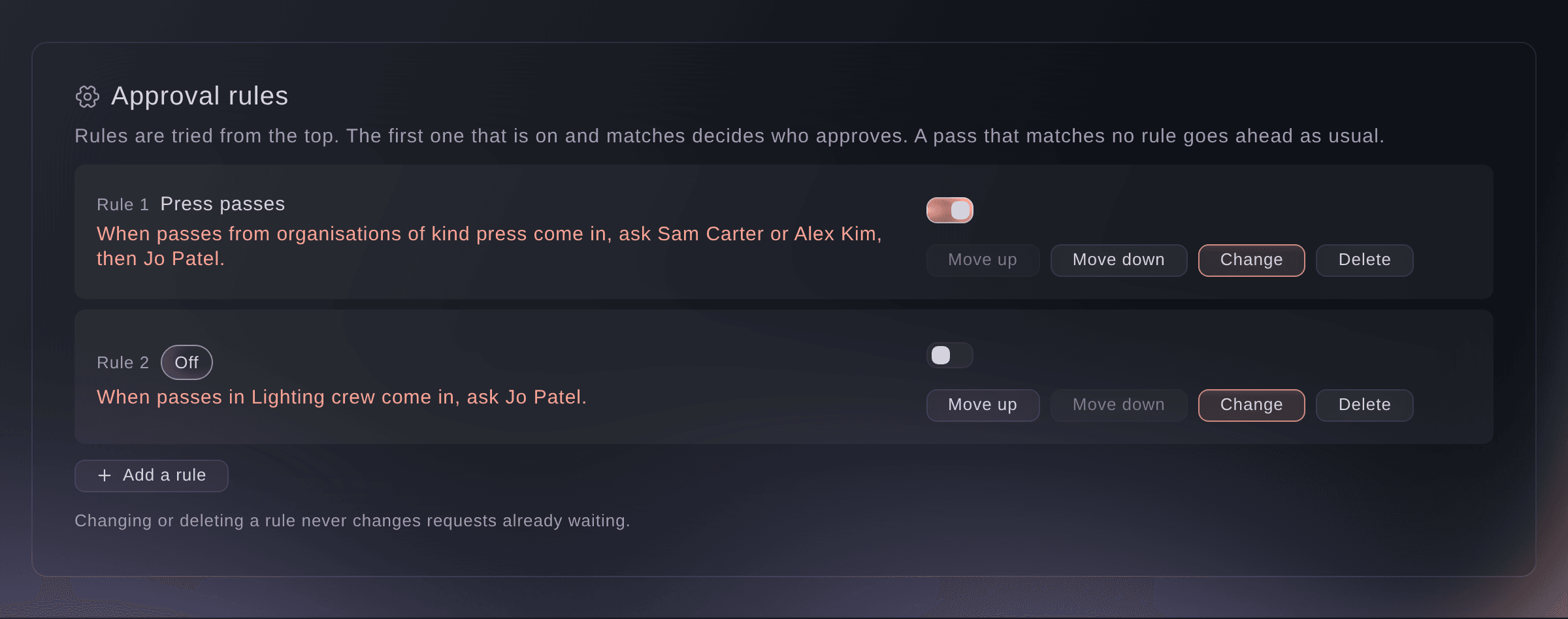
Approval rules, tried from the top. -
Add a rule
Select Add a rule, then choose passes in What needs approval.
Huomautus: The same rules can also ask named people about outside teams' equipment orders and delivery bookings, and an act's ask for more than its allowance.
-
Choose which passes it covers
Choose a condition in Add a condition, then choose its values.
Huomautus: A pass has to meet every condition you add, and any one value inside a condition is enough. With no condition, the rule covers every pass.
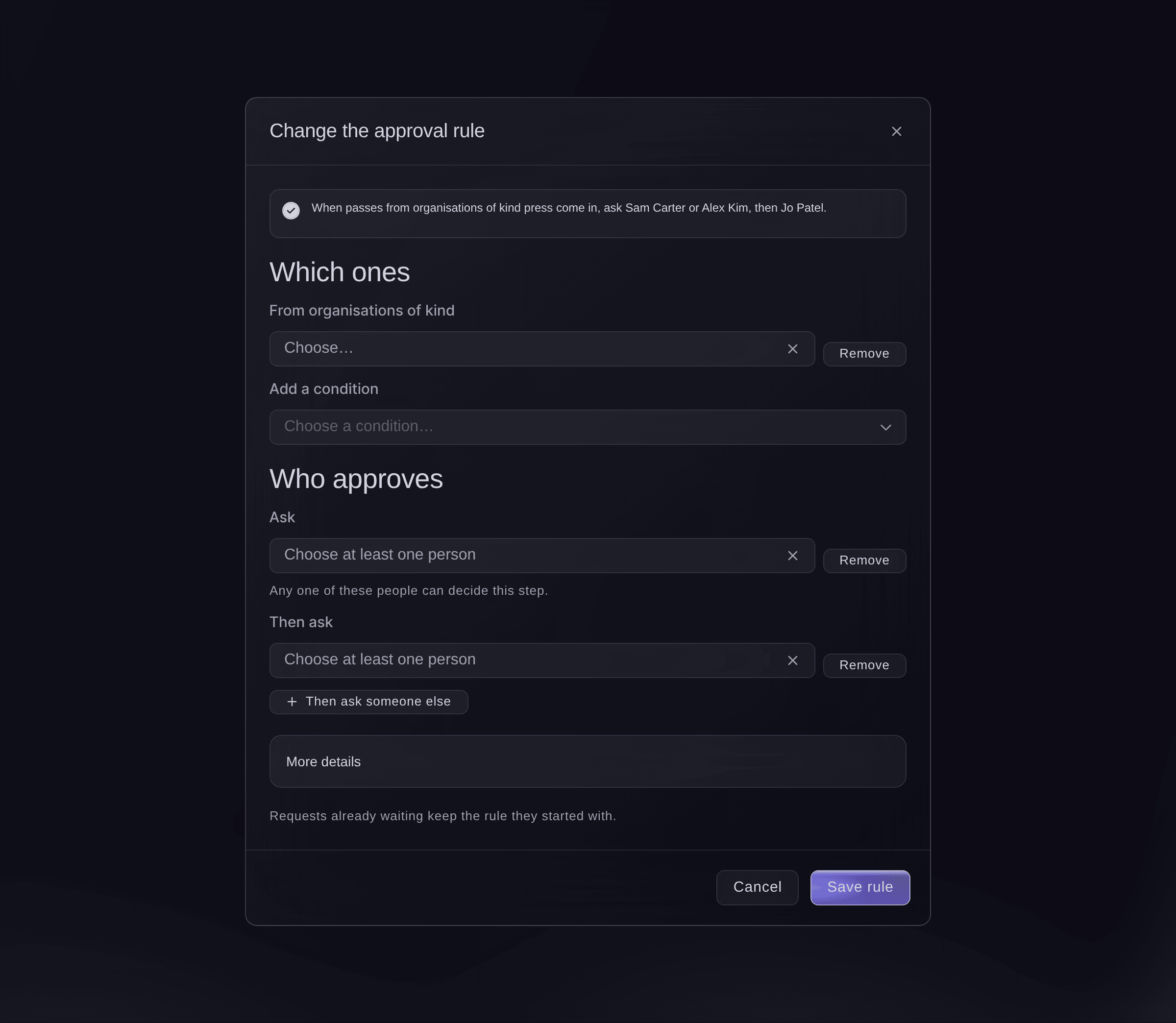
A rule for press passes. -
Choose who approves
Under Who approves, choose one or more people in Ask.
Huomautus: Any one of the people on a step can decide it. Select Then ask someone else to add a second step, up to 5 steps of up to 10 people each.
Vinkki: Under More details, name the rule and each step, such as Press office, so approvers see why a request came to them.
-
Save the rule
Select Add rule.
Huomautus: From now on, a pass the rule covers waits for approval and is left out when you issue passes. The people on its first step get an email listing what is waiting for them.
-
Put your rules in order
Optional: select Move up or Move down on a rule.
Huomautus: Rules are tried from the top, and only the first rule that is on and matches sends the request on, so put the narrow rules above the broad ones. A rule you turn off with the switch beside it is skipped and shows Off.


A pass waiting for approval
In Accreditation, a pass that is waiting shows Waiting for approval with the people it waits for, and issuing leaves it out until the last step approves it. An approved pass is then issued the usual way. A declined pass is declined, and the reason the approver gave shows on the pass and on the outside team's page.
Kokeile näitä vaiheita omassa tapahtumassasi
Luo ilmainen tili, rakenna tapahtumasi ja seuraa yllä olevia vaiheita omassa hallintapaneelissasi. Se vie muutaman minuutin, eikä sinun tarvitse varata myyntipuhelua.
Ei käyttöönottomaksuja. Ei pakollista kuukausimaksua. Luottokorttia ei tarvita.
Tai anna sen hoitua puolestasi
Fai reads your approval rules and adds, changes, turns off, reorders or deletes a rule when you say it as a sentence. She shows you the rule and waits for your yes first. The people she names must be on the event's team.
Hallintapaneelissasi, Fain kanssa
At <EVENT NAME>, when passes from press organisations come in, ask Sam Carter, then Jo Patel from security
Anna Fain hoitaa se puolestasi
Fai toimii Ticket Fairy -hallintapaneelissasi. Luo tili, avaa Fai ja liitä yllä oleva kehote.
Ei käyttöönottomaksuja. Ei pakollista kuukausimaksua. Luottokorttia ei tarvita.
Change or delete a rule
-
Change the rule
Select Change on the rule, make your change, then select Save rule.
Huomautus: Requests already waiting keep the rule they started with. Select Delete and confirm to stop new requests following a rule.
Fai changes, turns off or deletes a rule when you ask, after you confirm.
Hallintapaneelissasi, Fain kanssa
Turn off the lighting crew approval rule at <EVENT NAME>
Kysymyksiä joita sinulla voi olla
- What happens to passes that match no rule?
- They go ahead as before. Only a pass that matches a rule that is on waits for approval.
- I added a rule after people were already named. Do their passes need approval?
- Yes. The rules are checked again when you issue passes, so a waiting pass that matches a new rule is left out and its approvers are asked then.
- Does a pass need approval again if its details change?
- Yes, while it is not issued yet. A change to the person's name or email, the group, the pass type, or the zones and days on the pass cancels the approval, and the rules decide again. A change to parking or to the organisation typed on the pass does not.
- Can the approvers see every request on the event?
- No. Someone who does not run the event sees only the requests waiting for them, from the link in their email or through Fai. Owners, admins and producers see every request in the All waiting list.
- Why can I not choose someone as an approver?
- Only people on the event's team can approve. Invite them to the event first, then add them to the rule.
Jäikö vielä kysyttävää?
Varaa esittely, niin vastaamme siihen puhelussa sinun tapahtumatyyppisi mukaan. Tai luo tili ja katso itse.
Ei käyttöönottomaksuja. Ei pakollista kuukausimaksua. Luottokorttia ei tarvita.
Aiheeseen liittyvät oppaat
Tee tämä omassa tapahtumassasi
Luo tili, rakenna tapahtumasi ja seuraa vaiheita omassa hallintapaneelissasi. Sinun ei tarvitse varata myyntipuhelua.