
Tuotannon hallinta
Let outside teams order kit and equipment for your event
Festival and venue production teams lend radios, buggies and site kit to contractors, caterers and press every show, then chase the paperwork and the money afterwards. Taking those orders against your own kit list means nothing is promised twice, every team gets an invoice for what it ordered, and you can see what is still out with whom.
Offer radios, hi-vis vests, buggies and other kit from your event's kit list to contractors, suppliers, press and other outside teams at a price you set. Each team orders from its own page, you approve the order and the kit is held for them, an invoice goes with it, and you hand the kit out and take it back at your event.
- Kenelle
- Renting your event's kit to the outside teams working on it
- Kestää
- 10 minuuttia
Ennen aloitusta
- You are an owner, admin or producer on the event. The event's Operations page opens for those roles only.
- The kit you want to offer is on the event's kit list, with how many you have.
- Each team is in the event's Outside teams section with a contact email, and has the link to its own page.
-
Open outside teams' orders
Open the event, select Operations, select Kit and equipment in the list of sections, then select Outside teams' orders.
Huomautus: Orders sit under Waiting for a yes, To hand out, Handed out and Declined or cancelled. If Kit and equipment is not in the list, select More sections and open it there.
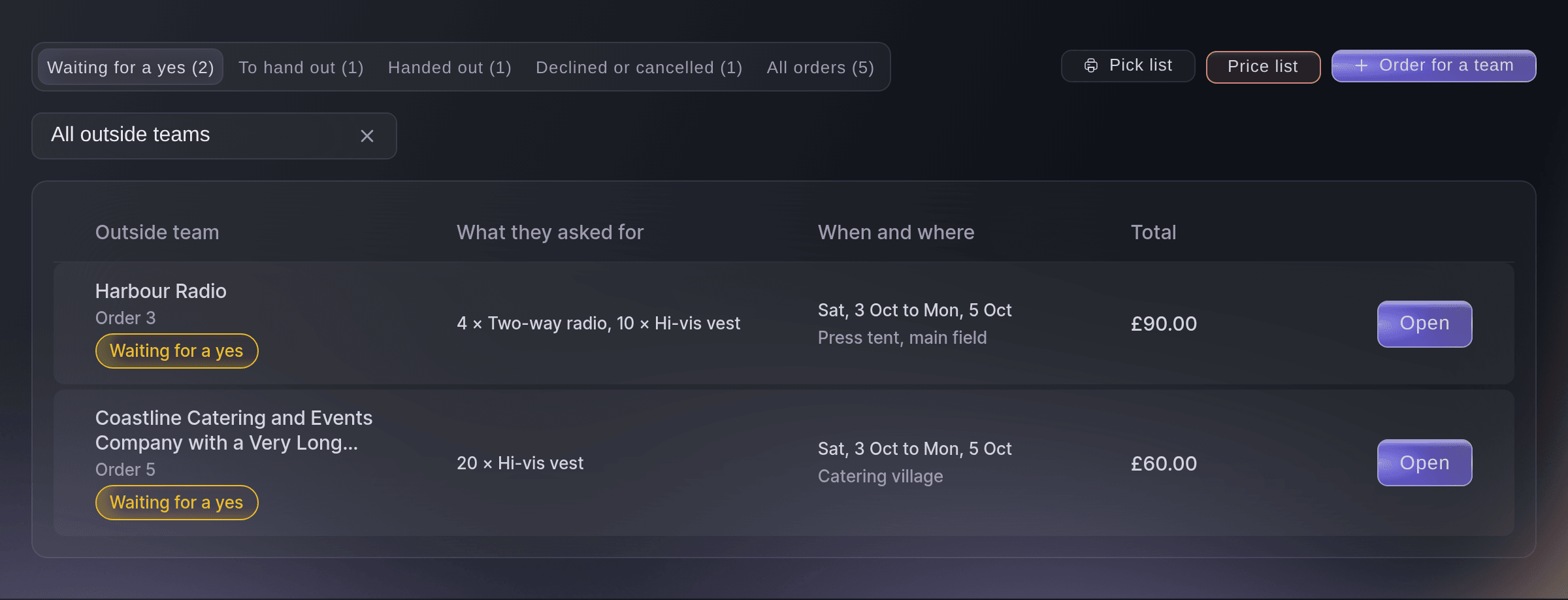
Kit orders from outside teams. -
Open the price list
Select Price list, then select Everything on the kit list.
Huomautus: Each row shows what the team pays and how many are available now. How many you have always comes from the kit list, and units held for approved orders are counted out.
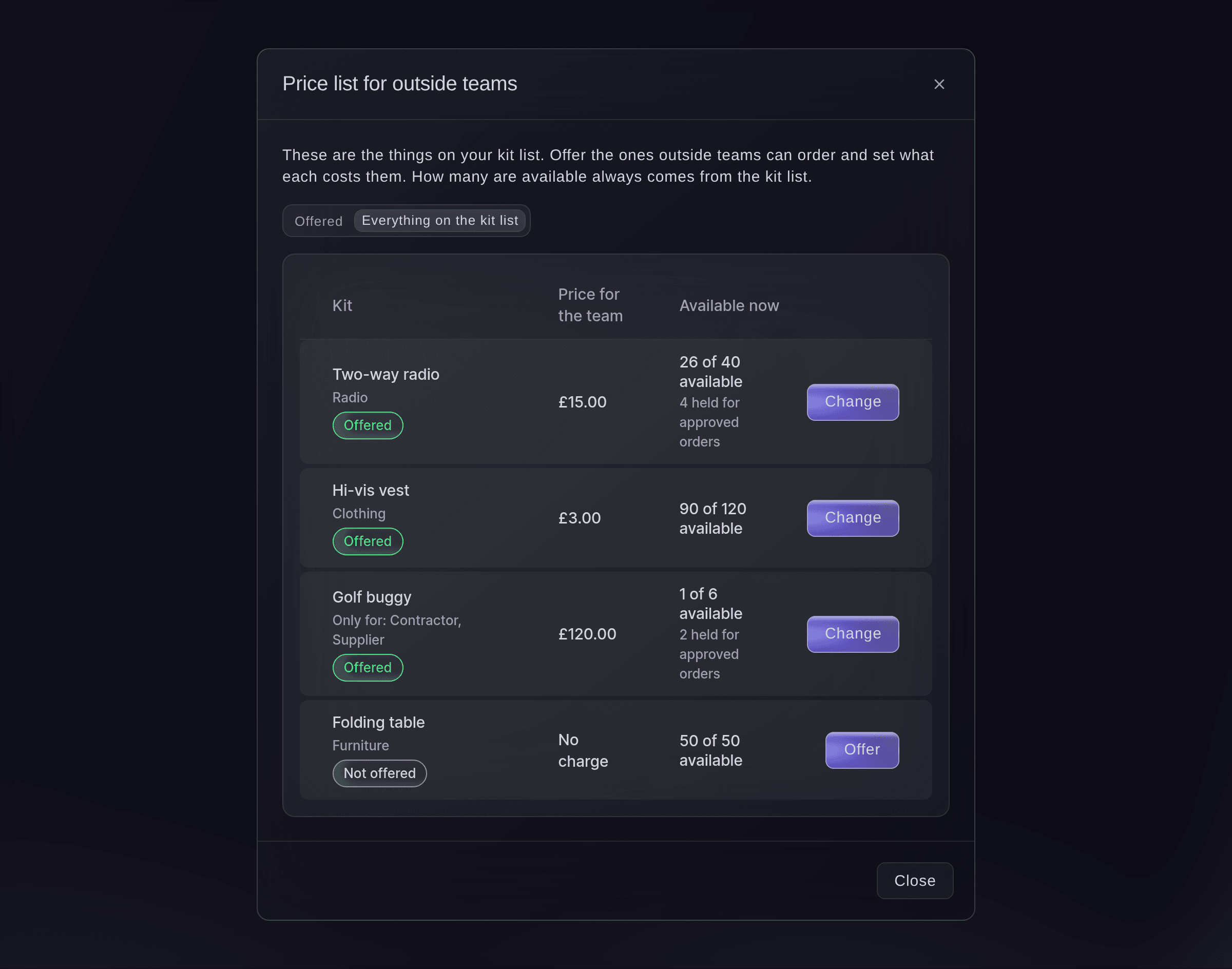
The price list for outside teams. -
Offer a piece of kit
Select Offer beside a piece of kit, enter the Price for the team, each and choose its Currency, then select Save.
Huomautus: Leave the price empty if there is no charge. Outside teams can order this is on when you open the dialog from Offer.
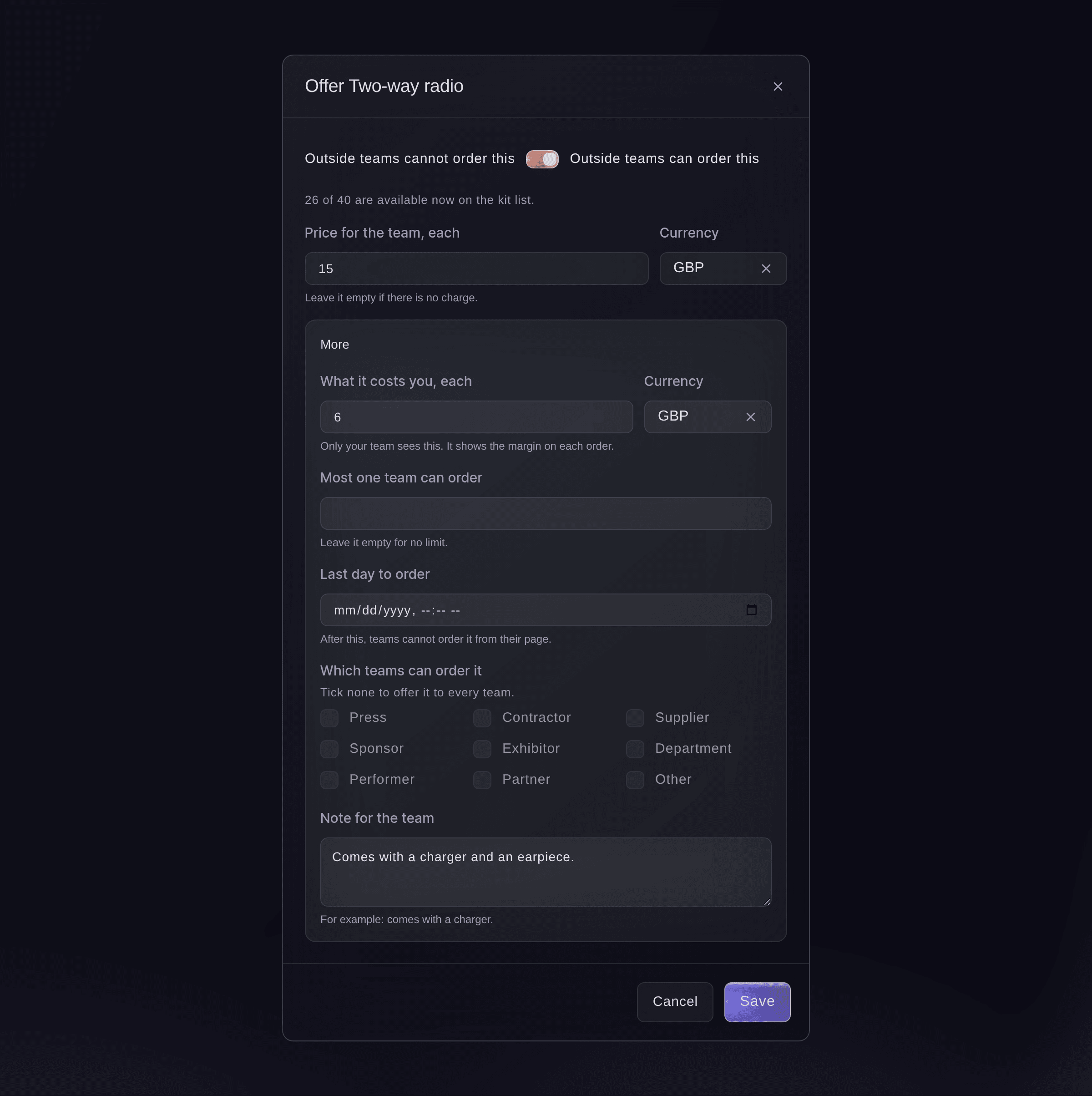
Offer a piece of kit. -
Set limits for the offer
Optional: select More in the same dialog and fill in the limits you need before you save.


A team's order from its page
The team opens the link to its page with no sign-in and sees Kit and equipment with the kit offered to them, each price and how many are available. They enter how many of each they need, the dates and where it goes, then select Send order. Under Your orders they see where each order stands, the reason when you decline one, and Pay once its invoice is sent.
Huomautus: A team that ordered kit at your last event can select Order the same again. They can cancel an order while it is still waiting for a yes.

-
Open an order
Under Waiting for a yes, select an order.
Huomautus: The order shows the team, the dates, where the kit goes, each line with its price and the total, plus your margin when every line has your cost. History shows who ordered and every change since.
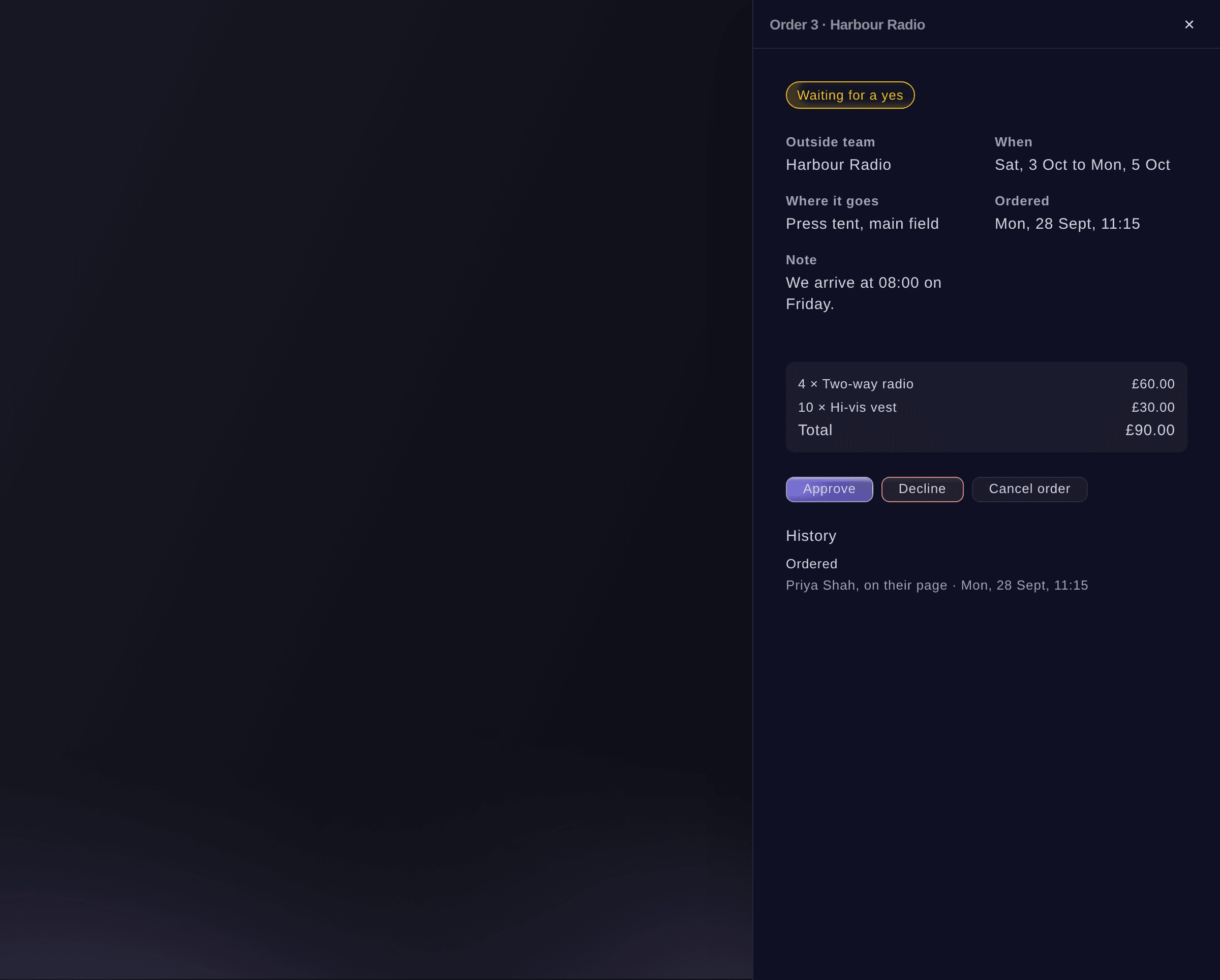
One team's kit order. -
Approve the order
Select Approve, then select Approve in the dialog.
Huomautus: The kit is held for the team at once, so nobody else can order it. A priced order gets its invoice a moment later, due 14 days after it is made.
Vinkki: The box to email the invoice to the team now is ticked for a priced order. Untick it to check the invoice first and send it later.
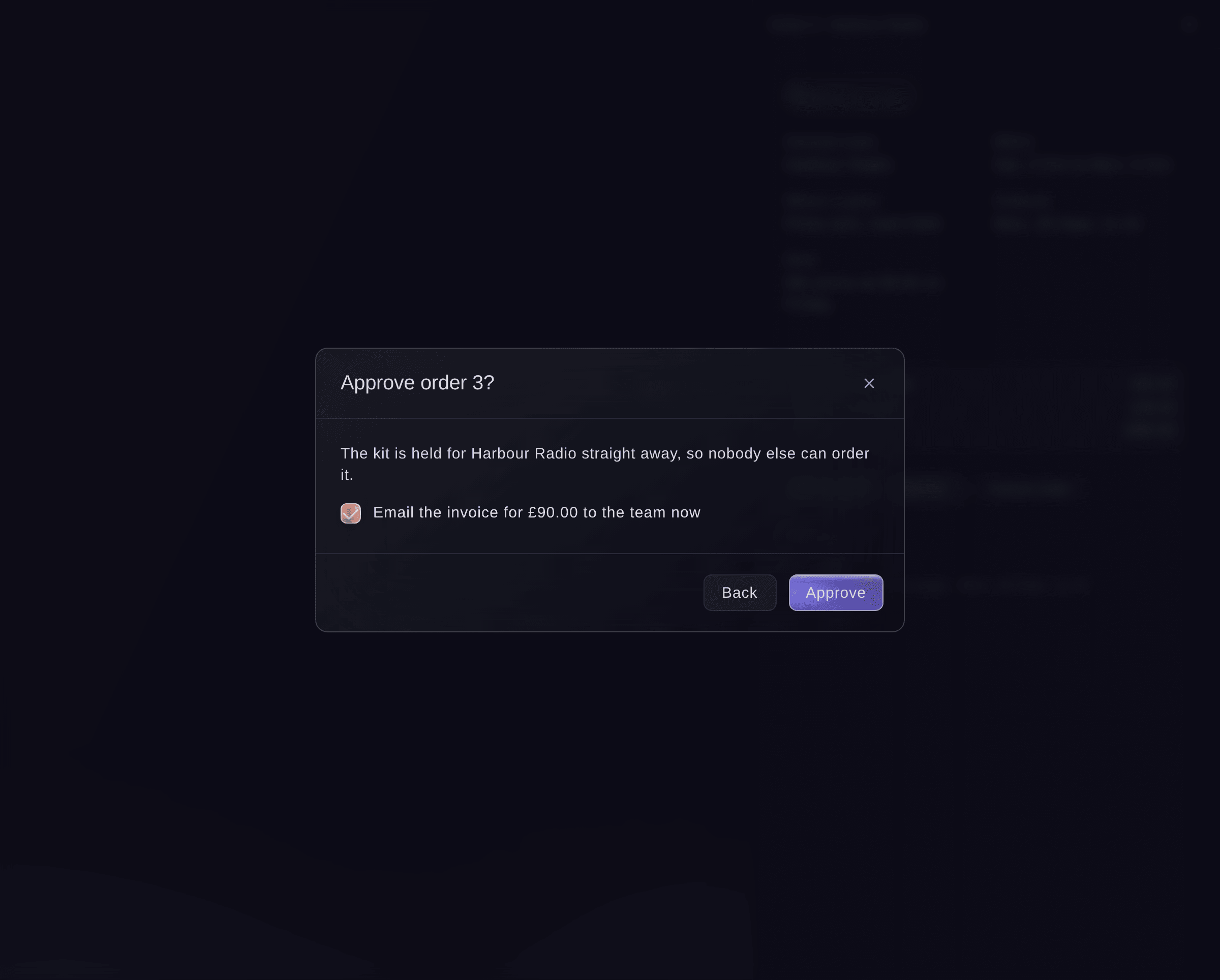
Approve an order. -
Print the pick list
Select Pick list, then print it for whoever gets the kit ready.
Huomautus: It lists the approved orders not handed out yet, by day and by the place each goes, with how many of each piece of kit to get ready.
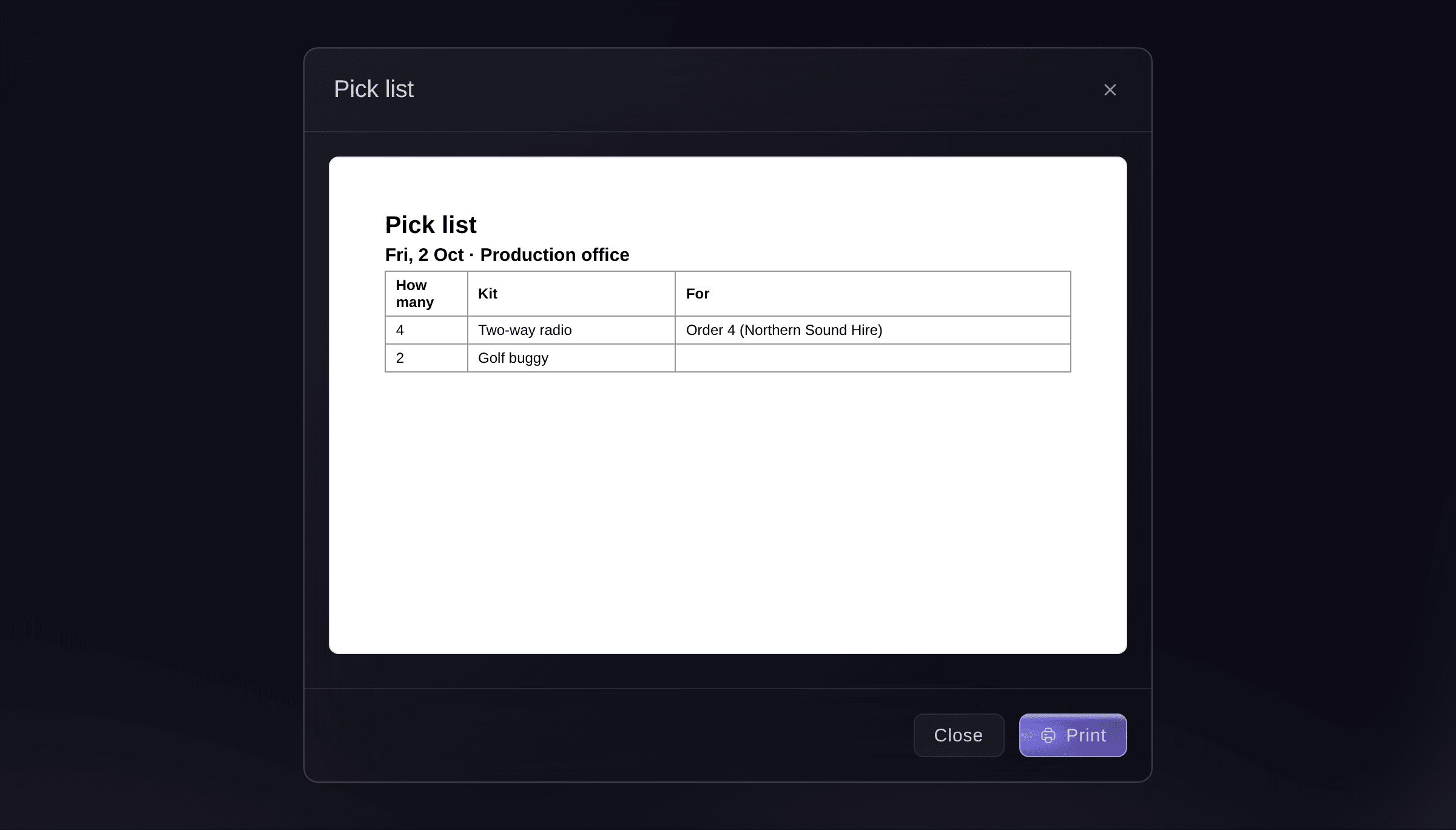
The pick list. -
Hand the kit out
When the team collects, open the order under To hand out and select Hand out.
Huomautus: If the invoice is not paid yet, the dashboard asks first and you can select Hand out anyway. The kit then shows in Who has what with the team as its holder, due back at the end of the order's last day.
-
Take the kit back
Open the order under Handed out, select Take back, enter How many came back and choose the Condition of each line, then select Take back.
Huomautus: Choose Needs a check or Damaged for kit that came back with a problem. Take back again later for anything still out.
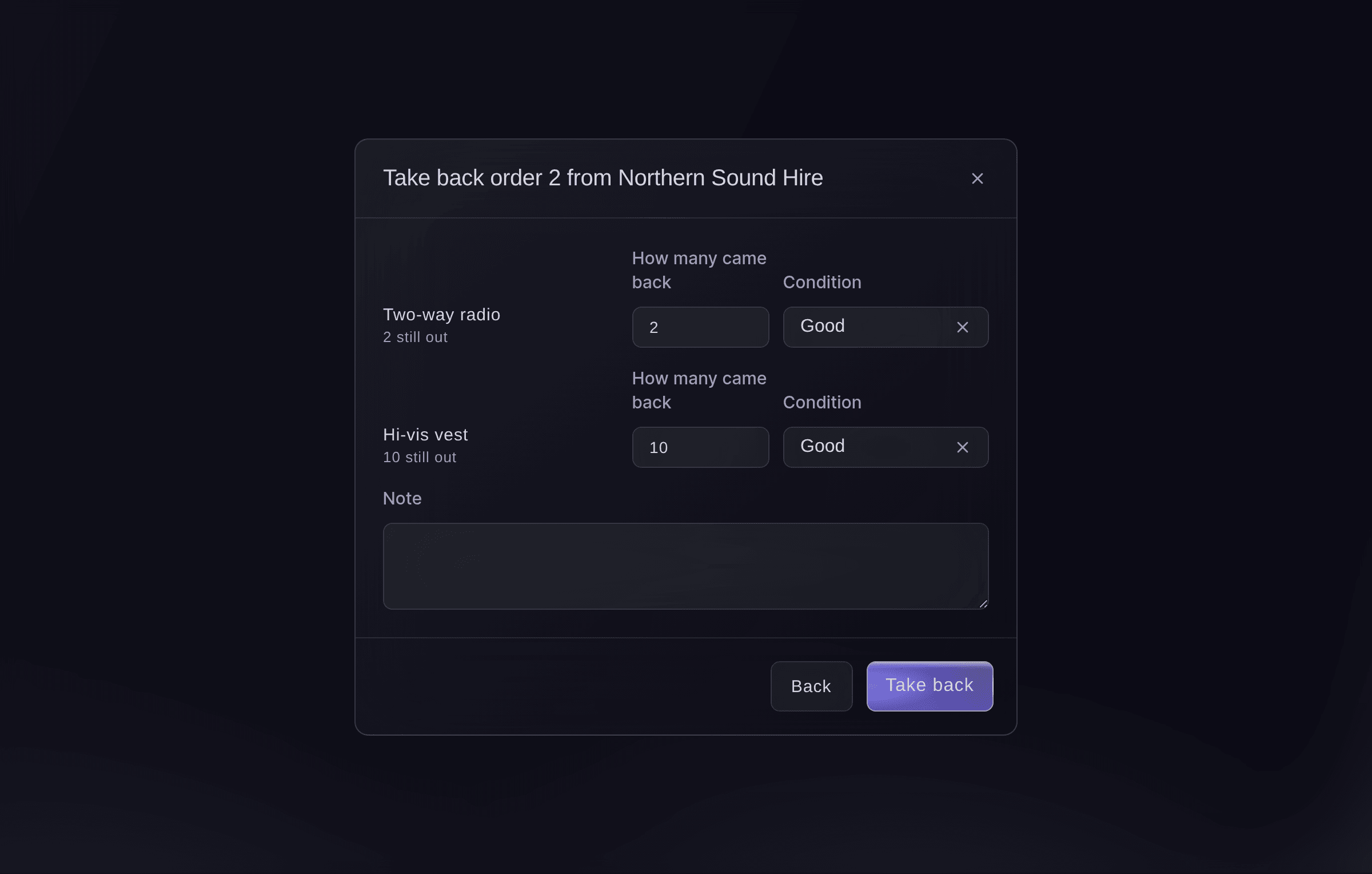
Take the kit back. -
Check the order is back
Select All orders and find the order.
Huomautus: It shows All back once every piece of kit is back, or Some back while some is still out, and the units are on the kit list again.


Kokeile näitä vaiheita omassa tapahtumassasi
Luo ilmainen tili, rakenna tapahtumasi ja seuraa yllä olevia vaiheita omassa hallintapaneelissasi. Se vie muutaman minuutin, eikä sinun tarvitse varata myyntipuhelua.
Ei käyttöönottomaksuja. Ei pakollista kuukausimaksua. Luottokorttia ei tarvita.
Tai anna sen hoitua puolestasi
Fai reads your price list, the teams' orders and the pick list, offers a piece of kit or changes its price, limit or last day to order, approves or declines an order, orders for a team, hands an order out, takes it back and makes or emails its invoice. She shows you each change and waits for your yes first. Only owners, admins and producers can change the price list or decide an order.
Hallintapaneelissasi, Fain kanssa
Which kit orders from outside teams are waiting for a yes at <EVENT NAME>, and approve Harbour Radio's order and email them the invoice
Anna Fain hoitaa se puolestasi
Fai toimii Ticket Fairy -hallintapaneelissasi. Luo tili, avaa Fai ja liitä yllä oleva kehote.
Ei käyttöönottomaksuja. Ei pakollista kuukausimaksua. Luottokorttia ei tarvita.
Decline an order
-
Decline it
Open the order under Waiting for a yes, select Decline, enter the Reason for the team, then select Decline order.
Huomautus: The team reads your reason on its page, so it can order something else. A declined order cannot be approved again; the team sends a new one.
Fai declines an order with the reason you give, after you confirm.
Hallintapaneelissasi, Fain kanssa
Decline Coastline Catering's buggy order at <EVENT NAME>, all the buggies are with the stage crew that weekend
Cancel an order
-
Cancel it
Open the order, select Cancel order, enter a reason if you want to, then select Cancel order.
Huomautus: You can cancel an order until its kit is handed out. The kit held for it is available again, and an unpaid invoice is cancelled too.
Fai cancels an order that is not handed out yet, after you confirm.
Hallintapaneelissasi, Fain kanssa
Cancel order 3 for Harbour Radio at <EVENT NAME>, they are bringing their own radios
Order kit for a team yourself
-
Place the order
In Outside teams' orders, select Order for a team, choose the Outside team, enter How many of each and the dates, then select Place order.
Huomautus: Use it for an order a team gave you by phone or email. It waits under Waiting for a yes like any other order, and the last day to order and the per-team limit do not apply.
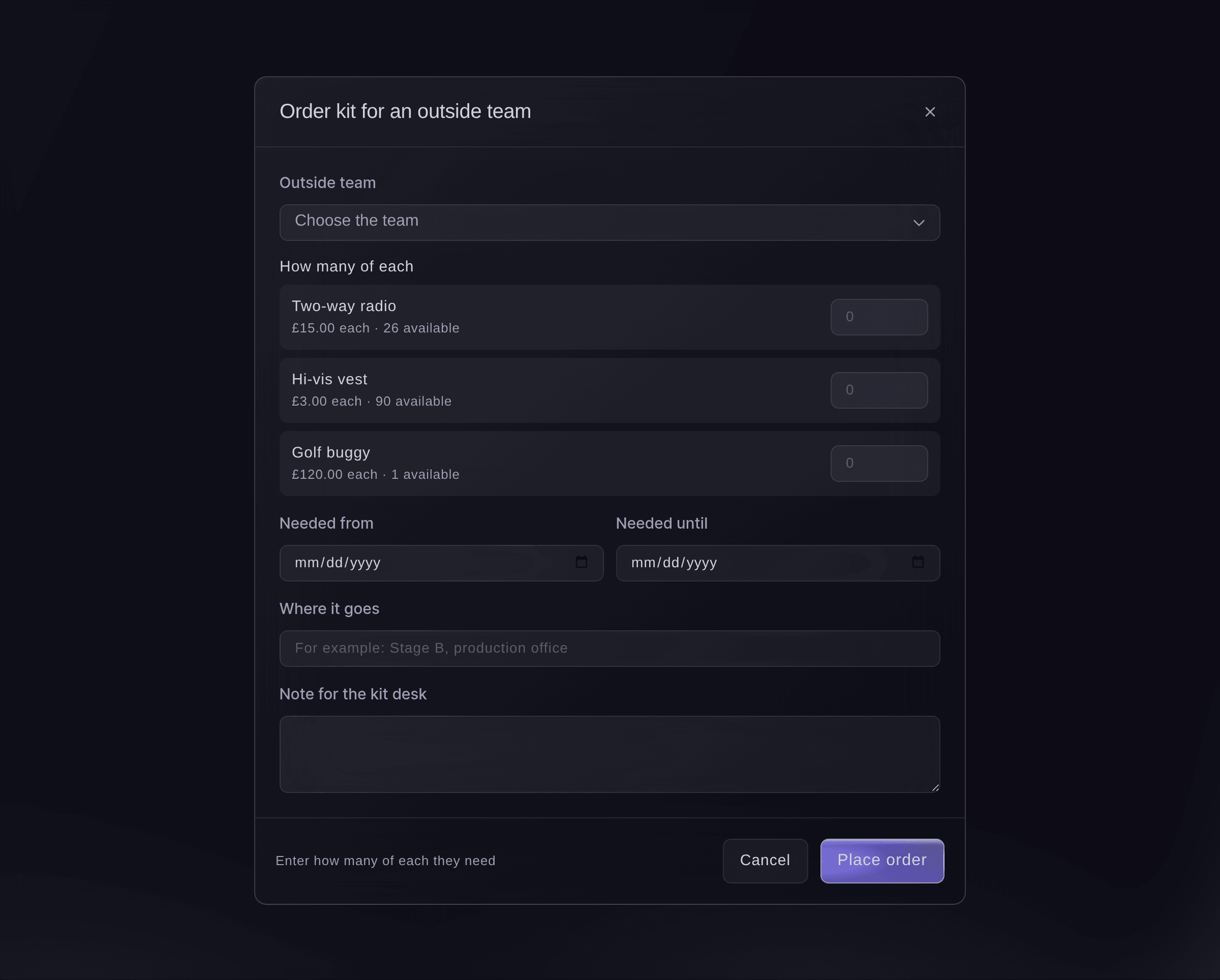
Order kit for a team.

Fai places an order for a team with the kit, amounts and dates you give, after you confirm. It then waits for a yes like any other order.
Hallintapaneelissasi, Fain kanssa
Order 6 radios and 6 hi-vis vests for Northern Sound Hire at <EVENT NAME> from Friday to Sunday, for the production office
Email an invoice you held back
-
Email the invoice
Open the approved order and select Email the invoice.
Huomautus: The team gets the invoice by email and a Pay button on its page. If an order shows No invoice yet, select Make the invoice first.
Fai makes or emails an approved order's invoice, after you confirm. She also suggests on Today emailing an invoice still waiting to go, and a reminder when one is due in 3 days or overdue.
Hallintapaneelissasi, Fain kanssa
Email Harbour Radio the invoice for their kit order at <EVENT NAME>
Kysymyksiä joita sinulla voi olla
- Does the outside team need a Ticket Fairy account?
- No. The team's contact opens the link to their page on any phone or computer with no sign-in, and orders there.
- What happens to my kit list when I approve an order?
- The units are held for that team straight away, so the price list, the team pages and your own kit desk count them as not available. Cancelling the order puts them back, and handing it out turns the hold into kit the team has.
- Why does the approval say there is not enough?
- Other orders or your own crew already have the units. The message says how many are available now; hand out or take back kit first, or ask the team to order fewer.
- Why is there no Approve button on an order?
- An approval rule covers that order, so the order says who it is waiting for and it is approved in Approvals. You can still decline it from the order.
- Can one order have kit priced in two currencies?
- No. If a team picks kit priced in different currencies, their page shows
One order can only be in one currency. Order these items separately.
They send one order for each currency. - When is the invoice due and how does the team pay?
- We make each invoice due 14 days after it is made. The team pays from Pay beside the order on their page, and you see the invoice in Bulk Invoices and on the order as paid or not paid.
- Can I hand out kit before the team has paid?
- Yes. The dashboard asks you first, and the order history records that it was handed out before it was paid.
- Can I cancel an order that is already paid?
- Not from the order. Refund the invoice in Bulk Invoices first, then cancel the order.
Jäikö vielä kysyttävää?
Varaa esittely, niin vastaamme siihen puhelussa sinun tapahtumatyyppisi mukaan. Tai luo tili ja katso itse.
Ei käyttöönottomaksuja. Ei pakollista kuukausimaksua. Luottokorttia ei tarvita.
Aiheeseen liittyvät oppaat
Tee tämä omassa tapahtumassasi
Luo tili, rakenna tapahtumasi ja seuraa vaiheita omassa hallintapaneelissasi. Sinun ei tarvitse varata myyntipuhelua.