
Piloter la production
Find any performer, stage or day on your event
Production managers and promoters get asked the same questions all day: when is this act on, what is still missing for them, what is happening on that stage on Saturday? Find anything and the performer, stage and day pages answer each one in a click, without working through every section of the event.
Search your whole event from any part of its Management page, and open one page for a performer, a stage or a show day with their set times, advance, travel, hotel, crew and tasks together.
- Pour
- Finding everything about one act, one stage or one show day
- Durée
- 6 minutes
Avant de commencer
- You are an owner, admin or producer on the event. The event's Management page opens for those roles only.
-
Open Find anything
On any part of the event's Management page, select Find anything at the top, or press Ctrl K (⌘K on a Mac).
Remarque: The shortcut does nothing while you are typing in a field, so it never takes over a form you are filling in.
-
Enter a name
Enter at least two letters of a performer, a stage, a person, a task, a file or a section, then use the arrow keys and Enter, or select a result.
Remarque: Results are grouped under Performers, Stages, People, Tasks, Files and the event's own Sections, and everyday words work too, such as "hotels" for Accommodation or "shifts" for the Rota. A task opens in its own panel over the page.
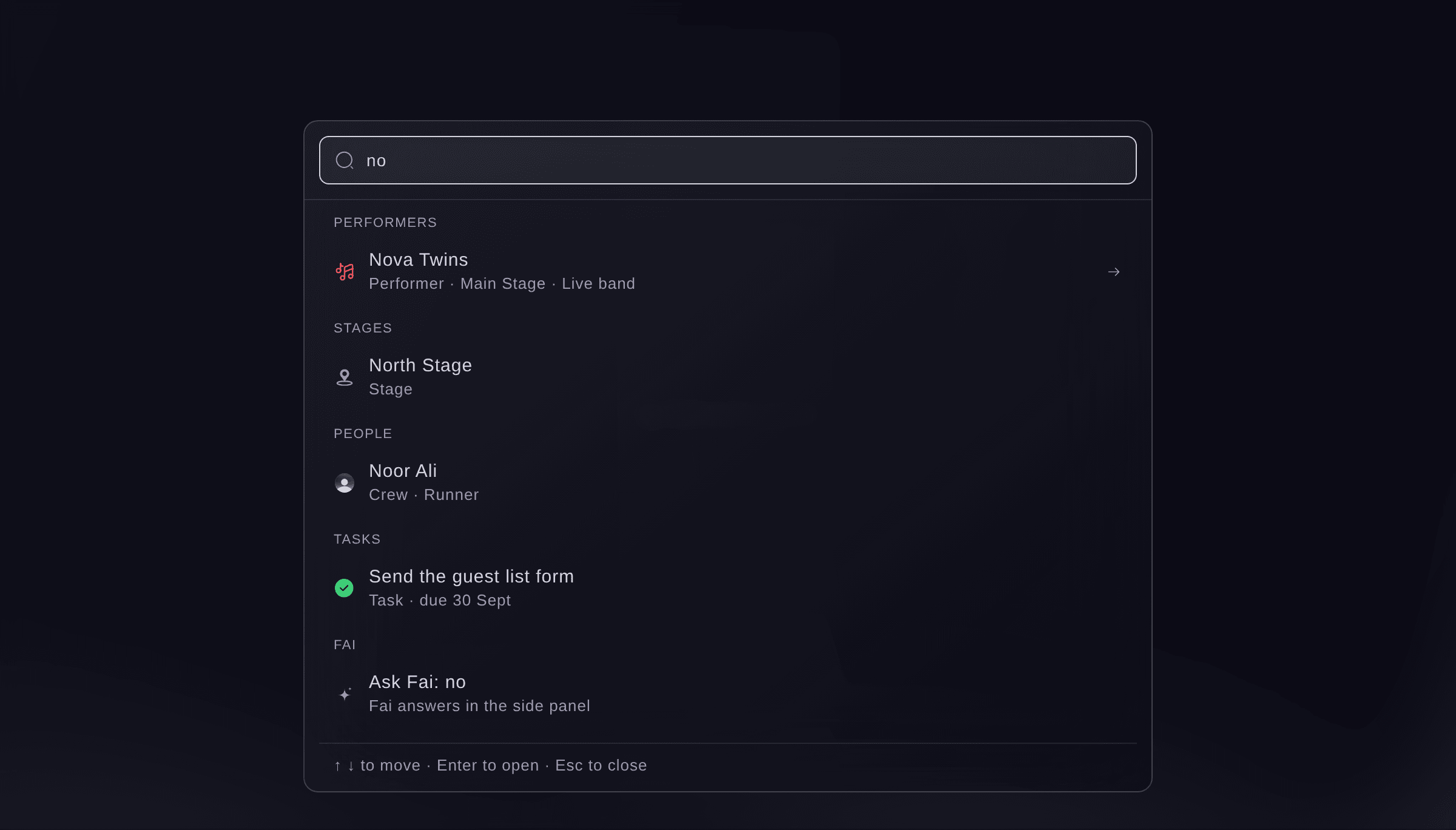
Find anything, with a search entered. -
Ask Fai when nothing fits
Optional: select the last result, which starts "Ask Fai:", to send what you entered to Fai as a question.
Remarque: Fai answers in the side panel beside the page. The choice appears only when Fai is switched on for you.
-
Open a performer's page
Select a performer's name in Find anything, or wherever it is underlined, such as in Advancing, the schedule, the run of show or Show day.
Remarque: The top of their page shows when and where they play, how much of their advance is confirmed, their flights, pickups and hotel, their contacts and open tasks, and what is still missing. Deal and payments shows to owners, admins and producers only.
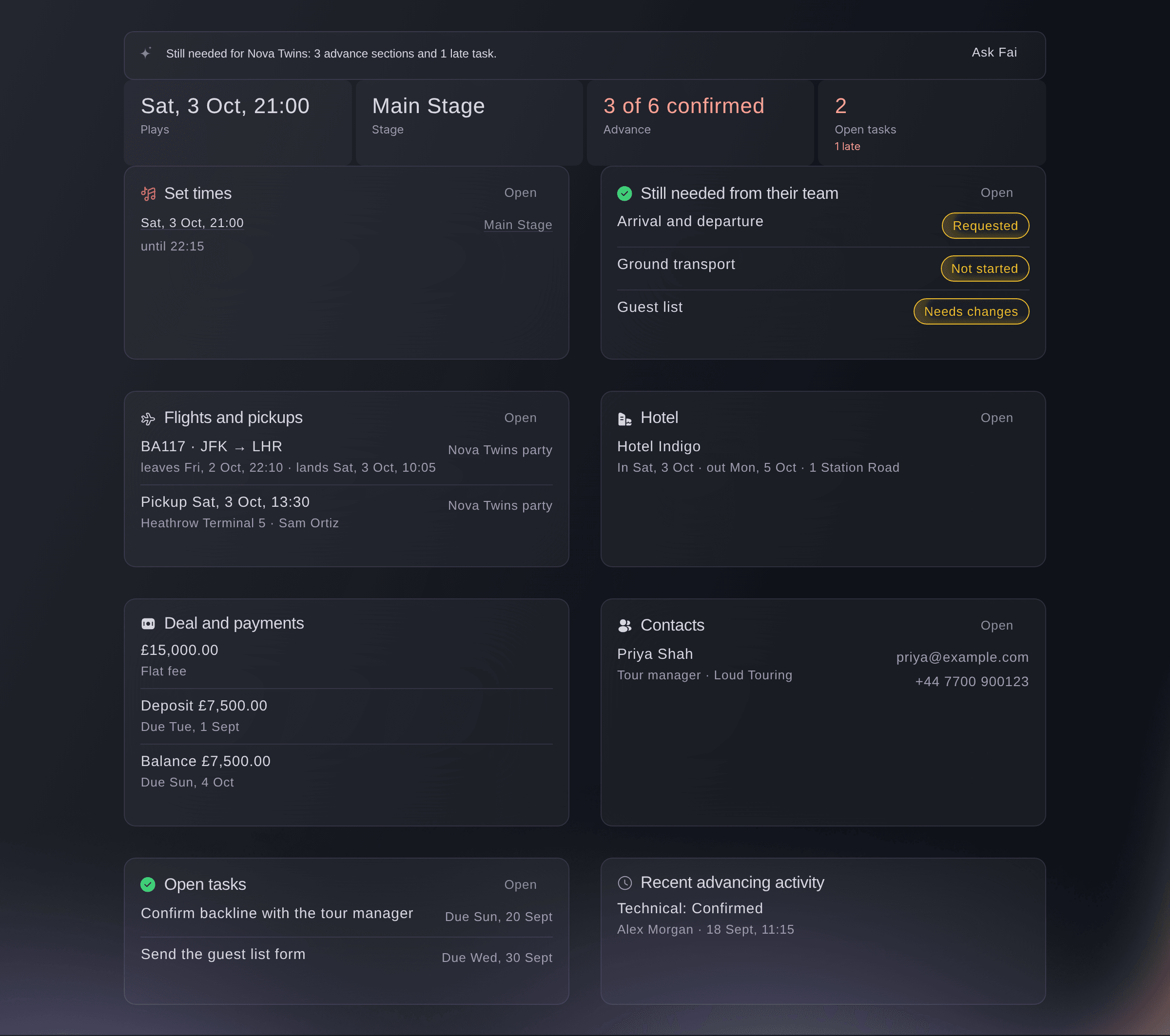
Everything about one performer. -
Open a stage's page
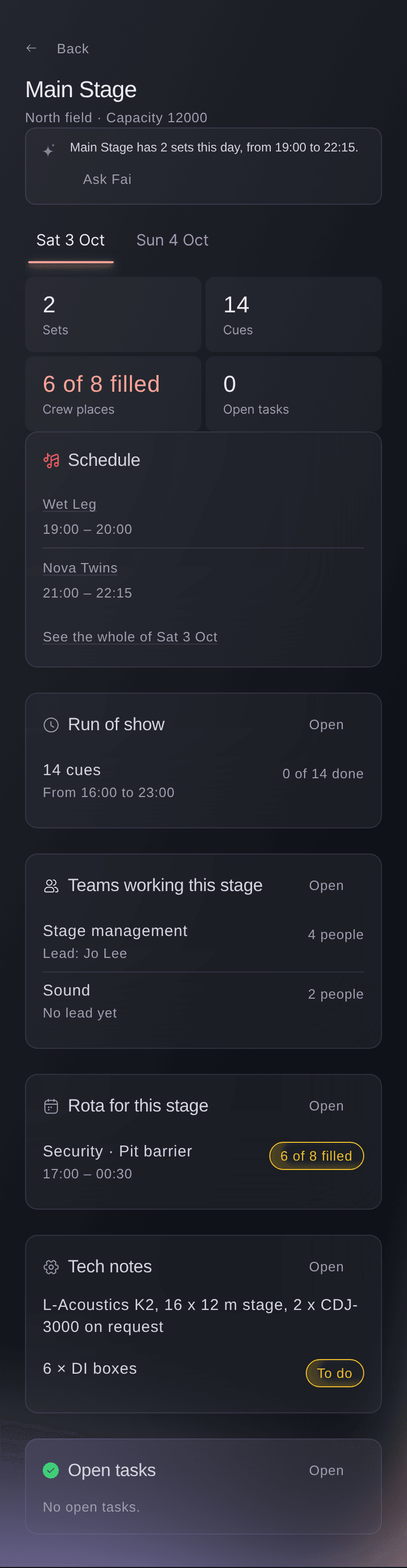
Select a stage's name in Find anything, the run of show, the schedule or Show day, then select the day you want at the top of its page.
Remarque: The page lists that stage's sets, run of show, the teams working it, its rota and its tech notes for the day. Select Open on a card to go to the full section.
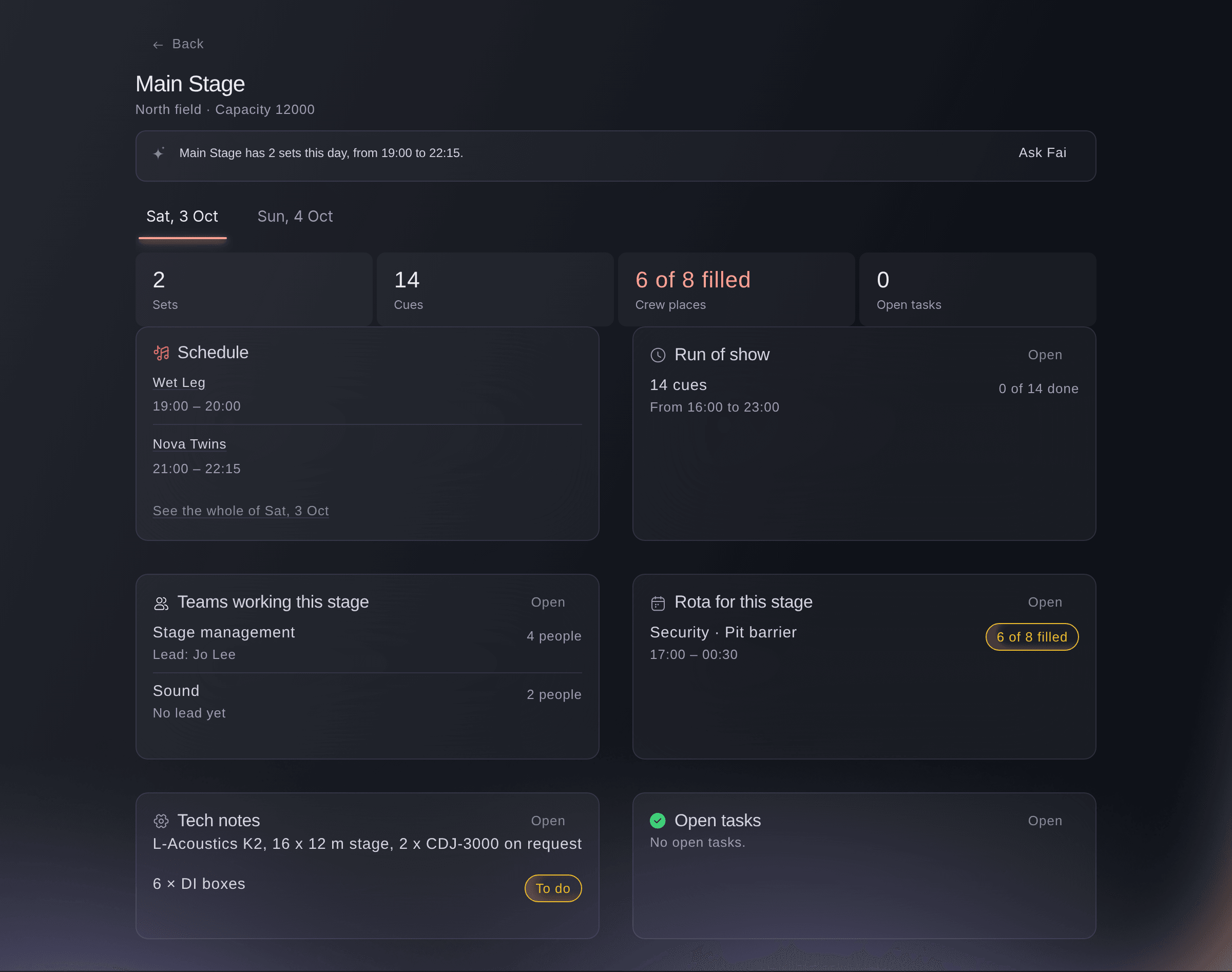
Everything about one stage on one day. -
Open a day at a glance
On a stage's page, select See the whole of the day, or select Day at a glance beside the day on the run of show.
Remarque: The page lists every set by stage, the run of show, arrivals, pickups and departures, hotel check-ins and check-outs, shifts by team, tasks due and incidents for that day. Use Day before and Day after to move between days, and Print for a paper copy.
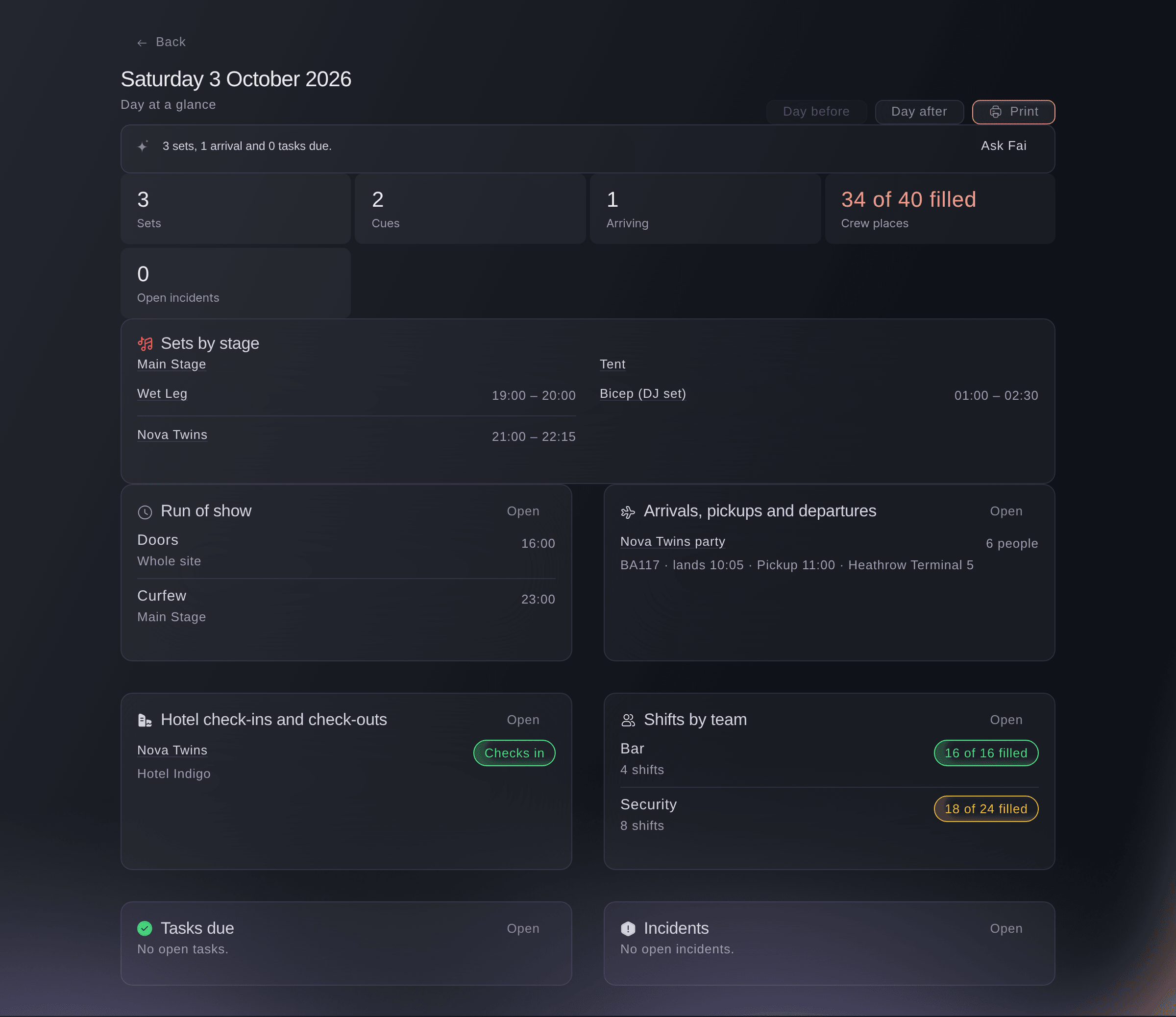
One show day at a glance.



Essayez ces étapes sur votre propre événement
Créez un compte gratuit, montez votre événement et suivez les étapes ci-dessus dans votre propre tableau de bord. Cela prend quelques minutes et vous n'avez pas besoin de réserver un appel commercial.
Pas de frais d'installation. Pas d'abonnement mensuel obligatoire. Pas de carte bancaire requise.
Ou faites-le faire pour vous
Fai finds anything on the event by name and reads you the same performer, stage and day pages, so you can ask about an act, a stage or a show day without opening them. She only reads here and changes nothing.
Dans votre tableau de bord, avec Fai
What is happening on the Main Stage at <EVENT NAME> on Saturday, and what is still missing?
Laissez Fai le faire pour vous
Fai travaille dans votre tableau de bord Ticket Fairy. Créez votre compte, ouvrez Fai et collez la consigne ci-dessus.
Pas de frais d'installation. Pas d'abonnement mensuel obligatoire. Pas de carte bancaire requise.
Questions que vous pourriez avoir
- Why does Find anything show no people for my teammate?
- People, sponsors and files from the finance side of the event show only to team roles that can see them. Owners, admins and producers see every result.
- Why is a shift missing from a stage's page?
- The stage's rota lists shifts set to that stage, and shifts whose place on site is the stage's name. Edit the shift in the Rota and choose the stage under More details.
- Can I send someone a link to a stage or a day?
- Yes, for teammates who can open the event's Management page: each page has its own address. For crew without a login, share a day sheet instead.
Vous avez encore une question ?
Réservez une démo et nous y répondrons lors d'un appel, pour votre type d'événement. Ou créez votre compte et voyez par vous-même.
Pas de frais d'installation. Pas d'abonnement mensuel obligatoire. Pas de carte bancaire requise.
Guides associés
Faites-le sur votre propre événement
Créez votre compte, montez votre événement et suivez les étapes dans votre propre tableau de bord. Vous n’avez pas besoin de réserver un appel commercial.