
Piloter la production
Send your event lists to your team on a schedule
Production managers send the same spreadsheets to the same people every Monday in the run-up to an event: the rota to the security lead, the rooming list to the travel team. A scheduled export sends the latest version for you, and keeps lists with people's names to the team members allowed to see them.
Email your rota, run of show, advancing status, rooming list or pickups to the right people on your event team every day or every week, as a file they download after signing in. Every file and every download is recorded, and you can make a file now whenever you need one.
- Pour
- Keeping your team up to date with the latest lists
- Durée
- 5 minutes
Avant de commencer
- You are an owner, admin or producer on the event. The event's Management page opens for those roles only.
- To send the rota, rooming list or pickups, you are an owner or admin, because they hold people's names.
-
Open the list you want to send
Open the event, select Management, open the section with the list, then select Send regularly.
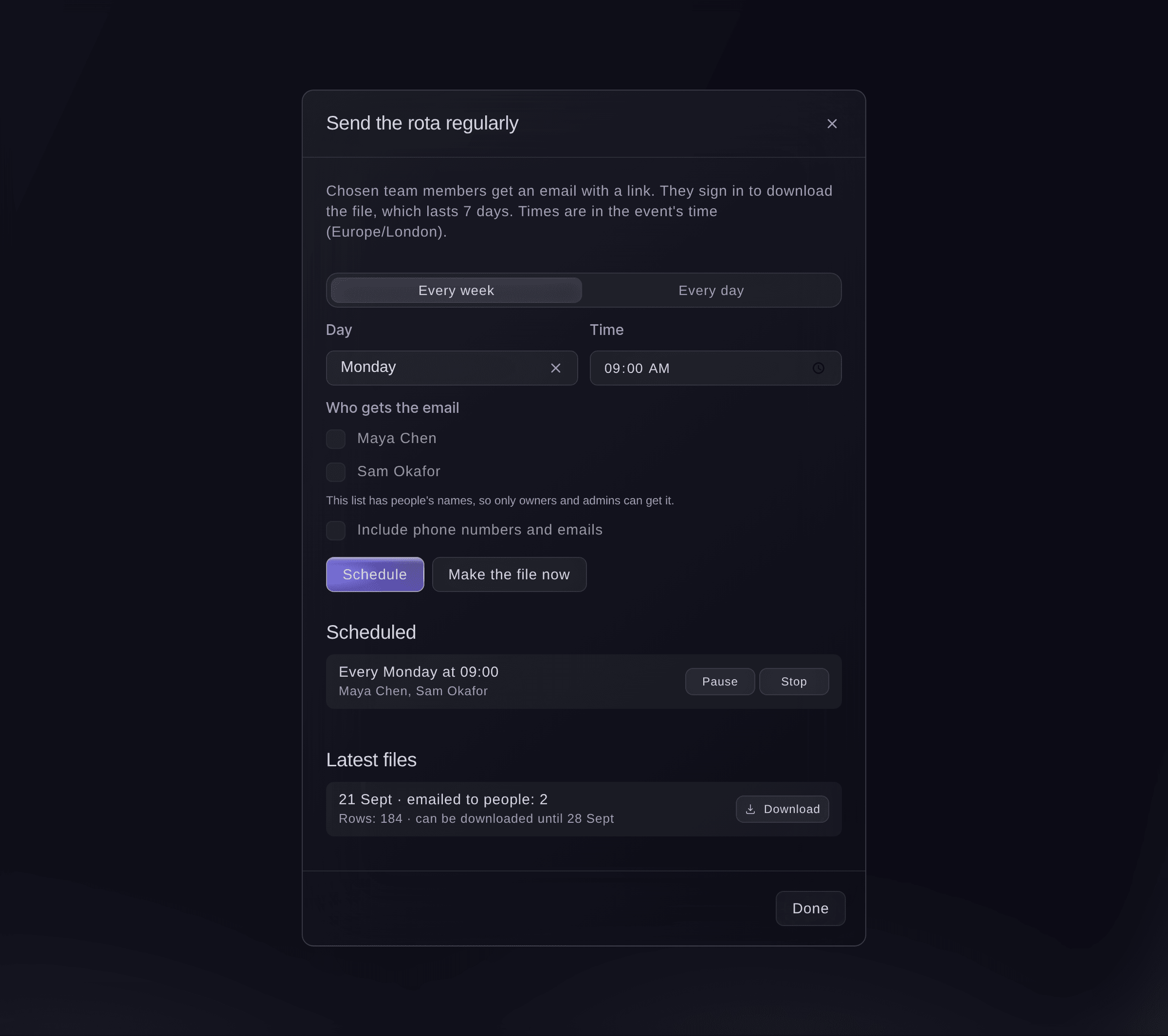
Send the rota regularly. -
Choose when it goes
Choose Every week or Every day, then the Day and Time.
Remarque: Times are in the event's own time zone, which the dialog names.
-
Choose who gets it
Under Who gets the email, choose up to 10 people from your event team, then select Schedule.
Remarque: For a list with people's names, only owners and admins can be chosen. Tick Include phone numbers and emails only if they need them.

What arrives
At the time you chose, each person gets an email with a link to the dashboard. They sign in to download the file, which lasts 7 days, and each download is recorded against their name. The file is always made from the list as it is at that moment.
Essayez ces étapes sur votre propre événement
Créez un compte gratuit, montez votre événement et suivez les étapes ci-dessus dans votre propre tableau de bord. Cela prend quelques minutes et vous n'avez pas besoin de réserver un appel commercial.
Pas de frais d'installation. Pas d'abonnement mensuel obligatoire. Pas de carte bancaire requise.
Ou faites-le faire pour vous
Fai reads your scheduled exports, their latest files and who can receive each list, schedules a list every day or week, changes, pauses, turns back on or stops a schedule, and makes a file now. She shows you each change and waits for your yes first.
Dans votre tableau de bord, avec Fai
Email the rota for <EVENT NAME> to me and Sam every Monday at 9am
Laissez Fai le faire pour vous
Fai travaille dans votre tableau de bord Ticket Fairy. Créez votre compte, ouvrez Fai et collez la consigne ci-dessus.
Pas de frais d'installation. Pas d'abonnement mensuel obligatoire. Pas de carte bancaire requise.
Pause or stop a schedule
-
Pause it
Open Send regularly, then select Pause on the schedule.
Remarque: Select Turn back on to start it again, or Stop to end it. Files already made can still be downloaded until they expire.
Fai pauses, turns back on or stops a scheduled export when you ask, after you confirm.
Dans votre tableau de bord, avec Fai
Stop sending the rota for <EVENT NAME> every week
Make a file now
-
Make it
Open Send regularly, select Make the file now, then select Download under Latest files.
Fai makes a file of the list now when you ask, after you confirm, and you download it in the dashboard.
Dans votre tableau de bord, avec Fai
Make a file of the run of show for <EVENT NAME> now
Questions que vous pourriez avoir
- Why does a schedule say Paused when I did not pause it?
- Ticket Fairy pauses a schedule when nobody chosen can still see the list, or when the file could not be made, and emails the event's owners and admins once. Choose who gets it again, then select Turn back on.
- Is the file attached to the email?
- No. The email carries a link, and the person signs in to download the file, so only your team can open it.
- Why can I not see Send regularly on Rota, Accommodation or Travel?
- The rota, rooming list and pickups hold people's names and contact details, so only owners and admins see Send regularly there.
Vous avez encore une question ?
Réservez une démo et nous y répondrons lors d'un appel, pour votre type d'événement. Ou créez votre compte et voyez par vous-même.
Pas de frais d'installation. Pas d'abonnement mensuel obligatoire. Pas de carte bancaire requise.
Guides associés
Faites-le sur votre propre événement
Créez votre compte, montez votre événement et suivez les étapes dans votre propre tableau de bord. Vous n’avez pas besoin de réserver un appel commercial.