
Piloter la production
Take food, drink and market trader applications for your event
At a festival or market you pick your traders from dozens or hundreds of applications, balancing the food mix, pitch sizes and power. One application page, one list ranked against your mix and an invoice raised as you approve means nobody retypes a trader's details into a spreadsheet.
Open an application page for food, drink, merchandise and market traders, set your pitch fees and how they are taxed, let Fai rank the applications against the mix you want, then approve, waitlist or decline each trader for your event and invoice the ones you approve.
- Pour
- Choosing and invoicing the traders who sell at your event
- Durée
- 11 minutes
- Open Vendors
- Set up the application page
- Add your pitch fees and extras
- Choose how trader invoices are taxed
- Open applications and share the link
- Rank the applications with Fai
- Open an application
- Choose the pitch and extras before you approve
- Approve, waitlist or decline
- Check the trader is trading
Avant de commencer
- You need an owner, admin or producer role on the event to set up and decide. Other roles on the event can read the list through Fai or the Ticket Fairy CLI.
- Card payments must be working on the event for traders to pay their invoices by card.
-
Open Vendors
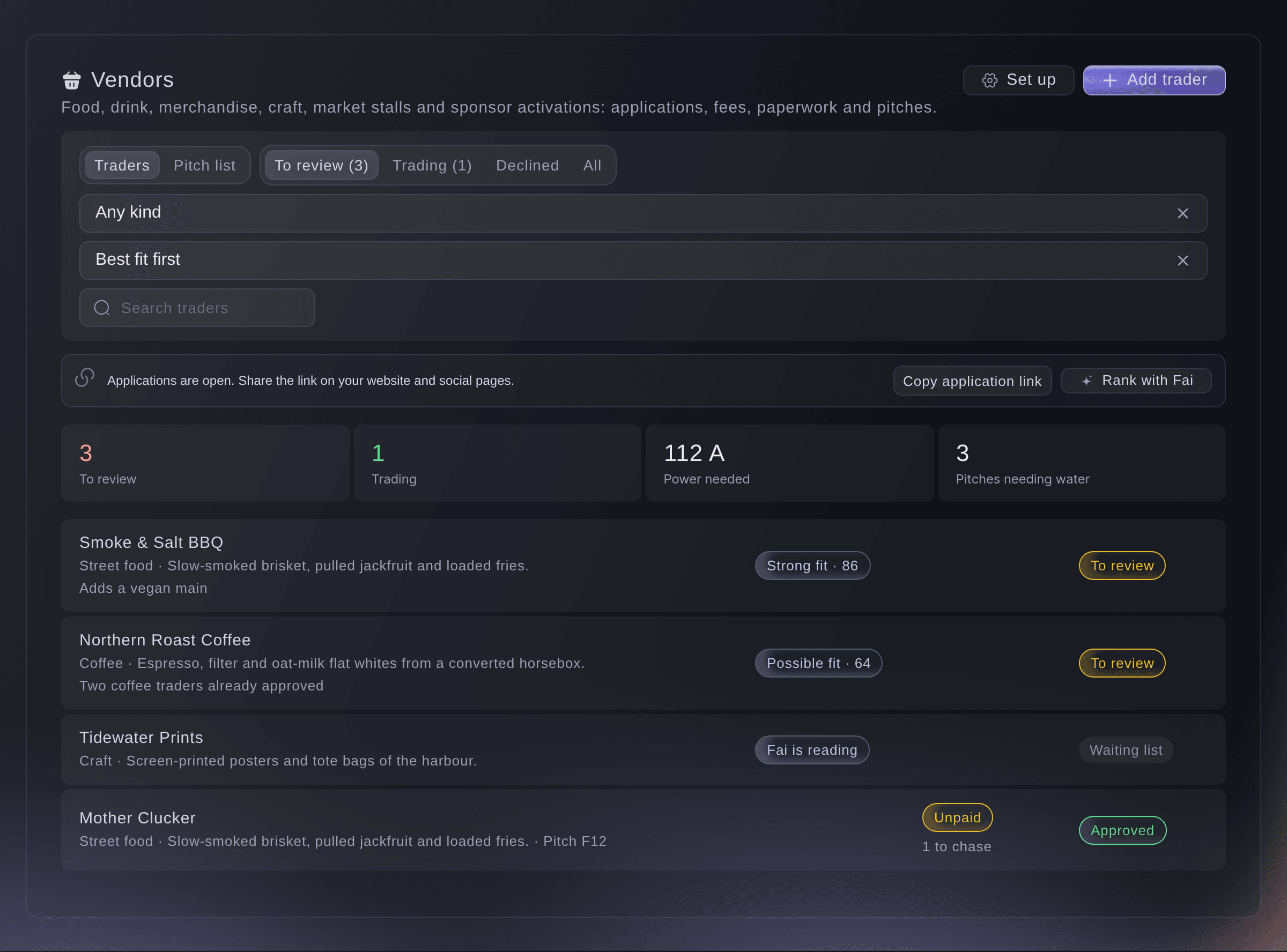
Open the event, select Management, then select Vendors in the list of sections.
Remarque: If Vendors is not in the list, select More sections and open it there. The list opens on To review, with the applications waiting for you.
Management, Vendors. -
Set up the application page
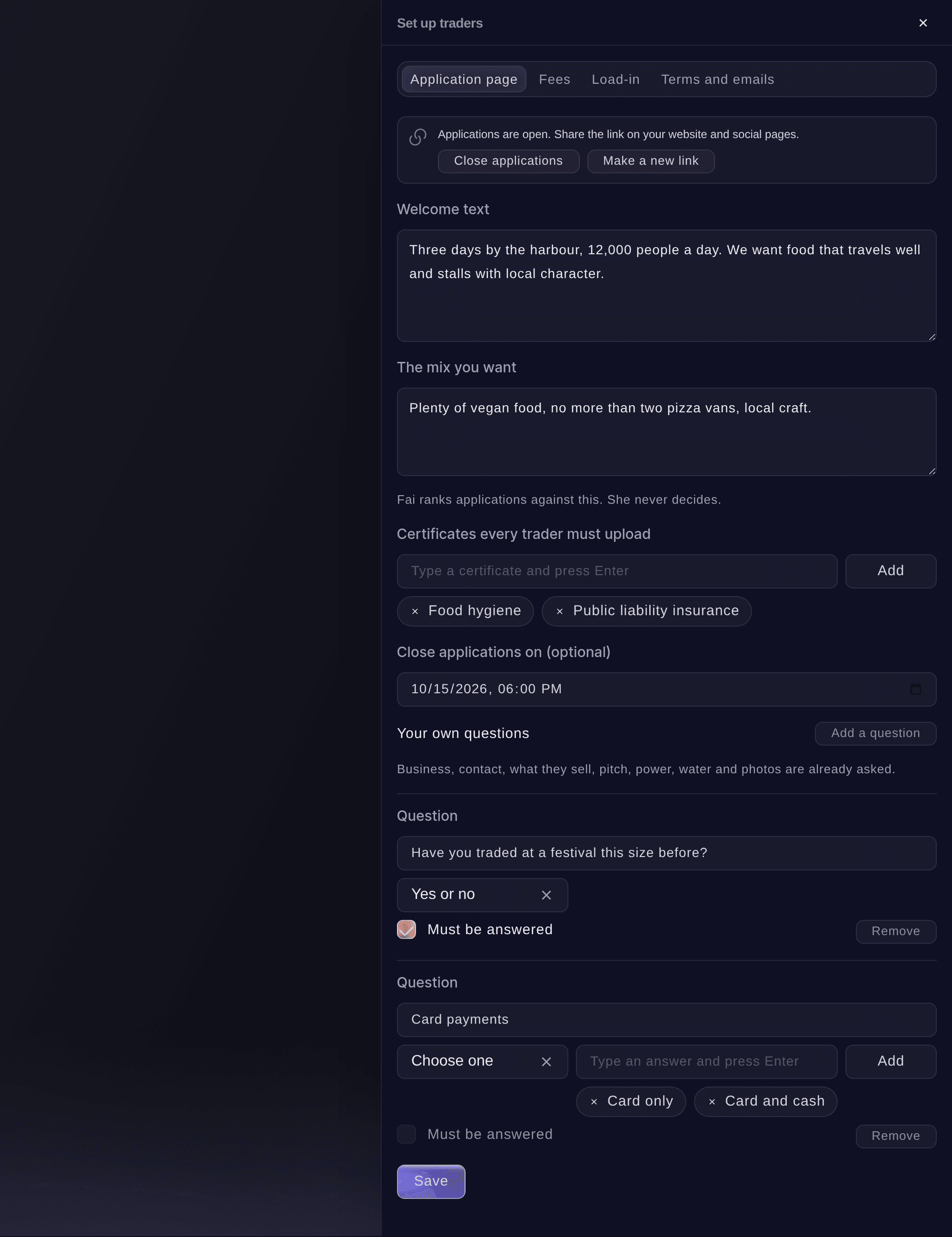
Select Set up. On Application page, enter your Welcome text and The mix you want, then list the Certificates every trader must upload.
Remarque: The page already asks for the business, contact, what they sell, pitch, power, water and photos. Add anything else under Your own questions, and set Close applications on (optional) for a closing date.
Set up traders, Application page. -
Add your pitch fees and extras
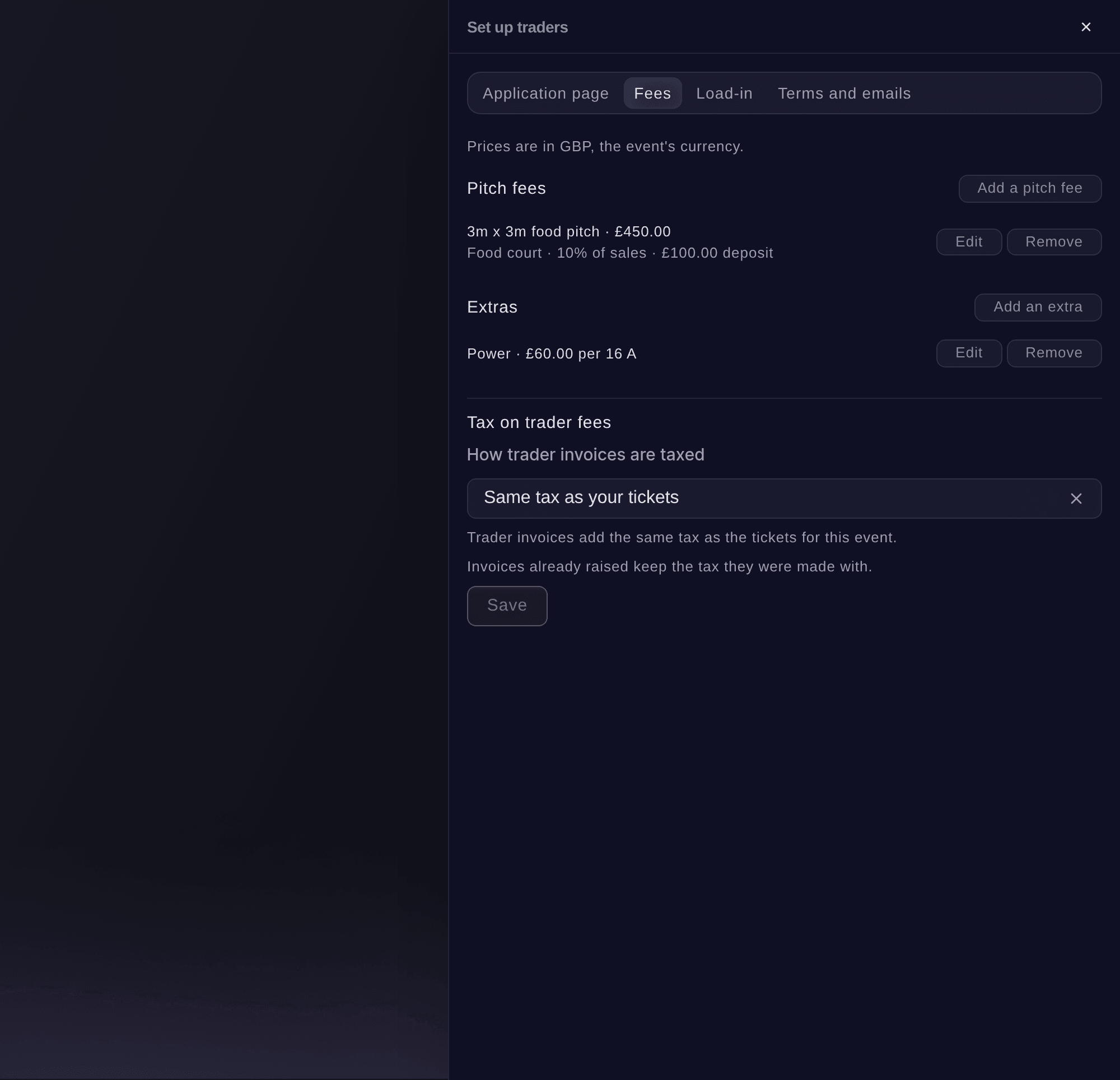
Select Fees, then Add a pitch fee for each pitch size and Add an extra for power, water, passes or parking.
Remarque: A pitch fee can also take a share of sales and a deposit charged when you approve the trader, and prices are in the event's currency. Traders see the fees on the application page and choose their pitch there.
Set up traders, Fees. -
Choose how trader invoices are taxed
Under Tax on trader fees, choose how trader invoices are taxed.
Remarque: Invoices already raised keep the tax they were made with.
-
Open applications and share the link
Close the panel, select Open applications, then select Copy application link and share it on your website and social pages.
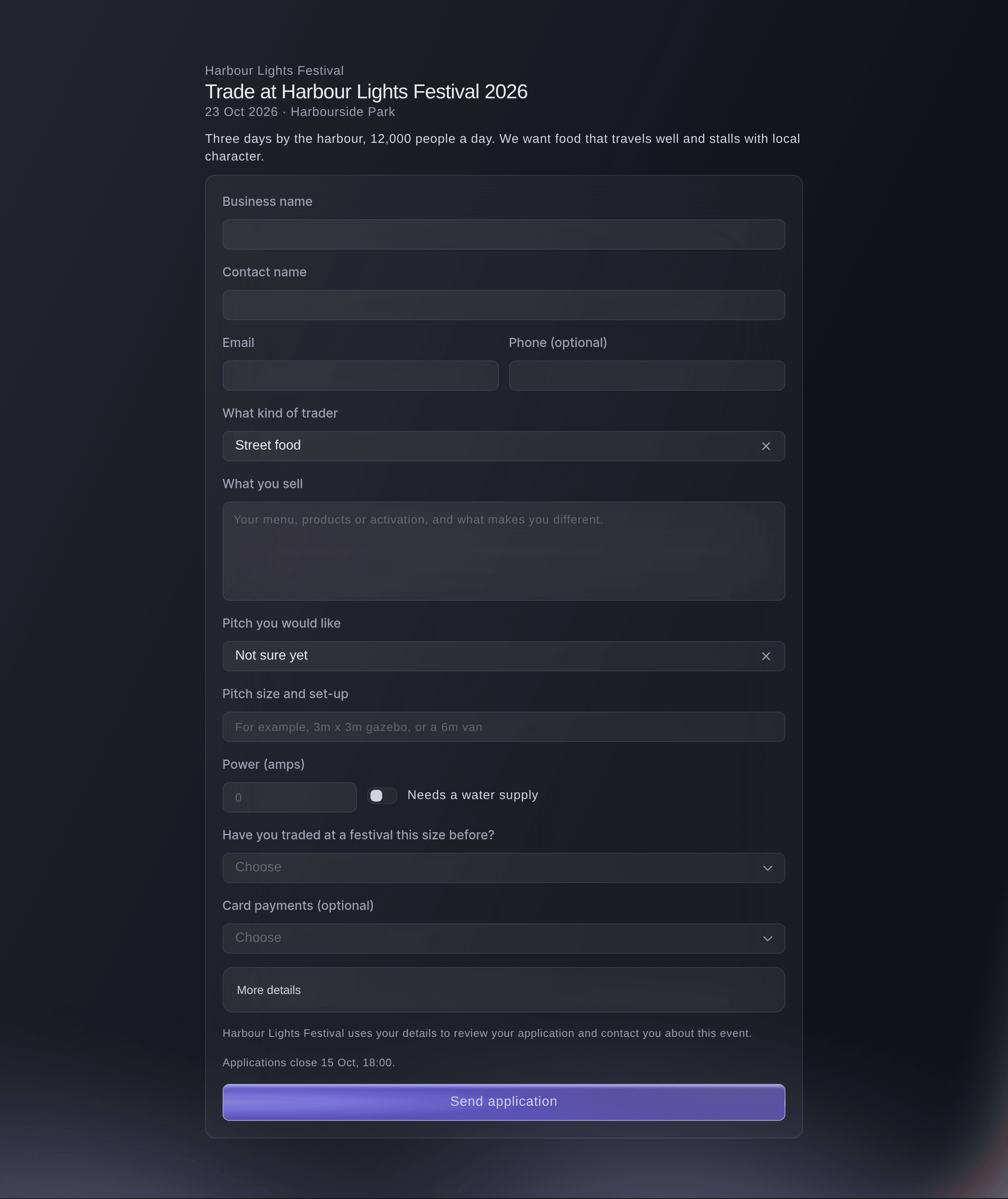
Remarque: Traders apply from their phone with no account, and each gets an email with a link to their own trader page. Close applications stops new applications and keeps the ones you have.
The application page a trader fills in. -
Rank the applications with Fai
Select Rank with Fai. Fai reads each application against the mix you want and marks it Strong fit, Possible fit or Weak fit with her reasons.
Remarque: Fai never decides; you do. Best fit first puts the strongest fits at the top of the list.
-
Open an application
Select a trader to open their panel with what they sell, their pitch, power and water, their answers, photos and Fai's reasons.
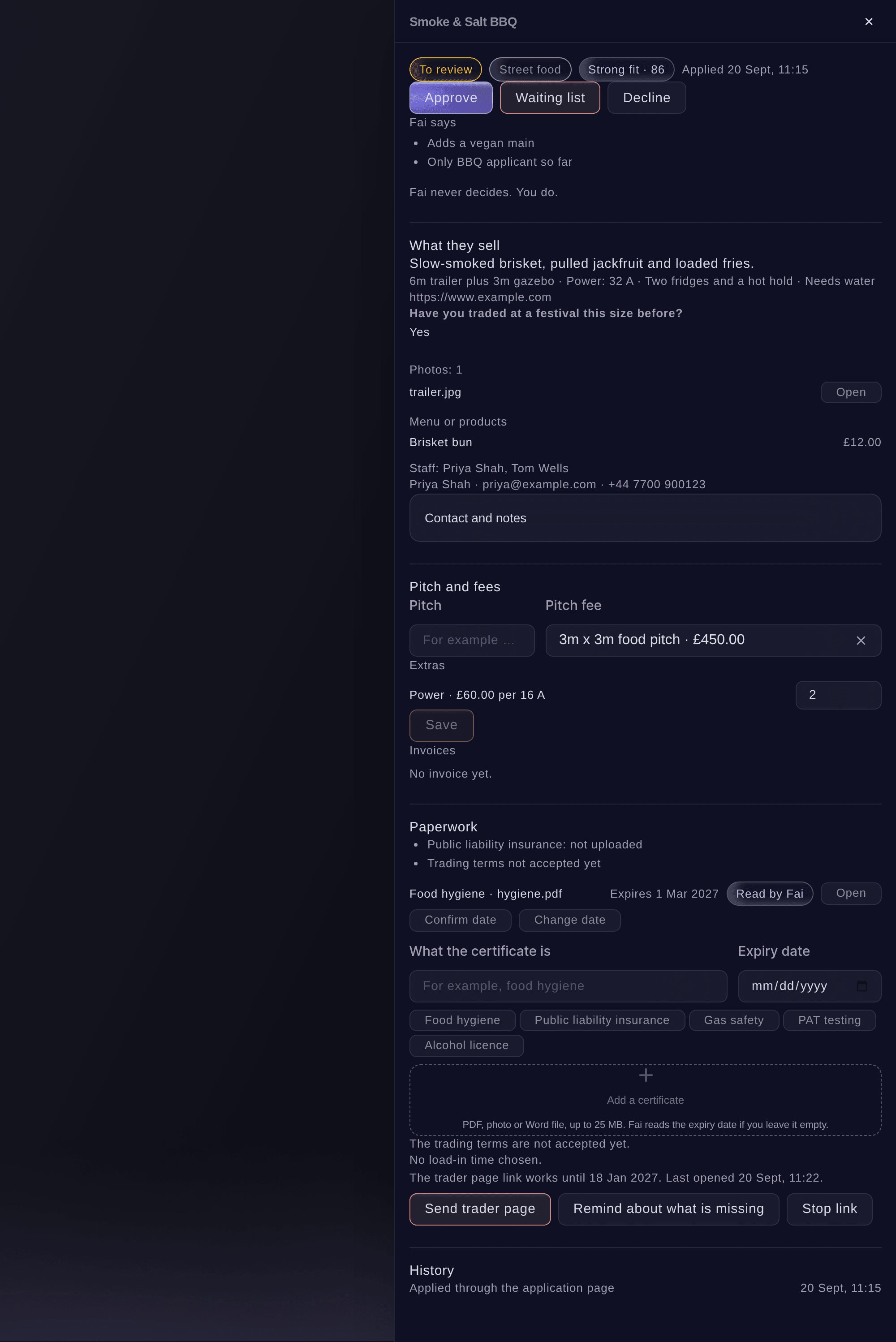
One trader's application. -
Choose the pitch and extras before you approve
Under Pitch and fees, enter the Pitch, choose the Pitch fee and set how many of each extra they need.
Remarque: The invoice is made from these, so an approval with no pitch fee raises no invoice.
-
Approve, waitlist or decline
Select Approve, Waiting list or Decline, check the email and invoice the dialog lists, then confirm.
Remarque: Turn off Email the trader to decide without emailing. When you approve, Raise the invoice makes it from the pitch fee and extras, or the deposit when the pitch has one, and Send the invoice now emails it with a link to pay by card.
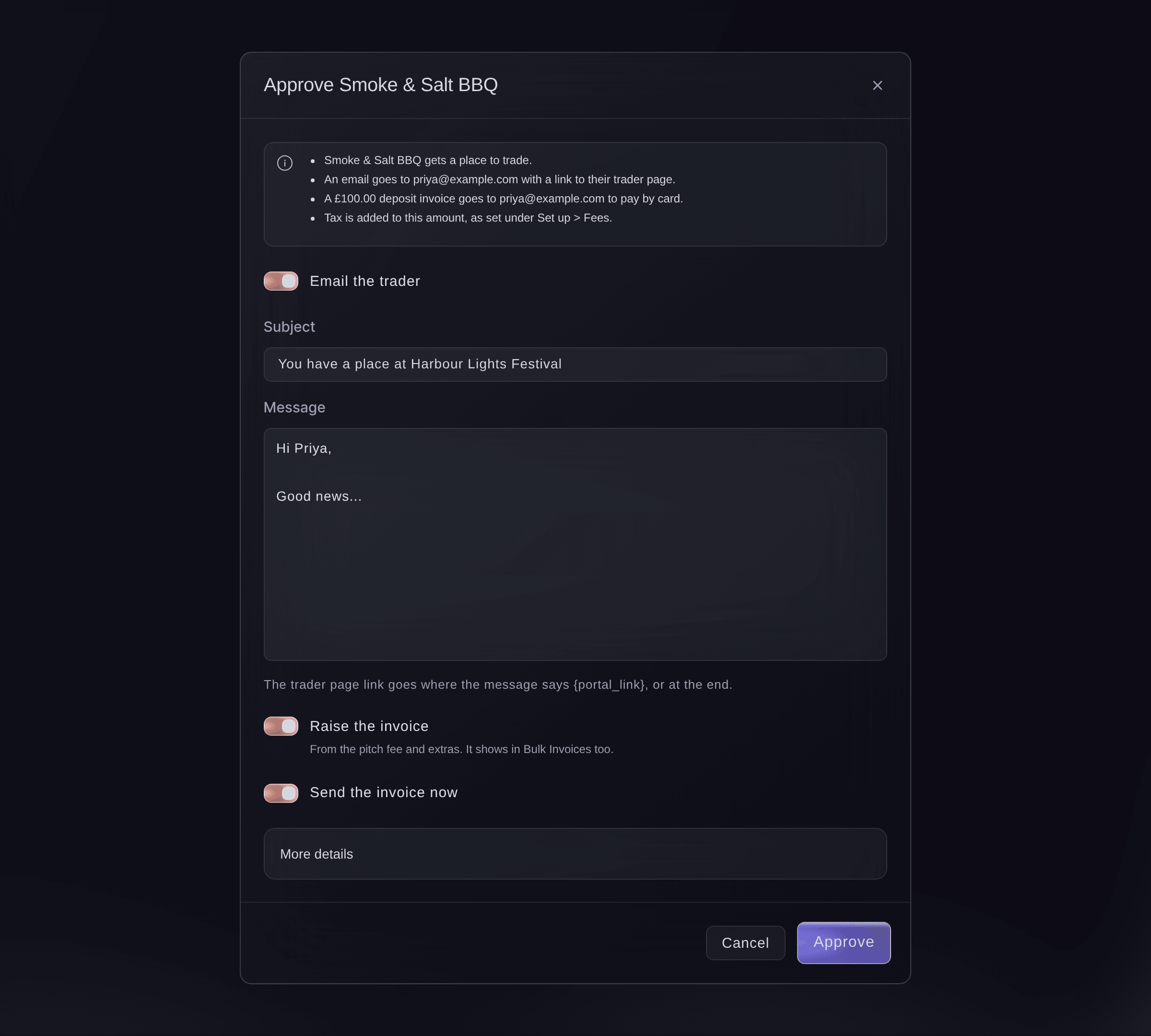
Approve a trader. -
Check the trader is trading
Select Trading. The trader is listed with their pitch, and their invoice shows Unpaid until they pay it, then Paid.
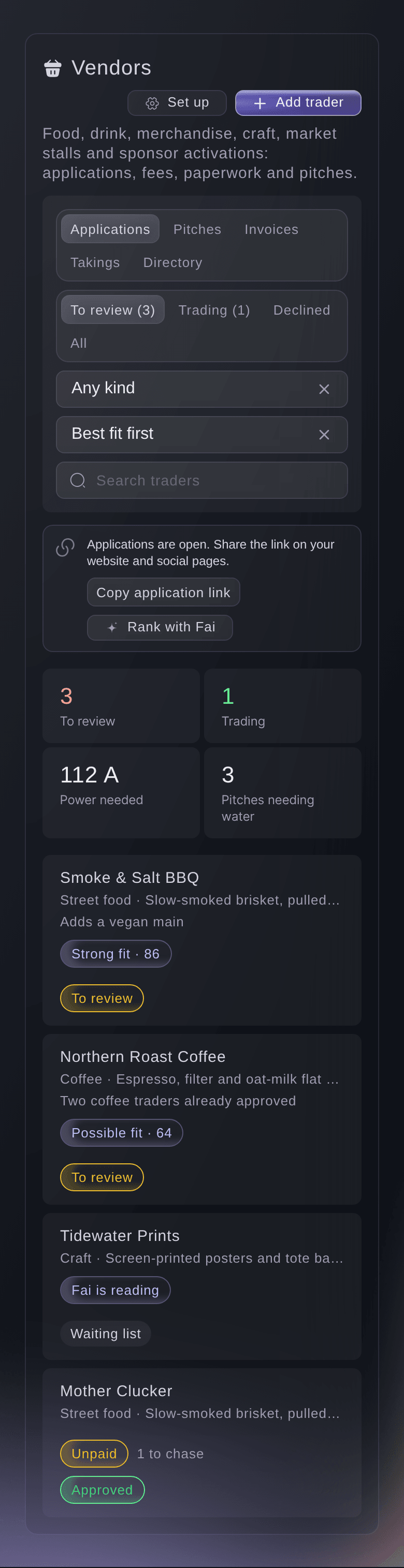


Essayez ces étapes sur votre propre événement
Créez un compte gratuit, montez votre événement et suivez les étapes ci-dessus dans votre propre tableau de bord. Cela prend quelques minutes et vous n'avez pas besoin de réserver un appel commercial.
Pas de frais d'installation. Pas d'abonnement mensuel obligatoire. Pas de carte bancaire requise.
Ou faites-le faire pour vous
Fai lists your traders and applications with her reading of each, sets up the application page, fees and tax, adds a trader you already know, and approves, waitlists or declines an application. She shows you the email and invoice first and waits for your yes.
Dans votre tableau de bord, avec Fai
Show me the trader applications for <EVENT NAME> that best fit our food mix, and approve Smoke & Salt BBQ on the 6m pitch with the invoice
Depuis votre propre assistant, via MCP
Connectez votre assistant à notre serveur MCP et demandez-lui :
La configuration MCP copiée contient --read-only. Retirez --read-only uniquement lorsque vous voulez que votre assistant effectue des changements. Les changements courants s’exécutent à votre demande ; les actions destructives sollicitent votre accord dans un client compatible. Si votre client ne peut pas vous le demander, effectuez le changement dans le tableau de bord.
Find my event <EVENT NAME>, list the trader applications still to review with Fai's reading of each, and ask me before you decide any of them
Depuis votre terminal
Installez la CLI depuis notre page CLI, connectez-vous avec ticketfairy auth login, puis choisissez la marque sur laquelle vous travaillez avec ticketfairy brand use <BRAND_ID>. ticketfairy brand list et ticketfairy event list affichent les identifiants utilisés par les autres commandes.
Use the CLI to list an event's traders, read one application and approve, waitlist, decline or cancel a trader. The application page, fees and invoices are set up in the dashboard or through Fai. You need an owner, admin or producer login on the event to decide.
List the traders and applications on the event.
ticketfairy event-os traders list <EVENT_ID> --view to_review --sort fai
Show one trader's application, fees, paperwork and history.
ticketfairy event-os traders show <EVENT_ID> <VENDOR_ID>
Approve a trader, email them and raise and send their pitch invoice. This asks you first unless you add --force.
ticketfairy event-os traders decide <EVENT_ID> <VENDOR_ID> --decision approve --raise-invoice --send-invoice
Laissez Fai le faire pour vous
Fai travaille dans votre tableau de bord Ticket Fairy. Créez votre compte, ouvrez Fai et collez la consigne ci-dessus.
Pas de frais d'installation. Pas d'abonnement mensuel obligatoire. Pas de carte bancaire requise.
Add a trader you already know
-
Add them without an application
Select Add trader, enter the business and contact, then select Add trader.
Remarque: Tick Already agreed to add them as approved. Nothing is emailed or invoiced until you choose.
Fai adds a trader to the event from the details you give her, after you confirm.
Dans votre tableau de bord, avec Fai
Add <BUSINESS NAME> to the traders on <EVENT NAME> as already agreed, contact <NAME> at <EMAIL>
Raise or send an invoice later
-
Raise the invoice from the trader's panel
Open the trader and, under Pitch and fees, select Raise and send invoice, or Raise invoice without sending to send it later with Send invoice.
Remarque: Each trader has one live invoice of each kind, and it also shows in Bulk Invoices. Cancel an invoice in Bulk Invoices before you raise another.
Fai raises a trader's invoice and sends it after you confirm.
Dans votre tableau de bord, avec Fai
Raise and send the pitch invoice for <BUSINESS NAME> on <EVENT NAME>
Cancel an approved trader
-
Cancel them
Open the trader, select Cancel this trader, then select Cancel trader.
Remarque: They lose their place and their load-in time. No email is sent, so tell them yourself; invoices stay as they are in Bulk Invoices.
Fai cancels an approved trader after you confirm.
Dans votre tableau de bord, avec Fai
Cancel <BUSINESS NAME> as a trader at <EVENT NAME>
Depuis votre propre assistant, via MCP
La configuration MCP copiée contient --read-only. Retirez --read-only uniquement lorsque vous voulez que votre assistant effectue des changements. Les changements courants s’exécutent à votre demande ; les actions destructives sollicitent votre accord dans un client compatible. Si votre client ne peut pas vous le demander, effectuez le changement dans le tableau de bord.
Find my event <EVENT NAME> and the trader <BUSINESS NAME>, show me their status and ask me before you cancel them
Questions que vous pourriez avoir
- Can I change my mind after declining a trader?
- Yes. A declined trader can be approved or put on the waiting list, and a cancelled or withdrawn trader can be approved again. An approved trader can only be cancelled.
- What does a trader see after they apply?
- A thank-you page, and an email with a link to their trader page, where they add certificates, their menu and staff. Once you approve them, the same page shows their pitch, their invoice, your trading terms and the load-in times.
- Why did an approval raise no invoice?
- The trader had no pitch fee chosen. Choose one under Pitch and fees, then raise the invoice from their panel.
- Can a trader apply twice?
- No. A second application from the same email address on the same event is refused, and the trader is told you will be in touch.
- Can I send applicants through my own event form instead?
- Yes. A form on the event can add each person who sends it to your traders as a new application.
Vous avez encore une question ?
Réservez une démo et nous y répondrons lors d'un appel, pour votre type d'événement. Ou créez votre compte et voyez par vous-même.
Pas de frais d'installation. Pas d'abonnement mensuel obligatoire. Pas de carte bancaire requise.
Guides associés
Faites-le sur votre propre événement
Créez votre compte, montez votre événement et suivez les étapes dans votre propre tableau de bord. Vous n’avez pas besoin de réserver un appel commercial.