
Piloter la production
Run your event from its Today page
Festival promoters and event producers start each day with the same question: what needs me before the doors open? Today answers it for one event, with the countdown, what your team changed since you last looked, and the jobs Fai has already drafted for you to approve.
Set your event up with Fai on your first visit, then see what needs you each day, approve, change or turn down what Fai suggests, and open any part of your event from one page.
- Pour
- Running an event day to day with Fai drafting the routine work
- Durée
- 12 minutes
- Open the event's Management page
- Confirm the event type
- Choose what Fai helps with
- Choose your role on the event
- Give Fai your files to read
- Copy the setup of an earlier event
- Go to Today
- Find your way with the section list
- Check the countdown and the figures
- Read what changed since your last visit
- Fai's suggestions and when they arrive
- Approve a suggestion
- The sender of an approved email
- Change an email before it goes
- Choose which suggested tasks to add
- Put a suggestion off or turn it down
- Check your sent mail before you send again
- Open the full list of suggestions
- Ask Fai to check the event now
- Open a section from its tile
- Check Recent activity
Avant de commencer
- You are an owner, admin or producer on the event. The event's Management page opens for those roles only.
- Event management is switched on for your account. Without it, the event's menu has no Management item.
-
Open the event's Management page
Open the event and select Management. The first time you open an event with nothing in it yet, Fai greets you with what she already knows about it and asks you a few questions.
Remarque: Every answer is saved as you give it, so you can leave and come back to the same question. Select Skip for now at the foot of the card to go straight to Today with every section on the list.
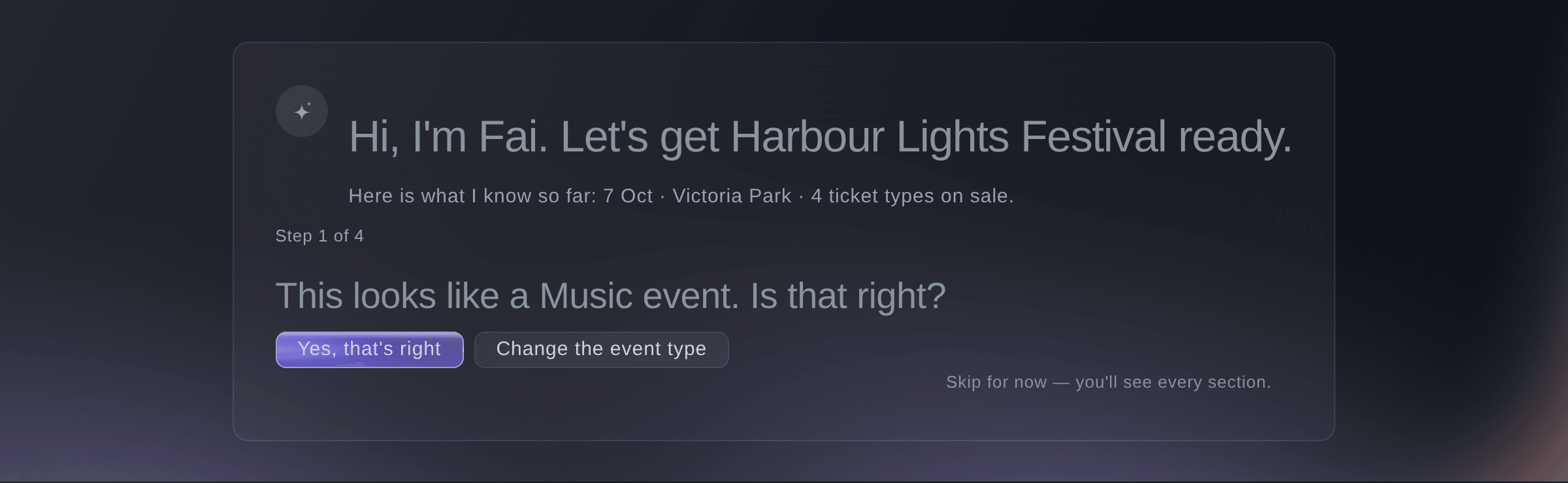
Fai's first question on a new event. -
Confirm the event type
Choose how Fai has read your event.
-
Choose what Fai helps with
Under What should I help you with?, select everything you want help with, such as Line-up and advancing or Show day, then select Continue.
Remarque: Your choices decide which sections your team sees in the list beside Today, and Fai starts with the ones that suit your event type. Everything, or no choice at all, keeps every section on the list.
-
Choose your role on the event
Under What is your role on this event?, select your role, then select Continue.
Remarque: Your role decides where the event opens for you: a stage manager lands on Show day, and a production manager on Run of show, or on Advancing while the event is more than 14 days away. Everyone else lands on Today.
-
Give Fai your files to read
Drop contracts, riders, a line-up sheet or last year's run sheet onto the area under Give me something to read.
Remarque: Fai reads contracts and riders into your line-up and files everything else under Documents. Each file is listed with a tick as she starts on it.
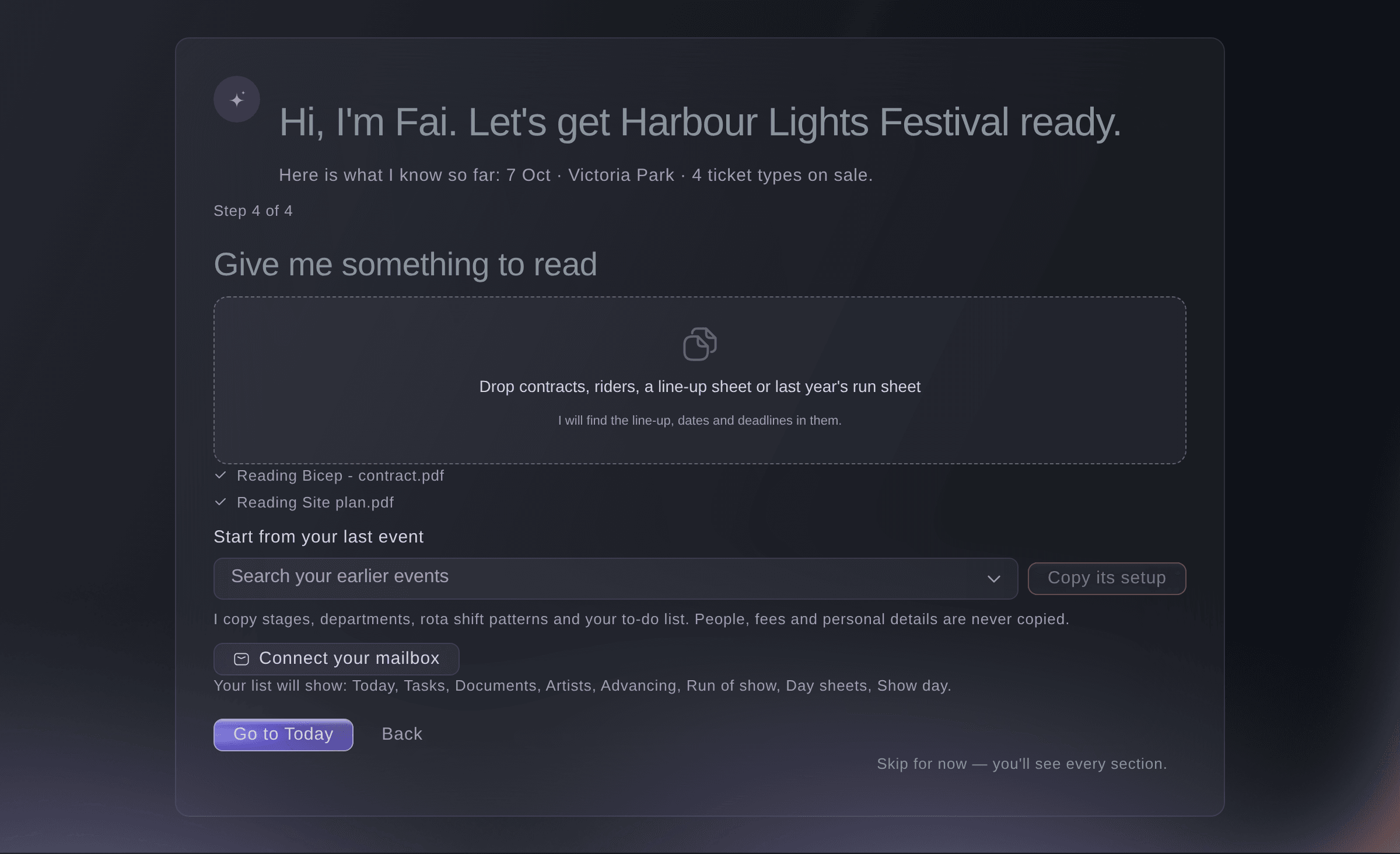
The last step: files, an earlier event and your mailbox. -
Copy the setup of an earlier event
Optional: under Start from your last event, choose the event in Search your earlier events, then select Copy its setup.
Remarque: Fai copies its stages, departments, rota shift patterns and to-do list, never people, fees or personal details. The copy waits for your approval under Needs your decision on Today.
-
Go to Today
Select Go to Today.
Remarque: The line above the button lists the sections your team will see. Connect your mailbox beside it shows the mailboxes Fai reads for this event.
-
Find your way with the section list
Select a section in the list down the left of Today to open it. Today and the sections you pinned are at the top, and a red number beside a section counts the things there that need you.
Remarque: The rest follow in the order that suits where the event is, from planning to show week. On a phone, select Sections: Today to open the same list; while the event is on, Show day comes first.
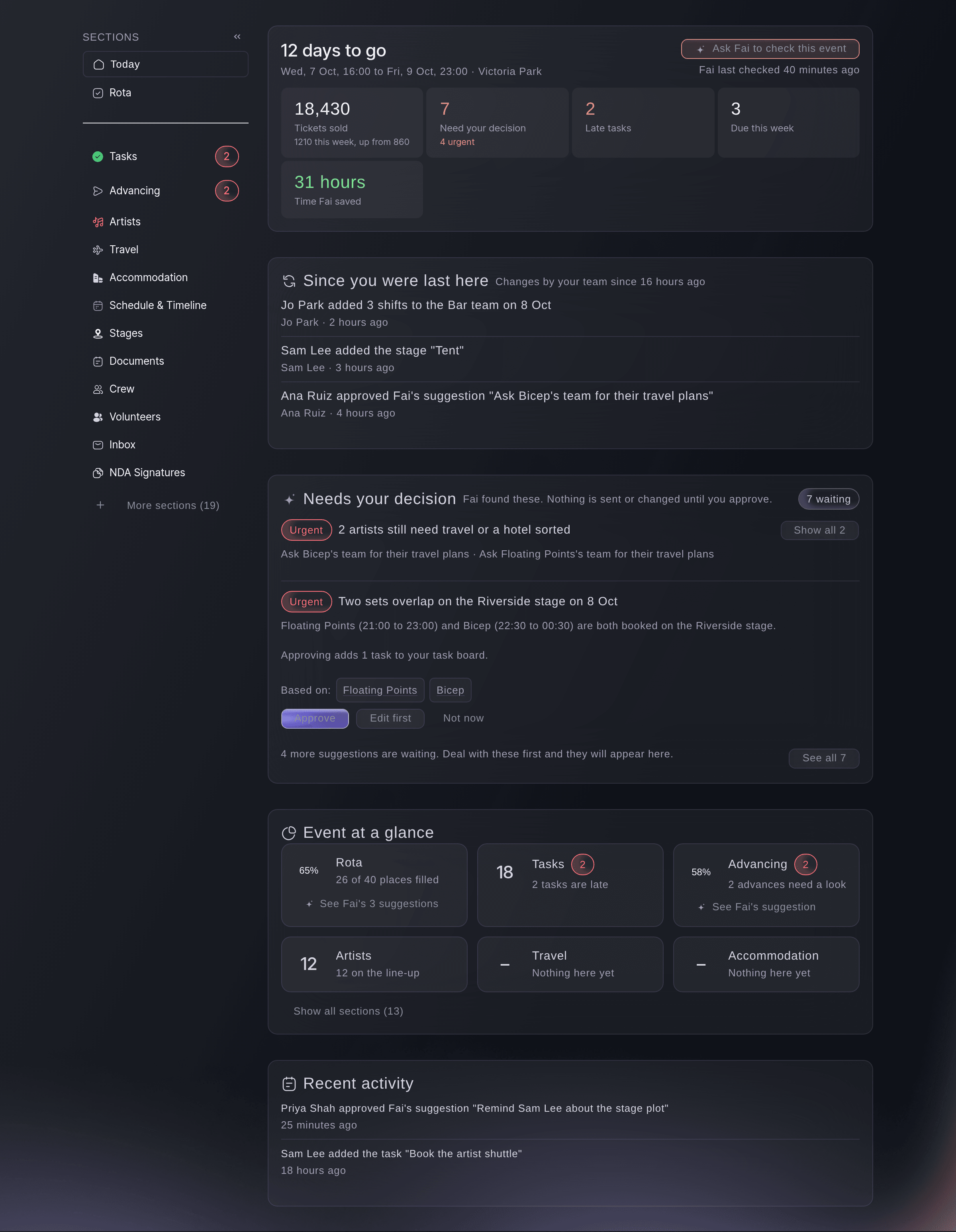
Today for a festival 12 days out. -
Check the countdown and the figures
Read the countdown, then the figures under it: Tickets sold, Need your decision, Late tasks and Due this week.
Remarque: Tickets sold compares the last 7 days with the 7 days before, and Need your decision says how many open suggestions are urgent. Time Fai saved appears once Fai has saved your team some work on this event.
-
Read what changed since your last visit
Read Since you were last here under the figures.
Remarque: It lists the latest 10 changes your teammates made since your previous visit, newest first, with who made each one. It appears from your second visit on, and a visit counts as new after 30 minutes away.



Fai's suggestions and when they arrive
Fai checks the event every hour and lists what she finds under Needs your decision: a readiness plan, reminders for late tasks, artists with no travel or hotel in the last three weeks before the event, two sets booked on one stage at once, and deadlines she read in your documents. Each card says what she noticed, what approving does and what it is based on, and nothing is sent or changed until someone approves it. Suggestions of the same kind share one card; select Show all on that card to see each one.
-
Approve a suggestion
Read the card, then select Approve.
Remarque: Approving runs the suggestion at once: an email is sent, tasks are added to your task board, or the change is made. If a teammate dealt with it first, nothing runs twice and the list updates to show where it stands.
The sender of an approved email
When your own Google mailbox is connected and allows sending, Fai sends the email from it, in your name, and it appears in your sent mail. Otherwise the email goes from your brand's usual sending address, with replies coming to your own email address. One email goes to at most 20 people across To and Copy to.
-
Change an email before it goes
Select Edit first on an email suggestion, change To, Copy to (optional), Subject or Message, then select Approve and send.
Remarque: Separate several email addresses with commas. The email is sent the moment you select Approve and send.
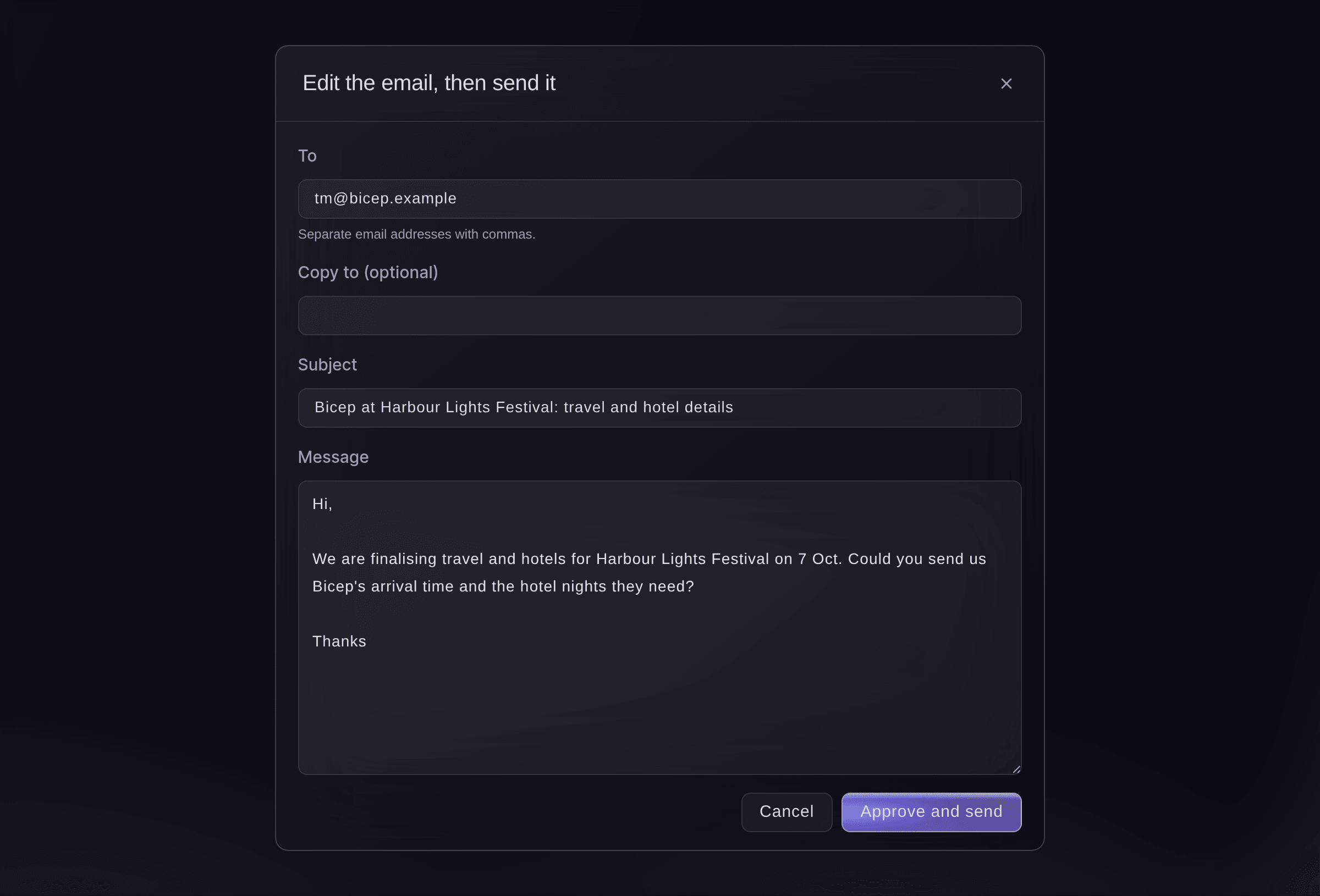
Edit the email, then send it. -
Choose which suggested tasks to add
Select Edit first on a suggestion that adds tasks, untick the tasks you do not need, rename any you want to, then select the add button.
Remarque: The button counts the tasks you kept, for example "Add 4 tasks". Each task keeps the due date Fai worked out for it.
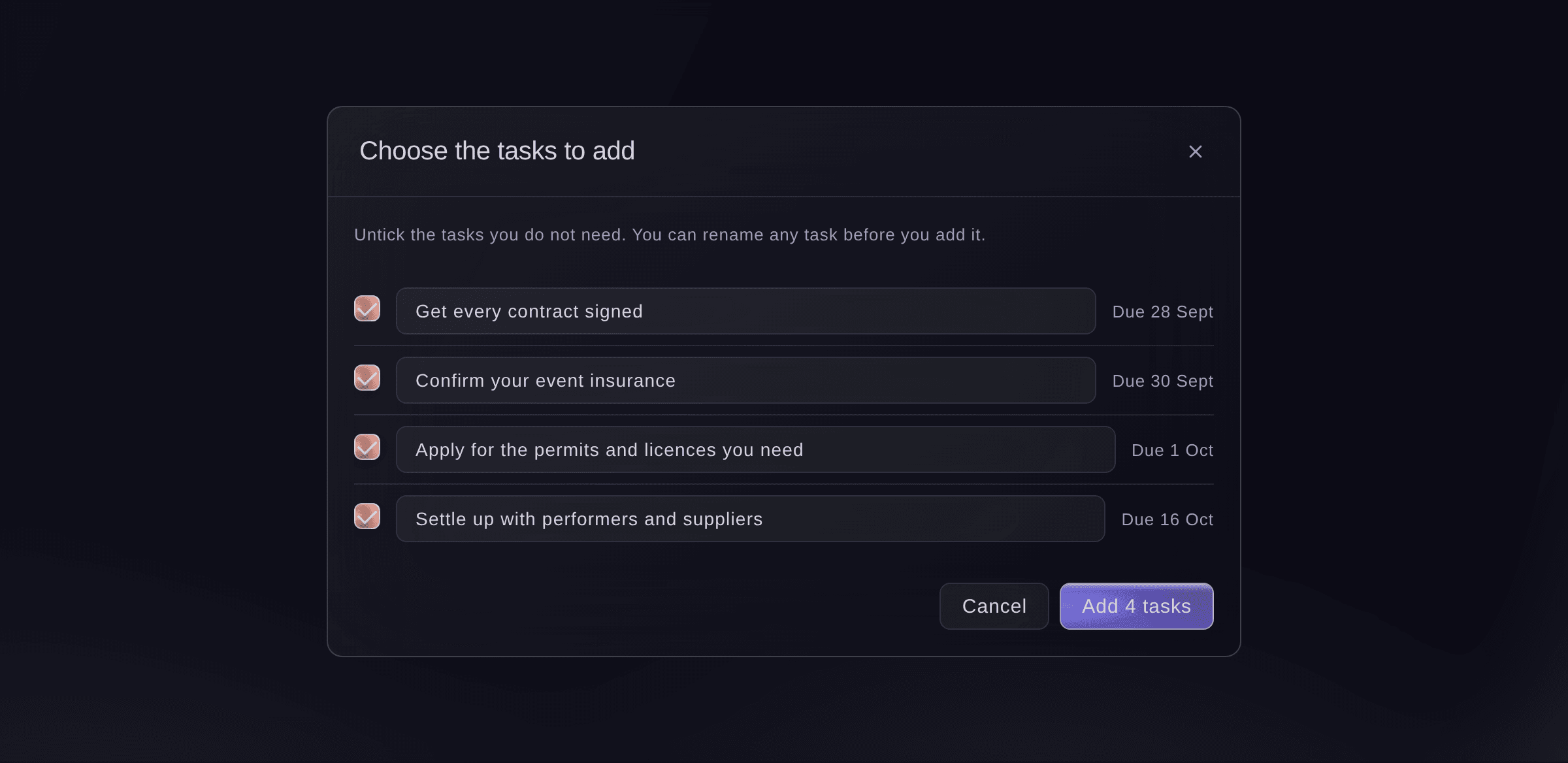
Choose the tasks to add. -
Put a suggestion off or turn it down
Select Not now, choose Remind me tomorrow, Remind me next week or Turn it down, then confirm.
Remarque: A reminder brings the suggestion back at 9:00 on that day, and a suggestion you turn down is not suggested again for two weeks. Tick Stop suggesting this kind of thing for this event to stop that kind of suggestion on this event; any other open suggestions of the same kind close with it.
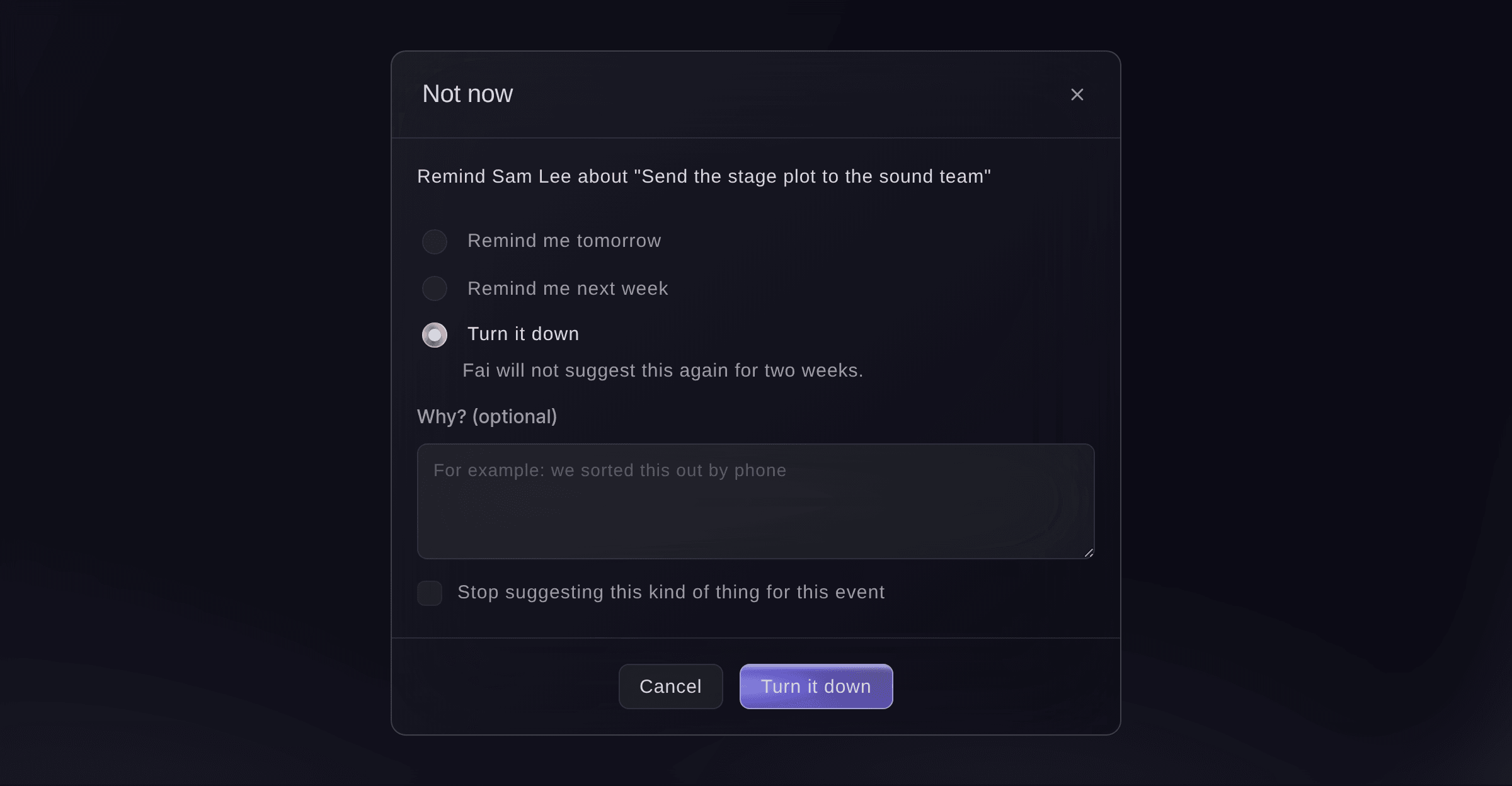
Not now, with Turn it down chosen. -
Check your sent mail before you send again
Look for the email in your sent mail, then select Send again if it is not there.
Remarque: The card warns that the email may not have gone out when its send started but the result never came back. If the email is there, choose Not now and turn the suggestion down instead.
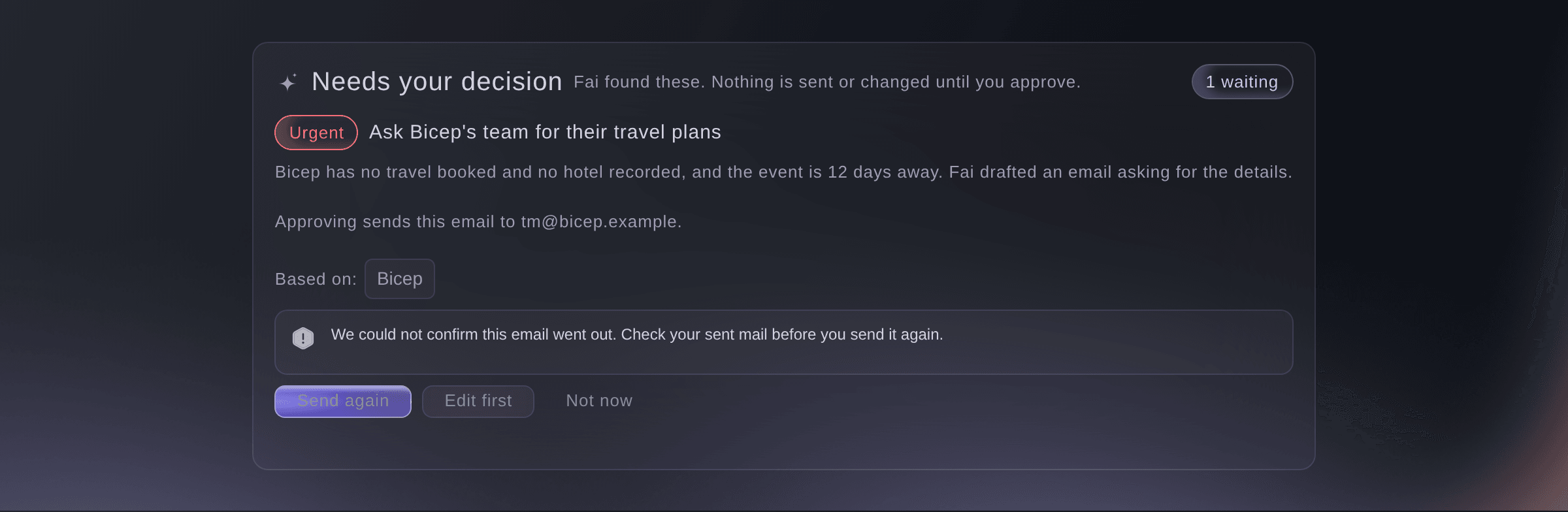
An email waiting for Send again. -
Open the full list of suggestions
When more suggestions are waiting than Today lists, select the See all button under the list, which shows how many are waiting.
Remarque: Today lists the three most important suggestions. The full list is grouped the same way and has the same buttons, 20 at a time.
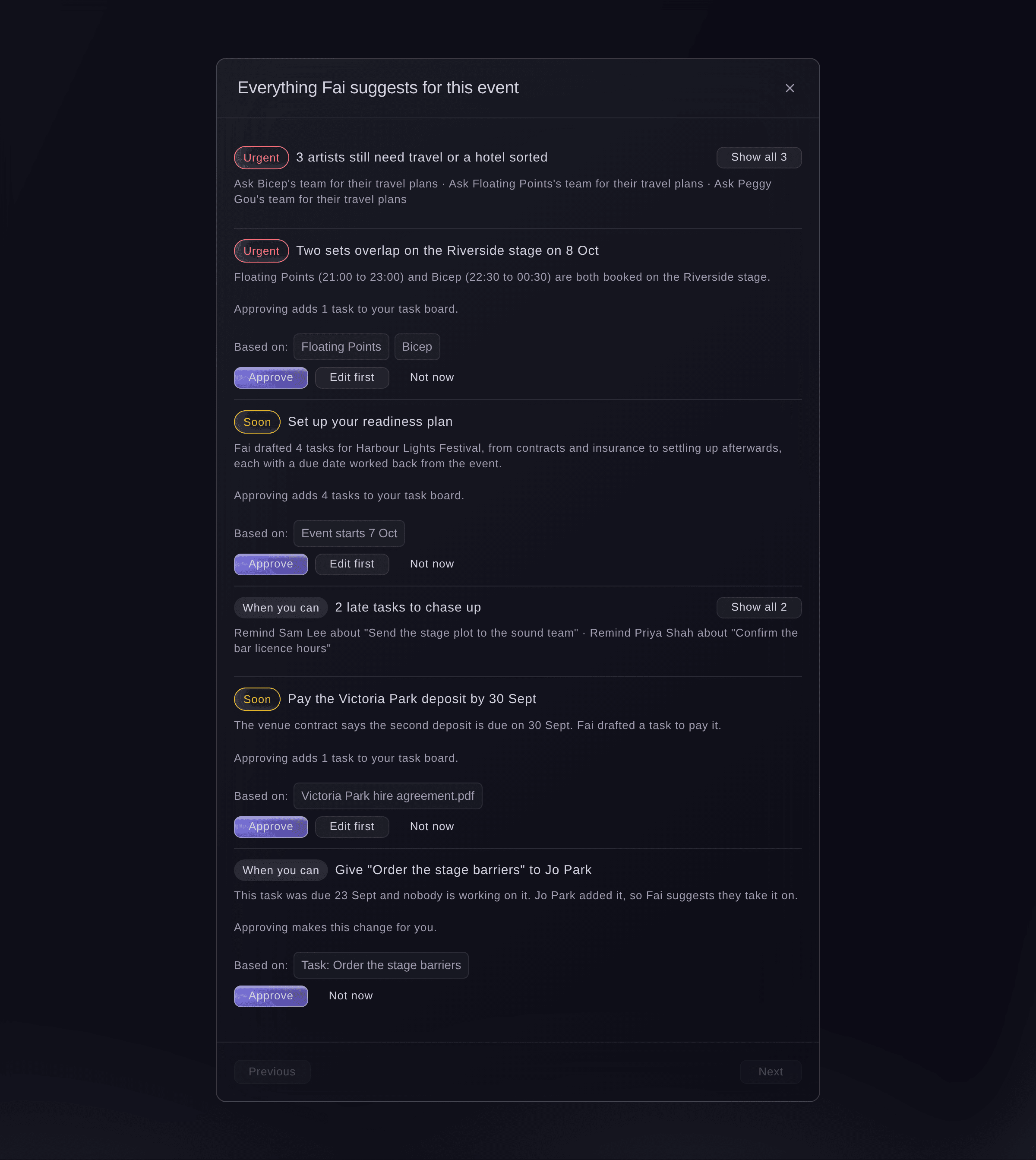
Everything Fai suggests for this event. -
Ask Fai to check the event now
Select Ask Fai to check this event at the top of Today.
Remarque: Use it after a big change, such as a new contract or a moved set. Fai says how many new things she found and adds them to Needs your decision, and she still checks every hour on her own.
-
Open a section from its tile
Under Event at a glance, select a tile to open that section, or select See Fai's suggestion under it to decide what Fai suggests there.
Remarque: Each tile says in one line how its section is doing, with a ring for progress and a red number when something needs you. Today shows six tiles plus any that need you; select Show all sections for the rest.
-
Check Recent activity
Read Recent activity at the foot of Today.
Remarque: Every approval, reminder and turned-down suggestion is listed with the name of the teammate who made it. To see more than the latest five, select the See more button, which shows how many are hidden.


Essayez ces étapes sur votre propre événement
Créez un compte gratuit, montez votre événement et suivez les étapes ci-dessus dans votre propre tableau de bord. Cela prend quelques minutes et vous n'avez pas besoin de réserver un appel commercial.
Pas de frais d'installation. Pas d'abonnement mensuel obligatoire. Pas de carte bancaire requise.
Ou faites-le faire pour vous
Fai reads the same Today page for you, lists what she suggests, and approves, changes, reminds you later or turns down a suggestion when you ask. She can also change what she helps with on the event, add or remove a section for your team and pin one for you. She shows you what she is about to send, add or change and waits for your yes first.
Dans votre tableau de bord, avec Fai
What does <EVENT NAME> need from me today? Show me your suggestions before you approve any of them
Laissez Fai le faire pour vous
Fai travaille dans votre tableau de bord Ticket Fairy. Créez votre compte, ouvrez Fai et collez la consigne ci-dessus.
Pas de frais d'installation. Pas d'abonnement mensuel obligatoire. Pas de carte bancaire requise.
Add a section for your team or pin one for yourself
-
Open More sections
Select More sections at the foot of the section list.
Remarque: The dialog lists the sections that are not on your team's list yet and the ones that are, with a line on what each is for.
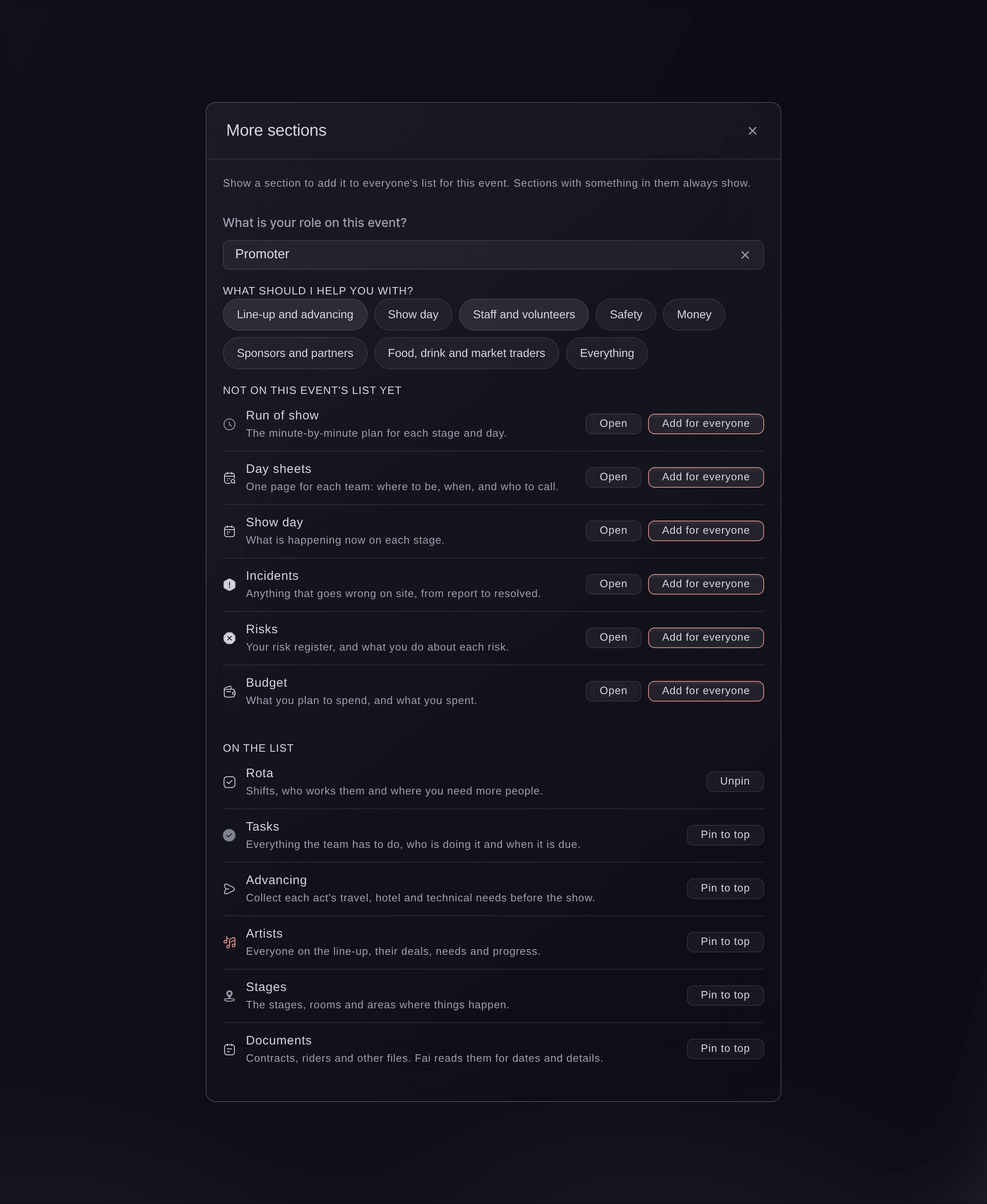
More sections for an owner. -
Add or remove a section for everyone
Select Add for everyone beside a section that is not on the list, or Remove for everyone beside one that is.
Remarque: A message confirms the change with Undo beside it. You can remove only a section with nothing in it yet, because a section with records in it always shows.
-
Pin a section to the top of your own list
Select Pin to top beside a section on the list, or Unpin to put it back.
Remarque: Pins change your own list only, up to 8 sections. When a link opens a section that is not on your team's list, select Pin for me in the note at the top of it to keep it on yours.
-
Change what Fai helps with
Under What should I help you with?, change your choices, check the list of sections under them, then select Save what Fai helps with.
Remarque: The change is for your whole team. If a teammate changed it first, the dialog says so and you try again on their version.

Fai adds or removes a section for your team, pins one for you and changes what she helps with on the event, after you confirm.
Dans votre tableau de bord, avec Fai
Add the rota and incidents to the section list for <EVENT NAME> and pin Show day for me
Change the event type
-
Choose the kinds of event this is
At the top of the Management page, select the button that names the event type, for example "Event type: Music". Tick every kind of event this is, then select Save event type.
Remarque: This is the same event type as in Event Details, and it decides which sections the event shows and what they are called, for example speakers for a conference. Owners and admins can change it.
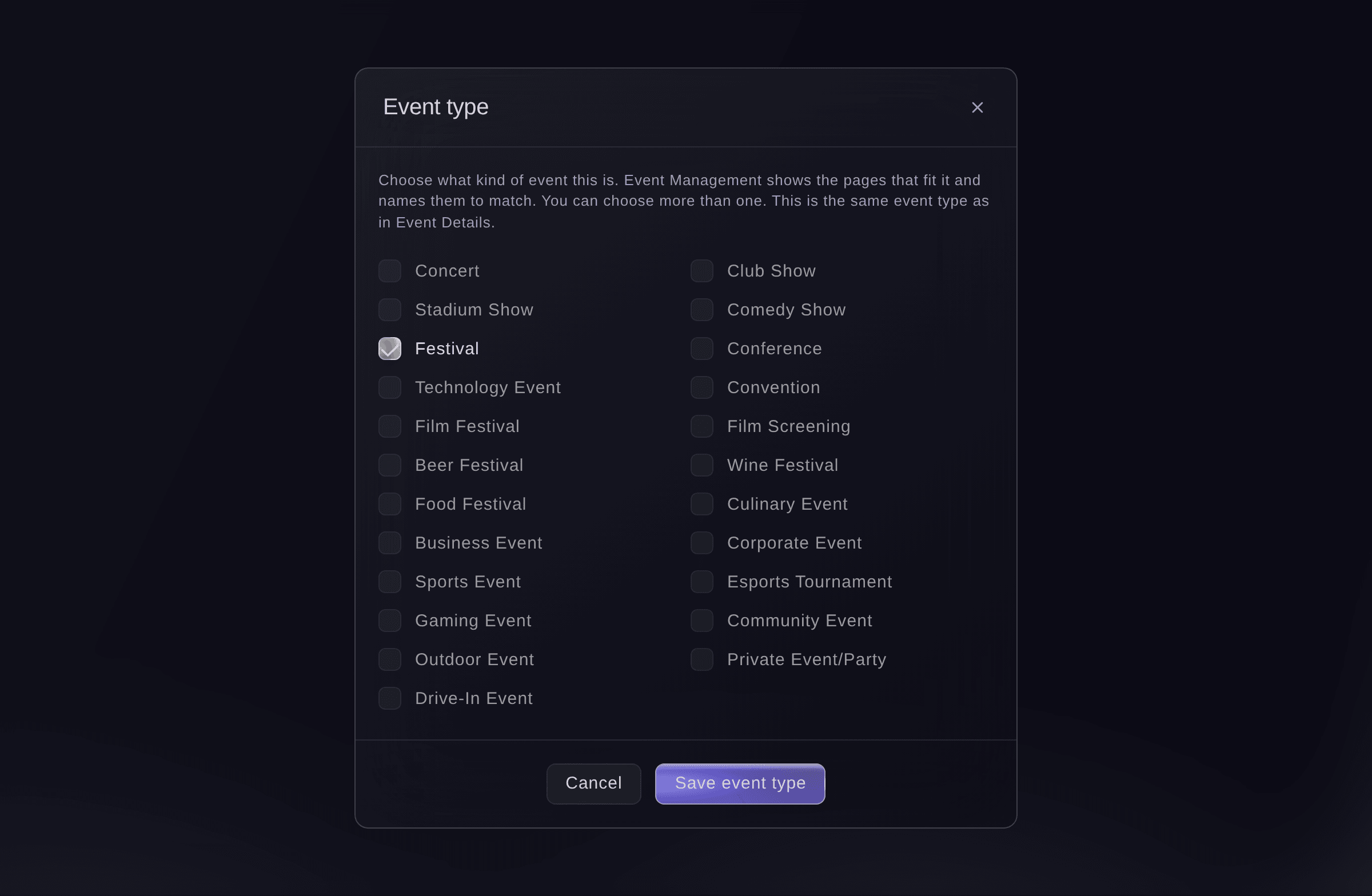
Event type, with Festival ticked.

Fai reads the event type and changes it when you ask, after you confirm.
Dans votre tableau de bord, avec Fai
Make <EVENT NAME> a festival and a conference
Questions que vous pourriez avoir
- Does Fai send anything without asking me?
- No. Every email, task and change on Today waits until someone on your team selects Approve, Approve and send or Send again. Asking Fai to check the event only finds new suggestions.
- Who can approve Fai's suggestions?
- Owners, admins and producers on the event. Ticket Fairy support admins can too when you ask them for help.
- Why is a section missing from the list?
- Once you choose what Fai helps with, the list shows those sections, the core ones and any section with something in it. Open More sections to open the missing one or add it for everyone.
- Can I get Start with Fai back after I skipped it?
- Start with Fai appears only on an event with nothing in it. After you skip it, every section stays on the list, and you can choose what Fai helps with at any time in More sections.
- Why did copying my earlier event not go through?
- Only someone who works on the earlier event can approve the copy. Ask a teammate on that event to approve it under Needs your decision.
- What happens to a suggestion nobody acts on?
- It stays under Needs your decision. Fai closes it on her own when the problem is fixed another way, for example when the artist's travel is booked, and one whose date passed more than two weeks ago drops off the list.
- Can I bring back a kind of suggestion I stopped?
- Yes. Ask Fai to start suggesting it again for the event. She shows you the change and waits for your yes.
- Why does the email go from our brand's address and not mine?
- Your own Google mailbox is not connected with permission to send. Replies still come to your own email address. Connecting your mailbox so Fai can send from it is done by Ticket Fairy support.
Vous avez encore une question ?
Réservez une démo et nous y répondrons lors d'un appel, pour votre type d'événement. Ou créez votre compte et voyez par vous-même.
Pas de frais d'installation. Pas d'abonnement mensuel obligatoire. Pas de carte bancaire requise.
Guides associés
Faites-le sur votre propre événement
Créez votre compte, montez votre événement et suivez les étapes dans votre propre tableau de bord. Vous n’avez pas besoin de réserver un appel commercial.