Keep your crew informed and every incident on record

Message only the teams who need it, from a show-day template or Fai's draft. Log an incident in three answers, and your safety lead hears about serious ones.

Ticket Fairy Messages section with a scheduled weather hold and a sent gate change, each showing who it went to and how many it reached
  • The right crew told in minutes
  • Serious incidents reach your safety lead at once
  • Who was told and what was done, recorded

Reach only the people who need to know

Tick the groups a message is for: departments, people on the rota, all crew, volunteers, performers' teams, traders, press, sponsors or the people who answered one of your forms. Narrow each group by status, role, day, team or shift, so a gate change goes to Saturday's gate stewards and nobody else. A person in two groups gets the message once.

The teams working on your event are already in the dashboard, so you have no list to export and no group chat to keep up to date. Narrow the people who answered a form by your decision or by one of their answers, such as the volunteer applicants you accepted, or everyone who chose the bar team.

  • Who gets it: all the teams working on your event, ready to tick
  • Narrow each group: by status, role, day, team or shift
  • People who answered a form: narrowed by your decision or by one answer
Ticket Fairy Message people dialog with the groups to choose from, email or text message, quick show-day messages, a box to ask Fai for a draft and the message fields

Get the message out fast with templates and Fai's drafts

Start from a quick show-day message such as Weather hold, Gate change, Set time change, Running late or All clear. Or tell Fai what you want to say and she drafts it in your brand's voice. Add each person's first name, shift time, team, role or stage so the message feels personal, and send it by email, by text or both.

Under pressure, nobody wants to start a message from scratch. The templates use the words event teams use, with gaps marked for the gate, the time or the stage. Fai's draft gives you a starting point you can change before anything goes. When you tick a form's group, you can drop in each person's answer to one of its questions, such as the day they arrive.

When a set time on the run of show moves by a quarter of an hour or more, Fai suggests an email to the affected teams on the event's Today page. Nothing goes until someone on your team approves it.

  • Quick show-day messages: weather hold, gate change, running late and more
  • Ask Fai for a draft: say what you need and check her words
  • Each person's details: first name, shift time, team, role or stage
  • Email and text: one channel or both in the same message

Check who gets it, then send now or later

Before anything goes, you see who gets it by email and by text, and who is left out and why, such as a missing mobile number or a number that replied STOP. Send it straight away or schedule it in the event's time zone, and cancel a scheduled message any time before it goes. On show day, Message people also sits at the top of the show-day view.

If the group changes between your check and your send, such as new volunteers joining the rota, you see the new count and check again. The number you agreed to is the number that goes. Schedule the next morning's briefing the night before, and your crew get it at breakfast while you sleep.

  • Check before sending: each person who gets it, by channel
  • Send later: at the time you choose, in the event's time zone
  • Cancel: a scheduled message, until it goes

See who got each message and resend to the rest

Open any message to see each person as sent, opened, on the way or not sent, and narrow it to the people who did not get it. Once it has finished sending, send it again to only those people. Open any crew member to see all the messages you sent them about the event.

When a steward says they never heard about the gate change, you can see what you sent them, when, and whether it reached them. Email replies go to your brand's email address, so a trader's reply reaches the people who can answer it.

  • Delivery: sent, opened, on the way or not sent for each person
  • Send again: only to the people who did not get it
  • Messages to one person: everything you sent them about the event
Ticket Fairy message panel showing who a gate change reached, who opened it and who it did not reach

Email your rota and lists to the team on schedule

Send the rota, run of show, advancing status, rooming list or pickups to the right people every day or every week, at the day and time you choose. Each person gets an email with a link and signs in to download the file, made from the list as it is at that moment. Make a file now whenever you need one, and pause or stop a schedule at any time.

The rota goes to the security lead, the rooming list to the travel team and the pickups to the transport manager, with no Monday spreadsheet run. Lists that hold people's names go only to owners and admins, and each file and download is recorded. If nobody you chose can still see a list, Ticket Fairy pauses the schedule and tells the owners and admins.

  • Send regularly: every day or every week, at your time
  • Your lists: rota, run of show, advancing, rooming list and pickups
  • Signed-in downloads: a link to the file, never an attachment
Ticket Fairy dialog to send the rota regularly, with how often, the day and time, who gets the email, the schedule already set and the latest file

Log an incident in seconds

Enter what happened, where, and how serious it is, and the report is in. The time is now and the reporter is you unless you change them, and you can pick the spot on your site map. The people involved go under more details, kept apart from what happened, where only your safety team can see them. Anyone on your event's team can also ask Fai from their phone to log an incident or add an update, and she waits for their yes first.

Each level of seriousness has a plain description, so a steward knows that danger to life is critical and a minor knock noted for the record is low. Mark a report sensitive and only your safety team and the person who reported it see it in full. Everyone else sees only that something happened, when and how serious it is. Medical, safeguarding and welfare incidents start sensitive, and each time someone opens a sensitive incident it is recorded.

  • Three answers: what happened, where and how serious it is
  • Pick on the map: the spot on your site plan
  • Sensitive: on from the start for medical, safeguarding and welfare
  • Report through Fai: for anyone on your event's team
Ticket Fairy Report an incident dialog with what happened, where, how serious it is and the Sensitive switch

Alert your safety lead the moment something serious happens

When someone reports an incident as high or critical, or raises it to either later, Fai emails your safety lead and the event's owners and admins straight away. The email gives how serious it is, the type, where and when, and a link to the incident. It never says what happened or who was involved. If a critical incident is still open later, they get a second email and your team sees an urgent task to chase it.

Fai also checks your incident log every hour for patterns. When several incidents of the same kind happen in the same place close together, such as medical calls at the main bar, she drafts an email to your safety lead asking whether the area needs more cover. If you have not named a safety lead, she drafts a task instead, for your team to approve.

  • Safety alerts: for each high or critical report
  • Raised later: an incident made more serious alerts them too
  • Patterns: the same kind of incident in the same place

Let Fai sort each report while your team decides

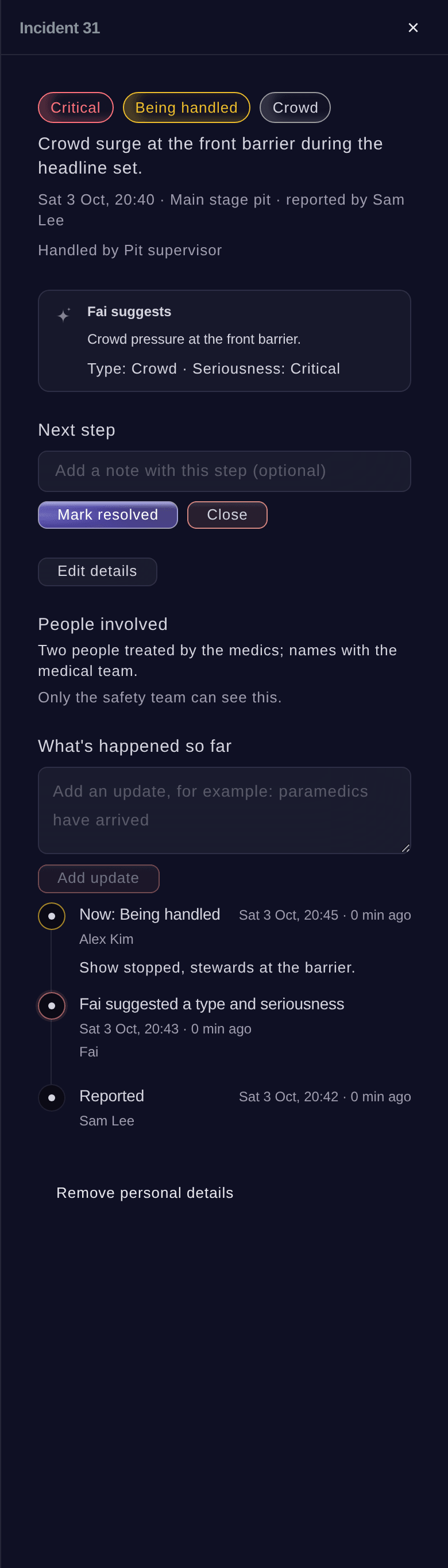
Fai suggests each report's type and how serious it is, and the person dealing with it takes her suggestion with one button or keeps their own. Name who is dealing with it, move the incident from new to Being handled, then to resolved and closed, and add updates as things happen. Each step joins its timeline with who took it and when. Updates are added, never overwritten, so the record is ready for your debrief and your licensing officer.

The log puts what needs attention first, most serious at the top, with counts by status, so your duty manager sees at a glance what is open. Incidents are never deleted: you close one logged by mistake with a note, and you can reopen a closed incident. When the time comes, remove an incident's personal details. The people involved and the text of each update are cleared, while the record of who did what and when stays complete.

Each incident also helps you plan the next event. Fai looks at the incidents at your brand's earlier events when she drafts a risk register, so a kind of incident that keeps happening shows up on next year's register with the count beside it.

  • Fai suggests: the type and how serious it is
  • Next step: Start handling, Mark resolved, Close or Reopen
  • What's happened so far: each step and update with who and when
  • Remove personal details: the people and updates cleared, the record kept
Ticket Fairy incident panel for a crowd surge, with its seriousness, the next step, Fai's suggestion, the people involved and what has happened so far

How event teams keep everyone informed and safe

  • A weather hold at an open-air festival

    Lightning is forecast at four. The site manager texts the Weather hold template to the stewards and bar volunteers on Saturday's rota and to the traders, checks who it will reach, and sends All clear to the same people an hour later.

  • A gate change at a stadium show

    Gate C closes after a burst pipe. The gate stewards on that shift get a text with their first name and the new gate. The message panel shows two people who did not get it, and the supervisor sends it again to only those two.

  • A busy night at a club

    Stewards log three fainting cases near the front bar within the hour. Fai spots the pattern and drafts an email to the safety lead, who adds a welfare officer and water at the bar before the headliner.

  • A conference with volunteers

    The rota goes to the volunteer coordinator every morning at seven, and accepted volunteer applicants get their first-day briefing scheduled the night before. On the day, a volunteer at registration logs a lost-badge incident through Fai from a phone.

  • A market with many traders

    The organiser texts each trader, with their first name filled in, to say the power hook-ups go live an hour early. A first aider logs a slip on the wet ground with a pin on the site map and closes it with an update.

Questions About Team Messages and Incidents

Messages & incidents

The event's owners, admins and producers can, from Messages and Incidents on the event's Operations page, once your brand and account are verified for messaging. Any member of your event's team can ask Fai to log an incident or add an update, and Fai waits for their yes first.

One message can go to up to 2,000 people. Your team can message up to 10,000 people a day and send 20 messages an hour. A text can be up to 480 characters, and numbers that replied STOP are left out.

At least 5 minutes and at most 60 days from now, in the event's time zone. You cannot take a message back once it is sent.

Email replies go to your brand's email address. Replies to a text get an automatic answer and are not collected, so ask people to reply by email or phone.

No. Messages is for the people working on the event. Email or text your ticket buyers from the event's Messaging page.

Up to 10 people from your event team. The rota, rooming list and pickups hold people's names, so only owners and admins can schedule and receive them. Each file lasts 7 days.

Your safety lead, named with their email in Rota rules, and the event's owners and admins, up to 20 people. They get it once each time an incident rises to high or critical. If a critical incident is still open 30 minutes after it was reported, Fai chases it again at her next hourly check.

Three or more incidents of the same type in the same place within two hours. Fai drafts an email to your safety lead, or a task if Rota rules name none, and your safety lead decides what to do.

No. Incidents are never deleted, so the record stays complete. Close it with a note saying it was logged by mistake. You cannot undo removing personal details.

On the event's Operations page, under Incidents. Sports events and food and drink festivals show it from the start. On any other event, open it from More sections. The log refreshes every 20 seconds.

Ready to Build a Stronger Event Business?

Book a live demo, and we will set up your first event on the Event Operating System with your team.

Start Selling Tickets Online

Sign up without a credit card and build a test event before you commit. Go on sale in minutes when you are ready.

No monthly subscription required for ticketing
Start selling tickets immediately
Ticketing tools included in the service fee
Get Started for Free Talk to Fai Now

Ask Fai, our AI assistant, about Ticket Fairy’s features, pricing and how it could work for your event.

No credit card required

Book a demo call

See the referral model that drives 20% more ticket sales on average, learn which campaigns sell tickets, answer buyers faster and keep queues moving.

45-Minute Video Call
Pick a Time That Works for You

The Ticket Fairy, Inc. is a fintech company and technology platform. The Ticket Fairy, Inc. is not a bank, financial institution, or regulated financial services provider. Vault banking services are provided through regulated banking partners. Ticket Fairy Capital financing is provided by third-party private credit partners. The Ticket Fairy, Inc. does not make credit decisions, and all funding terms, approvals and conditions are determined by those lending partners.