Reach your buyers in the marketing tools you use

Buyers who agree at checkout join your Mailchimp or Klaviyo list, and Laylo and Hive get every paid order. Connect each tool once, with no buyer list to export.

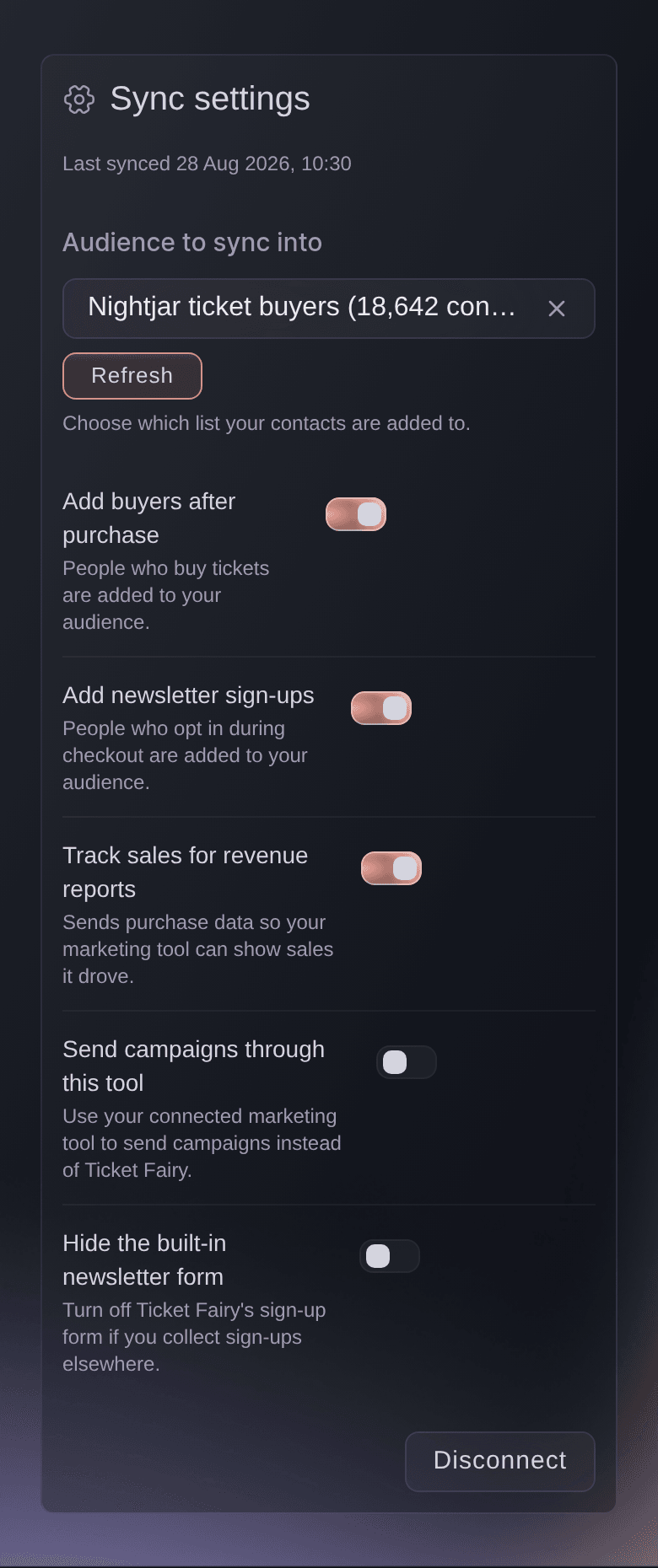
Ticket Fairy Sync settings for a connected Mailchimp account, with the audience picker and the sync switches
  • No buyer lists to export after an on-sale
  • Campaigns to the holders of one ticket type
  • Opt-outs removed from your Mailchimp audience

Grow your Mailchimp audience with each ticket you sell

Connect Mailchimp to your brand by signing in, or with an API key, and choose the audience your buyers join. A buyer who agrees at checkout to hear from you joins it with their name, email address and a Ticket Type group. You can then send a campaign to your VIP holders alone. Newsletter sign-ups from checkout join the same audience, and a buyer who later opts out comes off it. Turn on sales tracking, and Mailchimp's campaign reports show the orders each campaign brought in.

  • Sign in or API key: connect your Mailchimp account the way that suits you
  • Ticket Type group: a segment for the holders of each ticket type
  • Revenue in campaign reports: the orders each campaign link brought in
Ticket Fairy Integrations card for Mailchimp before it is connected, with Connect and Use an API key instead

Have your buyers ready for your next Laylo drop

Paste the webhook link from your Laylo account into the Laylo card on your brand. Each paid ticket order across the brand's events then goes to Laylo, with the buyer's name, email address, phone number and their checkout answer about hearing from you. Laylo also receives the order number and total and the event's name and date, so your next drop goes to the people who bought.

  • Laylo card: one link for all the events on the brand
  • Buyer and order: with the buyer's answer about hearing from you
Ticket Fairy Laylo card on the Integrations page, with the Laylo webhook URL field, Show and Save, marked Not connected

Bring your buyers and their orders into Hive

Enter your Hive account ID on your brand once. Each buyer then appears in Hive with the details they entered at checkout and the order they placed. That includes the amount paid and the event's name, dates, link, artwork and venue. Your next Hive campaign can then go to the people who bought tickets to each event.

  • Hive card: your Hive account ID, set once for the brand
  • Buyer and order: checkout details, the amount paid and the event
Ticket Fairy Hive card on the Integrations page, with the Hive account ID field and Save, marked Not connected

Keep one event's buyers on a separate list

Each connection covers all the events on the brand, now and later, so a new event needs no setup. When one event's buyers belong somewhere else, choose a different Mailchimp list on that event's Messaging page. All your other events keep using the brand connection. Give an event its own Hive segment under Advanced Options to keep its buyers apart in your Hive account.

  • Brand connection: all the events on the brand, now and later
  • Mailchimp list for one event: chosen on that event's Messaging page
  • Hive segment: one event's buyers kept apart in Hive
Ticket Fairy event Advanced Options with the tracking code fields and Hive Segment for this event filled in above Save Advanced Options

Run Klaviyo flows from each ticket order

Connect Klaviyo to your brand by signing in, or with a Private API Key, and choose the list your buyers join. A buyer who agrees at checkout to hear from you joins it with email consent recorded in Klaviyo. If they later opt out, Klaviyo unsubscribes them too. Each paid order goes to Klaviyo as a Placed Order with the order number, the event, the total, the currency and how many tickets were bought. Your flows and segments can then follow what each fan bought. Each buyer's profile carries their ticket type, so you can send a campaign to your VIP holders alone.

  • Sign in or Private API Key: connect your Klaviyo account the way that suits you
  • Placed Order: each paid order, with its event, total and tickets
  • Email consent: recorded when a buyer opts in and withdrawn when they opt out
Get this page as a PDF Read it later or share it with your team. We email you a link to the PDF.
What to put in your PDF

We will email you this deck. We may also email you now and then about Ticket Fairy features that can help your events. You can unsubscribe at any time with one click.

Connect your buyers to the rest of your tools

  • Mailchimp

    Add buyers who agree to hear from you to the Mailchimp audience you choose, and remove them when they opt out.

  • Newsletter sign-ups

    Send checkout newsletter sign-ups to the same audience, or hide the built-in sign-up form when you collect sign-ups elsewhere.

  • Mailchimp revenue reports

    Turn on sales tracking so Mailchimp shows the ticket orders that came through each campaign.

  • A list for one event

    Send one event's buyers to a different Mailchimp list while the rest of the brand uses the brand connection.

  • Laylo

    Send each paid ticket order on the brand to your Laylo account with the buyer's marketing choice.

  • Hive

    Send each buyer and their order to your Hive account, set once for the brand.

  • Hive segments

    Give one event its own Hive segment to keep its buyers apart in your account.

  • Changes by teammates

    When a teammate saves the Laylo or Hive card while you have it open, you see their change before you save yours.

  • Zapier, Iterable and Symmetry

    Send each order to Zapier, Iterable, Symmetry or your own system with a webhook, in the format each one expects.

    Learn more

  • Ad pixels and conversion tracking

    Connect Meta and other advertising networks so you can see which ads sold tickets.

    Learn more

  • Payment processing accounts

    Link the payment processing account that takes your buyers' card payments.

    Learn more

  • Fai and your integrations

    Fai can choose your Mailchimp audience, switch each sync on or off and save the Laylo link or Hive ID, after you approve each change.

    Learn more

  • Klaviyo

    Add buyers who agree to hear from you to the Klaviyo list you choose, with their email consent recorded, and unsubscribe them when they opt out.

  • Klaviyo Placed Order

    Send each paid order to Klaviyo with its order number, event, total, currency and ticket count, ready for your flows.

  • Ticket type on each Klaviyo profile

    Build Klaviyo segments from the ticket type each buyer holds.

  • Campaigns through Mailchimp

    Send your campaigns through your own Mailchimp account when you prefer to keep all your campaigns there.

Questions About Integrations

Integrations

No. Only buyers who agree at checkout to hear from your brand are added, and only while Add buyers after purchase is on. A buyer who later opts out on your brand comes off the audience.

No. Mailchimp, Laylo and Hive receive the buyers who pay after you connect. To add earlier buyers to Mailchimp, export the customers who opted in and import them into the audience once.

Yes. Each paid order goes to Laylo with the buyer's checkout answer about hearing from your brand. Laylo receives that same answer for text messages, even when the buyer answered the separate text message question differently. Refunds do not go to Laylo.

You need your Hive account ID, and Hive needs to allow Ticket Fairy on your account. Ask Hive to do that before you save the ID on the Hive card.

Check that Hive has allowed Ticket Fairy on your account and that the ID on the Hive card matches your Hive account ID. A buyer is added to Hive when their order confirmation page opens. When you hide the venue from buyers, Hive receives the city and the country without the venue's name.

A few minutes after they pay. The Mailchimp card shows when the connection last synced.

You can connect Mailchimp with an owner, admin or marketing login on the brand. Only owners and admins see the Laylo and Hive cards. The Laylo card hides your link as you paste it, because the link carries your Laylo token.

No. Your buyer finishes paying first, and their details go to your marketing tool afterwards. A slow tool can delay the update but never the purchase.

Ticket Fairy stops sending new buyers, and the contacts already in your marketing tool stay there. You can connect again at any time. If a Mailchimp card says Needs attention, select Reconnect and the syncs start again.

Yes. Each one gets the buyers who agree to hear from you, and newsletter sign-ups from checkout join the list you chose in each.

Each paid order on your brand counts, while Track sales for revenue reports is on. The order goes to Klaviyo whether or not the buyer agreed to marketing email, and only buyers who agreed get email consent.

Email [email protected] and ask Hive to add Ticket Fairy to the allow list on your account. To give an event its own Hive segment, you need an owner or admin login on that event.

Mailchimp, Klaviyo, Laylo and Hive. Each one receives your buyers from Ticket Fairy, so your marketing tools stay up to date without exports.

Sell more tickets. Build the crowd that comes back.

Start Selling Tickets Online

Sign up without a credit card and build a test event before you commit. Go on sale in minutes when you are ready.

No monthly subscription required for ticketing
Start selling tickets immediately
Ticketing tools included in the service fee
Get Started Talk to Fai Now

Ask Fai, our AI assistant, about Ticket Fairy’s features, pricing and how it could work for your event.

No credit card required

Book a demo call

See the referral model that drives 20% more ticket sales on average, learn which campaigns sell tickets, answer buyers faster and keep queues moving.

45-Minute Video Call
Pick a Time That Works for You