Issue crew, artist and press passes your door team scans

Bring your crew, acts, traders' staff, volunteers and press onto one pass list from the records you already keep. Your door team scans each pass like a ticket.

Ticket Fairy Passes section for a festival, with crew, a performer's travel party and guest list, a volunteer and a photographer, their zones, meals and status, and the groups with their allowances
  • Everyone you confirmed on one pass list
  • Outside teams naming their own people
  • Press and all-areas passes approved first

Start from the people you have already confirmed

Your crew list, volunteer rota, act advances, approved traders and approved press already tell you who is working your event. Ask Fai to bring them in. She adds your crew and the volunteers with a confirmed shift. She adds each act's travel party and guest list, approved traders' staff and approved press. You never type a name twice, and nobody gets a pass until you issue it.

For anyone outside those lists, such as a visiting director or a council officer, you add their name, email, role, organisation and pass type. Leave out the email and the pass comes to you to hand on. If an act corrects a name on their advance, a pass you have not issued yet updates to the new name. An issued pass offers you the new name, so you can send a fresh pass in one step.

Fai brings people in while you get on with other jobs, and if you ask her again later she never adds anyone twice. On a large festival, a week of copying names between spreadsheets becomes a list you check and issue.

  • Bring in people: crew, volunteers, acts, traders and press from your own lists
  • Add someone: anyone else, with their role and organisation
  • You decide when: nobody gets a pass until you issue it

Keep guest lists and departments to the agreed size

Put passes into groups by department, act, trader or team. Give each group its number of passes, a time when names close and one pass type for everyone in it. A headliner's guest list stays at the number in the deal, and the bar crew stays at the number you budgeted. A name added after the cut-off is marked as late and waits for your decision.

When you issue, passes over a group's allowance are held back, and the dialog tells you why. A long guest list never slips through. Raise the allowance, or issue anyway when you agree to it. Guest list places on an act's advance belong to the same pass group. The tour manager on their advance link and you in Accreditation see the same number.

  • Pass groups: crew, an act and their guests, a trader's staff or the press
  • Passes allowed: the number of passes each group can fill
  • Names close: late names wait for your decision
Ticket Fairy Change group dialog for a performer's guest list with four passes allowed, the pass type and the time names close

Give each pass exactly the access it needs

Add your zones, such as Backstage, Production, Artist village or Press pit. Give each one a colour that prints as a band on the badge. Then give each wristband or badge its zones, the days and hours it works, its meals per day and whether it includes parking. Your meal desk team sees those meals, and each scan at your staff gates checks the zones, days and hours.

Pass types come from the wristbands and badges on your event's Credentials page. A crew wristband, an all-areas laminate and a guest list band each get their own access. Leave every day unticked for a pass that works on all days of the event. Does a stage manager also work the build day? Change the zones or days on that one pass. Your door team sees the change on the next scan.

  • Zones: each with its own colour band on the badge
  • Days and hours: when each pass type gets people in
  • Meals and parking: meals per day and a parking space on the pass
Ticket Fairy Zones and pass types dialog with Backstage, Production and Artist village zones, and a crew wristband set to open two zones on two days with two meals a day

Send passes your door team scans like tickets

When you issue the passes, each person gets theirs by email as a free guest ticket of their pass type. Your door team scans it in the check-in app they already use. Each scan shows the zones, days, hours, meals and parking on the pass. Your team has no second system to learn and no separate list at the gate.

Issue all the ready passes together, or tick a few and issue only those. Change a pass's group, role, zones, days or parking after you issue it, and your door team sees it on the next scan. Cancel a pass and the door refuses its ticket, then issue it again when the person rejoins the team. Each pass keeps its history, so you can see who issued, changed or cancelled it, and when.

  • Passes by email: each one a named guest ticket of its pass type
  • One scanning app: your door team scans passes and tickets the same way
  • Cancel and issue again: the door refuses a cancelled pass
Ticket Fairy dialog to issue three passes, saying each person gets a free guest ticket by email and that the door sees the zones, days, meals and parking

Print photo badges your stewards recognise at a glance

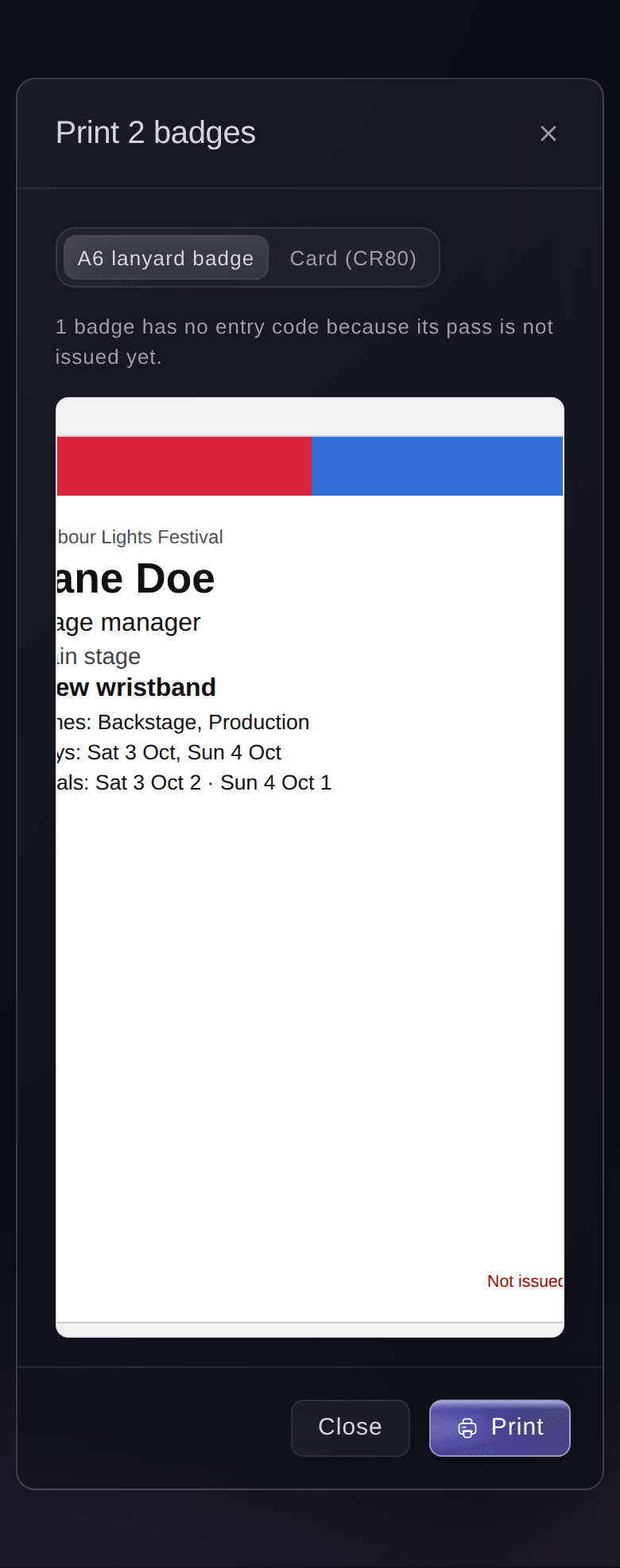
Upload a photo on the pass, or send the pass holder a photo link. They open it on their phone and add their own photo without making an account. Tick the passes and print A6 lanyard badges or CR80 cards. Each badge shows the name, photo, zones, days, meals and entry code, with the zone colours across the top. A steward can see from across a corridor where the wearer can go.

You can print badges before you issue the passes, for packs you hand out on build day. They print without an entry code until you issue the pass. Outside teams add their own people's badge photos on their page. Your desk team can take a missing photo with a phone camera while the person waits.

  • Photo links: pass holders add their own photo with no sign-in
  • A6 or CR80: lanyard badges or cards from the same list
  • Zone colours: the band on each badge shows where the wearer can go
Ticket Fairy pass panel for an issued crew pass, with the group, pass type, zones and meals, the badge photo and the pass history

Let outside teams name their own people on time

Security firms, caterers, suppliers, sponsors and newspapers often send their names late, each in a different spreadsheet. Give each organisation a number of passes, a pass type and a date when names close. Its contact gets an email with a page of their own, with no sign-in. They add people one by one, paste a list or upload a CSV or Excel file with no template. They add badge photos and see each pass go from waiting to sent.

The contact opens the page on any phone or computer in their own language. The people they brought to your brand's last event come back as a one-tap suggestion. Each row in Outside teams shows how many passes have names, what is still needed and whether the page link works. You see at once who still owes you names. The people a team names wait in Accreditation like any other pass. When you send their passes, the contact gets one email listing everyone.

On the same page, the team sends you the insurance and certificates you ask for. They also book delivery times at your gates and order kit from your kit list. Put an outside team on a shift with its cost per hour, and their approved hours go into your budget. Your meal desk counts the meals they eat, so you can charge the team for them.

  • Outside teams: press, contractors, suppliers, sponsors or your own kind
  • Add a list: pasted rows or a CSV or Excel file, with no template
  • Still needed: the names and badge photos each team owes you
  • In their own language: the contact picks the language of their page
Ticket Fairy page a newspaper's contact opens from their link, with the press passes, the people named, what is still needed and a language picker

Get press and all-areas passes approved by the right people

Press passes need the press office, an all-areas badge needs security, and nobody wants to chase either by email. Set each rule once and read it back as a sentence: "when passes from press organisations come in, ask the press office, then security". The passes a rule covers wait for each step in turn, and all other passes go ahead as before.

A rule can cover a kind of organisation, the organisations you pick, some pass groups or some pass types. Rules apply from the top of the list, so you put a narrow rule for one contractor above a broad rule for all suppliers. A rule you switch off keeps its steps for next season. The same rules can also ask named people to approve outside teams' kit orders and delivery bookings. They can do the same for an act's request for more than its allowance.

Approvers who do not run the event get one email listing what waits for them. Its button opens a page with only their requests, and they need no sign-in. Each request shows the facts that help them decide. They see how many passes the outlet has left and whether the person had a pass at your last event. Requests whose names close soon are marked urgent. When an approver declines, they enter a reason, and the person who asked gets it. When your press officer is on leave, an owner or admin decides for them. Their own name and reason stay with the decision.

  • Rules as sentences: read back in plain words before you save
  • Steps in order: the press office first, then security
  • Decision links: approvers decide from their email, with no sign-in
  • Decide for them: an owner or admin steps in with a reason
Ticket Fairy approval rule for press passes from press organisations, asking the press office first and security second

Give your regular crew one pass for the whole season

For the crew who work all your shows, create a multi-entry pass on your brand. It works at each event the brand runs. Set how many times it can be used at each event. Add people one by one or from a CSV file, and email each pass. Your door team scans it in the same app as tickets. Each scan records when it was used and who scanned it.

Event passes suit the people you accredit for one show, with zones, meals and approvals. A season pass suits the house crew, the in-house security team and the promoter's regular staff. Otherwise they would need a new pass each week. Use both together. The season pass gets your regulars through the door, and event passes cover the guests, contractors and press who change each show.

  • All your brand's events: one pass for the people who work them all
  • Uses per event: entries counted at each event
  • From a CSV file: a whole crew list in one upload
Ticket Fairy Create New Pass form, with the type picked and the Enter Recipient and Upload Recipients tabs beside each other

How organisers run accreditation with Ticket Fairy

  • A three-day festival with hundreds of crew

    The production office brings in crew, volunteers, acts and traders from their own lists. They issue all the passes the week before build. Each department stays within its allowance, and the meal desk and staff gates see the same zones, days and meals.

  • A stadium show with outside security

    The security contractor names its stewards on its own page, within its number of passes, and adds their badge photos. The head of security approves each all-areas badge before it goes out, and the promoter never retypes a name.

  • A music festival press office

    Each newspaper and photo agency names its people for press passes, and a rule sends each press pass to the press officer first. She approves from her phone between interviews, and when she declines, the outlet gets her reason.

  • A conference with sponsors and exhibitors

    Sponsors and exhibitors name their booth staff on their own pages, within the passes their package includes. The events team prints CR80 photo cards from the same list and hands them out at registration.

  • A venue with a regular house crew

    The venue gives its house crew a multi-entry pass on the brand, which works at each show of the season. Visiting production crews and guests get event passes for each show, with the zones that night needs.

Questions About Accreditation and Passes

Passes & approvals

You need an owner, admin or producer role on the event, and you issue passes from Accreditation on the event's Operations page. The wristband and badge types come from the event's Credentials page, where an owner or admin adds them.

Sports, conference, business, convention and food and drink events show Accreditation from the start. On any other event, open it from More sections on the Operations page.

Up to 500 passes and up to 200 badges at a time.

Yes. You can change the group, role, organisation, zones, days, parking and vehicle registration. Your door team sees the change on the next scan. To change the name, email or pass type, cancel the pass and issue it again.

A photo link works for 14 days. An outside team's page link works for 120 days, and when you send a new link, the old one stops working. For a sharp print, upload a JPG, PNG or WebP of the face, at least 600 pixels wide.

No. They open the link from the email on any phone or computer, with no sign-in, and see only their own organisation's passes and people. They can add up to 200 people at a time, while places are left in their allowance.

Up to 5 steps, with up to 10 people on each, and any one of the people on a step can decide it. Approvers must be on the event's team, with any role. An approver's email link works for 14 days, and anyone with the link can decide that approver's requests, so approvers should not forward it.

Yes, while you have not issued it yet. A change to the name, email, group, pass type, zones or days cancels the approval, and the rules decide again. A change to parking does not.

Accreditation passes work on events without a seat map. For an event with a seat map, issue guest tickets on the Guest Tickets page, where you can choose the seats.

Fai brings people in, sets up zones, pass types and allowances, and adds, issues, cancels or reissues passes. She adds or changes outside teams, emails their page links, sets approval rules from a sentence and decides requests. Fai shows you each change and waits for your yes. She always asks before she issues anything, because issuing emails each person their pass.

Ready to Build a Stronger Event Business?

Book a live demo, and we will set up your first event on the Event Operating System with your team.

Start Selling Tickets Online

Sign up without a credit card and build a test event before you commit. Go on sale in minutes when you are ready.

No monthly subscription required for ticketing
Start selling tickets immediately
Ticketing tools included in the service fee
Get Started for Free Talk to Fai Now

Ask Fai, our AI assistant, about Ticket Fairy’s features, pricing and how it could work for your event.

No credit card required

Book a demo call

See the referral model that drives 20% more ticket sales on average, learn which campaigns sell tickets, answer buyers faster and keep queues moving.

45-Minute Video Call
Pick a Time That Works for You

The Ticket Fairy, Inc. is a fintech company and technology platform. The Ticket Fairy, Inc. is not a bank, financial institution, or regulated financial services provider. Vault banking services are provided through regulated banking partners. Ticket Fairy Capital financing is provided by third-party private credit partners. The Ticket Fairy, Inc. does not make credit decisions, and all funding terms, approvals and conditions are determined by those lending partners.