Find any buyer's order and sort it out yourself

Search by whatever detail the buyer gives you. Then resend their tickets, correct a name, or move them to another ticket type or seat, usually keeping their barcodes.

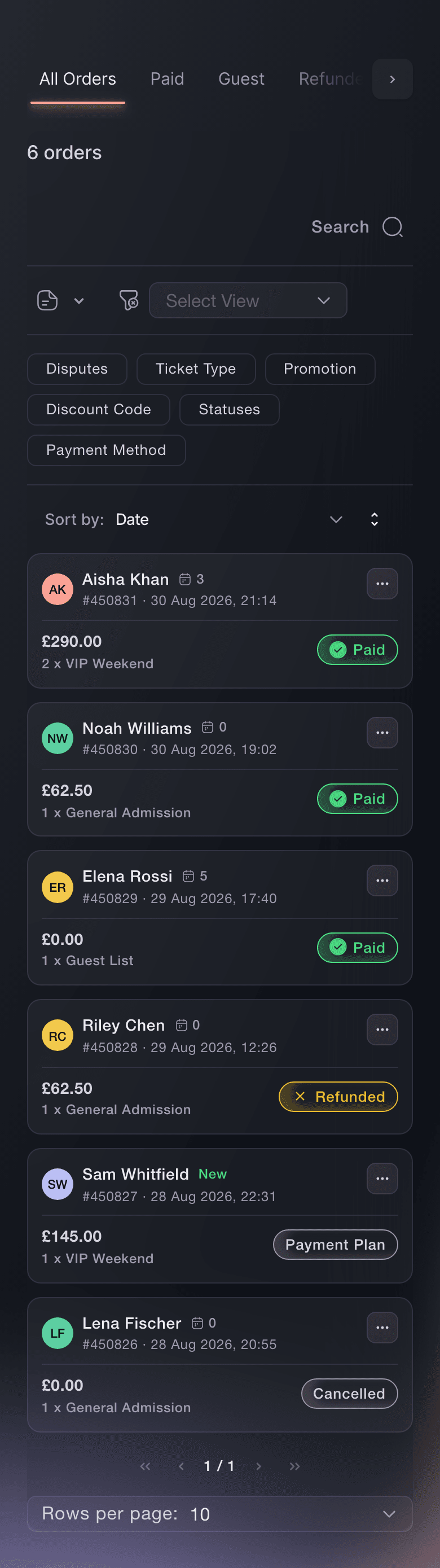
Ticket Fairy Orders page on All Orders, with Paid, Guest, Refunded, Cancelled, Payment Plan and Abandoned Carts tabs above six orders
  • Any order found from one detail
  • Lost tickets back with buyers in minutes
  • Upgrades and seat moves without a new order

Find any order from one detail the buyer gives you

A buyer rarely knows their order number. Search by their name, email address, phone number or order number, and the Orders page narrows to the order you need. You can also search by ticket type, promotion or the words in your team's notes. So "the man who called about the wheelchair space" is one search away when a teammate noted it.

Orders sit in tabs by what happened to them: Paid, Guest, Sold, Refunded, Pending, Payment Plan or Cancelled. Abandoned Carts holds buyers who entered their details and never paid. You see an order's state before you open it, so you know straight away whether a buyer who says they paid is on a payment plan, was refunded or left checkout before paying.

When you work through a queue of questions, move to the previous or next order without closing the one you have open. If you approve orders before tickets go out, the Pending tab becomes Needs Approval with the number waiting. If you check buyer identity, the Needs Verification tab holds the orders waiting on that check.

  • Order search: name, email, phone, order number, ticket type, promotion or note
  • Tabs by order state: Paid, Guest, Sold, Refunded, Payment Plan, Cancelled and more
  • Previous and next order: move through a tab without closing the order
Ticket Fairy Orders table with the search box, status filters, export controls and a list of order rows

Know who the buyer is before you reply

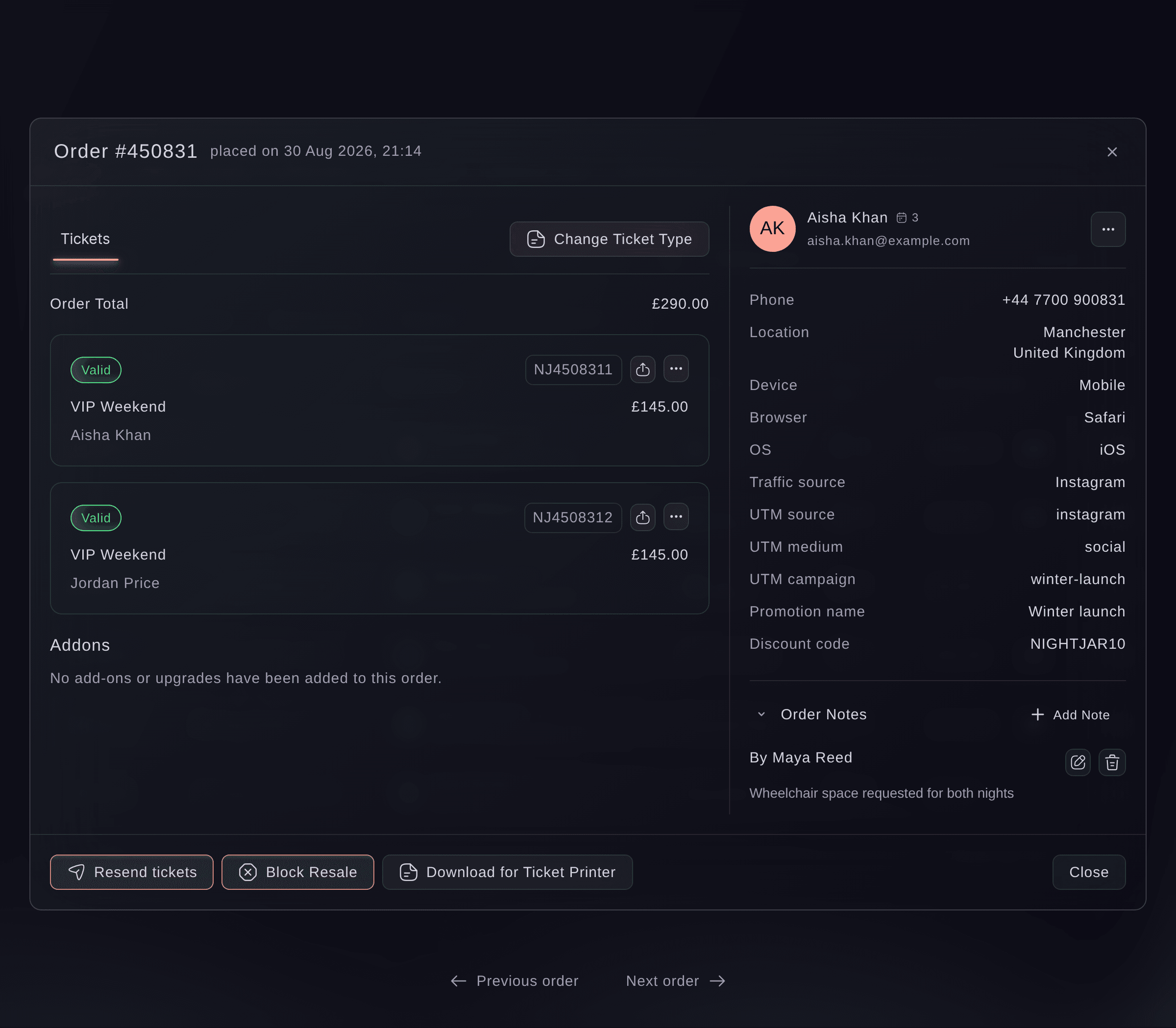
Each order shows its tickets with their ticket type, holder and seat, beside the buyer's phone number and location. You see the device and browser they bought on, the traffic source and campaign tags, and the promoter or referrer who brought in the sale. You also see any promotion or discount code they used. When a ticket came through resale or as a gift, the order shows who it came from and who it went to, with a link to the other order.

A number beside the buyer's name shows how many of your brand's events they have held tickets for, so you know when you are talking to a regular. Their Customer Details show their contact details and all the orders they have placed with your brand, one step away from the order.

When the buyer used a different email address for this order than the one on their account, the order tells you. That explains most "I never got anything" emails before you reply. Buyers sign in to their account with a password, a code sent to their email, a passkey, or their Facebook or Google account. A buyer who turns on two-step sign-in enters their code too. In their account they download a tax invoice for each order, update their own billing and shipping details, and open My Passes to see the credits left on a multi-event pass and book the next event with it.

  • Tickets and holders: each ticket with its ticket type, holder and seat
  • Device and source: how and where the buyer found you
  • Gift and resale trail: who a ticket came from and who it went to
  • Events attended: how many of your events this buyer has held tickets for
Ticket Fairy order window with two valid VIP Weekend tickets, the buyer's phone, location, device and traffic source, and a note in Order Notes

Get missing tickets back to a buyer in moments

Tickets go missing when a buyer mistypes their email address or checks a different inbox. Click Resend and the buyer has the same tickets again in moments. The order's address is filled in for you, and you can change it for this one send when the buyer asks for another inbox. The same barcodes go out again, so a buyer who finds the first email later can use either copy.

Resend works from the order itself as well as from the Orders table, so you can answer a buyer from your phone as easily as from your desk. Buyers also find all the orders and tickets they bought from you under My Orders in their own account. They can download a PDF or open their ticket at the door, so a lost email does not keep anybody out.

A buyer still paying off a payment plan receives the payment plan confirmation again, with their instalments listed. They receive their tickets with the last instalment, so nobody can use a ticket that is not paid in full. After you correct your event's details, Ticket Fairy support can send the order confirmation again to each buyer holding a valid ticket. Refunded and cancelled orders are left out.

  • Resend: from the order's menu or inside the order
  • Any address: send to the inbox the buyer asks for
  • Same barcodes: either copy of the email works at the door
Ticket Fairy Resend Confirmation dialog with the buyer's email address filled in and the Resend button

Put the right name on a ticket when plans change

When a friend is going in place of the buyer, or the email address has a typo, use Edit Ticket to correct the first name, last name or email address on that ticket alone. The barcode stays the same, so a printed or saved ticket still scans and your door team sees the right name. Resend the tickets and the buyer has a corrected copy straight away.

Each ticket also has its own menu for the jobs that come up at a festival or a club night. Issue Add-on puts an extra, such as a parking pass you promised, on a valid ticket. The download button beside the ticket gives you its PDF to forward or print.

  • Edit Ticket: first name, last name and email address
  • Same barcode: a saved or printed ticket still scans
  • Issue Add-on: put an agreed extra on a valid ticket
Ticket Fairy Edit Ticket dialog with the holder's name, email address, ticket type and status

Upgrade a whole order or move one ticket

A buyer picked the wrong day, or you agreed an upgrade to VIP. Change Ticket Type moves the whole order in one go. The valid tickets on the order move together and keep their barcodes, so the tickets the buyer already has still scan.

Before you save, the dialog tells you how many tickets stay as they are because they are checked in, cancelled, refunded or up for resale. When the ticket type you are moving to has sold out, Override stock lets you complete an upgrade you already promised. You cannot choose a ticket type you have turned off, so nobody lands on a ticket that is off sale.

When only one person in a group is moving, change the ticket type in Edit Ticket on that ticket alone. That ticket holder gets a replacement ticket with a new barcode and the rest of the order stays as it is, so resend the tickets afterwards. On an event with time slots, Change Time Slot moves the order to another date and time as well as a ticket type. A visitor who cannot make the morning gets the afternoon without booking again.

  • Change Ticket Type: all the valid tickets on the order in one go
  • Override stock: move a buyer into a sold-out ticket type
  • Change Time Slot: a new date and time for the whole order
Ticket Fairy Change Ticket Type dialog with the Ticket Type list on Stalls, the Override stock switch and a note on the one ticket that cannot change

Seat groups together after they buy

On a seated event, Change Seat gives a ticket holder any free seat on your seat map. The ticket keeps its barcode and shows its new seat, and you choose whether the old seat goes back on sale for another buyer. Give a ticket with no seat yet a seat with Assign Seat.

Use it when a group bought in two orders and wants to sit together, when a buyer needs an aisle or accessible seat, or when you have to take a seat off sale on the night.

  • Change Seat: pick any free seat on your seat map
  • Assign Seat: seat a ticket that has none yet
  • Old seat released: back on sale when you choose
Ticket Fairy order window with three Stalls tickets, their seats, Change Ticket Type above them and a ticket menu open on Edit Ticket and Change Seat

Keep your team in step on each buyer's story

Add a note to an order when you agree an upgrade, promise a refund or take a call from the buyer. Each note shows who added it, newest first. An order with a note carries a mark in the table, so a teammate sees there is history before they reply. Notes stay with your team, and the buyer never sees them.

Filter orders by ticket type, add-on, promotion, discount code, referral link, status, customer type or payment method. Save the filters and your open tab as a named view and come back to it whenever you need it, such as "VIP orders with notes" for your hospitality team. Export the orders or tickets in front of you when you need them in a spreadsheet.

  • Order Notes: for your team only, with who added each one
  • Order filters: ticket type, add-on, promotion, payment method and more
  • Saved views: your filters and tab, kept for your login
  • Export: the orders or tickets you have in front of you
Ticket Fairy Add Note dialog with an empty Note field, Save and Cancel

Let Fai find the order and note what you agreed

Give Fai, the assistant in your dashboard, a buyer's email address or an order number. She finds the order and tells you its tickets, the state of each one, the address on each ticket and your team's notes, so you know what to fix before you reply. Ask her to add, change or delete a note in your words, and she shows you the wording and waits for your approval.

  • Ask in a sentence: find an order by email address or order number
  • Each ticket's state: valid, checked in, refunded or on resale
  • You approve each note: Fai changes nothing until you say so

How organisers sort out buyers' orders

  • A club night on a Friday

    A buyer messages an hour before doors to say their tickets never arrived. The promoter searches by phone number, sees the order used a work email, and resends to the buyer's personal address. The buyer is in the queue with their ticket on their phone before the first act.

  • A weekend festival

    A group of friends wants to upgrade from general admission to VIP after the line-up drops. The box office agrees a price, moves the whole order with Change Ticket Type and notes what was paid. The friends keep the tickets they already have.

  • A theatre run

    Two couples booked separately and want to sit together. Front of house moves one order's seats next to the other with Change Seat and puts the old pair back on sale. Both couples arrive to seats side by side.

  • A conference

    A company sends a different colleague in place of a registered delegate. The events team corrects the name and email address with Edit Ticket and resends, so the badge prints with the right name at registration.

  • A timed entry attraction

    A family running late asks to move from the morning slot to the afternoon. Staff move the order with Change Time Slot and leave a note, so whoever answers next sees the change was agreed.

Get this page as a PDF Read it later or share it with your team. We email you a link to the PDF.
What to put in your PDF

We will email you this deck. We may also email you now and then about Ticket Fairy features that can help your events. You can unsubscribe at any time with one click.

Questions About Finding and Fixing Orders

Find & fix orders

You can open it with an owner, admin, Stats or either support login on the event. A Limited Stats login cannot open Orders. With a limited support login, the table stays empty until you search for an order.

Search looks only in the tab you have open, so search on All Orders to look across all tabs. A buyer who left checkout before paying is on the Abandoned Carts tab. A buyer with no order under one email address has usually booked under a second one.

No. The same barcodes go out again, so a buyer can use either email and your door team sees one ticket. A resend to a different address leaves the order as it is, so edit the ticket as well when the buyer wants to keep the new address.

You need to be the owner, an admin or on a support login on the event. A Stats or promoter login cannot resend, even where the menu shows the action. To change seats you need to be the owner or an admin, on an event that sells reserved seats from its seat map.

No. Saving a name, email, ticket type or seat change sends nothing. Tell the buyer yourself, or resend their tickets so they have an up-to-date copy.

No. Moving tickets charges nothing and refunds nothing, and the order keeps the total the buyer paid. Agree any difference with the buyer before you move them. On a timed entry event where you charge for a change of slot, the buyer receives a link, and the change happens once they follow it.

Tickets already checked in, cancelled, refunded or up for resale keep their ticket type. A ticket part way through a resale can move once that resale completes. On an event linked to a performance on another ticketing system, Change Ticket Type is greyed out, so move each ticket on its own with Edit Ticket.

No. Notes stay with your team on the Orders page and in Fai, and nothing is emailed when you add one. Anyone who can open Orders can add a note. You need to be the owner, an admin or on a support login to edit or delete one, and you cannot bring back a deleted note.

No. A saved view belongs to your login on the event, so each person keeps their own. Export downloads the orders or tickets you have in front of you, and you need an owner or admin login for the ticket and add-on files.

Yes. Ticket Fairy support can send the order confirmation again to each buyer holding a valid ticket for your event, leaving out refunded and cancelled orders. Tell support what changed, and they see how many buyers it goes to before anything is sent.

Sell more tickets. Build the crowd that comes back.

Start Selling Tickets Online

Sign up without a credit card and build a test event before you commit. Go on sale in minutes when you are ready.

No monthly subscription required for ticketing
Start selling tickets immediately
Ticketing tools included in the service fee
Get Started Talk to Fai Now

Ask Fai, our AI assistant, about Ticket Fairy’s features, pricing and how it could work for your event.

No credit card required

Book a demo call

See the referral model that drives 20% more ticket sales on average, learn which campaigns sell tickets, answer buyers faster and keep queues moving.

45-Minute Video Call
Pick a Time That Works for You