
Checkout and orders
Find and manage the orders for your event
Box office, support and promoter teams spend the run of a sale answering questions about one order at a time. The Orders page keeps every order for your event in one place, sorted into tabs by what happened to it. You can find the order a buyer is asking about in seconds and leave a note so the next person on your team knows what was agreed.
Find any ticket order on your event by buyer, email address or order number, see which tab each order sits in, open it to read the tickets, the buyer and where the sale came from, and leave a note your team can see.
- For
- Looking after the orders on your event
- Takes
- 6 minutes
Before you start
- You're the owner, an admin, a Stats login, a support login or a limited support login on the event. A Limited Stats login is sent back to the home page when it opens Orders.
- You can add notes with any of those logins. Editing or deleting a note needs the owner, an admin or either support login, and with a limited support login the table stays empty until you search.
-
Open the Orders page
Open your event and select Orders. The page opens on All Orders, newest first, with a tab for each state your orders are in.
Note: A tab appears only once the event has an order in that state, so a new event starts with All Orders and Abandoned Carts alone.
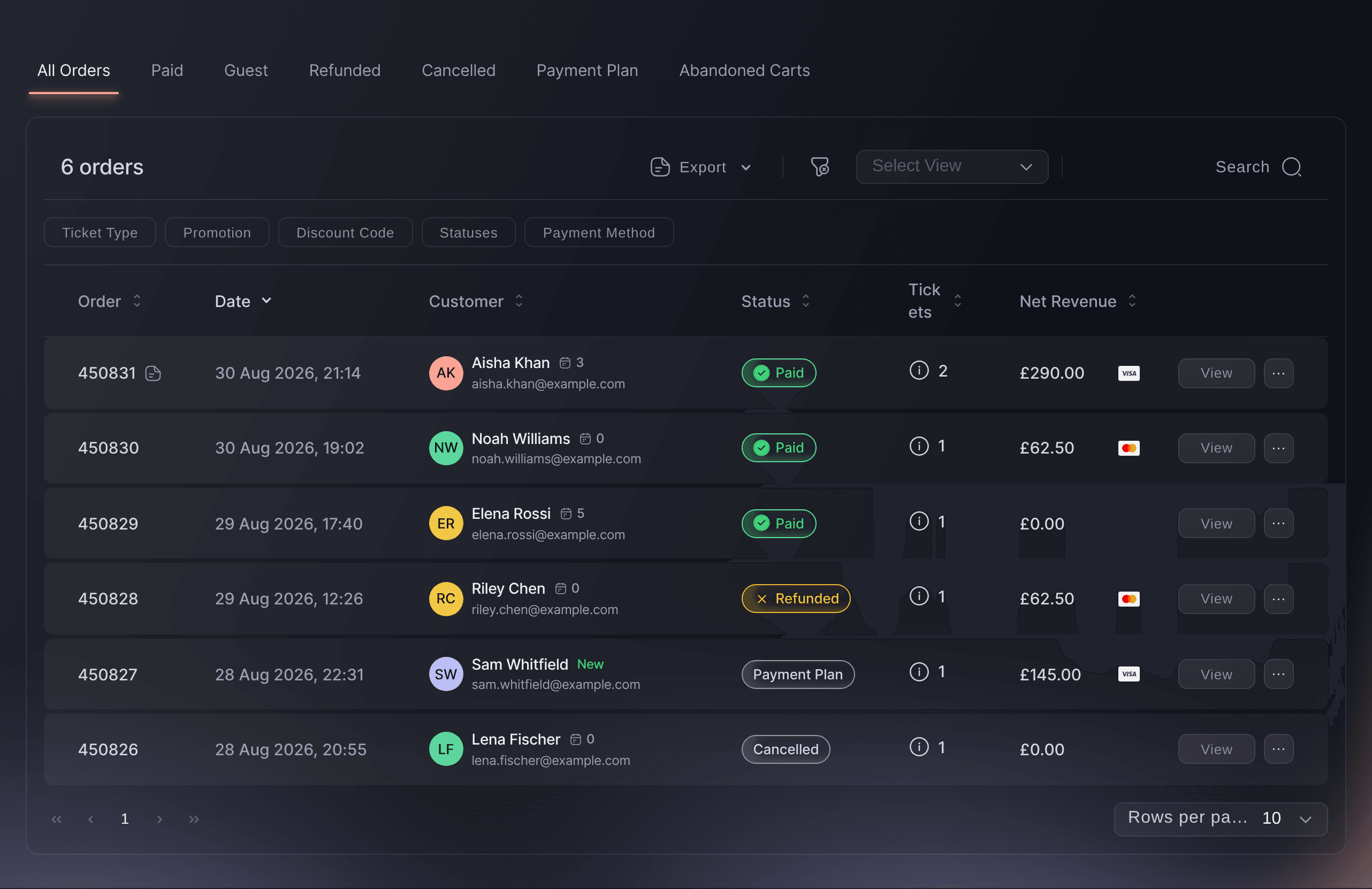
Event, Orders, All Orders. -
Choose the tab for the orders you need
Select the tab that matches what happened to the orders you are looking for.
-
Search for the order
Select Search, then enter the buyer's name, email address, phone number or order number. It also finds orders by ticket type, promotion or the words in your team's notes.
Note: Search looks only in the tab you have open, so use All Orders when you are not sure what happened to the order.
-
Open the order
Select the order's row, or View at the end of it. The order opens with its tickets on the left and the buyer's details, where the sale came from and Order Notes on the right.
Tip: Use Previous order and Next order to move through the orders in your tab without closing this one.
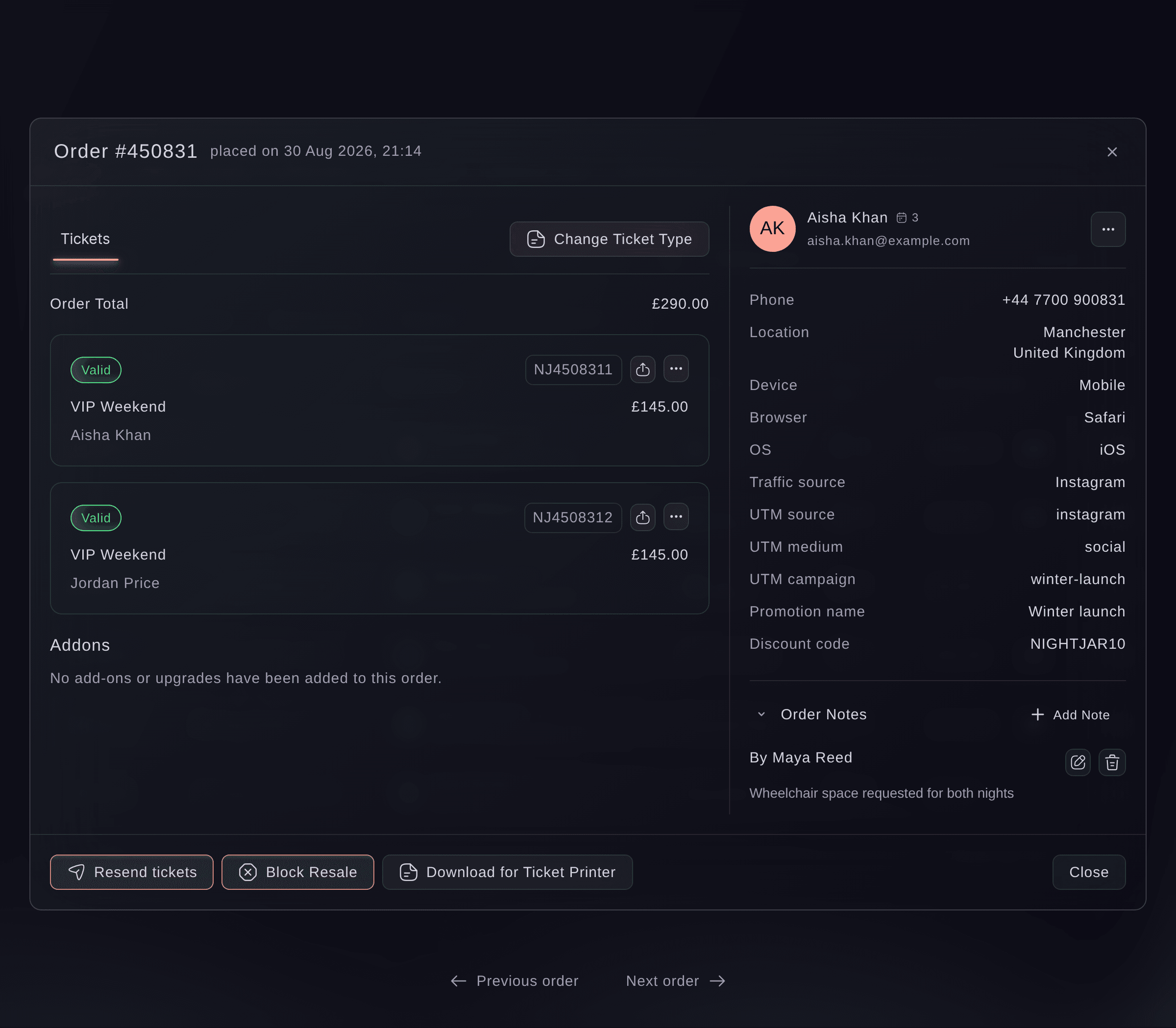
Event, Orders, order.
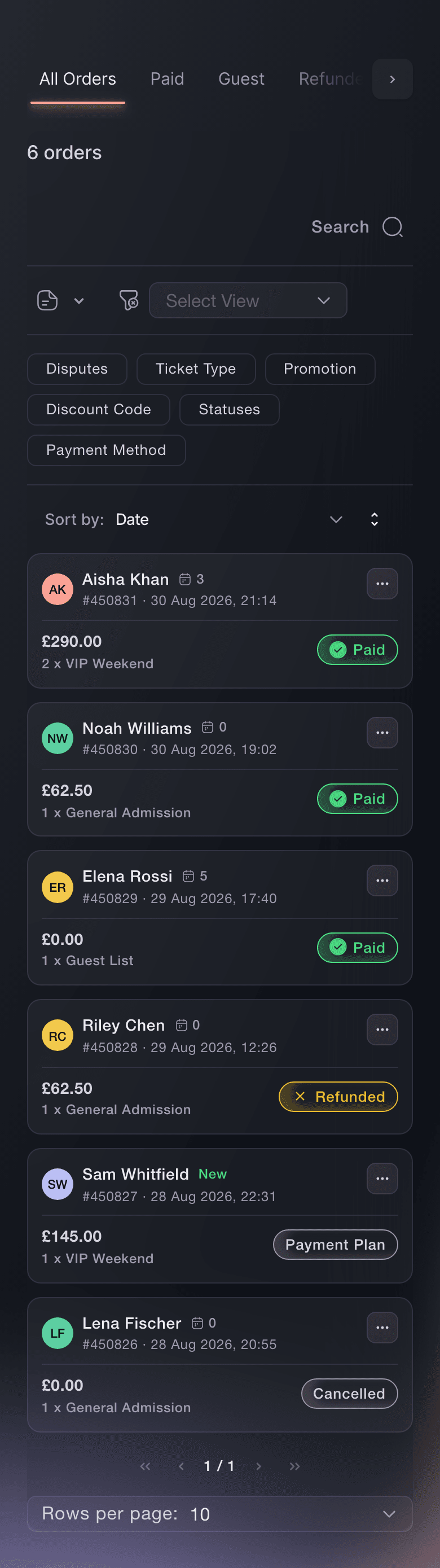

The details on an order
The buyer's side shows their phone number and location, the device and browser they bought on, and the traffic source and campaign tags recorded with the sale. A promotion name or discount code appears when the order used one, and the number beside the buyer's name is how many of your brand's events they have held tickets for, this one included.
-
Add a note to the order
Under Order Notes, select Add Note, enter the text in Note, then select Save. The note appears under By and your name, newest first.
Note: Notes are for your team. The buyer never sees them, and nothing is emailed when you add one.
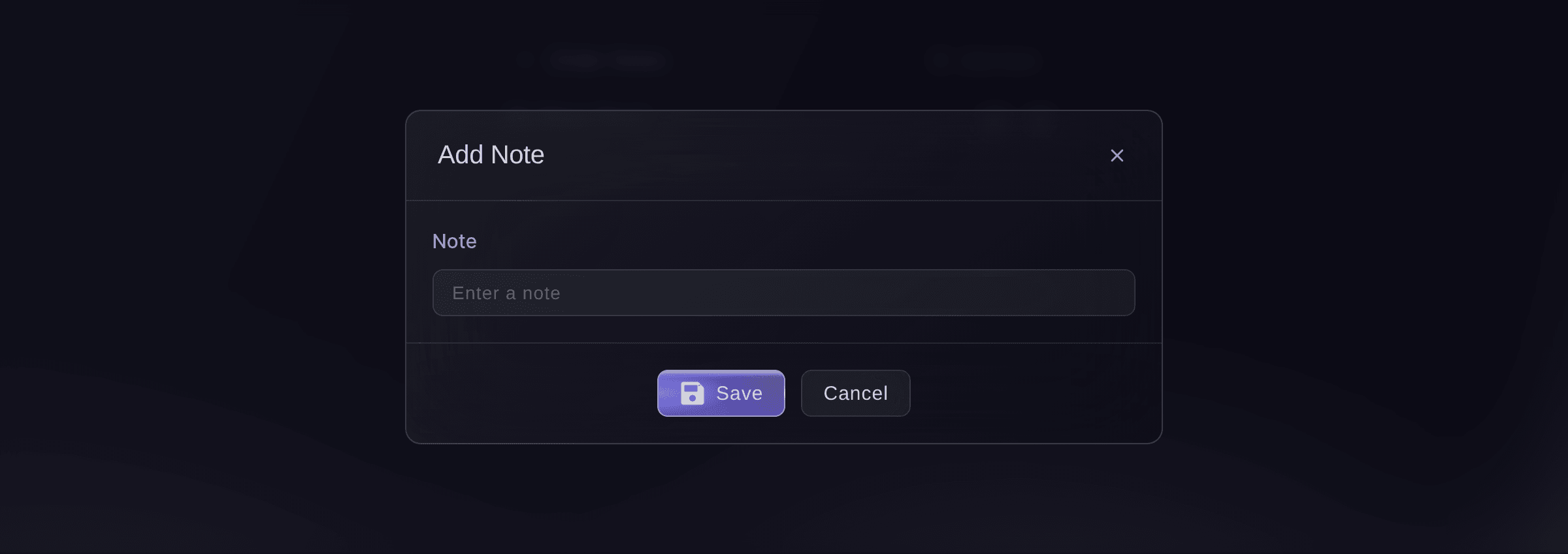
Event, Orders, order, Order Notes, Add Note. -
Check the note is on the order
Close the order and look at its row. An order with a note carries a mark beside its number, and holding the pointer over the mark shows the note.
Note: A phone shows each order as a card without the mark, so open the order there to read its notes.
-
Send a buyer their tickets again
If a buyer says their tickets never arrived, select Resend in the order's menu. You can correct the name or email address on a ticket first.
-
Refund an order
If you're the event owner and a buyer is owed their money back, select Refund in the order's menu and confirm it with the code Ticket Fairy emails you.
-
Clear the orders waiting on an ID check
If you ask buyers to prove who they are, open the Needs Verification tab to send the check again, take the payment or release the hold.
-
Win back buyers who left checkout
Open the Abandoned Carts tab to see who entered their details and never paid, then email them from Messaging.

Try these steps on your own event
Create a free account, build your event and follow the steps above in your own dashboard. It takes a few minutes and you do not need to book a sales call.
No setup fees. No required monthly ticketing fee. No credit card required.
Or have it done for you
Fai, the assistant inside your dashboard, finds an order by the buyer's email address or the order number, reads it back to you with its notes, and adds a note once you approve the wording. Over MCP your own assistant can list an event's orders by status and open one, and the command line does the same. Neither MCP nor the command line reads or changes order notes.
In your dashboard, with Fai
Find the order for <BUYER EMAIL ADDRESS> on <EVENT NAME>, tell me its status, tickets and any notes on it, then add this note once I approve it: <NOTE>
From your own assistant, over MCP
Connect your assistant to our MCP server and ask it:
Keep --read-only in your MCP configuration. This task only reads data, so your assistant does not need tools that make changes.
Pick the brand, find the event <EVENT NAME>, list its paid orders and open order <ORDER NUMBER> with its tickets and buyer
From your terminal
Install the CLI from our CLI page, sign in with ticketfairy auth login, and choose the brand you are working on with ticketfairy brand use <BRAND_ID>. ticketfairy brand list and ticketfairy event list show the IDs the other commands use.
Use the same login with the command line that you use in the dashboard. It lists an event's orders, filtered to one status if you want, and opens one order by its number. Notes and saved views are in the dashboard and Fai only.
Lists the event's paid orders, newest first
ticketfairy order list <EVENT_ID> --status paid
Opens one order with its tickets and buyer, using the number from the Order column
ticketfairy order get <EVENT_ID> <ORDER_ID>
Let Fai do it for you
Fai works inside your Ticket Fairy dashboard. Create your account, open Fai and paste the prompt above.
No setup fees. No required monthly ticketing fee. No credit card required.
Save a filtered view
-
Filter the orders
Select the filter button beside Export, then narrow the orders by Ticket Type, Add On, Promotion, Discount Code, Referral Link, Statuses, Customer Type or Payment Method. A filter appears when your orders have something to filter by.
-
Save the view
Open Select View, choose Save view, enter a name, then select Save. The option is there once a filter is applied, and the view keeps both the filters and the tab you had open.
Note: A saved view belongs to your login on this event, so each person on your team keeps their own.
Saved views are kept in the dashboard for your login, and Fai cannot save one. She can count an event's orders, or one buyer's by email address, but not by the filters a view saves.
In your dashboard, with Fai
How many orders does <EVENT NAME> have, and which of them are from <BUYER EMAIL ADDRESS>
Edit or delete a note
Under Order Notes, select the pencil beside a note to change its words in Edit Note, or the bin to delete it.
Warning: The bin deletes the note straight away and it cannot be brought back, so edit a note rather than deleting it when only the words are wrong.
Fai reads an order's notes, then edits or deletes one after you approve the change. She asks before either, and a deleted note cannot be brought back.
In your dashboard, with Fai
Show me the notes on order <ORDER NUMBER> on <EVENT NAME>, then change the one about <SUBJECT> to say: <NEW WORDING>
Questions you might have
- Why can't I see the Orders page?
- Your login on this event decides it. The owner, admins, Stats logins and both support logins can open Orders; a Limited Stats login is sent back to the home page. Ask the owner or an admin to change your role on the event.
- Why is an order I'm looking for missing?
- Search looks only in the tab you have open. Select All Orders and search again; if a buyer left checkout before paying, they are on Abandoned Carts rather than in the orders.
- Can the buyer see the notes on their order?
- No. Notes stay with your team on the Orders page and in Fai, and nothing about them reaches the buyer.
- Who added a note?
- Each note shows the name of the person who added it under Order Notes. The newest note is at the top.
- Can I get a list of the orders in a tab?
- Yes. Export on the same table downloads the orders or tickets you have in front of you, and the guide to answering a ticket sales question no report covers explains each export.
Still have a question?
Book a demo and we will answer it on a call, on your kind of event. Or create your account and see it for yourself.
No setup fees. No required monthly ticketing fee. No credit card required.
Related guides
Do this on your own event
Create your account, build your event and follow the steps in your own dashboard. You do not need to book a sales call.